# How to monitor a pipeline
The HERE platform pipelines generate a number of standard statistics and metrics that can be used to track their status over time.
They are visualized by different tools like `Spark UI`, `Flink Dashboard`, and [Grafana-powered](https://grafana.com/) dashboards
that allows you to monitor and analyze these metrics, logs, and traces.
These metrics are also used to generate alerts for specific events associated with a pipeline, such as a failed pipeline job.
This section demonstrates how to monitor the pipeline status using tools mentioned above, how to customize an existing Grafana alert
which sends an alert message to you by email whenever a job fails, etc.
For more information on the standard metrics available for batch and stream pipelines, refer to the [Logs, Monitoring, and Alerts User Guide](https://docs.here.com/workspace/docs/readme-summary-6).
## Use Spark UI to inspect batch data processing jobs
The Spark framework includes a web console that is active for all Spark jobs that reached the `Running` state.
It is called the `Spark UI` and it provides insight into batch pipeline processing, including jobs, stages, execution graphs, and logs from the executors.
The [Data Processing Library](https://docs.here.com/workspace/docs/dpl-readme) components also publish various statistics (see [Spark AccumulatorV2](https://spark.apache.org/docs/latest/api/scala/index.html#org.apache.spark.util.AccumulatorV2)), such as the number of metadata partitions read,
the number of data bytes downloaded or uploaded, etc. This data can be seen in the stages where the operations were performed.
The `Spark UI` is a useful tool for optimizing the performance of your Spark jobs, troubleshooting job failures, and identifying issues,
such as data skew, slow stages, etc.
For additional information on `Spark UI` page, see the following chapters:
* [Troubleshooting Spark - How can I access the Spark UI page?](https://docs.here.com/workspace/docs/troubleshooting-spark#q-how-can-i-access-the-spark-ui-pagetspark1)
* [Logs, Monitoring, and Alerts - Spark UI for Batch Pipelines](https://docs.here.com/workspace/docs/spark-ui)
## Use Flink Dashboard to inspect stream data processing jobs
The Flink framework includes a web interface that is available for all Flink jobs in the `Running` state.
It is called the `Flink Dashboard` and it allows you to inspect the execution and status of Flink jobs, tasks, and operators, visualize job performance,
check the status of job checkpoints, savepoints, recovery mechanisms, etc.
The `Flink Dashboard` is a useful tool for optimizing the performance of your Flink jobs, troubleshooting task failures,
and identifying issues, such as slow tasks, backpressure, and resource bottlenecks.
For additional information on `Flink Dashboard` page, see the following chapters:
* [Troubleshooting Flink - How can I access the Flink Dashboard page?](https://docs.here.com/workspace/docs/troubleshooting-flink#q-how-can-i-access-the-flink-dashboard-pagetflink1)
* [Logs, Monitoring, and Alerts - Flink Dashboard for Stream Pipelines](https://docs.here.com/workspace/docs/flink-ui)
## Use Grafana dashboard to monitor pipeline status
Metrics generated by the data processing pipelines can be displayed on different dashboards powered by [Grafana](https://grafana.com/),
which is a platform for monitoring and visualizing real-time data.
To monitor the status of pipelines, an `OLP Pipeline Status` dashboard is available.
To access it from the platform portal home page, first open the [`Launcher` menu](https://docs.here.com/workspace/docs/portal-deployment#add-a-pipeline).
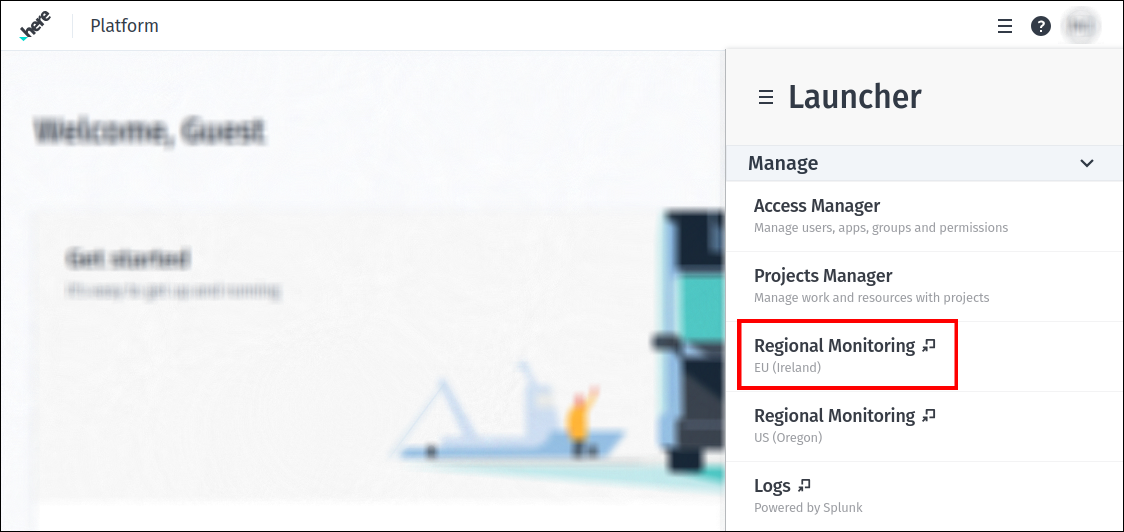
In the `Manage` section you will see two monitoring pages provided - for the `EU (Ireland)` and `US (Oregon)` regions.
Since this section shows the instructions for Grafana instance that is related to the region `EU (Ireland)`, the next step is to select
the `Regional monitoring EU (Ireland)` page:
This will take you to the following Grafana home page:
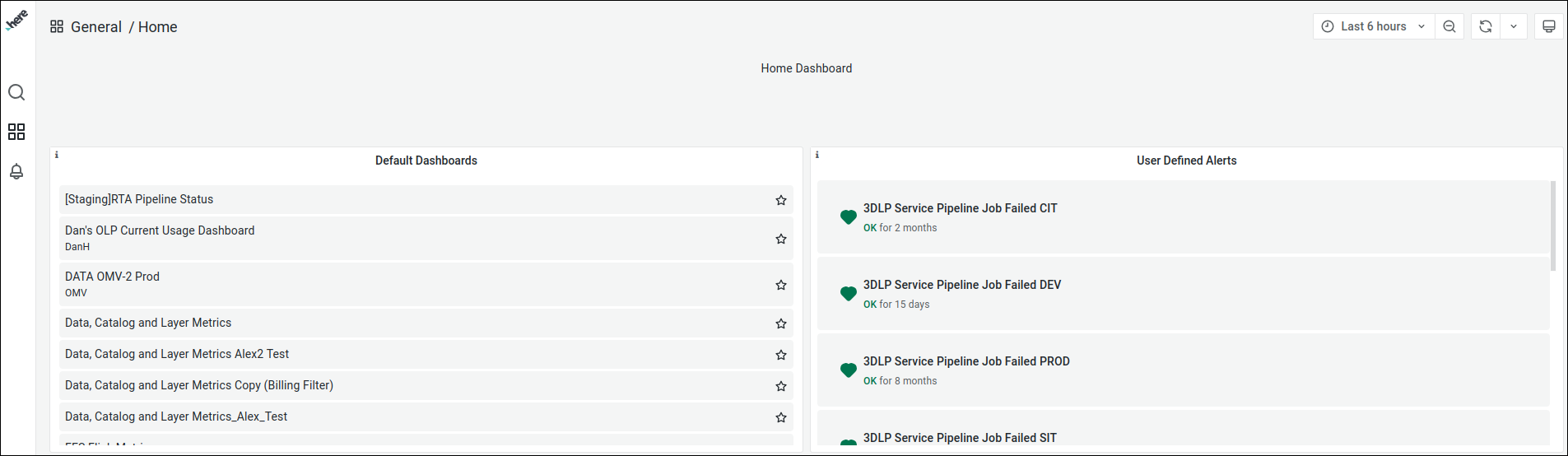
As you can see, several default dashboards are listed on the left side of the page while the available `User Defined Alerts`
are listed on the right side.
Now we need to open the `OLP Pipeline Status` dashboard. To do this, first go to the `Browse` page by selecting the appropriate option
from the `Dashboards` menu:
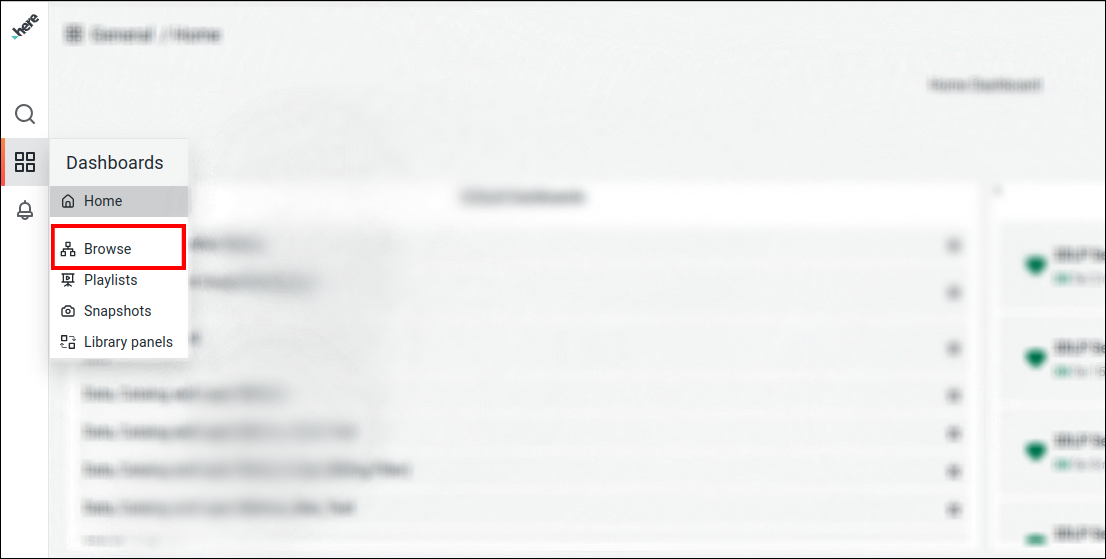
This page contains all the dashboards available for this Grafana instance.
To find the `OLP Pipeline Status` dashboard among them, enter its name in the search bar and open the dashboard with the label `OLPDefault`:
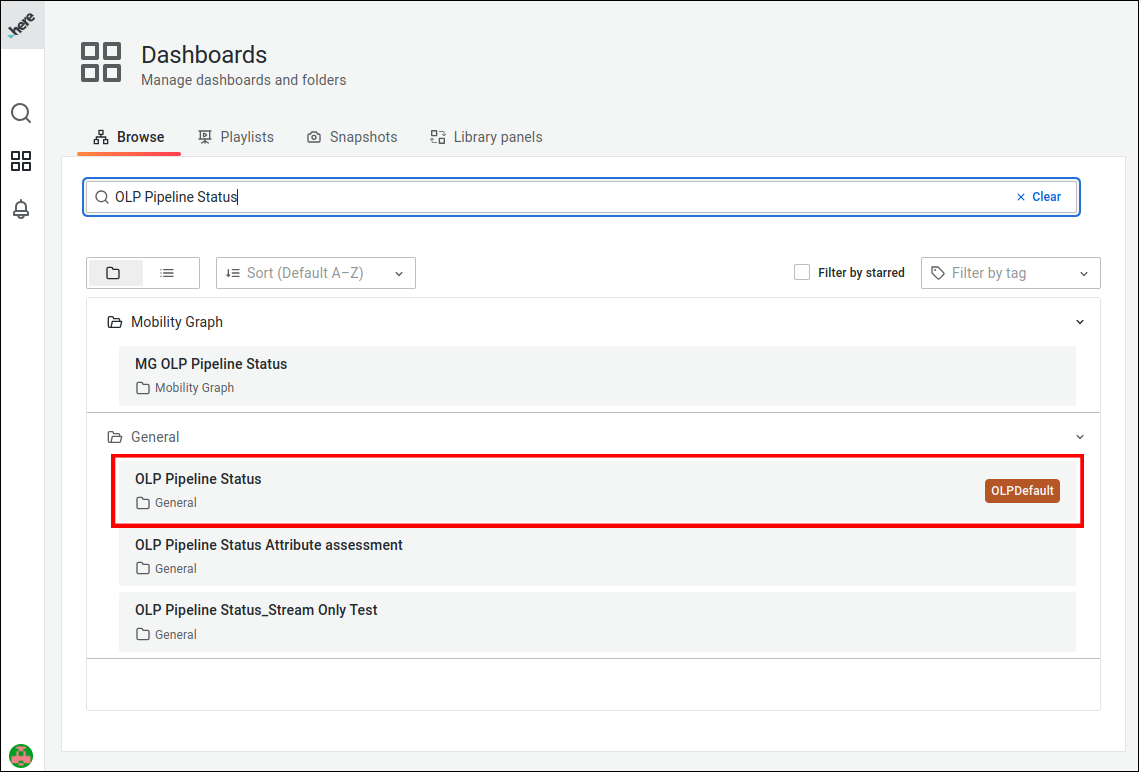
The `OLP Pipeline Status` dashboard has been created for demonstration purposes and shows the pipeline jobs with the following [statuses](https://docs.here.com/workspace/docs/pipeline-metrics):
* `Failed`
* `Completed`
* `Canceled`
* `Submitted`
* `Running`
Each pipeline status is colour coded for quick identification:
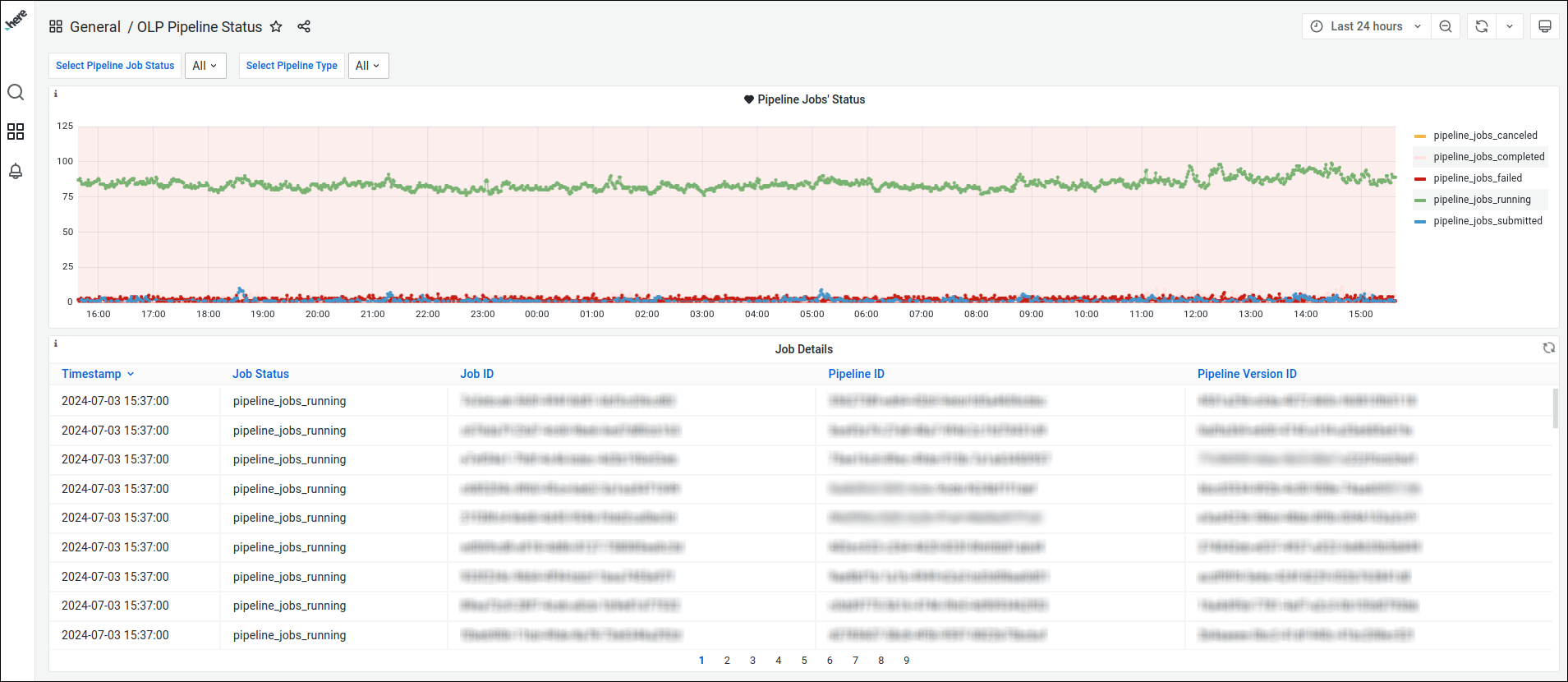
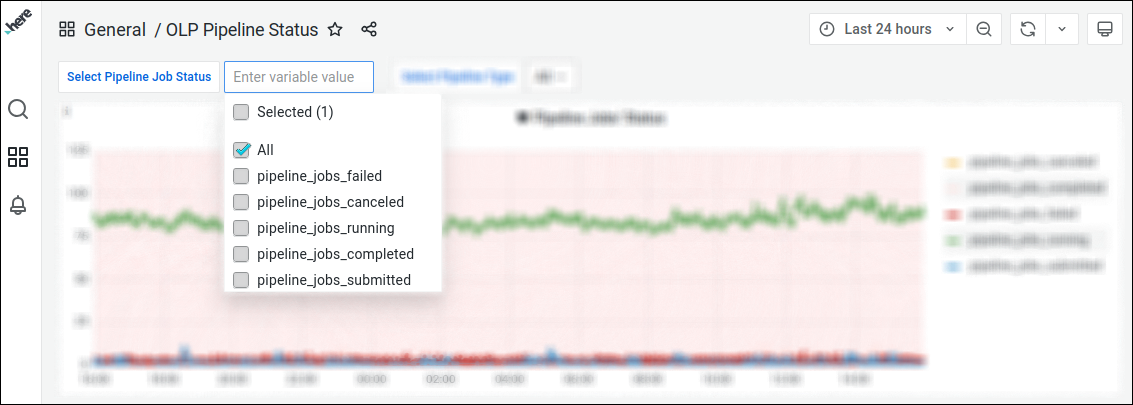
You can use filers available for this dashboard, to retrieve the data more precisely.
For example, the `Pipeline Job Status` filter displays jobs that have a particular status:
> #### Note
>
> **Default dashboard settings**\
> Default time period: Last 24 hours.\
> Default refresh interval: 30 minutes.
If you choose a larger sampling period in Grafana, it uses a sampling mechanism that shows fewer data points than it should.
This allows for quicker responses, but to see more accurate data you should shorten the time period you are looking at.
## Use Grafana alerts to monitor and respond to pipeline issues
Grafana alert is a notification triggered by specific events associated with a pipeline, allowing users to respond to potential issues or anomalies.
Grafana allows you to set alerts and request email notifications when a condition or threshold is met.
There is one configured alert in the above dashboard. To access its settings, edit the `Pipeline Jobs' Status` panel:
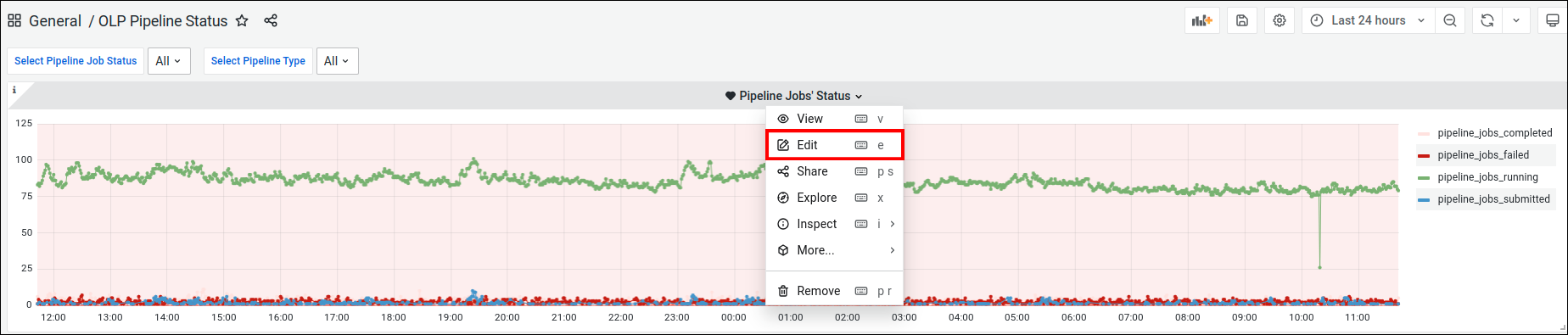
All alert setting are present on the `Alert` tab:
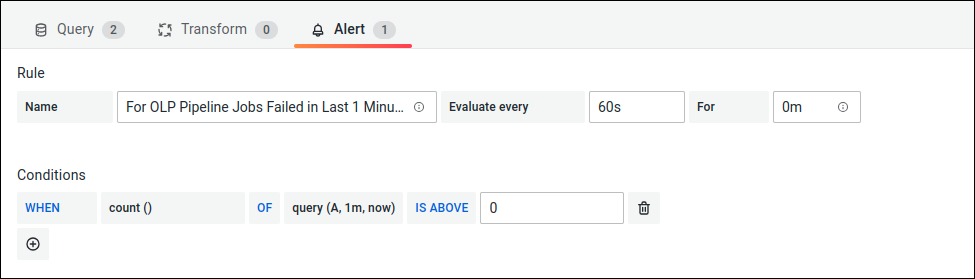
This alert is triggered if at least one pipeline job has failed in the last minute time interval.
When this happens, an email should be generated and sent to the recipient list specified in the notification channel attached to this alert.
This particular alert does not contain any attached notification channels as it was created for demonstration purposes only
and is not intended to act like a real alert.
However, alerts on similar boards are usually configured with a notification channels and these settings look like this:
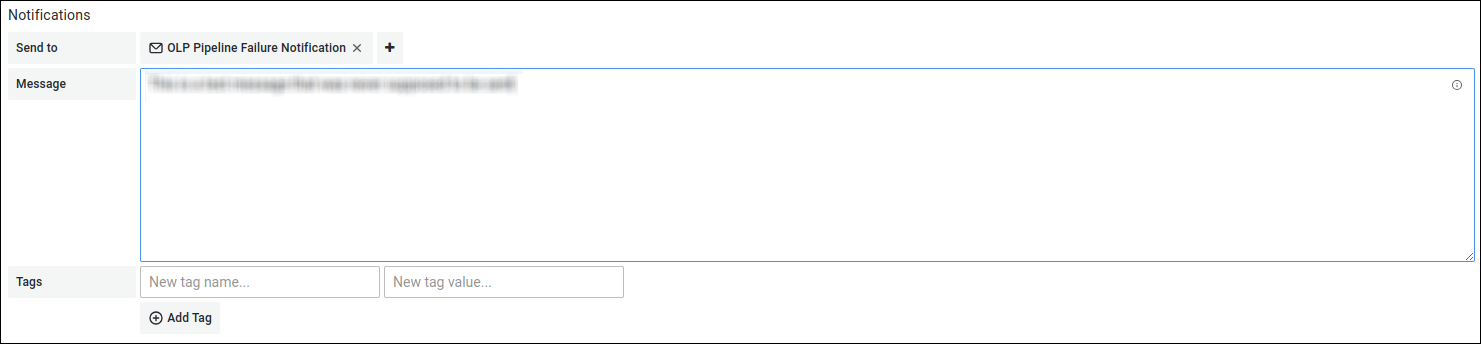
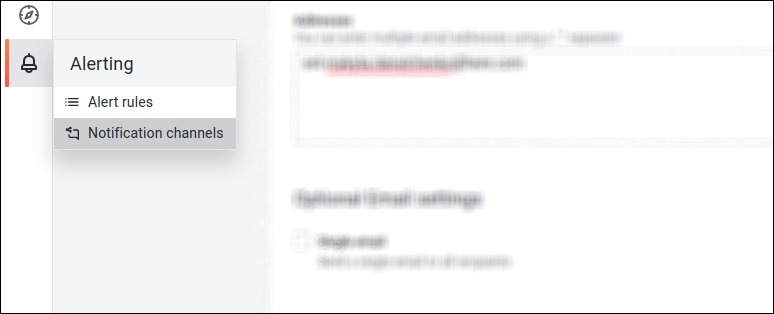
Let's take a closer look at this notification channel. First, you need to open the `Notification channels` tab from the `Alerting` menu:
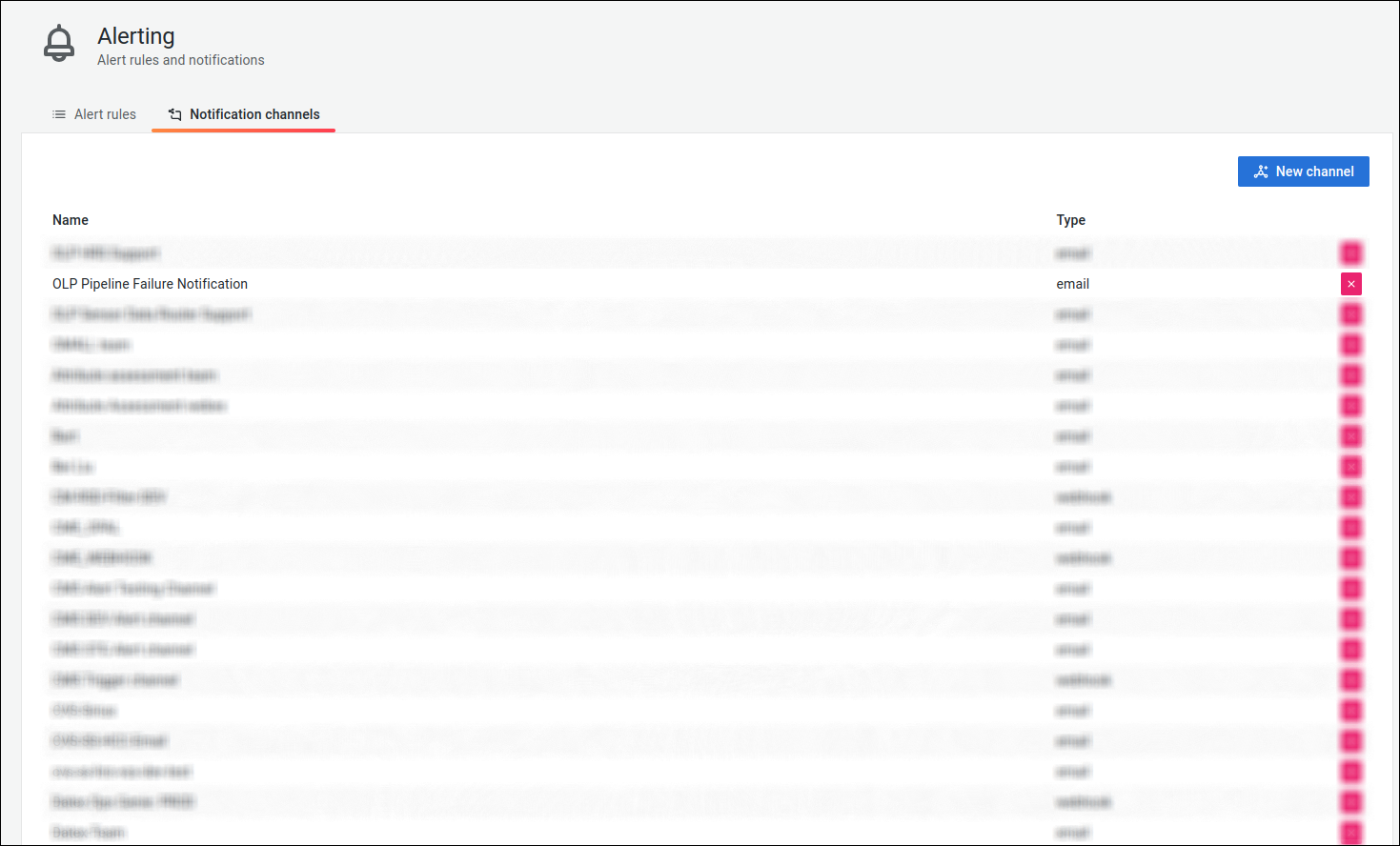
Select the `OLP Pipeline Failure Notification` channel to open its settings:
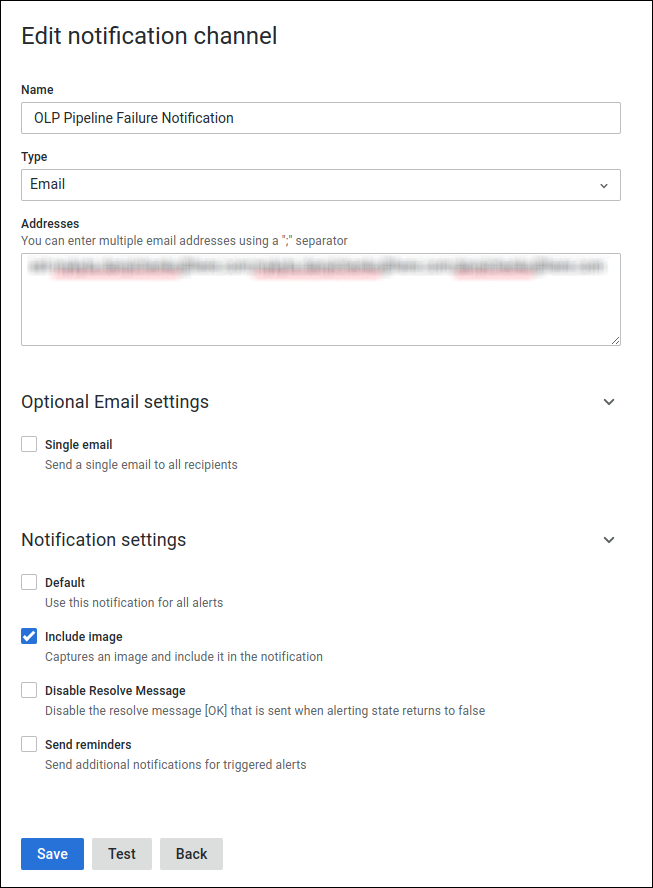
A new tab opens with all the settings related to this notification channel, including notification type, list of recipients, notification-specific settings, etc.:
If you are interested in creating Grafana dashboards from scratch, creating alerts, and setting up a notification channels, see the following articles:
* [Run a Spark application on the platform](https://docs.here.com/workspace/docs/tutorials-run-spark-application-platform-readme)
* [Run a Flink application on the platform](https://docs.here.com/workspace/docs/tutorials-run-flink-application-platform-readme)
### Alert behavior and limitations
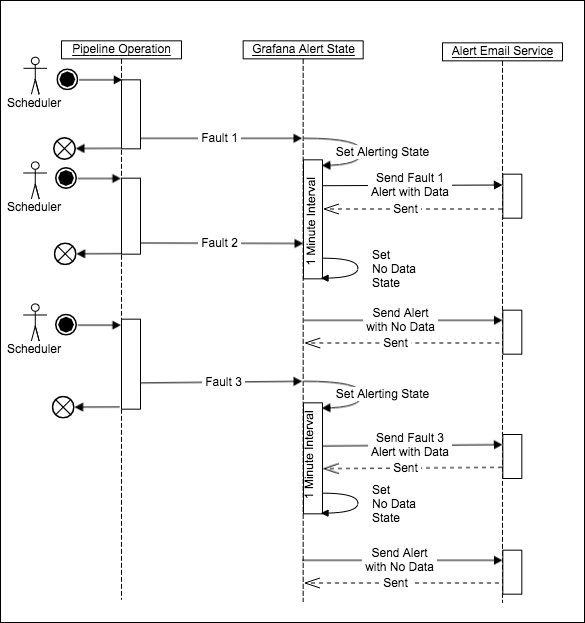
Failure emails are only sent when the alert state changes. For example, if a pipeline job fails, the alert goes to the `Alerting` state
and a failure email is sent to the specified recipients. If another pipeline job fails within the default alert interval
(which is 1 minute for the alert described above), a second email will not be sent because the alert is already in the `Alerting` state.
Before any subsequent failures can trigger alert emails, the first alert state must transition to the `No Data` state, which happens automatically
at the end of the 1-minute interval. So if two pipeline jobs fail within the same 1-minute interval, only one `Alerting` email
is sent, followed by the `No Data` email that is sent at the end of the 1-minute interval.
> #### Note
>
> In this case, the `No Data` alert that is sent at the end of the 1-minute interval does not indicate any problems with the data processing pipelines.
This is an inherent behavior of Grafana and not a limitation of the HERE platform. The diagram below illustrates what is happening
and how the second pipeline failure is not processed:
## See also
* [Logs, monitoring, and alerts User Guide](https://docs.here.com/workspace/docs/readme-summary-6)
* [Grafana User Documentation](https://grafana.com/docs/)