

Using pass-through waypoints
Use this tutorial to create HERE WeGo Pro deeplinks which define a specific route with visible stops and hidden pass-through waypoints.
Pass-through waypoints
Pass-through waypoints are hidden shaping points that you add to a route. They influence route calculation but don't appear as stops that the driver must explicitly visit in the app.
Pass-through waypoints help you:
- Shape the exact path drivers should follow without adding visible stops.
- Avoid restricted or unsafe areas.
- Prefer specific roads for truck routing, cost control, policy, or operational reasons.
- Align in-app navigation with routes calculated by a transport management system (TMS) or planning system.
Use pass-through waypoints when you need to:
- Force a route through specific roads or corridors.
- Keep drivers on a pre-planned route.
- Add route-shaping points between visible stops.
- Guide the route without creating extra stop events in the UI.
Deeplinks
In HERE WeGo Pro, routes are sent to the app through deeplinks.
A deeplink can include:
- Regular stops: Visible waypoints shown to the driver.
- Pass-through waypoints: Hidden shaping points used only to influence the route.
The app uses both regular stops and pass-through waypoints to calculate and follow the prescribed route.
NoteHERE WeGo Pro supports up to 100 waypoints. However, because waypoint titles and device-specific limitations can affect deeplink length and handling, use a soft limit of 50 waypoints.
Deeplink format
HERE WeGo Pro uses the standard HERE deeplink routing format:
https://share.here.com/r/<stop1>/<stop2>/.../<stopN>Each stop is a path segment that describes a location.
Stop segment format
A stop segment can use one of the following formats:
/lat,lon
/lat,lon,title
/lat,lon,title,stop-type
/lat,lon,,stop-type
Where:
- lat,lon: Latitude and longitude. This value is required.
- title: Optional stop name. URL-encode the title if it contains spaces or special characters.
stop-type: Optional stop type:- s: Regular stop, visible in the app.
- p: Pass-through waypoint, hidden in the app and used only to shape the route.
Stop type position
When you use stop-type, it must always be the fourth element in the segment.
If you don't want to include a title but you do want to include a stop type, keep the title field empty by using two commas:
/52.51500,13.30000,,pSupported segment variants
The following samples show supported segment variants.
Coordinates only
/52.53097,13.38497Coordinates with title
/52.53097,13.38497,Start%20LocationCoordinates with title and stop type
/52.52987,13.29620,Waypoint1,p
/52.51698,13.18041,Delivery%20Stop,s
Coordinates with empty title and stop type
/52.52987,13.29620,,pExamples
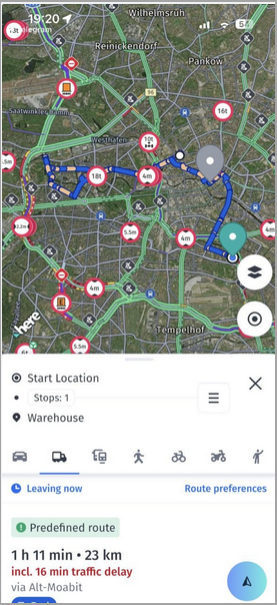
The following is an image of a predefined route uploaded to WeGo Pro.
Example 1: One pass-through waypoint
This example shows a route with one pass-through waypoint.
Route
The following shows a scenario where a route has one pass-through waypoint.
Depot → pass-through waypoint → DestinationDeeplink
The following shows a sample of a hidden pass-through waypoint.
https://share.here.com/r/52.53097,13.38497,Depot,s/52.51500,13.30000,,p/52.49000,13.42000,Destination,s?m=trIn this example:
- Depot and Destination are visible stops.
- 52.51500,13.30000 is a hidden pass-through waypoint.
- The p stop type tells the app to use the waypoint to shape the route without showing it as a stop.
- The route is forced to pass near the pass-through coordinate.
Example 2: Multiple pass-through waypoints
This example shows a scenario with multiple pass-through waypoints.
Route
The following shows a scenario where a route has a start location and two stops.
Start → pass-through waypoint → pass-through waypoint → Customer A → WarehouseDeeplink
The following shows a sample of a start location and two stops.
https://share.here.com/r/52.53097,13.38497,Start%20Location,s/52.52987,13.29620,,p/52.52200,13.32000,,p/52.52000,13.40500,Customer%20A,s/52.49000,13.42000,Warehouse,s?m=trIn this example:
- The driver sees Start Location, Customer A, and Warehouse as stops.
- The two coordinates marked with ,,p are hidden pass-through waypoints.
*The pass-through waypoints keep the route on the prescribed corridor.
Example 3: High-density route shaping
This example shows a scenario with many multiple pass-through waypoints.
You can create longer routes with many pass-through waypoints to closely follow a route from your planning system.
Conceptual example
https://share.here.com/r/mylocation
  /48.20755,17.40575,,p
  /48.13217,17.30407,,p
  /48.07313,17.103,,p
  ...
  /47.58935,6.85704,,p
  /47.51394,6.82836,Destination,s
Each /lat,lon,,p segment shapes the route. Only the start, destination, and any stops marked with s appear to the driver.
Driver experience in HERE WeGo PRO
When a driver opens a deeplink that contains pass-through waypoints, HERE WeGo PRO uses those waypoints to calculate the route while keeping them hidden from the driver.
The driver sees only visible stops, such as:
- Depot
- Customer locations
- Delivery stops
- Destination
Pass-through waypoints shape the route corridor but don't appear as stops in the app.
Route editing behavior
While the prescribed route is active:
- The driver can't freely add intermediate stops.
- The driver can't change the destination from the map.
- Map interactions that normally modify the route are limited.
This helps prevent accidental changes to the prescribed route.
Rerouting behavior
If the driver leaves the prescribed path, misses a pass-through waypoint, or takes a different road, the app automatically recalculates the route to the next waypoint in the sequence.
The updated route guides the driver back toward the intended path where possible, and navigation continues from there.
Updated 4 months ago