

HERE WeGo Pro truck features
Truck features are the main offering from HERE WeGo Pro. You can use these features to create customized truck routes and route guidance.
Truck restrictions layer
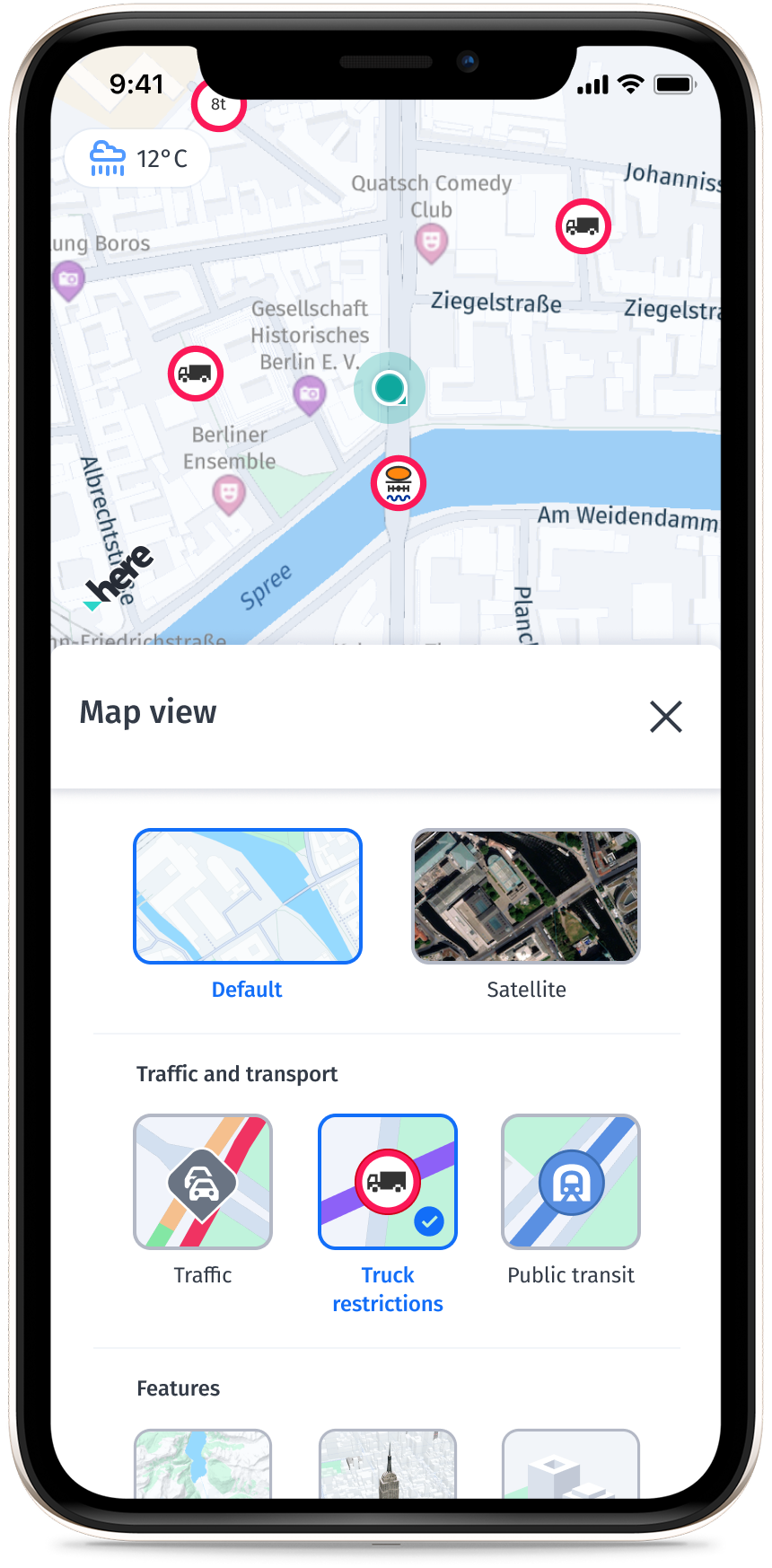
The truck restrictions layer adds information about truck restrictions to the base map. You can calculate a route that considers the truck's attributes into any route limitations, such as low and narrow bridges, hazardous materials, road closures, and tight turns.
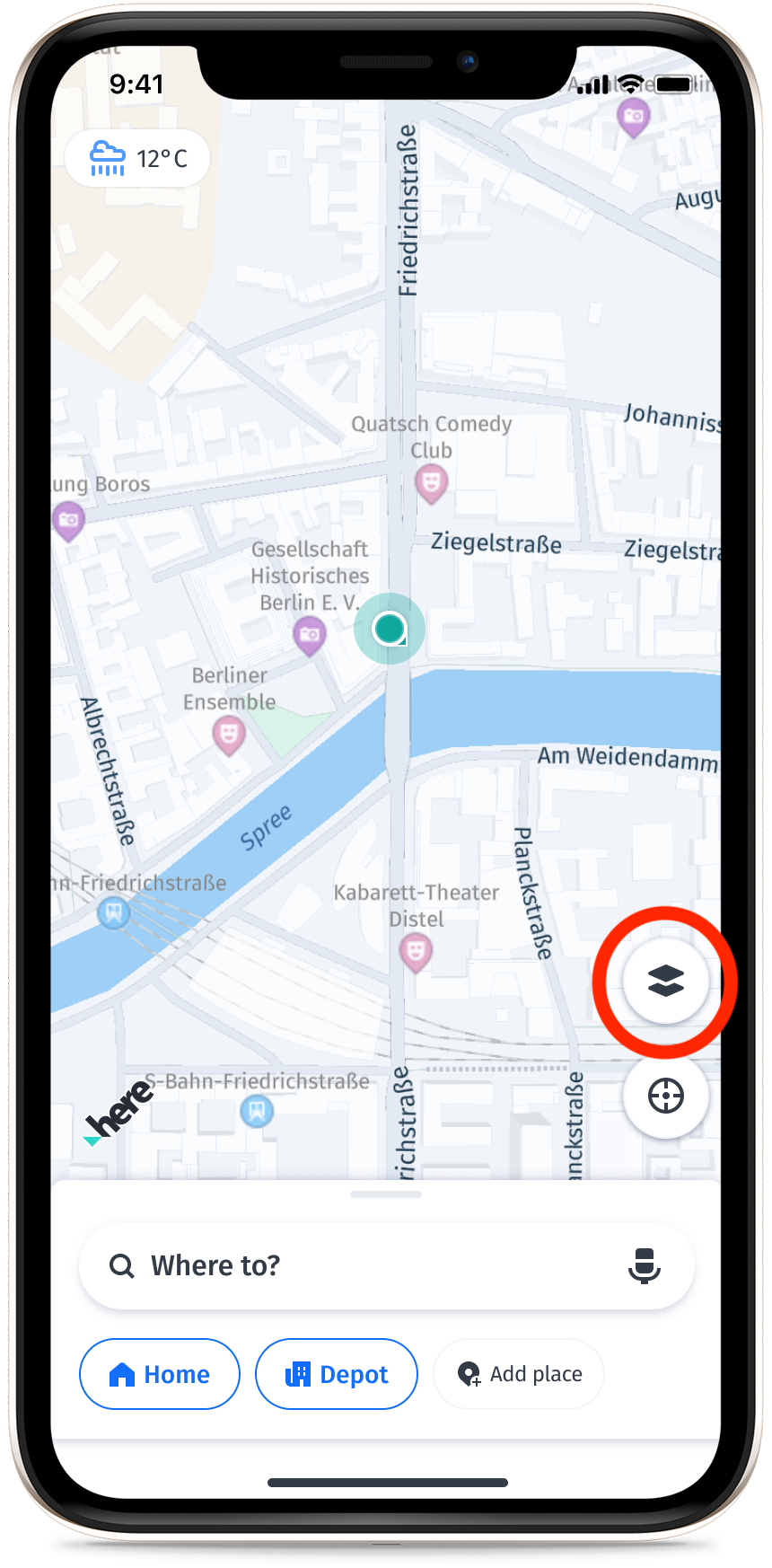
You can enable the truck restrictions layer by selecting the Truck Restrictions tab from the map view. The following image shows a route with truck restrictions and the restrictions layer:
Truck route preferences
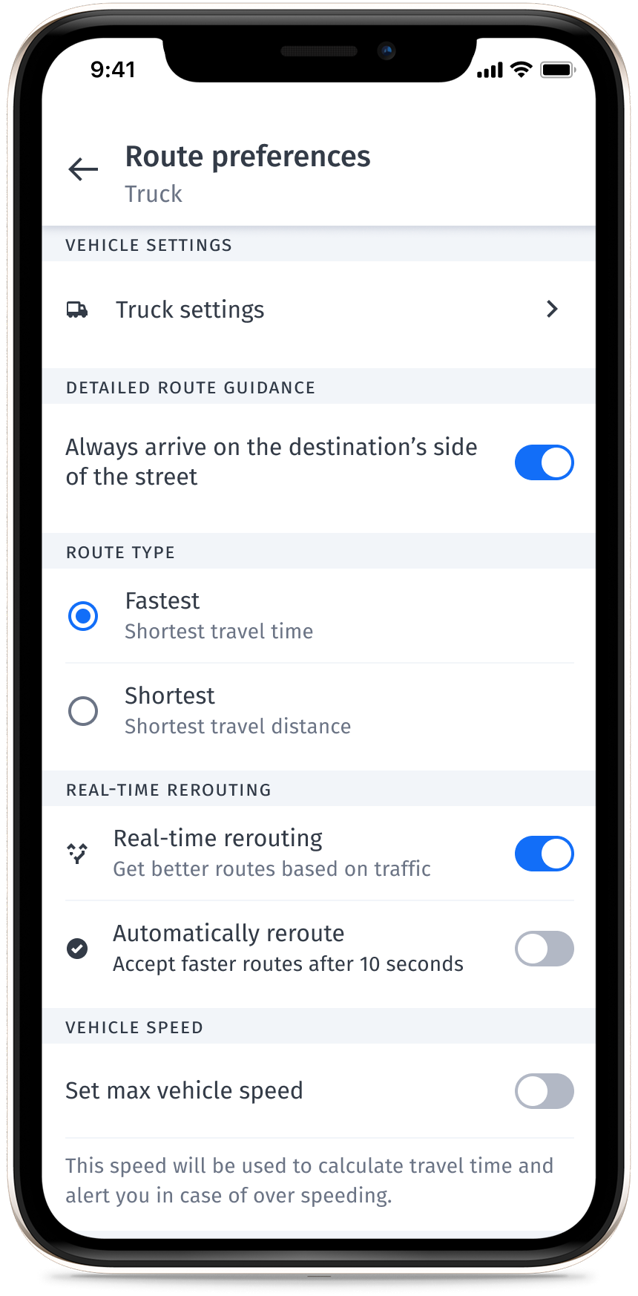
Use Route Preferences to configure navigation for your truck, and choose routes that match your driving needs.
1. Choose your route preferences
Always arrive on the destination's side of the street
Turn this on to help you reach the destination on the correct side of the road.
Route type
Choose the option that best suits your journey:
• Fast: Prioritizes shorter travel time.
• Short: Prioritizes shorter travel distances.
2. Manage real-time rerouting
Real-time rerouting
Turn this on to receive alternative routes based on traffic conditions.
Automatically reroute
To automatically reroute:
• Turn this on to automatically accept a faster route after 10 seconds.
• Leave it off if you prefer to decide whether to accept an alternative route.
3. Set your maximum vehicle speed
Set max vehicle speed
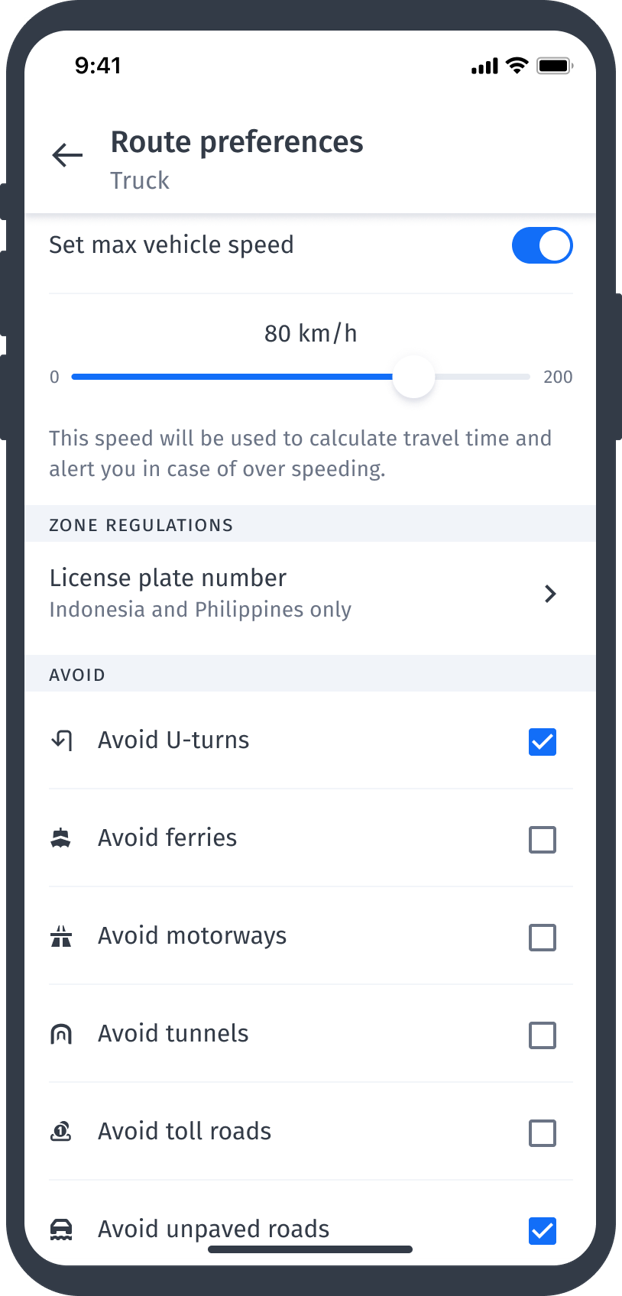
To set max vehicle speed:
- Turn on the setting.
- Adjust the slider to your truck's appropriate maximum speed.
- Check that the displayed speed is correct.
This setting is optional and it’s used to calculate travel time and provide over speeding alerts.
4. Configure zone regulations
License plate number
To configure license plate numbers:
• Open this setting to configure your license plate information where applicable.
• The setting references Indonesia and the Philippines, where plate-based traffic regulations may apply.
Optional - You can ignore this setting and follow the applicable local requirements.
5. Choose roads to avoid
Select the checkbox next to each road type you want to avoid:
• Avoid U-turns: Avoid routes that require U-turns.
• Avoid ferries: Avoid ferry crossings.
• Avoid highways: Avoid highway routes.
• Avoid tunnels: Avoid routes through tunnels.
• Avoid toll roads: Avoid roads that require toll payments.
• Avoid unpaved roads: Avoid roads without a paved surface.
Enabling road-avoidance options may increase travel time or distance.
Truck settings
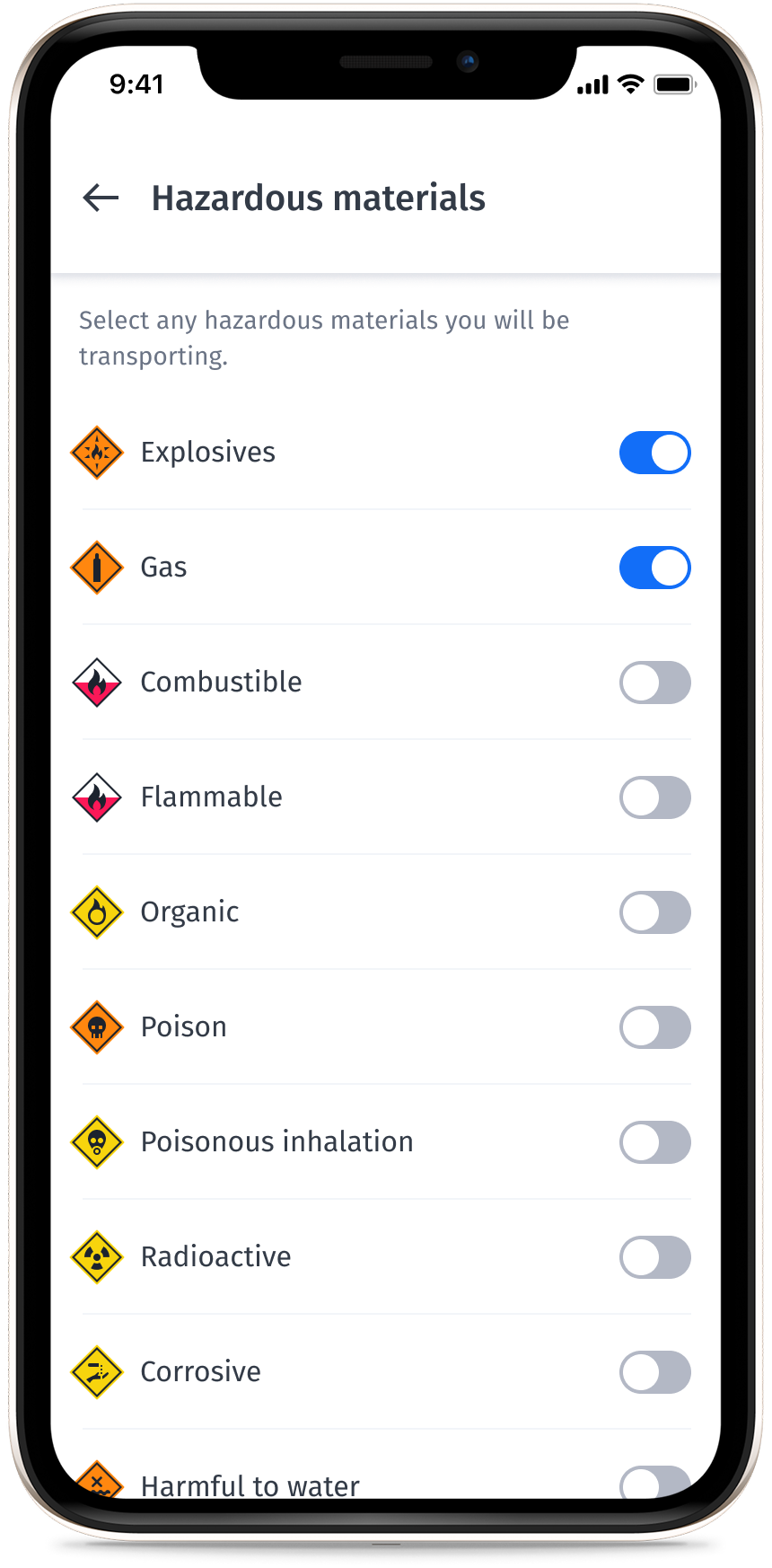
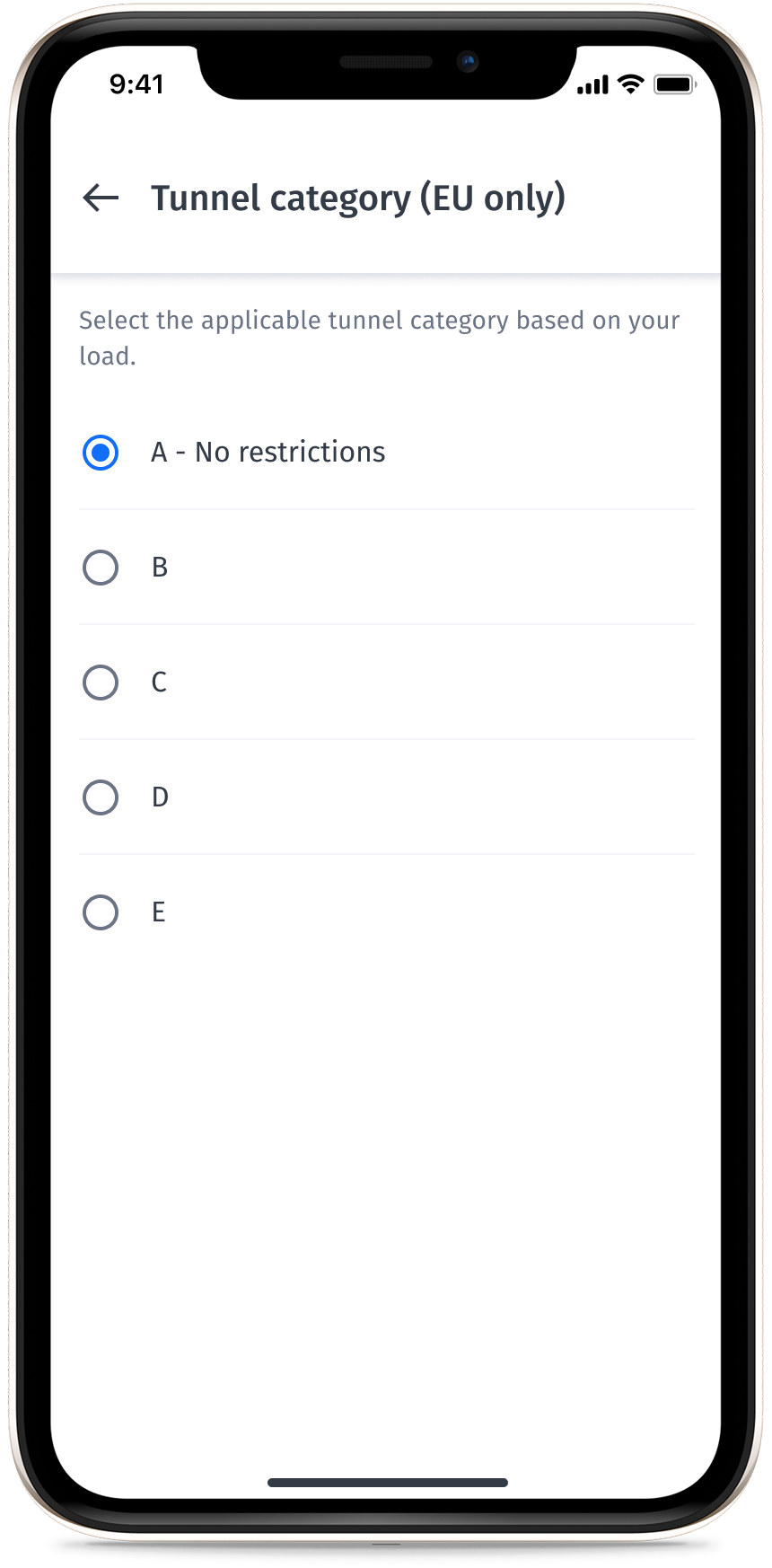
You can configure your truck parameters to create a route where your truck can travel without violating any restrictions.
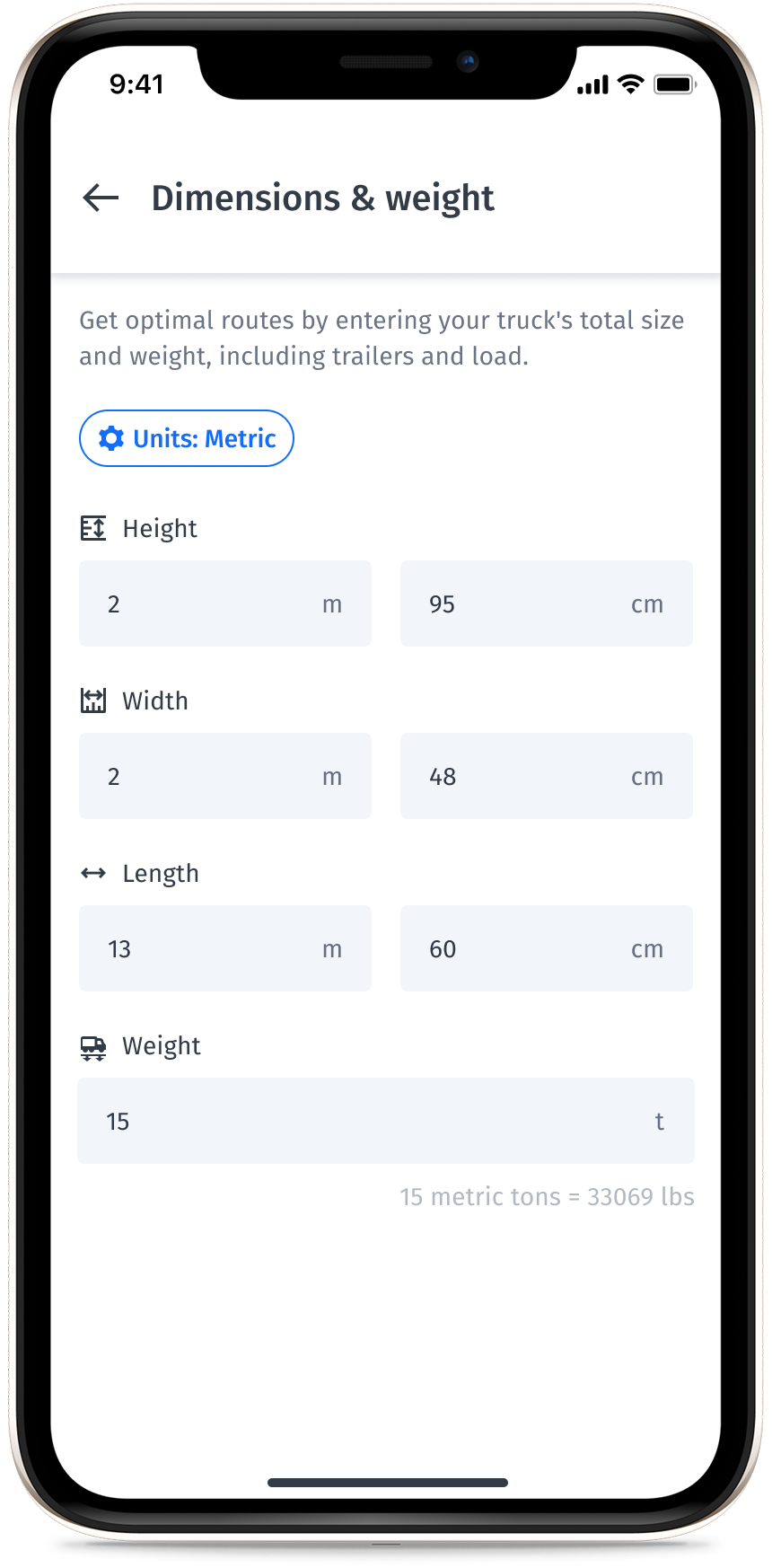
Dimensions and weight settings
- Height
- Width
- Length
- Weight
Hazardous materials
- Explosives
- Gas
- Flammable
- Combustible
- Organic
- Poison
- Radioactive
- Corrosive
- Poisonous inhalation
- Harmful to water
- Other
Tunnel category (EU only)
- A (no restrictions)
- B
- C
- D
- E
Truck restrictions on a route
Truck restrictions are dependant on the truck dimensions and weight you enter. When you create your route, the app considers your selections, and the generated route has the fewest restrictions possible for your specific truck. For example, if trucks aren't allowed on a specific road, the route created doesn't contain that road.
Note
If you pick a destination with a restriction and then start a route, you see a warning banner on the map.
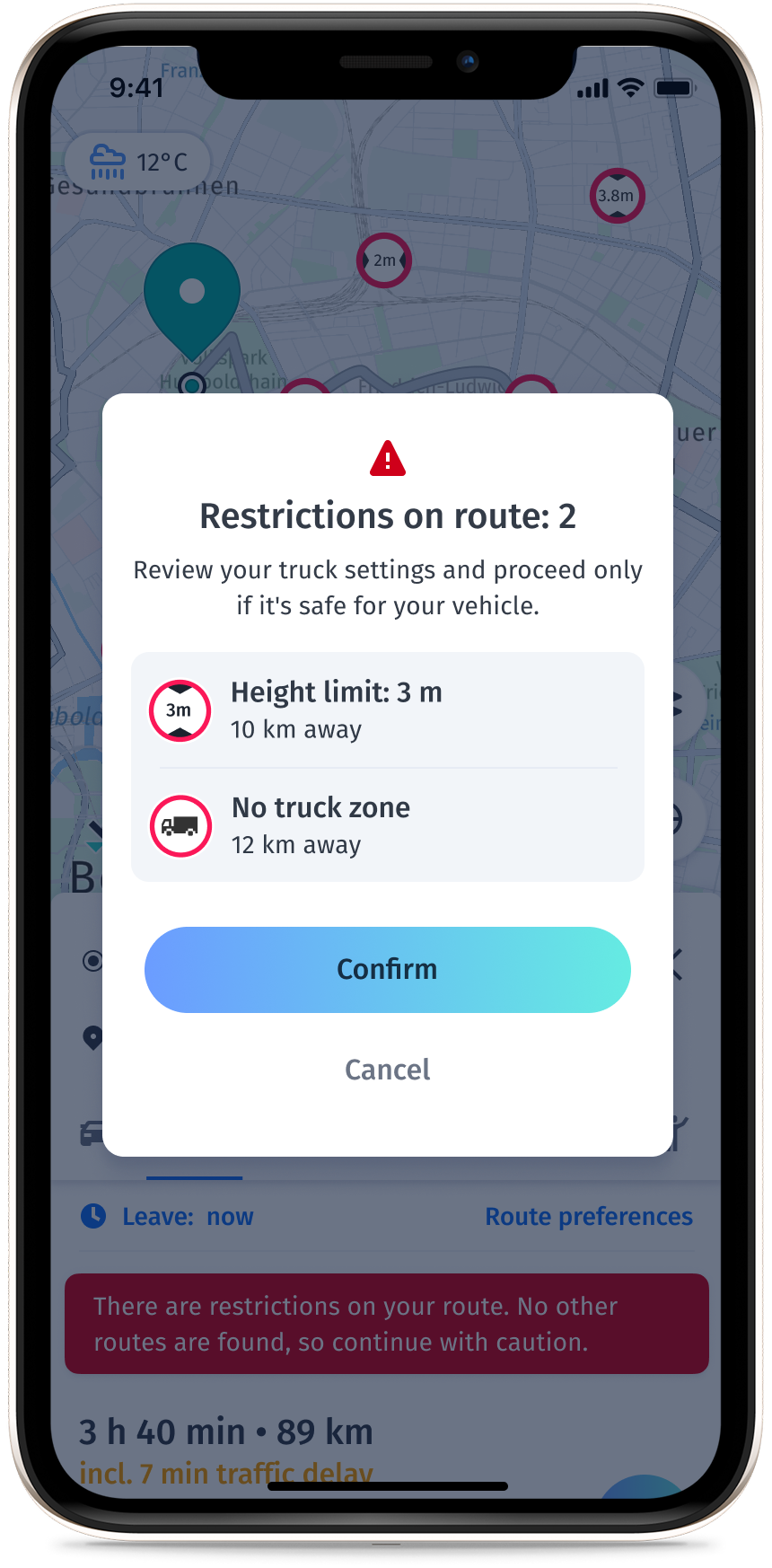
HERE WeGo Pro truck routing supports the following truck attributes:
- No truck traffic allowed: Based on access characteristics DELIVERIES=N, TRUCK=N.
- No truck through-traffic allowed: No trucks except for deliveries. Access characteristics are: DELIVERIES=Y, TRUCK=N.
- Turn restrictions: This includes conditional. For example: "right turn forbidden for trucks over 10 tons."
- Maximum allowed height.
- Maximum allowed width.
- Maximum allowed length.
- Maximum allowed current gross weight of the vehicle combination.
- Hazardous materials
- Tunnel category
- Truck-specific, signposted speed limits.
- Time-dependent restrictions: For example, trucks aren't allowed during certain times of the day or on certain days.
You can set any of the restriction alerts shown in the following illustration. These notify you when the restriction is near your location.
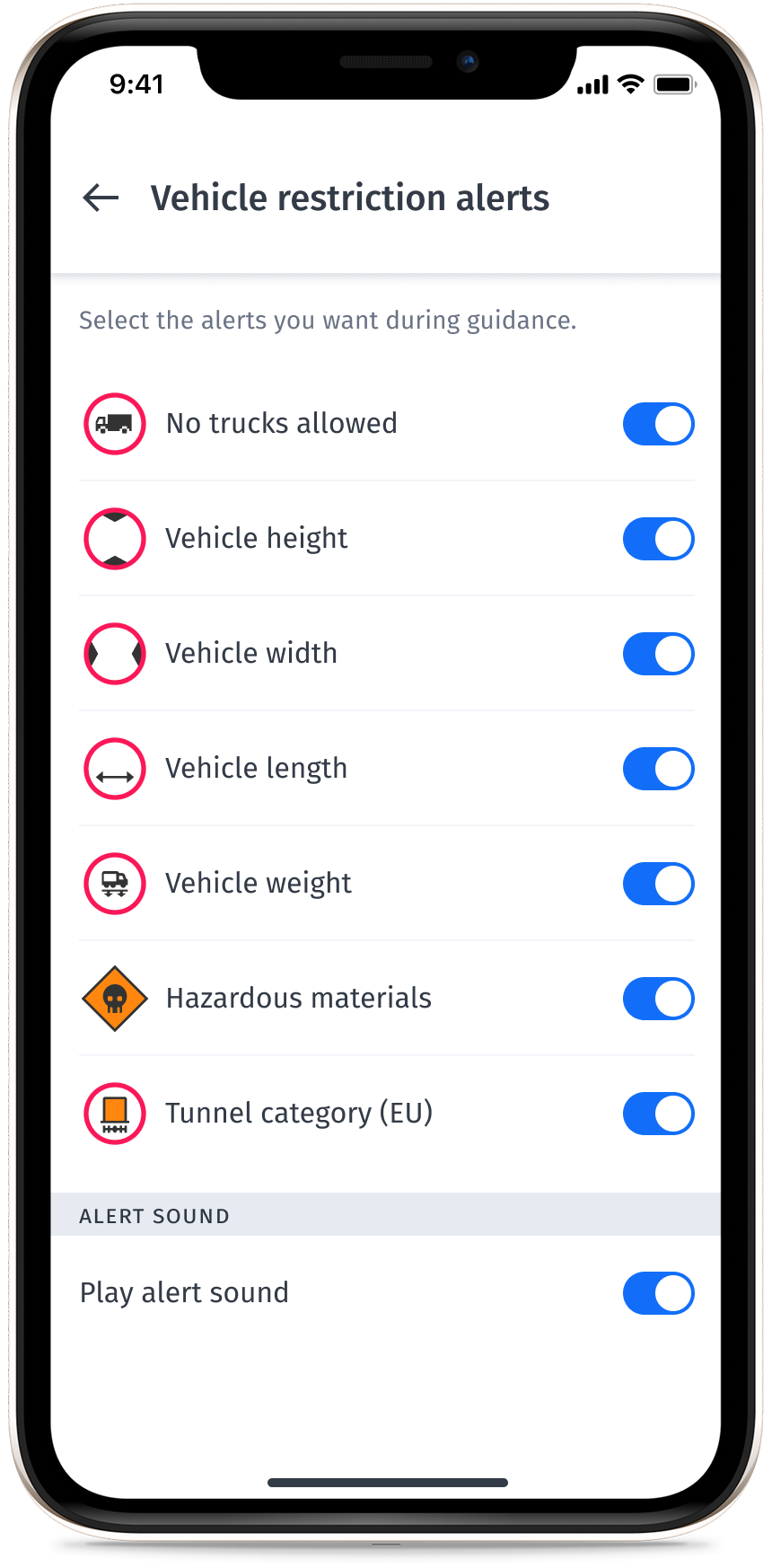
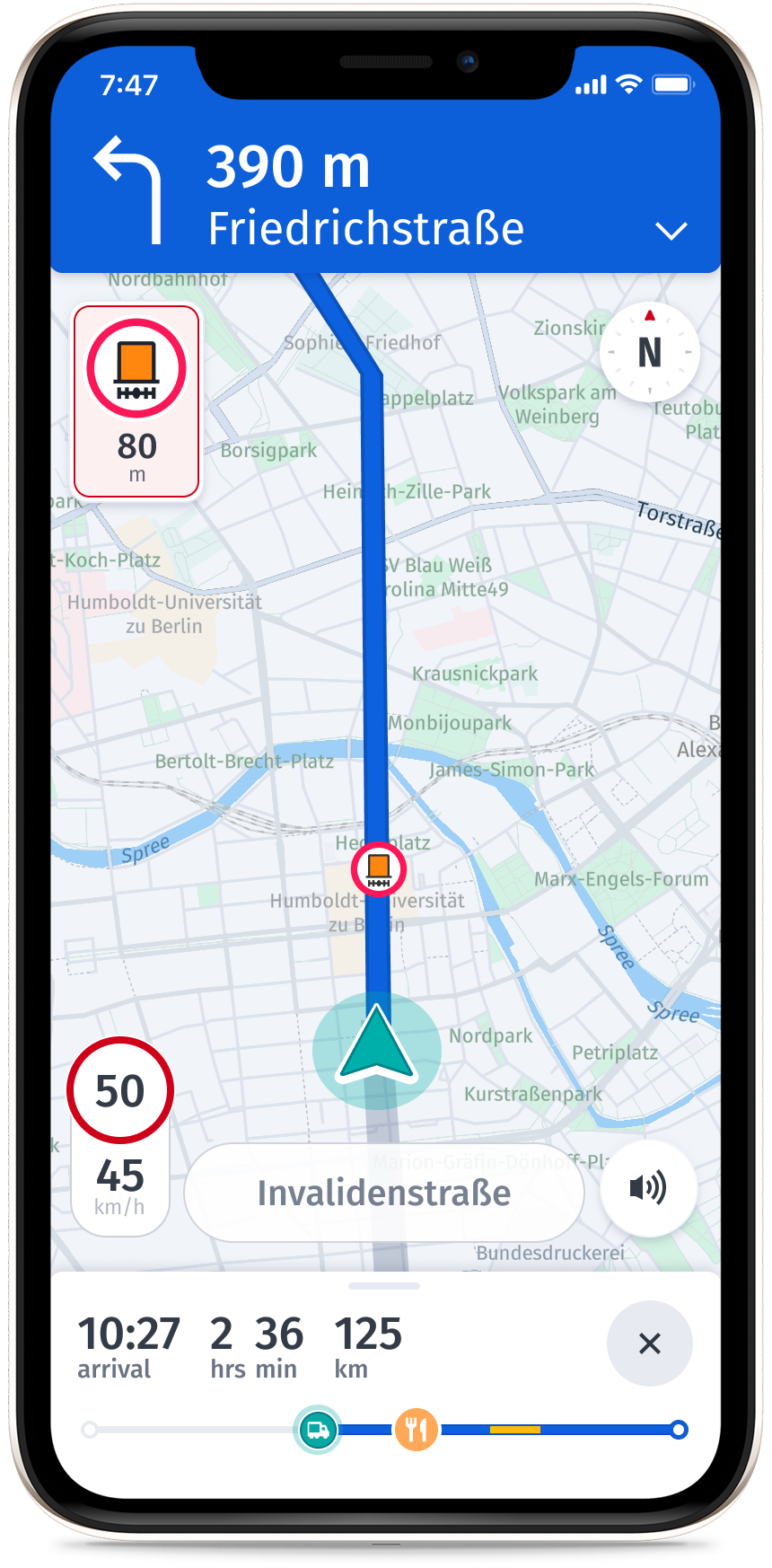
Restrictive maneuvers show violations and display as icons. For example, a road may have a weight restriction of 10 tons and an icon would display with this information.
Truck parking
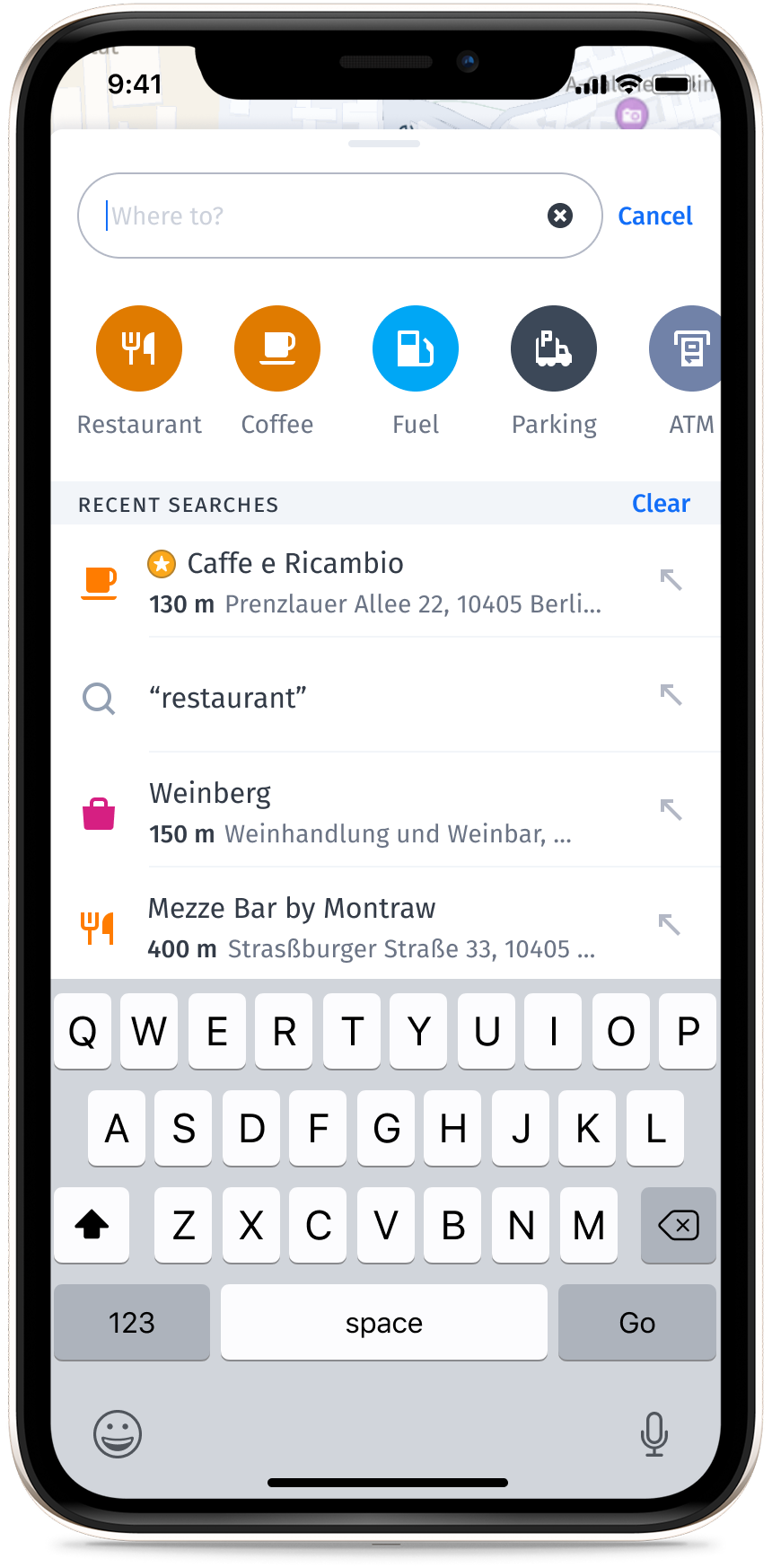
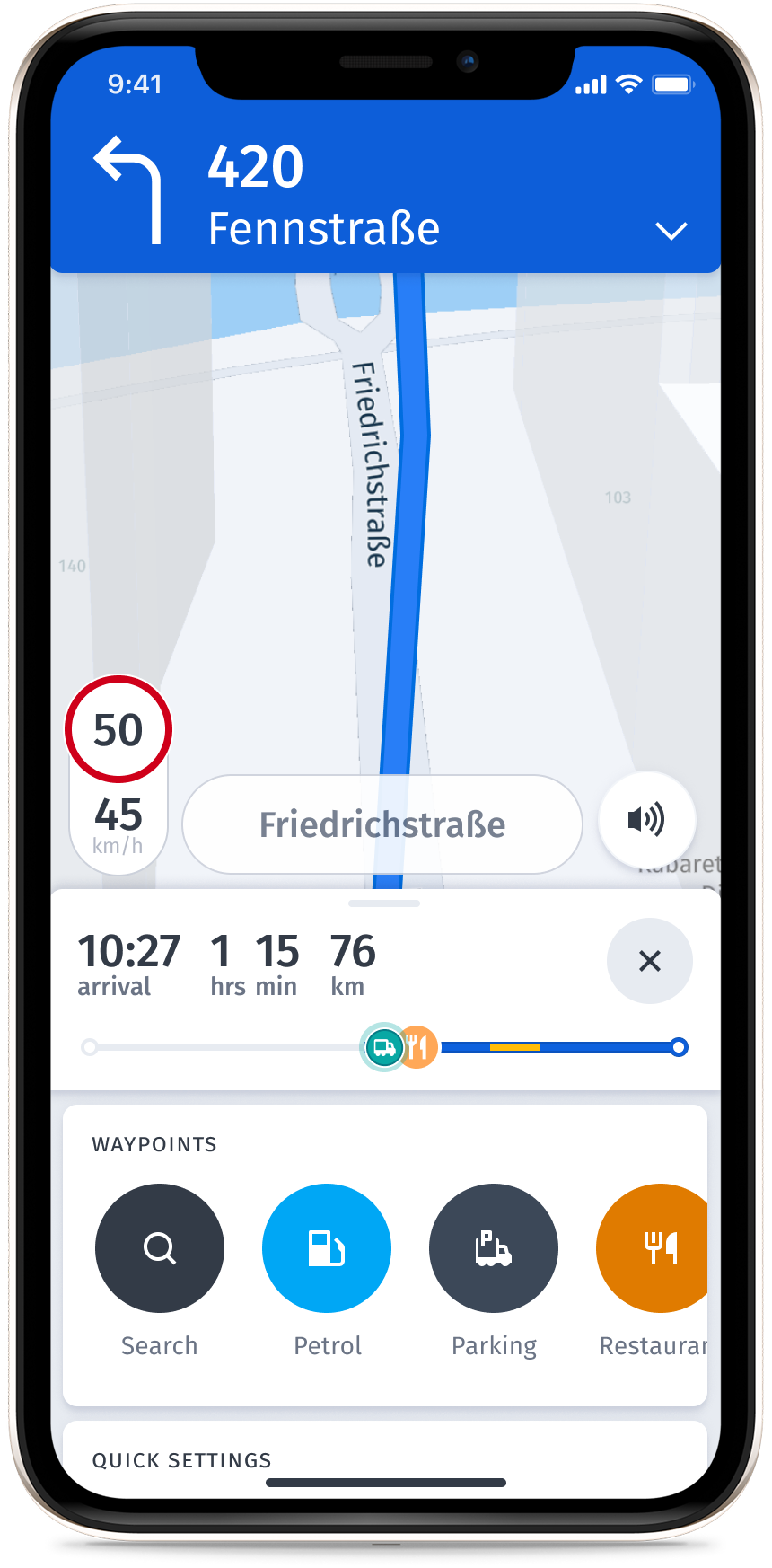
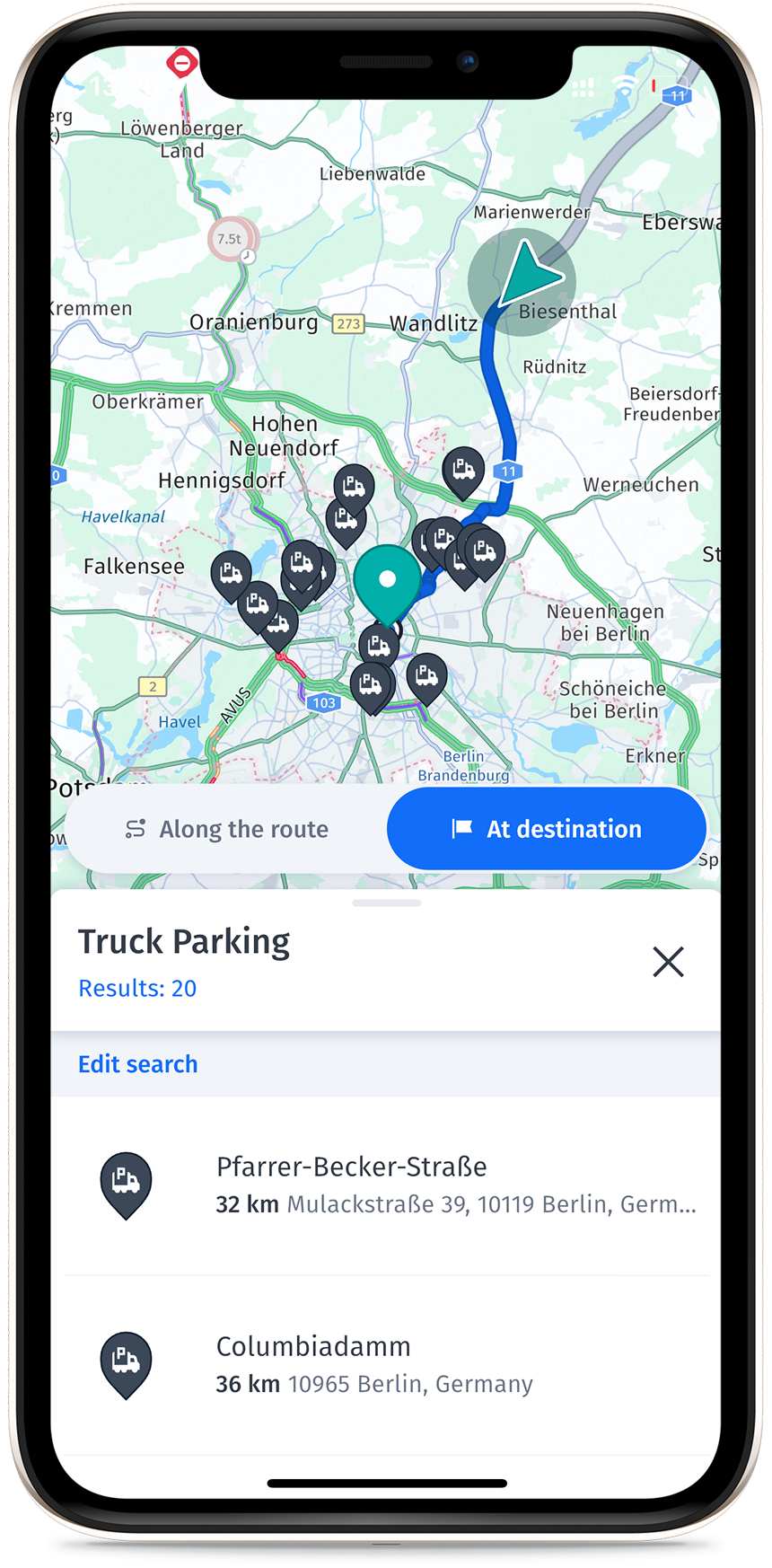
You can search for truck parking directly on the map, along your route, or near your destination—making long-haul trips easier to plan.
Truck guidance
The following sections provide information on additional guidance features offered by HERE WeGo Pro.
Additional guidance features
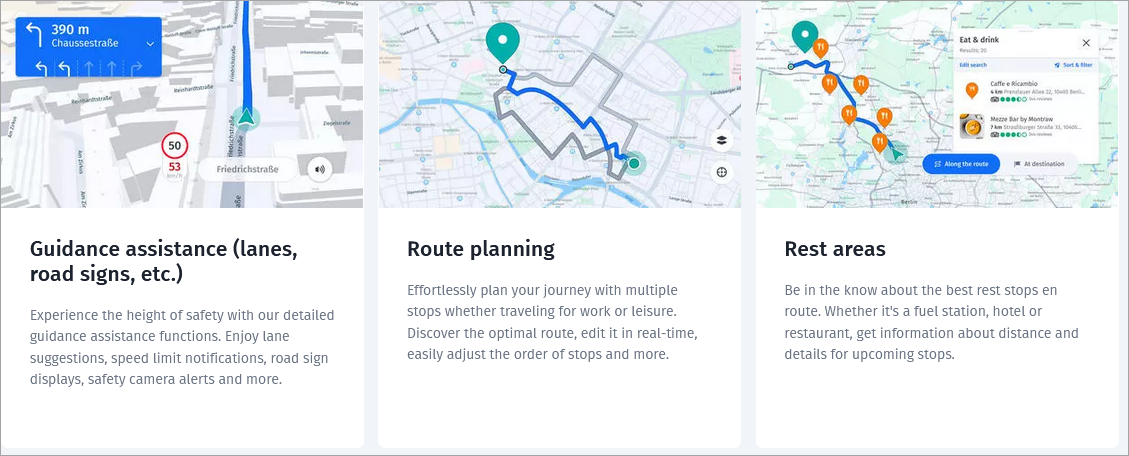
Travel safely with global speed limit updates
HERE WeGo Pro displays global speed limits throughout your route. You can set custom speed restrictions to match your vehicle's capabilities and receive warnings if you exceed them.
Stay connected anywhere with automatic offline navigation
Automatic offline navigation mode can assist you if you are planning on being in an area without internet. You can download maps of countries and regions prior to your trip, ensuring access to navigation without a network connection.
With HERE WeGo Pro, your navigation never stops even if your connection does. If your connection suddenly drops, the app automatically switches to your downloaded maps, keeping your journey uninterrupted. Once your connection returns, online navigation returns automatically.
Live tracking
HERE WeGo Pro live tracking is live location data which tracks the position reported by the driver. For more information, see the HERE WeGo Pro - Developer Guide.
Note
Live tracking is in Beta and only available for select users.
Updated last month