

How to set up SAML with the platform portal UI
This section uses the platform portal UI to set up your SSO.
Single Sign-On (SSO) allows HERE platform users to authenticate, using their own Identity Provider (IdP). This ensures adherence to authentication policies, and dynamically controlling access for authorized users.
SSO can only be initiated from platform.here.com. If your users need to log in from your IdP page, you must provide a link to platform.here.com.
SSO integration with HERE using SAML 2.0
HERE supports SSO integrations using the SAML 2.0 protocol.
To incorporate this feature, organizations must to subscribe to one of the following:
- Premium Success or Premium support plans.
- Platinum partners.
- Gold partners have access, but must pay a premium to enable SSO.
For more information, see HERE Support Plans.
Required parameters
| Parameter | Description |
|---|---|
givenName or GIVENNAME | The user's first name. |
sn or SURNAME | The user's last name. |
email | The user's email address. |
c or COUNTRY | The country code for the user's location. |
IdP templates
HERE provides out of the box templates to integrate SSO for your organization with the following identity providers:
- OKTA
- Keycloak
- Entra
- Generic, which is a generic template that allows you to use other identity providers.
Note
When using the generic template, it is your organization's responsibility to configure all required parameters, and ensure compliance with the SAML 2.0 standard. When fully compliant, integration is possible.
Assign an IdP Manager
To configure a new identity provider or update existing IdP settings within your organization, the IdP Manager role must be assigned. To avoid access disruption, please ensure that:
- An IdP Manager role is always assigned to a user in your organization.
- Only one user holds the IdP Manager role at any given time.
If you are an Org Admin or have the Org Inviter role, you can:
- Invite a new user, and assign them the IdP Manager role.
- Alternatively, you may request your Org Admin or Org Inviter in the organization to assign the role on your behalf.
Note
Don’t add the Restricted Access role, as this prevents the IdP Manager from being able to sign in to the platform.
The following image shows a sample invitation to complete:
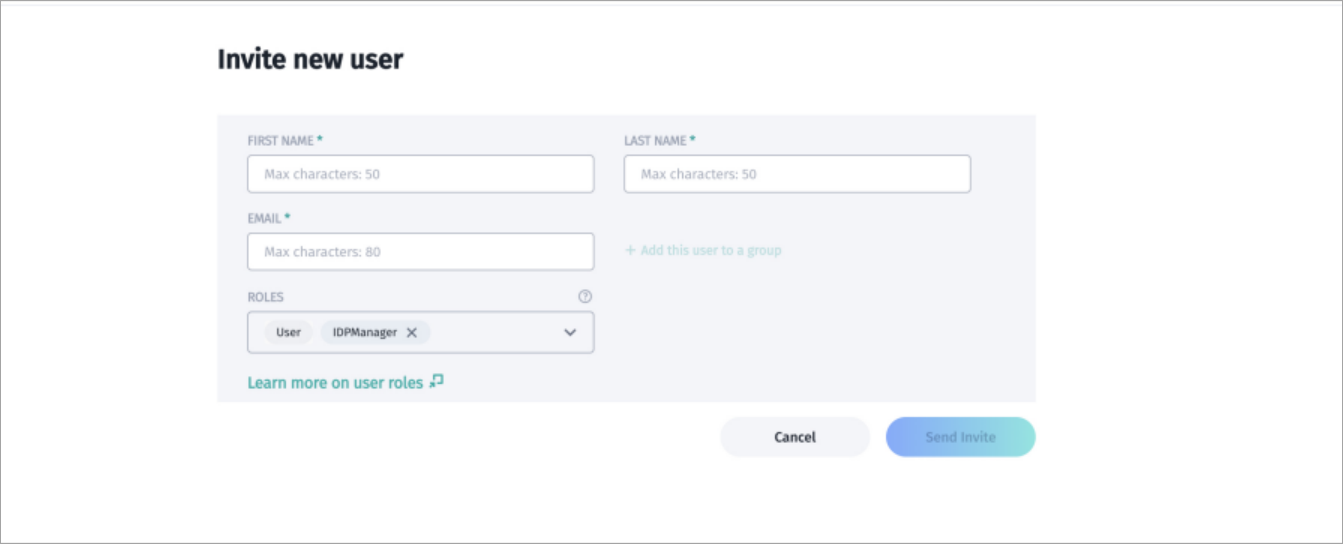
A sample invitation.
When your invitee accepts your invitation, they possess the roles you assigned.
IdP settings
- From the launcher, navigate to Access Manager, then open the Identity Providers tab. This tab displays a list of identity providers (if any) that are already added.
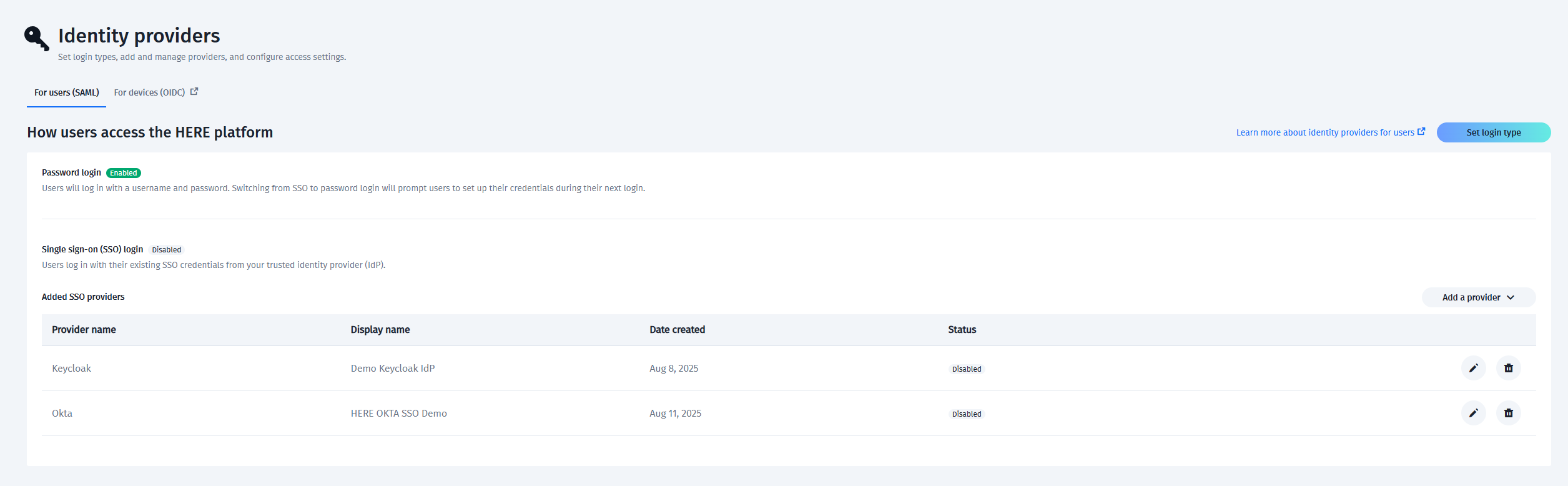
A list of identity providers.
- Select Add a provider to begin the setup.
- Fill in the required fields with your specific IdP details. You must provide an IdP before you select Set the login type.
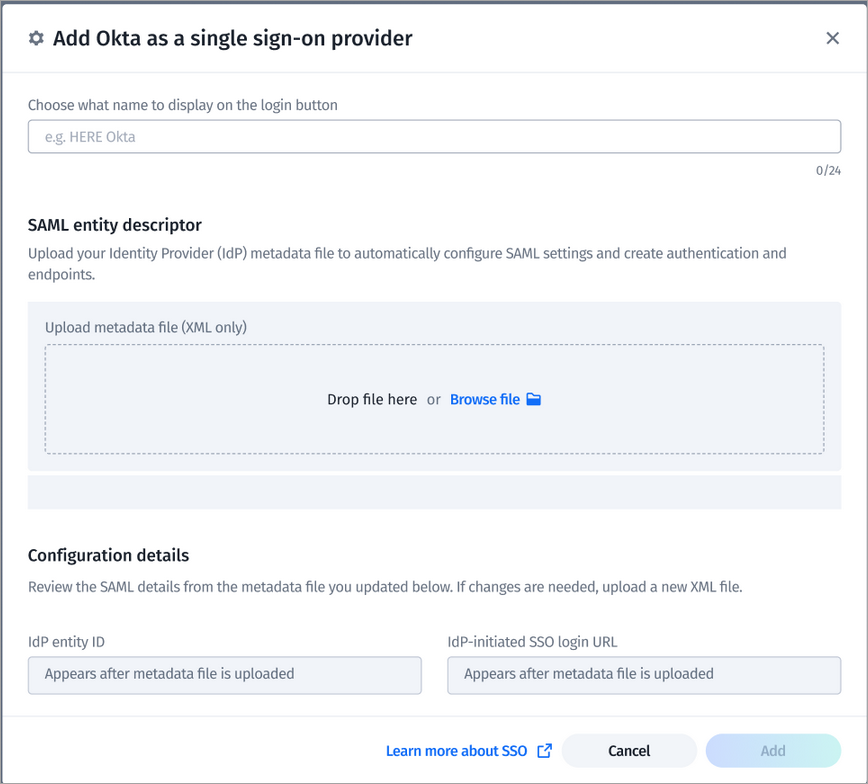
Adding an identity provider.
Enable your SSO
Caution
If at any point during the setup you are unable to gain access to your organization, the IdP manager can regain access to it through the platform's temporary access recovery process.
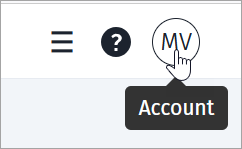
This only works during the current session. If a user logs out from the session, they have to invoke the temporary access recovery process again to sign in temporarily. You must know your Org ID to use this process. To find your Org ID in the platform, click the account icon on your platform page and your Org ID appears.
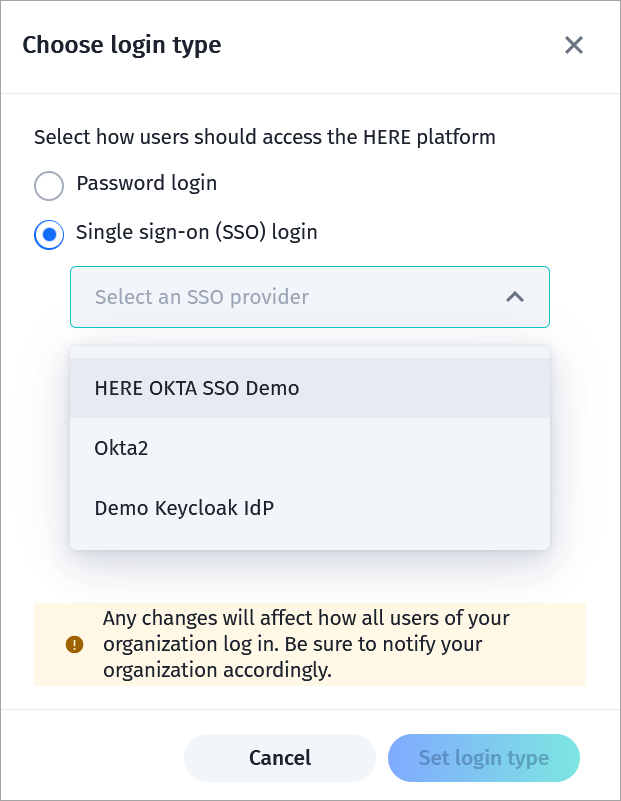
Select Set login type from the Identity Providers page, and choose Single Sign-On (SSO) login.
Test your SSO
To test your SSO, sign out and sign in to the HERE platform. If the IdP isn't configured correctly, you won't be able to access the platform, in which case the IdP Manager must use the temporary access recovery process, and reconfigure the IdP.
Note
Only a user with the IdP Manager role can perform this action. Additionally, you must also know your Org ID.
It may take up to five minutes for the authentication systems to sync globally. You may experience a slight delay, or an error message if a user attempts a sign-in during this period.
Updated last month