

How to manage apps
The HERE platform lets you manage the apps you create and access.
Each app on the HERE platform must have its own unique app ID, and sharing app IDs isn't allowed. If you create apps for your customers, users, or mobile and server versions, you must use separate app IDs for each of these. Any accumulated fees are your responsibility, and if there is any unauthorized use of app IDs, alert your HERE account executive or HERE support immediately.
Note
Your app and associated credentials don't inherit your user permissions or your group memberships. App credentials are valid until you delete your app or delete or disable the access key.
Create an app
To create an app, follow these steps:
- Sign in to the HERE platform.
- Select the Access Manager from the launcher.
- On the Apps tab, click Register new app and enter the required information.
- Optional: select a project you manage as the default access project for the app.
- Click Register. This creates a new app with a unique app ID.
Default app behavior
When you create a new app, the platform automatically applies the Restricted IAM Access filter (hrn:here:authorization::HERE:platform:filter/restricted-iam-access) by default. This filter follows the principle of least privilege by restricting the app's access to IAM APIs that expose personally identifiable information (PII) or allow creation of IAM resources.
With this default filter applied, the app:
- Cannot access PII data such as realm members, invites, group members, role entities, and grant details
- Cannot create IAM resources such as projects, groups, apps, secrets, and resource policies
- Retains access to read subscription plans, view its own permissions, and access subscribed HERE location services
If your app requires broader IAM access, an OrgAdmin or an identity (user or app) with manage access to the app can detach the filter using the web UI, or the OLP CLI:
olp permission access delete \
  hrn:here:account::<realm>:app/<appClientId> \
  hrn:here:authorization::HERE:platform:filter/restricted-iam-access
For apps that do not require any IAM operations at all, HERE recommends applying the more restrictive Block IAM Access filter (hrn:here:authorization::HERE:platform:filter/block-iam-access) instead.
For more information about access filters, see Control resource access with Access Filters.
Important
Do not embed OAuth credentials (Access Key ID and Access Key Secret) in publicly distributed applications, mobile apps, or devices without an appropriate access filter applied. Without a filter, applications with valid OAuth credentials can access IAM endpoints that reveal personally identifiable information.
Next steps
To authenticate with your app, acquire app credentials as described in API keys or OAuth 2.0 tokens.
When you create an app, you have full permissions to manage the app, including the ability to create credentials and manage access to the app. The app creator has read, write, manage, and share permissions to the app. Optionally, you can configure an app to be able to create other apps by choosing Enable app creation. On the app details page, click More > Enable app creation.
Create app credentials
You must create app credentials to allow access to HERE services and resources from an app.
You can create three kinds of app credentials: OAuth 2.0 tokens, OAuth 2.1 tokens, and API keys.
For more information about OAuth 2.0 tokens, see OAuth 2.0 tokens.
For information about OAuth 2.1 tokens, see How to use OAuth 2.1 in the HERE Platform.
For information about API Keys, see API keys.
Add app managers
You can delegate management of an app to a new manager. Users, groups, and apps can all be app managers.
Set default app access rules
You can designate if all the users and apps in your organization can access all of the resources in your organization, or if they must be added to a project in order to access a particular resource.
To configure this permission:
- Sign in to the HERE platform.
- Select the Access Manager from the launcher.
- On the Organization settings tab, toggle on the Open option to grant access to all users and apps, or Strict if resource access should be limited to only those who can access the related project.
Note
New app managers are granted read, write, and manage permissions to the app. The share permission isn't granted by default.
To add an app manager, follow these steps:
- Sign in to the HERE platform.
- Click the Add a new manager button in the Access and permissions tab of the app details page or the More menu.
Sharing an app
If you have share permissions, you may share your app with other users, groups, and apps. Users with share permissions can also grant permissions to other users and apps. To obtain share permissions, select the More drop-down list in the app's Access and permission tab.
Note
The read, write, manage, and share permissions are granted when you share an app.
Enable app creation
A powerful feature of apps is the ability for an app to create other apps. You enable this by choosing Enable app creation from the More menu on the app details page.
Set a default project
App managers can specify a default project for an app during or after the creation of the app. Requests from the app associate with the default project, allowing you to track usage for the app at the project level.
When creating an app from a project in the Projects Manager, the system automatically sets the default project to the project in which you are currently working. When creating an app from the Access Manager, you can optionally select a project in the "DEFAULT ACCESS TO A PROJECT" field.
To set the default project for the app after it's created, go to the app details page in the Access Manager, select the Edit app menu option, and select a project in the "DEFAULT ACCESS TO A PROJECT" field.
You can also set the app to only request resources within the scope of the default project by selecting the Allow access in only default project checkbox during or after app creation. HERE recommends this setting for apps using API keys because it helps secure the use of your API keys. It also allows you to track usage by project for an app using an API key.
Note
You can't add apps set to only request resources within the scope of the default project to groups. This is to prevent the app from inadvertently becoming a member of other projects (through its group membership) where it doesn't work because it's restricted to use in another project.
If using an API key, you also need to select Allow access only in this project.
When you set a default project to the app, you will see the app is added as a member to that project and same can be seen from project's Access and permissions page.
When you remove default project setting for the app by setting it to No Project, the app's project membership will not be revoked automatically. To revoke the project membership for the app, you must manually remove the app from Access and permissions of the project details page.
If you need to use an app across multiple projects, for example, to orchestrate CI/CD processes, HERE recommends that you use OAuth 2.0 tokens and set the project scope as needed when requesting the token.
Assign roles to apps
Org Admins can assign roles to both users and apps.
To assign a role to an app, follow these steps:
- Sign in to the HERE platform.
- Create or select the app on the Apps tab in the platform Access Manager.
- Assign the required roles to the More menu on the app details page.
HERE recommends utilizing "principle of least privilege" best practices and only assigning necessary roles. Apps having the org admin role, for example, have full rights to manage users, apps, and resources in your Org.
You can view assigned app roles on the app details page and using the platform CLI command, olp app show <app HRN>.
Delete an app
To delete an app, follow these steps:
- Sign in to the HERE platform.
- Select the Access Manager from the launcher.
- On the Apps tab, select the name of the app to delete.
- On the app details page, click More, and then click Delete app.
Note
Any process associated with an app, such as a pipeline, will cease functioning a maximum of 24 hours after you disable or delete an app.
How to use predefined platform access filters
Predefined access filters provide increased security through least-privilege enforcement and lockdown of access to the IAM APIs.
Predefined filters offer direct solutions to common security concerns in IAM. Refer to the following table for an overview of coverage.
| Filter name | Filter HRN | Coverage |
|---|---|---|
| Block IAM Access | hrn:here:authorization::HERE:platform:filter/block-iam-access | Blocks an app's access to all IAM APIs. |
| Restricted IAM Access | hrn:here:authorization::HERE:platform:filter/restricted-iam-access | Blocks an app's access to IAM API endpoints that handle Personally Identifiable Information (PII) and creation of IAM resources, including projects, groups, apps, secrets, and resource policies. |
These instructions demonstrate how to apply a filter through the web application. To apply filters via the CLI, see Control resource access with Access Filters.
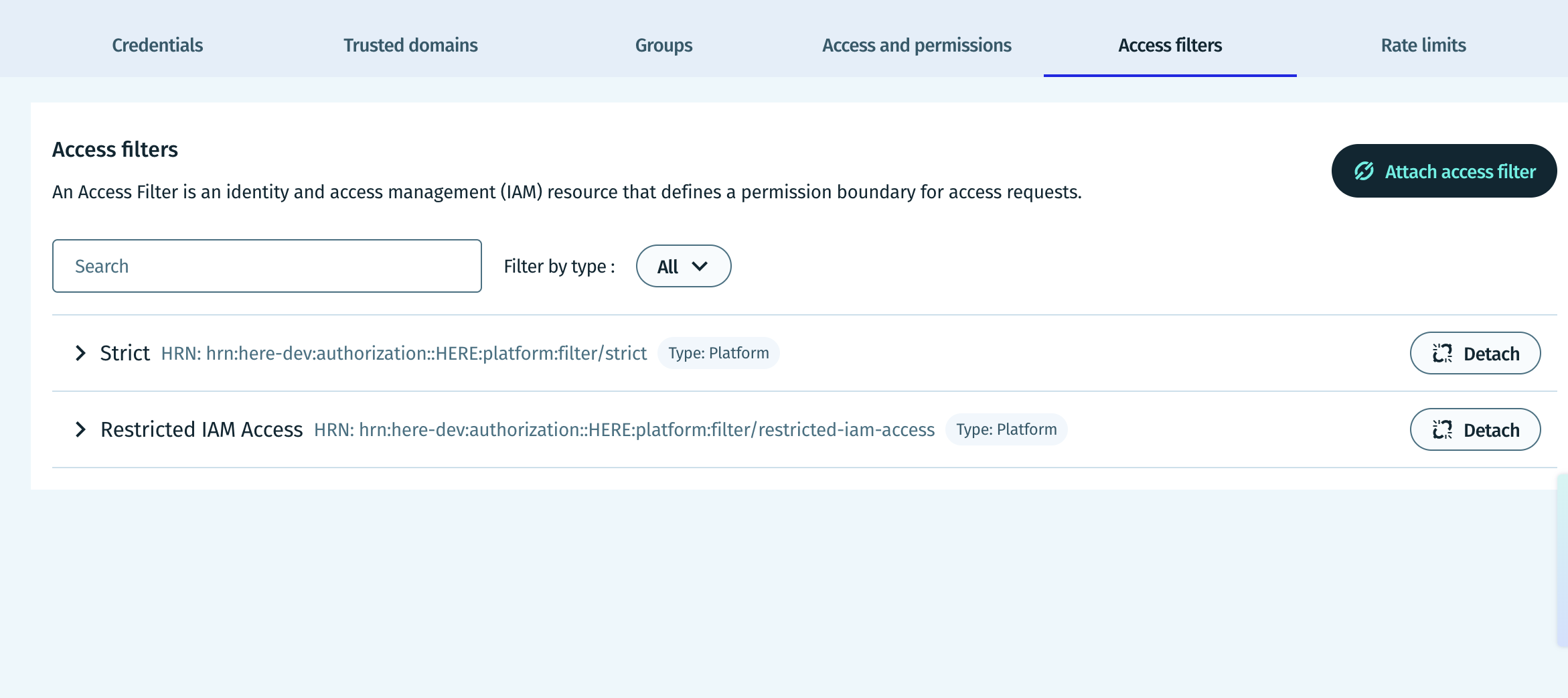
To attach a filter to an app using the UI:
- Log into the HERE Platform.
- Open the Access Manager from the launcher.
- On the Apps tab, search for the app you wish to update, and click its name.
- On the app details screen, click Access filters.
- Click Attach access filters.
- Find the filter you wish to attach. In the Expiration date field, you can also enter an optional expiration date for the filter. Click the Attach button to attach the filter to the app.
Any IAM API call blocked by a filter will return a 403 Forbidden response. To resolve the error, you must either remove the filter, or update the application from calling the blocked endpoint.
An individual app can have a maximum of 5 attached filters.
To detach a filter from an app:
- On the App ID details page, click Manage Filters.
- Find the filter you wish to detach from the app.
- Click Detach
Organization roles have different filter permissions depending on their type. Refer to the below table for more information.
| Role | Permissions |
|---|---|
| Org admins | Can view, attach, and detach filters to any app the organization. |
| App owners | Can view and manage access filters for apps they own. |
| User | Can view attached filters if they have read permissions on the app. |
Updated 1 hour ago