
Get started with the HERE Traffic Vector Tile API
This section outlines how to quickly get started using the HERE Traffic Vector Tile API on the HERE platform.
Note
This section provides information on the minimum setup required to quickly begin using the HERE Traffic Vector Tile API. For more detailed information on HERE account setup, project creation, app registration, and authentication, see the Identity and Access Management Guide.
Get a HERE account
Obtain access to the HERE platform through your organization administrator's invitation or get started for free.
- If your company has already established a HERE platform organization, contact your organization admin who can invite you to join the organization.
- If your company hasn’t established a HERE platform organization yet, you can get started for free. For more information, see the HERE platform pricing.
Get an API key
To get an API key, follow these steps:
- Sign in to the HERE platform using your HERE account.
- Select the Access Manager from the launcher.
- Select the Apps tab and click Register new app.
- Enter a name for the app.
- Click Register. The HERE platform creates a new app with a unique app ID.
- On the Credentials tab, select API Keys and then click Create API key to generate a maximum of two API Keys for your app authentication credentials. This creates and displays the API key.
Send a request
To send a request, follow these steps:
- Select a
zoomlevel value between 0 and 17. - Convert your
latitudeandlongitudeintocolandrowvalues. For more information, see Mercator Projection. - Request the traffic tile.
For example, the following command requests a tile with a flow layer using Mercator projection at zoom layer 11, with x and y coordinates at 1100 and 673 respectively in Map Vector Tile open specification format:
curl -H "Authorization: Bearer TOKEN_HERE" "https://traffic.vector.hereapi.com/v2/traffictiles{{book.standard.examplePath}}"curl "https://traffic.vector.hereapi.com/v2/traffictiles{{book.standard.examplePath}}?apikey=APIKEY_HERE"- Decode the tile using the related protobuf schema.
Obtain a traffic vector tile with incidents events
To get a traffic vector tile with incidents events, use the incident layer parameter.
The following example demonstrates how to get only incident events.
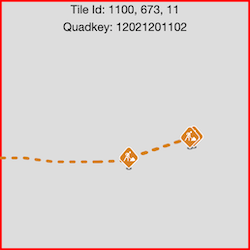
curl -H "Authorization: Bearer TOKEN_HERE" "https://traffic.vector.hereapi.com/v2/traffictiles{{book.standard.examplePathIncident}}"curl "https://traffic.vector.hereapi.com/v2/traffictiles{{book.standard.examplePathIncident}}?apikey=APIKEY_HERE"The response contains traffic_incident and incident_icons layers with information about incident events for the particular tile.
The following figure illustrates an example of a rendered vector tile response with traffic_incident and incident_icons layers.
Obtain a traffic vector tile with flow events
To get a traffic vector tile with flow events, use the flow layer parameter.
The following example demonstrates a traffic tile request for getting only traffic vector tiles with flow events.
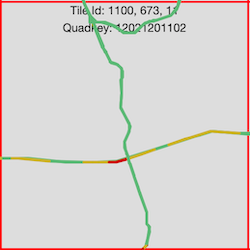
curl -H "Authorization: Bearer TOKEN_HERE" "https://traffic.vector.hereapi.com/v2/traffictiles{{book.standard.examplePath}}"curl "https://traffic.vector.hereapi.com/v2/traffictiles{{book.standard.examplePath}}?apikey=APIKEY_HERE"The response contains only a traffic_flow layer with information about traffic flows for the particular tile.
The following figure illustrates an example of a rendered vector tile response with a traffic_flow layer.
Obtain a traffic vector tile with both flow and incident events
To get a traffic vector tile with all events, use the traffic layer parameter.
The following example demonstrates such traffic tile request for a traffic layer parameter.
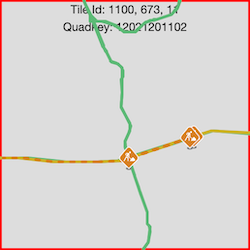
curl -H "Authorization: Bearer TOKEN_HERE" "https://traffic.vector.hereapi.com/v2/traffictiles{{book.standard.examplePathTraffic}}"curl "https://traffic.vector.hereapi.com/v2/traffictiles{{book.standard.examplePathTraffic}}?apikey=APIKEY_HERE"The response contains all traffic layers traffic_flow, traffic_incident and incident_icons with information about traffic for the particular tile.
The following figure illustrates an example of a rendered vector tile response with all layers.
Next steps
The following sections provide additional information on using the HERE Traffic Vector Tile API:
- For an overview of traffic layers, see Layers overview.
- For information on the covered regions, see Traffic coverage.
Updated 3 months ago