

自動候補提示を使用して地理座標を検索する方法
このチュートリアルでは、自動候補提示を使用して、住所を受信して地図上にマーカーを配置するアプリケーションを構築する方法を説明します。このチュートリアルはHERE Maps API for Javascriptを使用して開発されています。
車両追跡、ルーティング、天気予報などのアプリケーションには地理座標が必要です。HERE Geocoding and Search APIでは、住所、場所、地域、行政区画(市区町村、都道府県、国など)の地理座標を検索し、ユーザーはフォワードジオコーディングとリバースジオコーディングの両方を使用できます。フォワードジオコーディングでは、既知の住所から座標を検索できます。
このチュートリアルでは自動候補提示を使用します。リバースジオコーディングの詳細については、「リバースジオコーディング」を参照してください。
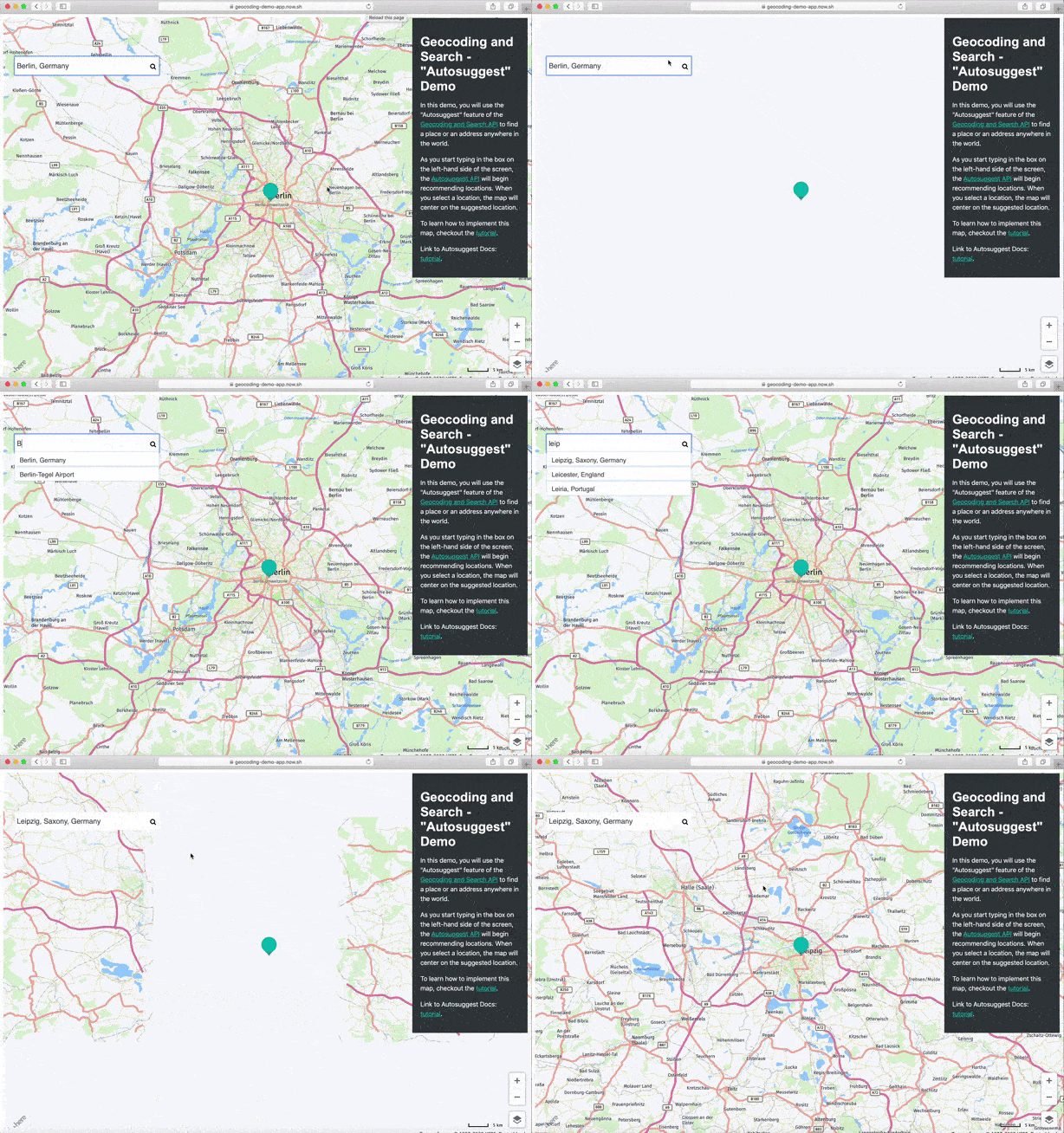
以下の画面キャプチャーは、完成したチュートリアルを示しています。
前提条件
- JavaScriptおよびREST APIの使用経験
- HEREアカウントの取得。詳細については、「利用開始」を参照してください。
- APIキー。HEREアカウントをお持ちの場合は、このチュートリアルで個人用のAPIキーを使用できます。HERE APIキーの詳細については、「利用開始」を参照してください。
ロードマップ
- 基本的なHEREマップを作成します。
- 地図に検索ボックスを追加します。
- Geocoding and Search APIを実装して地理座標を検索します。
- 地図にマーカーを追加します。
基本的なHEREマップを作成する
HEREマップを作成する方法は以下のとおりです。
- エディター内に新しい
index.htmlファイルを作成します。 - 次のコードをコピーして貼り付け、
HERE-API-KEYを個人用キーに置き換えます。
<!DOCTYPE html>
<html lang="en">
<head>
<meta charset="UTF-8">
<meta name="viewport" content="width=device-width, initial-scale=1.0">
{/* HERE JS libs*/}
<link rel="stylesheet" type="text/css" href="https://js.api.here.com/v3/3.1/mapsjs-ui.css" />
<script type="text/javascript" src="https://js.api.here.com/v3/3.1/mapsjs-core.js"></script>
<script type="text/javascript" src="https://js.api.here.com/v3/3.1/mapsjs-service.js"></script>
<script type="text/javascript" src="https://js.api.here.com/v3/3.1/mapsjs-ui.js"></script>
<script type="text/javascript" src="https://js.api.here.com/v3/3.1/mapsjs-mapevents.js"></script>
{/* HERE JS libs*/}
{/* style sheet*/}
<link href="https://stackpath.bootstrapcdn.com/font-awesome/4.7.0/css/font-awesome.min.css" rel="stylesheet">
{/* end of style sheet*/}
<style>
 .dropdown {
  position: absolute;
  z-index: 99999;
  list-style-type: none;
  width: 360px;
  border: rgb(15, 22, 33);
  list-style: none;
  top: 135px;
}
input{
  z-index: 9999; font-size: 18px;
  font-family: 'Allerta', Helvetica, Arial, sans-serif;
  color: #495057;position: absolute; top: 100px; left: 20px;
  width: 350px; height: 35px; padding: 5px; margin-left: 17px;
  margin-top: 7px; border: none;
}
ul{
  list-style: none; background-color: white; padding: 0px;
  margin-left: 29px;
width: 360px;
}
li{
  list-style-type: none;
  height: 12px;
  padding: 12px;
  box-shadow: rgb(158, 202, 237) 0px 0px 4px;
  display: list-item;
  text-align: -webkit-match-parent;
  font-family: 'Allerta', Helvetica, Arial, sans-serif;
  color: #495057;
  }
li:hover {
  background-color: yellowgreen;
}
#list {
  cursor: pointer;
}
.fa-search-custom {
  position: absolute;
  left: 375px;
  top: 123px;
  z-index: 99999;
}
</style>

<title>Geocoding API Demo</title>
</head>
  <body>
  <div style="height: 100vh;width: 100vw;" id="mapContainer" class="container-1"></div>
    <script>
    	const personalApiKey = `<YOUR-API-KEY>`; // Your personal API key
    	var platform = new H.service.Platform({
            apikey: personalApiKey,
        });
        var defaultLayers = platform.createDefaultLayers();

        //Step 2: initialize a map - this map is centered over Europe
        var map = new H.Map(document.getElementById('mapContainer'),
            defaultLayers.vector.normal.map, {
            center: { lat: 50, lng: 5 },
            zoom: 4,
            pixelRatio: window.devicePixelRatio || 1
        });
        // add a resize listener to make sure that the map occupies the whole container
        window.addEventListener('resize', () => map.getViewPort().resize());
        //Step 3: make the map interactive
        // MapEvents enables the event system
        // Behavior implements default interactions for pan/zoom (also on mobile touch environments)
        var behavior = new H.mapevents.Behavior(new H.mapevents.MapEvents(map));
    </script>
  </body>
  </html>
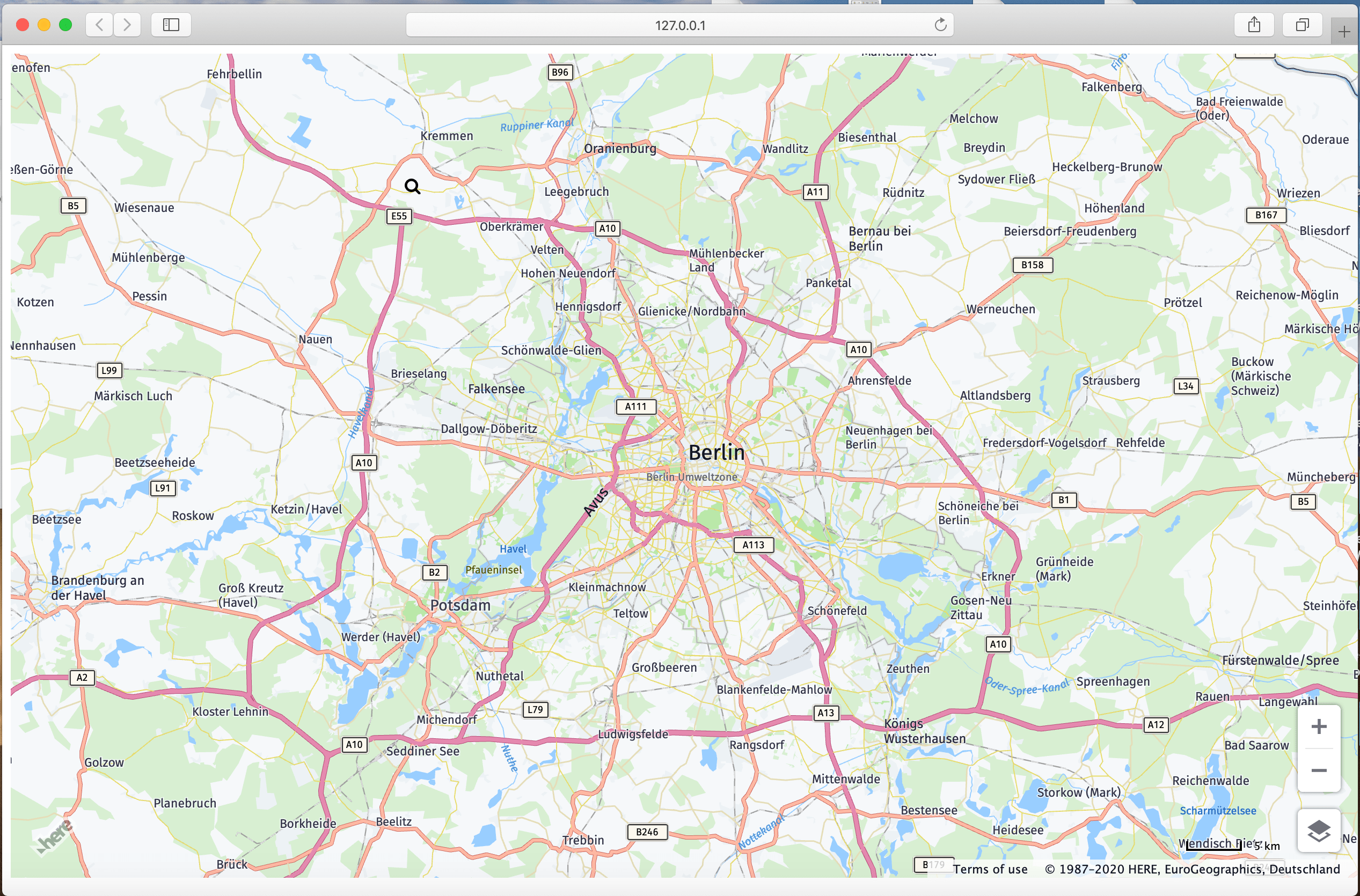
このコードは以下の画像のようなWebマップをレンダリングします。
地図に検索ボックスを追加する
scriptタグの後のmapContainer divタグ内に以下のHTMLスニペットをコピーします。
<div style="height: 100vh; width: 100vw;" id="mapContainer" class="container-1">
  <input placeholder="Search for a Place or an Address." type="text" name="search" id="search" value="Berlin, Germany" autocomplete="off" onkeyup="autosuggest(this)" autofocus/>
  <i class="fa fa-search fa-search-custom" aria-hidden="true"></i>
  <div class="dropdown">
    <ul id="list"></ul>
  </div>
</div>
Geocoding and Search APIを実装して地理座標を検索する
次のAutoSuggestエンドポイントを使用して、位置の座標を検索します。
https://autosuggest.search.hereapi.com/v1/autosuggest?at=52.5199813,13.3985138&limit=5&q=res&apiKey=YOUR_API_KEY_HERE上記のリクエストに対するレスポンスは次のようになります。
{
  "items": [
    {
      "title": "Hackescher Hof",
      "id": "here:pds:place:276u33db-fb00197ffa5041b2b656ea3d23145dca",
      "resultType": "place",
      "address": {
        "label": "Hackescher Hof, Rosenthaler Straße 40, 10178 Berlin, Deutschland"
      },
      "position": { "lat": 52.52401, "lng": 13.40249 },
      "distance": 523,
      "categories": [ { "id": "100-1000-0000" }, ... ],
      "foodTypes": [ { "id": "300-000" }, ... ],
      "highlights": { "title": [ ], "address": { "label": [ ] } }
    },
    {
      "title": "restaurant",
      "id": "here:cm:ontology:restaurant",
      "resultType": "categoryQuery",
      "href": "http://ci.opensearch.dev.api.here.com/v1/discover?q=restaurant&_ontology=restaurant&at=52.51998%2C13.39851",
      "highlights": { "title": [{ "start": 0, "end": 3 }] }
    },
    {
      "title": "Cordobar",
      "id": "here:pds:place:276u33db-6b5445c1f1854148a8b351822a0ddc0c",
      "resultType": "place",
      "address": {
        "label": "Cordobar, Große Hamburger Straße 32, 10115 Berlin, Deutschland"
      },
      "position": { "lat": 52.52572, "lng": 13.39888 },
      "distance": 639,
      "categories": [ { "id": "100-1000-0000" }, ... ],
      "foodTypes": [ { "id": "300-000" }, ... ],
      "highlights": { "title": [ ], "address": { "label": [ ] } }
    },
    {
      "title": "McDonald's",
      "id": "here:pds:place:276u33db-dc6f6db9cef943c1b1ff3f74b30f03f9",
      "resultType": "place",
      "address": {
        "label": "McDonald's, Friedrichstraße 142, 10117 Berlin, Deutschland"
      },
      "position": { "lat": 52.52003, "lng": 13.38812 },
      "distance": 703,
      "categories": [{ "id": "100-1000-0009" }],
      "foodTypes": [{ "id": "800-067" }],
      "highlights": { "title": [ ], "address": { "label": [ ] } }
    },
    {
      "title": "Meliá Berlin",
      "id": "here:pds:place:276u33db-10e35e5ad0b0460e9fe49fc85a2bb8e7",
      "resultType": "place",
      "address": {
        "label": "Meliá Berlin, Friedrichstraße 103, 10117 Berlin, Deutschland"
      },
      "position": { "lat": 52.52138, "lng": 13.38833 },
      "distance": 706,
      "categories": [ { "id": "100-1000-0000" }, ... ],
      "foodTypes": [{ "id": "300-000" }, ... ],
      "highlights": { "title": [ ], "address": { "label": [ ] } }
    }
  ]
}/autosuggestエンドポイントは、検索ボックスの入力に基づいて住所候補を返します。AutoSuggestを有効にするには、HTMLファイル内の<script>タグに次のコードを追加します。
const autosuggest = (e) => {
  if(event.metaKey) {
    return
  }
  let searchString = e.value
  if (searchString != "") {
    fetch(`https://autosuggest.search.hereapi.com/v1/autosuggest?window.apiKey=${apikey}&at=33.738045,73.084488&limit=5&resultType=city&q=${searchString}&lang=en-US`)
    .then(res => res.json())
    .then((json) => {
      if (json.length != 0) {
        document.getElementById("list").innerHTML = ``;
        let dropData = json.items.map((item) => {
          if ((item.position != undefined) & (item.position != ""))
            document.getElementById("list").innerHTML += `<li onClick="addMarkerToMap(${item.position.lat},${item.position.lng})">${item.title}</li>`;
          });
      }
    });
  }
};
地図にマーカーを追加する
index.htmlファイル内の自動候補提示関数の下にあるscriptタグに次のコードスニペットをコピーします。
  // to get default location
  function getDeafultLocation(){
      var lat=52.5159;
      var lng=13.3777;
      var title = "Berlin, Germany";
      addMarkerToMap(lat, lng, title);
  }
  const addMarkerToMap = (lat, lng, title) => {
      map.removeObjects(map.getObjects())
      document.getElementById("search").value =  title;
      var selectedLocationMarker = new H.map.Marker({ lat, lng });
      map.addObject(selectedLocationMarker);
      document.getElementById("list").innerHTML = ``;
      map.setCenter({ lat, lng }, true);
  };
最終的なHTMLコード
<!DOCTYPE html>
<html lang="en">
  <head>
    <meta charset="UTF-8" />
    <meta name="viewport" content="width=device-width, initial-scale=1.0" />
    <link
      rel="stylesheet"
      type="text/css"
      href="https://js.api.here.com/v3/3.1/mapsjs-ui.css"
    />
    <script
      type="text/javascript"
      src="https://js.api.here.com/v3/3.1/mapsjs-core.js"
    ></script>
    <script
      type="text/javascript"
      src="https://js.api.here.com/v3/3.1/mapsjs-service.js"
    ></script>
    <script
      type="text/javascript"
      src="https://js.api.here.com/v3/3.1/mapsjs-ui.js"
    ></script>
    <script
      type="text/javascript"
      src="https://js.api.here.com/v3/3.1/mapsjs-mapevents.js"
    ></script>
    <link
      href="https://stackpath.bootstrapcdn.com/font-awesome/4.7.0/css/font-awesome.min.css"
      rel="stylesheet"
    />
    <style>
      .dropdown {
        position: absolute;
        z-index: 99999;
        list-style-type: none;
        width: 360px;
        border: rgb(15, 22, 33);
        list-style: none;
        top: 135px;
      }
      input {
        z-index: 9999;
        font-size: 18px;
        font-family: "Allerta", Helvetica, Arial, sans-serif;
        color: #495057;
        position: absolute;
        top: 100px;
        left: 20px;
        width: 350px;
        height: 35px;
        padding: 5px;
        margin-left: 17px;
        margin-top: 7px;
        border: none;
      }
      ul {
        list-style: none;
        background-color: white;
        padding: 0px;
        margin-left: 29px;
        width: 360px;
      }
      li {
        list-style-type: none;
        height: 12px;
        padding: 12px;
        box-shadow: rgb(158, 202, 237) 0px 0px 4px;
        display: list-item;
        text-align: -webkit-match-parent;
        font-family: "Allerta", Helvetica, Arial, sans-serif;
        color: #495057;
      }
      li:hover {
        background-color: yellowgreen;
      }
      #list {
        cursor: pointer;
      }
      .fa-search-custom {
        position: absolute;
        left: 375px;
        top: 123px;
        z-index: 99999;
      }
    </style>
    <title>Geocoding Demo</title>
  </head>
  <body>
    <div
      style="height: 100vh; width: 100vw"
      id="mapContainer"
      class="container-1"
    >
      <input
        placeholder="Search for a Place or an Address."
        type="text"
        name="search"
        id="search"
        value="Berlin, Germany"
        autocomplete="off"
        onkeyup="autosuggest(this)"
        autofocus
      />
      <i class="fa fa-search fa-search-custom" aria-hidden="true"></i>
      <div class="dropdown">
        <ul id="list"></ul>
      </div>
    </div>
  </body>
  <script>
    const personalApiKey = `<YOUR-API-KEY>`; // Your personal API key
    function moveMapToBerlin(map) {
      map.setCenter({ lat: 52.5159, lng: 13.3777 });
      map.setZoom(10);
    }
    var platform = new H.service.Platform({
      apikey: personalApiKey,
    });
    var defaultLayers = platform.createDefaultLayers();

    //Step 2: initialize a map - this map is centered over Europe
    var map = new H.Map(
      document.getElementById("mapContainer"),
      defaultLayers.vector.normal.map,
      {
        center: { lat: 50, lng: 5 },
        zoom: 4,
        pixelRatio: window.devicePixelRatio || 1,
      }
    );
    // add a resize listener to make sure that the map occupies the whole container
    window.addEventListener("resize", () => map.getViewPort().resize());

    //Step 3: make the map interactive
    // MapEvents enables the event system
    // Behavior implements default interactions for pan/zoom (also on mobile touch environments)
    var behavior = new H.mapevents.Behavior(new H.mapevents.MapEvents(map));

    // Create the default UI components
    var ui = H.ui.UI.createDefault(map, defaultLayers);
    // Now use the map as required...
    window.onload = function () {
      moveMapToBerlin(map);
      getDefaultLocation();
    };
    const autosuggest = (e) => {
      if (event.metaKey) {
        return;
      }

      let searchString = e.value;
      if (searchString != "") {
        fetch(
          `https://autosuggest.search.hereapi.com/v1/autosuggest?apiKey=${personalApiKey}&at=33.738045,73.084488&limit=5&resultType=city&q=${searchString}&lang=en-US`
        )
          .then((res) => res.json())
          .then((json) => {
            if (json.length != 0) {
              document.getElementById("list").innerHTML = ``;
              let dropData = json.items.map((item) => {
                if ((item.position != undefined) & (item.position != ""))
                  document.getElementById(
                    "list"
                  ).innerHTML += `<li onClick="addMarkerToMap(${item.position.lat},${item.position.lng},'${item.title}')">${item.title}</li>`;
              });
            }
          });
      }
    };
    // to get default location after loading the page
    function getDefaultLocation() {
      var lat = 52.5159;
      var lng = 13.3777;
      var title = "Berlin, Germany";
      addMarkerToMap(lat, lng, title);
    }
    // adding marker to map
    const addMarkerToMap = (lat, lng, title) => {
      map.removeObjects(map.getObjects());
      document.getElementById("search").value = title;
      var selectedLocationMarker = new H.map.Marker({ lat, lng });
      map.addObject(selectedLocationMarker);
      document.getElementById("list").innerHTML = ``;
      map.setCenter({ lat, lng }, true);
    };
  </script>
</html>
まとめ
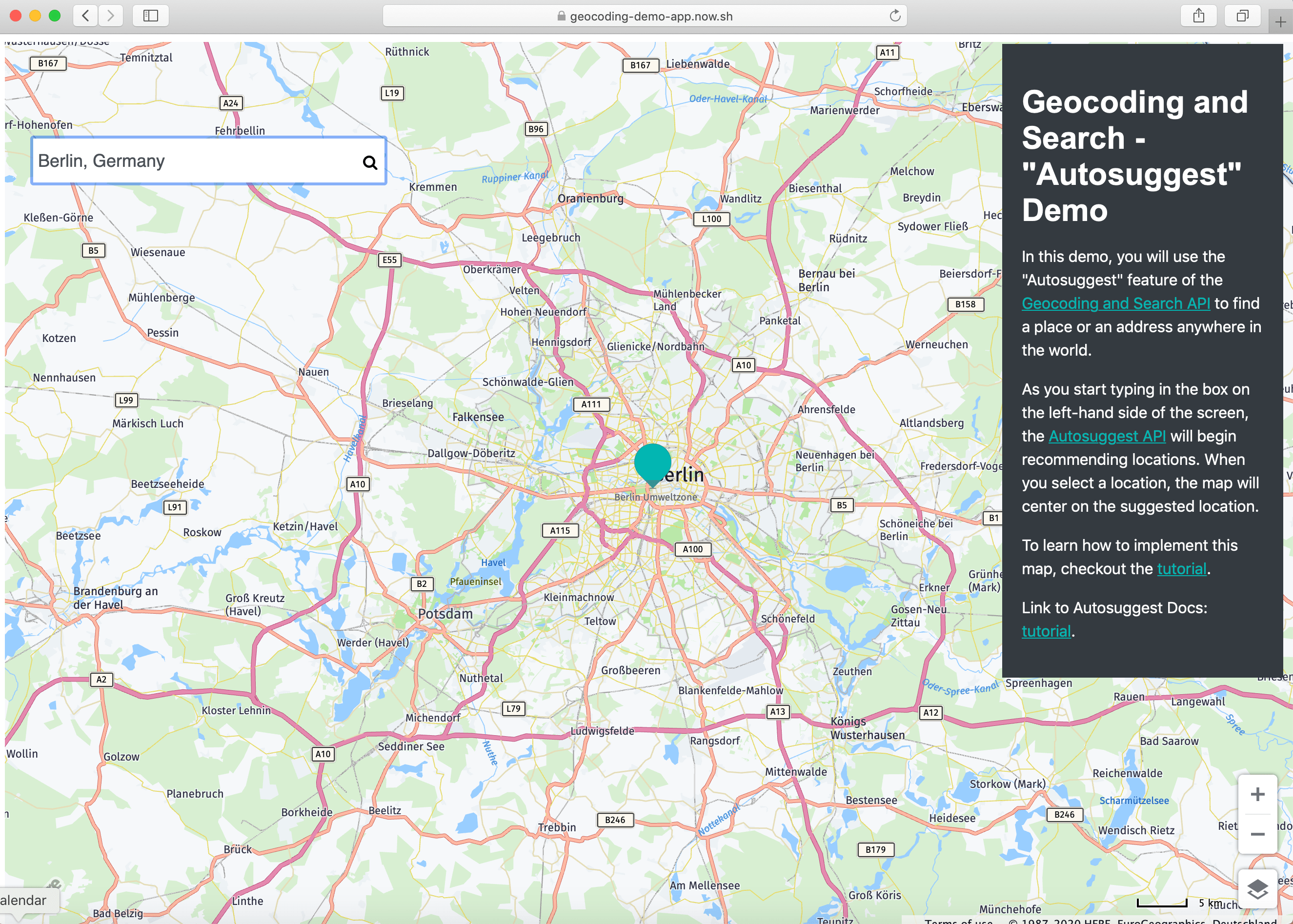
住所を受け取り、地図上にマーカーを配置するアプリケーションが完成しました。これには以下が必要でした。
- HERE Geocoding and Searchでの住所の検索。
- HERE Maps API for Javascriptを使用した開発。
3 か月前の更新