

Get started with HERE Maps API for JavaScript
This section outlines how to quickly get started using the HERE Maps API for JavaScript on the HERE platform.
Note
This section provides information on the minimum setup required to quickly begin using the HERE Maps API for JavaScript. For more detailed information on HERE account setup, project creation, service linking, app registration, and authentication, see the Identity & Access Management Guide.
Get a HERE account
Obtain access to the HERE platform through your organization administrator's invitation or get started for free.
- If your company has already established a HERE platform organization, contact your organization admin who can invite you to join the organization.
- If your company hasn’t established a HERE platform organization yet, you can get started for free. For more information, see the HERE platform pricing.
Get an API key
Before you can create your first HERE Maps API for JavaScript application, you must obtain an API key from the HERE platform.
- Sign in to the HERE platform using your HERE account.
- From the Launcher pane, select Access Manager.
- On the Access Manager page, click the Apps tab.
- On the Apps tab, click Create new app.
- In the Create new app window, provide the details for the new app:
- In the App name field, enter your app name.
- In the Description field, enter a meaningful description for your app.
- Click Create app. The HERE platform creates a new app with a unique app ID.
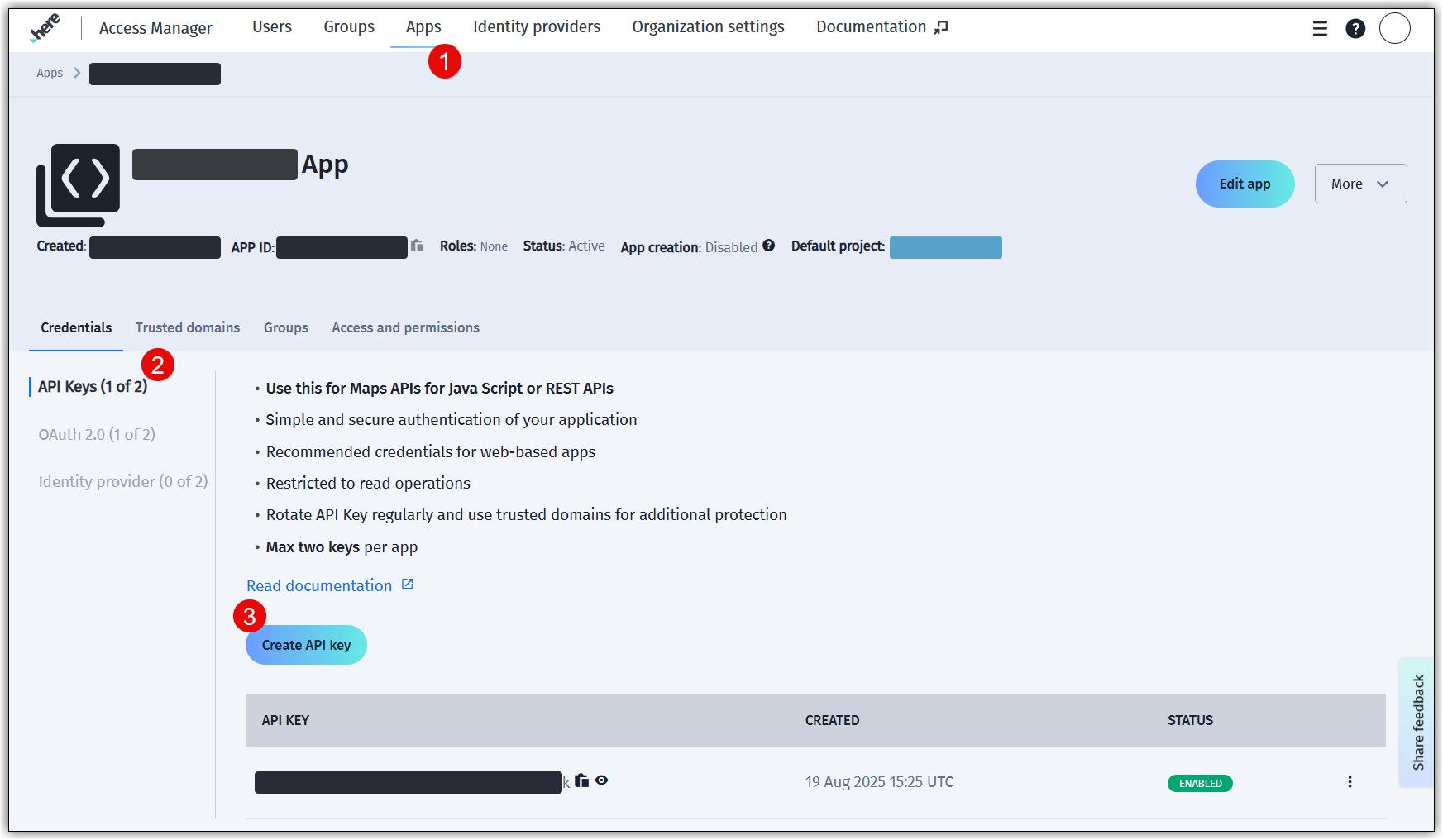
- On your app page, generate up to two API keys:
- On the Credentials tab, select API Keys and, then click Create API Key. The HERE platform displays the API key that you created with the
enabledstatus. - Optional: To add an extra API key, click Create API key.
The following figure provides a visual summary for generating API keys:
- On the Credentials tab, select API Keys and, then click Create API Key. The HERE platform displays the API key that you created with the
Note
The HERE Maps API for JavaScript exposes a number of services. These services need to be linked to your project for the API to work with those services.
For more information about the list of supported services, see the H.service page in the API Reference.
Create a sample application
Develop an application that renders a default map, providing fundamental interactive features like zooming, panning, and layer management. This includes displaying pre-configured layers such as satellite imagery, real-time traffic conditions, and traffic incident information.
Load the required modules
To develop an application based on the HERE Maps API for JavaScript, the first step is to load the necessary code libraries or modules. For the basic use case implementation, the following modules are required:
coreservicemapeventsui
For more information, see Available API modules.
-
To load the modules, add the following
<script>elements to the<head>of the HTML document:<script type="text/javascript" src="https://js.api.here.com/v3/3.2/mapsjs-core.js"></script> <script type="text/javascript" src="https://js.api.here.com/v3/3.2/mapsjs-service.js"></script> <script type="text/javascript" src="https://js.api.here.com/v3/3.2/mapsjs-mapevents.js"></script> <script type="text/javascript" charset="utf-8" src="https://js.api.here.com/v3/3.2/mapsjs-ui.js" ></script> <link rel="stylesheet" type="text/css" href="https://js.api.here.com/v3/3.2/mapsjs-ui.css" />Note
The URL in the
"src"attribute includes a version number that reflects the latest major release of the API. This version number changes with each new release, which might impact backwards-compatibility. For more information, see Explore HERE Maps API for JavaScript versions. -
To ensure optimum performance on mobile devices, add the following meta-tag to the
<head>section of the HTML page:<meta name="viewport" content="initial-scale=1.0, width=device-width" />
The following snippet provides a complete <head> element that loads all required libraries. The <div> element provides the container within which the map is loaded.
<!DOCTYPE html>
<html>
<head>
...
<script type="text/javascript" src="https://js.api.here.com/v3/3.2/mapsjs-core.js"></script>
<script type="text/javascript" src="https://js.api.here.com/v3/3.2/mapsjs-service.js"></script>
<script type="text/javascript" src="https://js.api.here.com/v3/3.2/mapsjs-mapevents.js"></script>
<script type="text/javascript" charset="utf-8" src="https://js.api.here.com/v3/3.2/mapsjs-ui.js" ></script>
<link rel="stylesheet" type="text/css" href="https://js.api.here.com/v3/3.2/mapsjs-ui.css" />
<meta name="viewport" content="initial-scale=1.0, width=device-width" />
...
</head>
<body>
<div style="width: 100%; height: 700px" id="mapContainer"></div>Enable the HERE API for JavaScript services
To create a functioning application with the HERE Maps API for JavaScript, it is crucial to establish communication with the back-end services provided by HERE REST APIs. These back-end services process requests for map data and deliver the results to the application for display.
-
Within the
<script>HTML element, initialize aPlatformobject with theAPI keyyou received on registration, as shown in the following example:const platform = new H.service.Platform({ 'apikey': '{YOUR_API_KEY}' }); -
Instantiate an
H.Mapobject, specifying:-
the map container element
-
the map type to use
-
the zoom level at which to display the map
-
the geographic coordinates of the point on which to center the map
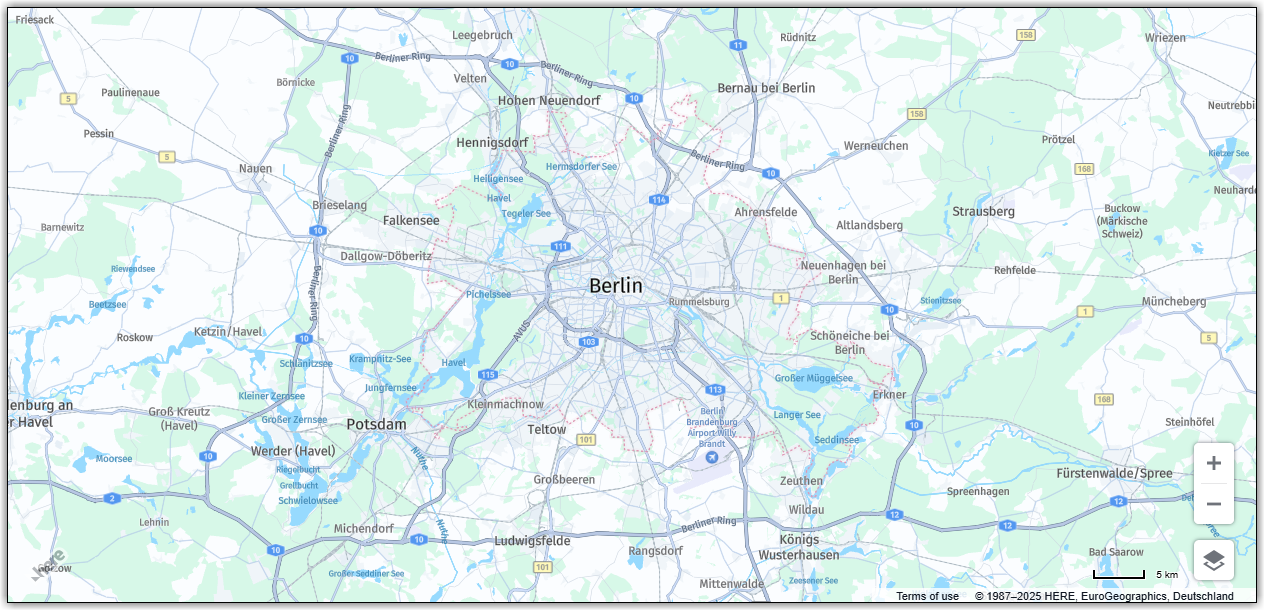
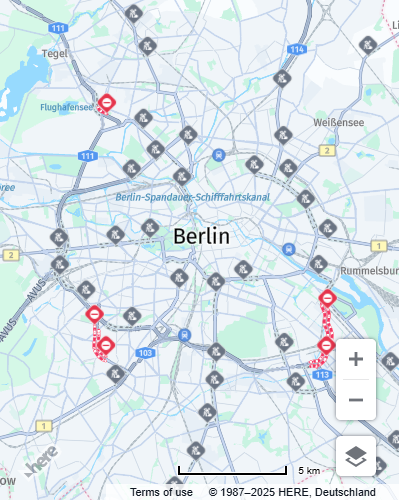
The sample implementation, as shown in the following code snippet, sets up aMapobject with the following specifications: map type set tonormal, zoom level set to10, and the map center located at latitude52.5and longitude13.4, which corresponds to Berlin, Germany.// Obtain the default map types from the platform object: const defaultLayers = platform.createDefaultLayers(); // Instantiate (and display) a map object: const map = new H.Map( document.getElementById('mapContainer'), defaultLayers.vector.normal.map, { zoom: 10, center: { lat: 52.5, lng: 13.4 } });
-
-
Enable basic pan and zoom map interactions, including support for mobile touch environments:
// The behavior variable implements default interactions for pan/zoom const behavior = new H.mapevents.Behavior(new H.mapevents.MapEvents(map)); -
Enable dynamic resizing of the map, allowing it to adapt to the changing size of its enclosing container:
// Adds an event listener to react to the changing size of the map container window.addEventListener('resize', () => map.getViewPort().resize()); -
Create the default map user interface:
// Create a set of controls to toggle map views and control zoom
// Placed in the bottom-right corner of the map by default
const ui = H.ui.UI.createDefault(map, defaultLayers)
The implementation of the previous use case displays the following interactive map:
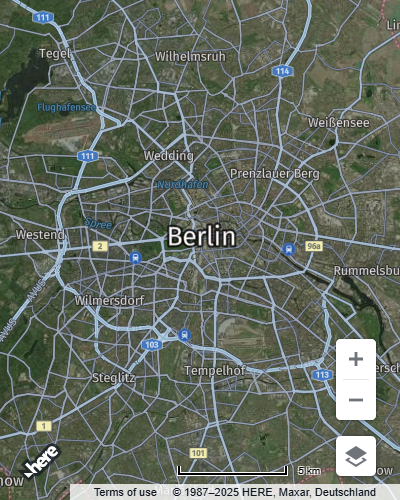
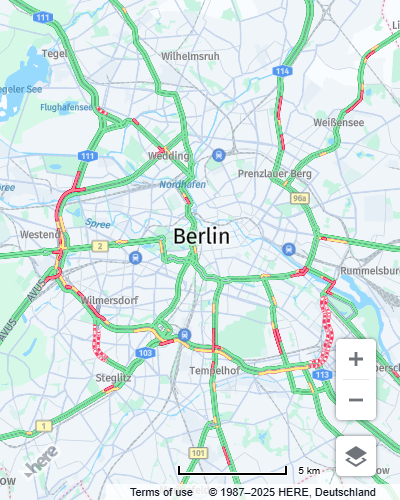
The following figure demonstrates the default views available in the map user interface. These views can be toggled individually or in combination to suit your needs. For instance, you can superimpose traffic information onto satellite imagery, among other possible combinations.
| Satellite | Traffic conditions | Traffic incidents |
|---|---|---|
 |  |  |
Complete code sample
The following is the full code sample that was the subject of the use case presented in this tutorial:
<!DOCTYPE html>
<html>
  <head>
    <script type="text/javascript" src="https://js.api.here.com/v3/3.2/mapsjs-core.js"></script>
    <script type="text/javascript" src="https://js.api.here.com/v3/3.2/mapsjs-service.js"></script>
    <script type="text/javascript" src="https://js.api.here.com/v3/3.2/mapsjs-mapevents.js"></script>
    <script type="text/javascript" charset="utf-8" src="https://js.api.here.com/v3/3.2/mapsjs-ui.js" ></script>
    <link rel="stylesheet" type="text/css" href="https://js.api.here.com/v3/3.2/mapsjs-ui.css" />
    <meta name="viewport" content="initial-scale=1.0, width=device-width" />
  </head>
  <body>
    <div style="width: 100%; height: 700px" id="mapContainer"></div>
    <script>
     // Initiate and authenticate your connection to the HERE platform:
     const platform = new H.service.Platform({
         'apikey': 'YOUR_HERE_API_KEY'
     });

     // Obtain the default map types from the platform object:
     const defaultLayers = platform.createDefaultLayers();

     // Instantiate (and display) a map:
     const map = new H.Map(
         document.getElementById("mapContainer"),
         defaultLayers.vector.normal.map, {
             zoom: 10,
             center: {
                 lat: 52.5,
                 lng: 13.4
             }
         });

     // MapEvents enables the event system.
     // The behavior variable implements default interactions for pan/zoom (also on mobile touch environments).
     const behavior = new H.mapevents.Behavior(new H.mapevents.MapEvents(map));

     // Enable dynamic resizing of the map, based on the current size of the enclosing container
     window.addEventListener('resize', () => map.getViewPort().resize());

    // Create the default UI:
    const ui = H.ui.UI.createDefault(map, defaultLayers)
    </script>
  </body>
</html>
Next steps
- To see how to best configure the HERE Maps API for JavaScript to work best with Japan data, see Display maps with Japan data.
- To see how to bundle the HERE Maps API for JavaScript with the most common bundlers, see Bundle the HERE Maps API for JavaScript with Webpack and Rollup.
- For the terms and conditions covering this documentation, see the HERE Documentation License.
Updated 6 months ago