

Bundle the HERE Maps API for JavaScript with Webpack and Rollup
This section shows how to bundle the HERE Maps API for JavaScript with the help of several most common bundlers such as Webpack and Rollup. The following sections provide the simple boilerplate code that produces the output for the bundler of choice.
Get started
To be able to use the HERE Maps API for JavaScript with NPM add the HERE public repository to the NPM configuration, as shown in the following example:
npm config set @here:registry https://repo.platform.here.com/artifactory/api/npm/maps-api-for-javascript/-
Assuming that the
node.jsandnpmare installed, create a directory to contain the project and run from the console by entering the following command:npm initThis command launches the project setup wizard, allowing you to customize base project properties to suit your needs. The result is the
package.json, similar to the one shown in the following example:{ "name": "bundling-test", "version": "1.0.0", "description": "", "main": "index.js", "scripts": { "test": "echo "Error: no test specified" && exit 1" }, "author": "", "license": "ISC" } -
Add a dependency to the HERE Maps API for JavaScript library by entering the following command:
npm install @here/maps-api-for-javascript --save
You can now choose between Rollup or Webpack bundlers, depending on your business objectives.
Rollup
Perform the following steps to use Rollup as the bundler for your mapping app.
-
Add development dependencies to Rollup and a Rollup module resolution plugin to the project:
npm install rollup @rollup/plugin-node-resolve --save-dev -
Create Rollup configuration file
rollup.config.mjsin the root directory of the project with the following configuration:import resolve from '@rollup/plugin-node-resolve'; export default { input: 'index.js', output: { dir: './out/', format: 'iife' }, // Disable "Use of Eval" Warning onwarn: function (message) { if (/mapsjs.bundle.js/.test(message) && /Use of eval/.test(message)) return; console.error(message); }, plugins: [resolve()] };The Rollup was installed locally. The configuration shown in the previous example defines the input source and output directory for the bundled script, as well as the format of the output.
-
Update the
scriptsobject in thepackage.jsonby adding thebundletarget:"bundle": "rollup --config rollup.config.mjs" -
Create an
index.jsfile that is the entry point for Rollup:import H from '@here/maps-api-for-javascript'; // Initialize the platform object: const platform = new H.service.Platform({ apikey: 'YOUR_API_KEY' }); // Obtain the default map types from the platform object const maptypes = platform.createDefaultLayers(); // Instantiate (and display) a map object: const map = new H.Map( document.getElementById('mapContainer'), maptypes.vector.normal.map, { zoom: 10, center: { lng: 13.4, lat: 52.51 } }); const behavior = new H.mapevents.Behavior(new H.mapevents.MapEvents(map)); // Enable dynamic resizing of the map, based on the current size of the enclosing container window.addEventListener('resize', () => map.getViewPort().resize()); -
Start the Rollup app by following the steps in Running the bundler.
Webpack
Perform the following steps to use Webpack as the bundler for your mapping app.
-
Add the required development dependencies to Webpack, as shown in the following example:
npm install webpack webpack-cli --save-dev -
Create the
webpack.config.jsconfiguration file in the root directory of the project with the following configuration:const path = require('path'); const TerserPlugin = require('terser-webpack-plugin'); module.exports = { node: { global: false }, mode: 'production', entry: { index: './index.js' }, output: { publicPath: './out/', path: path.resolve(__dirname, 'out'), filename: '[name].js', chunkFilename: '[name].bundle.js' }, optimization: { minimizer: [new TerserPlugin({ exclude: /mapsjs/ })], } };In the preceding configuration file, the
mapsjs.bundle.jsis explicitly excluded from the minification process. This is important to prevent adverse effects of the double minification. The entry module itself lazy-loads the HERE Maps API for JavaScript to take advantage of the Webpack's code splitting. -
With the local installation of Webpack, update the
scriptssection of thepackage.jsonby adding thebundletarget:"bundle": "webpack" -
Create an
index.jsfile that is the entry point for the bundler:import( /* webpackChunkName: "mapsjs" */ '@here/maps-api-for-javascript').then( ({ default: H }) => { const platform = new H.service.Platform({ apikey: 'YOUR_HERE_APIKEY' }); // Obtain the default map types from the platform object const maptypes = platform.createDefaultLayers(); // Instantiate (and display) a map object: const map = new H.Map( document.getElementById('mapContainer'), maptypes.vector.normal.map, { zoom: 10, center: { lng: 13.4, lat: 52.51 } }); const behavior = new H.mapevents.Behavior(new H.mapevents.MapEvents(map)); // Enable dynamic resizing of the map, based on the current size of the enclosing container window.addEventListener('resize', () => map.getViewPort().resize()); } ).catch(error => console.log(error));The code above makes use of the dynamic
imports, which is the recommended way of the dynamic code splitting for the Webpack. -
Start the Webpack app by following the steps in Running the bundler.
Running the bundler
Perform the following steps to initialize the mapping app in a browser window:
-
In the root directory of the project, create an
index.htmlfile that is an entry point for the application, as shown in the following example:<html> <head> <meta name="viewport" content="initial-scale=1.0, width=device-width" /> <style> #map { position: absolute; left: 0; top: 0; width: 100%; height: 100%; } </style> </head> <body> <div id="mapContainer"></div> <script src="./out/index.js"></script> </body> </html> -
Run the following command from the console.
npm run bundle
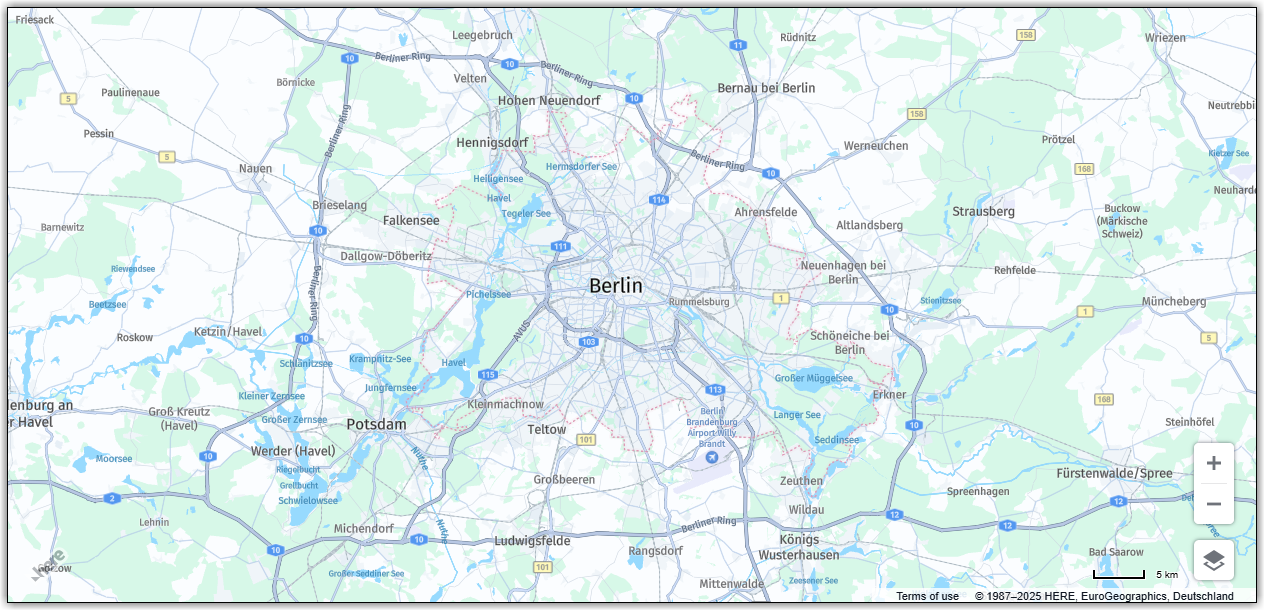
This produces the bundled build and puts it in the out directory. Accessing the index.html page from the browser displays the following result:
Next steps
For more information on other bundlers, see Bundle the HERE Maps API for JavaScript with Vite.
Updated 6 months ago