

Build HERE Maps with TypeScript
This tutorial guides you through the process of integrating the HERE Maps API for JavaScript with TypeScript and Webpack. By following these steps, you set up a comprehensive environment to make the most of the HERE Maps API for JavaScript with TypeScript and Webpack in your project.
Before you begin
Ensure that you installed the following software in your system:
- Node.js - JavaScript runtime environment that allows running JavaScript code outside a web browser.
- NPM (Node Package Manager) - Package manager for Node.js that facilitates the installation, sharing, and management of dependencies (libraries and tools) for Node.js projects.
Configure a TypeScript project
Follow these steps to create a basic TypeScript project that includes the HERE Maps API for JavaScript.
-
Create a folder for your TypeScript project.
-
Open the Command Prompt, and then change the directory to the project folder.
-
Enable the use of the HERE Maps API for JavaScript with NPM by adding the public HERE Maps API for JavaScript repository to the NPM configuration through the following command:
npm config set @here:registry https://repo.platform.here.com/artifactory/api/npm/maps-api-for-javascript/ -
Initialize a
package.jsonfile for your project by running the following command:npm initNote
The Node.js environment prompts you to set the basic project settings by presenting a series of questions in the command line. You can provide input to customize the
package.jsonfile during this initialization process or accept the default settings. -
At the final confirmation prompt, complete the
package.jsongeneration by enteringyes. -
Include the HERE Maps API for JavaScript library as a dependency by entering the following command:
npm install @here/maps-api-for-javascript -
Install development dependencies for Webpack through the following command:
npm install --save-dev webpack webpack-cli -
Install the TypeScript compiler and loader by entering the following command:
npm install --save-dev typescript@6 ts-loader -
In the project folder, create a file called
tsconfig.jsonwith the following structure:{ "compilerOptions": { "moduleResolution": "node16", "target": "es2016", "module": "node16", "strict": true, } }This is a minimal tsconfig which works well with the @here/maps-api-for-javascript npm package.
For more information, see the tsconfig documentation. -
Install
style-loaderandcss-loaderby entering the following commands:npm install --save-dev style-loader npm install --save-dev css-loaderThese loaders are required by Webpack to load the CSS file imported by
import "@here/maps-api-for-javascript/mapsjs-ui.css";. -
In the project folder, create the following
webpack.config.jsfile:const path = require('path'); module.exports = { entry: './index.ts', module: { rules: [ { test: /\.tsx?$/, use: 'ts-loader', exclude: /node_modules/, }, { test: /\.css$/, use: ['style-loader', 'css-loader'], }, ], }, resolve: { extensions: ['.tsx', '.ts', '.js'], }, output: { filename: 'index.js', path: path.resolve(__dirname, 'dist'), }, mode: 'production', node: { global: false, }, performance: { maxEntrypointSize: 2048000, maxAssetSize: 2048000, }, };This file provides basic configuration that can be used as a starting point for building a small to medium-sized TypeScript application with Webpack, with the following settings:
- Compiles a TypeScript application with an entry point at
index.ts. - Outputs the compiled code to a directory called
dist. - Uses production mode for optimizations.
- Sets performance limits to prevent large files from being generated.
For more information, see the Webpack documentation.
- Compiles a TypeScript application with an entry point at
-
In the project folder, create the following
index.tsfile that is the entry point for your TypeScript code:Note
Replace the value of the
apikeyattribute with your own HERE API key.// Import the HERE Maps API for JavaScript library import "@here/maps-api-for-javascript"; // Import the Venues submodule import "@here/maps-api-for-javascript/venues"; // Import the CSS required for the default UI controls import "@here/maps-api-for-javascript/mapsjs-ui.css"; // Create default map layers using the HERE Maps platform const platform = new H.service.Platform({ apikey: 'YOUR_HERE_APIKEY', }); // Create a new map instance with specified options const maptypes = platform.createDefaultLayers({ppi:250}); const map = new H.Map( document.getElementById("mapContainer")!, // Target HTML element for the map maptypes.vector.normal.map, // Use the vector map type { pixelRatio: 2, zoom: 11, center: { lng: 14.3279, lat: 40.8352 }, } ); // Enable basic map events for user interaction new H.mapevents.Behavior(new H.mapevents.MapEvents(map)); // Create the default UI const ui = H.ui.UI.createDefault(map, maptypes); -
In the project folder, create the following
index.htmlfile:<html> <head> <meta name="viewport" content="initial-scale=1.0, width=device-width" /> <meta charset="utf-8"> <style> #map { position: absolute; left: 0; top: 0; width: 100%; height: 100%; } </style> </head> <body> <div id="mapContainer"></div> <script src="./dist/index.js"></script> </body> </html>This file is the main entry point for your web application when it is loaded in a web browser.
Result: The final project folder structure consists of the following files and folders:
project folder (root)-
node_modules/ -
index.html -
index.ts -
package.json -
package-lock.json -
tsconfig.json -
webpack.config.jsonTip
The HTML definition allows you to reference additional references, such as the favicon, and among others, as shown in the following example:
<link rel="icon" href="./assets/favicon.ico" type="image/x-icon" />
-
-
In your project folder, open the
package.jsonfile and add the following command in thescriptssection:"build": "webpack"After adding the
buildscript execution command, when you run thenpm run buildcommand in the terminal, thebuildscript automatically triggers the Webpack bundling process, as defined in your project's configuration. -
Run the following command to build and generate the bundled output:
npm run buildAfter the build completes, the Command Prompt displays a success message and a
distfolder is created that contains the JavaScript code responsible for managing the map. -
From the project folder, open the
index.htmlfile in a web browser page.
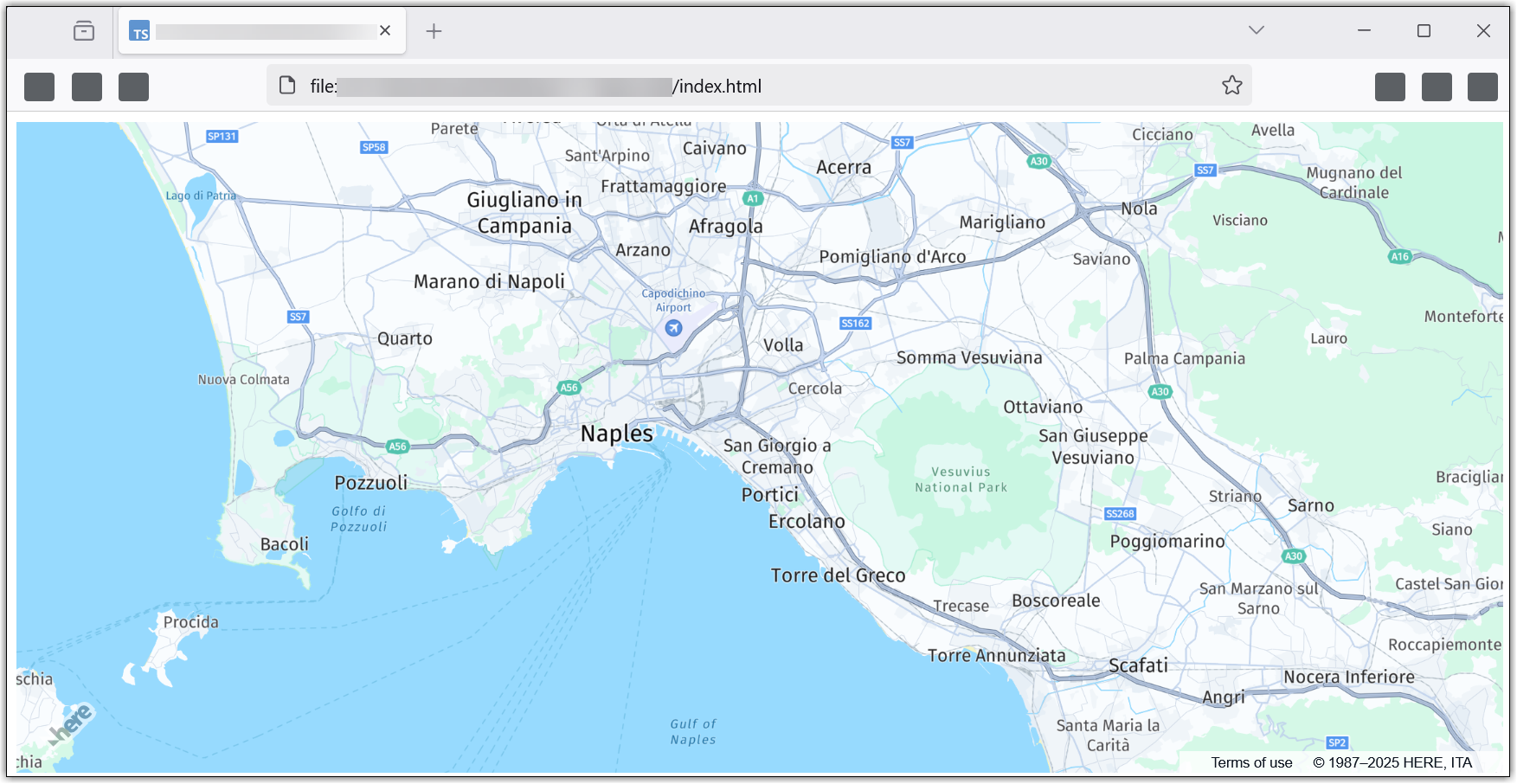
Result: The web page displays an interactive HERE map, as shown in the following example:
Next steps
To explore the design and features of the HERE Maps API for JavaScript, see the API Reference.
To see the usage example for Venues submodule, see the Integrate HERE Indoor Map
Updated last month