

Customize map display through features and modes
In the HERE Maps API for JavaScript, features and modes provide a convenient way to dynamically customize and control the map's display and behavior by allowing specific map objects or elements defined in the style configuration to be displayed or hidden.
- Feature: Refers to a specific map object or element that can be displayed or hidden, for example:
building extruded: 3D representations of buildings with height information.public transit: Routes and stops for buses, trains, and so on.environmental zones: Areas with traffic restrictions to control emissions and reduce pollution.road exit labels: Labels indicating exits on roads, typically highways.
- Mode: Defines how a feature is displayed. Modes can specify different levels of detail or interaction for a feature. Some mode values are exclusive to certain features. Examples of modes include:
all: Display the feature in full detail.none: Hide the feature completely.numbers only: Display road exit labels as numbers (available for theroad exit labelsfeature).
Obtain the list of features and modes
You can retrieve the list of supported features and their modes through the features property of the map style, as shown in the following code snippet:
// Retrieve the map style:
style = map.getBaseLayer().getProvider().getStyle();
// Get the configuration object of the style and
// access the list of supported features:
configFeatures = style.getConfig().features;
The following figure shows the output of the code from the previous example in the context of a web browser window, displaying the list of features and their associated modes, together with the default modes:
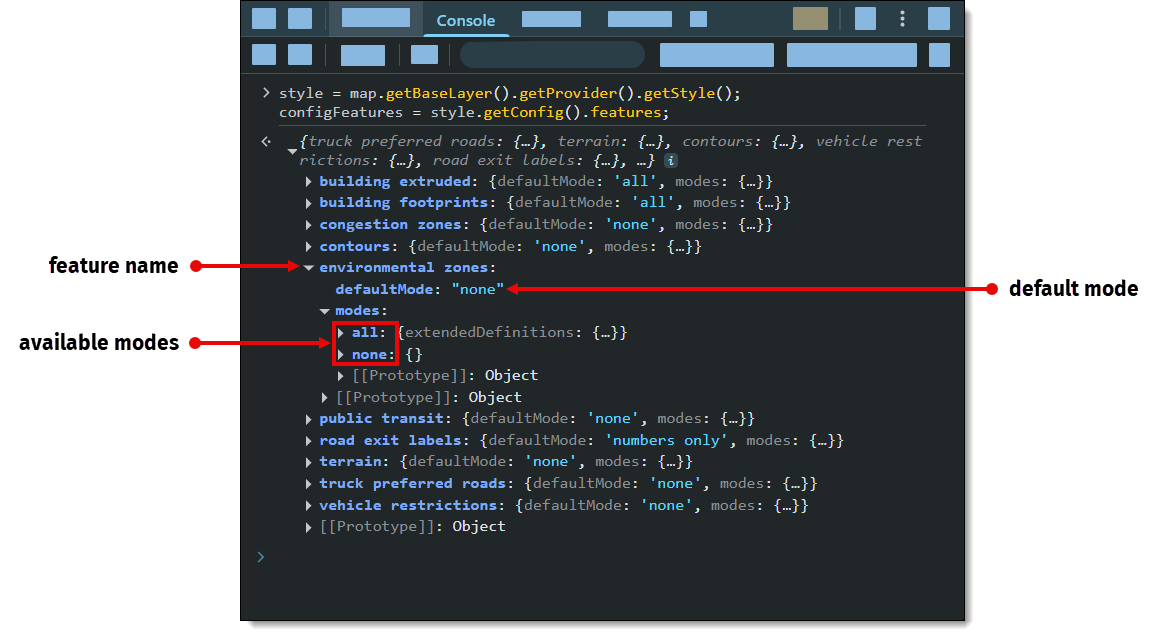
The previous example highlights the environmental zones feature. This feature's default mode is none, which hides environmental zones from the map. As indicated by the modes object, this feature has one additional all mode available, which enables the display of environmental zones on the map.
Toggle feature modes at runtime
To change a feature mode to dynamically change the appearance of the map, for example, to enable the display of environmental zones, use the setEnabledFeatures method of the style object, as shown in the following example:
style.setEnabledFeatures([
  { feature: '<feature_name_1>', mode: '<mode>' },
  { feature: '<feature_name_2>', mode: '<mode>' }
])
The setEnabledFeatures method accepts an array of objects, with each object consisting of feature and mode key-value pairs.
You can set multiple feature objects simultaneously.
Please note that map configuration should be loaded at the moment you call this method.
For example, the following code snippet sets the highway exit labels to numbers only and enables the display of public transport lanes, after configuration is loaded:
const style = map.getBaseLayer().getProvider().getStyle();
const onChangeHandler = (event) => {
  if (event.target.getState() === H.map.render.Style.State.READY) {
    style.removeEventListener('change', onChangeHandler); // Otherwise loops infinitely.
    map.getBaseLayer().getProvider().getStyle().setEnabledFeatures([
      { feature: 'road exit labels', mode: 'numbers only' },
      { feature: 'public transit', mode: 'all systems' }
    ]);
  }
}

style.addEventListener('change', onChangeHandler)
For more information, see the API reference section for the setEnabledFeatures method on the H.map.render.harp.Style class.
Example: Utilize features and modes for dynamic map customization
Enabling users to adjust the look and feel of the map dynamically enhances interactivity and usability, making your mapping application more intuitive and user-friendly.
The example presented in this tutorial demonstrates how to implement a button to hide or show the environmental zones feature on the map.
Note
The following sections build upon the base map described in Get started with HERE Maps API for JavaScript as the foundation for introducing code additions.
Enable toggling the environmental zone display
Expand the basic map functionality by adding a button to switch the environmental zones feature modes dynamically.
-
Within the
<body>tag of the HTML file, add the following<button>element:<button id="toggleEnvZones" style="position:absolute; top:10px; left:10px;">Enable Environmental Zones</button> -
Add a function to toggle the
environmental zonesfeature, as shown in the following example:// Toggle environmental zones feature: document.getElementById("toggleEnvZones").addEventListener("click", function () { const style = map.getBaseLayer().getProvider().getStyle(); // Feature and mode to enable: const feature = 'environmental zones'; const mode = 'all'; // Get the list of currently enabled features: const enabledFeatures = style.getEnabledFeatures(); // Find 'environmental zones' in the list of already enabled features: const featureIndex = enabledFeatures.findIndex(el => el.feature === feature); if (featureIndex === -1) { // If the feature is disabled, add it to the list of enabled features: enabledFeatures.splice(featureIndex, 0, { feature, mode }); this.textContent = "Disable Environmental Zones"; } else { // If the feature is enabled, remove it from the list: enabledFeatures.splice(featureIndex, 1); this.textContent = "Enable Environmental Zones"; } style.setEnabledFeatures(enabledFeatures); }); -
Save your edits and then open the HTML file in a web browser.
The following figure shows the resulting map with a button to toggle the display of environmental zones: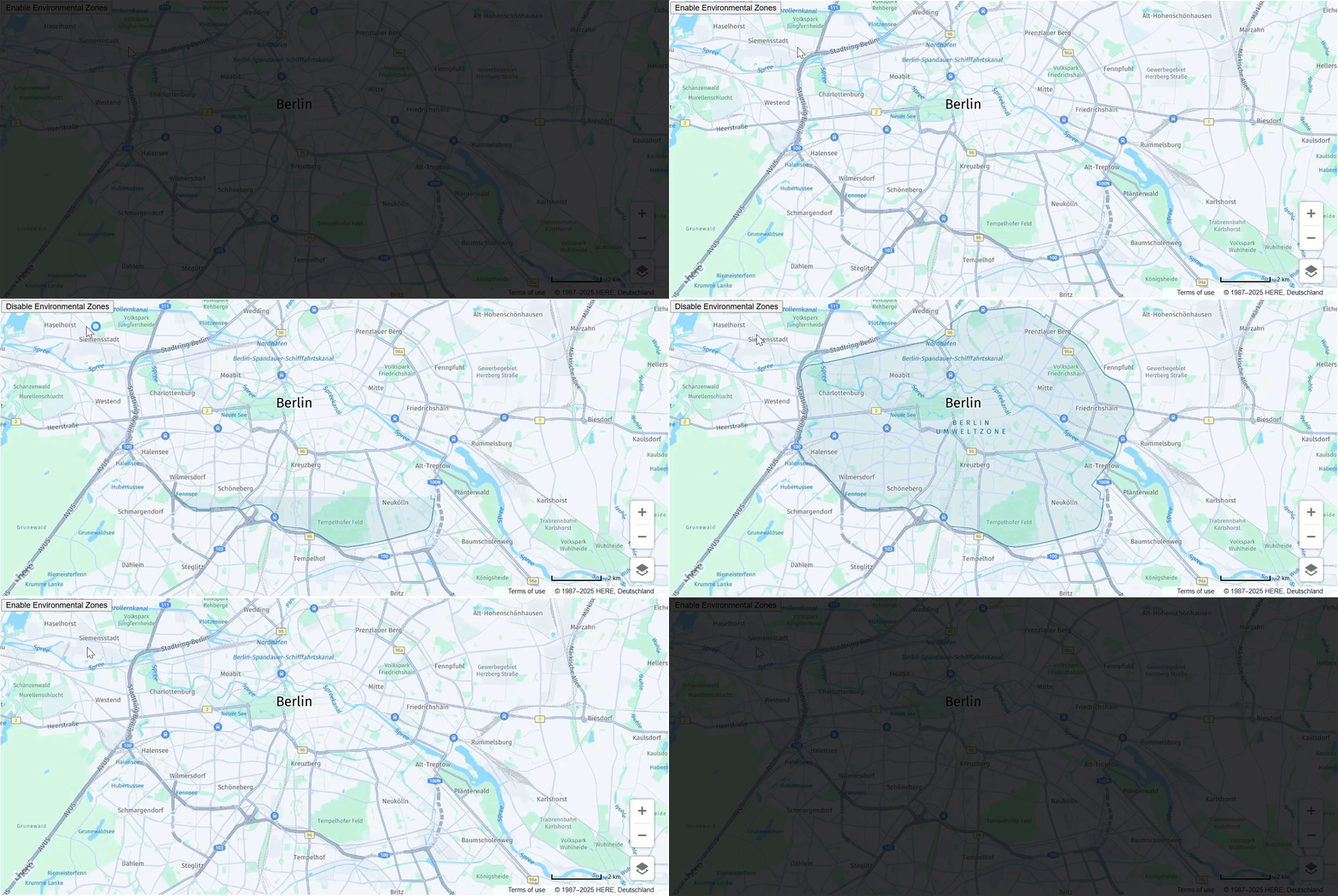
You can further control the display of map features through the following calls:
style.setEnabledFeatures(): Restores the default mode values for all features.style.setEnabledFeatures([]): Disables all features, for example, this includes setting the modes of such features asbuilding extruded,building footprint,road exit labels, and so on, tonone.style.getEnabledFeatures(): Returns the feature modes modified since the laststyle.setEnabledFeatures()call. For more information, see the API Reference section for the getEnabledFeatures method.
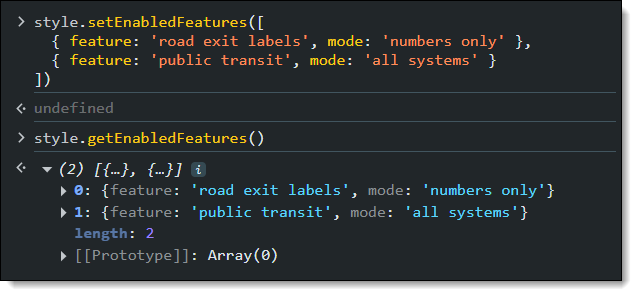
For example, see the sample output of this call after modifying the road exit labels and public transit features, in the context of a browser window console:
Next steps
To further explore the design and features of the HERE Maps API for JavaScript, see the API Reference.
Updated 6 months ago