

Add markers
One of the most prevalent use cases for a mapping application is to display points of interest (POIs) on the map. The HERE Maps API for JavaScript simplifies the implementation process by enabling you to represent POIs as markers.
Marker types
The API provides the following marker types:
| Marker type | Class | Description |
|---|---|---|
| Marker | H.map.Marker | A standard marker that utilizes a static image as an icon, which allows for rapid and efficient addition of large numbers of markers to the map. |
| DOM marker | H.map.DomMarker | A marker that supports rendering of both HTML and SVG content, potentially with dynamic updates. These markers typically perform well when displayed individually or in small groups. |
How markers work
A marker of either type, comprising a geographical point defined by its latitude and longitude and a visual representation, typically an icon, is used to identify a location on a map. The size of marker icons remains consistent regardless of the zoom level, as they are rendered in screen-space.
Markers (Marker) and DOM markers (DomMarker) require distinct icon types. A Marker object accepts instances of Icon (H.map.Icon), whereas a DomMarker needs an instance of DomIcon (H.map.DomIcon). This separation allows for the reuse of icons across multiple marker objects.
Markers and DOM markers are rendered in separate steps. Markers are integrated into the map scene, appearing behind any DOM markers that are overlaid on top of the map.
The following sections demonstrate how to incorporate different marker types into your maps.
Note
The following sections build upon the base map described in Get started with HERE Maps API for JavaScript as the foundation for introducing code additions.
Add a marker with a static SVG icon
The following code demonstrates how to create a marker with an SVG icon.
// Define a variable holding SVG mark-up that defines an icon image:
var svgMarkup = '<svg width="24" height="24" ' +
    'xmlns="http://www.w3.org/2000/svg">' +
    '<rect stroke="white" fill="#1b468d" x="1" y="1" width="22" ' +
    'height="22" /><text x="12" y="18" font-size="12pt" ' +
    'font-family="Arial" font-weight="bold" text-anchor="middle" ' +
    'fill="white">H</text></svg>';

// Create an icon, an object holding the latitude and longitude, and a marker:
var icon = new H.map.Icon(svgMarkup),
    coords = {lat: 52.53075, lng: 13.3851},
    marker = new H.map.Marker(coords, {icon: icon});

// Add the marker to the map and center the map at the location specified by the marker, with a zoom level set to 17:
map.addObject(marker);
map.setCenter(coords);
map.setZoom(17)You can elevate markers by specifying the additional altitude (
alt) value in meters, as shown in the following example:coords = {lat: 52.53075, lng: 13.3851, alt: 50}
When executed, the code produces the following outputs:
- A string representation of an SVG icon.
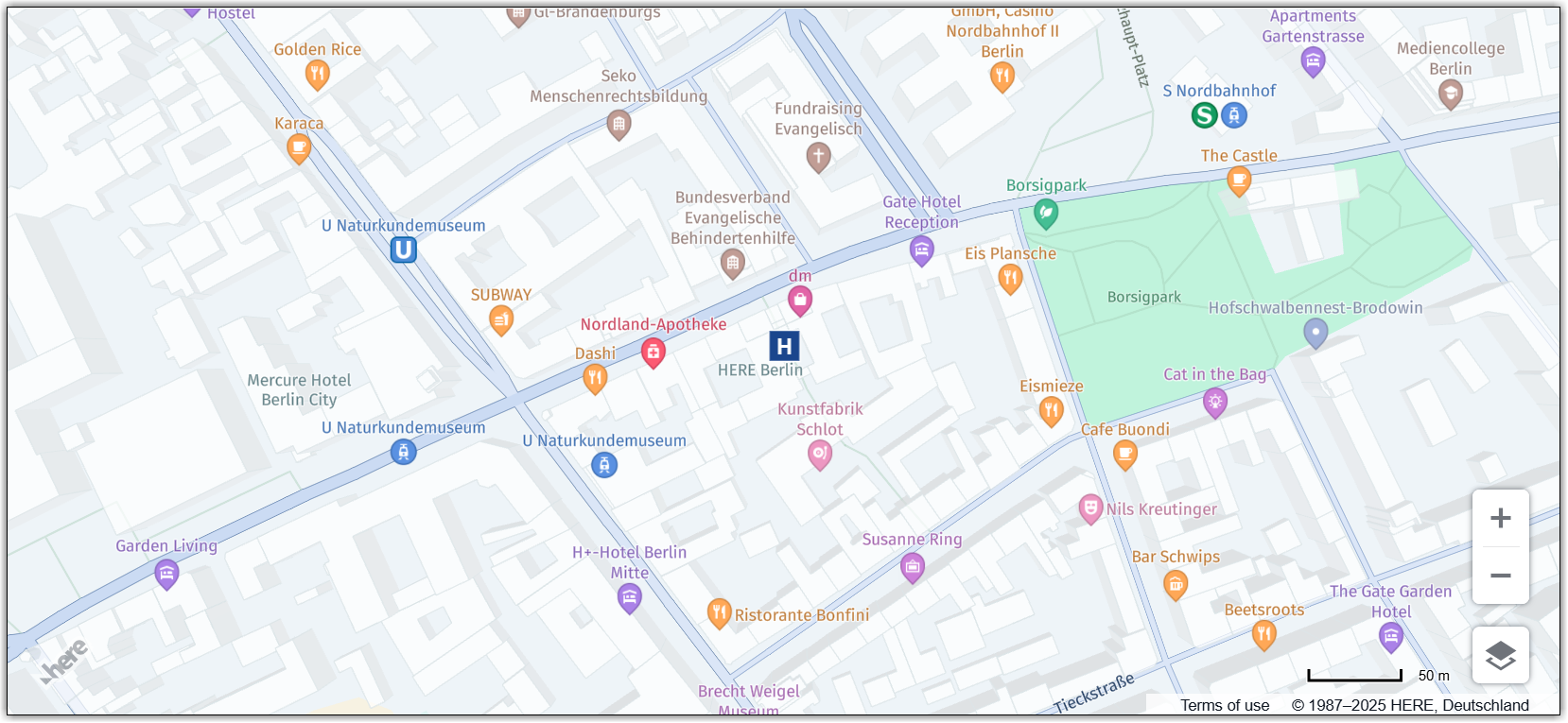
- An object containing the geographic coordinates of a location and a standard marker, in this case, in the form of a rectangular icon featuring a white letter "H" against a blue background.
The resulting map centered on the location of the marker is shown in the image below.
For improved performance, reuse icons between markers.
The resulting map, centered on the location of the marker, is depicted in the following image:
Note
The maximum icon size and anchor offset is 256 pixels. To accommodate oversized icons, increase the map margin accordingly.
Add a marker with a static image
The following code snippet shows how to instantiate an icon and a marker from an image URL.
// Create a marker icon by specifying either the path to an image directory or the URL of the image:
var icon = new H.map.Icon('graphics/markerPin.png');

// Create a marker using the previously instantiated icon:
var marker = new H.map.Marker({ lat: 52.5, lng: 13.4 }, { icon: icon });

// Add the marker to the map and optionally set the zoom:
map.addObject(marker);
map.setZoom(16)
When executed, the code generates:
- An icon utilizing a bitmap's URL (a PNG image)
- A standard marker initialized with the provided bitmap.
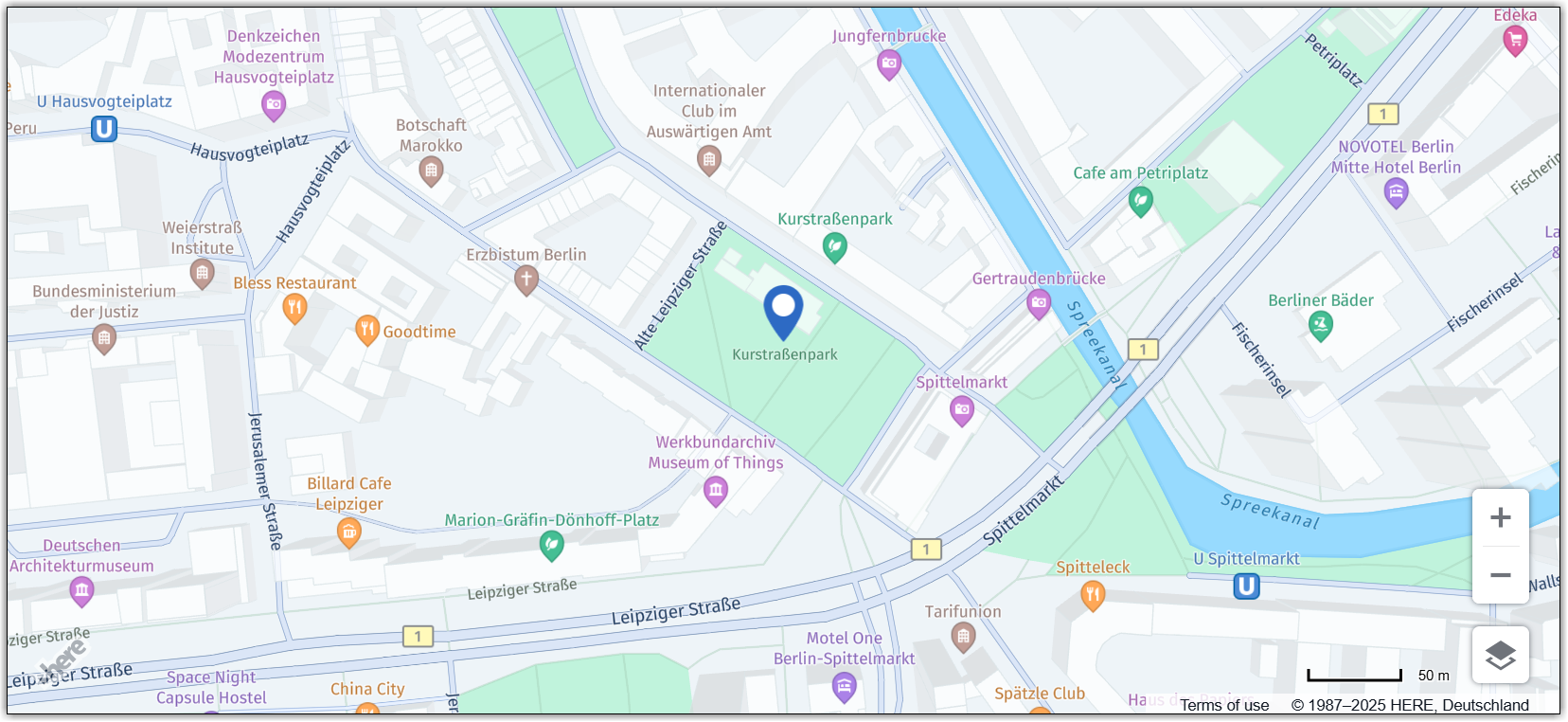
The following image shows the map centered on the location of the marker that uses a bitmap icon:
This example demonstrates a basic configuration for creating a marker with a custom image icon. While icons and markers offer additional customization options, these parameters can also be passed to constructors as needed. For example, you can customize hit-areas and anchors for image icons. For more information on available options and their usage, see the H.map.Icon page in the API Reference.
Note
The
iconproperty of a marker is an optional parameter. By default, the API provides a standard icon for markers that have not had a custom icon assigned.
Add an animated marker with HTML or SVG content
Image markers are an effective way to highlight points of interest on a map with static graphical content. In specific use cases, it may be preferable to provide markers with interactive or animated HTML content (for example, animated GIFs, animated SVGs, or hover effects) instead of pre-rendered images. The Maps API for JavaScript offers the DomMarker class for such scenarios.
The following example demonstrates how you can use a DomMarker to create a marker with animated SVG content. In this case, the animated marker icon is a bouncing ball.
// Define a variable holding SVG mark-up that defines an animated icon image:
var animatedSvg =
    '<svg version="1.1" xmlns="http://www.w3.org/2000/svg" x="0px" ' +
    'y="0px" style="margin:-112px 0 0 -32px" width="136px"' +
    'height="150px" viewBox="0 0 136 150"><ellipse fill="#000" ' +
    'cx="32" cy="128" rx="36" ry="4"><animate attributeName="cx" ' +
    'from="32" to="32" begin="0s" dur="1.5s" values="96;32;96" ' +
    'keySplines=".6 .1 .8 .1; .1 .8 .1 1" keyTimes="0;0.4;1"' +
    'calcMode="spline" repeatCount="indefinite"/>' +
    '<animate attributeName="rx" from="36" to="36" begin="0s"' +
    'dur="1.5s" values="36;10;36" keySplines=".6 .0 .8 .0; .0 .8 .0 1"' +
    'keyTimes="0;0.4;1" calcMode="spline" repeatCount="indefinite"/>' +
    '<animate attributeName="opacity" from=".2" to=".2"  begin="0s" ' +
    ' dur="1.5s" values=".1;.7;.1" keySplines=" .6.0 .8 .0; .0 .8 .0 1" ' +
    'keyTimes=" 0;0.4;1" calcMode="spline" ' +
    'repeatCount="indefinite"/></ellipse><ellipse fill="#1b468d" ' +
    'cx="26" cy="20" rx="16" ry="12"><animate attributeName="cy" ' +
    'from="20" to="20" begin="0s" dur="1.5s" values="20;112;20" ' +
    'keySplines=".6 .1 .8 .1; .1 .8 .1 1" keyTimes=" 0;0.4;1" ' +
    'calcMode="spline" repeatCount="indefinite"/> ' +
    '<animate attributeName="ry" from="16" to="16" begin="0s" ' +
    'dur="1.5s" values="16;12;16" keySplines=".6 .0 .8 .0; .0 .8 .0 1" ' +
    'keyTimes="0;0.4;1" calcMode="spline" ' +
    'repeatCount="indefinite"/></ellipse></svg>';

// Create an icon object, an object with geographic coordinates and a marker:
var icon = new H.map.DomIcon(animatedSvg),
    coords = {lat: -22.8906, lng: -43.2283},
    marker = new H.map.DomMarker(coords, {icon: icon});

// Set map center and zoom, add the marker to the map:
map.setCenter(coords);
map.setZoom(18);
map.addObject(marker);
When executed, the code generates:
- A variable that stores the definition of an animated SVG image.
- An icon initialized with the SVG image.
- An object containing the geographic coordinates of a location.
- A standard animated marker.
The final lines of code in the preceding example add the marker to the map and center the map using the object holding the geographic coordinates.
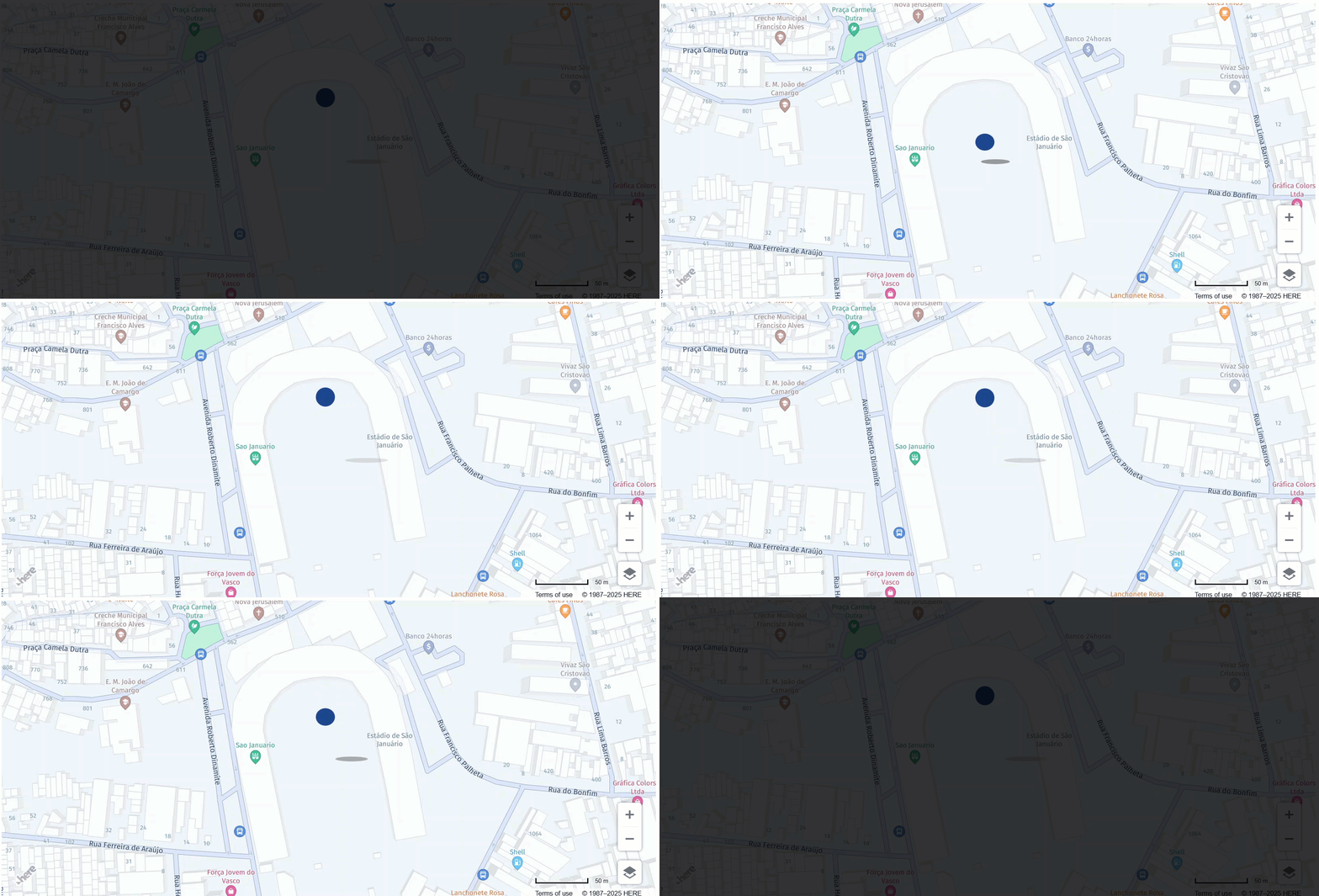
The following image shows the map with a marker that uses an animated icon:
Add a marker with a custom anchor point
Creating a custom anchor point for map markers is crucial for precise alignment and proper visualization of map markers in various mapping applications.
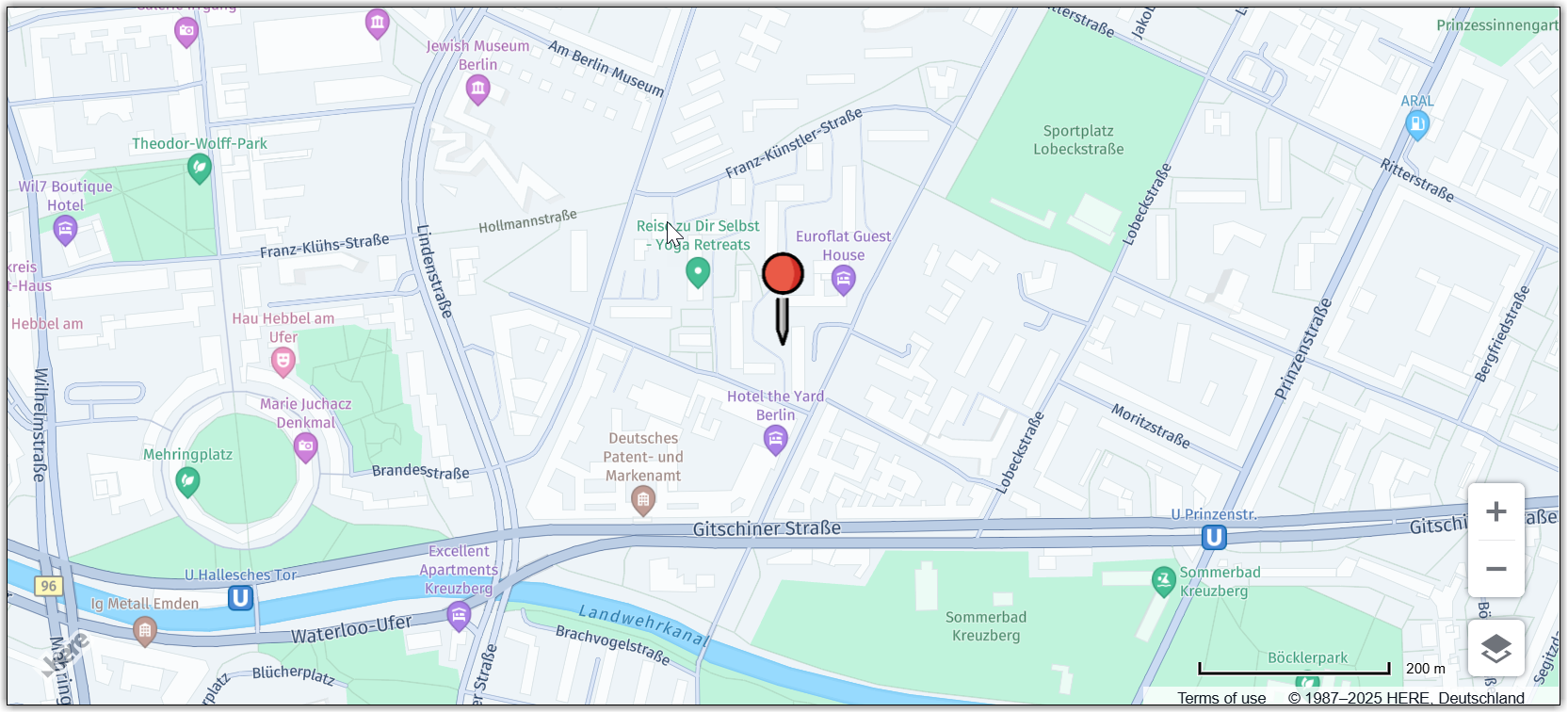
For example, if you're using a pin icon, you might want to set the anchor point at the bottom tip of the pin, or even slightly below it. This adjustment ensures that the marker accurately aligns with the point of interest on the map, while preventing the icon itself from obscuring the underlying location.
The following example shows how to move the anchor point to the bottom tip of a pin marker in the SVG format:
var svg = '<svg width="48" height="48" viewBox="0 0 24 24" xmlns="http://www.w3.org/2000/svg">' +
    '<path fill="#2D6AC4" d="M12 2C8.13 2 5 5.13 5 9c0 4.97 7 13 7 13s7-8.03 7-13c0-3.87-3.13-7-7-7z"/>' +
    '<circle cx="12" cy="9" r="4" fill="#FFFFFF"/>' +
    '</svg>';

var coords = {
  lat: 52.51229,
  lng: 13.40048
}
var icon = new H.map.Icon(svg, {
  anchor: {
    x: 24,
    y: 58
  } // x: center horizontally, y: slightly below the bottom tip of the marker
});

var marker = new H.map.Marker(coords, {
  icon: icon
});

// Add the marker to the map and the set the zoom:
map.setCenter(coords);
map.setZoom(17)
map.addObject(marker);
The following figure shows how the HERE Maps API for JavaScript renders the marker from the previous example:
For information on how to improve performance, see Icon reuse.
For more information about anchor and other icon properties, see H.map.Icon documentation in the API Reference.
Updated 7 months ago