

View and apply vehicle restrictions
Note
The vehicle profile API presented in this document is currently in beta, and its behaviour may change in future releases.
Overview
Commercial vehicles must comply with various road restrictions related to vehicle dimensions, weight, hazardous materials, and tunnel access. These restrictions vary across locations and are often displayed as icons or signs on maps.
The HERE Maps API for JavaScript lets you visualize all vehicle restrictions on the map through the "vehicle restrictions" feature in the appropriate mode.
Features and modes let you control which types of map data are rendered. For example, activating the "vehicle restrictions" feature in the "active & inactive" mode displays all available restriction icons and signs.
For more details on how to use features and modes, see Customize map display through features and modes.
To help developers focus on relevant restrictions for a specific vehicle and/or date of travel, HERE Maps API for JavaScript provides the following APIs:
- The Vehicle Profile API, which uses a configurable vehicle profile. This API limits the map to displaying restrictions for the defined vehicle.
- The Time-Based Vehicle Restrictions API, which lets you view and filter non-permanent truck restrictions based on the date and time of travel.
These features offer streamlined route planning to transport planners and logistics companies, letting them focus on the constraints that apply to their fleet vehicles.
This guide explains how to configure and use H.service.omv.Provider#setVehicleSpecs method with the H.service.omv.Provider.ITruckSpecs interface to filter truck restrictions on the map.
The guide also provides examples of how to use the H.service.omv.Provider#setTimeRestriction method to filter truck restrictions based on the date and time of travel.
For more information, refer to the API reference page H.service.omv.Provider.
Note
Some restrictions may not always appear on the map due to a large number of other restrictions in the area, or visualization constraints such as icon overlap and collision detection. To ensure accurate restriction mapping, always zoom in to the relevant area to confirm a restriction's presence.
Getting Started
Configure the map to use vector.normal.logistics
vector.normal.logisticsPremium properties for heavy goods vehicles (HGVs) are available in the additional advanced_roads data layer. For more information, see Advanced Roads.
The HERE Maps API for JavaScript provides the vector.normal.logistics layer displaying advanced_roads data.
By default, the logistics map style also brings the following map elements into focus:
- Industrial areas
- Road exit numbers and names
- Built-up areas
- Standard toll roads and specialized truck toll roads
- Logistics-related points of interest (POIs) such as truck POIs, cargo and delivery POIs, and logistic area types POIs.
To render the default layers:
const platform = new H.service.Platform({
  apikey: "YOUR API KEY",
});

const defaultLayers = platform.createDefaultLayers();

// Instantiate and display a map
const map = new H.Map(
  document.getElementById("map"),
  defaultLayers.vector.normal.logistics,
  {
    zoom: 7,
    center: { lat: 51.509865, lng: -0.118092 }
  }
);

// ... rest of the application
For more information about the available default layers, see H.service.Platform#createDefaultLayers.
Enable the vehicle restrictions feature
vehicle restrictions featureThe rendering of vehicle restrictions is enabled through features and modes.
For more information about features and modes and how to properly use them, see Customize map display through features and modes.
const style = map.getBaseLayer().getProvider().getStyle();
const enabledFeatures = style.getEnabledFeatures();
enabledFeatures.push({ feature: 'vehicle restrictions', mode: 'active & inactive'});
style.setEnabledFeatures(enabledFeatures);
Vehicle Profile API
The Vehicle Profile API lets you define a customized vehicle profile, letting you automatically detect and identify road conditions that may impact a vehicle's safety and routing.
Set a vehicle profile
To apply the filtering logic, define your vehicle profile using the H.service.omv.Provider#setVehicleSpecs method:
const truckSpecs = {
  vehicleType: H.service.omv.Provider.IVehicleSpecs.VehicleType.TRUCK
  //Add other relevant attributes as necessary
};

map.getBaseLayer().getProvider().setVehicleSpecs(truckSpecs);
The object must conform to the H.service.omv.Provider.ITruckSpecs interface.
H.service.omv.Provider.ITruckSpecs attributes
H.service.omv.Provider.ITruckSpecs attributesThe following attributes let you define a vehicle's loadout, dimensions, and payload, letting you see what route restrictions may affect its journey.
grossWeightInKilogramsheightInCentimeterslengthInCentimeterswidthInCentimeterstrailerCounttruckTypehazardousMaterialtunnelCategorykpraInCentimetersaxleCountweightPerAxleInKilogramsweightPerAxleGrouppreferredTruckRouteTypes
grossWeightInKilograms
grossWeightInKilogramsThe gross vehicle weight in kilograms, including trailers and shipped goods when loaded at capacity. The value set for grossWeightInKilograms is checked against the hgv_restriction:weight value in the vector tile data.
A restriction is shown if the truck's gross weight is greater than the restricted value. If this value is not defined, the restriction is not displayed.
Example
// Center the map at a location with a gross weight restriction
map.getViewModel().setLookAtData({
  zoom: 18,
  position: { lat: 51.51032, lng: -0.00125 }
});

const truckSpecs = {
  vehicleType: H.service.omv.Provider.IVehicleSpecs.VehicleType.TRUCK,
  grossWeightInKilograms: 32000
};

map.getBaseLayer().getProvider().setVehicleSpecs(truckSpecs);| Before | After |
|---|---|
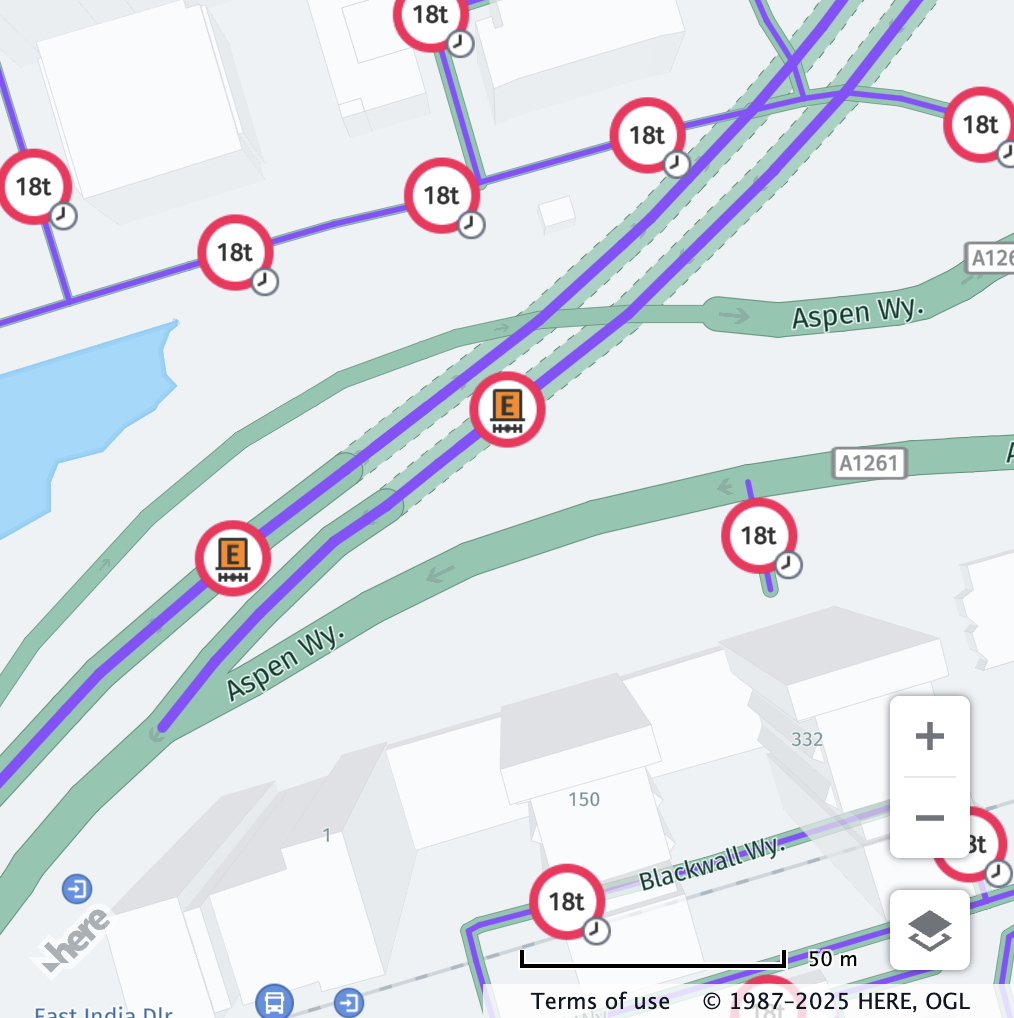 | 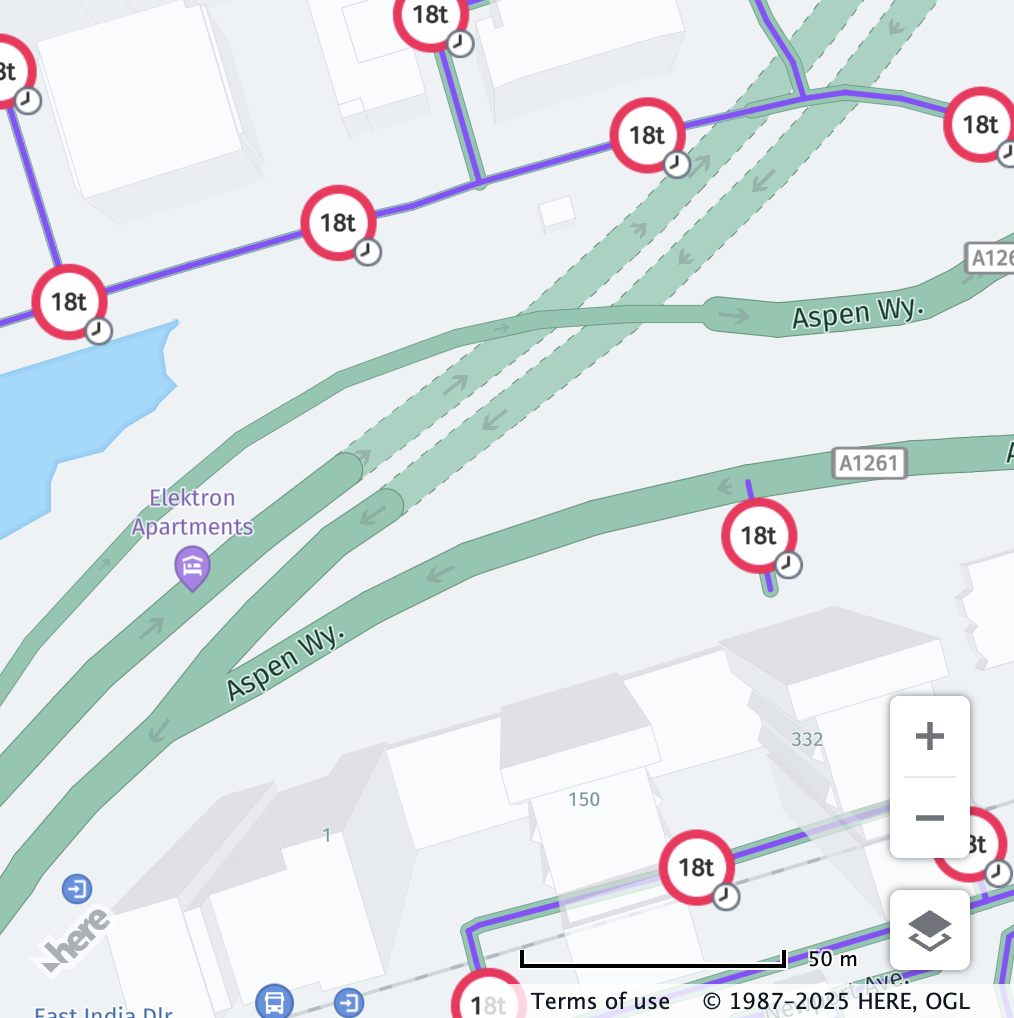 |
heightInCentimeters
heightInCentimetersThe total vehicle height in centimeters. The value set for heightInCentimeters is checked against the hgv_restriction:height value in the vector tile data.
The restriction is shown if the truck height is greater than the restricted value. If this value is not defined, the restriction is not displayed.
Example
// Center the map at a location with a height restriction
map.getViewModel().setLookAtData({
  zoom: 19.8,
  position: { lat: 51.51235, lng: -0.00872 }
});

const truckSpecs = {
  vehicleType: H.service.omv.Provider.IVehicleSpecs.VehicleType.TRUCK,
  heightInCentimeters: 410
};

map.getBaseLayer().getProvider().setVehicleSpecs(truckSpecs);| Before | After |
|---|---|
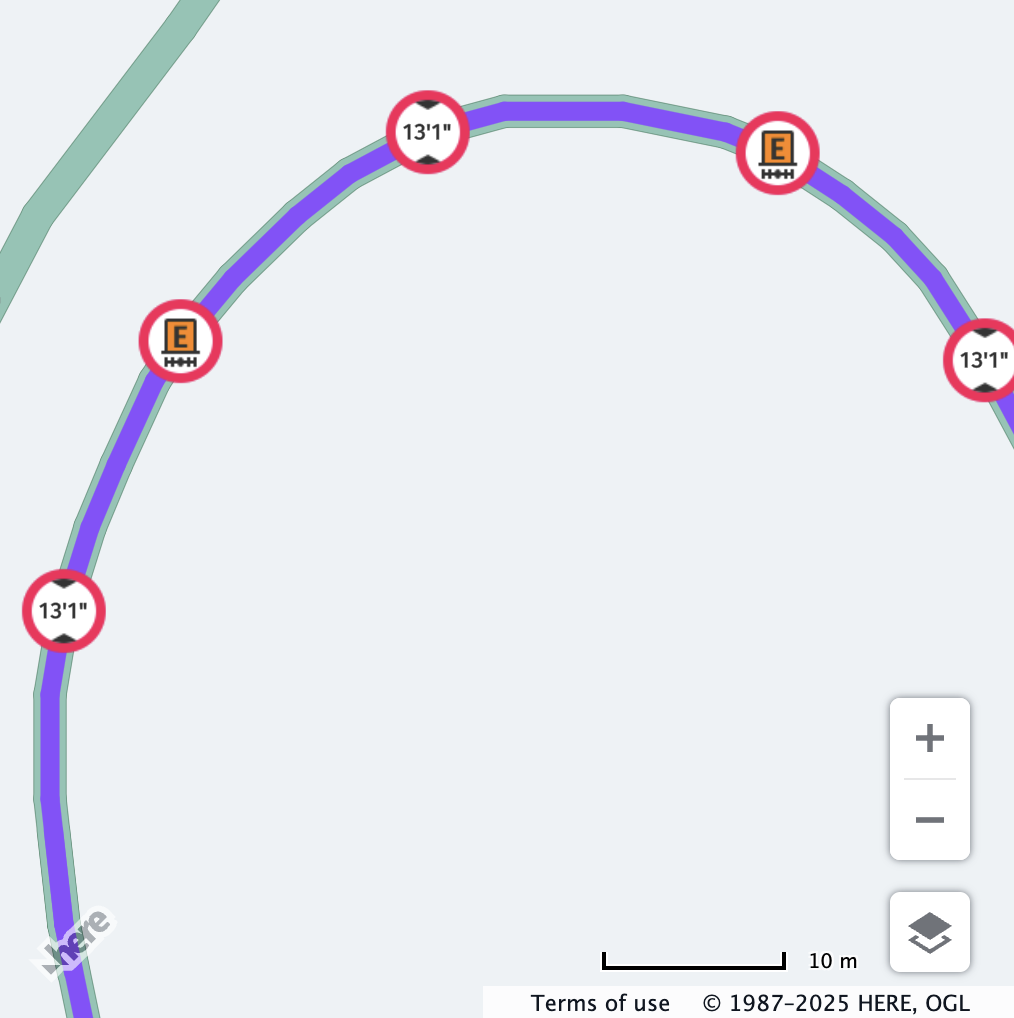 | 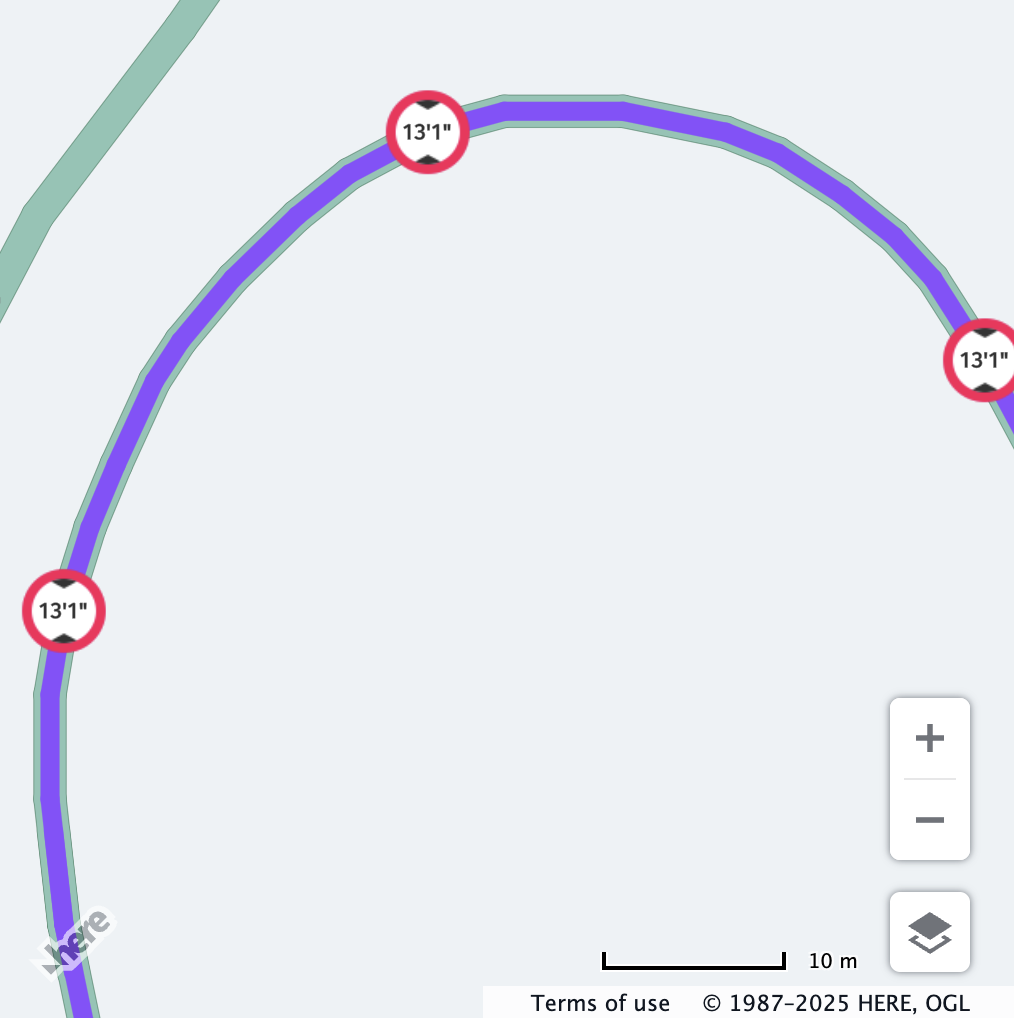 |
lengthInCentimeters
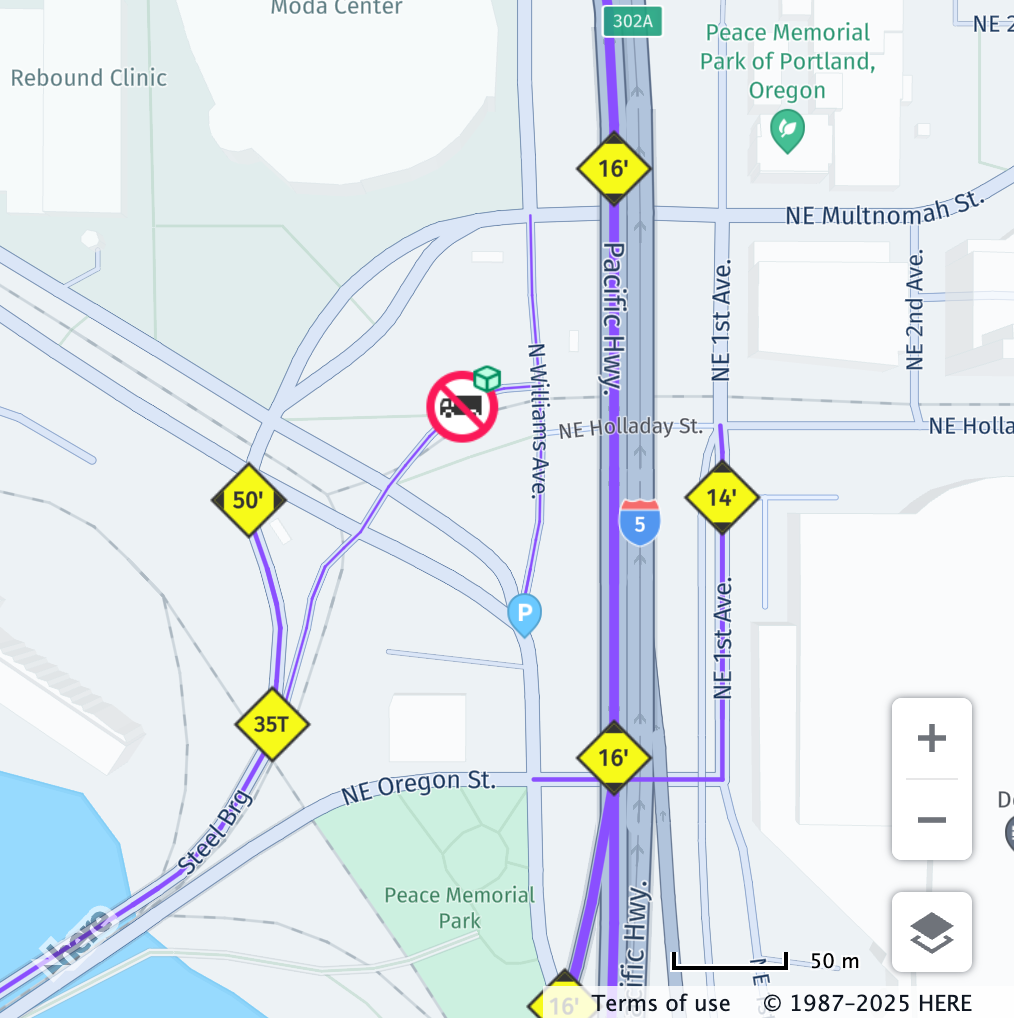
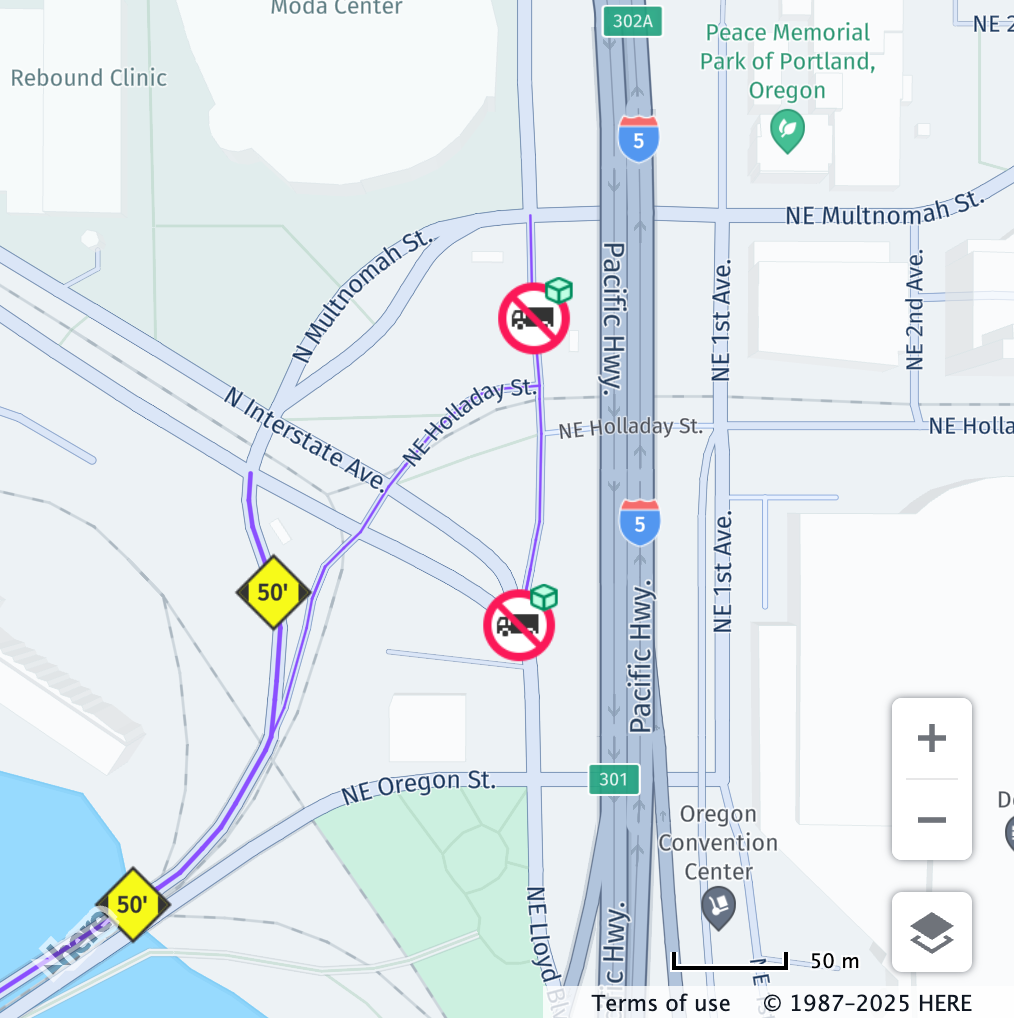
lengthInCentimetersThe total vehicle length in centimeters. The value set for lengthInCentimeters is checked against the hgv_restriction:length value in the vector tile data.
The restriction is shown if length is greater than the restricted value. If this value is not defined, the restriction is not displayed.
Example
// Center the map at a location with a length restriction
map.getViewModel().setLookAtData({
  zoom: 17,
  position: {lat: 45.5297, lng: -122.6659}
});

const truckSpecs = {
  vehicleType: H.service.omv.Provider.IVehicleSpecs.VehicleType.TRUCK,
  lengthInCentimeters: 1800
};

map.getBaseLayer().getProvider().setVehicleSpecs(truckSpecs);| Before | After |
|---|---|
 |  |
widthInCentimeters
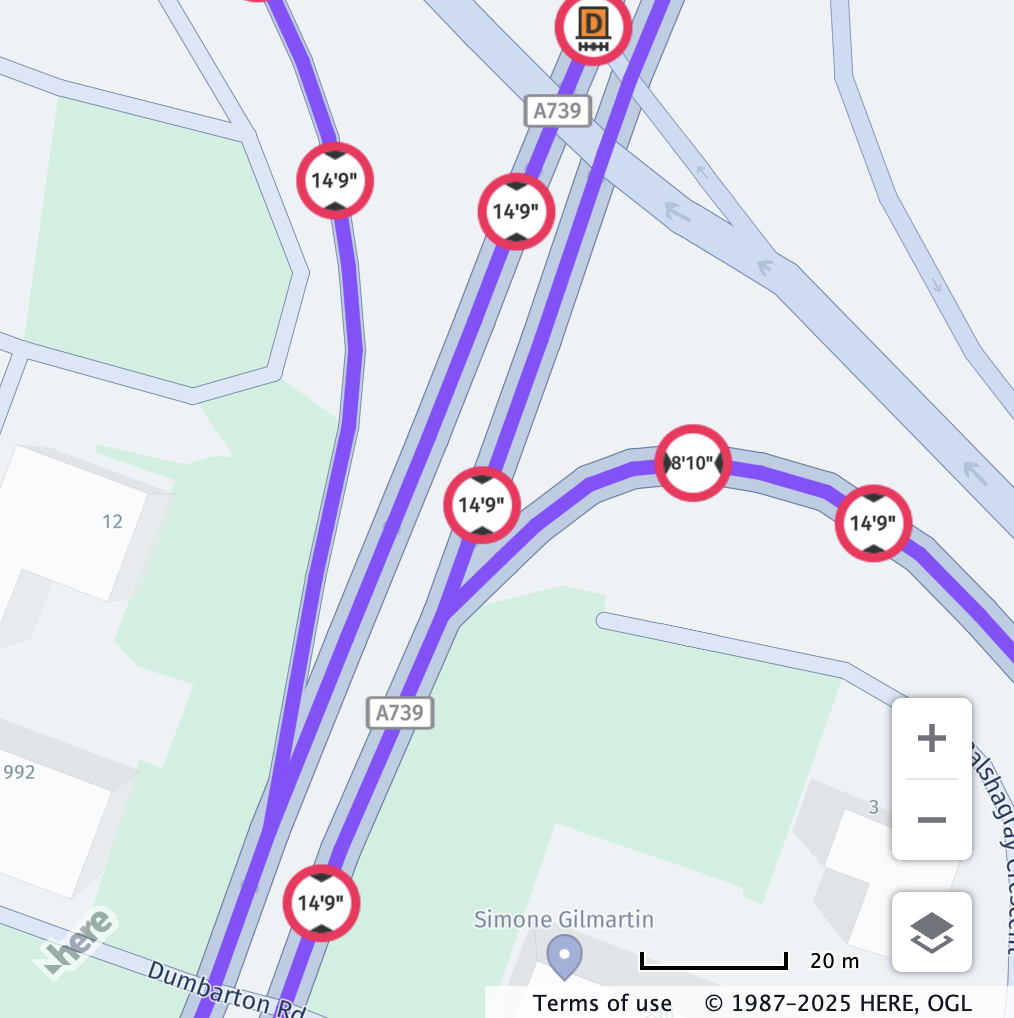
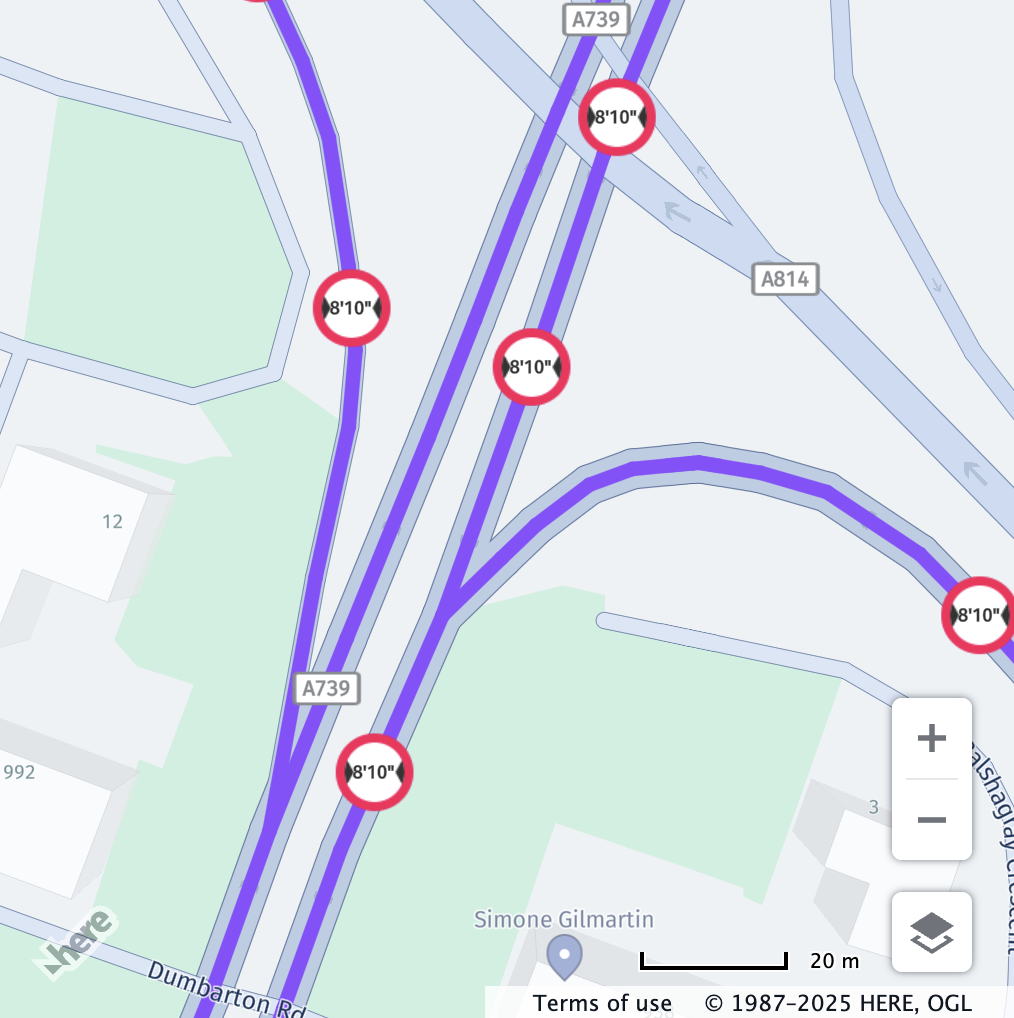
widthInCentimetersThe total vehicle width in centimeters. The value set for widthInCentimeters is checked against the hgv_restriction:width value in the vector tile data.
The restriction is shown if the vehicle's width is greater than the restricted value. If this value is not defined, the restriction is not displayed.
Example
// Center the map at a location with a width restriction
map.getViewModel().setLookAtData({
  zoom: 18.35,
  position: {lat: 55.87311, lng: -4.3290}
});

const truckSpecs = {
  vehicleType: H.service.omv.Provider.IVehicleSpecs.VehicleType.TRUCK,
  widthInCentimeters: 280
};

map.getBaseLayer().getProvider().setVehicleSpecs(truckSpecs);| Before | After |
|---|---|
 |  |
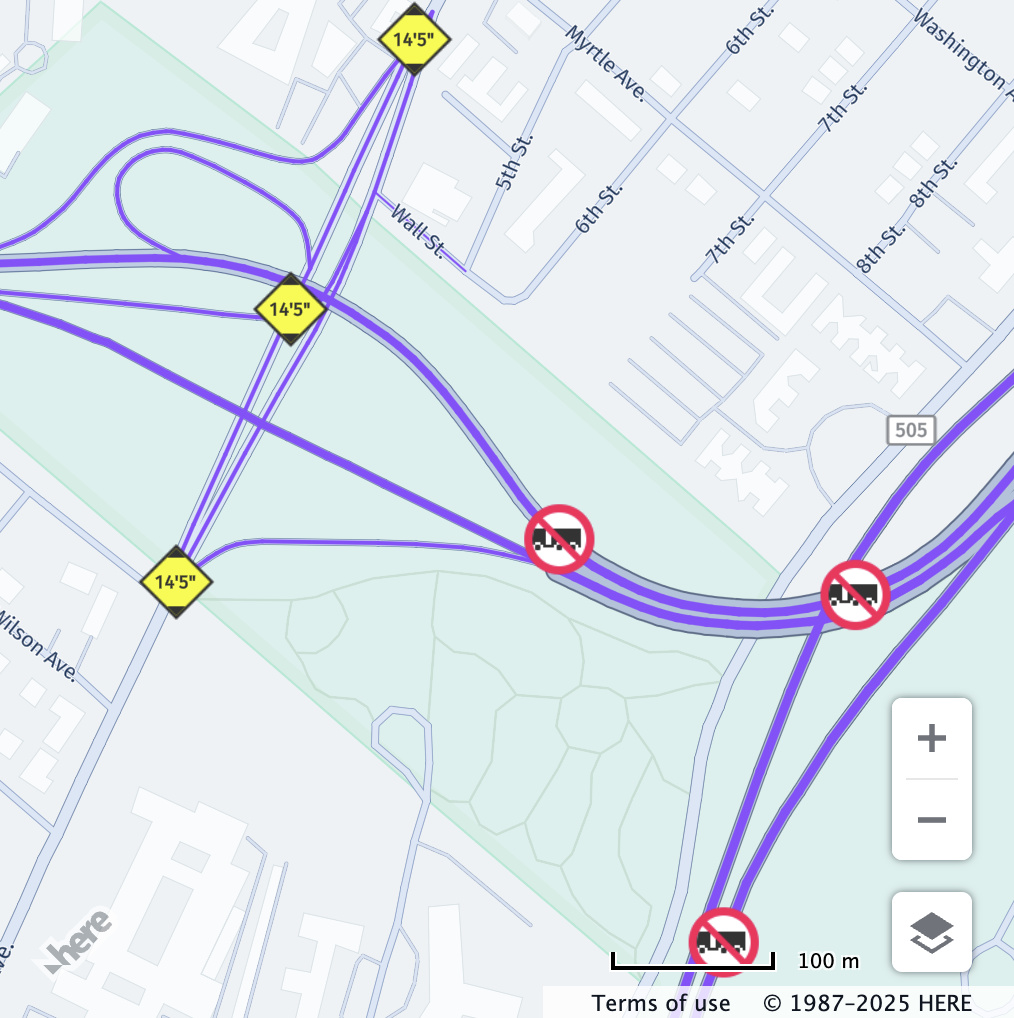
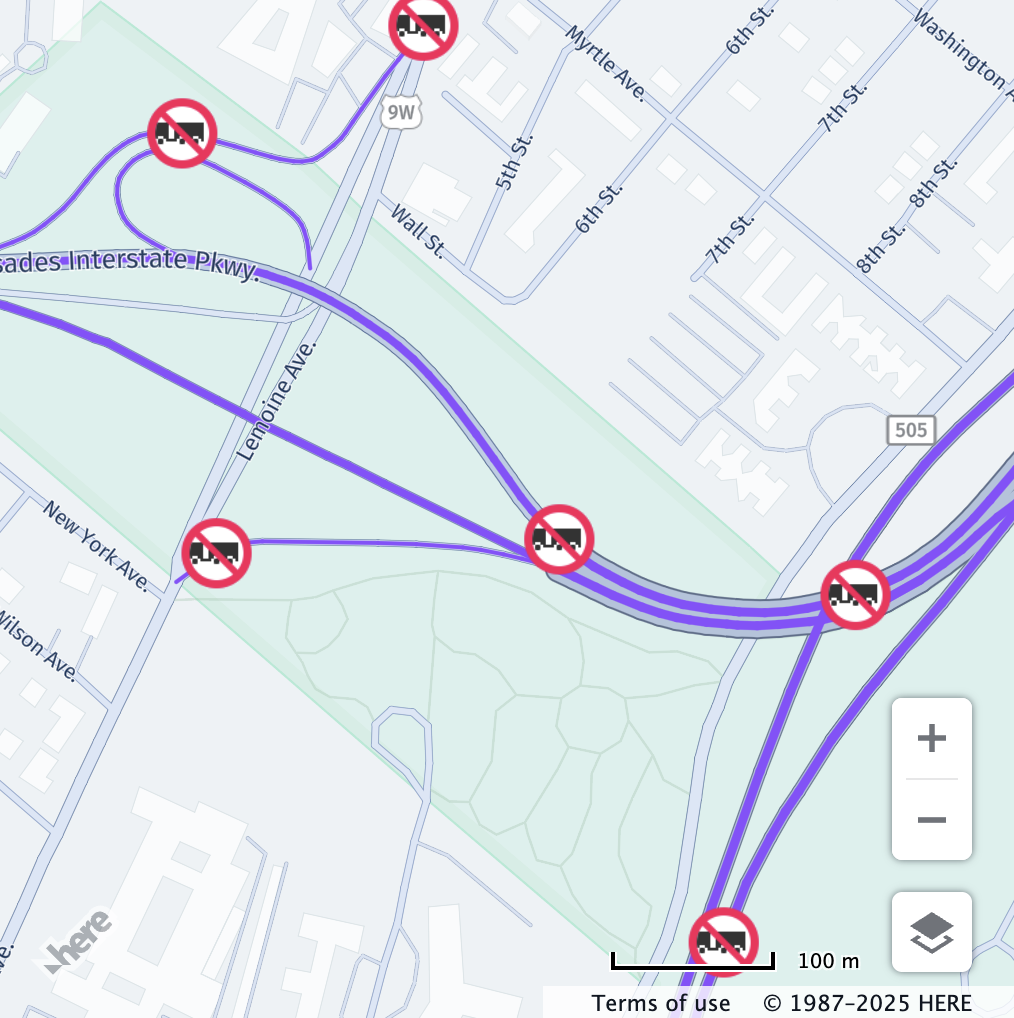
trailerCount
trailerCountThe number of trailers attached to the vehicle. The value set for trailerCount is checked against the hgv_restriction:trailers value in the vector tile data only if the corresponding hgv_restriction_shield_text value is either One or more, Two or more, or Three or more.
The restriction is shown if the trailer count is greater than or equal to the restricted value. If this value is not defined, the restriction is not displayed.
Example
// Center the map at a location with a trailer restriction
map.getViewModel().setLookAtData({
  zoom: 16.6,
  position: {lat: 40.8602, lng: -73.9626}
});

const truckSpecs = {
  vehicleType: H.service.omv.Provider.IVehicleSpecs.VehicleType.TRUCK,
  trailerCount: 1
};

map.getBaseLayer().getProvider().setVehicleSpecs(truckSpecs);| Before | After |
|---|---|
 |  |
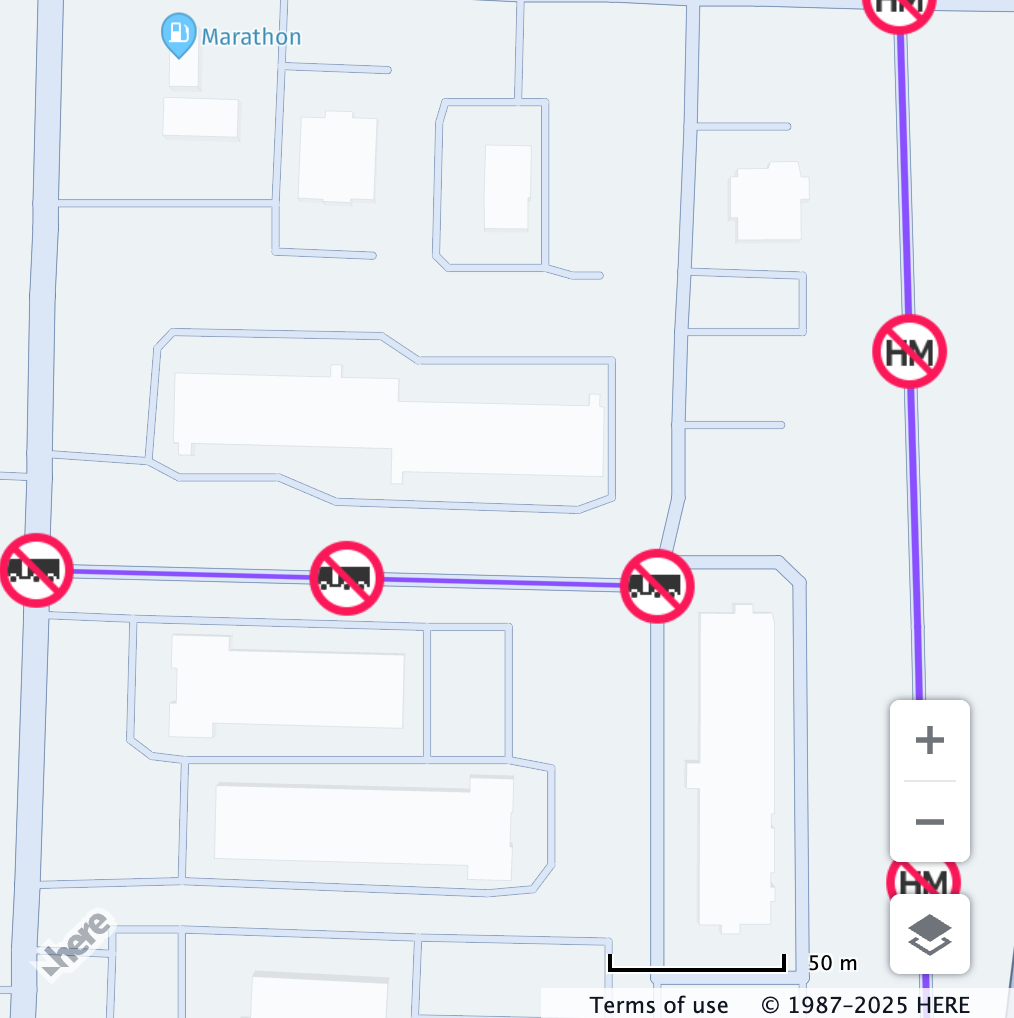
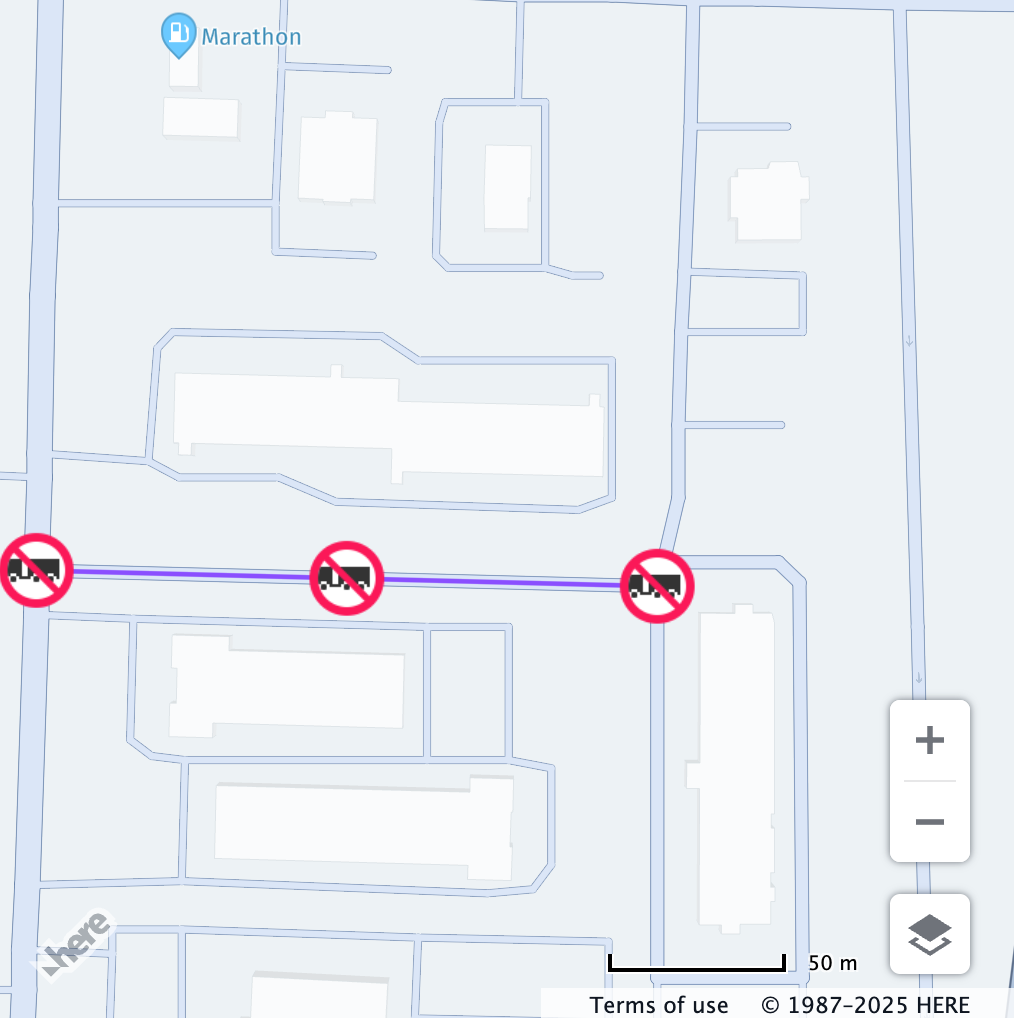
truckType
truckTypeThis value defines the type of truck, which can be either:
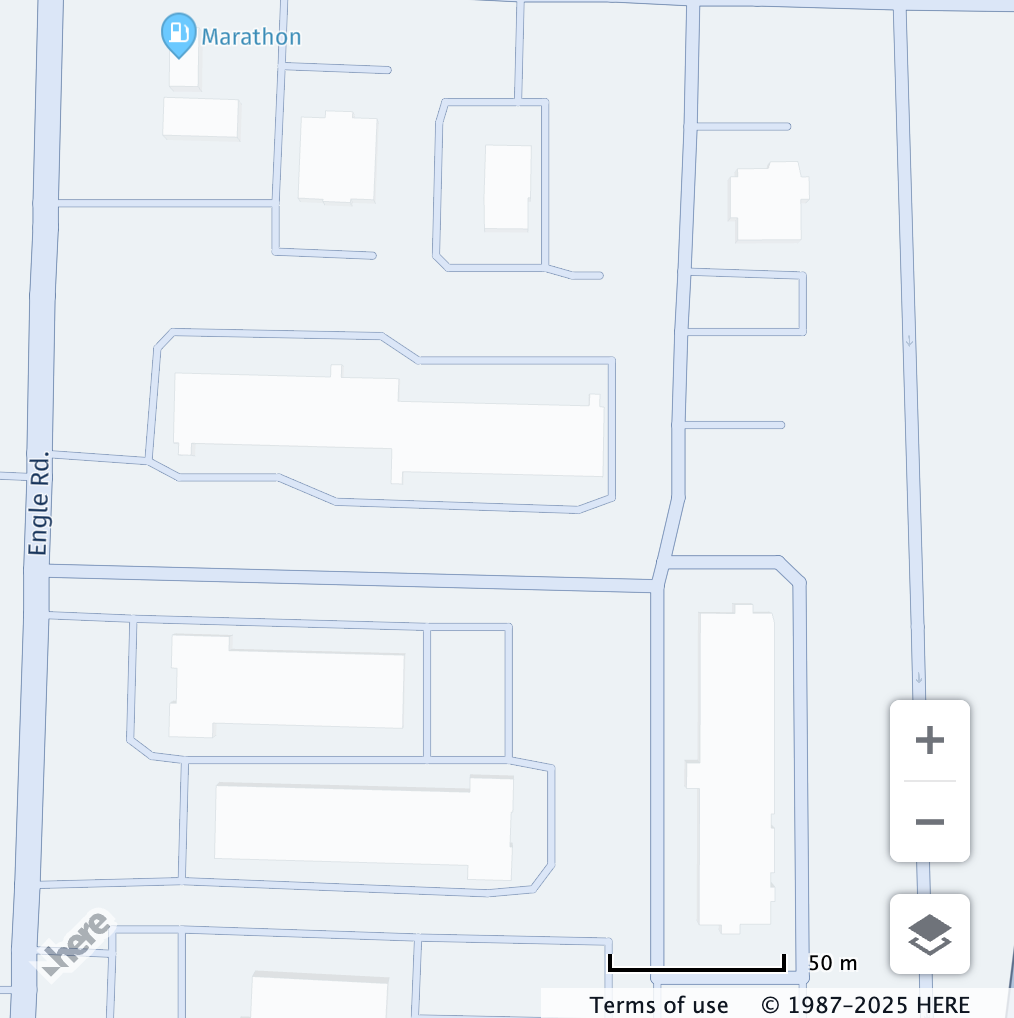
H.service.omv.Provider.ITruckSpecs.TruckType.STRAIGHT: A truck on a single frame with a permanently attached cargo area.H.service.omv.Provider.ITruckSpecs.TruckType.TRACTOR: A towing vehicle that can pull one or more semi-trailers (AKA a semi-truck).
The value set for truckType is checked against the hgv_restriction:trailers value in the vector tile data only if the corresponding hgv_restriction_shield_text value is Semi or tractor with trailers and the value set for trailerCount is greater than zero.
The restriction is shown if the truck type matches the restriction. If this value is not defined, the restriction is not displayed.
Example
// Center the map at a location with a truck type restriction
map.getViewModel().setLookAtData({
  zoom: 17.7,
  position: {lat: 41.3706, lng: -81.8233}
});

const truckSpecs = {
  vehicleType: H.service.omv.Provider.IVehicleSpecs.VehicleType.TRUCK,
  truckType: H.service.omv.Provider.ITruckSpecs.TruckType.TRACTOR
};

map.getBaseLayer().getProvider().setVehicleSpecs(truckSpecs);| Before | After |
|---|---|
 |  |
// Center the map at a location with a truck type restriction
map.getViewModel().setLookAtData({
  zoom: 17.7,
  position: {lat: 41.3706, lng: -81.8233}
});

const truckSpecs = {
  vehicleType: H.service.omv.Provider.IVehicleSpecs.VehicleType.TRUCK,
  truckType: H.service.omv.Provider.ITruckSpecs.TruckType.STRAIGHT
};

map.getBaseLayer().getProvider().setVehicleSpecs(truckSpecs);| Before | After |
|---|---|
|  |
hazardousMaterial
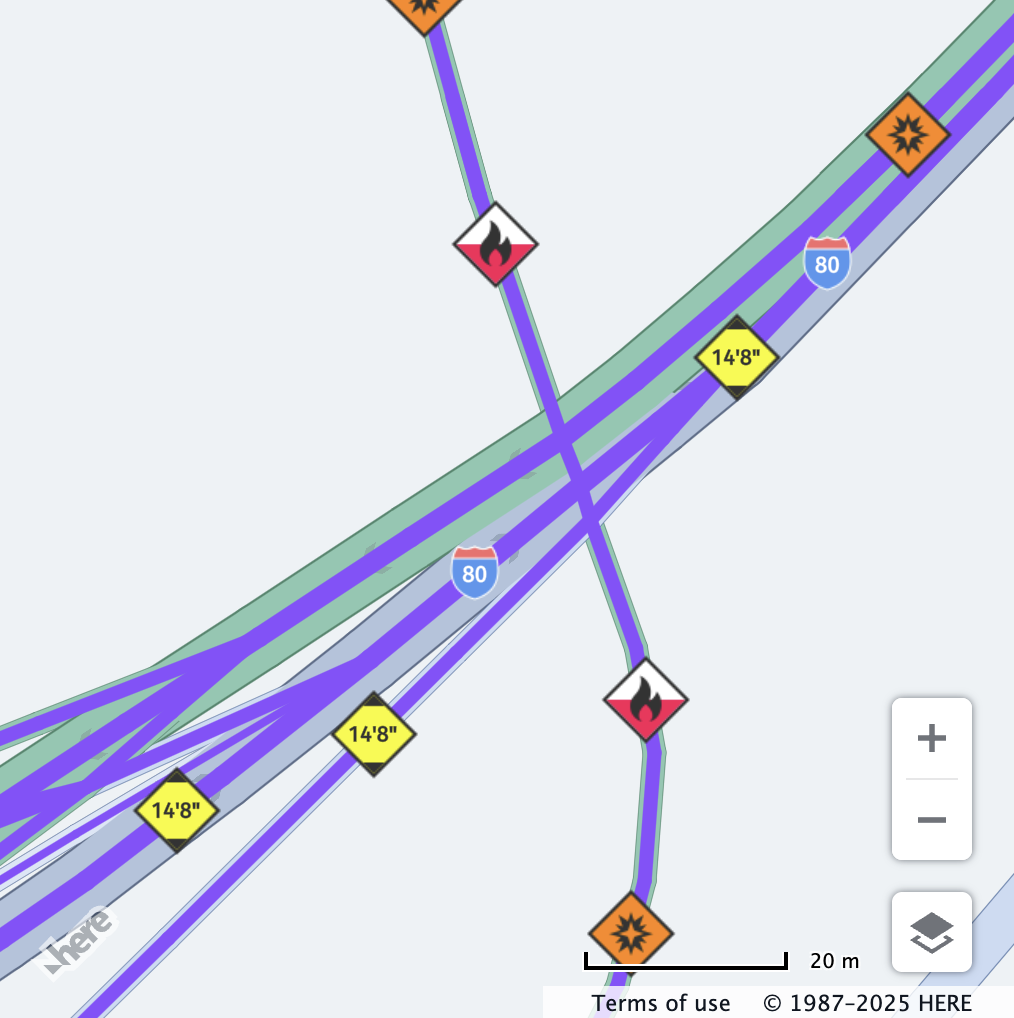
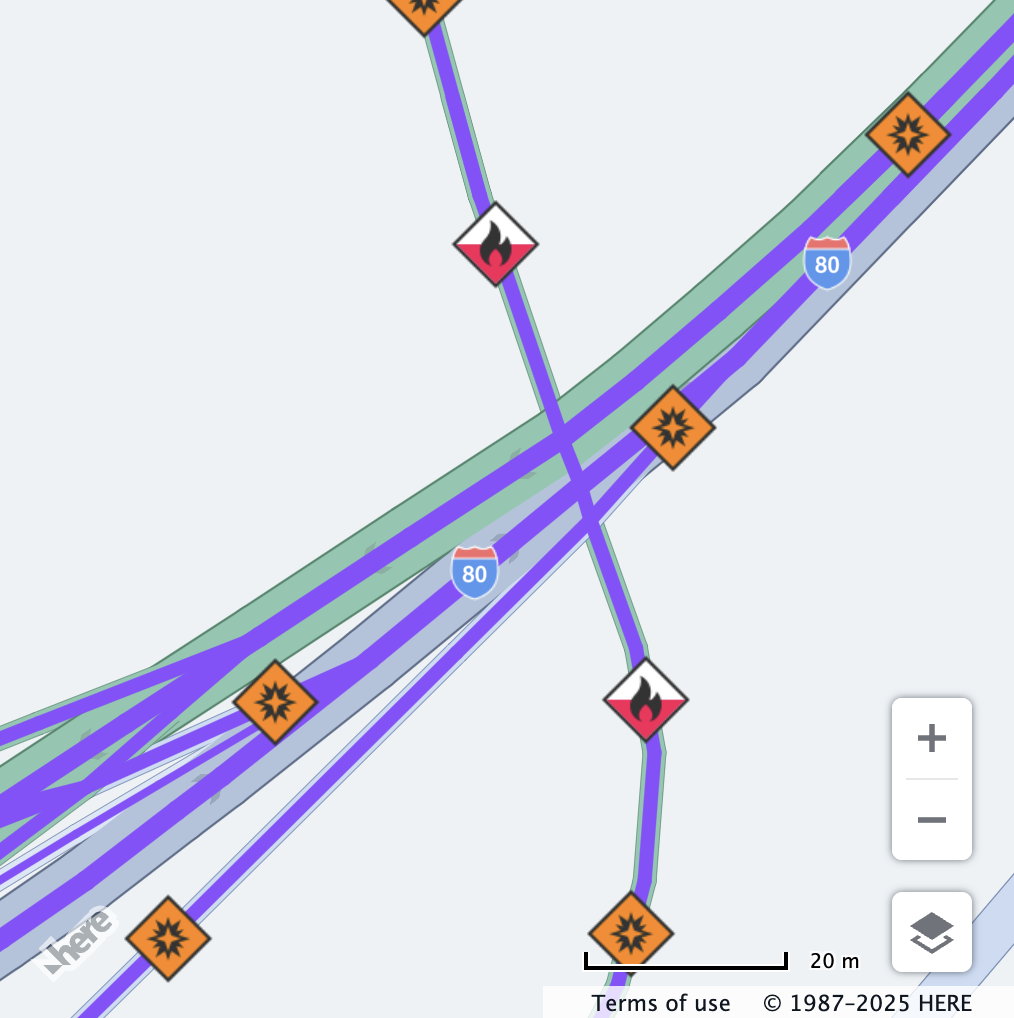
hazardousMaterialThis value specifies a bitmask of hazardous materials carried by the vehicle. For more information about the available values, see H.service.omv.Provider.ITruckSpecs.HazardousMaterial.
The value set for hazardousMaterial is checked against the hgv_restriction:hazmat value in the vector tile data only if the corresponding hgv_restriction_shield_text value does not contain a tunnel category.
The restriction is shown if it matches any declared hazardous material. Special labels also apply to unknown or unspecified hazardous types. If this value is not defined, the restriction is not displayed.
Note
Setting this property does not automatically enable the corresponding tunnel category. It is recommended to also set the
tunnelCategoryproperty to ensure that the vehicle profile is checked against tunnel restrictions.
Hazardous Material Mapping
This table lists the available restrictions and their associated values in the H.service.omv.Provider.ITruckSpecs.HazardousMaterial interface.
| Restriction Shield Text | Value checked for match in H.service.omv.Provider.ITruckSpecs.HazardousMaterial |
|---|---|
| Poison | H.service.omv.Provider.ITruckSpecs.HazardousMaterial.POISON |
| Explosives | H.service.omv.Provider.ITruckSpecs.HazardousMaterial.EXPLOSIVE |
| Gas | H.service.omv.Provider.ITruckSpecs.HazardousMaterial.GAS |
| Flammable | H.service.omv.Provider.ITruckSpecs.HazardousMaterial.FLAMMABLE |
| Organic | H.service.omv.Provider.ITruckSpecs.HazardousMaterial.ORGANIC |
| Radioactive | H.service.omv.Provider.ITruckSpecs.HazardousMaterial.RADIOACTIVE |
| Corrosive | H.service.omv.Provider.ITruckSpecs.HazardousMaterial.CORROSIVE |
| Other | H.service.omv.Provider.ITruckSpecs.HazardousMaterial.OTHER |
| Flammable solid combustible | H.service.omv.Provider.ITruckSpecs.HazardousMaterial.COMBUSTIBLE |
| Goods harmful for water | H.service.omv.Provider.ITruckSpecs.HazardousMaterial.HARMFUL_TO_WATER |
| Poisonous inhalation hazard | H.service.omv.Provider.ITruckSpecs.HazardousMaterial.POISONOUS_INHALATION |
| Explosive and flammable | H.service.omv.Provider.ITruckSpecs.HazardousMaterial.EXPLOSIVE or H.service.omv.Provider.ITruckSpecs.HazardousMaterial.FLAMMABLE |
| Hazardous material type unknown | Any non-empty value |
| Unspecified hazardous material type | Any non-empty value |
| Any hazardous material | Any non-empty value |
Example
// Center the map at a location with a hazardous material restriction (flammable and explosive)
map.getViewModel().setLookAtData({
  zoom: 19.3,
  position: { lat: 37.7856, lng: -122.3915 }
});

const truckSpecs = {
  vehicleType: H.service.omv.Provider.IVehicleSpecs.VehicleType.TRUCK,
  hazardousMaterial:
    H.service.omv.Provider.ITruckSpecs.HazardousMaterial.FLAMMABLE |
    H.service.omv.Provider.ITruckSpecs.HazardousMaterial.EXPLOSIVE
};

map.getBaseLayer().getProvider().setVehicleSpecs(truckSpecs);| Before | After |
|---|---|
 |  |
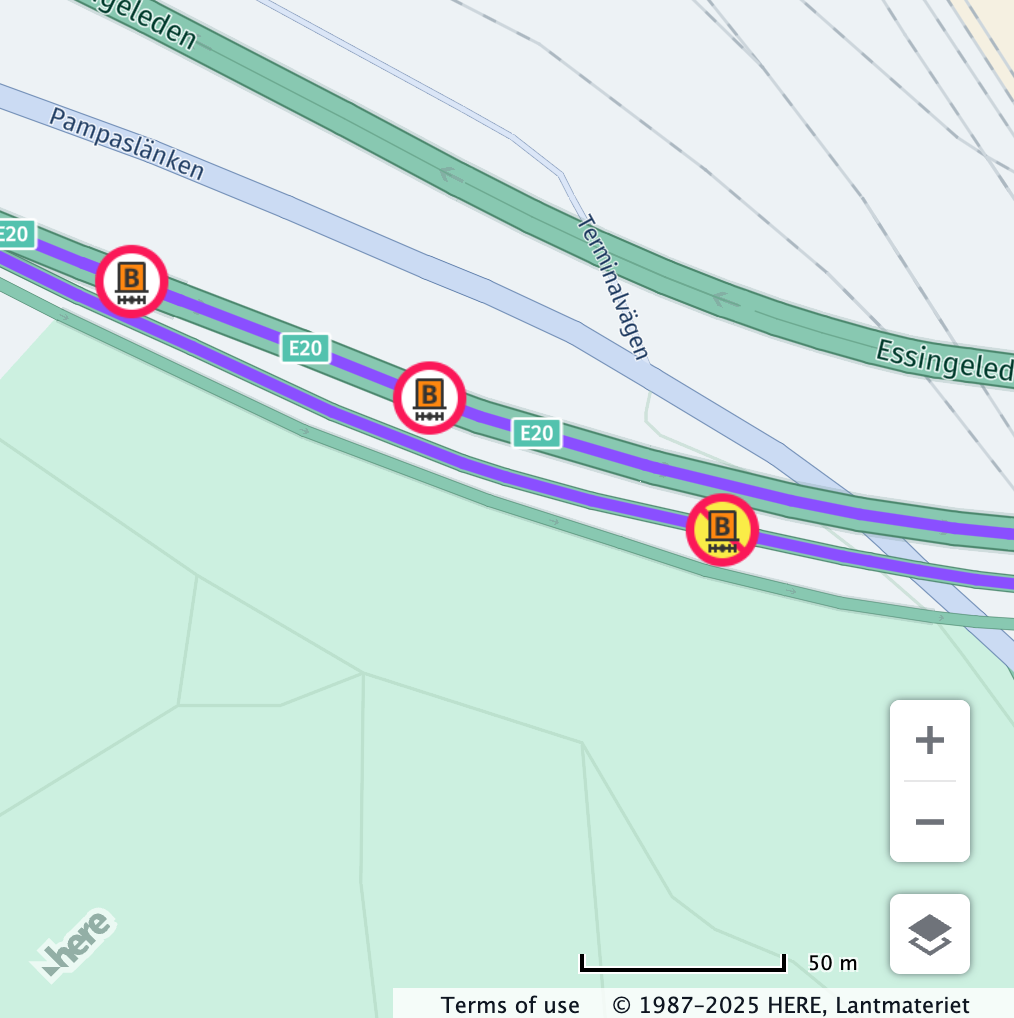
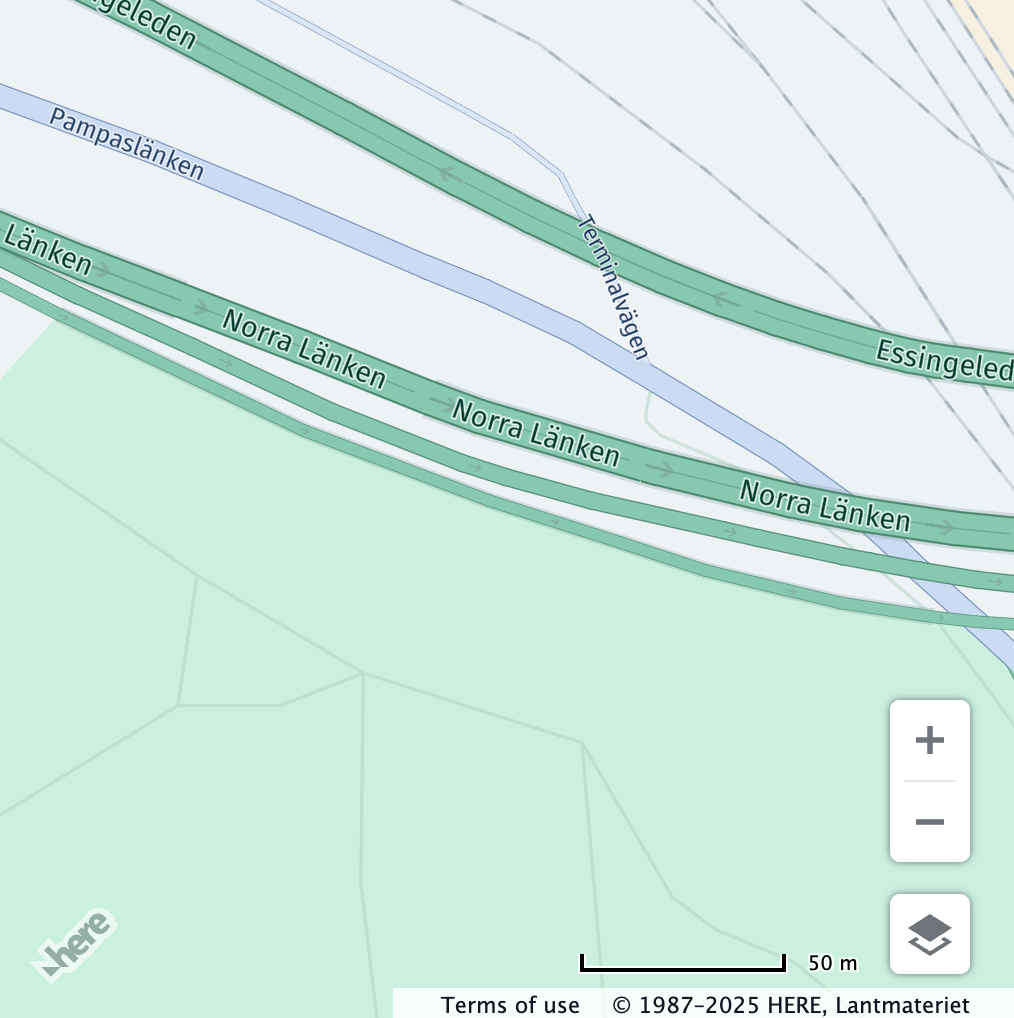
tunnelCategory
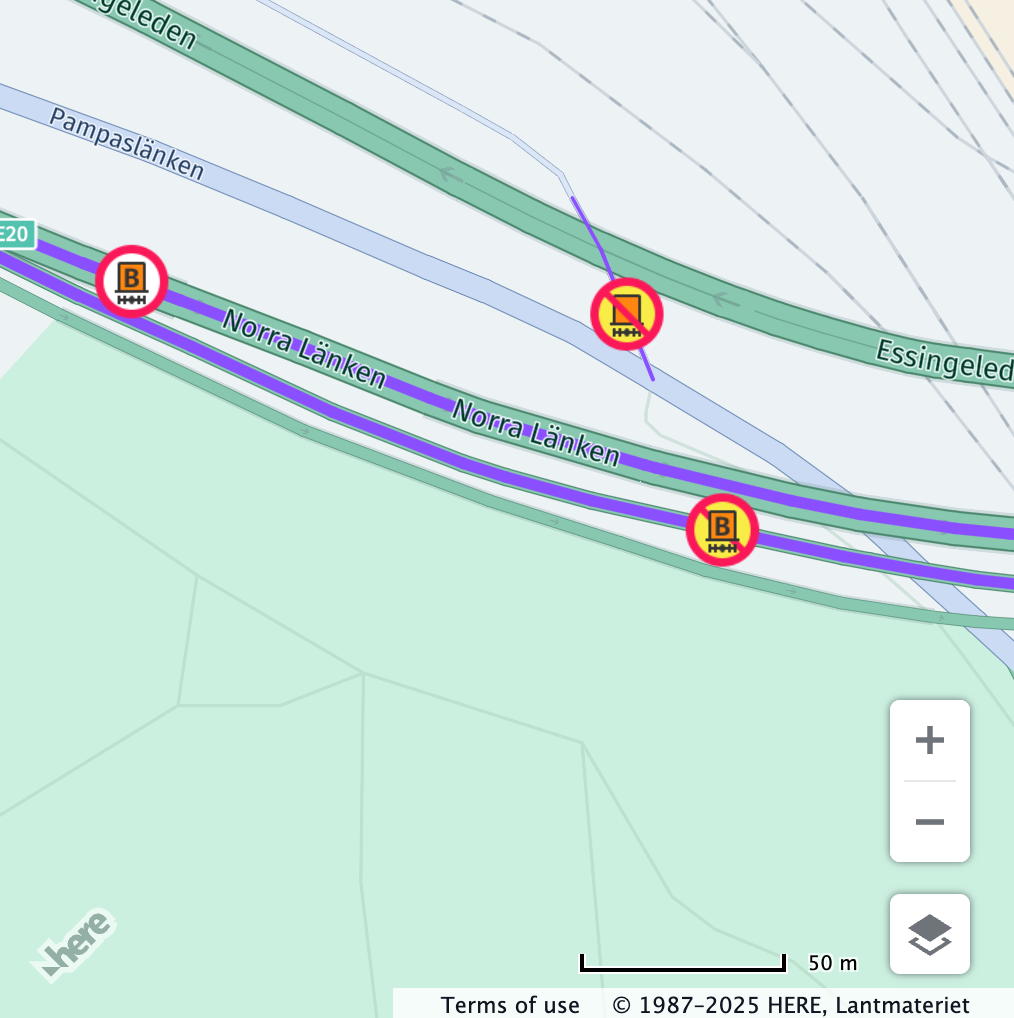
tunnelCategoryThis value specifies the cargo tunnel restriction code. For more information on tunnel categories, see ADR 2025 - Agreement concerning the International Carriage of Dangerous Goods by Road.
The value set for tunnelCategory is checked against the hgv_restriction:hazmat value in the vector tile data only if the corresponding hgv_restriction_shield_text value does contain a tunnel category.
A restriction is shown if it is equal to or more restrictive than the vehicle's tunnel category.
The categories range from B to E.
| Tunnel Category | Definition |
|---|---|
B | Transport is forbidden through tunnels displaying signs B,C,D or E |
C | Transport is forbidden through tunnels displaying signs C,D, orE |
D | Transport is forbidden through tunnels displaying signs Dor E |
E | Transport is forbidden through tunnels displaying sign E only |
If this value is not defined, the restriction is not displayed.
Note
Setting this property does not automatically setup the corresponding hazardous materials bitmask. It is recommended to set the
hazardousMaterialproperty as well, to ensure that the vehicle profile is checked against hazardous materials restrictions.
Tunnel Category Mapping
This table defines map restriction shields and their associated tunnel categories.
| Restriction Shield Text | Assigned Tunnel Category |
|---|---|
Tunnel category b, b1000c, b d, b e | H.service.omv.Provider.ITruckSpecs.TunnelCategory.B |
Tunnel category c, c5000d, c d, c e | H.service.omv.Provider.ITruckSpecs.TunnelCategory.C |
Tunnel category d, d e | H.service.omv.Provider.ITruckSpecs.TunnelCategory.D |
Tunnel category e | H.service.omv.Provider.ITruckSpecs.TunnelCategory.E |
Example
// Center the map at a location with a tunnel category B restriction
map.getViewModel().setLookAtData({
  zoom: 17.35,
  position: {lat: 59.34390, lng: 18.0203}
});

const truckSpecs = {
  vehicleType: H.service.omv.Provider.IVehicleSpecs.VehicleType.TRUCK,
  tunnelCategory: H.service.omv.Provider.ITruckSpecs.TunnelCategory.B
};

map.getBaseLayer().getProvider().setVehicleSpecs(truckSpecs);| Before | After |
|---|---|
 |  |
// Center the map at a location with a tunnel category B restriction
map.getViewModel().setLookAtData({
  zoom: 17.35,
  position: {lat: 59.34390, lng: 18.0203}
});

const truckSpecs = {
  vehicleType: H.service.omv.Provider.IVehicleSpecs.VehicleType.TRUCK,
  tunnelCategory: H.service.omv.Provider.ITruckSpecs.TunnelCategory.E
};

map.getBaseLayer().getProvider().setVehicleSpecs(truckSpecs);| Before | After |
|---|---|
|  |
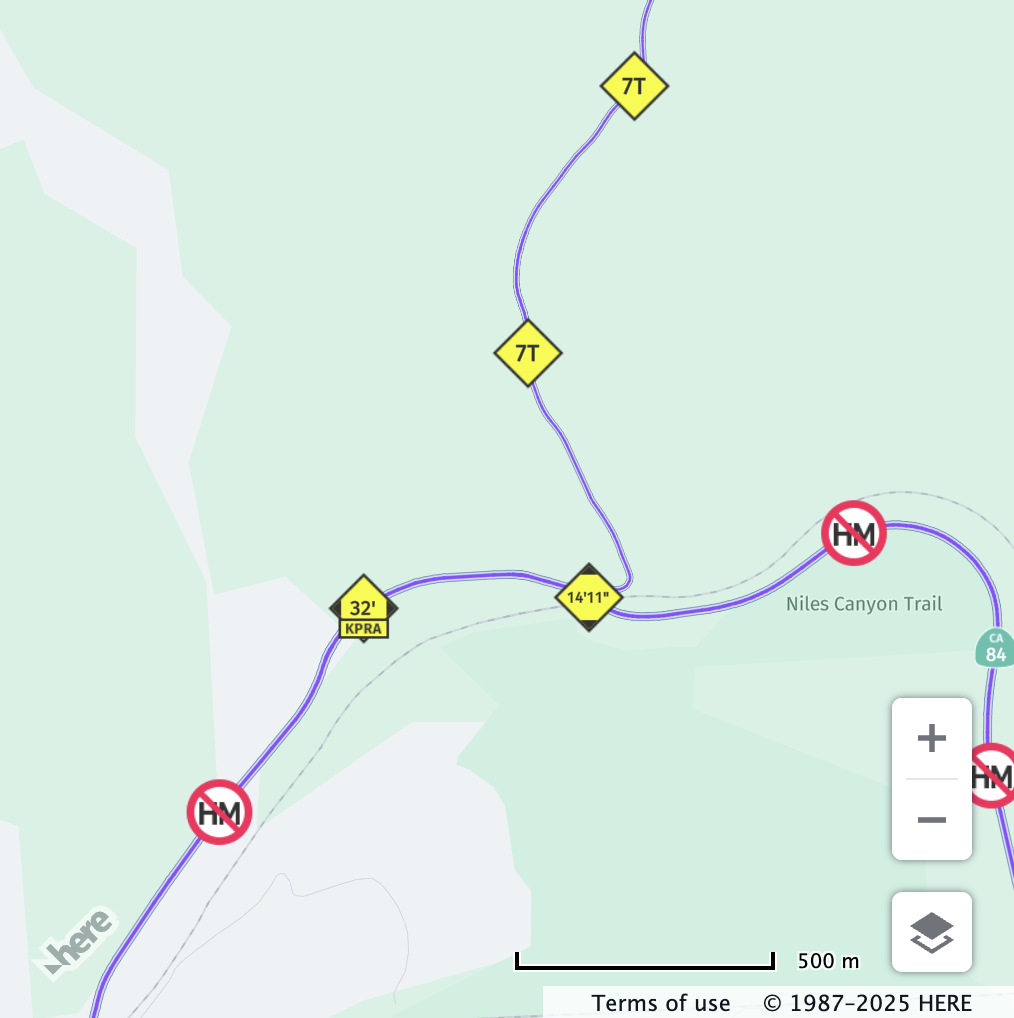
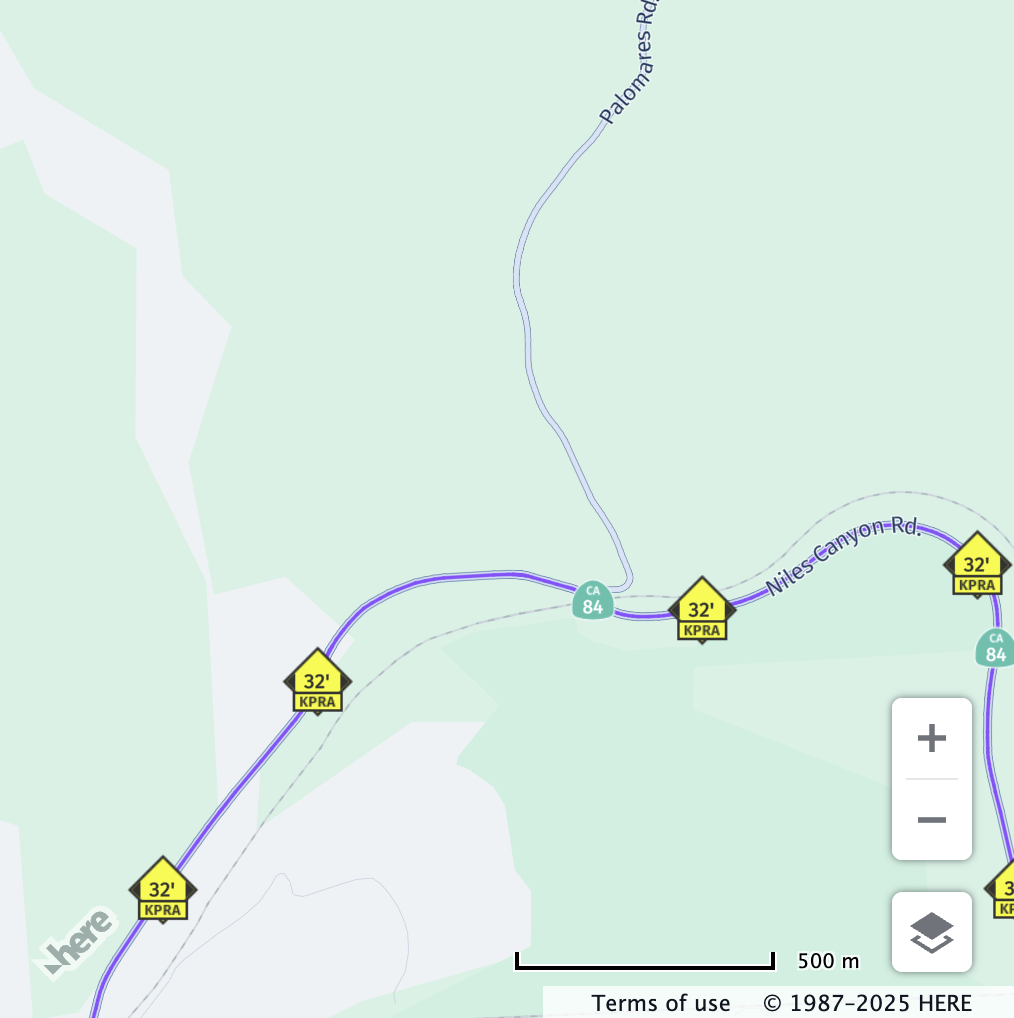
kpraInCentimeters
kpraInCentimetersThe length in centimers from the kingpin, or main steering pivot, to the rear axle.
The value set for kpraInCentimeters is checked against the hgv_restriction:kpra value in the vector tile data.
The restriction is shown if the vehicle's value is greater than the restriction. If this value is not defined, the restriction is not displayed.
Example
// Center the map at a location with a kingpin-to-rear-axle restriction
map.getViewModel().setLookAtData({
  zoom: 15,
  position: {lat: 37.5993, lng: -121.9485}
});

const truckSpecs = {
  vehicleType: H.service.omv.Provider.IVehicleSpecs.VehicleType.TRUCK,
  kpraInCentimeters: 1250
};

map.getBaseLayer().getProvider().setVehicleSpecs(truckSpecs);| Before | After |
|---|---|
 |  |
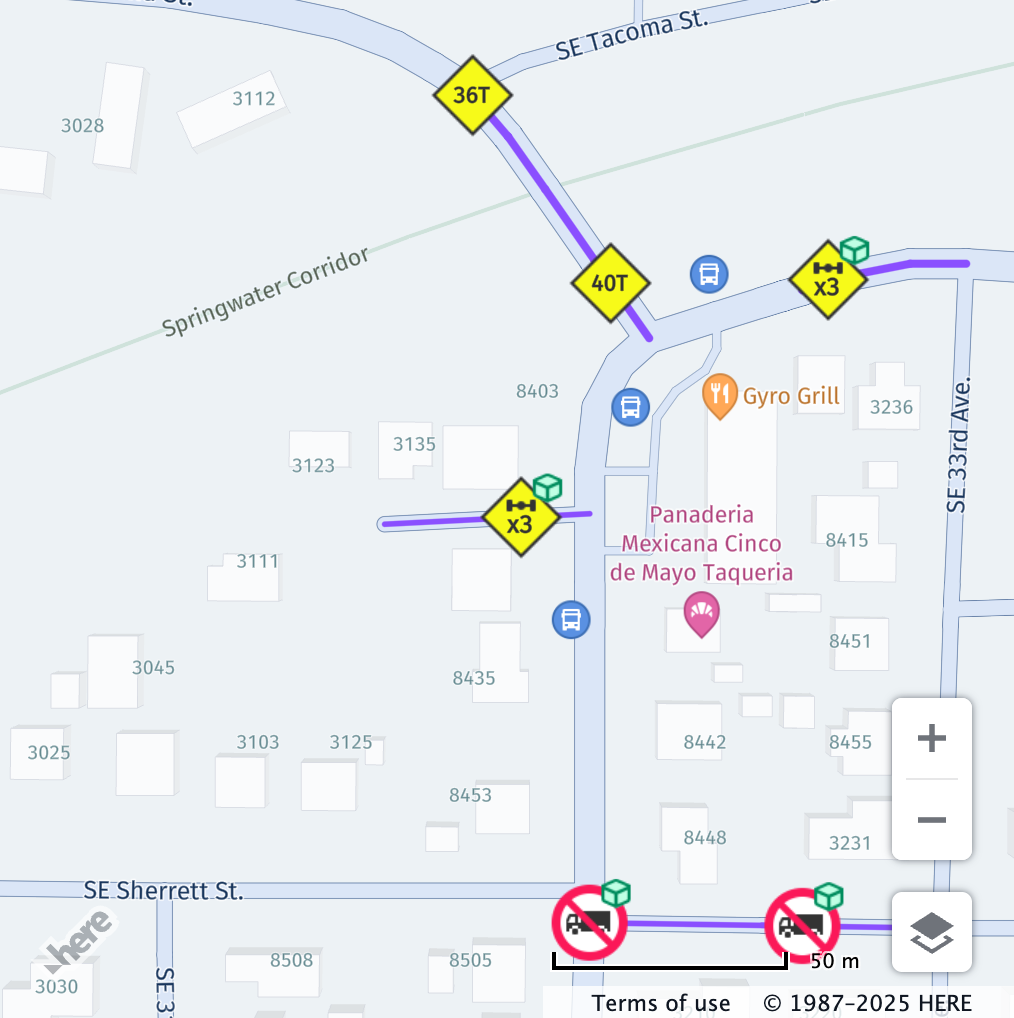
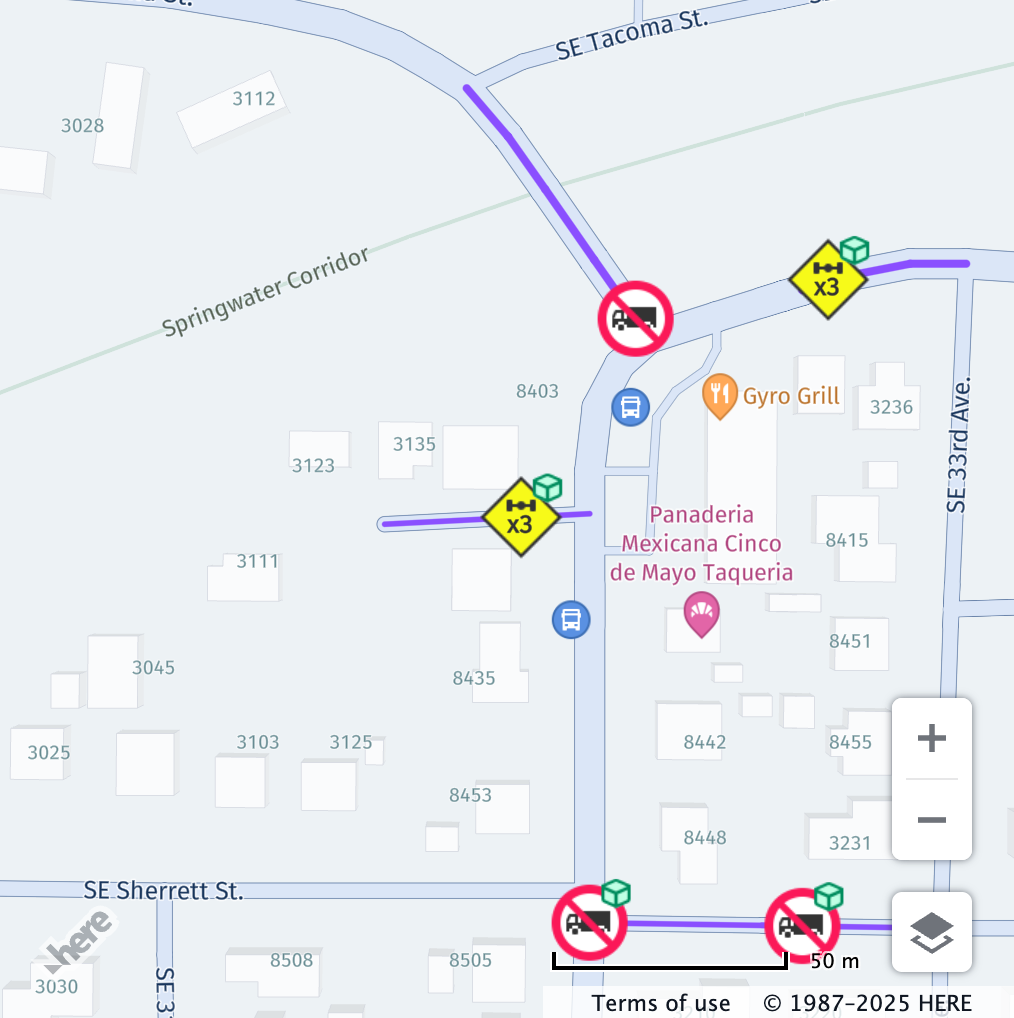
axleCount
axleCountThe total number of axles in the vehicle. The value set for axleCount is checked against the hgv_restriction:axles value in the vector tile data.
The restriction is shown if the axle count is greater than or equal to the restriction.
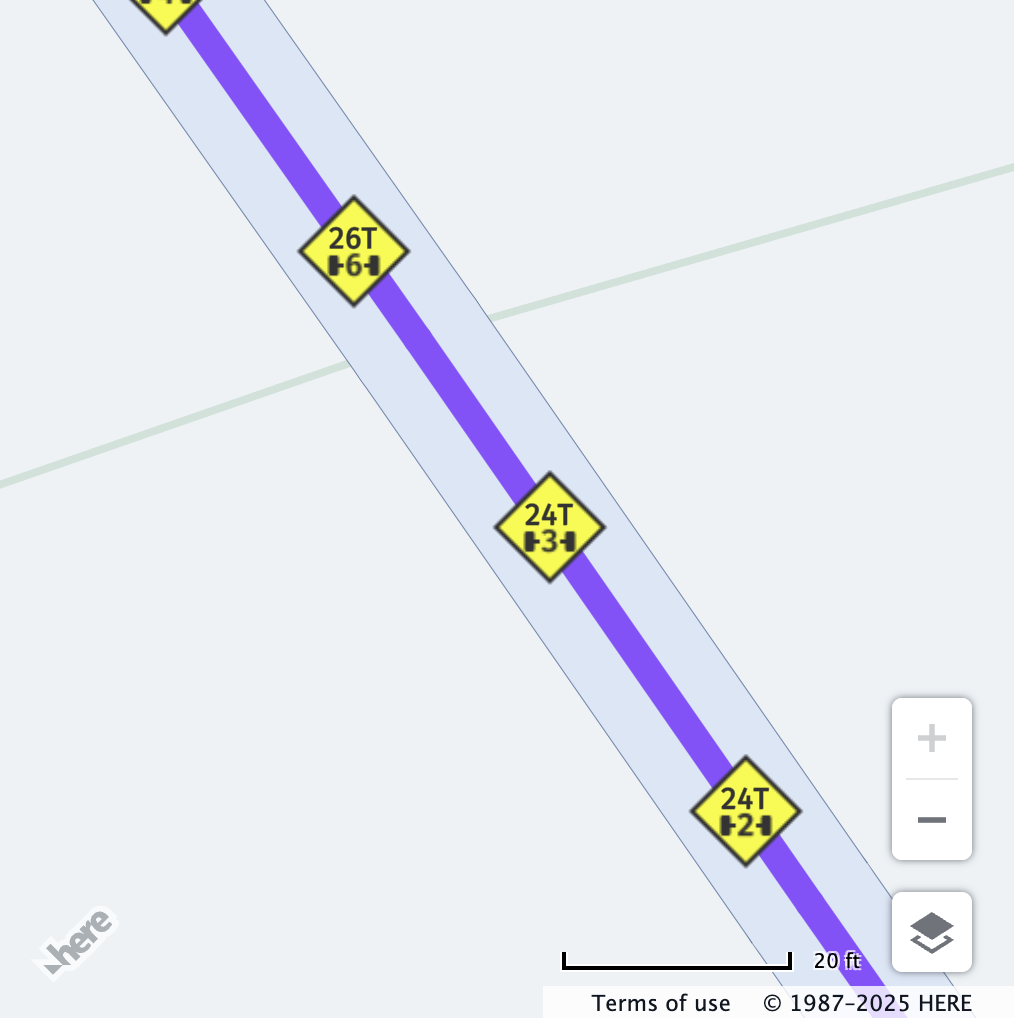
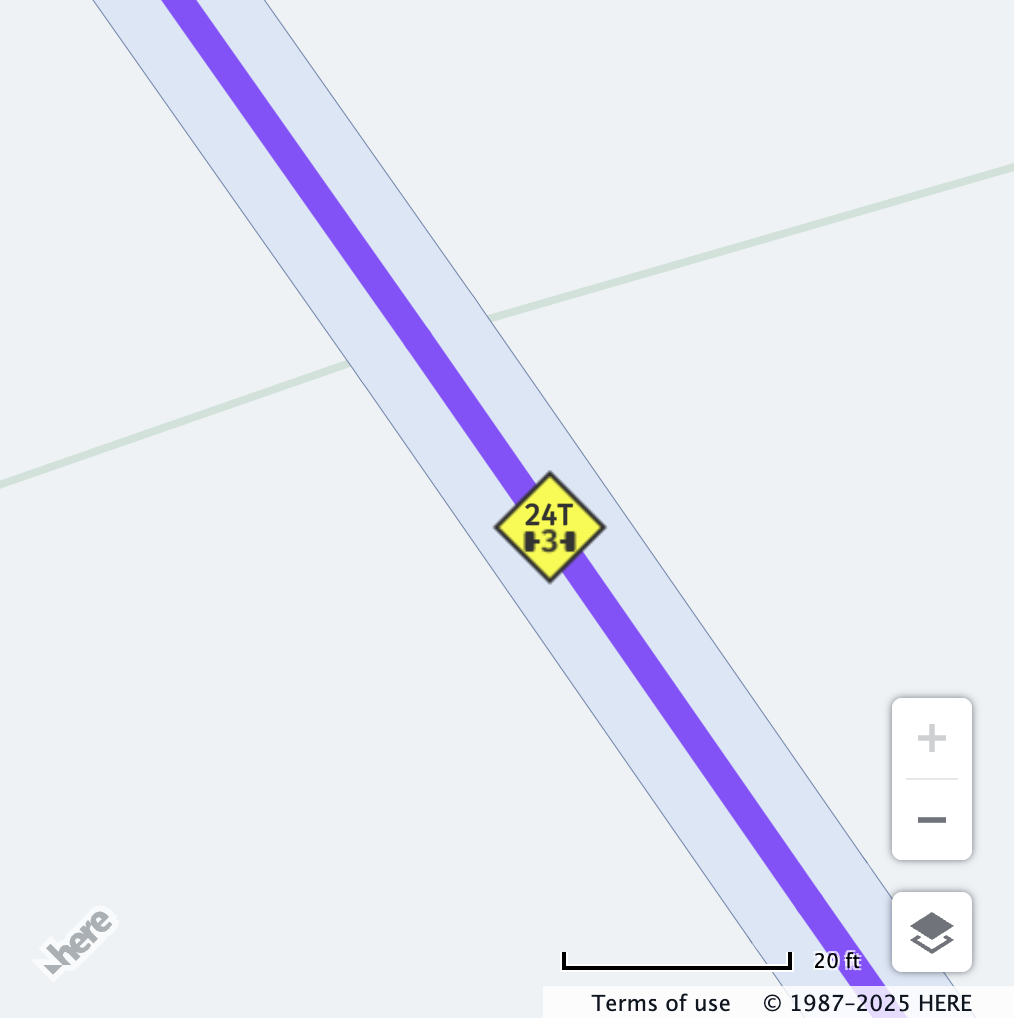
If grossWeightInKilograms is also set, both values are checked against the hgv_restriction:wpan_* property and the corresponding hgv_restriction_shield_text value in the vector tile data.
The former is used to determine the axle count, while the latter is used to determine the weight limit.
Restriction is shown if the set number of axles matches and the weight is greater than the restriction. If this value is not defined, the restriction is not displayed.
Example
// Center the map at a location with an axle count restriction
map.getViewModel().setLookAtData({
  position: { lat: 45.46224, lng: -122.63013 },
  zoom: 18
});

const truckSpecs = {
  vehicleType: H.service.omv.Provider.IVehicleSpecs.VehicleType.TRUCK,
  axleCount: 3
};

map.getBaseLayer().getProvider().setVehicleSpecs(truckSpecs);| Before | After |
|---|---|
 |  |
Some restrictions may show the weight limit for HGVs along with the number of axles in the vehicle, for example:
// Center the map at a location with a weight and axle count restriction
map.getViewModel().setLookAtData({
  position: { lat: 45.4628, lng: -122.6300 },
  zoom: 21
});

const truckSpecs = {
  vehicleType: H.service.omv.Provider.IVehicleSpecs.VehicleType.TRUCK,
  grossWeightInKilograms: 22000,
  axleCount: 3
};

map.getBaseLayer().getProvider().setVehicleSpecs(truckSpecs);| Before | After |
|---|---|
 |  |
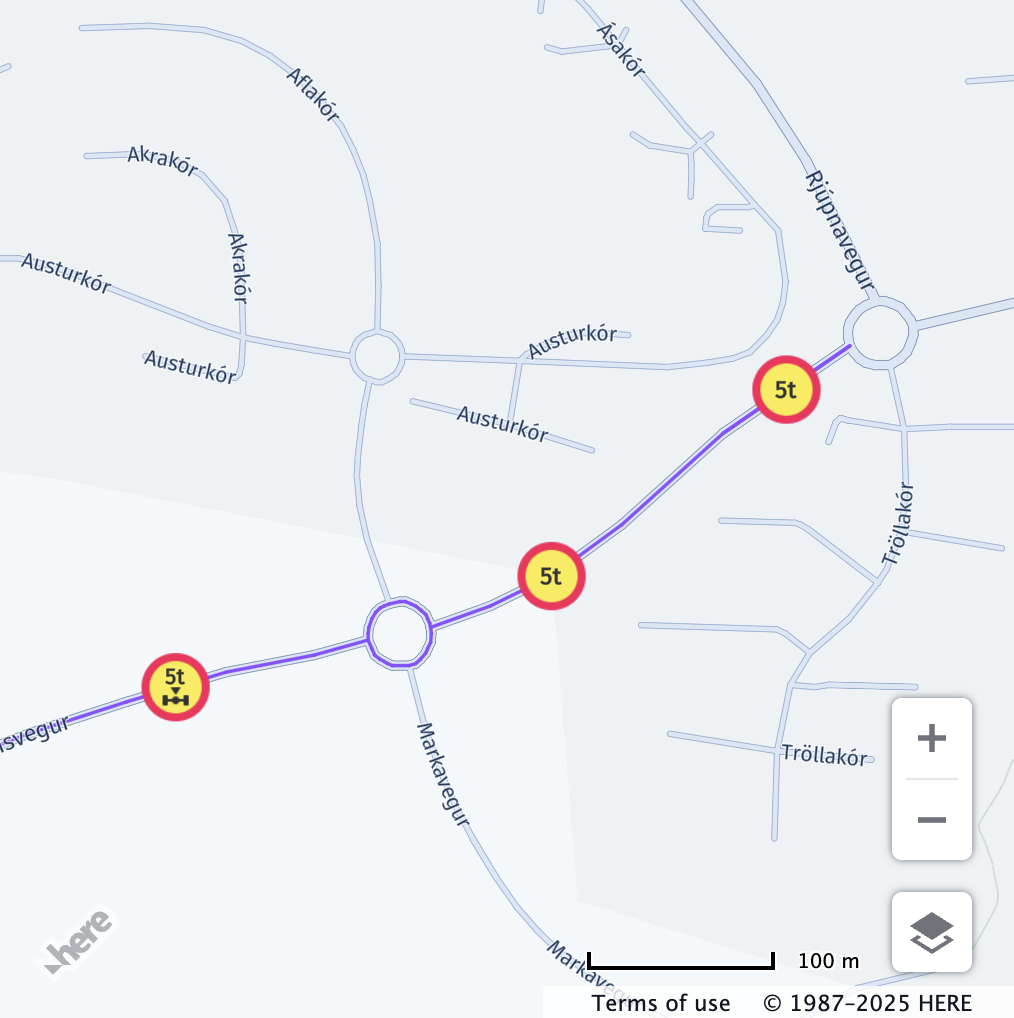
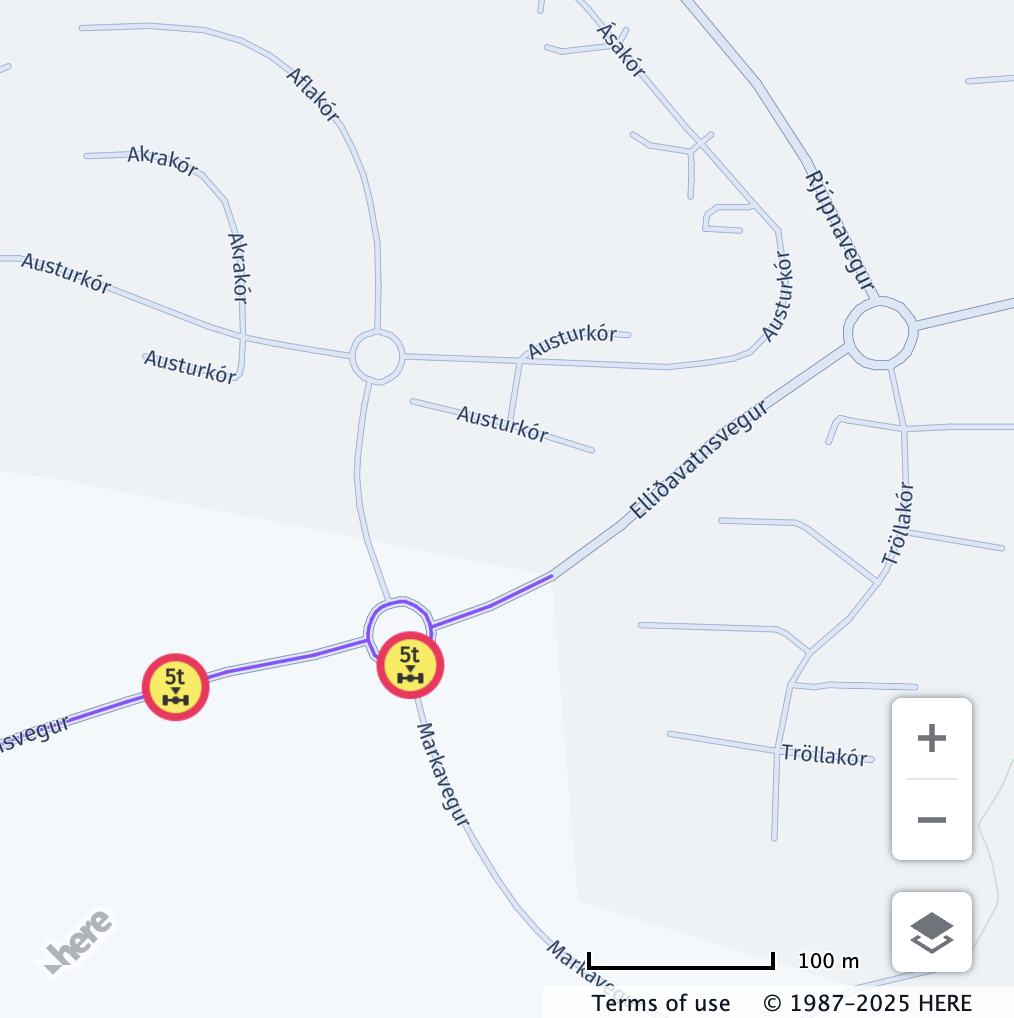
weightPerAxleInKilograms
weightPerAxleInKilogramsThe heaviest axle weight in kilograms, regardless of axle type or group. The value set for weightPerAxleInKilograms is checked against the hgv_restriction:wpa value in the vector tile data.
Restriction is shown if the truck’s per-axle weight is greater than then restriction.
If this value is not defined, the restriction is not displayed.
Note
The per-axle weight is not the same as the axle group weight, which is defined by
weightPerAxleGroup, but ifweightPerAxleGroupis not defined,weightPerAxleInKilogramsis compared against the axle group restrictions (hgv_restriction:wpag_*).
Example
// Center the map at a location with a per-axle weight restriction
map.getViewModel().setLookAtData({
  position: { lat: 64.0834, lng: -21.8334 },
  zoom: 16
});

const truckSpecs = {
  vehicleType: H.service.omv.Provider.IVehicleSpecs.VehicleType.TRUCK,
  weightPerAxleInKilograms: 6000
};

map.getBaseLayer().getProvider().setVehicleSpecs(truckSpecs);| Before | After |
|---|---|
 |  |
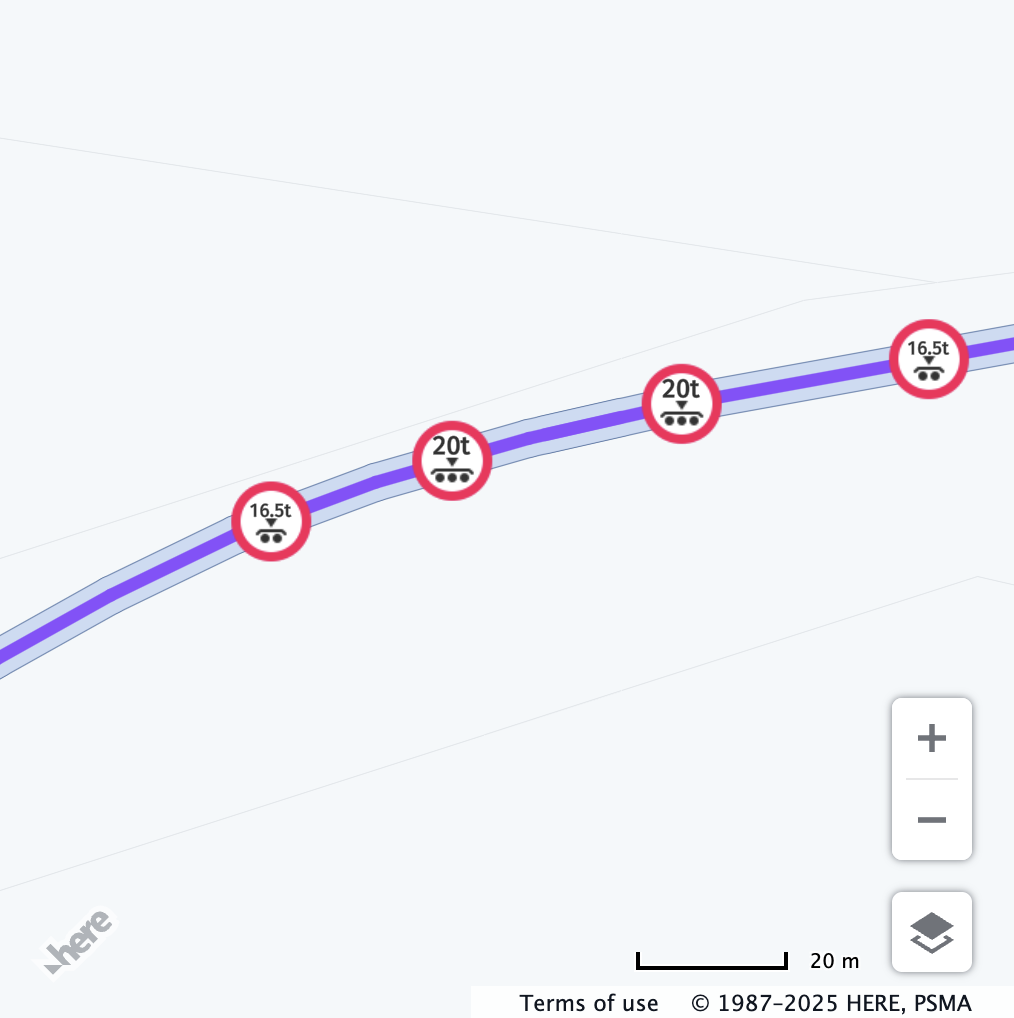
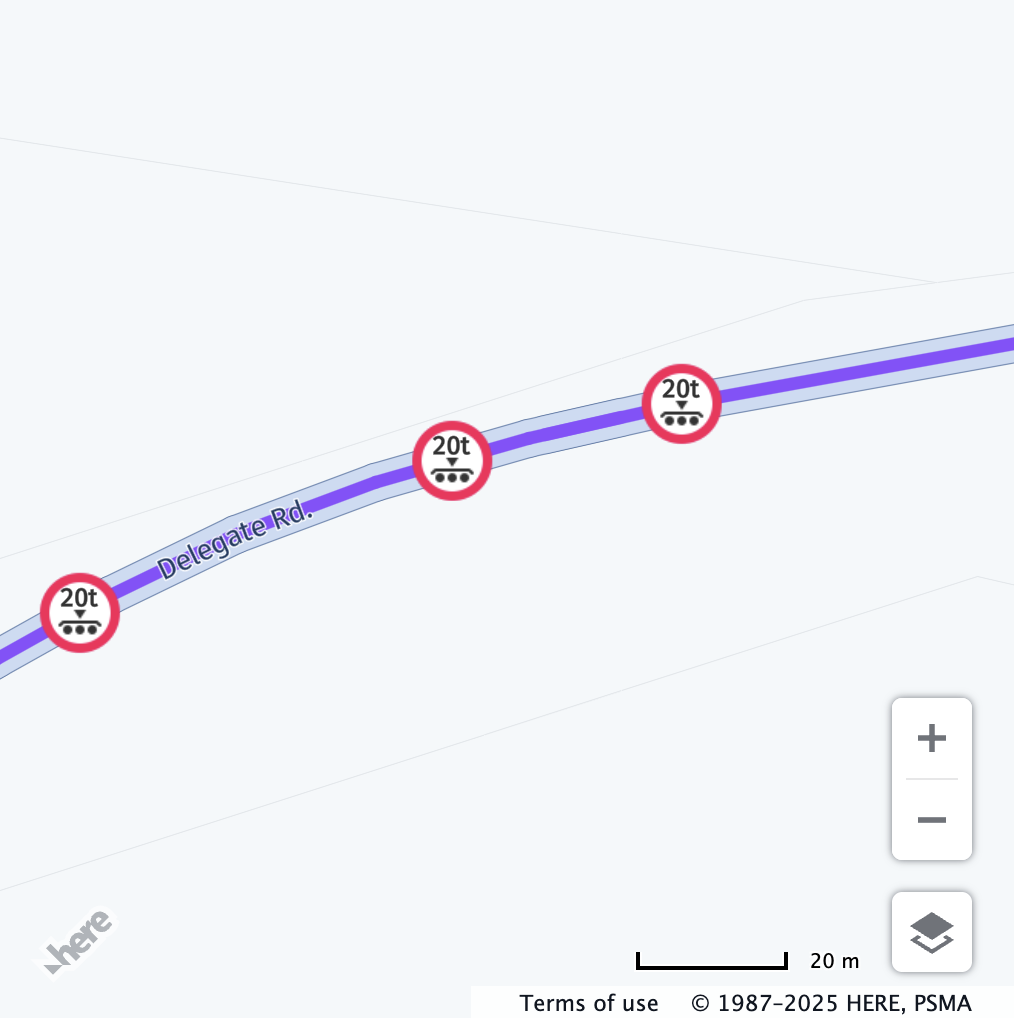
weightPerAxleGroup
weightPerAxleGroupThis value defines the weight in kilograms of the different axle groups of a truck. The values set for weightPerAxleGroup are checked against the matching hgv_restriction:wpag_* value in the vector tile data.
Each group's weight is compared independently.
The restriction is shown if the group weight is greater than the restriction.
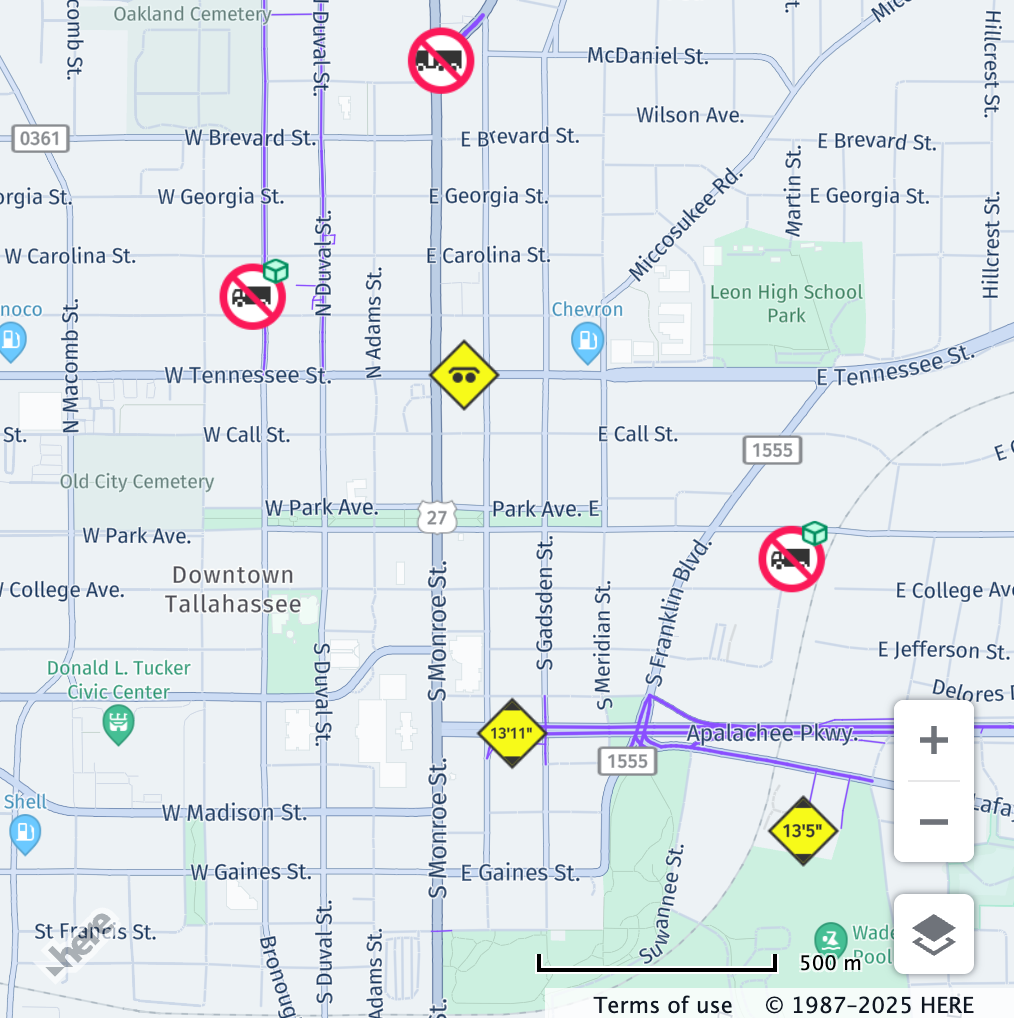
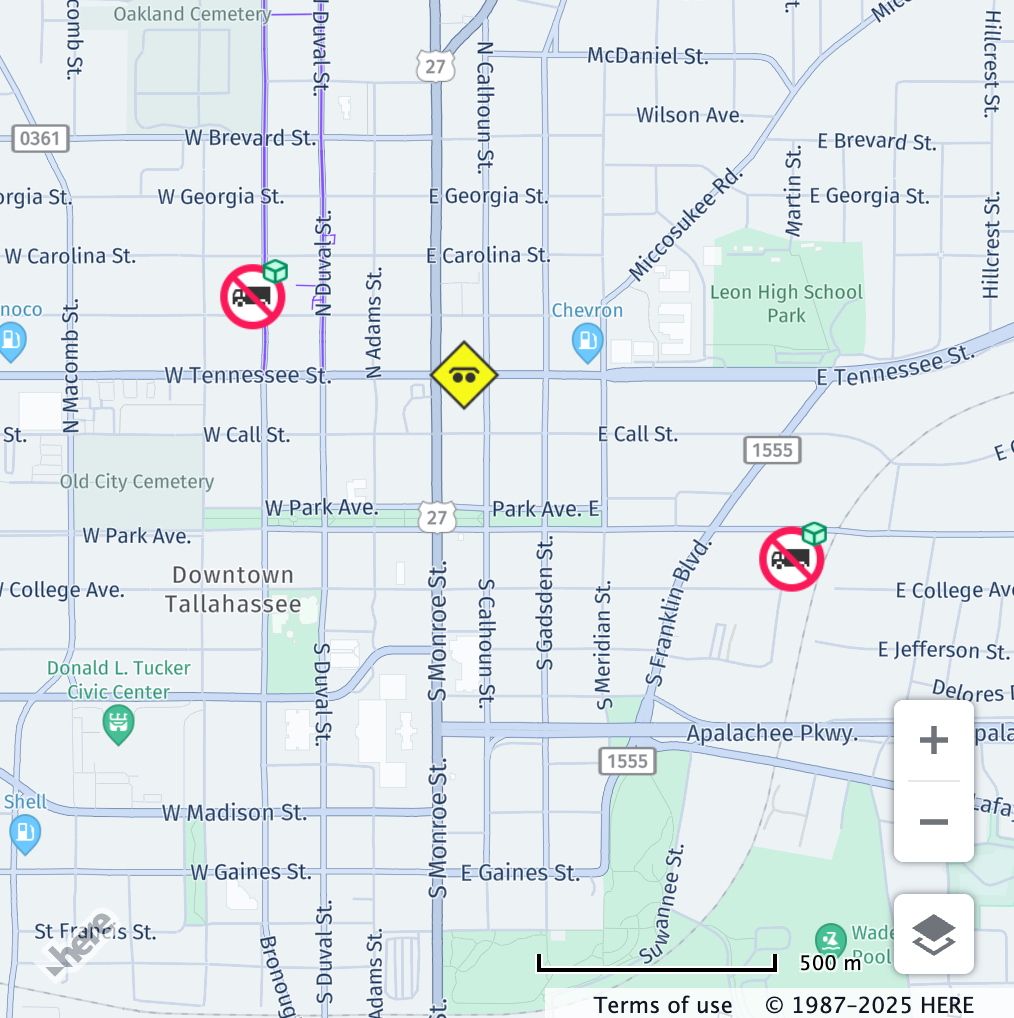
Moreover, the values set are also checked against the prohibited axle group restrictions, such as:
hgv_restriction:axles_group_single_axlehgv_restriction:axles_group_tandem_axlehgv_restriction:axles_group_triple_axlehgv_restriction:axles_group_quad_axlehgv_restriction:axles_group_quint_axle
When it comes to prohibited axle group restrictions, the weight does not play a role. However, in order to display the restriction, the axle group must be set with a weight greater than zero.
If this value is not defined, the restriction is not displayed.
Note
The axle group weight is not the same as the per-axle weight, which is defined by
weightPerAxleInKilograms, but if caseweightPerAxleInKilogramsis not defined, the heaviest defined axle group weight is compared against the per-axle weight restrictions (hgv_restriction:wpa).
Example
// Center the map at a location with axle group restrictions
map.getViewModel().setLookAtData({
  position: { lat: -37.0440, lng: 148.8152 },
  zoom: 18.9
});

const truckSpecs = {
  vehicleType: H.service.omv.Provider.IVehicleSpecs.VehicleType.TRUCK,
  weightPerAxleGroup: {
    tripleAxleGroupInKilograms: 21000,
  }
};

map.getBaseLayer().getProvider().setVehicleSpecs(truckSpecs);| Before | After |
|---|---|
 |  |
The following shows an example of a prohibited axle group restriction for a tandem axle group (hgv_restriction:axles_group_tandem_axle):
// Center the map at a location with a prohibited axle group restriction
map.getViewModel().setLookAtData({
  position: { lat: 30.4447, lng: -84.28 },
  zoom: 15
});

const truckSpecs = {
  vehicleType: H.service.omv.Provider.IVehicleSpecs.VehicleType.TRUCK,
  weightPerAxleGroup: {
    tandemAxleGroupInKilograms: 1,
  }
};

map.getBaseLayer().getProvider().setVehicleSpecs(truckSpecs);| Before | After |
|---|---|
 |  |
preferredTruckRouteTypes
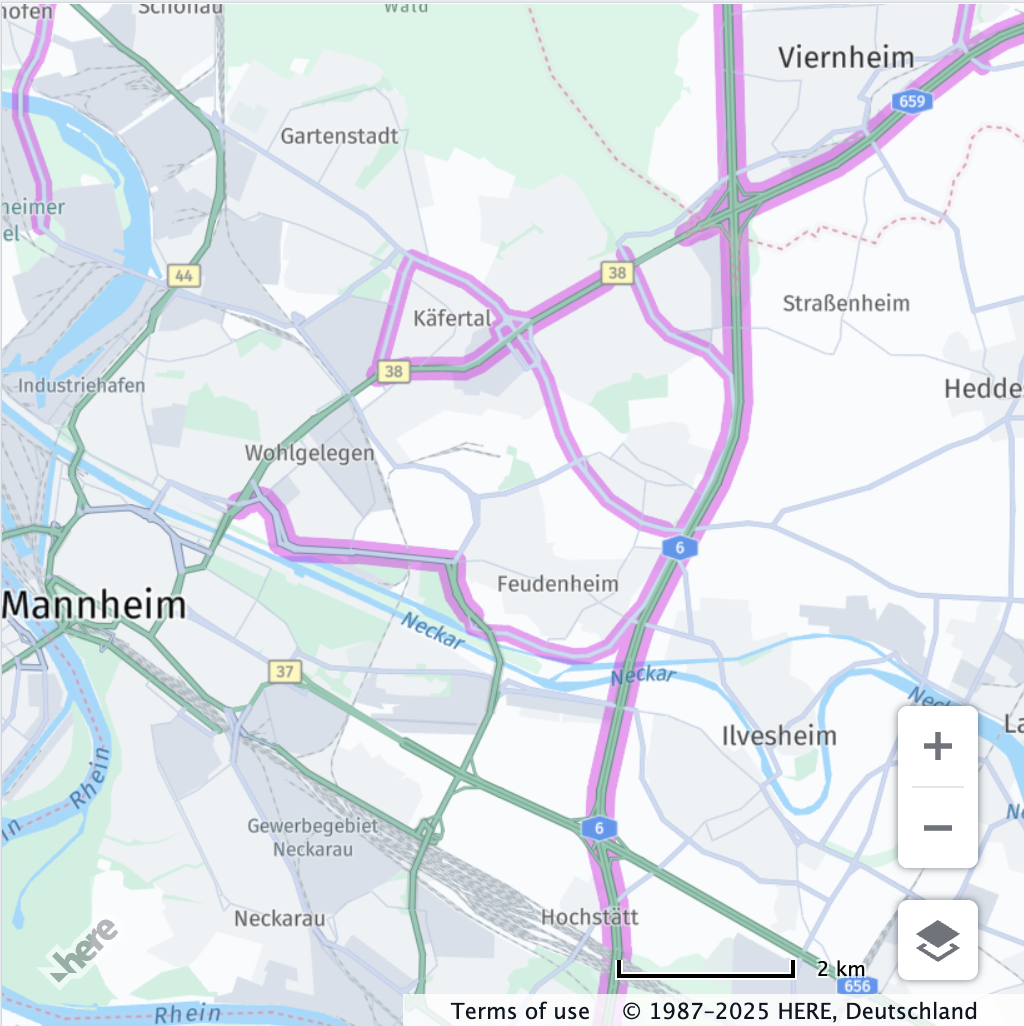
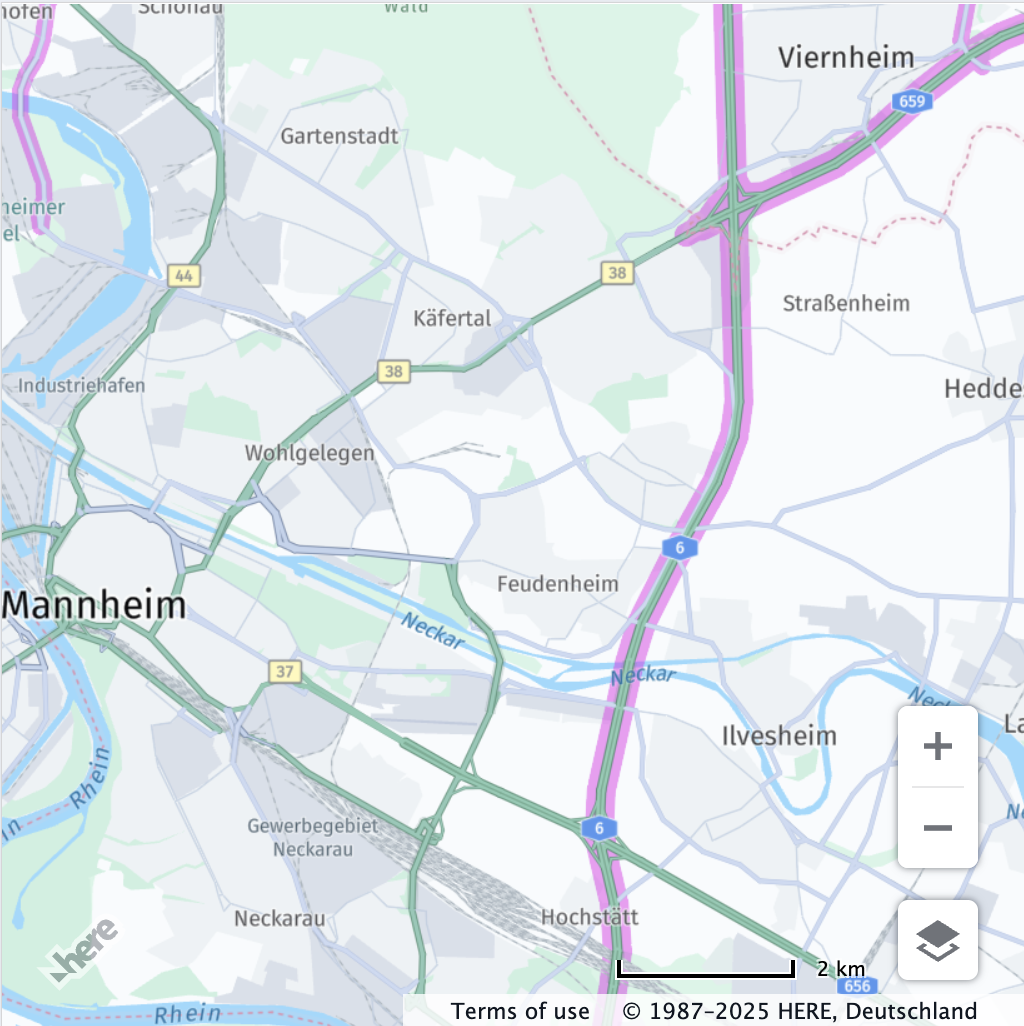
preferredTruckRouteTypesThis specifies the types of truck-preferred routes that are displayed for the configured vehicle profile.
The values set for preferredTruckRouteTypes are checked against the matching all_tpr values in the vector tile data.
The list of values supported by the API can be found in this PreferredRouteType docs page.
If this value is not defined, all truck-preferred roads are displayed.
Note
To visualize truck preferred roads, the additional
truck preferred roadsfeature must be enabled.
Refer to Enable vehicle restriction feature.
// Center the map at a location with truck preferred roads
map.getViewModel().setLookAtData({
  position: {lat: 49.4944, lng: 8.5268},
  zoom: 13.42
});

const truckSpecs = {
  vehicleType: H.service.omv.Provider.IVehicleSpecs.VehicleType.TRUCK,
  preferredTruckRouteTypes: [16]
};

map.getBaseLayer().getProvider().setVehicleSpecs(truckSpecs)| Before | After |
|---|---|
 |  |
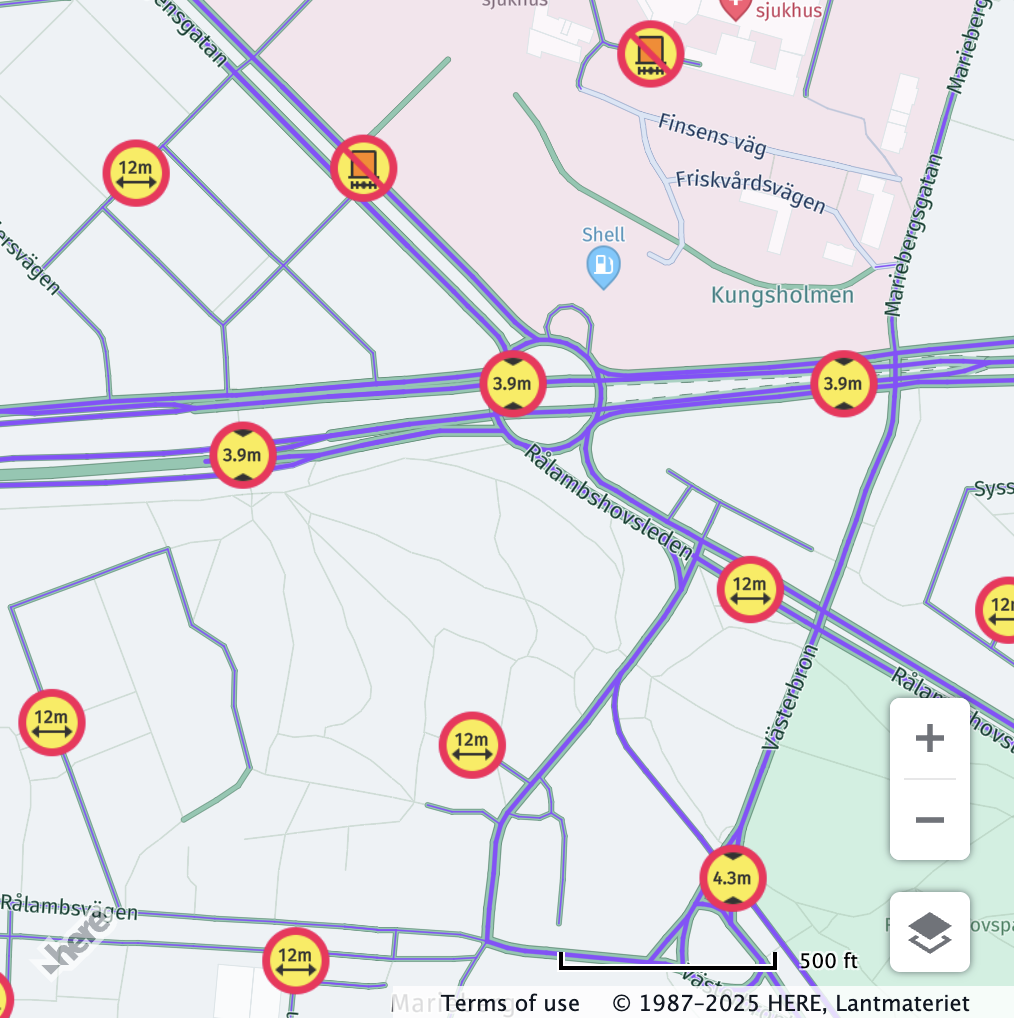
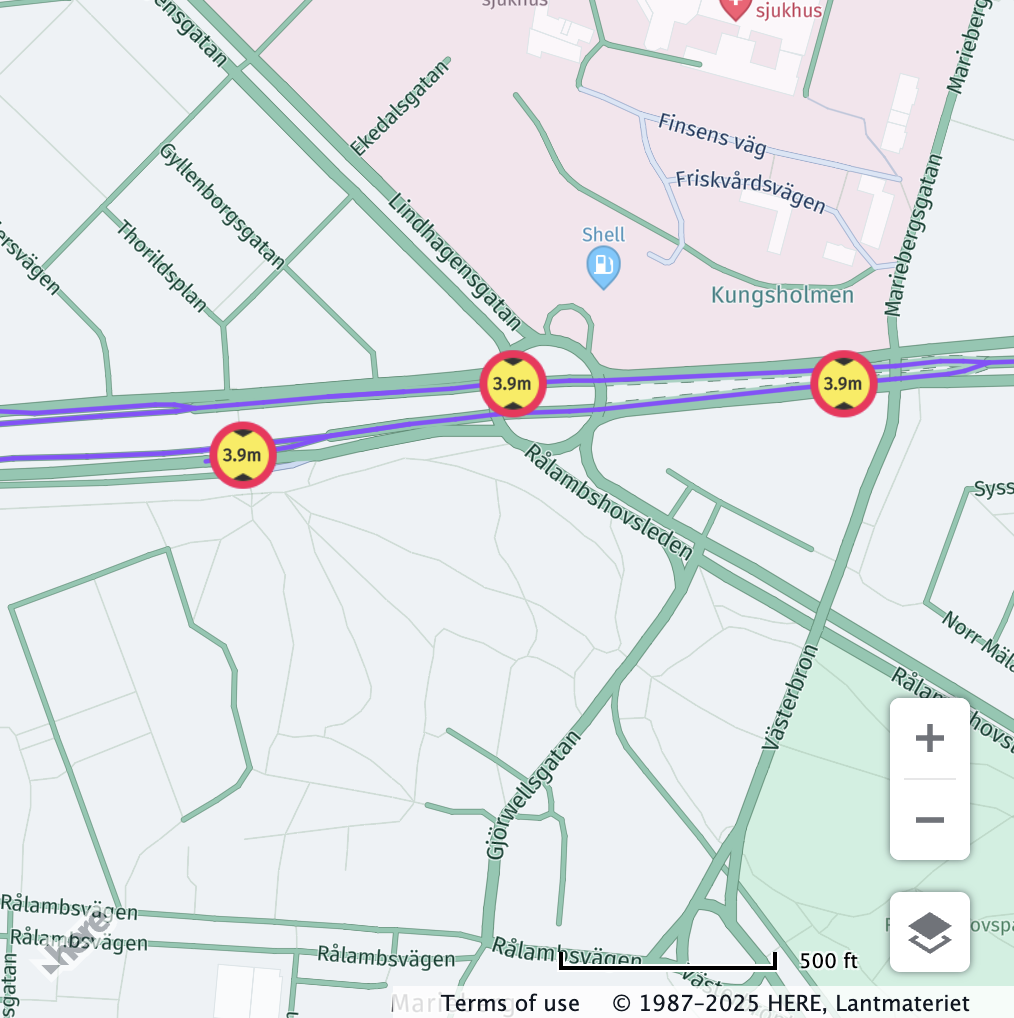
Combining multiple Vehicle Profile attributes
Let's now see one example of a vehicle profile that combines multiple attributes:
// Center the map at a location with multiple vehicle restrictions
map.getViewModel().setLookAtData({
  position: {lat: 59.3310, lng: 18.0191},
  zoom: 15.82
});
const truckSpecs = {
  vehicleType: H.service.omv.Provider.IVehicleSpecs.VehicleType.TRUCK,
  grossWeightInKilograms: 8000,
  lengthInCentimeters: 600,
  heightInCentimeters: 400
};

map.getBaseLayer().getProvider().setVehicleSpecs(truckSpecs)| Before | After |
|---|---|
 |  |
Time-based vehicle restrictions API
The Time-based vehicle restrictions API allows you to filter out the vehicle restrictions that are not valid for a specific time.
For this use case, there are multiple modes in the vehicle restrictions feature that are available:
active & inactive differentiated, wherein both active and inactive restrictions are shown, with the inactive ones faded out for differentiation.active only, wherein only active restrictions are shown.
for more information on how to enable the vehicle restrictions feature with the preferred mode, see Enable vehicle restriction feature.
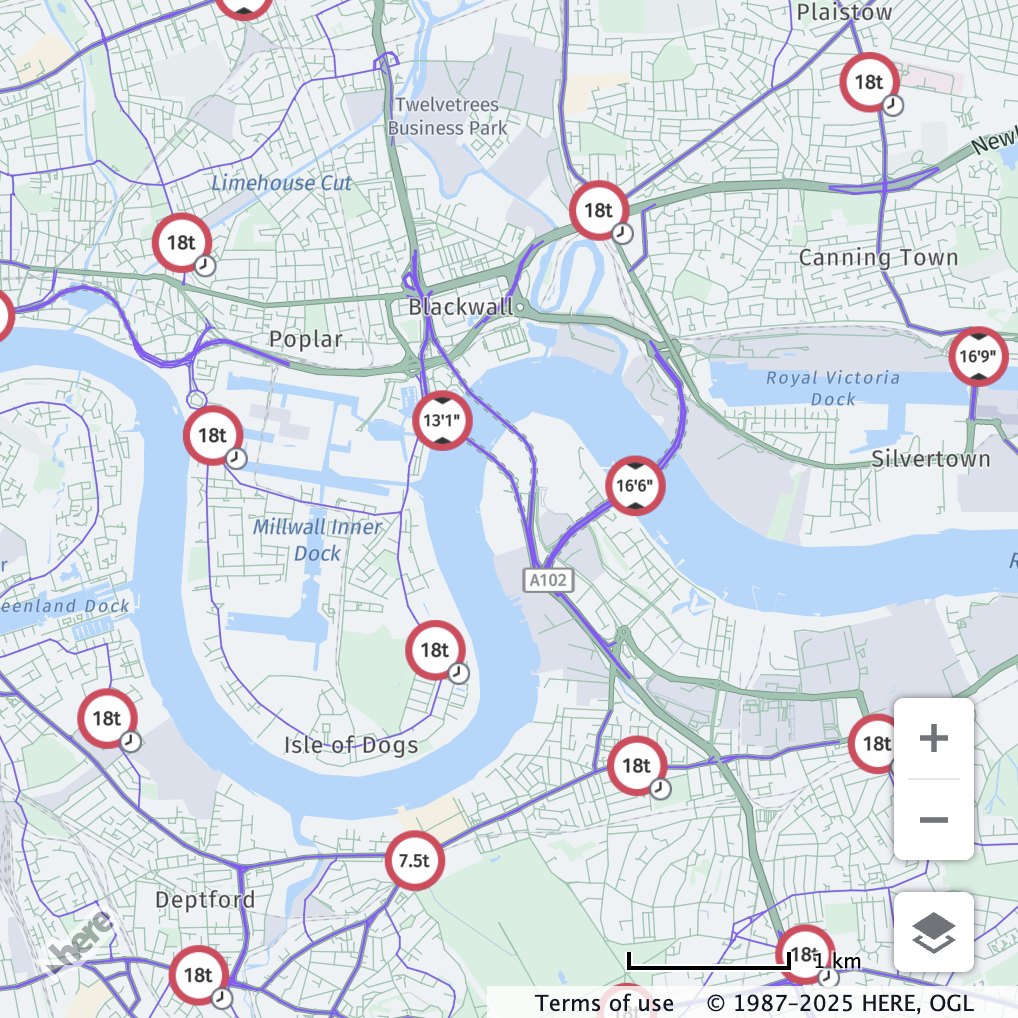
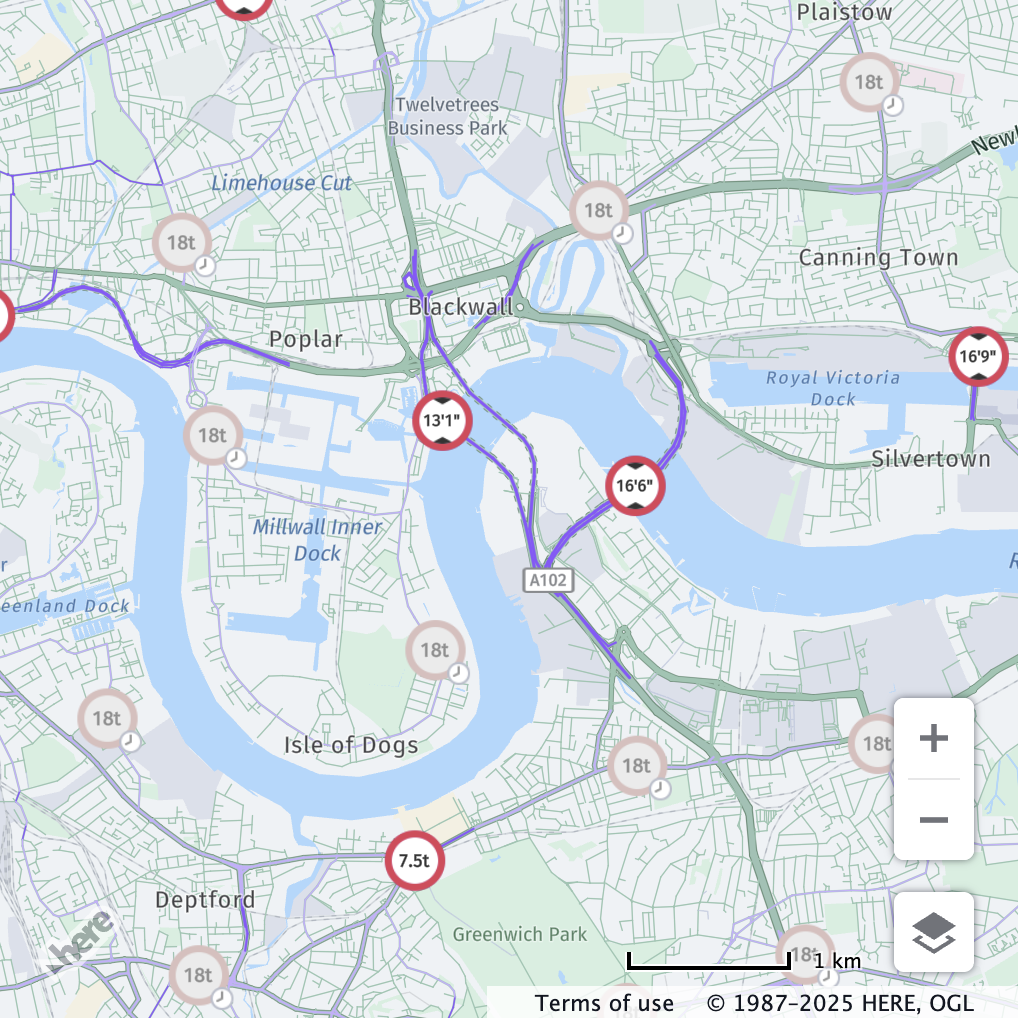
The following examples show the usage of the time based vehicle restrictions API in London, both with the active & inactive differentiated and active only modes.
Note
All vehicle access restriction times in the data are expressed in the local time zone where the restriction applies.
Each timestamp provided to the API must follow the simplified ISO8601 format:YYYY-MM-DDThh:mm.
Specified timestamps are always interpreted as local time, and do not include timezone information.If a range of time is specified, both the start and end times must be provided in the same format.
A restriction is considered active even if it is only partially within the specified time range.
Example
// Center the map in London
map.getViewModel().setLookAtData({
  zoom: 13,
  position: { lat: 51.5, lng: 0 }
});

// Set the time to August 13, 2025 at 10:00 AM in London
map.getBaseLayer().getProvider().setTimeRestriction("2025-08-13T10:00");
// Alternatively, a range can be specified
// map.getBaseLayer().getProvider().setTimeRestriction(["2025-08-13T10:00", "2025-08-13T12:00"]);
active & inactive differentiated mode
active & inactive differentiated modeThe following screenshots demonstrate the appearance of the active & inactive differentiated mode when used.
| Before | After |
|---|---|
 |  |
active only mode
active only modeThe following screenshots demonstrate the appearance of the active only mode when used.
| Before | After |
|---|---|
| 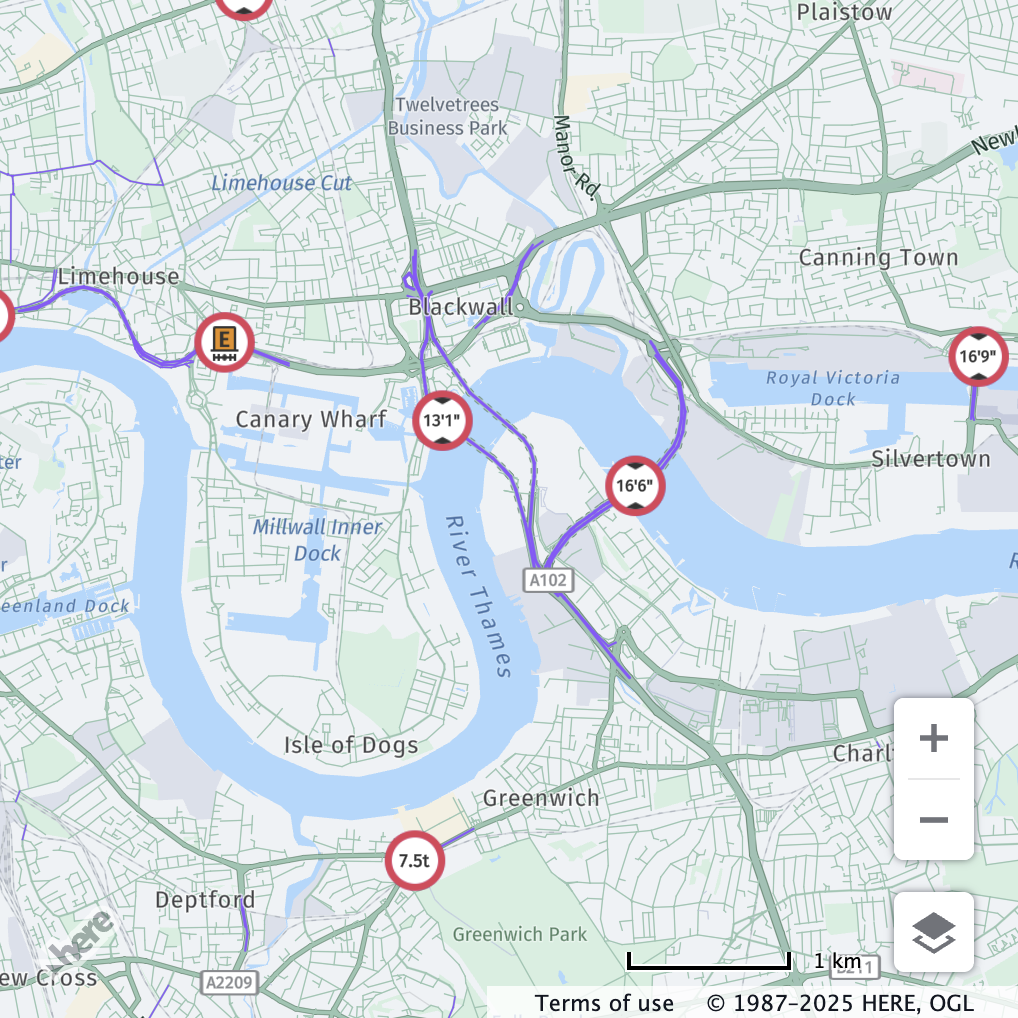 |
Related Resources
Updated last month