

Display GeoJSON data
By using the GeoJSON format, you can overlay custom data onto a map image, enabling the definition and display of your own geographical features such as points, lines, and polygons. By utilizing custom overlays through GeoJSON, you can enrich the visual representation of your data and provide additional context to your maps by highlighting specific regions, plotting routes, and more.
To achieve this, the API provides the H.data.geojson.Reader class, provided through the data module (mapsjs-data.js). The class represents a GeoJSON reader responsible for fetching and interpreting GeoJSON data.
To provide additional flexibility and more options for displaying custom data, you can also fetch auxiliary data that accompanies geometries (the contents of the properties field) using the getData() method.
Note
You can load a GeoJSON file from a different domain, provided that domain supports Cross-Origin Resource Sharing (CORS).
Example: Render airport data on a map
The following examples demonstrate how to parse a GeoJSON file, add it as a layer to the map, and handle events associated with GeoJSON objects to provide auxiliary data.
Consider the following points about the following code sample:
- The sample GeoJSON file comes from the public domain Natural Earth dataset and contains data about airports around the world. Each airport in the sample data is represented as a
Pointgeometry, to be rendered as aH.map.Markerobject on the map. - The following sections build upon the base map described in Get started with HERE Maps API for JavaScript as the foundation for introducing code additions.
Perform the following steps to add GeoJSON content to your map:
-
In the
<head>element of the HTML file, import themapsjs-data.jslibrary, as shown in the following example:<script type="text/javascript" src="https://js.api.here.com/v3/3.2/mapsjs-data.js"></script> -
Optional: Define custom icon style for airport markers, as shown in the following example:
const svgMarkup = '<svg width="24" height="24" ' + 'xmlns="http://www.w3.org/2000/svg">' + '<rect stroke="white" fill="red" x="1" y="1" width="22" ' + 'height="22" /><text x="12" y="18" font-size="12pt" ' + 'font-family="Arial" font-weight="bold" text-anchor="middle" ' + 'fill="white">A</text></svg>'; -
Parse the GeoJSON file and display its contents as a layer on a vector map:
// Import and parse the GeoJSON data:
const reader = new H.data.geojson.Reader('https://raw.githubusercontent.com/nvkelso/natural-earth-vector/refs/heads/master/geojson/ne_10m_airports.geojson', {
    // This optional function is called each time parser detects a new map object:
    // Skip this code to obtain the default marker look and feel
    style: function(mapObject) {
        // Parsed marker objects are styled using the setIcon() method
        if (mapObject instanceof H.map.Marker) {
            mapObject.setIcon(new H.map.Icon(svgMarkup))
        }
    }
});
reader.parse();

// Create a GeoJSON layer using the parsed data and add it to the map
const layer = reader.getLayer();
map.addLayer(layer);

// Optionally, adjust the map zoom:
map.setZoom(6)
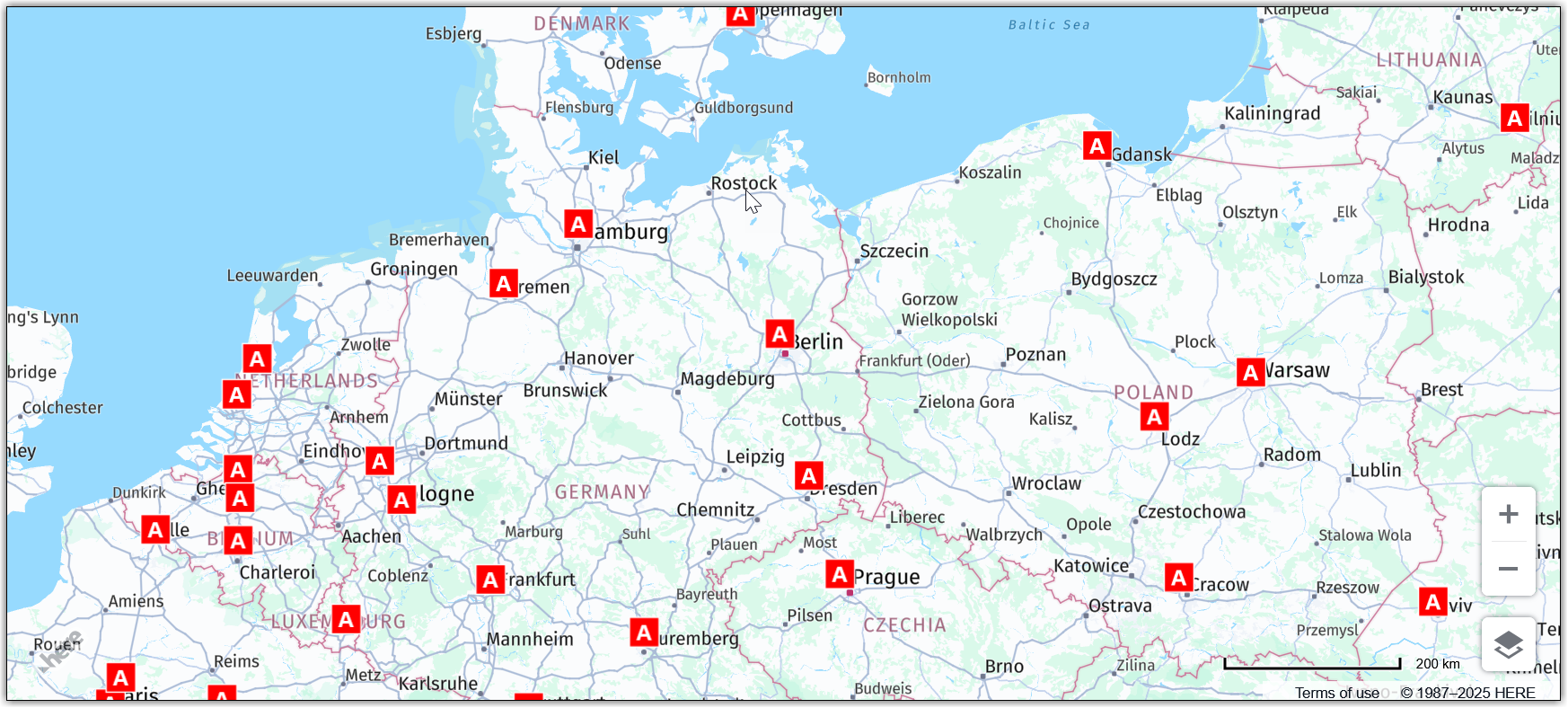
The map now displays the GeoJSON layer, with each airport in the data rendered as a marker with custom style, as shown in the following figure:
Interact with GeoJSON data through the map
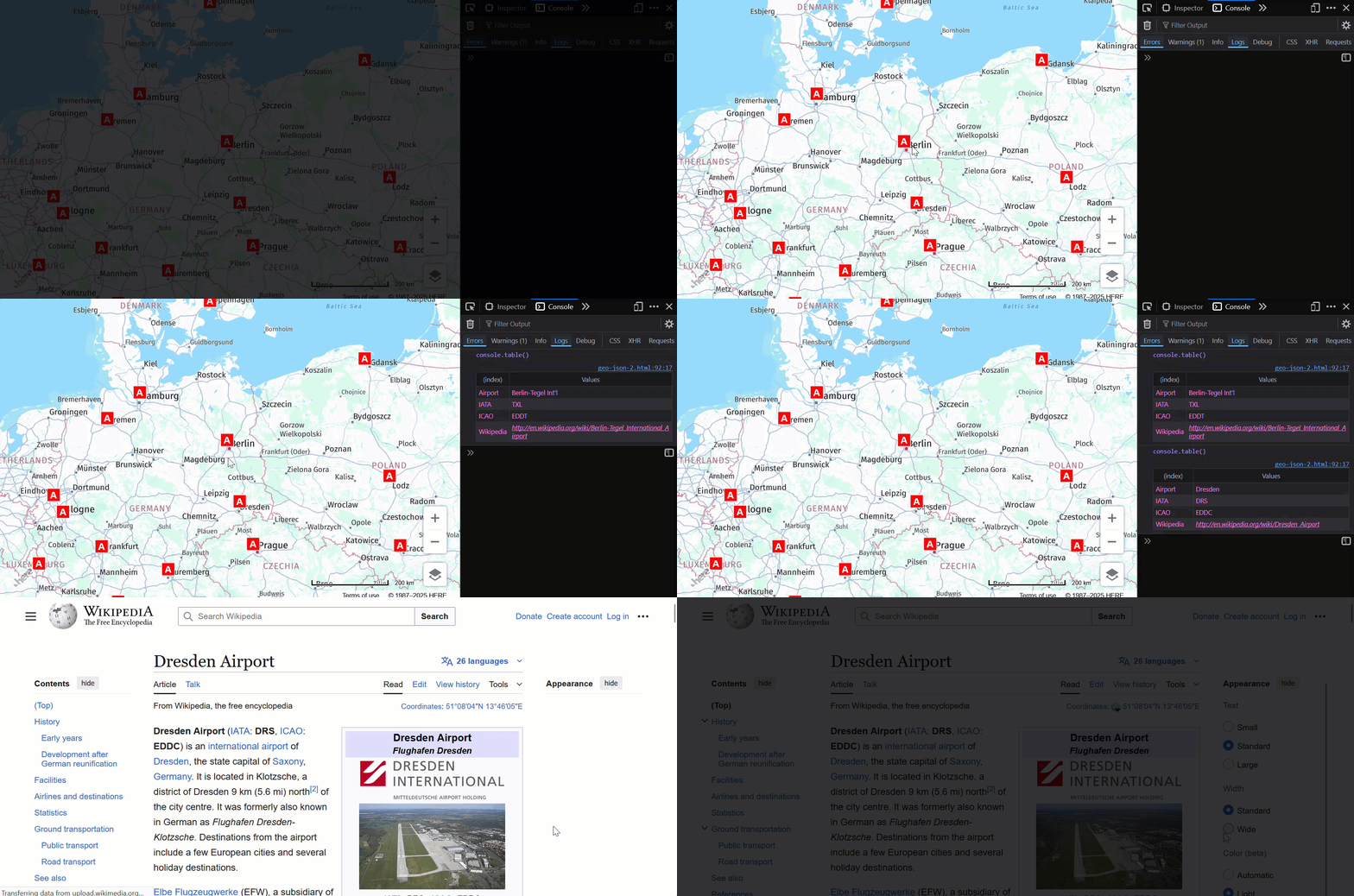
Use the getData() method to further interact with GeoJSON data layer. This example add an even listener to display additional airport details when the corresponding marker is tapped or clicked.
Within the context of the previous example, add the following code to define the even listener settings:
// Add a `tap` event listener. This event listener displays basic airport data in the browser console when you tap/click a marker
map.addEventListener('tap', function (evt) {
  const target = evt.target;

  if (target instanceof H.map.Feature) {
    // Extract specific key values from the GeoJSON file
    const props = target.getData() || {};
    const name = props.name || props.name_en || 'Unknown Airport';
    const iata = props.iata_code || 'N/A';
    const icao = props.gps_code || 'N/A';
    const wiki = props.wikipedia || '—';
    // Display the data as a table in the browser console
    console.table({
      Airport: name,
      IATA: iata,
      ICAO: icao,
      Wikipedia: wiki
    });
  }
});
The following figure shows the resulting map behavior:
Next steps
For more information, see the H.data.geojson.Reader documentation in the API Reference.
Updated 6 months ago