

Bundle the HERE Maps API for JavaScript with Vite
Learn how to bundle your HERE Maps API for JavaScript API mapping application using Vite, a fast and modern bundler that provides optimized and unified code for better performance, enabling faster development and deployment of your mapping application.
Initialize the Vite project
Use Vite to create a project scaffolding based on your input.
-
In the root folder of your project, open a command line tool, for example, the Command Prompt, Windows Power Shell, and so on.
-
Add the HERE public repository to the NPM configuration, as shown in the following example:
npm config set @here:registry https://repo.platform.here.com/artifactory/api/npm/maps-api-for-javascript/ -
In the command line tool, enter the following command:
npm create vite@latestThis command launches the project setup wizard, allowing you to customize base project properties to suit your needs.
-
Provide the following values at each prompt step:
- Project name: Enter the project name, for example,
vite-project. Vite automatically generates a new project folder with this name. If you want to use the current folder as the root directory, enter a dot (.) character. - Select a framework:
Vanilla - Select a variant:
JavaScript
Note
This tutorial uses a basic mapping application comprising an HTML file and a JavaScript (JS) file for demonstration purposes.
Based on the data you entered, Vite creates a project scaffolding in the folder whose name corresponds to the project name you entered.
- Project name: Enter the project name, for example,
-
Set the Vite project folder as the working directory by entering the following command:
cd <your_project_name> -
Add a dependency to the HERE Maps API for JavaScript library by entering the following command:
npm install @here/maps-api-for-javascript --save -
In the command line tool, enter the following command:
npm run dev -
In a web browser, go to the following URL:
http://localhost:5173, corresponding to the port on which the Vite development server is running.
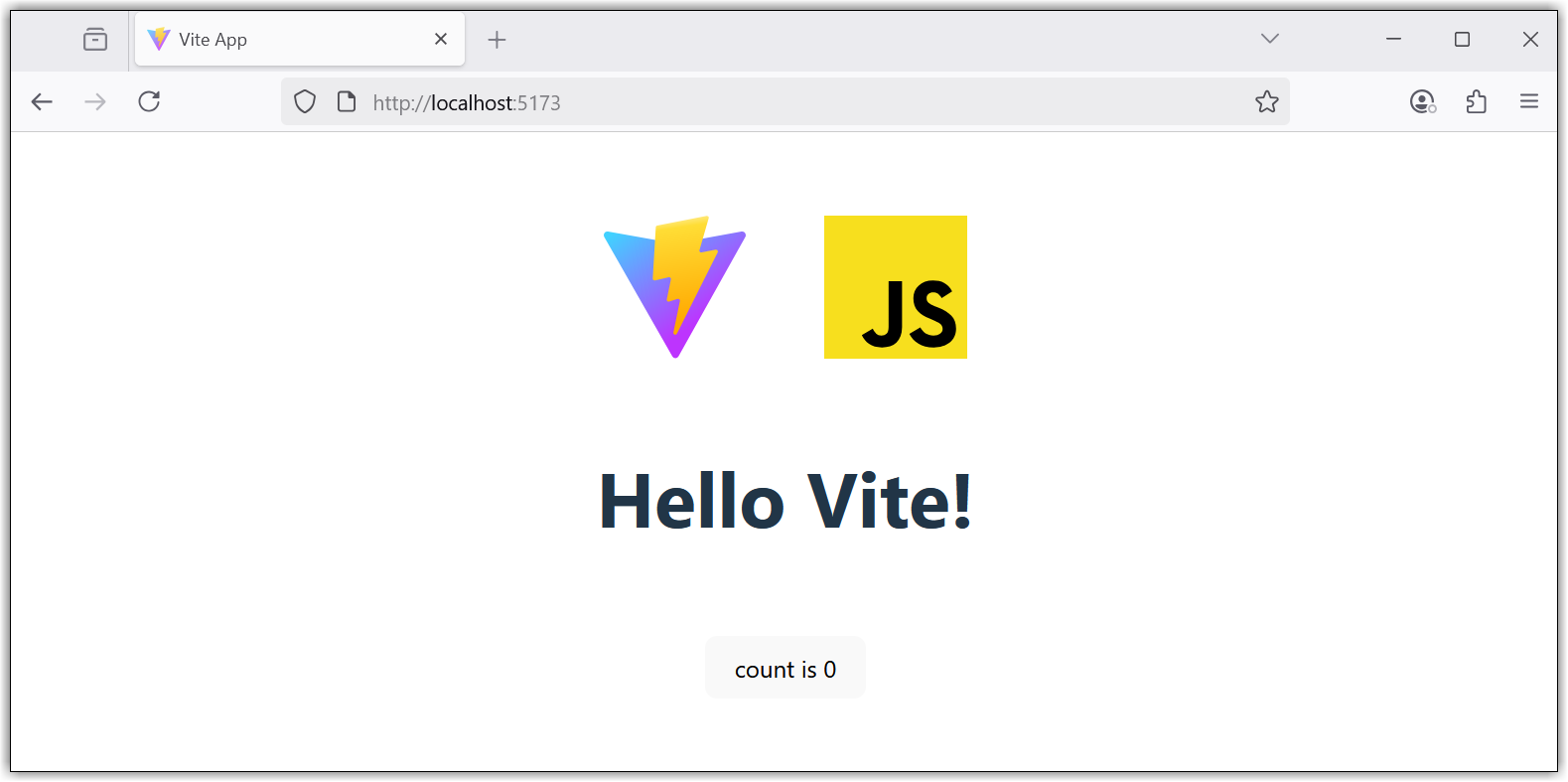
Result: The browser window displays the default project view based on your settings, as shown in the following example:
Display HERE maps as part of your project
After you configured the base project properties, update the default Vite project configurations in the index.html and main.js files to use custom configuration that is specific to your mapping application.
The index.html and main.js files are placed in the following locations in the Vite project:
vite-project/
├── index.html
└── src/
    └── main.js
...
Perform the following steps to update the Vite configuration with your custom code:
-
Replace the default contents of the
index.htmlfile with the following configuration:<!doctype html> <html lang="en"> <head> <meta charset="UTF-8" /> <meta name="viewport" content="width=device-width, initial-scale=1.0" /> <title>HERE Maps with Vite</title> <link rel="icon" type="image/svg+xml" href="/vite.svg" /> </head> <body> <div id="app" style="width: 100vw; height: 80vh;"></div> <script type="module" src="/src/main.js"></script> </body> </html>Note
Vite expects the JavaScript entry to be imported as a module.
-
Replace the default contents of the
/src/main.jsfile with the following HERE Maps API for JavaScript code:import H from '@here/maps-api-for-javascript' import '@here/maps-api-for-javascript/mapsjs-ui.css' document.querySelector('#app').innerHTML = '<div id="mapContainer" style="height: 100%"></div>' // Initiate and authenticate your connection to the HERE platform: const platform = new H.service.Platform({ apikey: 'YOUR_HERE_API_KEY' }); // Obtain the default map types from the platform object: const defaultLayers = platform.createDefaultLayers(); // Instantiate (and display) a map: const map = new H.Map( document.getElementById("mapContainer"), defaultLayers.vector.normal.map, { zoom: 12, center: { lat: 52.51, lng: 13.4 } }); // MapEvents enables the event system. // The behavior variable implements default interactions for pan/zoom (also on mobile touch environments). const behavior = new H.mapevents.Behavior(new H.mapevents.MapEvents(map)); // Enable dynamic resizing of the map, based on the current size of the enclosing container window.addEventListener('resize', () => map.getViewPort().resize()); // Create the default UI: const ui = H.ui.UI.createDefault(map, defaultLayers)
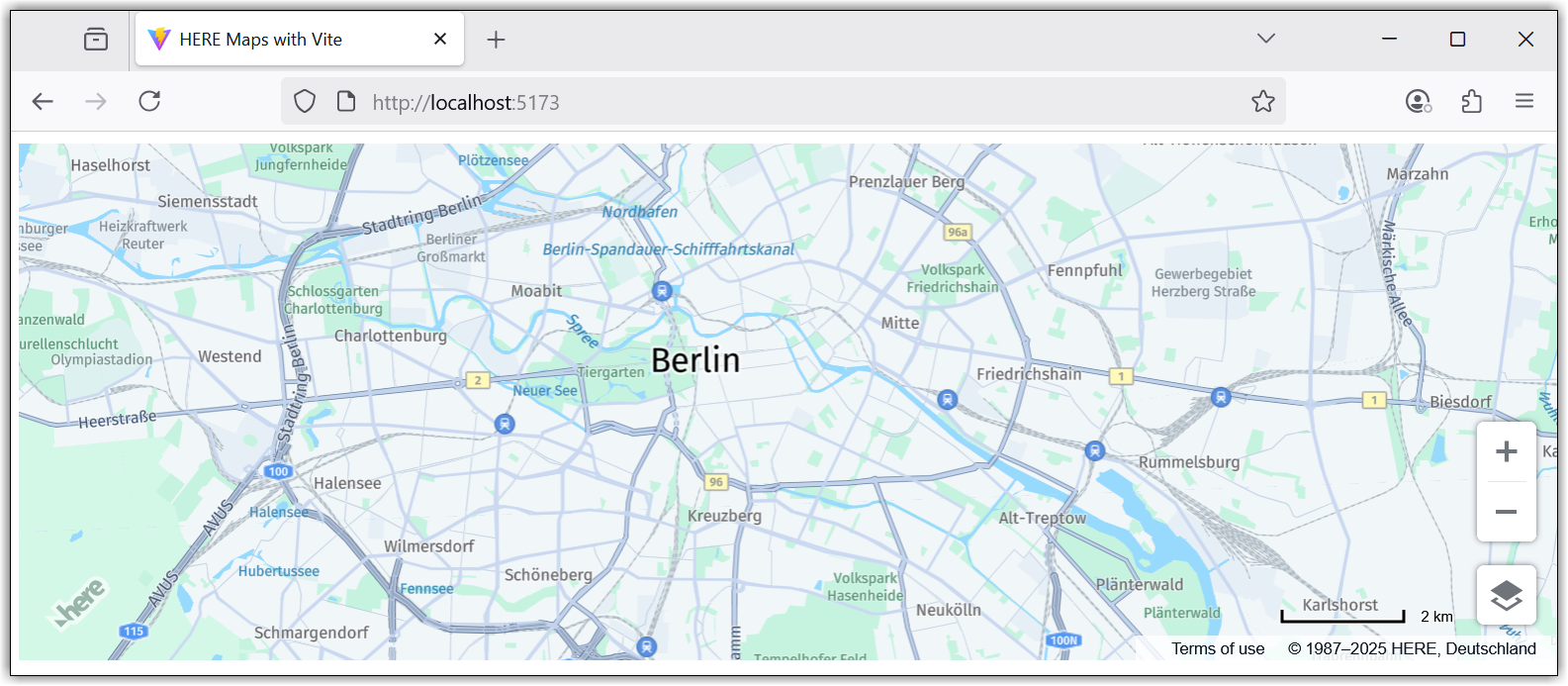
Result: The browser window now displays a HERE map, as shown in the following example:
Vite automatically updates the browser when you modify the code.
Bundle your application
-
Prevent unnecessary noise in the build process and accommodate specific requirements for building the maps API by creating the
vite.config.jsfile in your Vite project directory and populating the file with the following code:export default { build: { rollupOptions: { onwarn: function(message) { if (/mapsjs.bundle.js/.test(message) && /Use of eval/.test(message)) return; console.error(message); }, } } } -
Invoke the
buildscript by entering the following command:npm run buildBy running the previous command, you perform the following actions:
- Build your application using the configured settings.
- Compile and bundle your JavaScript code.
- Generate a version of your application in the
/distdirectory.
Conclusion
In this tutorial, you learned how to bundle a simple HERE Maps API for JavaScript application by using Vite. By setting up a project and integrating custom scripts, you acquired foundations for optimizing a web application relying on HERE maps through a fast and modern bundler like Vite.
Next steps
For more information on other bundlers, see Bundle the HERE Maps API for JavaScript with Webpack and Rollup.
Updated 2 months ago