

Understand DefaultLayers options
By default, when you call platform.createDefaultLayers() method without any parameters, the Maps API for JavaScript returns the standard map configuration. However, you can customize and adjust the standard map look and feel to your needs by passing an options object.
A custom createDefaultLayers() configuration allows for map optimization in such scenarios as:
- Applications that require support for multiple languages
- Mobile apps that need performance optimization
- Regional services that must take into account country-specific geopolitical views
- High-resolution displays that require enhanced tile quality
The following section provide configuration examples for the most commonly used createDefaultLayers() options. Each example builds upon the base map described in Get started as the foundation for introducing code additions.
POI display (pois)
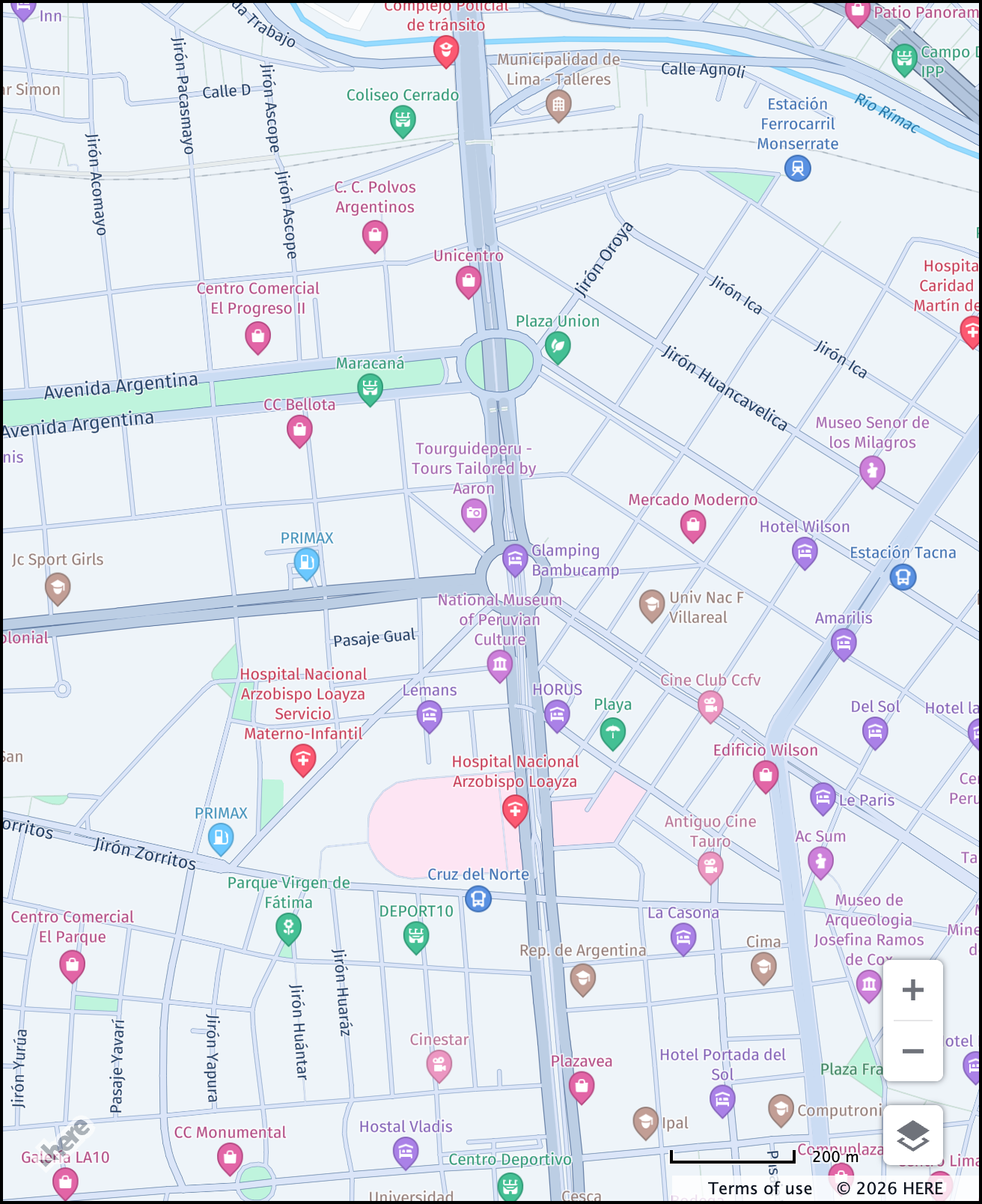
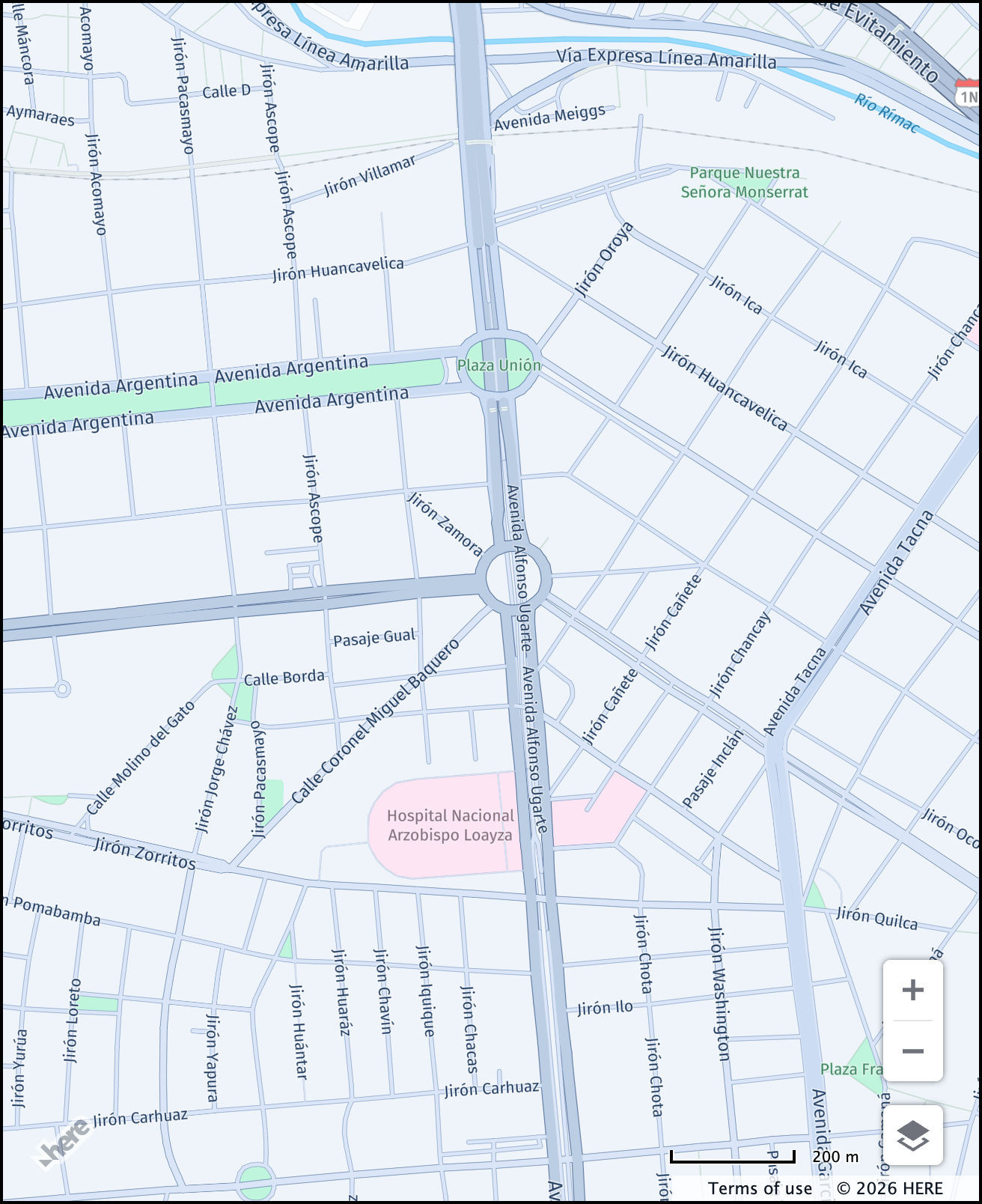
The Maps API for JavaScript enables POIs (points of interest) by default. However, you can hide POIs when you need cleaner maps that, for example, to focus on route visualization without the POI clutter. The following example shows how to hide points of interest:
const defaultLayers = platform.createDefaultLayers({
    pois: false
});
The following figure shows the visual comparison between a map with and without POIs:
| POIs visible | POIs hidden |
|---|---|
 |  |
Map language (lg and lg2)
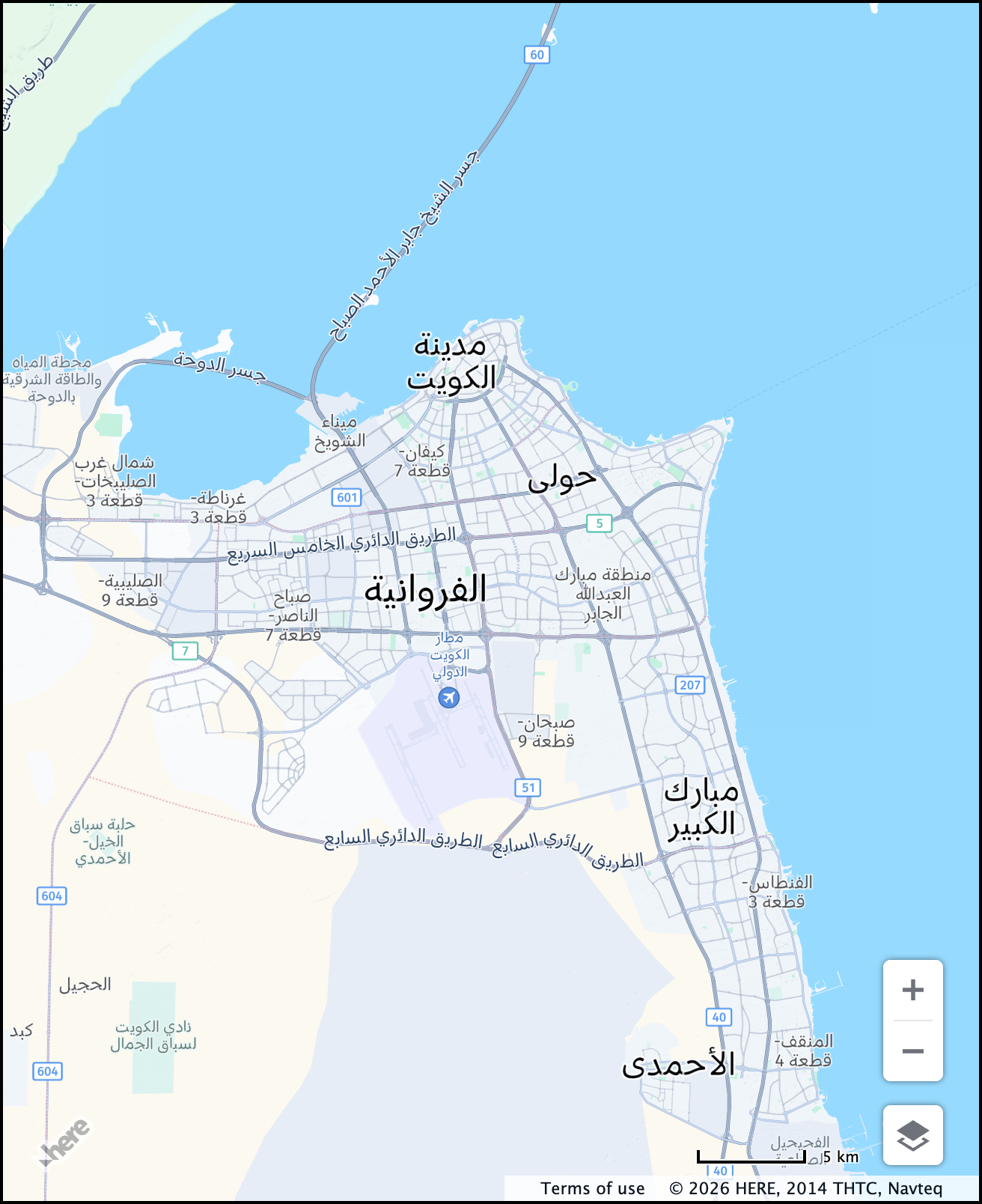
By default, the HERE Maps API for JavaScript displays map labels in each country's local language, depending on the data availability. The labels for ocean, sea, and bay features are shown in the language of the country a specific water body is adjacent to. However, you can localize labels and place names with the following options:
lg: Sets the primary language for map labels. The parameter accepts the two-letterISO-639-1language code, for example,frfor French.lg2: Sets the secondary language for map labels. This parameter follows the same format as thelgparameter and allows you to display an additional label in the specified language.
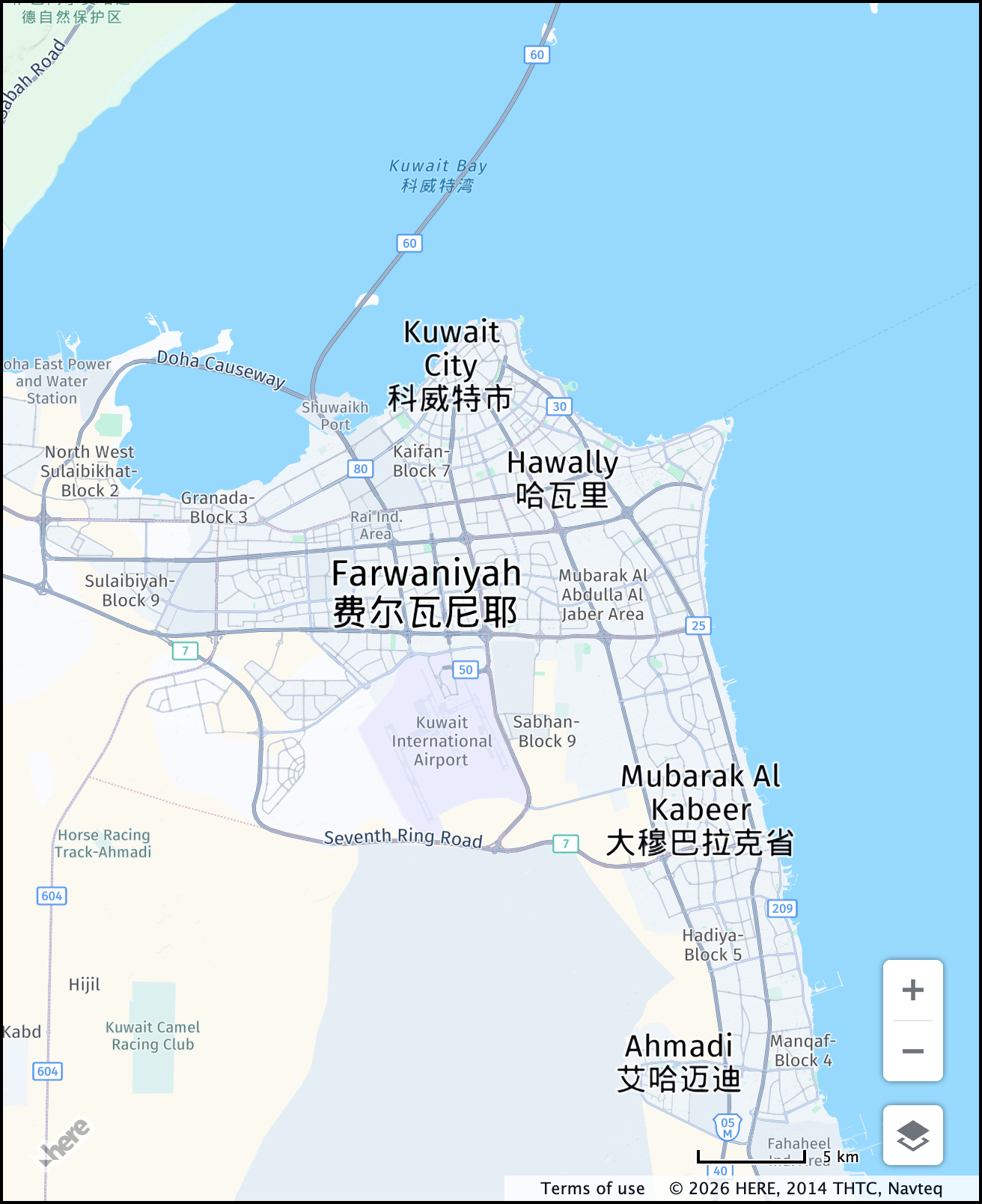
The following example shows a use case when the primary map language is set to English and the secondary language is set to Chinese:
const defaultLayers = platform.createDefaultLayers({
    lg: "en", // Primary language: English (top label)
    lg2: "zh" // Secondary language: Chinese (bottom label)
});Note
When you specify only the secondary language, the map displays the default local language as the primary language in the top label while displaying the secondary label in the selected language below it.
The following figure shows the visual comparison between a map with the default settings displaying labels in the local language, and a map with customized language settings where the primary language is set to English and the secondary language is set to Chinese (lg: "en", lg2: "zh"):
| Default | Custom |
|---|---|
 |  |
For more information about the available languages depending on the map type, see the following documentation:
- Available languages in the HERE Vector Tile API Developer Guide
- Map languages in the HERE Raster Tile API Developer Guide
Tile size (tileSize)
Note
Set
tileSizeonly when using raster tiles, such as with a map style set toraster.normal.map.
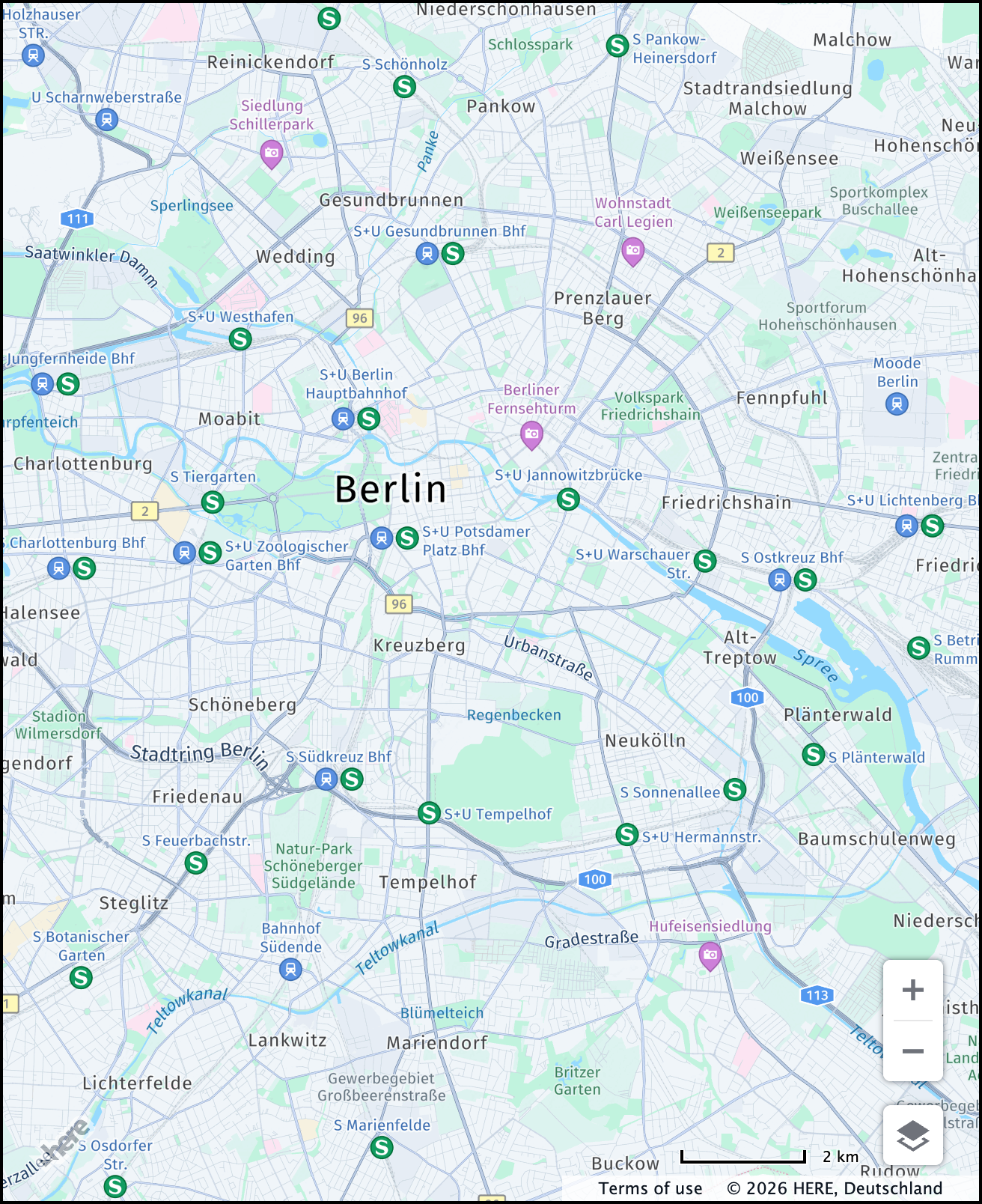
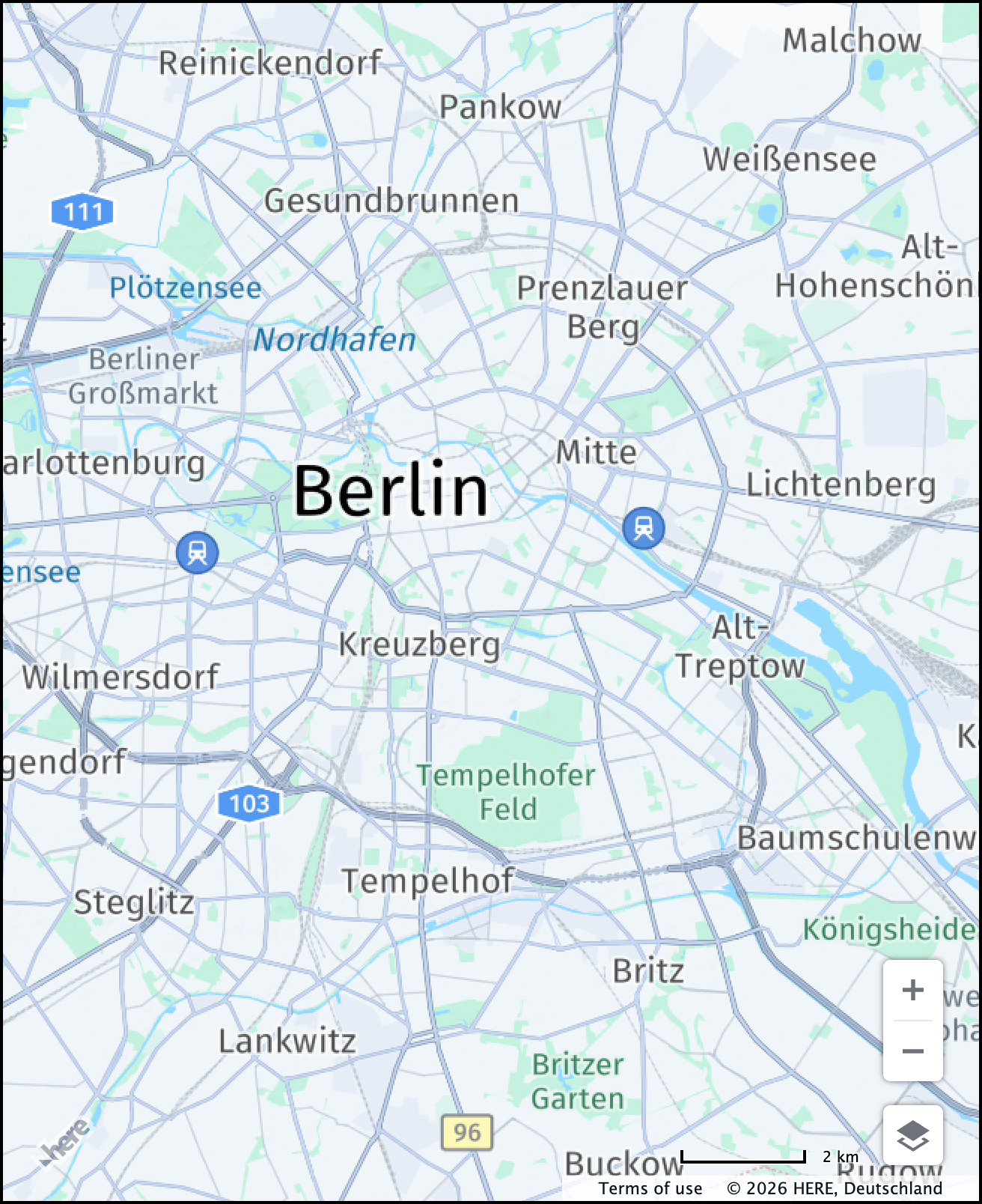
The default tile size is 512x512 pixels (tileSize: 512). For most use cases, this setting works well. However, you can adjust the resolution to 256x256 pixels for improved performance on small screen devices.
The following code shows how to adjust tile size while using raster tiles:
const defaultLayers = platform.createDefaultLayers({
    tileSize: 256 // Adjust the tile size
});

const map = new H.Map(
    document.getElementById("mapContainer"),
    // Set the map style to use raster tiles
    defaultLayers.raster.normal.map, {
        zoom: 12,
        center: {
            lat: 52.5,
            lng: 13.4
        }
    });
The following figure shows a comparison between the two available tile sizes:
| 512px | 256px |
|---|---|
 |  |
For more information, see the HERE Raster Tile API Reference.
Geopolitical view (politicalView)
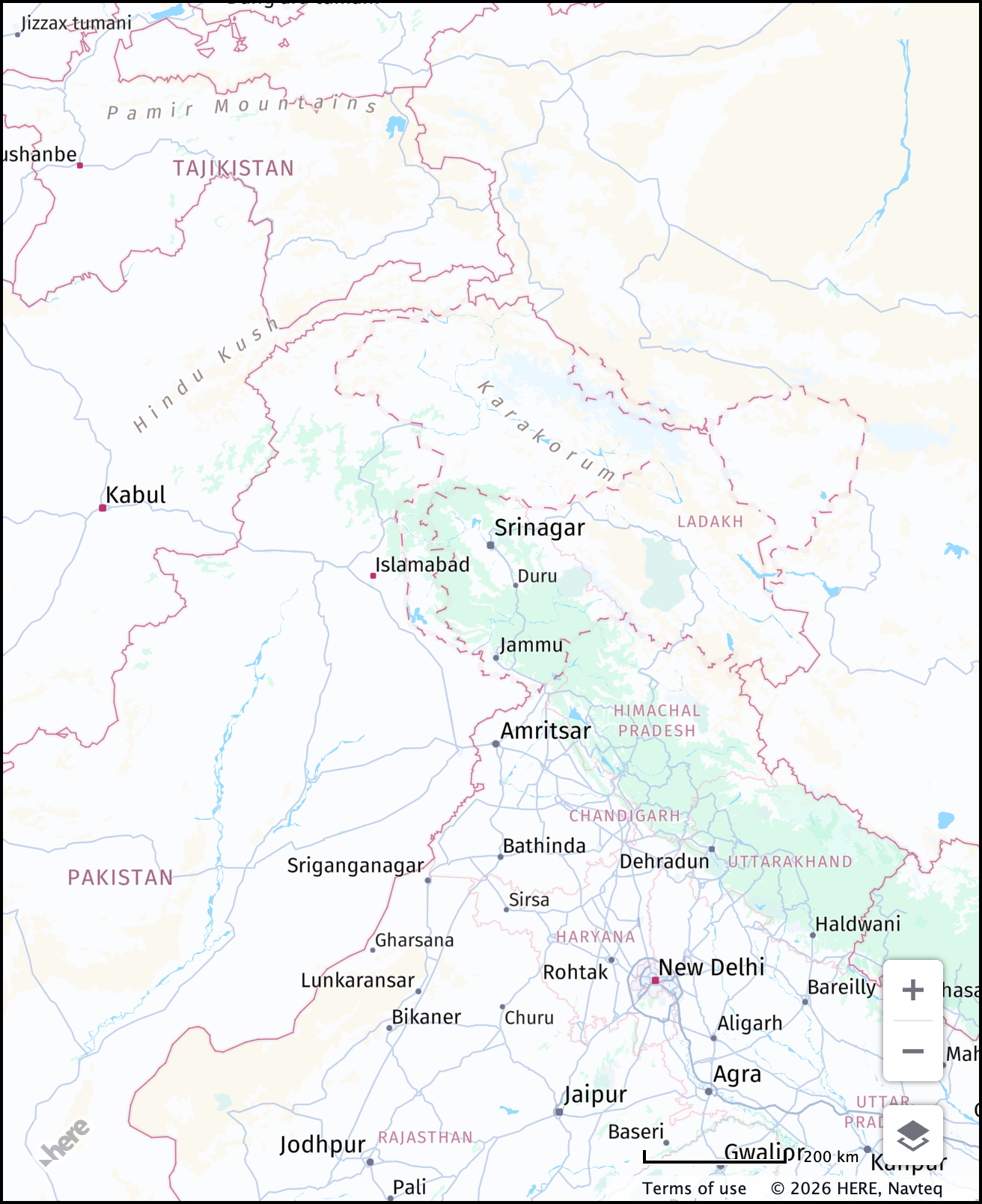
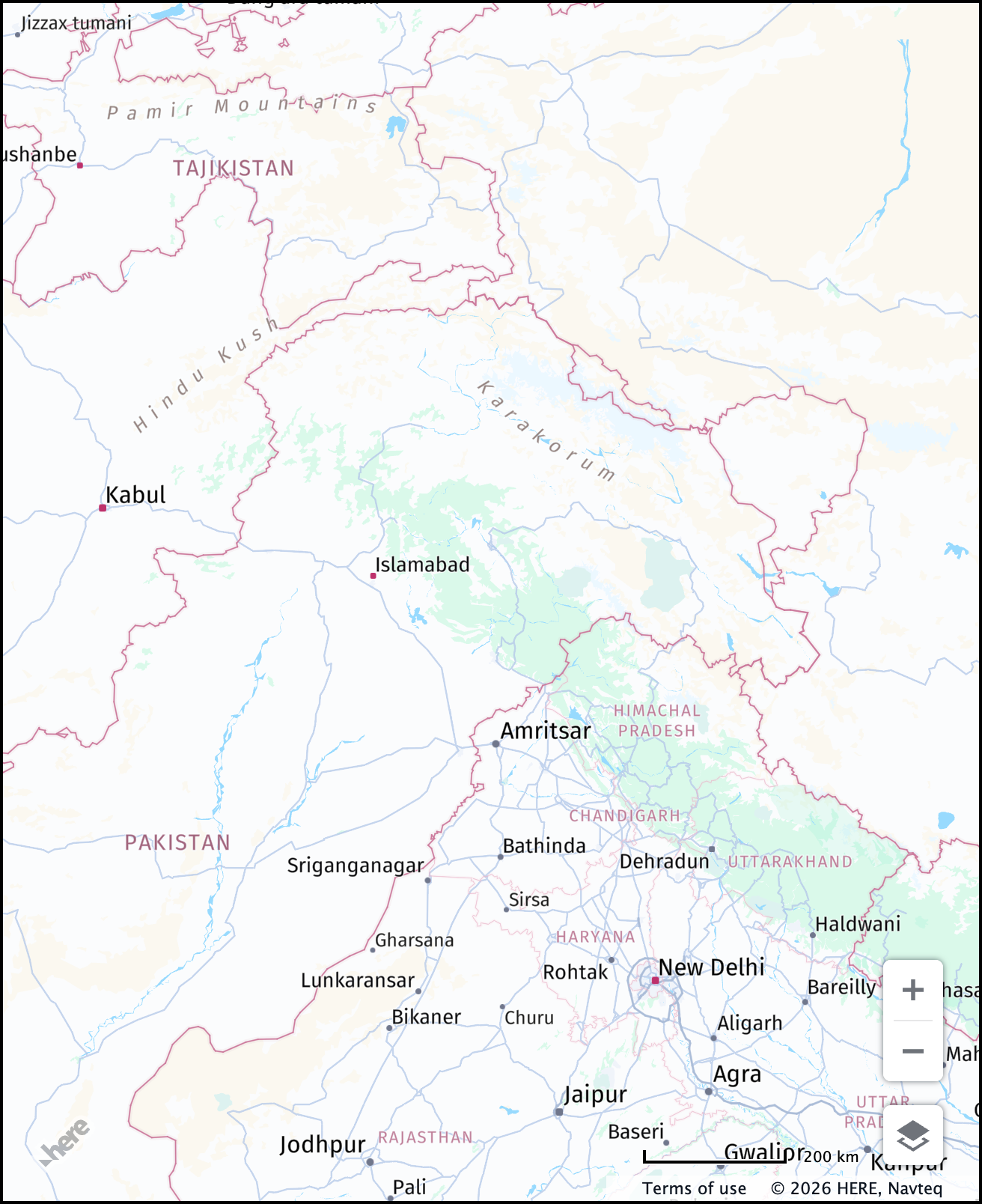
The default view configuration in the HERE Maps API for JavaScript presents the international perspective, visually representing disputed territories with dashed borders. For example, Jammu and Kashmir, along with Ladakh, are shown as disputed areas between India and Pakistan:
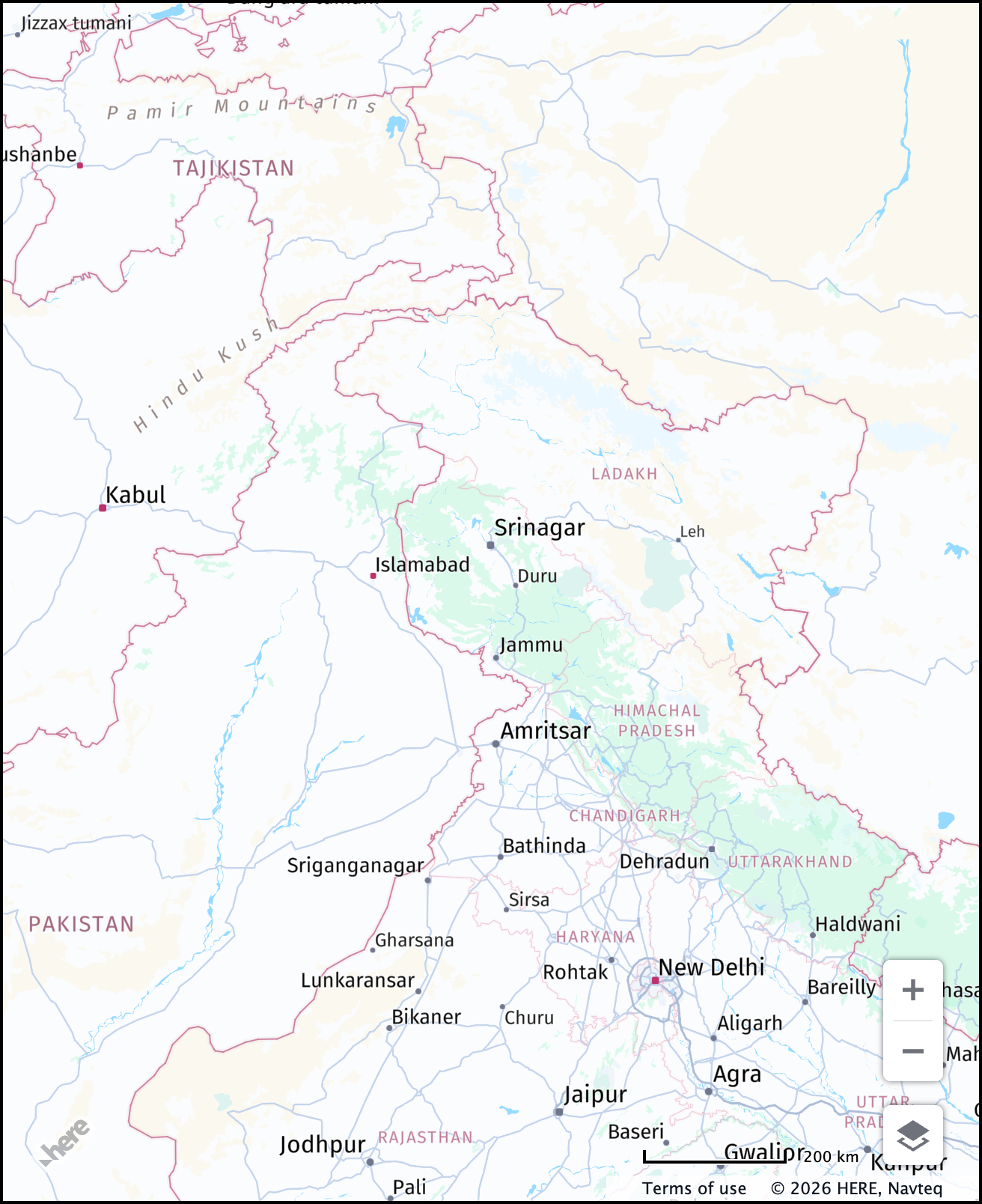
You can switch from the international perspective to a geopolitical view of a particular country through the politicalView parameter. The value of the parameter is a country code compliant with the ISO 3166-1 alpha-2 schema, for example, IN for India.
The following sample shows how to apply a specific political view as the default one for the map:
const defaultLayers = platform.createDefaultLayers({
  politicalView: "IN"
});
The following table compares two geopolitical views for the same territory between India and Pakistan:
| IN | PK |
|---|---|
 |  |
- For more information about the available political view for each map type, see the corresponding documentation:
- Geopolitical views in the HERE Vector Tile API Developer Guide
- Geopolitical views in the HERE Raster Tile API Developer Guide
- For information on how to apply geopolitical views dynamically, see Apply custom geopolitical views
Label and icon size (ppi)
Note
Set
ppionly when using raster tiles, such as with a map style set toraster.normal.map.
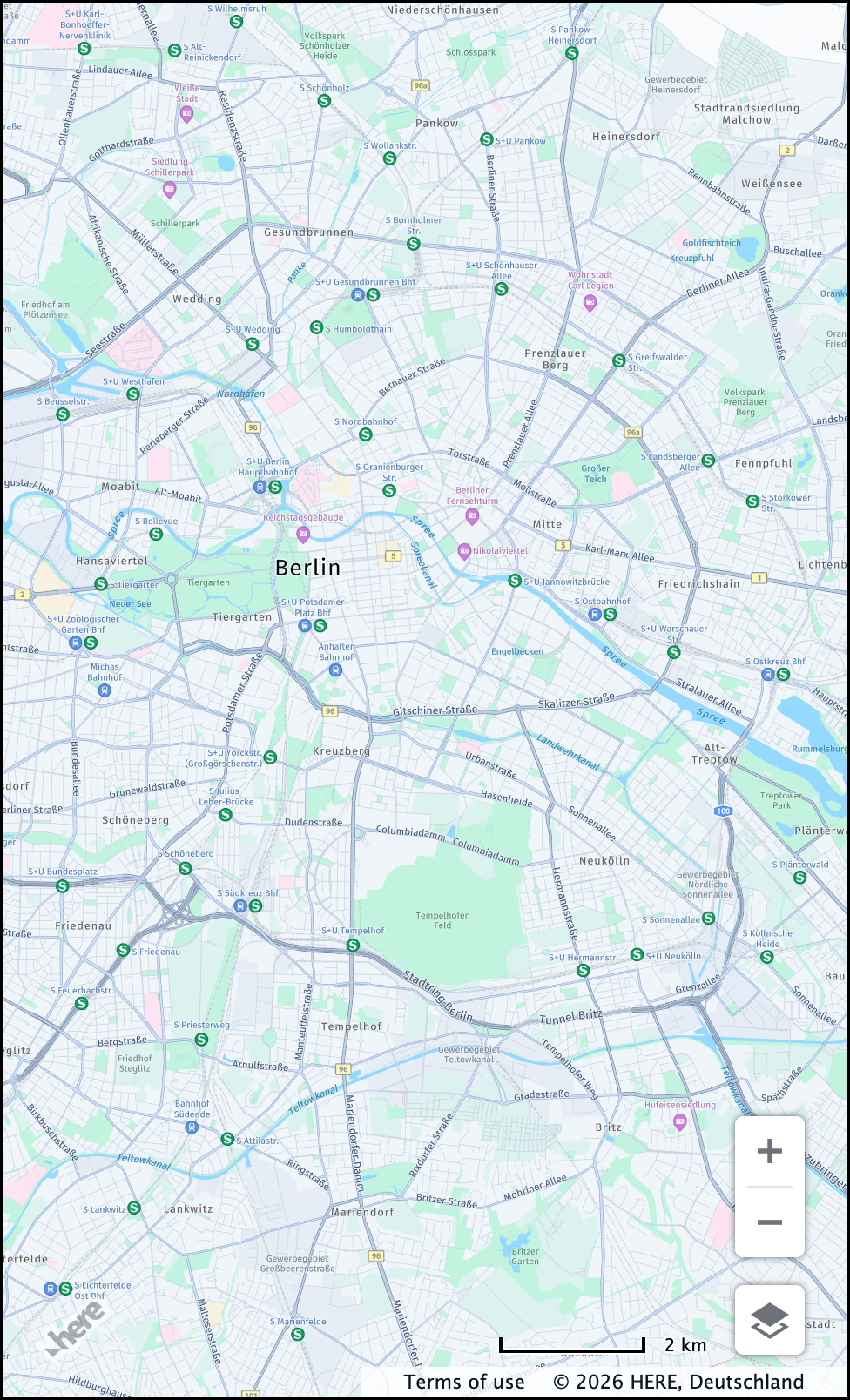
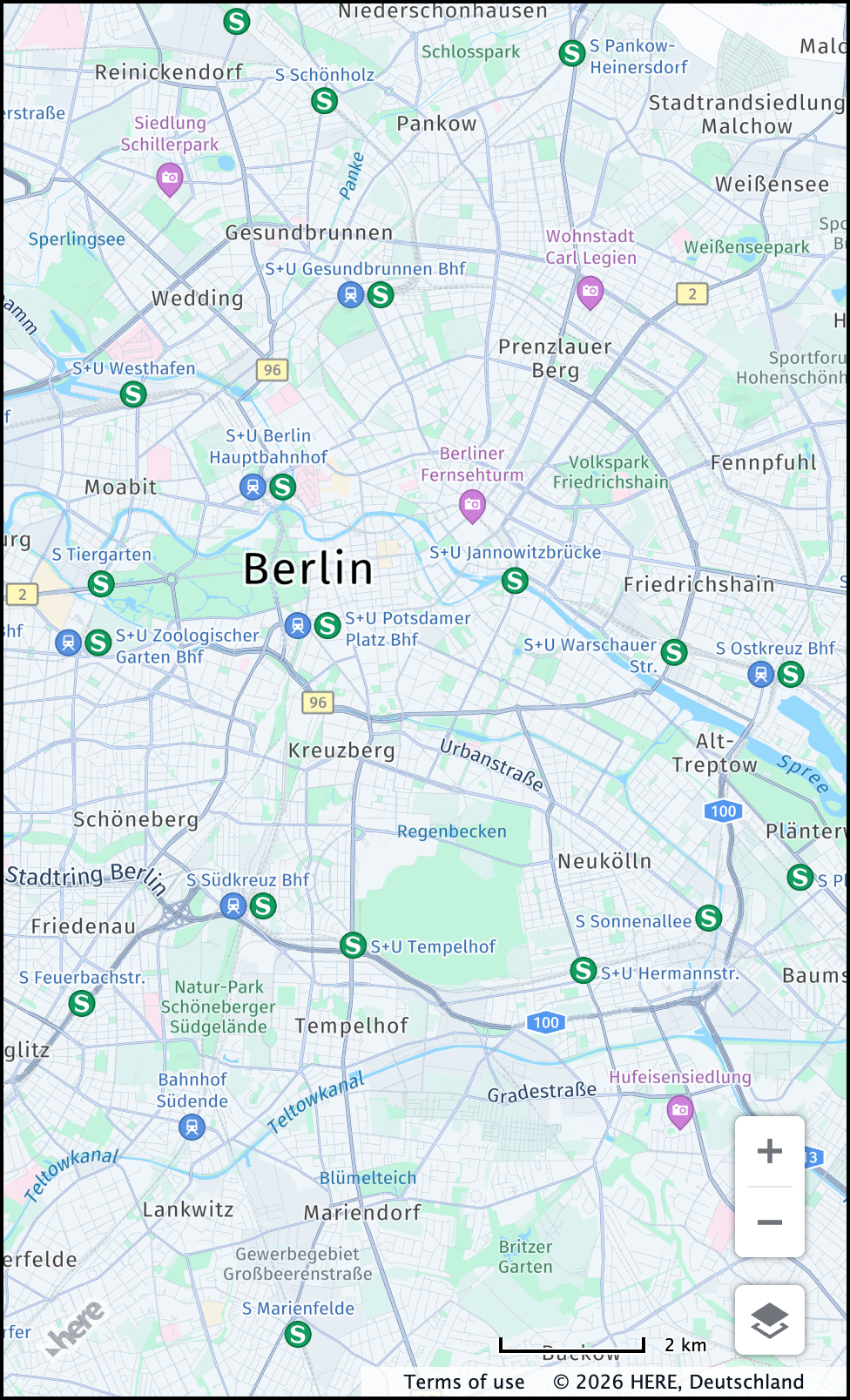
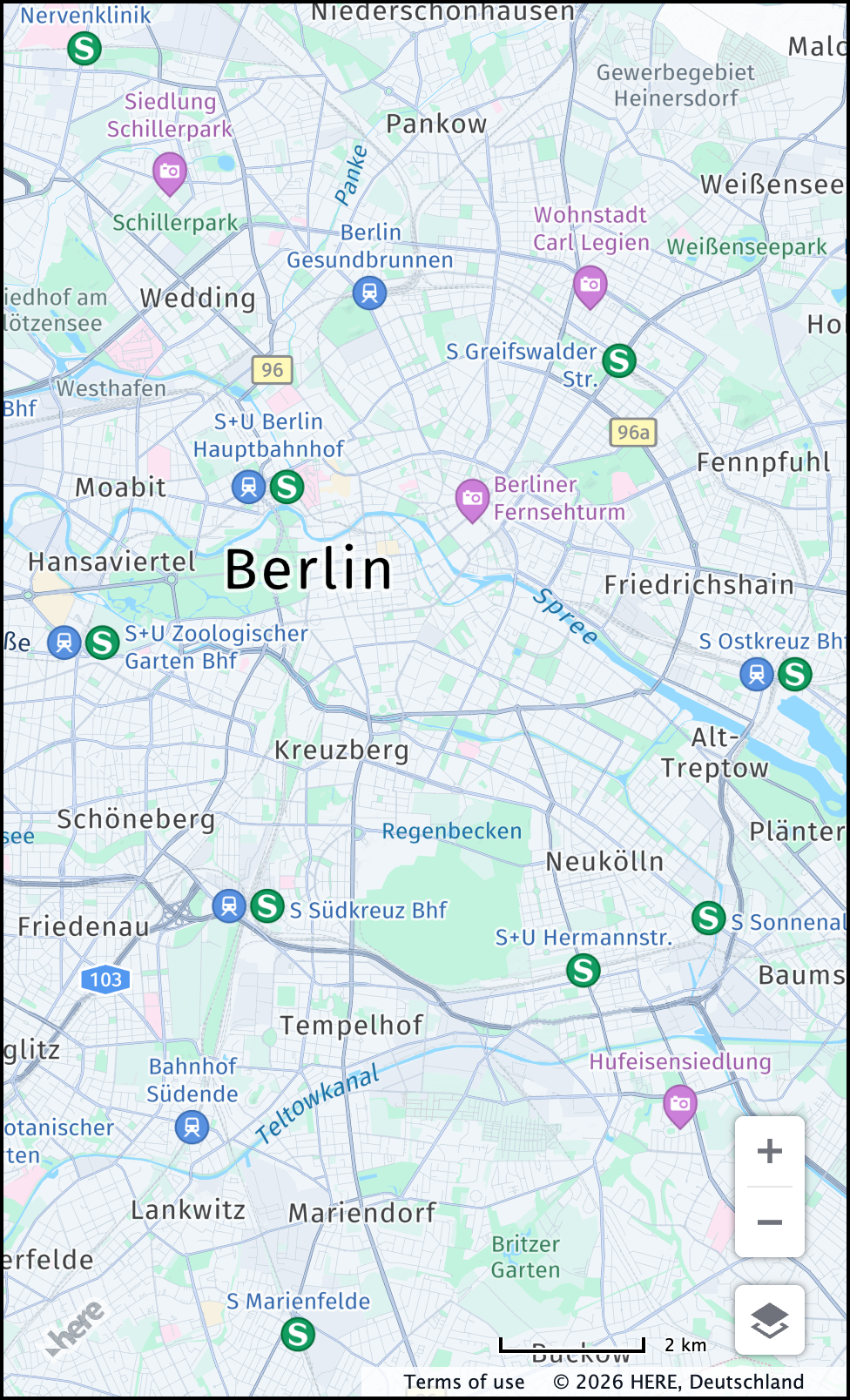
Use the ppi parameter to adjust label and icon sizes in your visualizations. The following ppi values are available:
- 100: Prioritizes a denser display with smaller yet clearer labels and icons. Use this value for smaller, more intricate displays that require condensed information.
- 200 (default): Offers an optimal balance between label size and readability. This is the recommended setting when you need to avoid overly small or large labels.
- 400: Features larger labels and icons for improved visibility on bigger screens.
When choosing a ppi value, consider your display's characteristics and the information density required for your visualization.
The following example shows how to adjust icon and label size while using raster tiles:
const defaultLayers = platform.createDefaultLayers({
    ppi: 400 // Adjust the label and icon size
});

const map = new H.Map(
    document.getElementById("mapContainer"),
    // Set the map style to use raster tiles
    defaultLayers.raster.normal.map, {
        zoom: 12,
        center: {
            lat: 52.5,
            lng: 13.4
        }
    });
The following examples show a comparison between various ppi setting values:
| 100 | 200 | 400 |
|---|---|---|
 |  |  |
For more information, see the HERE Raster Tile API Reference.
Updated 3 months ago