

Build HERE Maps with React
By combining the HERE Maps API for JavaScript with React functional components, you can create interactive web applications that provide a seamless user experience and are easy to maintain because you can reuse components throughout an application to reduce code duplication.
Maps often require a lot of customization to properly adjust them to your specific business needs. By building maps as React components, you can encapsulate even the most complex customizations within a single component, making maps easier to manage and reuse.
The following tutorial uses the Vite tool to create and develop a basic React application with the HERE Maps API for JavaScript.
Select your integration method
You can integrate the HERE Maps API for JavaScript into your React application by using the following approaches:
- CDN builds: Load the library through
<script>tags in your HTML file. This approach is straightforward and doesn't require bundler configuration. - npm package: Install the library as an
npmdependency and import modules directly in your JavaScript/TypeScript code. This approach provides better TypeScript support and integrates seamlessly with modern build tools.
This guide covers both methods. Select the one that best fits your project requirements.
Set up a new React app with Vite
Set up a new React application by using the Vite tool that provides a quick way to get started building single-page applications.
-
In the root project folder, start a command line tool of your choice, for example, Windows Power Shell or the Command Prompt.
-
Initiate a new React project by entering the following command:
npm create vite@latest my-react-app -- --template reactEnter
yif the terminal displays the prompt to install thecreate-vite@<version>.This commands sets up the necessary project scaffolding by creating an app folder.
-
Set the app folder as the working directory by entering the following command:
cd my-react-app -
Install the
npmpackage manager by entering the following command:npm install
With the Vite setup completed, you can now create a React map component for displaying HERE maps.
Option 1: Import the HERE JavaScript API libraries using CDN
Import the libraries required to run the HERE maps in the index.html file.
-
In the main
<app>folder (in this example, themy-react-appfolder), open theindex.htmlfile by using a code editor. -
Replace the default contents of the file with the following HTML code:
<!-- my-react-app/index.html -->
<!doctype html>
<html lang="en">
<head>
   <script type="text/javascript" src="https://js.api.here.com/v3/3.2/mapsjs-core.js"></script>
   <script type="text/javascript" src="https://js.api.here.com/v3/3.2/mapsjs-service.js"></script>
   <script type="text/javascript" src="https://js.api.here.com/v3/3.2/mapsjs-mapevents.js"></script>
   <script type="text/javascript" charset="utf-8" src="https://js.api.here.com/v3/3.2/mapsjs-ui.js" ></script>
   <link rel="stylesheet" type="text/css" href="https://js.api.here.com/v3/3.2/mapsjs-ui.css" />
</head>
<body>
   <div id="root"></div>
   <script type="module" src="/src/main.jsx"></script>
</body>
</html>
Create a map component (CDN approach)
Create a React component that uses the HERE Maps API for JavaScript to display the map inside a <div> by using the ref system to directly access and interact with DOM elements.
-
In the
<app>/srcdirectory, add acomponentsdirectory. -
In the
componentsdirectory, create a JSX file, for example.HereMap.jsx, and then open that file by using the code editor. -
In the JSX file, provide the code for rendering the map component:
// src/components/HereMap.jsx
import { useEffect, useRef } from 'react';

// Stores the DOM node (mapRef) that contains the map
const HereMap = () => {
const mapRef = useRef(null);

// Initializes the HERE map once after mount
useEffect(() => {
   const platform = new H.service.Platform({
      apikey: 'YOUR_HERE_APIKEY',
   });

   // Obtain the default map types from the platform object:
   const defaultLayers = platform.createDefaultLayers();

   // Instantiate (and display) a map:
   const map = new H.Map(mapRef.current, defaultLayers.vector.normal.map, {
      center: { lat: 52.5200, lng: 13.4050 },
      zoom: 10,
      pixelRatio: window.devicePixelRatio || 1,
   });

   // Enable dynamic resizing of the map, based on the current size of the enclosing container
   window.addEventListener('resize', () => map.getViewPort().resize());

   // MapEvents enables the event system.
   // The behavior variable implements default interactions for pan/zoom
   // Also on mobile touch environments.
   const behavior = new H.mapevents.Behavior(
      new H.mapevents.MapEvents(map)
   );

   // Create the default UI:
   const ui = H.ui.UI.createDefault(map, defaultLayers);

   return () => map.dispose();
}, []);

// Return the map component with the map size set to
// the full height and width of the browser window
return (
   <div
      ref={mapRef}
         style={
           {
             width: '100vw',
             height: '100vh'
           }
         }
   />
  );
};

export default HereMap;
Option 2: Use the npm package
Instead of loading the library via CDN, you can install the HERE Maps API for JavaScript as an npm package. This approach offers better integration with modern build tools, improved tree-shaking, and TypeScript support.
Configure the npm registry
Before installing the package, configure npm to use the HERE public repository:
npm config set @here:registry https://repo.platform.here.com/artifactory/api/npm/maps-api-for-javascript/Install the npm package
Install the HERE Maps API for JavaScript package from the HERE npm registry:
npm install @here/maps-api-for-javascriptCreate a map component (npm approach)
When using the npm package, you don't need to add <script> tags in your index.html file. Instead, import the required modules directly in your React components.
-
Ensure your
index.htmlfile contains only the basic structure without the HERE Maps API<script>tags:<!-- my-react-app/index.html --> <!doctype html> <html lang="en"> <head> <meta charset="UTF-8" /> <meta name="viewport" content="width=device-width, initial-scale=1.0" /> <title>HERE Maps React App</title> </head> <body> <div id="root"></div> <script type="module" src="/src/main.jsx"></script> </body> </html> -
In the
<app>/srcdirectory, add acomponentsdirectory. -
In the
componentsdirectory, create a JSX file (for example,HereMap.jsx) with the following code:// src/components/HereMap.jsx import { useEffect, useRef } from 'react'; // Import the HERE Maps API for JavaScript libraries import H from '@here/maps-api-for-javascript'; // Stores the DOM node (mapRef) that contains the map const HereMap = () => { const mapRef = useRef(null); // Initializes the HERE map once after mount useEffect(() => { const platform = new H.service.Platform({ apikey: 'YOUR_HERE_API_KEY', }); // Obtain the default map types from the platform object: const defaultLayers = platform.createDefaultLayers(); // Instantiate (and display) a map: const map = new H.Map(mapRef.current, defaultLayers.vector.normal.map, { center: { lat: 52.5200, lng: 13.4050 }, zoom: 10, pixelRatio: window.devicePixelRatio || 1, }); // Enable dynamic resizing of the map, based on the current size of the enclosing container window.addEventListener('resize', () => map.getViewPort().resize()); // MapEvents enables the event system. // The behavior variable implements default interactions for pan/zoom // Also on mobile touch environments. const behavior = new H.mapevents.Behavior( new H.mapevents.MapEvents(map) ); // Create the default UI: const ui = H.ui.UI.createDefault(map, defaultLayers); return () => map.dispose(); }, []); // Return the map component with the map size set to // the full height and width of the browser window return ( <div ref={mapRef} style={ { width: '100vw', height: '100vh' } } /> ); }; export default HereMap;
The npm package approach provides the same functionality as the CDN method but with better integration into modern JavaScript build pipelines.
Import the React component
Configure the main application entry point to use the React component with the map.
-
From the
<app>/srcdirectory, open theApp.jsxfile. -
Replace the default file contents with the following code:
// my-react-app/src/App.jsx
import HereMap from './components/HereMap';

function App() {
return (
   <div>
      <HereMap />
   </div>
  );
}

export default App;
Display the map
To preview your map, run the development server for your React app. The npm run dev command starts a fast local web server at the default port.
-
Start the app by entering the following command:
npm run devAs a result of this command, Vite bundles the app and enables viewing the map in a browser. In addition Vite reloads the page or updates modules instantly when you make edits.
-
Open a web browser and then navigate to
http://localhost:5173/.
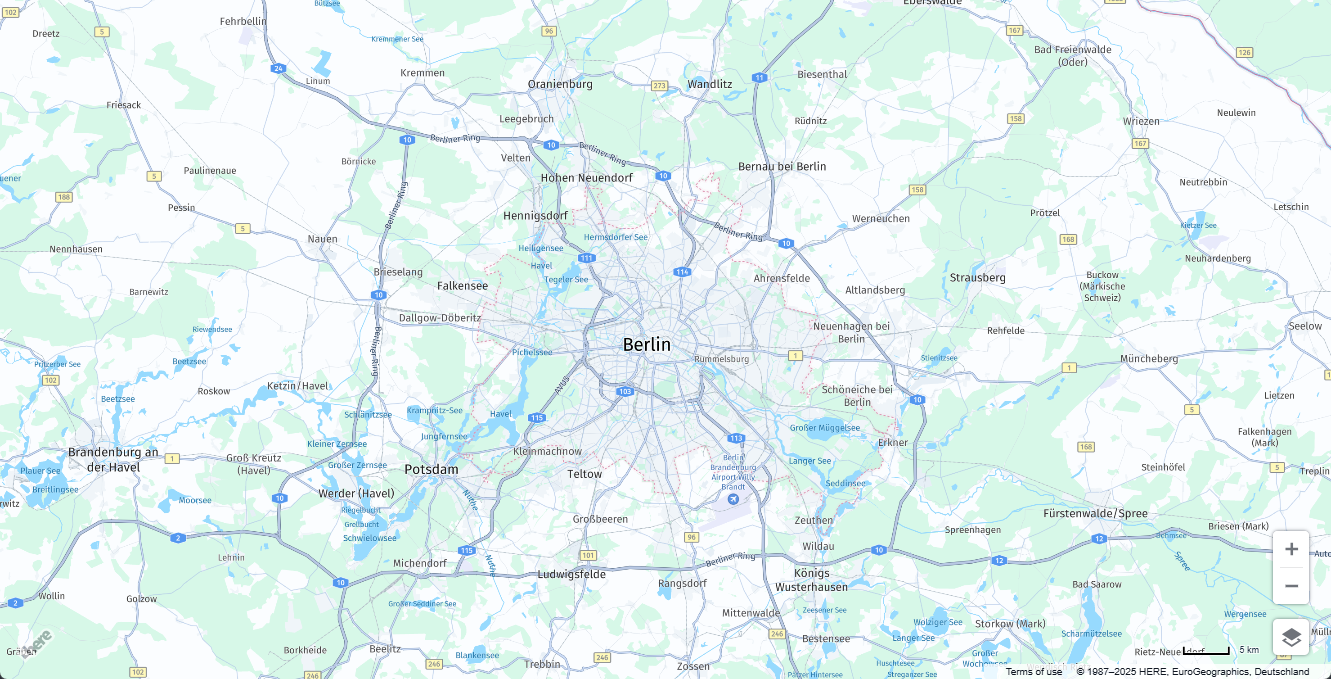
Result: The browser displays the map, as shown in the following example:
Optional: Configure additional map components
Improve the usability of your application by incorporating additional map components that provide more features. To achieve this, follow these steps to add a button that enables or disables public transit information display, leveraging the features and modes capabilities of the HERE Maps API for JavaScript.
To add the toggle, you need to create additional components, as well as update the existing ones to accommodate additional functionality. The resulting directory structure will look as follows:
src/
├── main.jsx
├── App.jsx
└── components/
    ├── HereMap.jsx
    ├── HereMapContext.jsx <-- Manages the state of different components
    └── PublicTransitToggle.jsx <-- Controls the toggle logic and button styling
Manage shared state
Create the HereMapContext component to enable the communication between the HereMap and PublicTransitToggle components while maintaining principle of separated concerns.
-
In the
src/componentsdirectory, create theHereMapContext.jsxfile and open it in a code editor. -
Populate the file with code, as shown in the following example:
// src/components/HereMapContext.jsx
import { createContext, useContext, useRef, useState } from 'react';

const HereMapContext = createContext();

export const HereMapProvider = ({ children }) => {

// Holds the HERE map style object
const styleRef = useRef(null);

// Tracks whether the map style is ready
const [isReady, setIsReady] = useState(false);

return (
   <HereMapContext.Provider
      value={
        {
         styleRef,
         isReady,
         setIsReady
        }
      }
   >
      {children}
   </HereMapContext.Provider>
  );
};

// Custom hook that lets any component access the HERE map and style
export const useHereMap = () => useContext(HereMapContext);
Update the map component to share context and style status
Extract the style object and save it to styleRef for global access. Only after the map style is ready can you modify by adding or removing components.
-
From the
src/componentsdirectory, open theHereMap.jsxfile. -
Update the file to pull in the context information from the
HereMapContextcomponent and ensure the style information can be accessed globally. See the following sample for the updated version of theHereMapcomponent logic:// src/components/HereMap.jsx import { useEffect, useRef } from 'react'; import { useHereMap } from './HereMapContext'; // Obtain the context const HereMap = () => { const mapRef = useRef(null); const { styleRef, setIsReady } = useHereMap(); // Get the context setters useEffect(() => { const platform = new H.service.Platform({ apikey: 'YOUR_API_KEY' }); const defaultLayers = platform.createDefaultLayers(); const map = new H.Map(mapRef.current, defaultLayers.vector.normal.map, { center: { lat: 52.52, lng: 13.405 }, zoom: 10, pixelRatio: window.devicePixelRatio || 1, }); new H.mapevents.Behavior(new H.mapevents.MapEvents(map)); H.ui.UI.createDefault(map, defaultLayers); const baseLayer = map.getBaseLayer(); const style = baseLayer.getProvider().getStyle(); // Enable other components to use the style once it is ready if (style) { styleRef.current = style; setIsReady(true); } window.addEventListener('resize', () => map.getViewPort().resize()); return () => map.dispose(); }, [styleRef, setIsReady]); return ( <div ref={mapRef} style={ { width: '100vw', height: '100vh' } } /> ); }; export default HereMap;
Create the toggle logic
To promote modularity and reusability, add the PublicTransitToggle component separately. This component controls whether to display or hide the public transit feature from the map view.
-
In the
src/componentsdirectory, add thePublicTransitToggle.jsxfile and open it by using a code editor. -
Configure the toggle logic, as shown in the following example:
// src/components/PublicTransitToggle.jsx

import { useState } from 'react';
import { useHereMap } from './HereMapContext';

const PublicTransitToggle = () => {
const { styleRef, isReady } = useHereMap(); // Access shared map state
const [enabled, setEnabled] = useState(false); // Track toggle state

const toggleTransit = () => {
   if (!isReady || !styleRef.current) {
      console.warn('Map style is not ready yet');
      return;
   }

   const style = styleRef.current;
   const feature = 'public transit';
   const mode = 'all systems';

   const enabledFeatures = style.getEnabledFeatures();
   const featureIndex = enabledFeatures.findIndex(f => f.feature === feature);

   if (featureIndex === -1) {
      // Enable the feature
      enabledFeatures.push({ feature, mode });
      setEnabled(true);
   } else {
      // Disable the feature
      enabledFeatures.splice(featureIndex, 1);
      setEnabled(false);
   }

   style.setEnabledFeatures(enabledFeatures);
};

// Returns the button with the associated styling, depending on the toggle state
return (
   <button
      onClick={toggleTransit}
      disabled={!isReady}
      style={
        {
         position: 'absolute',
         top: '20px',
         left: '20px',
         zIndex: 1000,
         padding: '10px 20px',
         fontSize: '14px',
         fontWeight: '700',
         fontFamily: 'Roboto, Helvetica Neue, Arial, sans-serif',
         backgroundColor: isReady ? (enabled ? '#1A73E8' : '#f4f6f9') : '#e0e0e0',
         color: isReady ? (enabled ? '#ffffff' : '#1A73E8') : '#aaa',
         border: `2px solid ${isReady ? '#1A73E8' : '#ccc'}`,
         borderRadius: '6px',
         cursor: isReady ? 'pointer' : 'not-allowed',
         transition: 'all 0.2s ease-in-out',
         boxShadow: isReady ? '0 2px 4px rgba(0,0,0,0.1)' : 'none',
        }
      }
   >
      {enabled ? 'Disable Public Transit' : 'Enable Public Transit'}
   </button>
  );
};

export default PublicTransitToggle;
Share state logic across app components
Add the HereMapProvider component that wraps up the app and gives child components access to shared values.
-
From the
srcdirectory, open themain.jsxfile. -
Replace the default code with the following logic:
// src/main.jsx
import React from 'react';
import ReactDOM from 'react-dom/client';
import App from './App';
import { HereMapProvider } from './components/HereMapContext';

ReactDOM.createRoot(document.getElementById('root')).render(
<React.StrictMode>
   <HereMapProvider>
      <App />
   </HereMapProvider>
</React.StrictMode>
);
Add the toggle component to the app
Ensure that the PublicTransitToggle button works properly by making the corresponding component access the shared map state from the HereMap component.
-
From the
srcdirectory, open theApp.jsxfile by using a code editor. -
Add the button component to your app, as shown in the following example:
import HereMap from './components/HereMap';
import PublicTransitToggle from './components/PublicTransitToggle';

function App() {
return (
   <>
      <HereMap />
      <PublicTransitToggle />
   </>
  );
}

export default App;
This update renders both HereMap and PublicTransitToggle at the top level of your app. It ensures that:
- The
HereMapcomponent mounts first, so it can create the HERE map instance and its style. - These values (
mapandstyle) are shared using React Context, specifically through theHereMapProvider. - The
PublicTransitTogglebutton can then access the shared data by calling theuseHereMap()custom hook.
Because both components are part of the same component tree (wrapped by HereMapProvider), they can communicate indirectly.
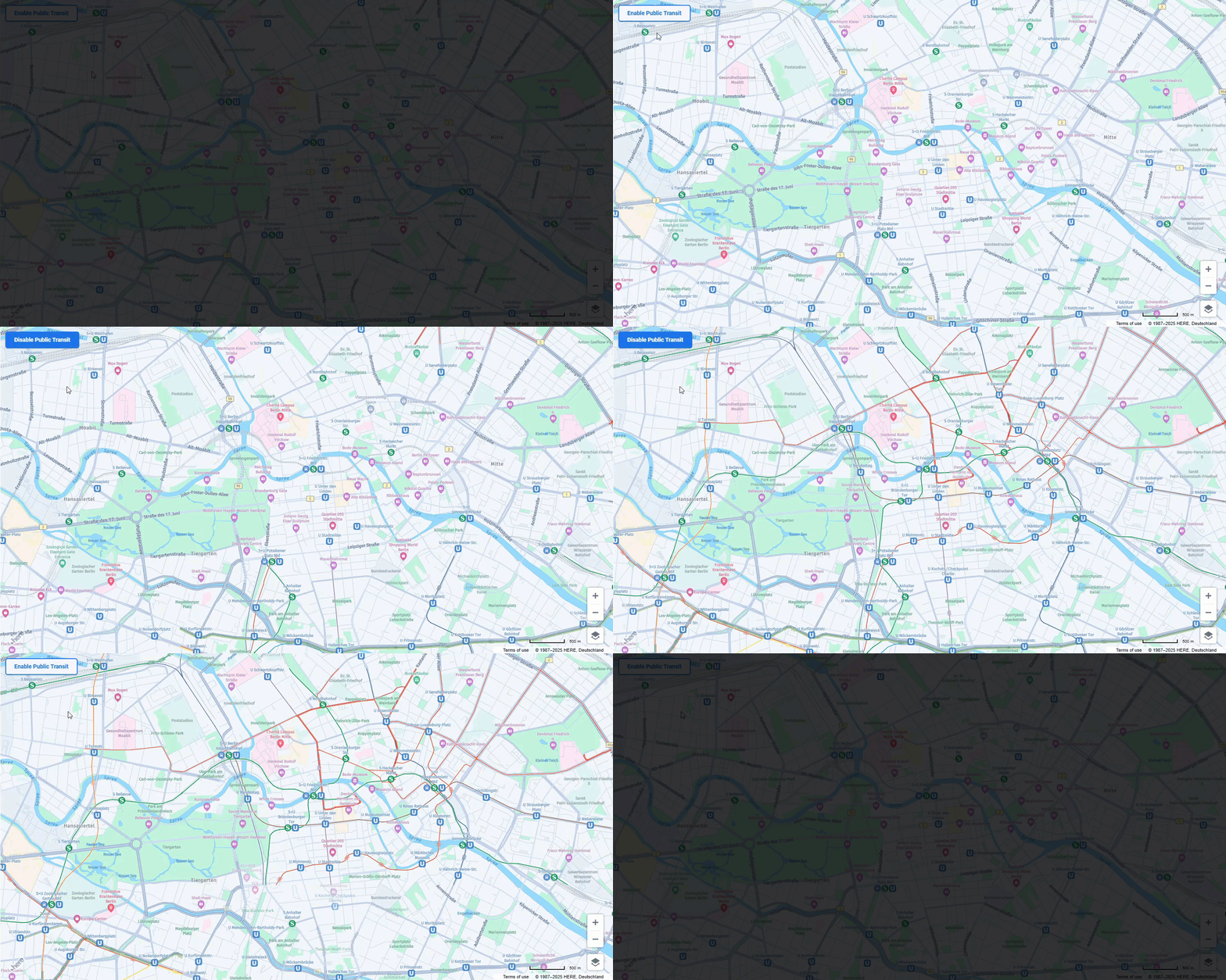
Result: You can now toggle the public transit feature on your map, as shown in the following example:
Next steps
To further explore the design and features of the HERE Maps API for JavaScript, see the API Reference.
Updated last month