

Build HERE Maps with Vue.js
Build HERE Maps with Vue.js
Vue.js is a popular JavaScript framework, which is easy to integrate into existing projects. You can quickly build dynamic and scalable applications.
In this tutorial, you create an interactive HERE Map using Vue.js and the HERE JavaScript API. The resulting map can be easily integrated into your existing Vue.js application.
Specifically, this tutorial walks you through the following steps:
- Creating a Vue.js project, with Vite as the bundler
- Integrating the HERE JavaScript API in your Vue.js application
- Developing a reusable map component
- Rendering the HERE Map component
Before you begin
- Install Node.js
- Obtain a HERE Platform account
Create a Vue.js project with Vite
Create a basic Vue project using Vite, which is a fast and modern bundling tool for Vue apps.
-
To create a project, enter the following command in your command line tool of your choice:
npm create vite@latest here-maps-vue -- --template vueThis command creates a project scaffolding in the
here-maps-vuedirectory. -
Set the app folder as the working directory by entering the following command:
cd here-maps-vue -
Install the
npmpackage manager by entering the following command:npm install -
Verify that the project initiated successfully by entering the following command:
npm run dev -
To access the Vue application, open a web browser and navigate to
http://localhost:5173/.
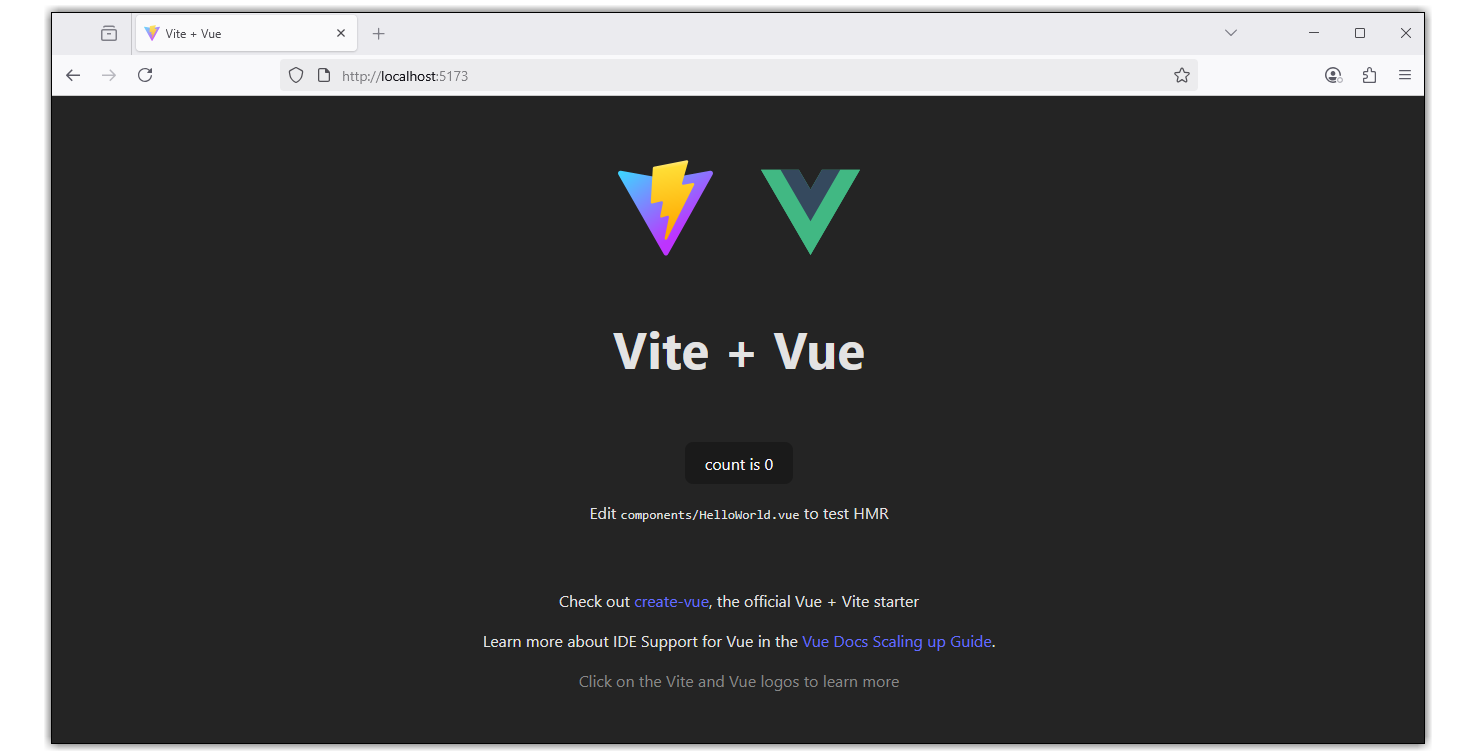
A basic Vite + Vue application is displayed in the browser window, as illustrated in the following example:
Integrate HERE JavaScript API in Vue.js Application
In your editor, open the here-maps-vue folder that you created and edit the index.html file in that folder.
In the index.html file, add the libraries required by the HERE Maps API for JavaScript by replacing the default file contents with the following HTML code:
<!DOCTYPE html>
<html lang="en">
  <head>
    <link rel="icon" type="image/svg+xml" href="/vite.svg" />
    <meta name="viewport" content="width=device-width, initial-scale=1.0" />
    <title>Vue + HERE Maps</title>
    <!-- Import HERE Maps API for JavaScript libraries here -->
    <script src="https://js.api.here.com/v3/3.2/mapsjs-core.js"></script>
    <script src="https://js.api.here.com/v3/3.2/mapsjs-service.js"></script>
    <script src="https://js.api.here.com/v3/3.2/mapsjs-ui.js"></script>
    <script src="https://js.api.here.com/v3/3.2/mapsjs-mapevents.js"></script>
    <link rel="stylesheet" href="https://js.api.here.com/v3/3.2/mapsjs-ui.css" />
  </head>
  <body>
    <div id="app"></div>
    <!-- Mount your Vue app -->
    <script type="module" src="/src/main.js"></script>
  </body>
</html>
Create a reusable map component
From the root project folder, navigate to the src/components directory and create the HereMap.vue file. Populate the file with the following code:
Note
Replace the
apikeyvalue in the following sample with your own HERE API key.
<template>
  <div id="map">
    <h1>HERE Maps + Vue.js</h1>
  <!--In the following div the HERE Map will render-->
    <div id="mapContainer" style="height:600px;width:100%" ref="hereMap"></div>
  </div>
</template>

<script>
export default {
  name: "HereMap",
  props: {
    center: Object
    // center object { lat: 40.730610, lng: -73.935242 }
  },
  data() {
    return {
      platform: null,
      apikey: "YOUR_HERE_API_KEY"
      // You can request an API key from platform.here.com
    };
  },
  async mounted() {
    // Initialize the platform object:
    const platform = new window.H.service.Platform({
      apikey: this.apikey
    });
    this.platform = platform;
    this.initializeHereMap();
  },
  methods: {
    initializeHereMap() { // rendering map

      const mapContainer = this.$refs.hereMap;
      const H = window.H;
      // Obtain the default map types from the platform object
      const maptypes = this.platform.createDefaultLayers();

      // Instantiate (and display) a map object:
      const map = new H.Map(mapContainer, maptypes.vector.normal.map, {
        zoom: 12,
        center: this.center
        // center object { lat: 40.730610, lng: -73.935242 }
      });

      addEventListener("resize", () => map.getViewPort().resize());

      // add behavior control
      new H.mapevents.Behavior(new H.mapevents.MapEvents(map));

      // add UI
      H.ui.UI.createDefault(map, maptypes);
      // End rendering the initial map
    }
  }
};
</script>

<style scoped>
#map {
  width: 60vw;
  min-width: 360px;
  text-align: center;
  margin: 5% auto;
}
</style>
In the preceding map, the initializeHereMap method is used to render the HERE map.
Render the HereMap Component
Render the HereMap component in the src/App.vue file by replacing the default code with the following snippet:
<template>
  <div id="app">
    <HereMap  :center="center" />
  </div>
</template>

<script>
import HereMap from './components/HereMap.vue'
export default {
  name: 'app',
  components: {
    HereMap
    // Remove the HelloWorld.vue
  },
  data() {
return {
    // Use this as prop to the HereMap component
  center:{
    lat: 40.730610,
    lng: -73.935242
    }
}

  }
}
</script>

<style>
#app {
  font-family: 'Avenir', Helvetica, Arial, sans-serif;
  -webkit-font-smoothing: antialiased;
  -moz-osx-font-smoothing: grayscale;
  text-align: center;
  color: #2c3e50;
  margin-top: 60px;
}
</style>
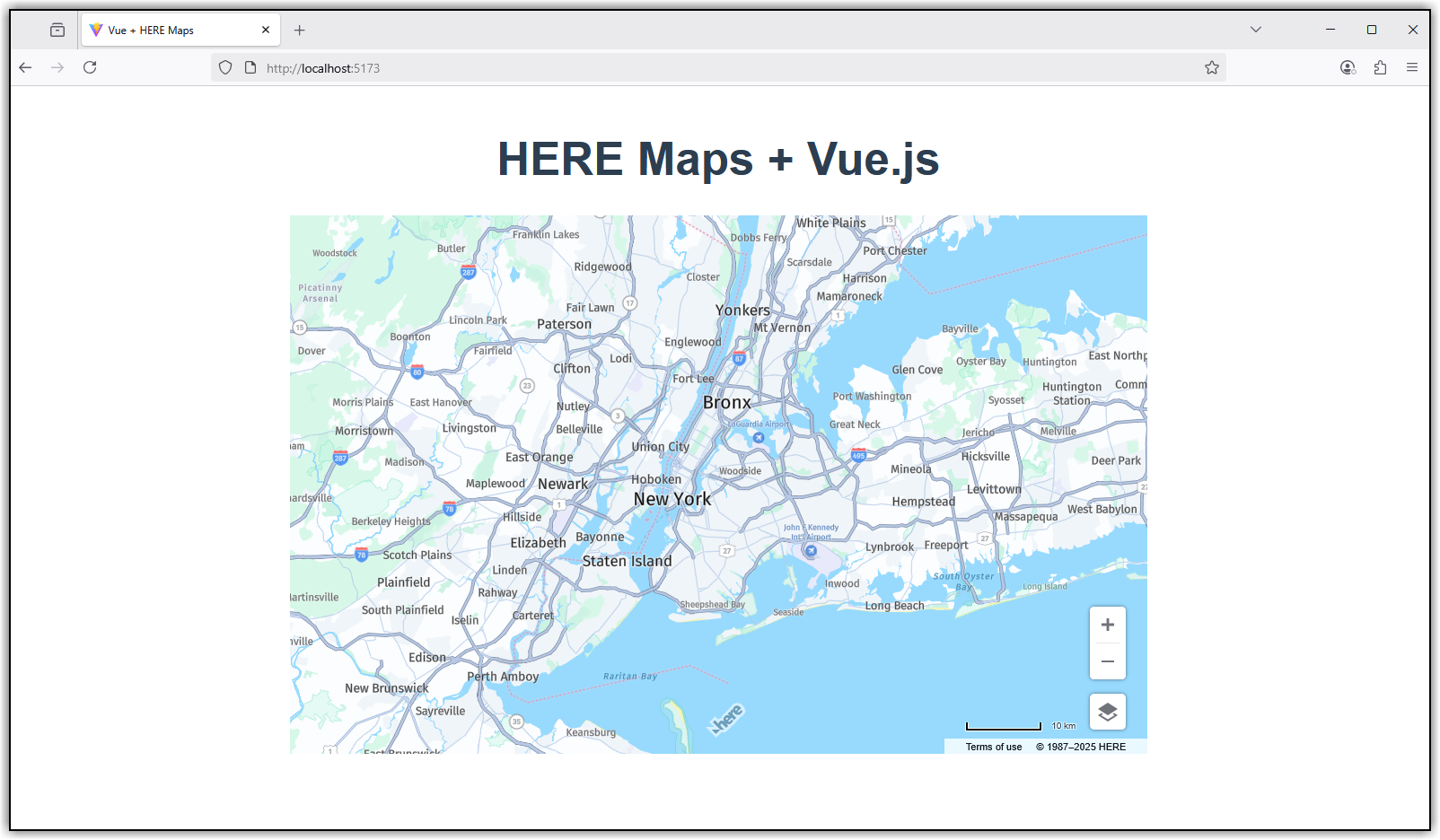
The following figure showcases the HereMap component, as displayed in a browser window:
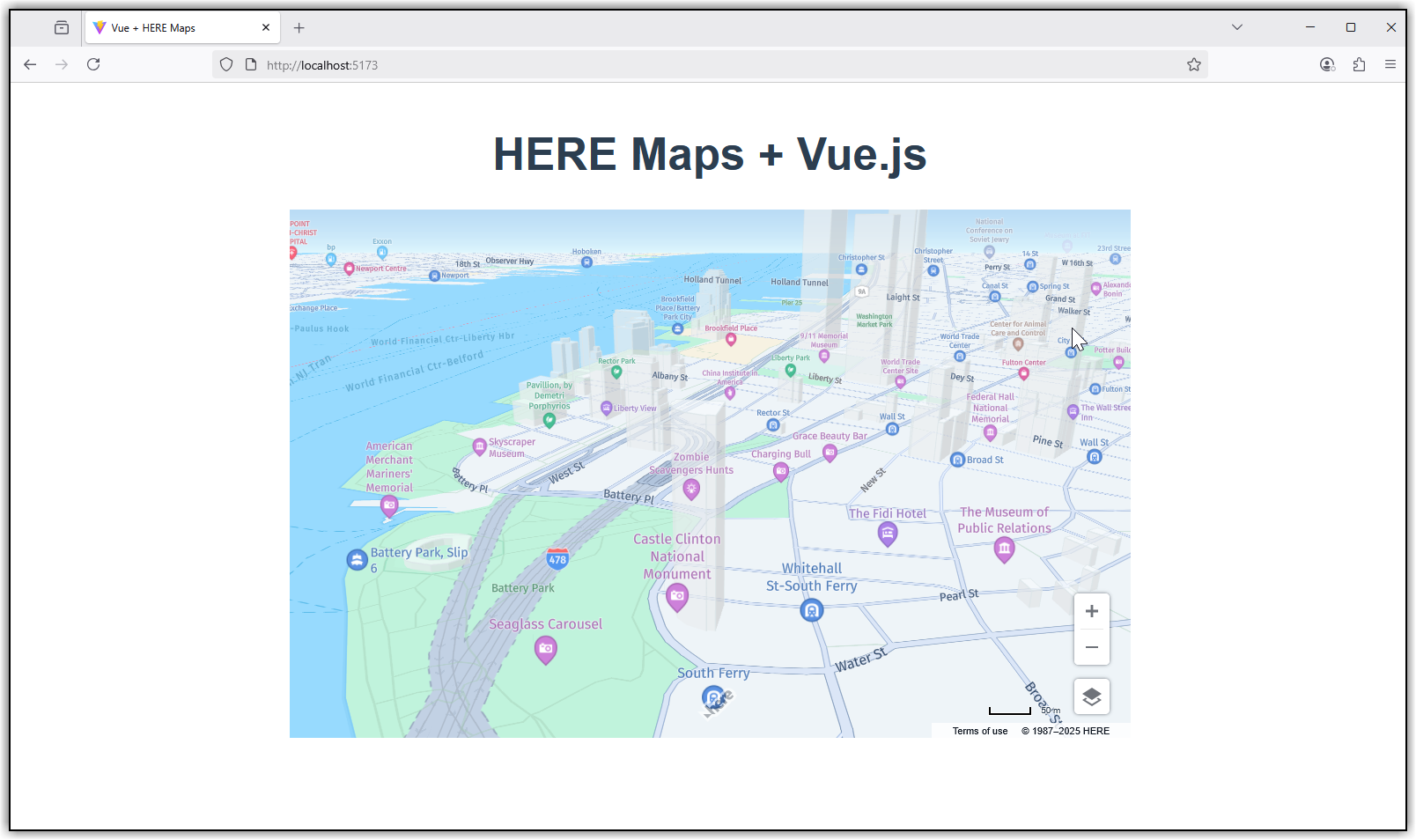
You can zoom to get the 3D view, as shown in the following figure:
Conclusion
In this tutorial, you created an interactive map with Vue.js using HERE JavaScript API. You can now integrate the component into your existing Vue.js applications.
Next Steps
For more information on integrating the HERE Maps API for JavaScript with other frameworks, see:
Updated 6 months ago