

その他の交通機能
HERE SDKの高度な交通機能を使用して、リアルタイム交通情報データでマップアプリケーションを強化します。ライブの交通流とインシデントを地図に表示して、ユーザーに情報を提供し、効率的にナビゲートできるようにします。また、特定の交通事案を選択して強調表示し、詳細ビューを表示できます。
Navigateの場合、ラジオ基地局からの交通情報を組み込むこともできます。
リアルタイムの交通流とインシデントを地図に表示する
マップレイヤーの状態trafficIncidentsを有効にすることで、交通事案を地図上で簡単に視覚化できます。HERE SDK は、現在の交通状況を確認するための別のレイヤーもサポートしています。地図上でレイヤーを表示または非表示にする方法については、以下の例を参照してください。
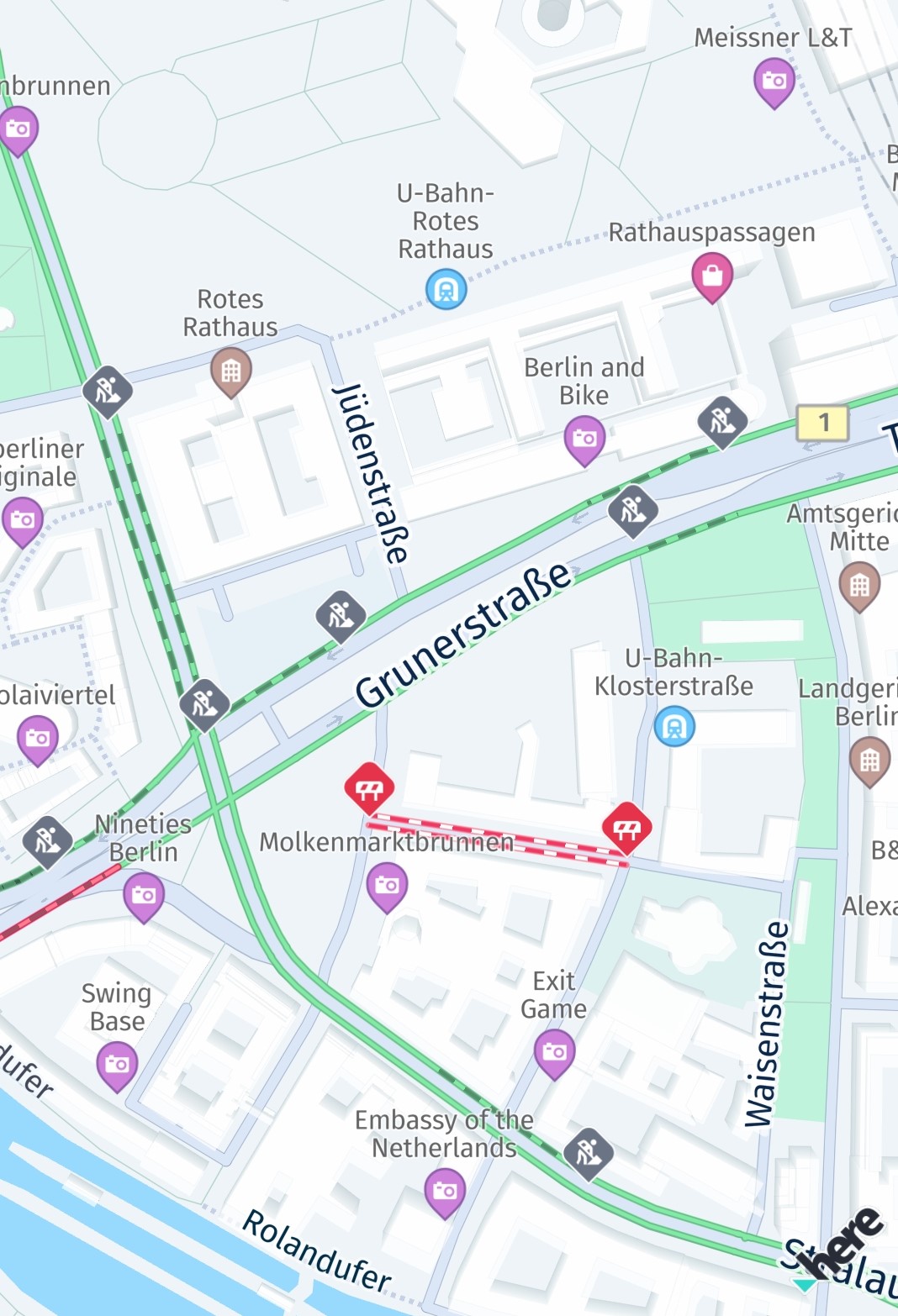
レイヤーを設定すると、地図の表示エリアが自動的に更新されます。そのため、地図をあらゆる方向に自由にパンして、最新の交通事案を確認できます。
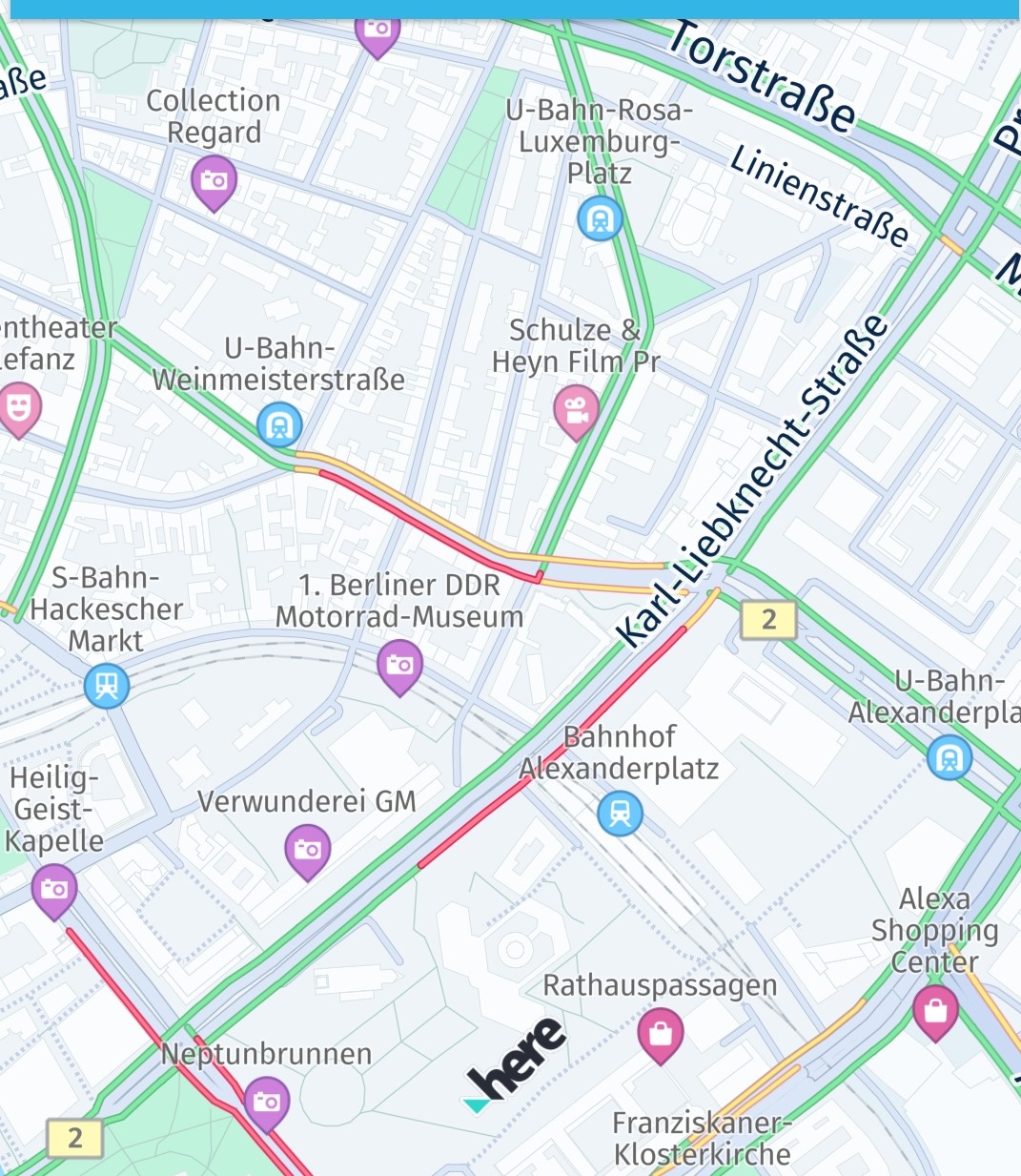
多くの状況で、ドライバーは市内または市外の現在の交通渋滞に基づいて最速ルートを見つけることに関心を持っています。HERE SDK を使用すると、現在のすべての交通渋滞を保持するレイヤーを表示できます。交通渋滞は混雑の度合いを示すさまざまな色のラインで視覚化され、常にリアルタイムで更新されます。この機能にはオンライン接続が必要で、通常よりも若干多くのデータを消費します。ただし、交通ラインはマップ タイルの一部として表示されるため、パフォーマンスが高くなります。
一緒に、または単独で、わずか数行のコードでこのような交通情報を地図上に視覚化できます。
func enableTrafficVisualization() {
    do {
        // Set the traffic flow refresh period to 5 * 60 seconds (5 minutes).
        // If MapFeatures.trafficFlow is disabled, no requests are made.
        //
        // Note: This code initiates periodic calls to the HERE Traffic backend. Depending on your contract,
        // each call may be charged separately. It is the application's responsibility to decide how
        // often this code should be executed.
        try MapContentSettings.setTrafficRefreshPeriod(5 * 60.0)
    } catch let error as MapContentSettings.TrafficRefreshPeriodError {
        print("TrafficRefreshPeriodError: \(error)")
    } catch {
        print("An unexpected error occurred: \(error)")
    }

    // Once these layers are added to the map, they will be automatically updated while panning the map.
    mapView.mapScene.enableFeatures([MapFeatures.trafficFlow : MapFeatureModes.trafficFlowWithFreeFlow])
    // MapFeatures.trafficIncidents renders traffic icons and lines to indicate the location of incidents.
    mapView.mapScene.enableFeatures([MapFeatures.trafficIncidents: MapFeatureModes.defaultMode])
}必要に応じて、MapFeatures.trafficFlowとMapFeatures.trafficIncidentsについて、バックエンドから最新のトラフィックデータを取得するためにリクエストを実行する頻度を指定することもできます。マップビューが静的な状態に保たれるシナリオでは、この設定をMapContentSettings.setTrafficRefreshPeriod(5 * 60.0)で行うのが最も有効です。
交通状況の更新期間の設定に関係なく、ビューポートが変更された場合、HERE SDKは更新されたビューポートを正しくレンダリングするために新しい交通状況データを取得する必要があります。
注これらの機能が有効になっている場合、ターン・バイ・ターンナビ中はビューポートの変更が1秒間に複数回発生する可能性があり、トラフィックベクタータイルのリクエストが大量に発生する可能性があります。代替策として、TrafficOnRouteを使用して、ルート沿いの交通情報の表示のみを更新することを検討してください。
トラフィックレイヤーを無効にするには、以下を呼び出します。
mapView.mapScene.disableFeatures([MapFeatures.trafficFlow, MapFeatures.trafficIncidents])交通流ラインは次のように色分けされています。
- 緑:交通量が通常
- 黄:交通量が多い
- 赤:交通量が非常に多い
- 黒:交通が遮断されている
交通障害を選択する
trafficIncidents が MapView に表示されている場合、タップ ハンドラーを設定し、交通事案を選択して詳細情報を取得できます。
// Conforming to TapDelegate protocol.
func onTap(origin: Point2D) {
    // Can be nil when the map was tilted and the sky was tapped.
    if let touchGeoCoords = mapView.viewToGeoCoordinates(viewCoordinates: origin) {
        tappedGeoCoordinates = touchGeoCoords

        // Pick incidents that are shown in trafficIncidents.
        pickTrafficIncident(touchPointInPixels: origin)
    }
}

// Traffic incidents can only be picked, when trafficIncidents is visible.
func pickTrafficIncident(touchPointInPixels: Point2D) {
    let originInPixels = Point2D(x: touchPointInPixels.x, y: touchPointInPixels.y)
    let sizeInPixels = Size2D(width: 1, height: 1)
    let rectangle = Rectangle2D(origin: originInPixels, size: sizeInPixels)

    mapView.pickMapContent(inside: rectangle, completion: onPickMapContent)
}

// MapViewBase.PickMapContentHandler to receive picked map content.
func onPickMapContent(mapContentResult: PickMapContentResult?) {
    if mapContentResult == nil {
        // An error occurred while performing the pick operation.
        return
    }

    let trafficIncidents = mapContentResult!.trafficIncidents
    if trafficIncidents.count == 0 {
        print("No traffic incident found at picked location")
    } else {
        print("Picked at least one incident.")
        let firstIncident = trafficIncidents.first!
        showDialog(title: "Traffic incident picked:", message: "Type: \(firstIncident.type.rawValue)")

        // Find more details by looking up the ID via TrafficEngine.
        findIncidentByID(firstIncident.originalId)
    }

    // Optionally, look for more map content like embedded POIs.
}
タップ ハンドラーを使用すると、ビュー座標内のタッチされた位置を取得し、それを mapView.pickMapContent() に渡すことができます。ここではポイントサイズの長方形を使用しているだけですが、選択エリアを拡大して、より多くのコンテンツを一度に含めることもできます。
コールバックは、TrafficIncidentResult を含めることができる PickMapContentResult を提供しますが、デフォルトの POI マーカーなど、地図上に常に表示される他の埋め込みタイプも含めることができます。TrafficIncidentResultタイプはすでにインシデントに関するほとんどの情報を提供していますが、利用可能な情報をすべて取得するには、TrafficEngine (以下も参照) を使用して、選択したインシデントをIDで検索します。
func findIncidentByID(_ originalId: String) {
    let trafficIncidentsLookupOptions = TrafficIncidentLookupOptions()
    // Optionally, specify a language:
    // the language of the country where the incident occurs is used.
    // trafficIncidentsLookupOptions.languageCode = LanguageCode.EN_US
    trafficEngine.lookupIncident(with: originalId,
                                 lookupOptions: trafficIncidentsLookupOptions,
                                 completion: onTrafficIncidentCompletion)
}

// TrafficIncidentCompletionHandler to receive traffic incidents from ID.
func onTrafficIncidentCompletion(trafficQueryError: TrafficQueryError?, trafficIncident: TrafficIncident?) {
    if trafficQueryError == nil {
        print("Fetched TrafficIncident from lookup request." +
                " Description: " + trafficIncident!.description.text)
    } else {
        showDialog(title: "TrafficLookupError:", message: trafficQueryError.debugDescription)
    }
}使用例は、GitHubから「Traffic」サンプルアプリの一部として入手できます。
ラジオ基地局から交通放送を受信する (Navigateでのみ使用可能)
TrafficDataProviderインターフェースを使用すると、HERE SDKで交通ブロードキャストを提供するラジオ基地局信号を統合できます。
TrafficBroadcastはRDS-TMC形式の交通データを想定しており、インターネット接続なしで使用できます。このような場合、OfflineRoutingEngineレイヤーがrdsTrafficを使用して有効化されていれば、LayerConfigurationはラジオチャネル経由で受信した交通データを利用できます。LayerConfigurationの使用方法の詳細については、こちらを参照してください。
trafficBroadcast.activate()メソッドを呼び出して、交通データイベントを受信する必要があります。
TrafficBroadcast は、位置情報ソースから提供される新しい位置に絶え間なく反応し、LocationListener として機能します。activate()の呼び出しに関係なく、位置を更新する必要があります。
注 (Navigateにのみ適用)このインターフェースを採用するには特別なハードウェアが必要です。詳細については、HERE 担当者にお問い合わせください。これはベータ機能としてリリースされていることに注意してください。
2 か月前の更新