

Using overlays
Overlays are layers displayed on top of the basemap for specific use cases. Their visibility and styling may be controlled within the top section of the layers panel.
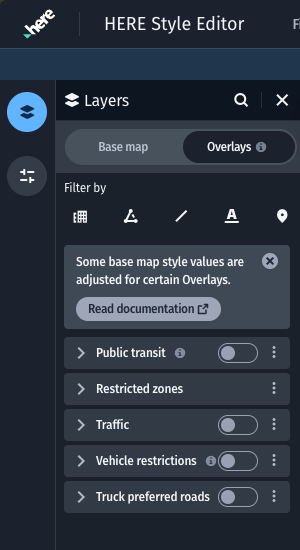
Overlays panel section
Overlays can be enabled or disabled individually. This state is part of the exported map style when loading the custom map style in your app. Note that overlays must be enabled separately for their styling to appear. For information on how to enable overlays in your application, refer to the SDK and Maps API for JavaScript documentation.
Overlay types
Public transit- Lines and labels for public transit stations and routesRestricted zones- Polygons and labels for special areas with certain entrance restrictionsTraffic- Lines and icons for traffic severity and known incidents on roadsVehicle restrictions- Lines and icons for certain road usage restrictionsTruck preferred roads- Line decorations for roads that should be preferred for heavier vehicles (only available for the Logistics base map styles)
Overlays and the base map
Note
Some overlays may introduce adjustments to the base map styling in order to better combine it with the overlay data. If your application is using overlay data, please ensure that the map styling appears as expected for both when the overlay is enabled as well as disabled.
For example, enabling the Public Transit overlay reduces the presence of street labels. Both the label color and label size are affected. For size specifically, the labels zoom level visibility is pushed forward, which renders the labels zoom level later.
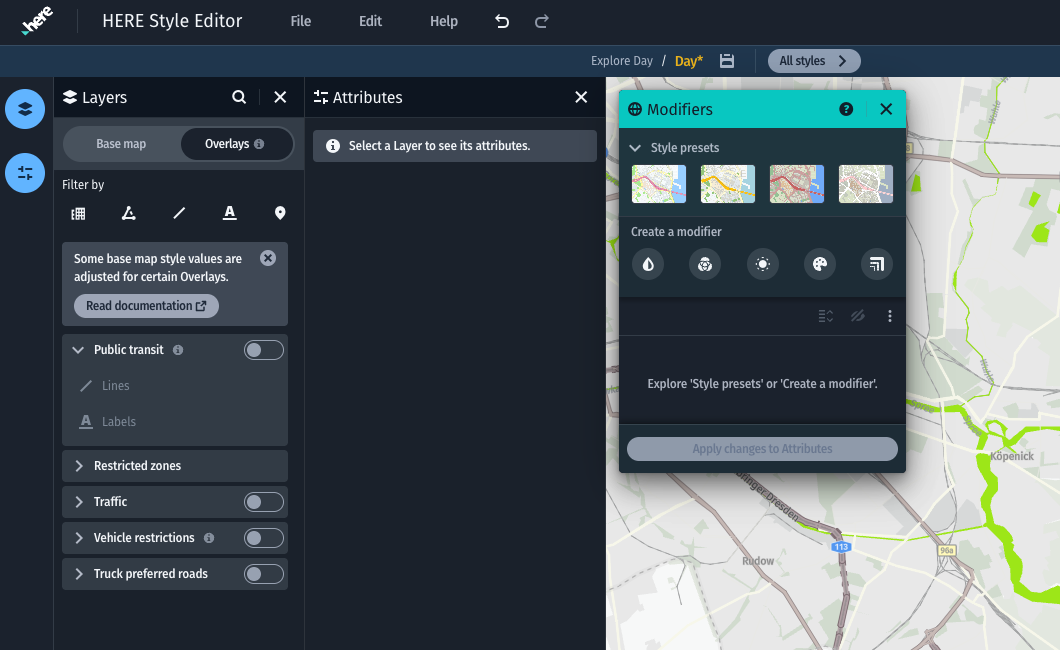
Public Transit overlay disabled
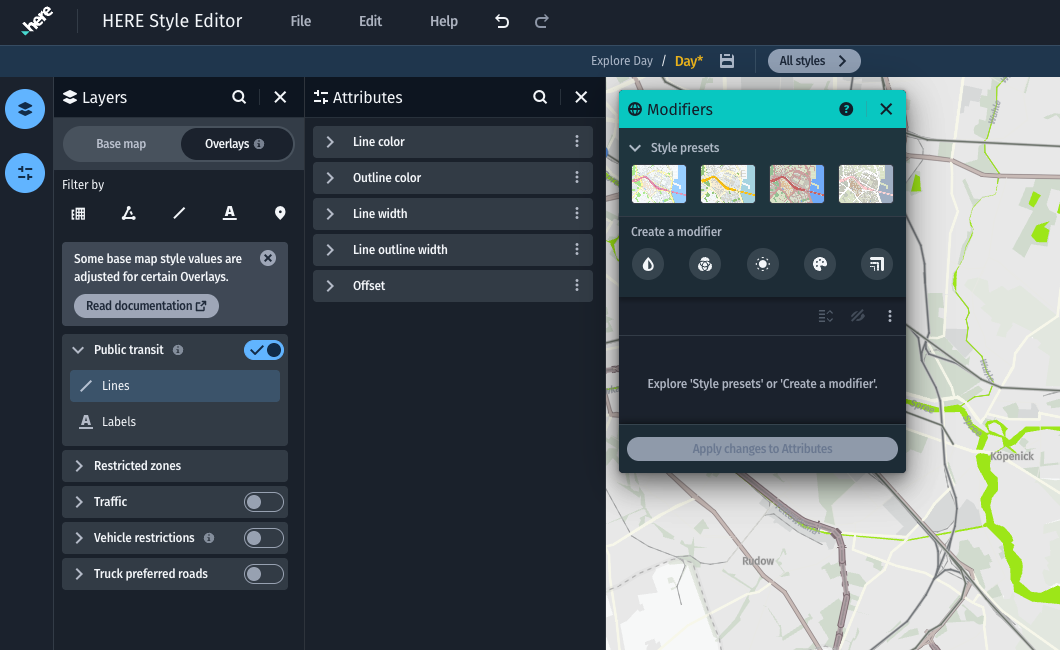
Public Transit overlay enabled
Choosing a suitable base map style
Certain overlays are designed to function better with certain base map style families. For example the vehicle restrictions overlay has been optimized for appearance on top of the Logistics map style family. The map styles documentation offers further examples of optimal combinations.
Updated 3 months ago