

Interface overview
The HERE Style Editor interface is made up of collapsible panels on the left, which contain the styling controls for the map layers and corresponding attributes.
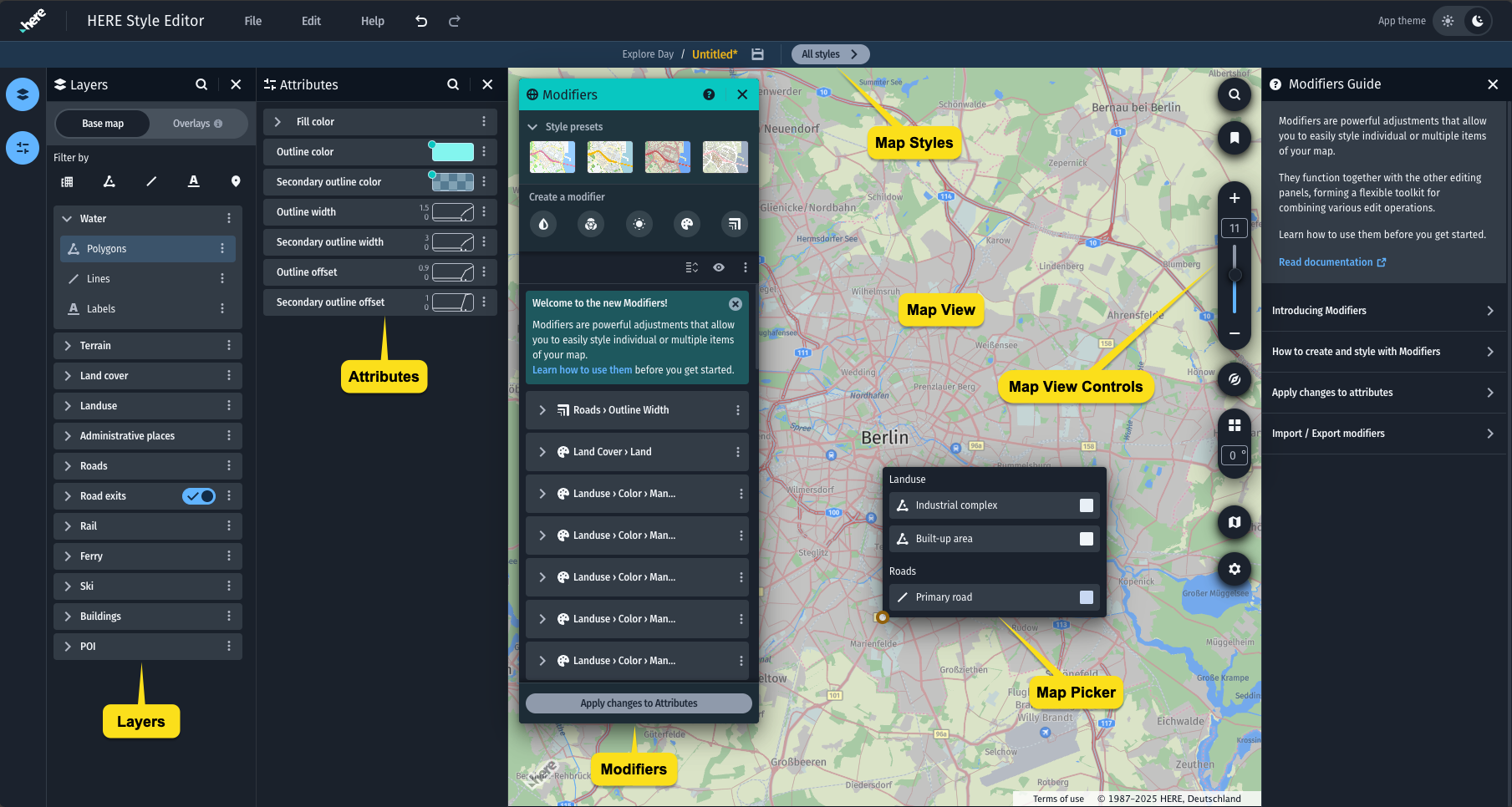
Panels
The panels can be opened from the sidebar.
- Modifiers - Simplified controls to override common style attributes. Easily apply changes over the entire map style using presets and non-destructive adjustments. For more information, see the Modifiers section.
- Attributes - The Attributes panel provides more detailed controls for the properties and data sub-conditions of a selected layer, including zoom level control. For more information, see the Attributes section.
- Layers - The data sources that correspond to the selected map style. For more information, see the Layers section.
MapView
This shows the interactive map with the currently active map style.
- MapView Controls - Search for locations, save camera positions, zoom, tilt and reset the compass. For more information, see MapView Controls.
Menu Bar
-
File
- Create a new map style - Start a new map style.
*Open an existing map style - Load a map style from an exported map style or a Style Editor file. - Duplicate current map style - Create a copy of your currently active map style.
- Save work file - Save a Style Editor file. Use this option for keeping the non-destructive changes active in the Modifiers panel. For more information, see Save and export.
- Export map style - Export a custom map style for use in your SDK or Maps API for JavaScript application. For more information, see Save and export.
- Create a new map style - Start a new map style.
-
Edit - Undo or Redo changes, or reset your style to its original state.
-
Help - View legal notices, version information, and access the user guide.
-
Styles - Access your currently loaded styles, or start a new style. The Styles dropdown menu above the MapView allows you to do the following:
- Rename your styles
- Duplicate a style
- Delete a style
- Load a different custom map style or start a new one
Note
Changes that you make in your active style remain stored in your local cache when switching to other styles. Saving your working files on your local machine is required.
- App theme - The app can be viewed in light theme or dark, to suit your preference.
Updated 3 months ago