

How to style Attributes
Use the Attributes panel to control how a selected layer appears on the map. Attributes are styling properties, such as color, outline color, or label size. Each attribute can have one value for the whole layer or separate values for its data conditions. For example, the Color attribute for the Landuse polygon layer can have different values for parks, universities, and hospitals.
Attribute values are part of the base style. A Modifier can override these values. If a Modifier is active, check for the dot indicator next to the property before editing it.
Attribute operations
Use the Attributes panel to perform these operations:
- Change attribute values: Set a static value or change a value by zoom level. You can also copy values between compatible attributes.
- Filter attributes: Select a layer on the map or search for an attribute or data condition.
- Select a toll road type: Choose between car toll and truck toll attributes for supported road styles.
- Edit linked values: Review, unlink, or restore links between attributes and data conditions.
Change attribute values
The options menu to the right of an attribute value lets you choose the input type. Select Single Value for a static value or Zoom Level to change the value as the map zooms.
Single Value
Use a single value when an attribute should remain the same at every zoom level. For color values, you can use HEX, RGB, or HSV and specify a transparency amount.
Copy values
Use the options menu next to an input to copy its value and paste it into another compatible attribute. For example, copy the park color and paste it into the corresponding outline color when you want the fill and outline to match.
Style by zoom level
Use zoom-level styling when an attribute should change as the map zooms. To create a zoom-level color change:
- Click the options menu to the right of the color swatch and select Zoom Level.
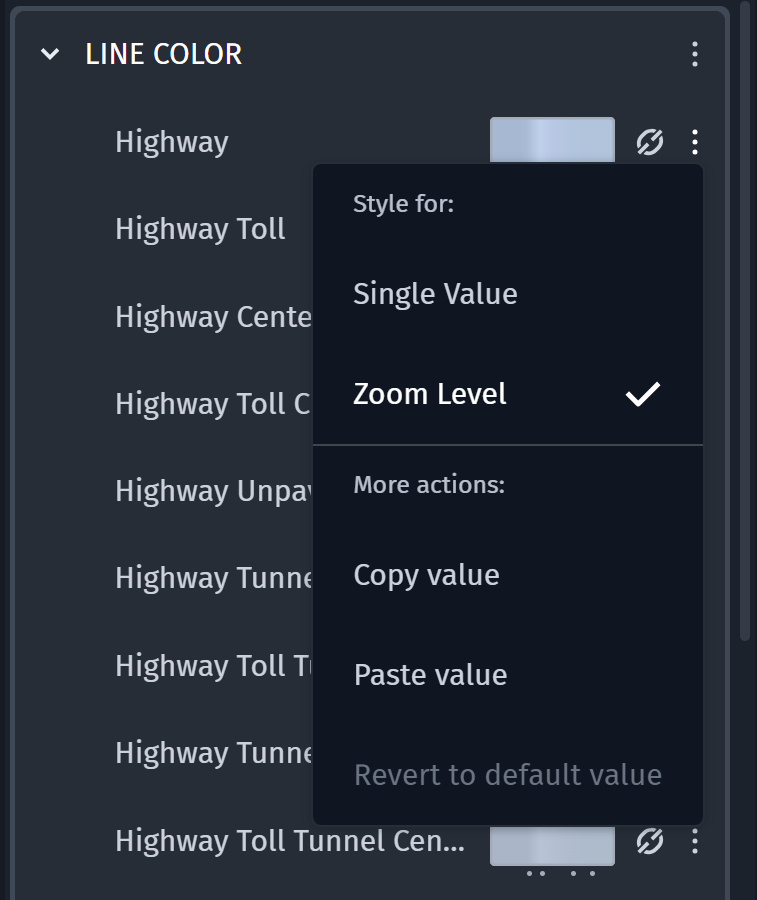
Click the color swatch to open the color picker or zoom editor, depending on which input you used last. HERE styles can contain both static values and zoom-level values.

Zoom editor controls
- Add creates a stop at the current zoom level.
- Delete removes the selected stop.
- Interpolation sets the transition to step, linear, exponential, or cubic. The default is linear.
- Split creates a second stop at the same position on the range bar.
- Delete All removes all stops from the zoom range.
- Click Add to create a stop at the current zoom level.
- Zoom in or out on the map and click Add again to create another stop. The white number above the range bar shows the active zoom level in the MapView.
- Select a stop and use the color swatch below the range bar to set its color.
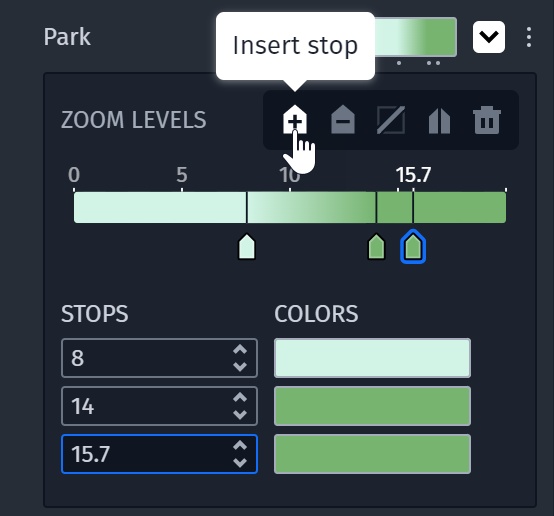
You can also double-click the range bar to add a stop at that position, or drag a stop marker to a new zoom level.
- Select a stop in the list below the range bar. Select its swatch to change the color, or enter a different zoom level in the field.
Note
If a Modifier is active, it may override Attribute values. Check for the dot indicator next to the property. To regain full control over individual Attribute values, you can apply the Modifier changes to Attributes.
Filter attributes
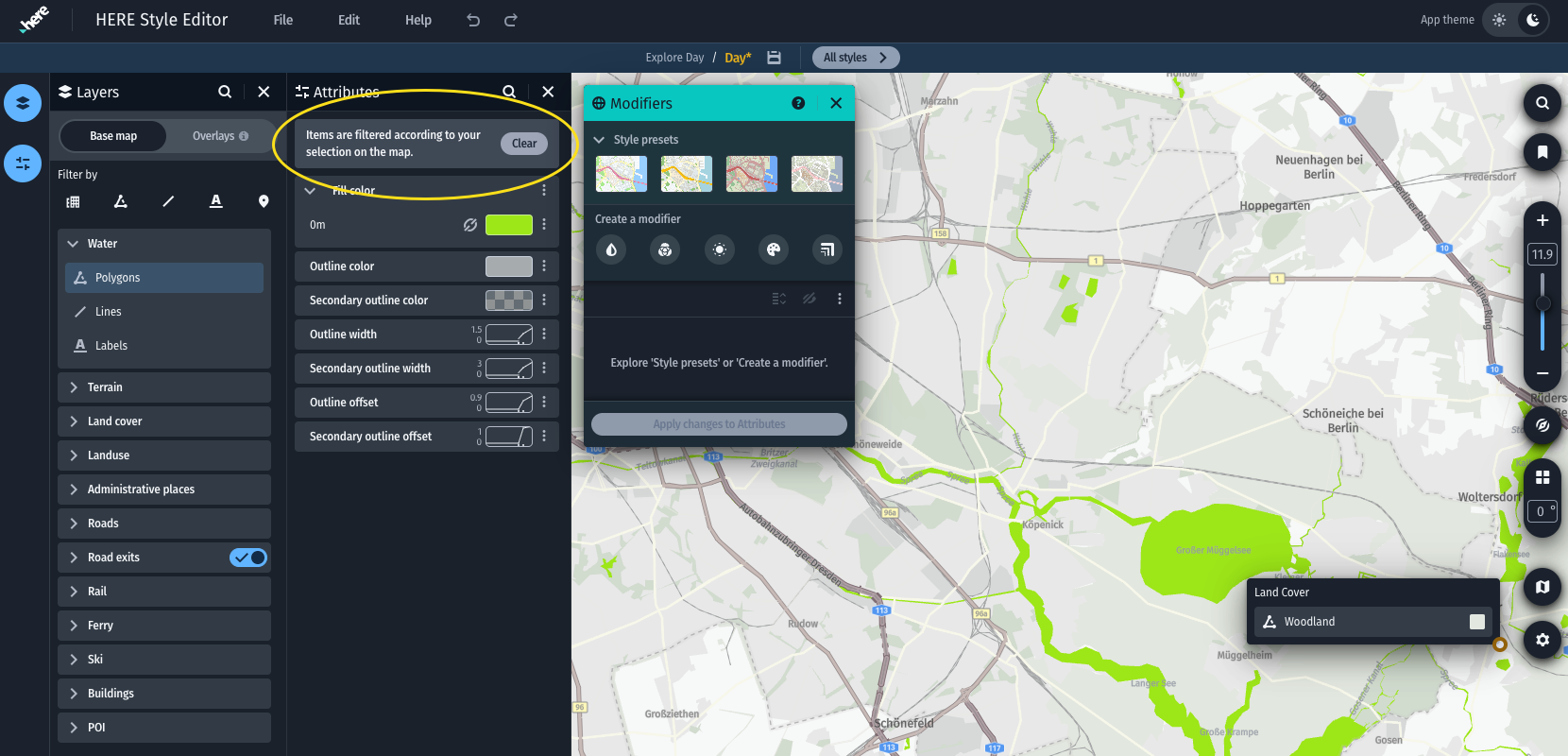
Filter the Attributes panel by selecting a layer on the map or entering a name in the search field at the top of the panel.
Select a layer on the map
- Click a feature on the map.
- Select the corresponding layer from the pop-up.
- To remove the layer filter, select Clear filters at the top of the panel.
Search for an attribute or data condition
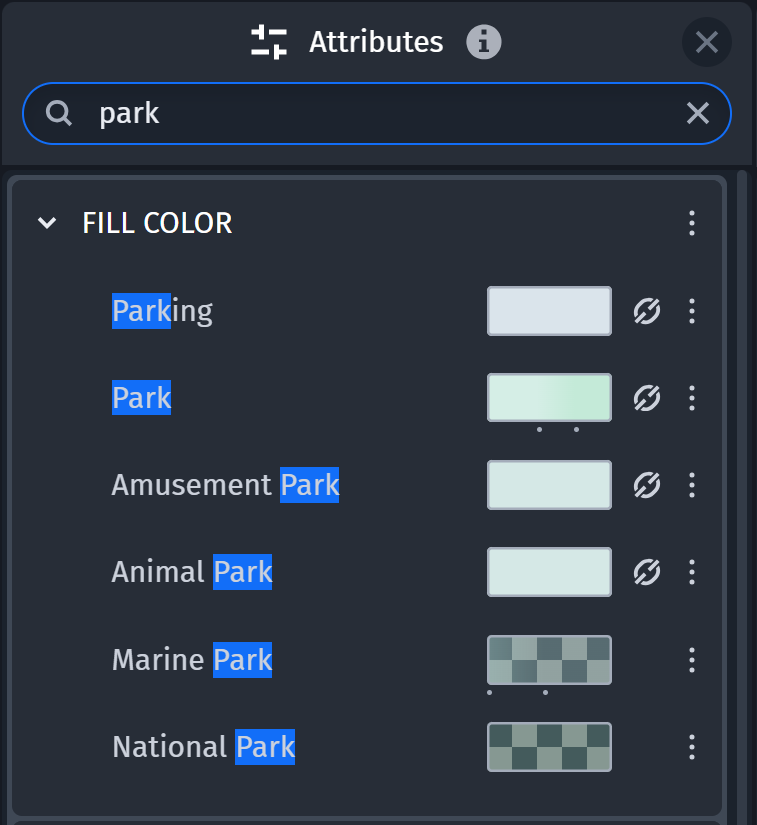
With the Landuse Labels layer selected, enter color to show only the Color and Outline Color attributes. Enter park to find and highlight data conditions that contain park. The search filter remains active when you select another layer.
Select a toll road type
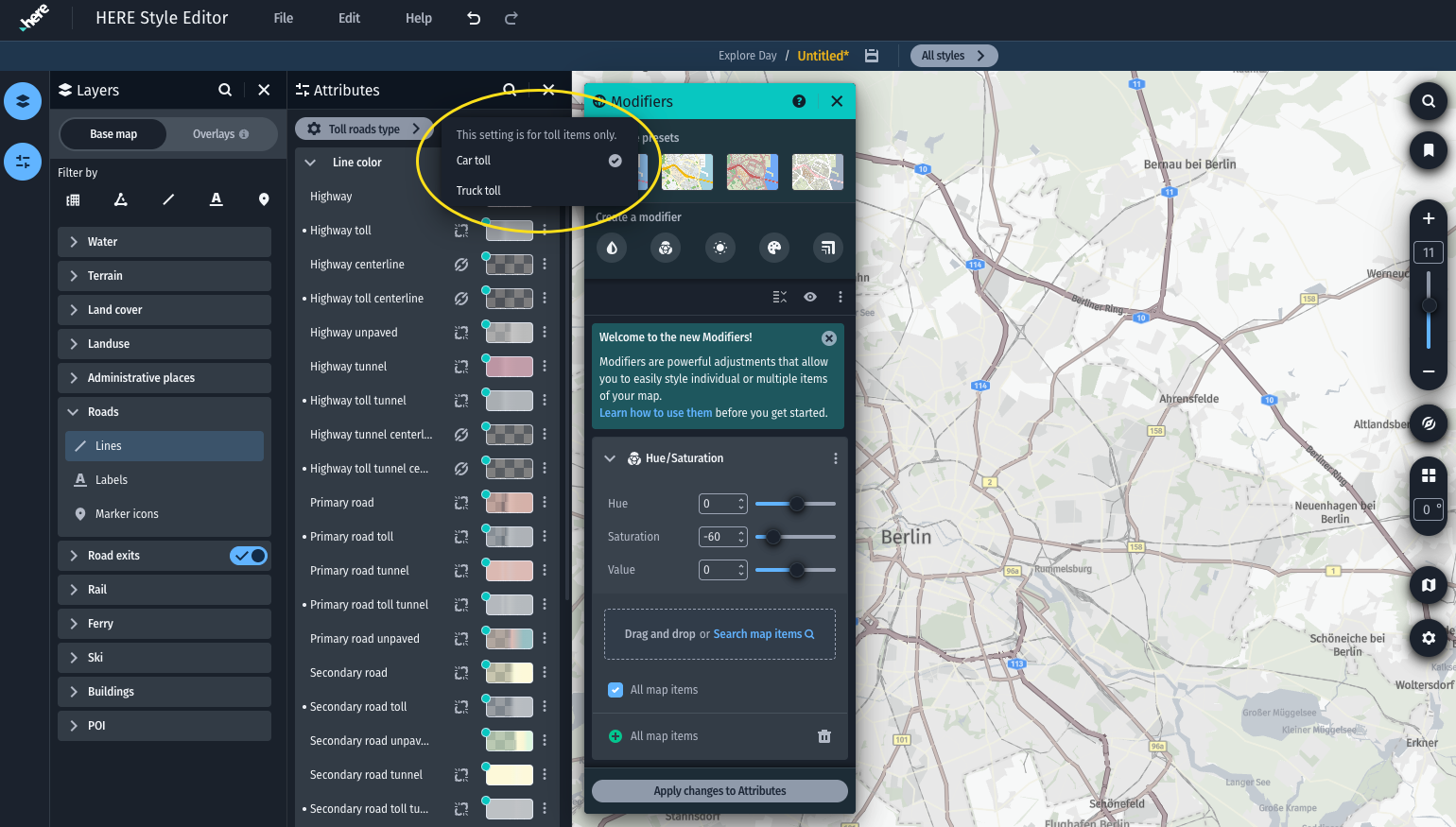
For style families that support toll roads, use the additional widget in the Roads layer to select the toll road type. The widget lets you switch between car toll and truck toll attributes, which are marked while you use it.
Toll road types
Toll roads are a specialization of normal roads. They have two types: car toll and truck toll. By default, every map style except the logistics style uses Car toll. The selected toll road type is exported with your map style.
Note
Truck toll roads are a feature contained in premium roads map content. When enabled in your client application additional charges may incur. Refer to the respective SDK documentation for further information on how to enable them.
Edit linked values
Some attributes and data conditions are linked to other attributes or conditions. Linked items share a value and stay synchronized during editing. Expert cartographers configure links in the base styles to keep the map consistent and make it easier to edit.
Linked items can be recognized via a link icon  next to their input.
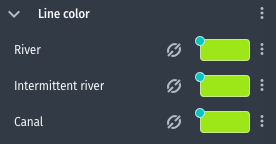
Unlink an item
- Select the link icon next to a linked value.
- Review the linked items in the dialog.
- Select the option to unlink the item.
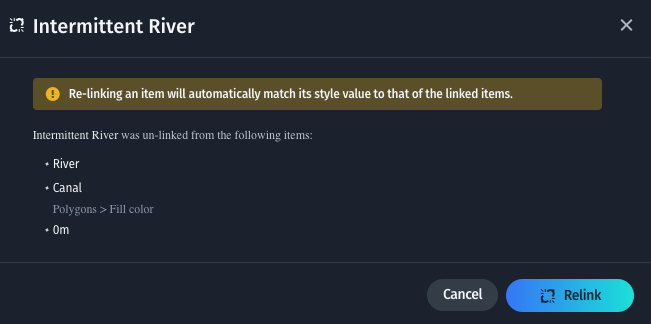
For example, the Intermittent River condition in the Water > Lines layer can be linked to the River and Canal conditions in the same layer and to the 0m condition under the Fill color attribute in the Water > Polygons layer.
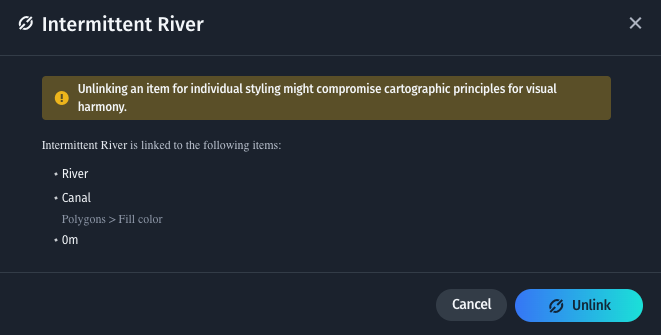
Unlinked items are no longer synchronized with their linked items. Editing an unlinked value does not change the values it was linked to. A broken link icon identifies the unlinked item; the other items remain linked.
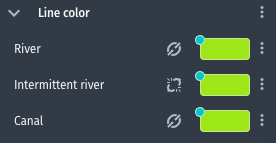
To restore the link, select the broken link icon and choose the linked item in the dialog.
Example: Style a land-use layer
Use the following workflow to style park areas with a static color that changes at different zoom levels:
- Click a park area on the map and select the Landuse polygon layer from the pop-up.
- In the Attributes panel, search for
parkto find the park data condition. - Find the Color attribute and open its options menu. Select Single Value.
- Set the park color to
#79A85Busing the color picker or a HEX value. - Open the color value's options menu again and select Zoom Level.
- Select Add to create a stop at the current zoom level. Zoom in or out, and select Add again to create another stop.
- Select each stop and set the color for that zoom level. Use Linear interpolation for a gradual transition.
- If the outline should match the fill, copy the color value and paste it into the compatible Outline Color attribute.
- Check for a Modifier indicator or link icon next to the values. A Modifier can override the attribute values, and linked values can update other attributes or data conditions.
- Review the result on the map at each zoom level.
Updated last month