

Attributes panel overview
The Attributes panel displays the individual styling properties and associated data conditions of your selected layer. Attributes define how a layer's data is displayed (styled) in the map. Attributes can have static values, such as a single color for water polygons, or a gradual change of values across zoom levels, such as for POI label sizes. Attributes represent your base style values. These values can be overwritten when you apply changes to Modifiers.
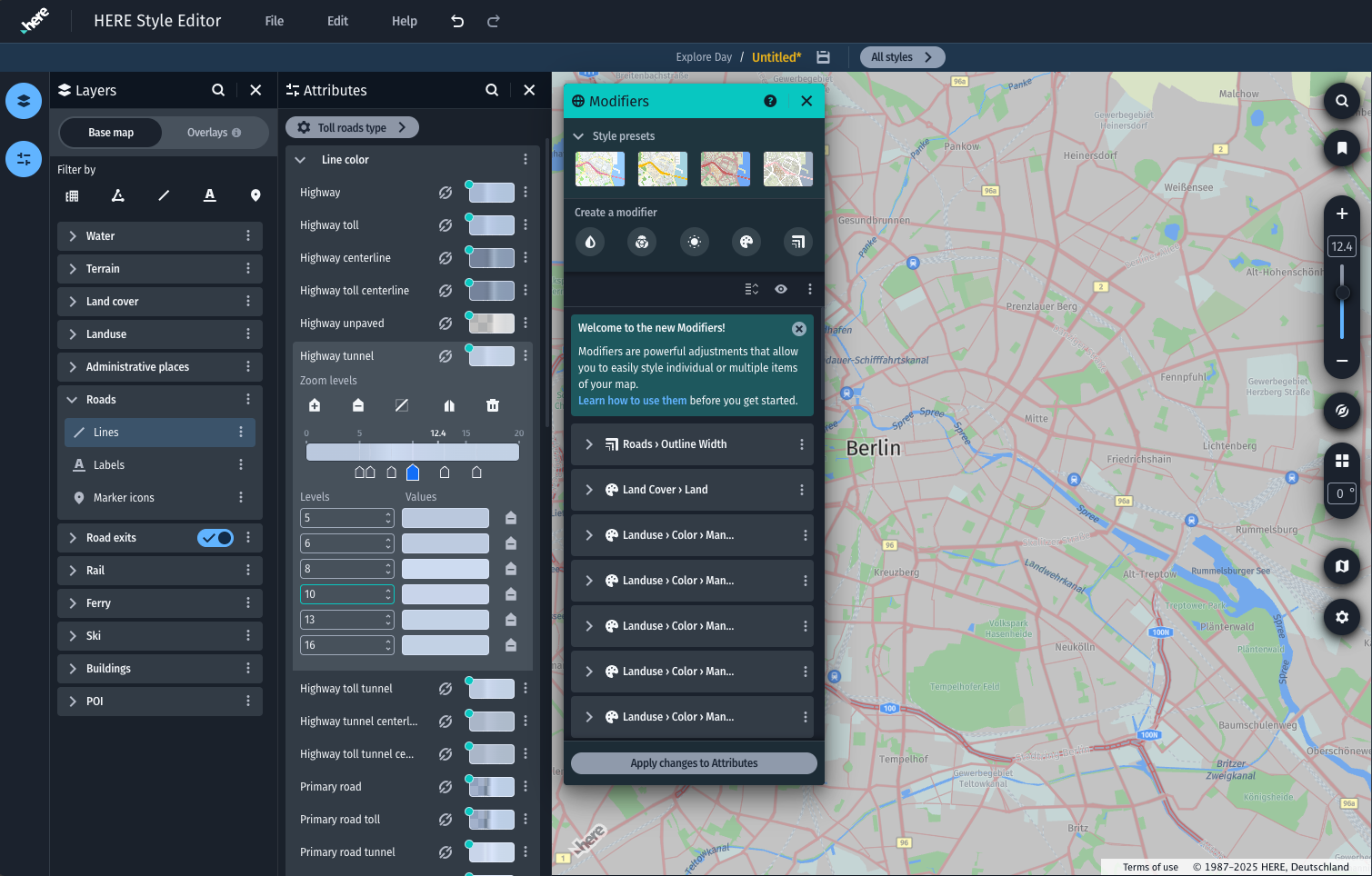
Attribute panel
Attribute values
Attribute values are applied to an entire layer. When an attribute contains multiple data conditions, a list of separate values is displayed for each condition. For example, opening the Color attribute under the Landuse polygon layer will reveal separate color values assigned to each Landuse condition such as park, university, and hospital.
Modify attribute values
The options menu opened by clicking on the vertical ellipses to the right of an attribute value allows you to switch the input type. Choose between Single Value or the Zoom Level editor.
Single value
Define a static value for the attribute. For color values, HEX, RGB and HSV are supported along with transparency amount.
Zoom level
Create changes to the property based on map zoom level.
For information on zoom level based styling, see the Style by Zoom Level section.
Copy values
Use the options menu to the right of the input button to copy and paste values between attributes.
Filter attributes
You can filter the Attributes panel by clicking directly on the map to select the layer you want to edit, or by entering a name in the search field at the top of the panel. For more information, see the Filter attributes section.
Linked Values
Conditions or attributes with a  link icon have their value synced to another condition or attribute in the scheme. When you modify a linked value, its synced attributes inherit the same value. For more information, see the Linked values section.
Toll Road type selection
You can now select the type of toll road that is present in your style. Toll road attributes are available to style for all the style families under the Roads layer. For more information, see the Toll type selection section.
Updated 2 months ago