

Change icons
Icon layers and styles
Certain map layers allow customizing their icons appearing on the map. Some example layers are the Icons style for the POI layer and the Labels style for the Administrative places layer.
Exploring icons
Selecting a style containing icons from the layers panel and opening up its Icon image attribute displays the different icons used for the various map elements drawn by the style. This icon list can be filtered and searched to locate specific icons.
Clicking an icon entry opens up the Customize icon file popup window. The popup window displays more information about the icon usage and the currently used label color if the icons have an attached text label.
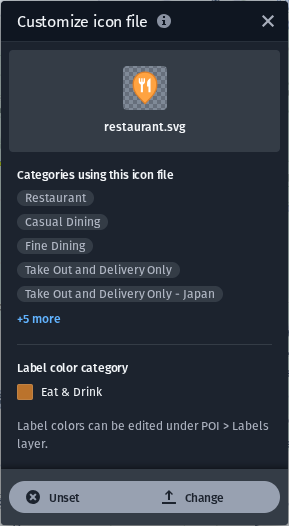
Customize icon file popup window
Replacing icons
The buttons at the bottom of the Customize icon file popup window allow editing the icon entry. You may either:
- Change the icon with another image through the Change icon workflow.
- Unset the icon image in order to not display any images for the icon entry on the map.
- If the icon has been modified, reset the icon image back to its default base map style image.
Note
Please familiarize yourself with the HERE icon licensing terms if you're planning to use HERE icons in any custom manner.
Clicking on the Change button takes you to the Manage icons screen where you can upload your own icon resources or navigate the currently available icons from both your own collection as well as the HERE icon library.
Label colors
Some icons may display a text label alongside the icon on the map. The attributes for these text labels, such as text color, text outline color and text size, can be controlled from the sibling styles of the icon style in the Layers panel.
Further reading
- HERE icon set licensing terms
Updated 3 months ago