

Hide icons
There are multiple ways in which icons can be removed from the map. Depending on the use case one or the other is the more suitable option. Each of the following methods operates at a different level of the mapping model, and not all of them apply to every icon type. They also vary in how they handle text labels associated with the icons.
Setting icon size to 0
Setting the Icon size or Icon size factor attribute values to 0, allows you to remove icons or icon categories from the map.
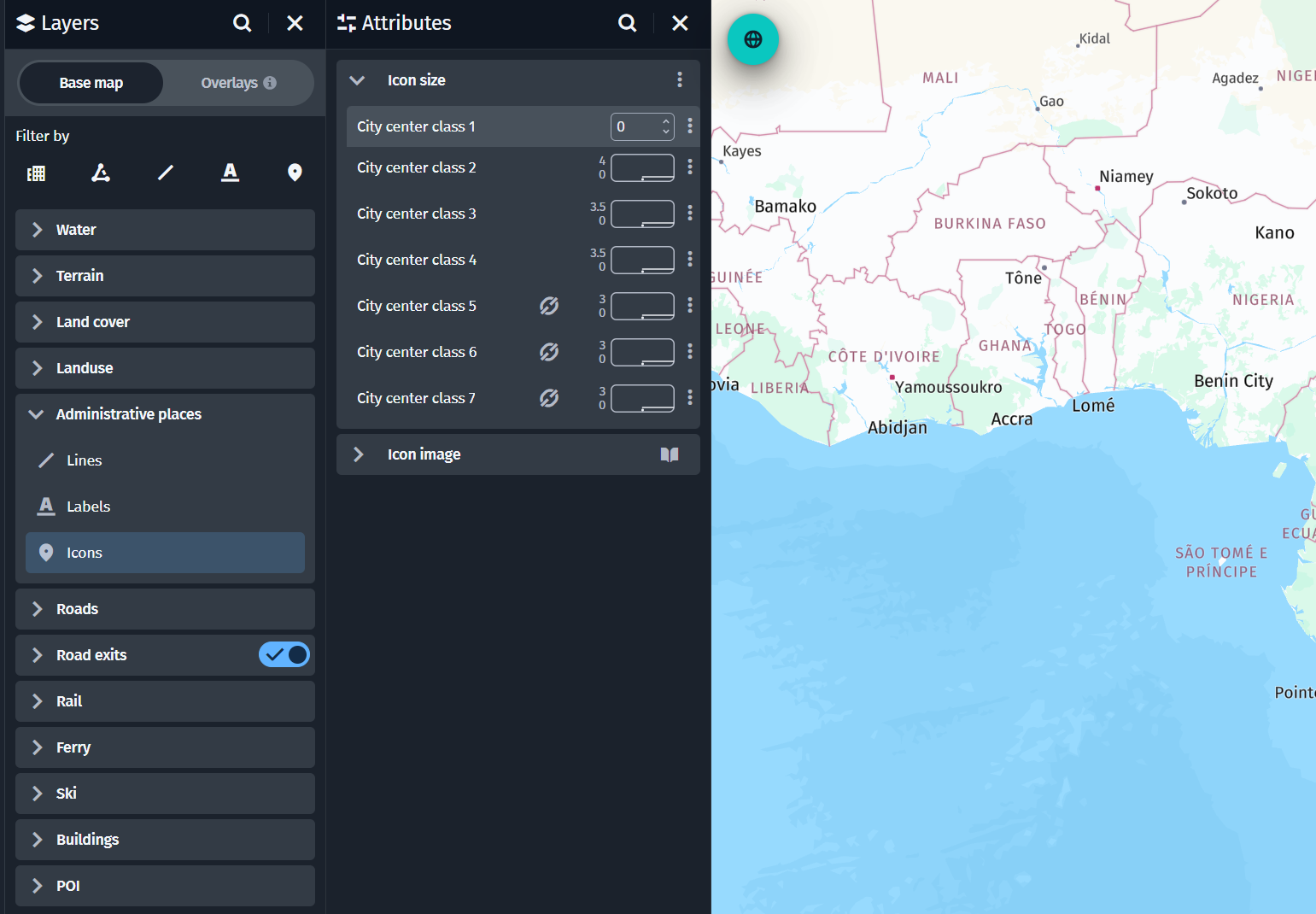
Typically, this removes entire icon classes but not their label text. It also applies to layers where icons are not replaceable. For example, road shields.
Hint
This can be applied using a Scale-modifier by dragging the Icon size, or any other of its conditions, onto the modifier.
Unsetting icons
Icons that are replacable can also be unset using the Unset button on the Customize icon file popup window.
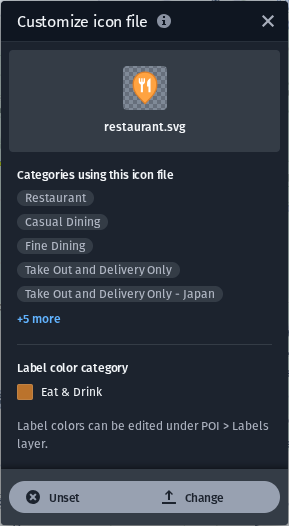
This removes the icon for the selected icon entry from the map. The label text is still visible.
Hiding icons
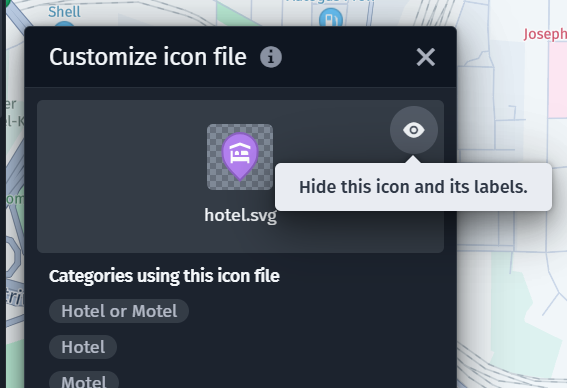
Specific icon categories allow hiding the icon and its label together using the Customize icon file popup window.
Updated 3 months ago