

Map controls
This topic describes how to use the MapView controls.
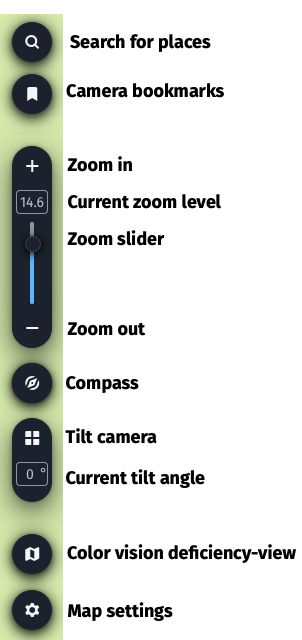
Search for places
To search for locations to center the map on, type in the location you're looking for and choose one of the listed auto suggestions.
Save a list of places you commonly search for by using Camera bookmarks.
Camera bookmarks
Camera bookmarks allow you to save MapView camera positions so that you can quickly jump between different locations on the map.
To save a camera position, follow these steps:
- When you're in a view you would like to save, click the Bookmark button to open the panel.
- Click Add to save your current view, and enter a name for it.
- After typing in a name, press
Enteron your keyboard to save the view to a custom list. The bookmark list is alphabetically sorted.- Click the names in the list to move the map camera to those locations.
- Edit the bookmark names or remove them from the list by clicking edit or delete when hovering your mouse.
Export bookmarks
You can export your custom camera bookmarks using the options menu in the bookmarks pop-up. This downloads a JSON file containing your custom camera positions that you can import into the Style Editor.
Map settings
- Use Coordinates to specify latitude and longitude for the MapView camera view point.
- Use the Language menu to check the display of map labels in other languages (where data is available.) The default option is set to use the local language. Note that the label display language is not saved or exported as it is not part of the map style.
- When picking a layer from the map, enabling the Data Properties option displays the underlying data content for the selected map layer. For more information regarding the map content, see the HERE Vector Tile API.
- Click Take Screenshot to download a PNG of your current MapView.
Map view settings
Schematic Map View
Use Schematic Map View for a quick overview of your map style.
Color vision deficiency view
You may enable the color vision deficiency view to try out how your custom map style would look like for people with color vision issues. This switch opens up a separate control panel where you can toggle between a split screen and a full screen color vision simulation, as well as switch between simulations of some of the common color vision deficiency types.
The available color vision simulations are:
- Protanopia
- Deuteranopia
- Tritanopia
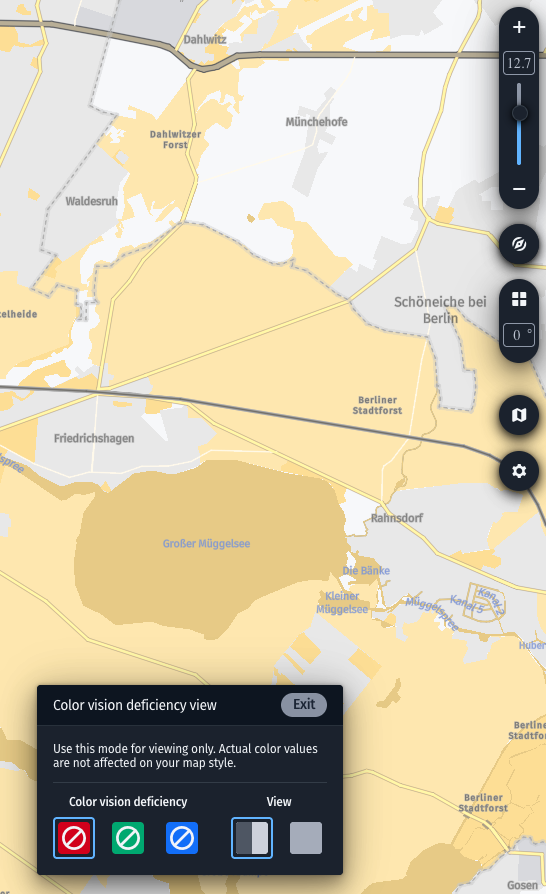
Color vision deficiency-view
Updated 3 months ago