

Manage icons
The Icon Library screen allows you to upload your own icon resources or navigate the currently available icons from both your own collection as well as the HERE icon library. These can then be used to Replace icons on the map.
Note
Please familiarize yourself with the HERE icon licensing terms if you're planning to use HERE icons in any custom manner.
Icon Library and Change icon modes
The icon handling window appears in two modes:
- Icon Library mode if opened from the Icon image title section
- Change icon mode if opened from the Change button of the Replace icons popup window.
Accessing the Icon Library
You can access the Icon Library window from the book button at the right of the icon image attribute header.
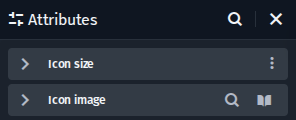
Open Icon Library window
Icon Library window
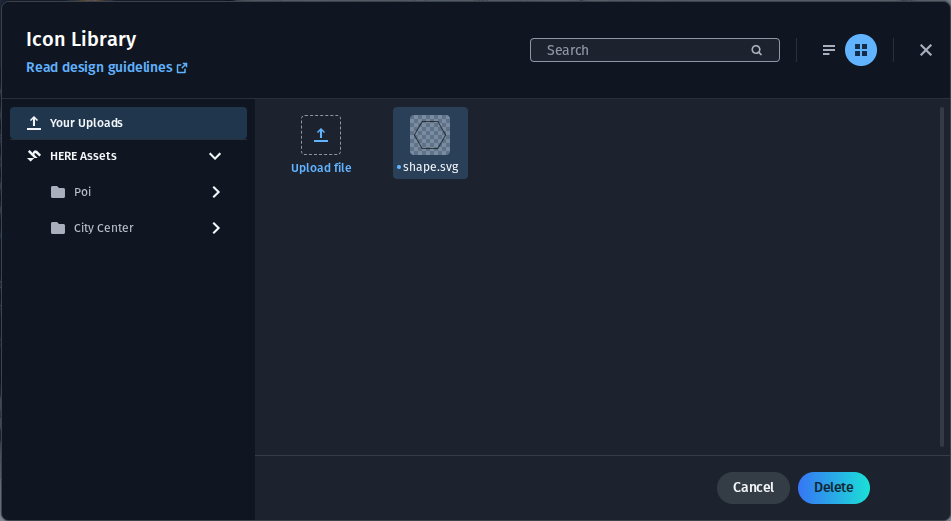
Icon Library window
The left side of the Icon Library window allows navigation between the user uploads and the default HERE icon sets. Only icons from the Your Uploads section can be deleted.
Upload icon
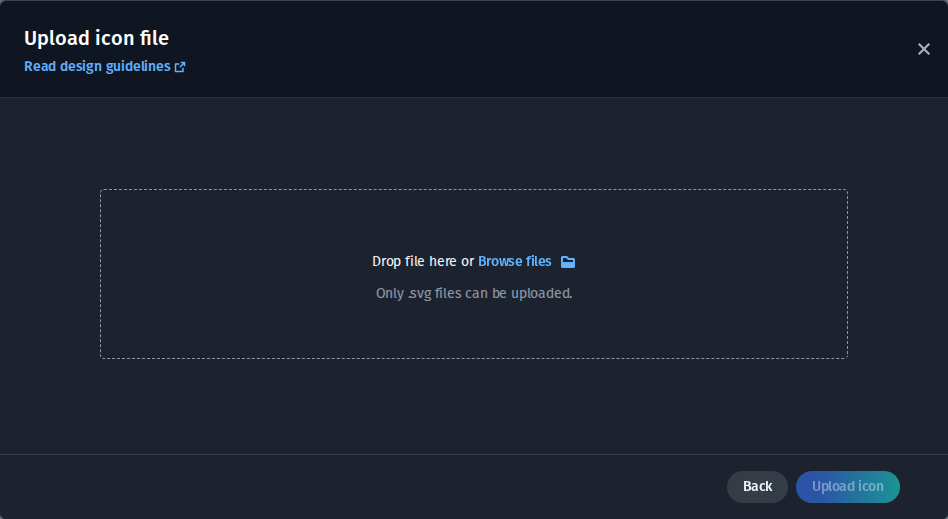
Upload icon file window
Clicking the Upload file action button within the Your Uploads icon category opens up the upload screen for selecting a local icon to upload. You can either use the Browse files action to select a file using a file dialog, or drag in an icon to the upload screen.
Further reading
- HERE icon set licensing terms
Updated 3 months ago