

How to style with Modifiers
This topic shows you how to use Modifiers to apply changes easily over any part of the map style. You can make styling overrides while still maintaining finer control over individual layers in the Attributes.
The Modifiers represent styling operations for style item groups, while the Attributes panel contains all available styling options for each selected Layer.
Modifier usage
Application order
The modifiers are applied from top to bottom. For example, to create a monochromatic map, you can remove all saturation from the map using Hue/Saturation, then apply a Color Tone on top of this de-saturated style. You can then make changes on top of these base style adjustments using additional modifiers targeting specific groups.
The modifiers can be moved up and down either by dragging them or from the options menu behind the three dots in the top-right corner of each modifier.
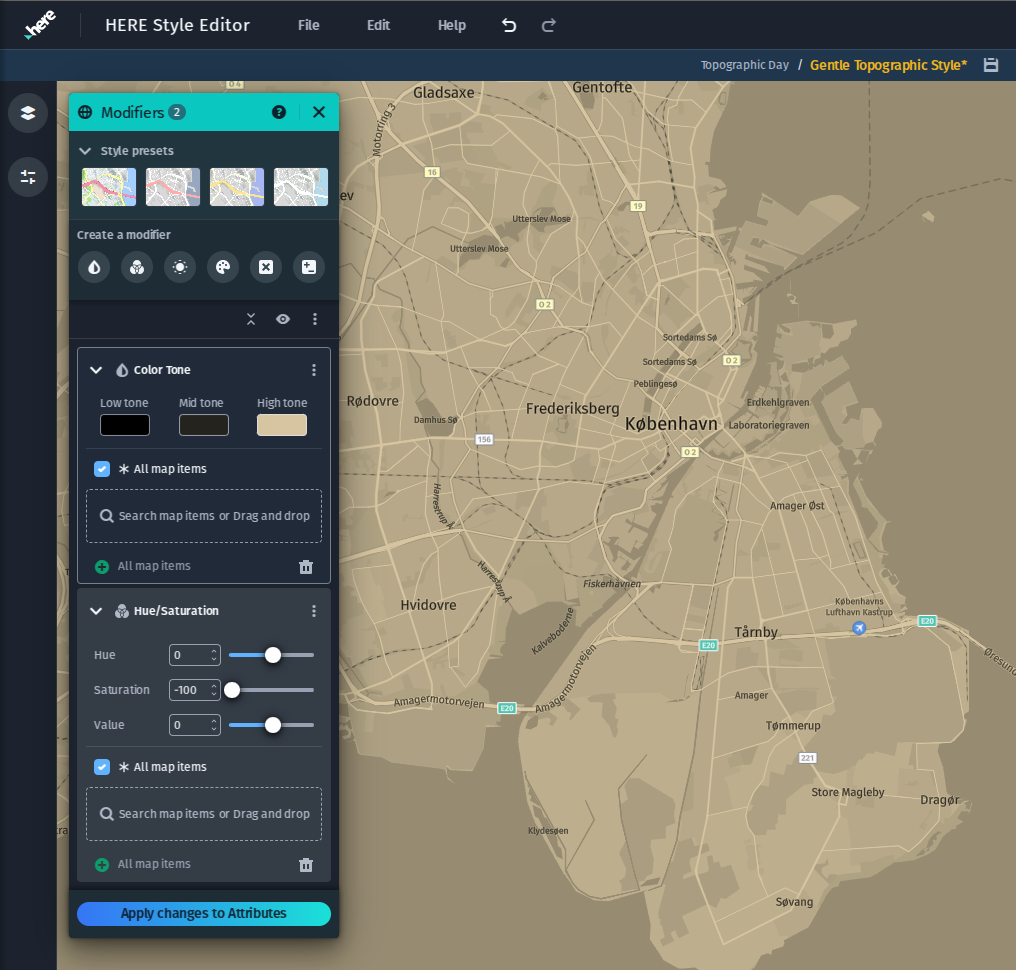
Color Tone: Using Color tone on top of a de-saturated base map style.
Color blend modes
For color modifiers, you can set the blend mode to normal, multiply, screen, or overlay. Normal is the default. Setting to other blend modes allows you to add more fine-tuned color tints and shades to your layers rather than completely replacing the underlying colors.
Updated 3 months ago