

Japan focused styling
The base map styles support optional styling for Japan. Japan-specific map data provides additional regional details that you can configure in the Style Editor.
When you enable Japan styling, you can switch the Style Editor panels between the global style and the Japan style. The map view always displays the composite style, which combines the settings from both styles.
Observe the following considerations when you enable Japan styling:
- Japan-specific map data can increase data access costs in deployed applications. Before you enable Japan styling, make sure that your HERE data access quotas can support the additional usage.
- Japan styling can affect map performance. Test your deployed application and confirm that the map meets your performance requirements.
Enable Japan styling
Enable Japan styling when you create a new map style:
- Open the map style dashboard.
- Create a new map style.
- At the bottom of the dashboard, turn on the Japan styling toggle.
You can turn the toggle off at any time to remove Japan-specific style settings from the map style.

Enable Japan styling
Switch between global and Japan styles
Use the checkbox at the top of the Layers panel to switch the editor panels between the global style and the Japan style. This setting changes the editor panels only. The map view continues to display the composite style.
Example
This example uses the same road colors worldwide but different label settings in Japan:
- In the global style, configure the road colors.
- Select the Japan styling checkbox in the Layers panel.
- Configure the label settings for Japan.
- Clear the checkbox to return to the global style.
The map view shows the global road colors and the Japan-specific label settings together. Users do not see separate maps for each style; they see the composite result.
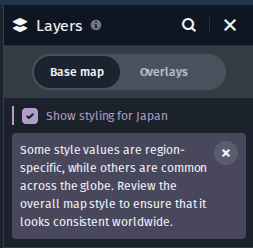
Switch between global and Japan styles
Updated last month