
Style feature filters
Note
The 3.1 version of this API has been deprecated. For continued support and feature development, upgrade to the latest 3.2 version.
The Maps API for JavaScript provides filtering capability that helps create the map with the desired appearance. You can filter map features provided by the HERE Vector Tile API using any property from the data layer.
The following sections describe various types of data filtering available in the Maps API for JavaScript.
Layer filtering
You can associate any data layer with one or several logical layers that describe how to render that data layer. To define which data layer provides geometries for rendering, you use the layer property of the data block.
The following example demonstrates two logical layers that use the same data layer. The logical layers render geometry provided by the water data layer as polygons (water_area) and polylines (water_outline). Note that both logical layers use the same data layer provided by the data block layer property.
For example, see the following style snippet:
sources:
  omv:
    type: OMV
layers:
  water_areas:
    data: {source: omv, layer: water}
    draw:
      polygons:
        order: 1
        color: [0.055, 0.604, 0.914, 0.50]
  roads:
    data: {source: omv, layer: water}
    draw:
      lines:
        order: 2
        width: 3px
        color: [0.055, 0.604, 0.914, 1.00]
The style configuration from the preceding example produces the following output:
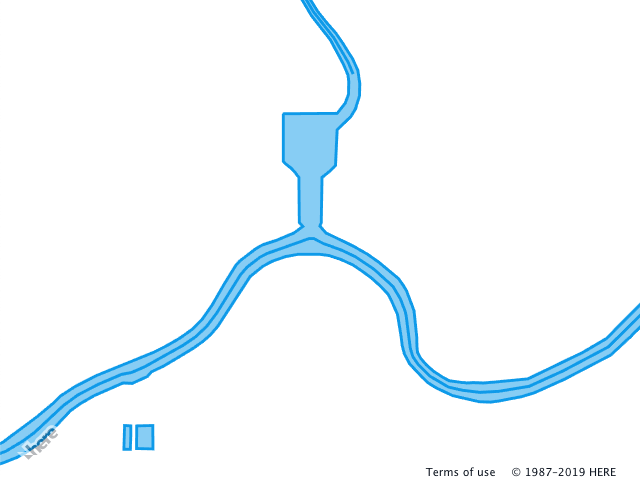
For the full list of the available data layers, see the HERE Vector Tile API documentation.
Feature filtering
To narrow down how to apply the logical layer, you can include the filter block element into the logical definition. The filter block defines the features from the data layer to render with the given style. In the following example, the filter block isn't present and, by default, the map renders all geometries of the roads data layer with the lines style.
sources:
  omv:
    type: OMV
layers:
  roads:
    data: {source: omv, layer: roads}
    draw:
      lines:
        order: 2
        width: 2px
        color: [0.561, 0.561, 0.561, 1.00]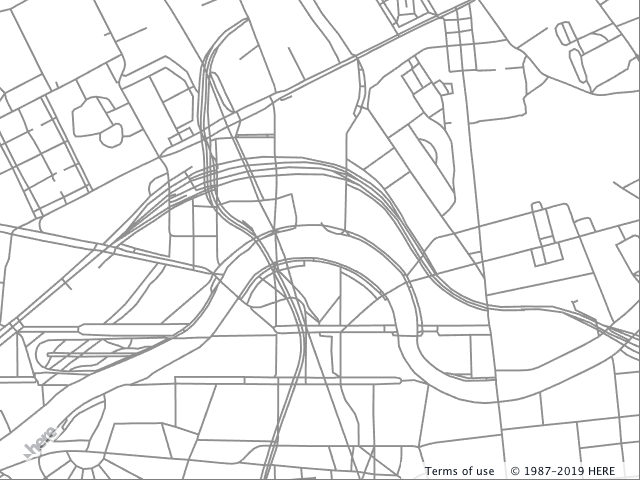
Adding the filter to the preceding example reduces the number of features that belong to this logical layer. The following example shows how to apply the filter block to the existing layer. The block contains the key-value pairs, where key is the name of the property used for filtering and the value is the data value against which the filter must match.
sources:
  omv:
    type: OMV
layers:
  roads:
    data: {source: omv, layer: roads}
    filter:
      kind: major_road
    draw:
      lines:
        order: 2
        width: 2px
        color: [0.561, 0.561, 0.561, 1.00]
The style configuration from the preceding example produces the following output:
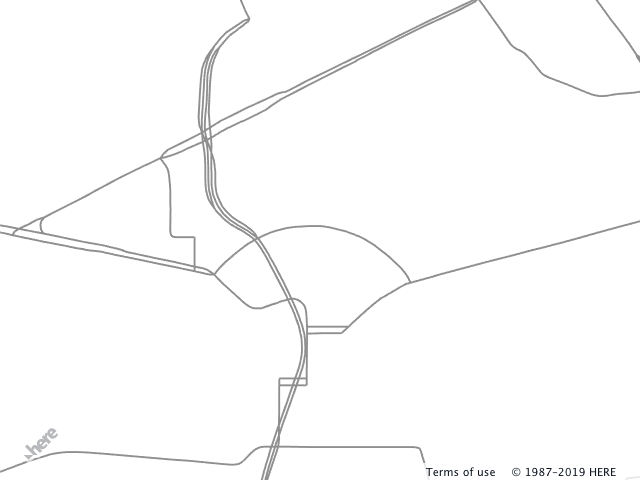
A single filter can perform matching against several different properties and follows the logical AND rules. The following snippet adds a second property - is_tunnel - to select geometries for the logical layer more precisely.
sources:
  omv:
    type: OMV
layers:
  roads:
    data: {source: omv, layer: roads}
    filter:
      kind: major_road
      is_tunnel: true
    draw:
      lines:
        order: 2
        width: 2px
        color: [0.561, 0.561, 0.561, 1.00]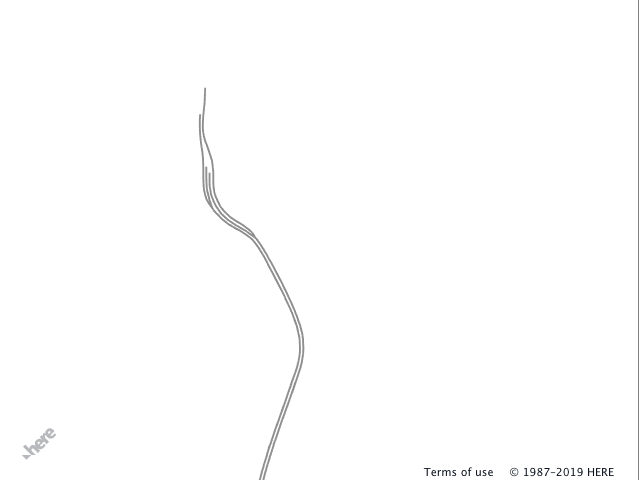
You can nest logical layers (filter blocks follow logical AND rules). Nesting in combination with filters provides a powerful tool that helps to express precisely how to render a feature depending on its properties and enables reuse of draw instructions.
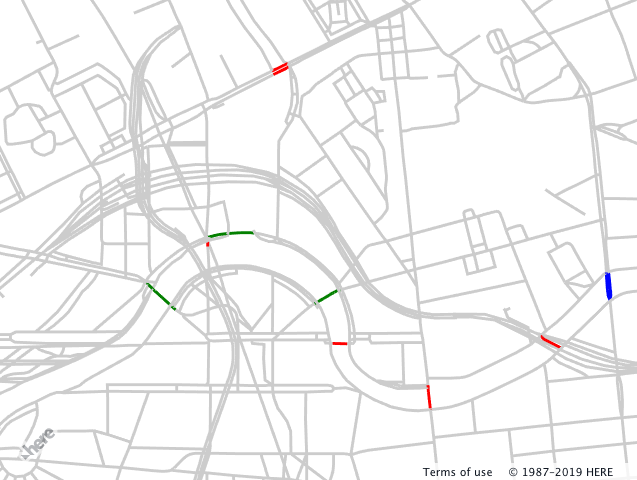
In the following example, the road network from the roads data layer renders in the gray color. Three nested logical layers show how to apply filters to highlight the bridges on the map. If a map feature represents:
-
a bridge (
is_bridge == true), then the feature color is red -
a bridge (
is_bridge == true)ANDthe road class is tertiary (kind_detail == tertiary), then the feature color is green -
a bridge (
is_bridge == true)ANDthe road class is tertiary (kind_detail == tertiary)ANDthe road segment is marked as a one-way segment (oneway == true), then the feature color is bluesources: omv: type: OMV layers: road: data: {source: omv, layer: roads} draw: lines: order: 2 color: [0.8, 0.8, 0.8, 1.00] width: 3px bridges: filter: is_bridge: true draw: lines: color: red tertiary: filter: kind_detail: tertiary draw: lines: color: green oneway: filter: oneway: true draw: lines: color: blue
The style configuration from the preceding example produces the following output:
Filter functions and keywords
The filtering system provides additional means to control what features to use in the given logical layer - functions and keywords:
- Embedded functions include logical functions
not,any,allandnoneand range functionsminandmaxnot- is a logicalNOToperator and can take a filter object. The following snippet filters out all tertiary roads.filter: not: {kind_detail: tertiary}any- is a logicalORoperator and takes a list of the filter objects. The following example filters out all roads if they're nottertiaryOR marked asbridge.filter: any: - kind_detail: tertiary - is_bridge: trueall- is a logicalANDoperator and takes a list of the filter objects. The following example filters out all features that aren't tertiary roadsANDare bridges.filter: all: - kind_detail: tertiary - is_bridge: truenone- is a logicalNORoperator and takes a list of the filter objects. The following snippet filters out all features that are bridges OR Tertiary roads OR both bridges and tertiary roads.filter: none: - {kind_detail: residential} - {is_bridge: true}min/maxdefine the range[min, max), if the value of feature property falls in this range the geometry renderes.filter: height: {min: 10, max: 25}
- Keywords
$zoomand$geometryhelp to filter data layer features based on the zoom level and geometry type.$zoom- matches the current zoom level of the map and the filter value. In the following example, logical layer's features render only when the map's zoom level is[10, 11).filter: $zoom: 10$geometry- matches the feature geometry type and is used when the data layer contains more than one geometry type. Possible values arepoint,lineandpolygon.filter: $geometry: polygon
Next steps
For more information, see:
Updated last month