
Learn how to geocode and display Japanese addresses on a map using the HERE Geocoding and Search API
Note
The 3.1 version of this API has been deprecated. For continued support and feature development, upgrade to the latest 3.2 version.
Searching for an address in Japan is often complicated as there are often no street names. Also, the Japanese address is mixed because there are three different types of native character sets (Kanji, Hiragana, and Katakana). The HERE Geocoding and Search API makes this complex system easy for your applications to find the right location.
In this tutorial, you will learn how to develop a sample geocoding application using the HERE Geocoding and Search API, conduct an address lookup using HERE’s Autosuggestion feature and then plot the location on a JavaScript map.
For more information about Geocoding in Japan and the Search API, see the documentation.
What You'll Need
-
Obtain access to the HERE platform through your organization administrator's invitation or get started for free.
- If your company has already established a HERE platform organization, contact your organization admin who can invite you to join the organization.
- If your company hasn’t established a HERE platform organization yet, you can get started for free. For more information, see the HERE platform pricing.
-
Access to the Japanese data layer.
What are You Going to Build
After completing this tutorial, you will have a working geocoding application for Japan, allowing you to search for a location in Japan by providing an address as an input.
Road Map
- Create a HERE Map
- Implement Geocoding for Japan
Create a HERE Map
The basis of this project is a JavaScript map. Creating a Japanese focused map is similar to creating a non-Japanese map.
Generate Map
To create a basic HERE JavaScript map, follow the steps below:
- Open your favorite editor.
- Create an
index.htmlfile. - Copy the following boilerplate code into the
index.html.- If you do not have an API Key, you can follow this video to learn how to create your API key.
<!DOCTYPE html>
<html lang="en">
    <head>
        <title>Geocoding Application for Japan</title>
        <meta charset="UTF-8">
        <meta name="viewport" content="width=device-width, initial-scale=1">
    </head>
    <body>
    </body>
</html>
Load the HERE JavaScript Libraries
Include the libraries, below in the <head> section.
<link rel="stylesheet" type="text/css" href="https://js.api.here.com/v3/3.1/mapsjs-ui.css" />
<script type="text/javascript" src="https://js.api.here.com/v3/3.1/mapsjs-core.js"></script>
<script type="text/javascript" src="https://js.api.here.com/v3/3.1/mapsjs-service.js"></script>
<script type="text/javascript" src="https://js.api.here.com/v3/3.1/mapsjs-ui.js"></script>
<script type="text/javascript" src="https://js.api.here.com/v3/3.1/mapsjs-mapevents.js"></script>
Next, add a map container in the <body> section. Render the map with 100% of the screen width and height.
<div style="width: 100%; height: 100%;" id="mapContainer"></div>Initialize Communication with Back-End Services
Initialize the Platform object normally by passing the API key. Replace the YOUR_API_KEY with your HERE API key.
var platform = new H.service.Platform({
  'apikey': '{YOUR_API_KEY}'
});
Render the HERE Map
A dedicated map style for the Japanese market is required to render the map. The following map style is optimized for the display of the Japan data.
https://js.api.here.com/v3/3.1/styles/omv/oslo/japan/normal.day.yamlTo get the Japan specific data, add the following code:
var omvService = platform.getOMVService({ path: "v2/vectortiles/core/mc" });Next, setup the HERE map by adding the following code.
// configure an OMV service to use the `core` endpoint
var omvService = platform.getOMVService({ path: "v2/vectortiles/core/mc" });
var baseUrl = "https://js.api.here.com/v3/3.1/styles/omv/oslo/japan/";
// create a Japan specific style
var style = new H.map.Style(`${baseUrl}normal.day.yaml`, baseUrl);
// instantiate provider and layer for the base map
var omvProvider = new H.service.omv.Provider(omvService, style);
var omvlayer = new H.map.layer.TileLayer(omvProvider, { max: 22 ,dark:true});
// instantiate (and display) a map:
var map = new H.Map(document.getElementById("mapContainer"), omvlayer, {
zoom: 17,
center: { lat: 35.68026, lng: 139.76744 },
});
To make the map interactive, add the below code:
// add a resize listener to make sure that the map occupies the whole container
window.addEventListener("resize", () => map.getViewPort().resize());

// MapEvents enables the event system
// Behavior implements default interactions for pan/zoom (also on mobile touch environments)
var behavior = new H.mapevents.Behavior(new H.mapevents.MapEvents(map));
Final Code to Render the HERE Map
<!DOCTYPE html>
<html>
<head>
<meta name="viewport" content="width=device-width, initial-scale=1.0" />
<!-- libraries -->
<link rel="stylesheet" type="text/css" href="https://js.api.here.com/v3/3.1/mapsjs-ui.css" />
<script type="text/javascript" src="https://js.api.here.com/v3/3.1/mapsjs-core.js"></script>
<script type="text/javascript" src="https://js.api.here.com/v3/3.1/mapsjs-service.js"></script>
<script type="text/javascript" src="https://js.api.here.com/v3/3.1/mapsjs-ui.js"></script>
<script type="text/javascript" src="https://js.api.here.com/v3/3.1/mapsjs-mapevents.js"></script>
<!-- end -->
</head>
<body>
<!-- Display the map -->
<div class="main">
  <div style="width: 100%; height: 100%; overflow: hidden; position: fixed; top: 0; z-index: 2;" id="mapContainer"></div>
</div>
<!-- end -->
</body>
<script>
    // to connect to HERE Services using API Key
    var platform = new H.service.Platform({
      apikey: "HERE-API-KEY",
    });

    // configure an OMV service to use the `core` endpoint
    var omvService = platform.getOMVService({ path: "v2/vectortiles/core/mc" }); // to get japan data
    var baseUrl = "https://js.api.here.com/v3/3.1/styles/omv/oslo/japan/";

    // create a Japan specific style
    var style = new H.map.Style(`${baseUrl}normal.day.yaml`, baseUrl);

    // instantiate provider and layer for the basemap
    var omvProvider = new H.service.omv.Provider(omvService, style);
    var omvlayer = new H.map.layer.TileLayer(omvProvider, { max: 22 ,dark:true});

    // instantiate (and display) a map:
    var map = new H.Map(document.getElementById("mapContainer"), omvlayer, {
      zoom: 17,
      center: { lat: 35.68026, lng: 139.76744 },
    });

    // add a resize listener to make sure that the map occupies the whole container
    window.addEventListener("resize", () => map.getViewPort().resize());

    // MapEvents enables the event system
    // Behavior implements default interactions for pan/zoom (also on mobile touch environments)
    var behavior = new H.mapevents.Behavior(new H.mapevents.MapEvents(map));
</script>
</html>
Open the index.html page with a browser to see the map.
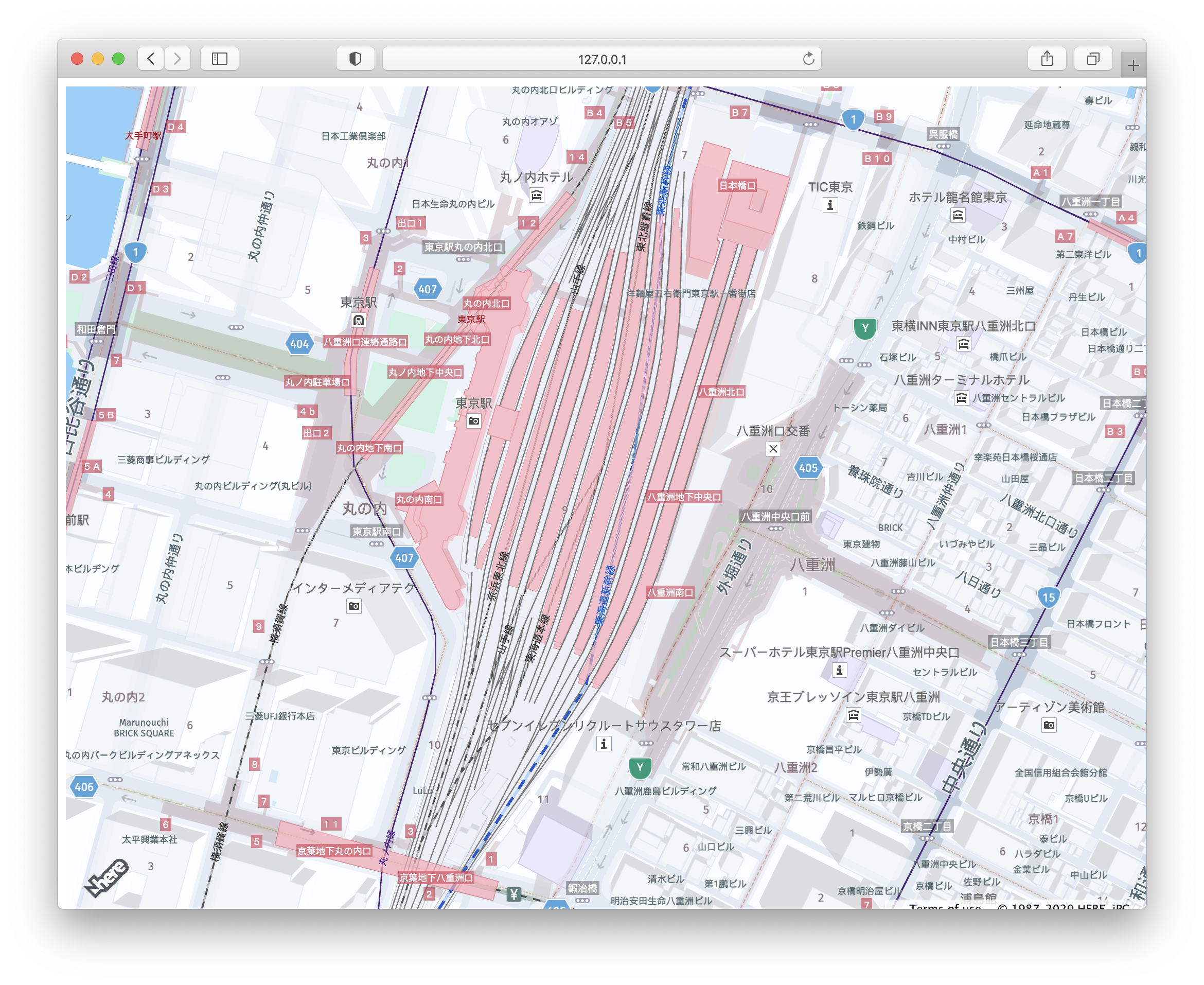
To learn more about the Japan map, see this tutorial.
Implement Geocoding for Japan
Autosuggest API
To search for an address or place, use the Autosuggest API to render the results. The Autosuggest API will fetch the results from the input field and provide autosuggestion when you start typing. Below is the endpoint:
https://autosuggest.search.hereapi.com/v1/autosuggest?at=35.6990575,139.7623009&q=${q}&limit=3&apikey=your_api_keyIn the above endpoint, use three input parameters to fetch the results. These are the mandatory parameters to fetch the results.
- at -- specify the coordinates(lat, long) of the address.
- q -- specify any name of the street or place.
- apikey -- use your API key to authenticate with backend services.
The response is as follows:
{
    "items": [
        {
          "title": "Q",
          "id": "here:xs1:place:fac_56914387",
          "resultType": "place",
          "address": {
              "label": "東京都新宿区Q"
          },
          "position": {
              "lat": 35.69179,
              "lng": 139.70143
          },
          "access": [
              {
                  "lat": 35.69179,
                  "lng": 139.70143
              }
          ],
          "distance": 5556,
          "highlights": {
              "title": [
                  {
                      "start": 0,
                      "end": 1
                  }
              ],
              "address": {
                  "label": [
                      {
                          "start": 6,
                          "end": 7
                      }
                  ]
              }
          }
        },
        {
            "title": "QTSコントラクト",
            "id": "here:xs1:place:gp_70088175",
            "resultType": "place",
            "address": {
                "label": "東京都新宿区西五軒町8-17QTSコントラクト"
            },
            "position": {
                "lat": 35.707,
                "lng": 139.73742
            },
            "access": [
                {
                    "lat": 35.707,
                    "lng": 139.73742
                }
            ],
            "distance": 2414,
            "categories": [
                {
                    "id": "700-7250-0136",
                    "name": "事業所",
                    "primary": true
                }
            ],
            "highlights": {
                "title": [],
                "address": {
                    "label": []
                }
            }
        },
        {
            "title": "キューサイ東京営業所",
            "id": "here:xs1:place:gp_69967985",
            "resultType": "place",
            "address": {
                "label": "東京都千代田区岩本町3丁目1-9キューサイ東京営業所"
            },
            "position": {
                "lat": 35.69464,
                "lng": 139.77595
            },
            "access": [
                {
                    "lat": 35.69464,
                    "lng": 139.77595
                }
            ],
            "distance": 1327,
            "categories": [
                {
                    "id": "600-6300-0064",
                    "name": "高級食品&飲み物専門店",
                    "primary": true
                }
            ],
            "highlights": {
                "title": [],
                "address": {
                    "label": []
                }
            }
        }
    ],
    "queryTerms": []
}
Add a Search Box to the Map
Once the HTML map is added, add the code for the search box to the map.
Copy the following HTML snippet inside the mapContainer div tag in the index.html after the script tag.
<div class="wrapper">
  <!-- Sidebar  -->
  <nav id="sidebar">
      <div class="sidebar-header">
          <h3>Geocode Autosuggest demo for Japan</h3>
      </div>
      <div class="px-3">
          <input type="search" class="form-control" name="search" id="search-box" onkeyup="GeoCodeAutoSuggest(this.value)" autocomplete="off">
      </div>
      <div class="autocomplete-dropdown">
          <ul id="autosuggest-items"></ul>
      </div>
  </nav>
  <!-- Page Content  -->
  <div id="content" style="position: relative;">
      <nav class="navbar navbar-expand-lg navbar-light bg-light mb-0" style="z-index: 3;">
          <div class="container-fluid">
              <button type="button" id="sidebarCollapse" class="btn btn-info">
                  <i class="fas fa-align-left"></i>
                  <span></span>
              </button>
          </div>
      </nav>
      <div style="width: 100%;height: 100%;overflow: hidden;position: fixed;top: 0;z-index: 2;" id="mapContainer"></div>
  </div>
</div>
Bootstrap is used to design the application. Copy the code below in the <head></head> section.
<!-- Bootstrap CSS CDN -->
<link rel="stylesheet" href="https://stackpath.bootstrapcdn.com/bootstrap/4.1.0/css/bootstrap.min.css" crossorigin="anonymous">
<!-- jQuery CDN - Slim version (=without AJAX) -->
<script src="https://code.jquery.com/jquery-3.3.1.slim.min.js" crossorigin="anonymous"></script>
<!-- Popper.JS -->
<script src="https://cdnjs.cloudflare.com/ajax/libs/popper.js/1.14.0/umd/popper.min.js" crossorigin="anonymous"></script>
<!-- Bootstrap JS -->
<script src="https://stackpath.bootstrapcdn.com/bootstrap/4.1.0/js/bootstrap.min.js" crossorigin="anonymous"></script>
<!-- Font Awesome JS -->
<script defer src="https://use.fontawesome.com/releases/v5.0.13/js/solid.js" crossorigin="anonymous"></script>
<script defer src="https://use.fontawesome.com/releases/v5.0.13/js/fontawesome.js" crossorigin="anonymous"></script>
After adding the code, above the output is similar to the image below.
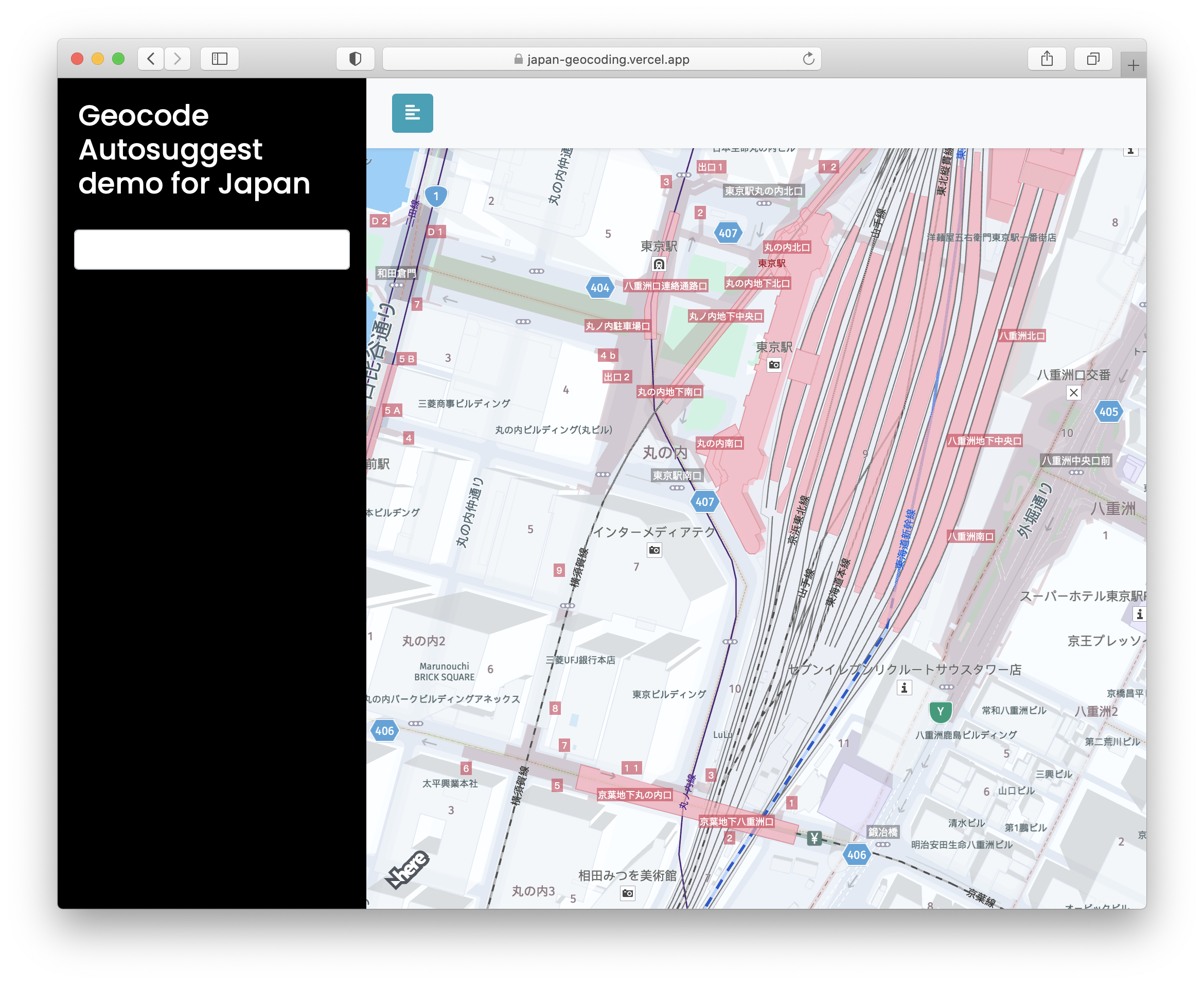
When the user starts typing in the search box, use the Autosuggest API to return address suggestions to get the results. You can select the place from the list to show the marker on the map. Click on the marker to see the selected address.
Add the following code in the index.html file in the <script> tag:
 const GeoCodeAutoSuggest = (q) => {
    if (!q || q == null) {
      alert("Invalid search key word..");
      return;
    }
    let url = `https://autosuggest.search.hereapi.com/v1/autosuggest?at=35.6990575,139.7623009&q=${q}&limit=3&apikey=${HERE-API-KEY}`;
    fetch(url)
      .then((res) => res.json())
      .then((data) => showAutoSuggestList(data));
    };

    /* Create a Marker on the map */
    const AddDefaultMakerToMap = (cordinates = null, textContent) => {
            if (cordinates == null) {
                return;
            }
            isMapAnimated = true
            var Marker = new H.map.Marker({ lat: cordinates.lat, lng: cordinates.lng });
            Marker.setData(textContent);
            var group = new H.map.Group();

            map.addObject(group);

            // add 'tap' event listener, that opens info bubble, to the group
            Marker.addEventListener('tap', function (evt) {
                // event target is the marker itself, group is a parent event target
                // for all objects that it contains
                var bubble = new H.ui.InfoBubble(evt.target.getGeometry(), {
                    // read custom data
                    content: evt.target.getData()
                });
                // show info bubble
                ui.addBubble(bubble);
            }, false);
            map.addObject(Marker);
            map.setCenter({ lat: cordinates.lat, lng: cordinates.lng }, isMapAnimated);

        };
    /* To render the results when users search for a place */
    const showAutoSuggestList = (data) => {
      map.removeObjects(map.getObjects()) // to remove the marker
      document.getElementById("autosuggest-items").innerHTML = "";
      data.items.map((item) => {
        let li = document.createElement("li");
        li.textContent = item.title;
        li.dataPosition = item.position;
        li.addEventListener("click", (e) => {
          document.getElementById("autosuggest-items").innerHTML = "";
          document.getElementById("search-box").value = e.target.innerHTML;
          AddDefaultMakerToMap(e.target.dataPosition);
        });
        document.getElementById("autosuggest-items").appendChild(li);
      });
    };
You have completed adding JavaScript code to search for an address or place.
Style the HERE Map
To style the map, add CSS.
@import "https://fonts.googleapis.com/css?family=Poppins:300,400,500,600,700";
body {
    font-family: 'Poppins', sans-serif;
    background: #fafafa;
}

p {
    font-family: 'Poppins', sans-serif;
    font-size: 1.1em;
    font-weight: 300;
    line-height: 1.7em;
    color: #999;
}

.wrapper {
    display: flex;
    width: 100%;
    align-items: stretch;
}

#sidebar {
    min-width: 300px;
    max-width: 400px;
    background: #000;
    color: #fff;
    transition: all 0.3s;
}

#sidebar.active {
    margin-left: -400px;
}

#sidebar .sidebar-header {
    padding: 20px;
    background: #000;
}

#sidebar ul.components {
    padding: 20px 0;
    border-bottom: 1px solid #47748b;
}

#content {
    width: 100%;
    min-height: 100vh;
    transition: all 0.3s;
}

@media (max-width: 768px) {
  #sidebar {
      margin-left: -400px;
  }
  #sidebar.active {
      margin-left: 0;
  }
  #sidebarCollapse span {
      display: none;
  }
}

#sidebar ul {
    background: #fff;
    margin: 0 1rem;
    border-radius: .25rem;
    list-style:none;
}

#sidebar ul li{
   color:#000;
   padding: 5px 10px;
}

#autosuggest-items li:focus,
#autosuggest-items li:hover {
  background-color: #148496;
  cursor: pointer;
}
ul {
    list-style: none;
    background-color: white;
    padding: 0px;
    margin-left: 29px;
    width: 368px;
}
Final Code
<!DOCTYPE html>
<html>
<head>
    <meta charset="utf-8">
    <meta name="viewport" content="width=device-width, initial-scale=1.0">
    <meta http-equiv="X-UA-Compatible" content="IE=edge">
    <title>Geocoding Application for Japan</title>
    <!-- Bootstrap CSS CDN -->
    <link rel="stylesheet" href="https://stackpath.bootstrapcdn.com/bootstrap/4.1.0/css/bootstrap.min.css" crossorigin="anonymous">
         <!-- jQuery CDN - Slim version (=without AJAX) -->
    <script src="https://code.jquery.com/jquery-3.3.1.slim.min.js" crossorigin="anonymous"></script>
    <!-- Popper.JS -->
    <script src="https://cdnjs.cloudflare.com/ajax/libs/popper.js/1.14.0/umd/popper.min.js" crossorigin="anonymous"></script>
    <!-- Bootstrap JS -->
    <script src="https://stackpath.bootstrapcdn.com/bootstrap/4.1.0/js/bootstrap.min.js" crossorigin="anonymous"></script>
    <!-- Our Custom CSS -->
    <link rel="stylesheet" type="text/css" href="https://js.api.here.com/v3/3.1/mapsjs-ui.css" />
    <script type="text/javascript" src="https://js.api.here.com/v3/3.1/mapsjs-core.js"></script>
    <script type="text/javascript" src="https://js.api.here.com/v3/3.1/mapsjs-service.js"></script>
    <script type="text/javascript" src="https://js.api.here.com/v3/3.1/mapsjs-ui.js"></script>
    <script type="text/javascript" src="https://js.api.here.com/v3/3.1/mapsjs-mapevents.js"></script>
    <!-- Font Awesome JS -->
    <script defer src="https://use.fontawesome.com/releases/v5.0.13/js/solid.js" crossorigin="anonymous"></script>
    <script defer src="https://use.fontawesome.com/releases/v5.0.13/js/fontawesome.js" crossorigin="anonymous"></script>
    <style>
      @import "https://fonts.googleapis.com/css?family=Poppins:300,400,500,600,700";
      body {
          font-family: 'Poppins', sans-serif;
          background: #fafafa;
      }

      p {
          font-family: 'Poppins', sans-serif;
          font-size: 1.1em;
          font-weight: 300;
          line-height: 1.7em;
          color: #999;
      }

      .wrapper {
          display: flex;
          width: 100%;
          align-items: stretch;
      }

      #sidebar {
          min-width: 300px;
          max-width: 400px;
          background: #000;
          color: #fff;
          transition: all 0.3s;
      }

      #sidebar.active {
          margin-left: -400px;
      }

      #sidebar .sidebar-header {
          padding: 20px;
          background: #000;
      }

      #sidebar ul.components {
          padding: 20px 0;
          border-bottom: 1px solid #47748b;
      }

      #content {
          width: 100%;
          min-height: 100vh;
          transition: all 0.3s;
      }

      @media (max-width: 768px) {
        #sidebar {
            margin-left: -400px;
        }
        #sidebar.active {
            margin-left: 0;
        }
        #sidebarCollapse span {
            display: none;
        }
      }

      #sidebar ul {
          background: #fff;
          margin: 0 1rem;
          border-radius: .25rem;
          list-style:none;
      }

      #sidebar ul li{
        color:#000;
        padding: 5px 10px;
      }

      #autosuggest-items li:focus,
      #autosuggest-items li:hover {
        background-color: #148496;
        cursor: pointer;
      }
      ul {
          list-style: none;
          background-color: white;
          padding: 0px;
          margin-left: 29px;
          width: 368px;
      }
    </style>
</head>

<body onclick="clearSearchResults()">
    <div class="wrapper">
        <!-- Sidebar  -->
        <nav id="sidebar">
            <div class="sidebar-header">
                <h3>Geocode Autosuggest demo for Japan</h3>
            </div>
            <div class="px-3">
                <input type="search" class="form-control" name="search" id="search-box" onkeyup="GeoCodeAutoSuggest(this.value)" autocomplete="off">
            </div>
            <div class="autocomplete-dropdown">
                <ul id="autosuggest-items"></ul>
            </div>
        </nav>

        <!-- Page Content  -->
        <div id="content" style="position: relative;">

            <nav class="navbar navbar-expand-lg navbar-light bg-light mb-0" style="z-index: 3;">
                <div class="container-fluid">

                    <button type="button" id="sidebarCollapse" class="btn btn-info">
                        <i class="fas fa-align-left"></i>
                        <span></span>
                    </button>
                </div>
            </nav>

            <div style="width: 100%;height: 100%;overflow: hidden;position: fixed;top: 0;z-index: 2;" id="mapContainer"></div>

        </div>
    </div>

    <script type="text/javascript">
        $(document).ready(function () {
            $('#sidebarCollapse').on('click', function () {
                $('#sidebar').toggleClass('active');
            });
        });
    </script>
    <script>
        var platform = new H.service.Platform({
            apikey: "cF1MCUW-j-ThP4xHja2a7Y_x_Bq6tg6Nz_2CFSR4IwI",
        });
        var defaultLayers = platform.createDefaultLayers();
        // configure an OMV service to use the `core` endpoint
        var omvService = platform.getOMVService({ path: "v2/vectortiles/core/mc" });
        var baseUrl = "https://js.api.here.com/v3/3.1/styles/omv/oslo/japan/";

        // create a Japan specific style
        var style = new H.map.Style(`${baseUrl}normal.day.yaml`, baseUrl);

        // instantiate provider and layer for the basemap
        var omvProvider = new H.service.omv.Provider(omvService, style);
        var omvlayer = new H.map.layer.TileLayer(omvProvider, { max: 22, dark: true });

        // instantiate (and display) a map:
        var map = new H.Map(document.getElementById("mapContainer"), omvlayer, {
            zoom: 17,
            center: { lat: 35.68026, lng: 139.76744 },
        });

        // add a resize listener to make sure that the map occupies the whole container
        window.addEventListener("resize", () => map.getViewPort().resize());

        // MapEvents enables the event system
        // Behavior implements default interactions for pan/zoom (also on mobile touch environments)
        var behavior = new H.mapevents.Behavior(new H.mapevents.MapEvents(map));
        var ui = H.ui.UI.createDefault(map, defaultLayers);
        //AddDefaultMakerToMap();
        const GeoCodeAutoSuggest = (q) => {
            if (!q || q == null) {
                return;
            }
            let url = `https://autosuggest.search.hereapi.com/v1/autosuggest?at=35.6990575,139.7623009&q=${q}&limit=3&apikey=your_api_key&lang=ja-JP`;
            fetch(url)
                .then((res) => res.json())
                .then((data) => showAutoSuggestList(data));
        };

        const AddDefaultMakerToMap = (cordinates = null, textContent) => {
            if (cordinates == null) {
                return;
            }
            isMapAnimated = true
            var Marker = new H.map.Marker({ lat: cordinates.lat, lng: cordinates.lng });
            Marker.setData(textContent);
            var group = new H.map.Group();

            map.addObject(group);

            // add 'tap' event listener, that opens info bubble, to the group
            Marker.addEventListener('tap', function (evt) {
                // event target is the marker itself, group is a parent event target
                // for all objects that it contains
                var bubble = new H.ui.InfoBubble(evt.target.getGeometry(), {
                    // read custom data
                    content: evt.target.getData()
                });
                // show info bubble
                ui.addBubble(bubble);
            }, false);
            map.addObject(Marker);
            map.setCenter({ lat: cordinates.lat, lng: cordinates.lng }, isMapAnimated);

        };

        const showAutoSuggestList = (data) => {
            map.removeObjects(map.getObjects())
            document.getElementById("autosuggest-items").innerHTML = "";
            data.items.map((item) => {
                let li = document.createElement("li");
                li.textContent = item.title;
                li.dataPosition = item.position;
                li.addEventListener("click", (e) => {
                    document.getElementById("autosuggest-items").innerHTML = "";
                    document.getElementById("search-box").value = e.target.innerHTML;
                    AddDefaultMakerToMap(e.target.dataPosition, e.target.textContent);
                });
                document.getElementById("autosuggest-items").appendChild(li);
            });
        };

        const clearSearchResults = () => {
            document.getElementById("autosuggest-items").innerHTML = "";
        }
    </script>
</body>
</html>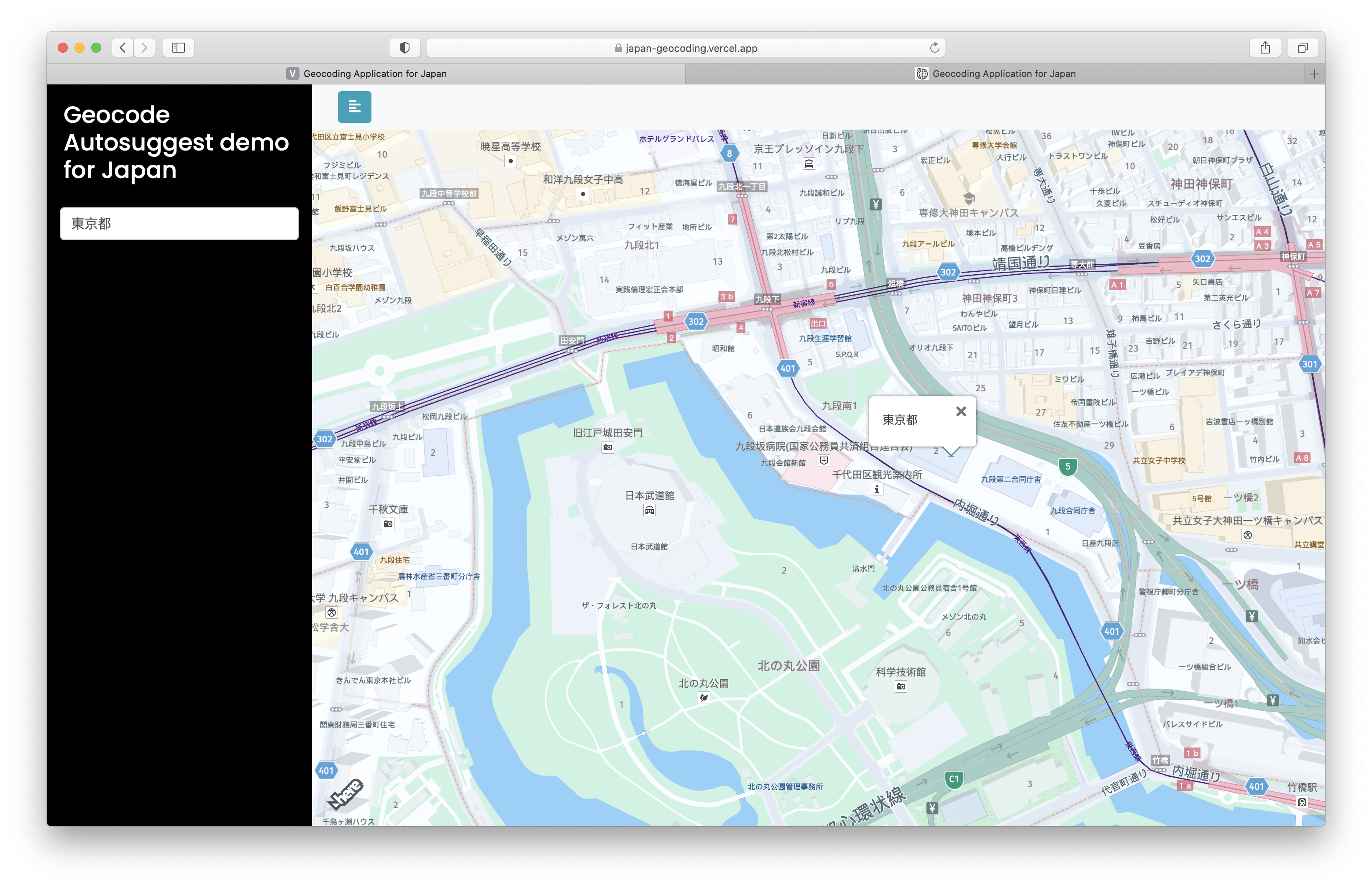
Conclusion
You have completed the tutorial. You learned how to use the Geocoding and Search API in an application to search for an address.
Next Steps
If you use Google Maps, review the following tutorials to transition to HERE Maps:
Updated last month