
Add a HERE map to your Vue.js application
Note
The 3.1 version of this API has been deprecated. For continued support and feature development, upgrade to the latest 3.2 version.
Time to complete: 15 min
Vue.js is a popular JavaScript framework, which is easy to integrate into existing projects. You can quickly build dynamic and scalable applications.
In this tutorial, you will create an interactive HERE Map, using Vue.js and HERE JavaScript API, that can be added to your existing Vue.js application.
Prerequisites
- Node.js installed
- Knowledge of JavaScript and HTML
- HERE Platform account
Roadmap
- Installing Vue CLI on your computer
- Create a project with Vue CLI
- Integrate HERE JavaScript API in Vue.js application
- Create a reusable map component
- Render the HereMap component
Installing Vue CLI in your computer
To create a Vue.js application, you must have Vue CLI installed. To install, open a terminal and run the following command:
npm install -g @vue/cliCreate a project with Vue CLI
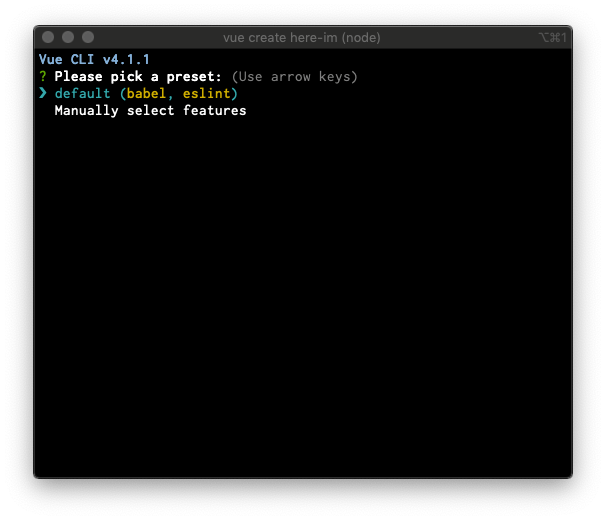
To create a Vue.js project, run the following command in your terminal:
vue create heremap-vueSelect the default option as shown, below:
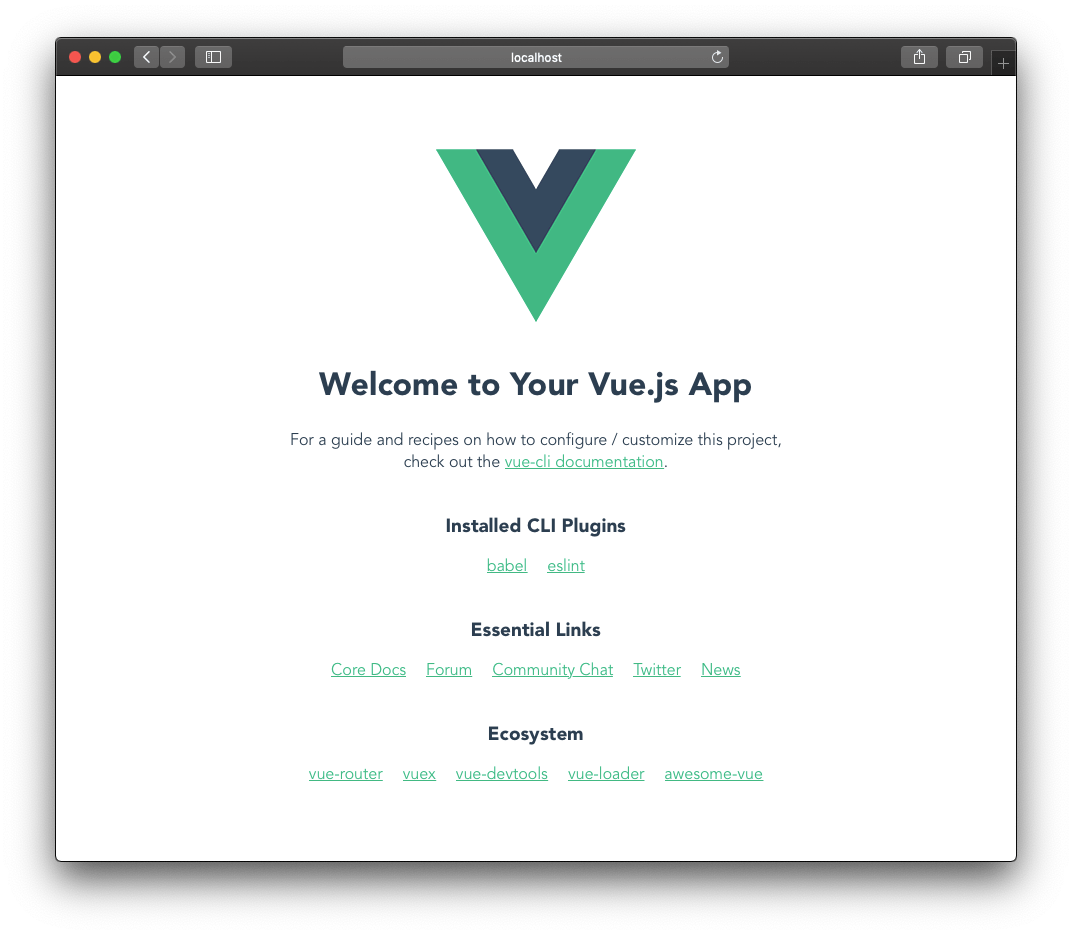
After installation, navigate to the root folder (heremap-vue) and run npm run serve in the terminal. A browser window will open automatically as shown, below:
Integrate HERE JavaScript API in Vue.js Application
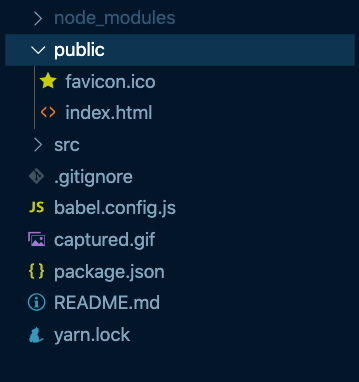
In your editor, open the heremap-vue folder that you created using the Vue CLI and edit the index.html file in the public folder as shown, below:
Add the following required libraries to the <head> section of the index.html file.
    <!-- Here assets start-->
    <script type="text/javascript" charset="UTF-8" src="https://js.api.here.com/v3/3.1/mapsjs-core.js"></script>
    <script type="text/javascript" charset="UTF-8" src="https://js.api.here.com/v3/3.1/mapsjs-service.js"></script>
    <script type="text/javascript" charset="UTF-8" src="https://js.api.here.com/v3/3.1/mapsjs-mapevents.js"></script>
    <script type="text/javascript" charset="UTF-8" src="https://js.api.here.com/v3/3.1/mapsjs-ui.js"></script>
    <script type="text/javascript" charset="UTF-8" src="https://js.api.here.com/v3/3.1/mapsjs-clustering.js"></script>
    <script type="text/javascript" charset="UTF-8" src="https://js.api.here.com/v3/3.1/mapsjs-data.js"></script>
    <link rel="stylesheet" type="text/css" href="https://js.api.here.com/v3/3.1/mapsjs-ui.css" />
    <!-- Here assets end-->
Create a reusable map component
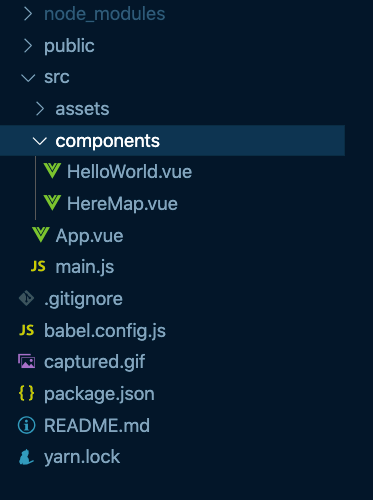
From the root folder, navigate to the src/components and create the following HereMap.vue file:
Add the following code to the HereMap.vue file.
<template>
  <div id="map">
  <!--In the following div the HERE Map will render-->
    <div id="mapContainer" style="height:600px;width:100%" ref="hereMap"></div>
  </div>
</template>

<script>
export default {
  name: "HereMap",
  props: {
    center: Object
    // center object { lat: 40.730610, lng: -73.935242 }
  },
  data() {
    return {
      platform: null,
      apikey: "{Replace this with a HERE API key}"
      // You can request an API key from platform.here.com
    };
  },
  async mounted() {
    // Initialize the platform object:
    const platform = new window.H.service.Platform({
      apikey: this.apikey
    });
    this.platform = platform;
    this.initializeHereMap();
  },
  methods: {
    initializeHereMap() { // rendering map

      const mapContainer = this.$refs.hereMap;
      const H = window.H;
      // Obtain the default map types from the platform object
      var maptypes = this.platform.createDefaultLayers();

      // Instantiate (and display) a map object:
      var map = new H.Map(mapContainer, maptypes.vector.normal.map, {
        zoom: 10,
        center: this.center
        // center object { lat: 40.730610, lng: -73.935242 }
      });

      addEventListener("resize", () => map.getViewPort().resize());

      // add behavior control
      new H.mapevents.Behavior(new H.mapevents.MapEvents(map));

      // add UI
      H.ui.UI.createDefault(map, maptypes);
      // End rendering the initial map
    }
  }
};
</script>

<style scoped>
#map {
  width: 60vw;
  min-width: 360px;
  text-align: center;
  margin: 5% auto;
  background-color: #ccc;
}
</style>
In the code above, the initialzeHereMap method is used to render the HERE map.
Render the HereMap Component
Render the HereMap component in the src/App.vue file.
<template>
  <div id="app">
    <HereMap  :center="center" />
  </div>
</template>

<script>
import HereMap from './components/HereMap'
export default {
  name: 'app',
  components: {
    HereMap
    // Remove the HelloWorld.vue
  },
  data() {
return {
    // we are this as prop to the HereMap component
  center:{
    lat: 40.730610,
    lng: -73.935242
    }
}

  }
}
</script>

<style>
#app {
  font-family: 'Avenir', Helvetica, Arial, sans-serif;
  -webkit-font-smoothing: antialiased;
  -moz-osx-font-smoothing: grayscale;
  text-align: center;
  color: #2c3e50;
  margin-top: 60px;
}
</style>
As shown in the code, above, the HereMap component is imported and added to the template section to display the HERE Map.
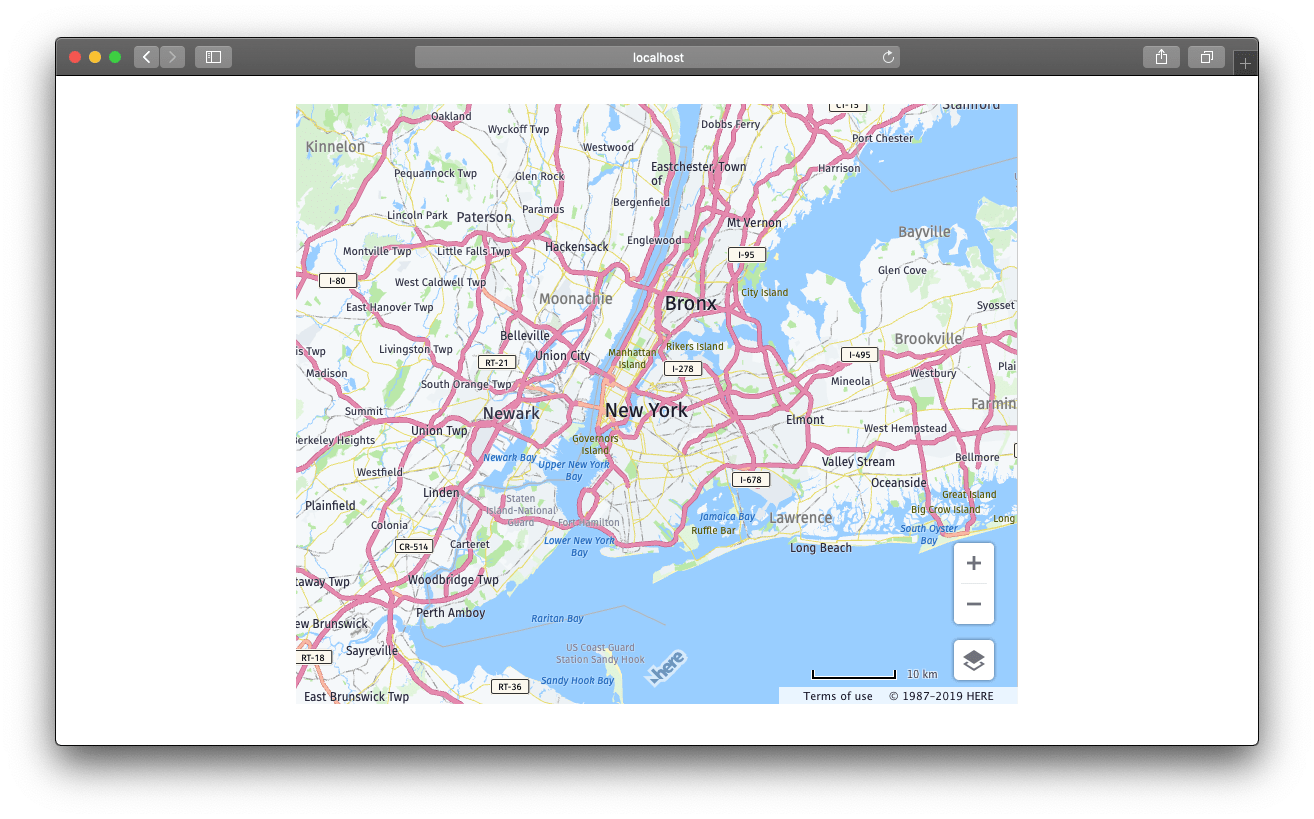
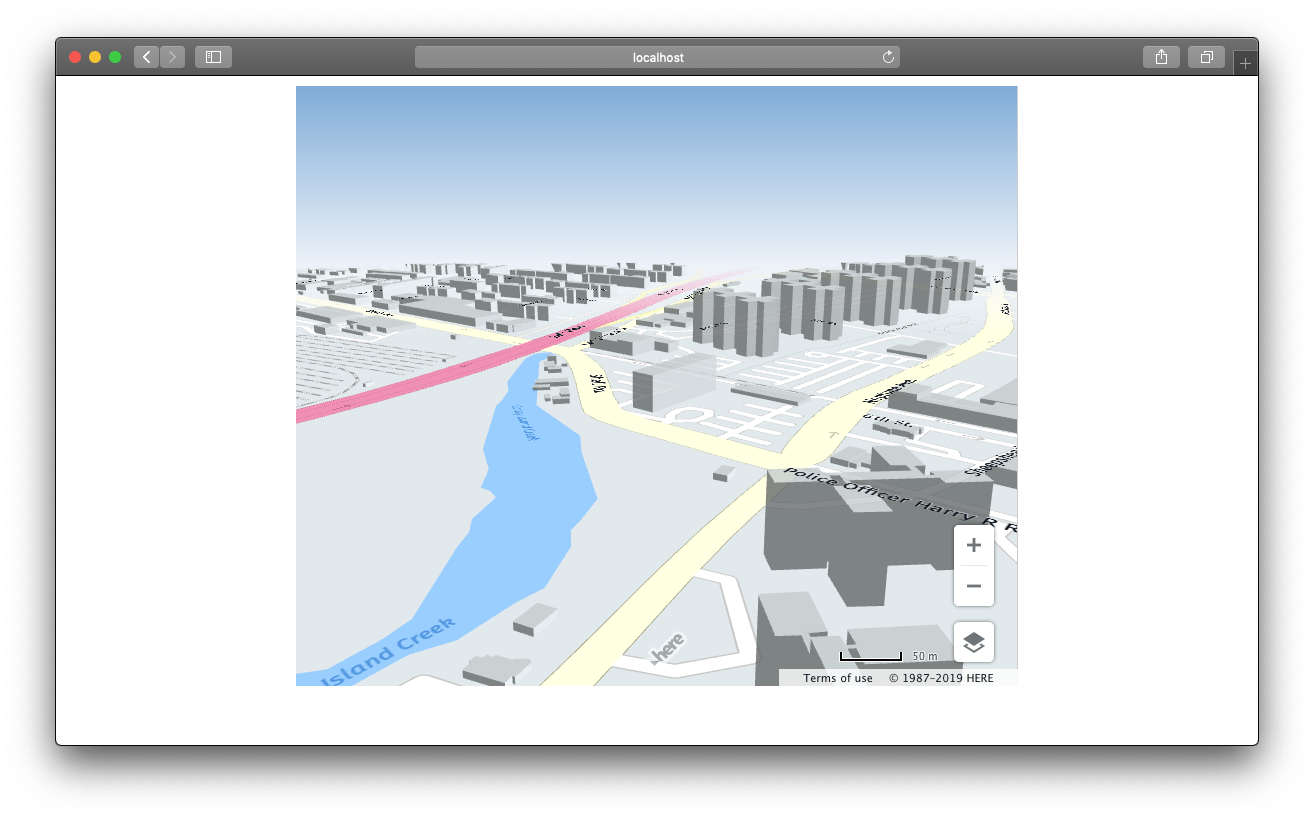
You can zoom to get the 3d view
Conclusion
You've successfully created an interactive map with Vue.js using HERE JavaScript API. If desired, you can integrate the component into your existing Vue.js applications.
You've learned how to:
- Create a project with the Vue CLI
- Create a reusable map component inside your Vue.js application
- How to add HERE Map to your Vue.js application
Next Steps
Explore other tutorials:
Updated last month