
Display maps with Japan data
Note
The 3.1 version of this API has been deprecated. For continued support and feature development, upgrade to the latest 3.2 version.
This section shows how to start using the Maps API for JavaScript together with the HERE Vector Tile API to display Japan-specific data in the corresponding map style.
Note
The following tutorial uses HARP as the underlying map engine. The Japan map style in the WebGL engine is no longer being maintained. Therefore, to ensure you continue to benefit from the latest enhancements to the Japan map style, HERE recommends migrating to the HARP engine.
Prerequisites
Register for a HERE account. For more information, see Get started.
Tutorial objectives
By following this tutorial you accomplish the following tasks:
- Configure the HERE Maps API for JavaScript to call the
"core"layer of the Vector Tile API. - Fetch the map style that works best with the Japan data.
Load the API code libraries
The following snippet provides the complete HTML code, together with the <head> element that loads the required harp, core, and service modules and ensures optimum performance on mobile devices.
<!DOCTYPE html>
<html>
  <head>
    <script type="text/javascript" src="https://js.api.here.com/v3/3.1/mapsjs-core.js"></script>
    <script type="text/javascript" src="https://js.api.here.com/v3/3.1/mapsjs-harp.js"></script>
    <script type="text/javascript" src="https://js.api.here.com/v3/3.1/mapsjs-service.js"></script>
    <script type="text/javascript" src="https://js.api.here.com/v3/3.1/mapsjs-mapevents.js"></script>
  </head>
  <body>
    <div style="width: 1000px; height: 480px" id="mapContainer"></div>
    <script>
    <!-- Your JavaScript code goes here -->
    </script>
  </body>
</html>
Initialize communication with back-end services
Within the <script> element of your HTML file, initialize the Platform object by passing your HERE API key, as shown in the following example:
const platform = new H.service.Platform({
  apikey: "YOUR_HERE_APIKEY",
});
Configure the map settings
Use the HARP engine to instantiate a vector map of Japan by following these steps:
-
Specify the rendering engine as
HARP. -
Configure the OMV service to access vector tiles from the
coreendpoint. -
Set a Japan-specific map style using a Tokyo day-time theme (
tko.normal.day). -
Create a provider that manages vector tiles based on the configured service and the Japan-specific style.
-
Set the map language to Japanese (
"ja"). -
Create a tile layer using the provider.
-
Enable the
'all systems'mode of the'public transit'style's feature to display all the Japanese public transit systems.Note
The transit layer is designed to provide detailed information about the locally available public transportation systems, such as buses, trains, subways, and other modes of public transit. For more information, see Optional Content in the HERE Vector Tile API Developer Guide.
For example, see the following snippet:
// Specify the engine type
const engineType = H.Map.EngineType["HARP"];
// Configure an OMV service to use the `core` endpoint
const omvService = platform.getOMVService({
  path: "v2/vectortiles/core/mc",
  // Request the transit vector layer
  queryParams: {
    content: "default,transit",
  },
});
const baseUrl = `https://js.api.here.com/v3/3.1/styles/harp/oslo`;
const style = new H.map.render.harp.Style(`${baseUrl}/tko.normal.day.json`);
const omvProvider = new H.service.omv.Provider(omvService, style, {
  engineType,
  lg: "ja",
});
const omvlayer = new H.map.layer.TileLayer(omvProvider, { max: 22 });

// Set feature/mode to show PT in Japan
style.addEventListener(
  "change",
  (evt) => {
    const style = evt.target;
    const features = style.getEnabledFeatures();
    features.find((f) => f.feature === "public transit").mode = "all systems";
    style.setEnabledFeatures([...features]);
  },
  { once: true }
);
Initialize the map
Instantiate an H.Map object by specifying the following settings:
- The map container element
- The layer created in the previous section
- The zoom level at which to display the map
- The geographic coordinates of the point on which to center the map
- The engine type that you declared in the previous section
For example, see the following snippet:
var map = new H.Map(document.getElementById("mapContainer"), omvlayer, {
  zoom: 16,
  center: { lat: 35.68026, lng: 139.76744 },
  engineType,
});
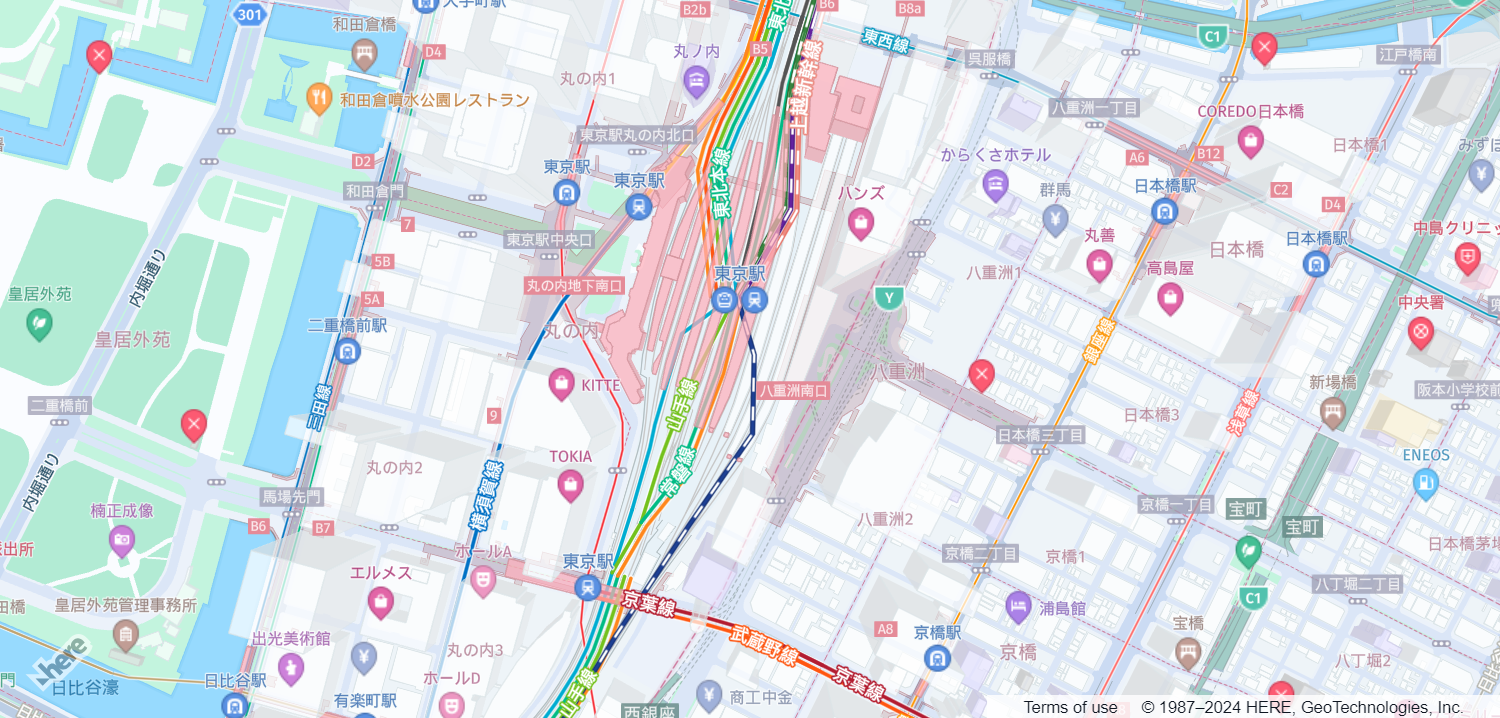
The resulting implementation creates the following non-interactive map:
Enable basic map interaction
Add interactive behavior to the map and ensure it dynamically resizes with the browser window by including the following code snippet:
// Implement default interactions for pan/zoom (also on mobile touch environments)
const behavior = new H.mapevents.Behavior(new H.mapevents.MapEvents(map));

// Enable dynamic resizing of the map, based on the current size of the enclosing container
window.addEventListener("resize", () => map.getViewPort().resize());
You can now scroll, pan, and zoom on the map.
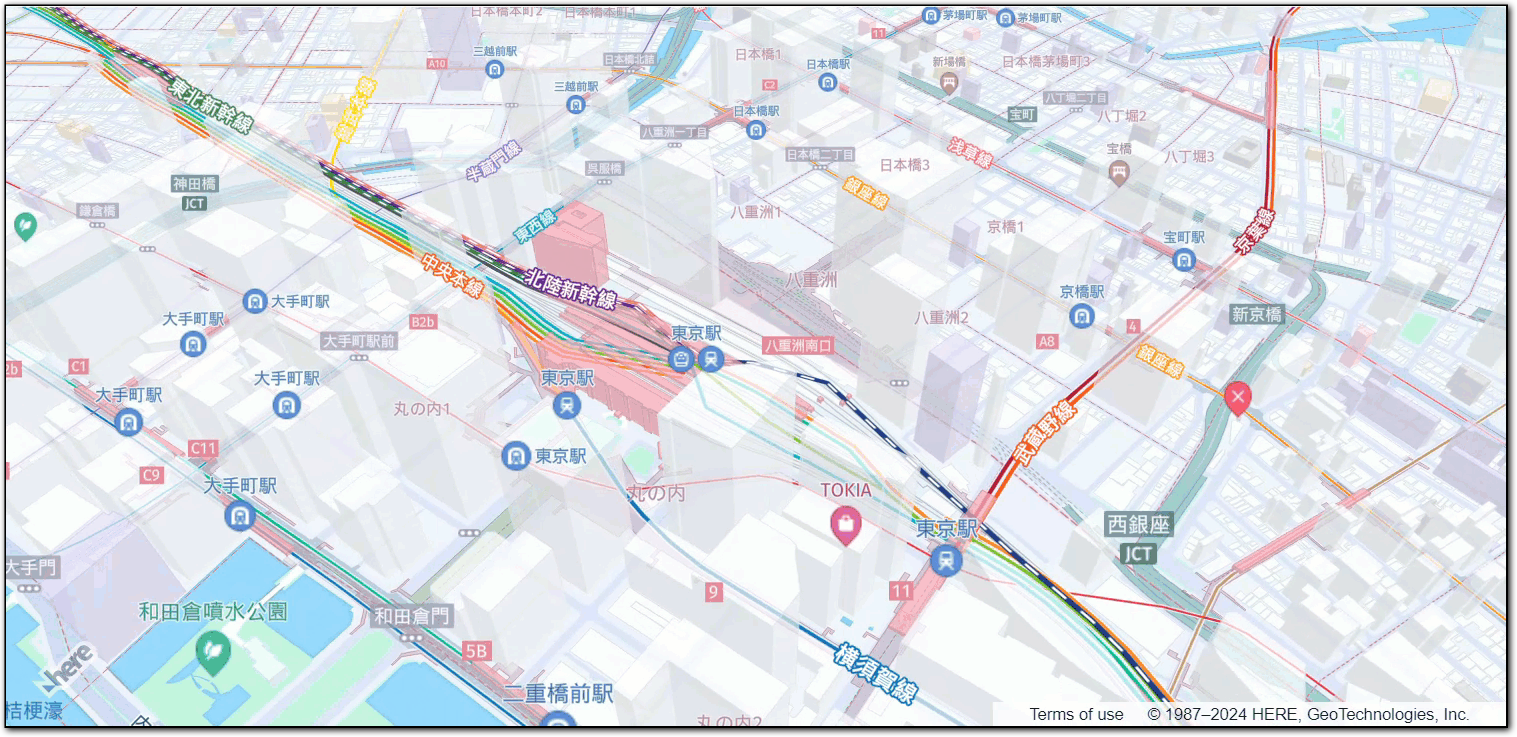
The following figure displays the interactive map tailored for the Japanese audience, created by following this tutorial:
Next steps
- To explore the design and other features of the Maps API for JavaScript, see the API Reference.
- For more information about the HERE Vector Tile API, see the corresponding documentation set.