
How to sample address data using JavaScript and HERE Geocoder
Note
The 3.1 version of this API has been deprecated. For continued support and feature development, upgrade to the latest 3.2 version.
This tutorial demonstrates how to use JavaScript and the HERE Geocoder to build an application that receives a list of addresses and responds with a confidence score for each address. The HERE Geocoding and Search API generates a score ranging from 0-100%, with 100% indicating an exact match. In this tutorial, the application uses the Scoring feature to select and return the highest scoring address.
This tutorial uses the Geocoding and Search API.
To see a working example of the tutorial, click Sample address.
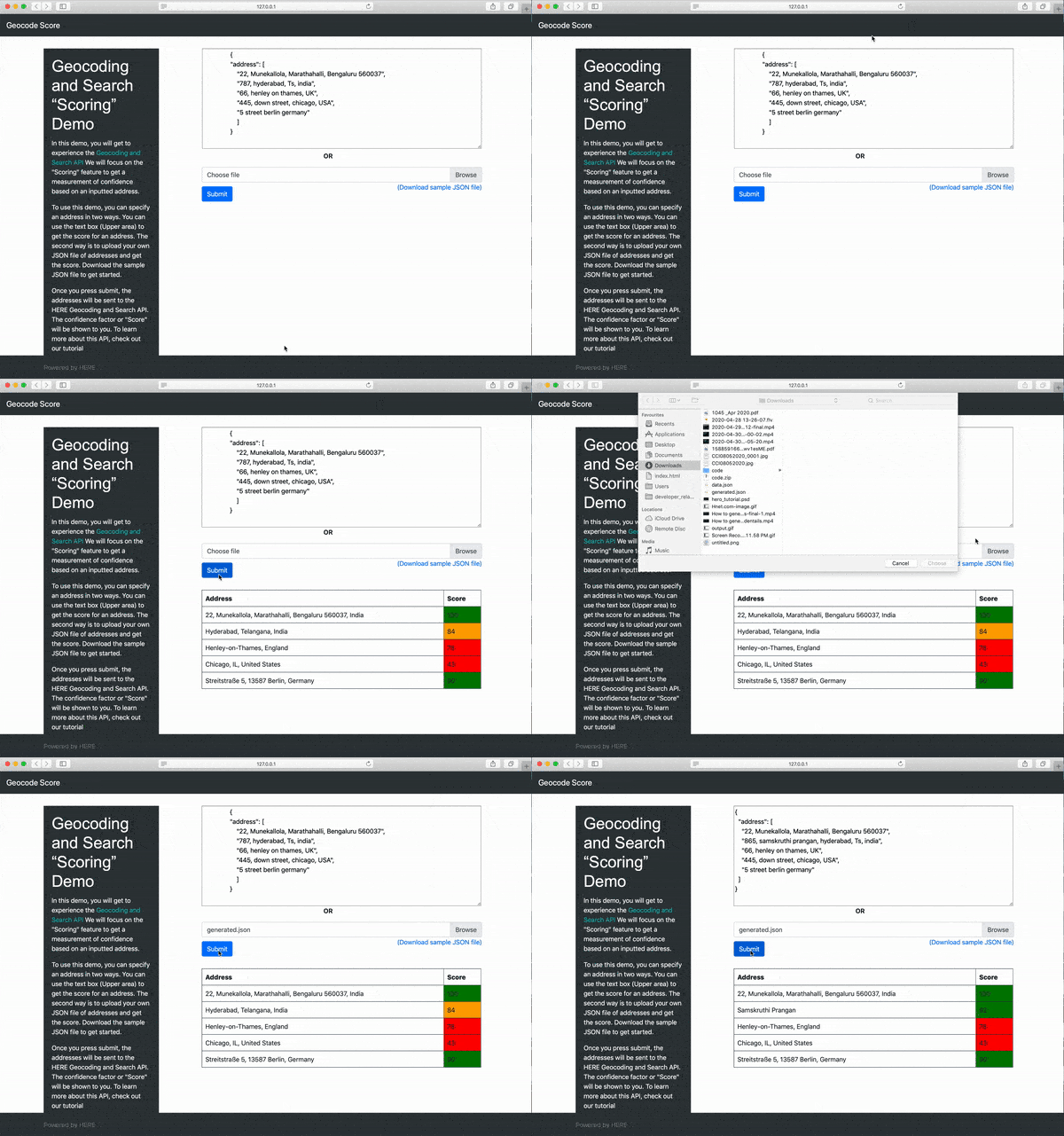
The following screen capture shows the completed application:
Prerequisites
- Experience working with JavaScript and REST APIs
- A HERE platform account:
- If your company has already established a HERE platform organization, contact your organization admin who can invite you to join the organization.
- If your company hasn’t established a HERE platform organization yet, you can get started for free. For more information, see the HERE platform pricing.
- API key. If you have a HERE account, you can use your personal API key for this tutorial. For more information on HERE API keys, see Get started.
Score FAQ
What is a score range?
A score ranges from 0 to 100. Less than 80 is considered a bad score.
What is a good score?
A good score is greater than 90, which indicates that the searched result is 90% accurate. The result may contain minor errors.
What is a low score?
A score less than 80 may require further investigation of the original address or contain multiple potential addresses.
How can I increase the value of a score?
You can increase the value of a score by providing a more complete address. If you know the house number, street, city, zip code and country, for example, you can possibly increase the score.
Implement the Geocoding and Search API to get an address score
The Geocoding and Search API returns scoring information for each address. This can be used by an end-user application to accept or reject the results.
Sample request:
https://geocode.search.hereapi.com/v1/geocode?apikey=your-api-key&q=5+Rue+Daunou%2C+75000+Paris%2C+FranceSample response:
{
  "items": [
    {
      "title": "5 Rue Daunou, 75002 Paris, France",
      "id": "here:af:streetsection:bI4Le6cyA.1mlQyLunYpjC:CggIBCCi-9SPARABGgE1KGQ",
      "resultType": "houseNumber",
      "houseNumberType": "PA",
      "address": {
        "label": "5 Rue Daunou, 75002 Paris, France",
        "countryCode": "FRA",
        "countryName": "France",
        "state": "Île-de-France",
        "county": "Paris",
        "city": "Paris",
        "district": "2e Arrondissement",
        "street": "Rue Daunou",
        "postalCode": "75002",
        "houseNumber": "5"
      },
      "position": {
        "lat": 48.86926,
        "lng": 2.3321
      },
      "access": [
        {
          "lat": 48.86931,
          "lng": 2.33215
        }
      ],
      "mapView": {
        "west": 2.33073,
        "south": 48.86836,
        "east": 2.33347,
        "north": 48.87016
      },
      "scoring": {
        "queryScore": 0.97,
        "fieldScore": {
          "country": 1,
          "city": 1,
          "streets": [
            1
          ],
          "houseNumber": 1,
          "postalCode": 0.82
        }
      }
    }
  ]
}
In the response, above each address contains a scoring JSON object with a queryScore and fieldScore for each of the received address fields.
-
Set up your project
To get started, create an
index.htmlfile, then copy and paste the following code.<!DOCTYPE html> <html lang="en"> <head> <title>Geocode Score</title> <meta charset="utf-8" /> <meta name="viewport" content="width=device-width, initial-scale=1" /> <link rel="stylesheet" href="https://maxcdn.bootstrapcdn.com/bootstrap/4.4.1/css/bootstrap.min.css"/> <script src="https://ajax.googleapis.com/ajax/libs/jquery/3.4.1/jquery.min.js"></script> <script src="https://cdnjs.cloudflare.com/ajax/libs/popper.js/1.16.0/umd/popper.min.js"></script> <script src="https://maxcdn.bootstrapcdn.com/bootstrap/4.4.1/js/bootstrap.min.js"></script> <link rel="stylesheet" href="style.css"/> </head> <body> <nav class="navbar navbar-expand-sm bg-dark navbar-dark"> <a class="navbar-brand" href="#">Geocode Score</a> <button class="navbar-toggler" type="button" data-toggle="collapse" data-target="#collapsibleNavbar" > <span class="navbar-toggler-icon"></span> </button> </nav> <div class="container" style="margin-top: 30px;"> <div class="row"> <div class="col-sm-4"> <div style=" width: 18rem; color: #fff !important; margin-bottom: 1rem !important; background-color: #343a40 !important; " > <div class="card-body" style="flex: 1 1 auto; padding: 1.25rem; box-sizing: border-box;" > <h1 class="card-title" style=" margin-bottom: 0.75rem; font-family: Arial, Helvetica, sans-serif; " > Geocoding and Search “Scoring” Demo </h1> <p style=" font-family: -apple-system, BlinkMacSystemFont, 'Segoe UI', Roboto, 'Helvetica Neue', Arial, 'Noto Sans', sans-serif, 'Apple Color Emoji', 'Segoe UI Emoji', 'Segoe UI Symbol', 'Noto Color Emoji'; font-size: 1rem; font-weight: 400; line-height: 1.5; " > In this demo, you will get to experience the <a href="/geocoding-and-search/docs/geocode" target="_blank" style="color: #01b6b2;" >Geocoding and Search API</a > We will focus on the "Scoring" feature to get a measurement of confidence based on an inputted address. </p> <p style=" font-family: -apple-system, BlinkMacSystemFont, 'Segoe UI', Roboto, 'Helvetica Neue', Arial, 'Noto Sans', sans-serif, 'Apple Color Emoji', 'Segoe UI Emoji', 'Segoe UI Symbol', 'Noto Color Emoji'; font-size: 1rem; font-weight: 400; line-height: 1.5; " > To use this demo, you can specify an address in two ways. You can use the text box (Upper area) to get the score for an address. The second way is to upload your own JSON file of addresses and get the score. Download the sample JSON file to get started. </p> <p style=" font-family: -apple-system, BlinkMacSystemFont, 'Segoe UI', Roboto, 'Helvetica Neue', Arial, 'Noto Sans', sans-serif, 'Apple Color Emoji', 'Segoe UI Emoji', 'Segoe UI Symbol', 'Noto Color Emoji'; font-size: 1rem; font-weight: 400; line-height: 1.5; " > Once you press submit, the addresses will be sent to the HERE Geocoding and Search API. The confidence factor or "Score" will be shown to you. To learn more about this API, check out our tutorial </p> </div> </div> <hr class="d-sm-none" /> </div> <div class="col-sm-8"> <div> <div class="col text-center"> <textarea id="result" rows="5" cols="8" width="350px"> { "address": [ "22, Munekallola, Marathahalli, Bengaluru 560037", "787, hyderabad, Ts, india", "66, henley on thames, UK", "445, down street, chicago, USA", "5 street berlin germany" ] } </textarea> </div> <div class="col"></div> <div class="col-md-6 offset-5"> <p><b>OR</b></p> </div> <div class="col"> <div class="custom-file"> <input type="file" id="selectFiles" class="custom-file-input" /> <label class="custom-file-label" for="customFile" >Choose file</label > <a href="generated.json" download style="float: right;" >(Download sample JSON file)</a > </div> </div> <div class="col" style="margin-top: 10px;"> <button id="submit" class="btn btn-primary"> Submit </button> </div> <div class="col"> <textarea style="display: none;" id="result"></textarea> <div id="myData" style="margin-top: 30px;"></div> </div> </div> </div> </div> </div> <footer class="footer"> <div class="container"> <span class="text-muted">Powered by HERE</span> </div> </footer> <script src="main.js"></script> </body> </html> -
Implement Geocoding
The following code processes the user input and then queries the Geocoding and Search API to fetch the matching address:
Create a
main.jsfile and copy and paste the following code://Display selected files $(".custom-file-input").on("change", function () { var fileName = $(this).val().split("\").pop(); $(this) .siblings(".custom-file-label") .addClass("selected") .html(fileName); }); window.apikey = `HERE-API-KEY`; //replace your api key here document.getElementById("submit").onclick = async function () { var textvalue = document.getElementById("result").value; var files = document.getElementById("selectFiles").files; if (files.length > 0) { try { var fr = new FileReader(); fr.onload = (e) => { let result = JSON.parse(e.target.result); document.getElementById("result").value = e.target.result; getData(result.address); }; fr.readAsText(files.item(0)); } catch (e) { console.log(e); alert("Invalid JSON"); } } else { try { let result = JSON.parse(textvalue); document.getElementById("result").value = textvalue; getData(result.address); } catch (e) { console.log(e); alert("Invalid JSON"); } } }; // passing an address array to fetch the matching address's score function getData(addressArray) { if (addressArray.length > 10) { alert("Cannot process more than 10 addresses"); return false; } let array = Promise.all( addressArray.map((addres) => fetch( `https://geocode.search.hereapi.com/v1/geocode?apiKey=${window.apikey}&q=${addres}&lang=en-US` ) .then((response) => response.json()) .then((data) => data) ) ) .then(function (data) { appendData(data); }) .catch((e) => console.log(e)); } //Display data in tabular format function appendData(data) { var mainContainer = document.getElementById("myData"); document.getElementById("submit").style.display = "block"; document.getElementById("result").style.display = "block"; //Create a HTML Table element. var table = document.createElement("TABLE"); table.border = "1"; table.class = "table"; //Get the count of columns. var columnCount = data.length; //Add the header row. var row = table.insertRow(-1); var headerCell = document.createElement("TH"); var headerCell1 = document.createElement("TH"); headerCell.innerHTML = "<b>Address</b>"; headerCell1.innerHTML = "<b>Score</b>"; row.appendChild(headerCell); row.appendChild(headerCell1); for (var i = 0; i < data.length; i++) { var color = ``; let score = Number( data[i]["items"][0]["scoring"]["queryScore"] * 100 ); if (score >= 90) { color = "green"; } if (score >= 80 && score < 90) { color = "orange"; } if (score < 80) { color = "red"; } row = table.insertRow(-1); var cell = row.insertCell(-1); var cell1 = row.insertCell(-1); cell.innerHTML = data[i]["items"][0]["title"]; cell1.style.backgroundColor = color; cell1.innerHTML = Math.round( Number(data[i]["items"][0]["scoring"]["queryScore"] * 100) ); } var dvTable = document.getElementById("myData"); dvTable.innerHTML = ""; dvTable.appendChild(table); } -
Add styling
For styling, use Bootstrap library. Also, create a
style.cssfile and copy and paste the following code..footer { position: absolute; bottom: 0; width: 100%; height: 60px; line-height: 60px; background-color: #343a40 !important; } table { background-color: white; border: 0.5px; border-radius: 9px; width: 698px; } td, th { padding: 8px; } textarea { width: 698px; height: 250px; }
Final HTML Code
See, above for .js and .css code.
<!DOCTYPE html>
<html lang="en">
  <head>
    <title>Geocode Score</title>
    <meta charset="utf-8" />
    <meta name="viewport" content="width=device-width, initial-scale=1" />
    <link rel="stylesheet" href="https://maxcdn.bootstrapcdn.com/bootstrap/4.4.1/css/bootstrap.min.css"/>
    <script src="https://ajax.googleapis.com/ajax/libs/jquery/3.4.1/jquery.min.js"></script>
    <script src="https://cdnjs.cloudflare.com/ajax/libs/popper.js/1.16.0/umd/popper.min.js"></script>
    <script src="https://maxcdn.bootstrapcdn.com/bootstrap/4.4.1/js/bootstrap.min.js"></script>
    <link rel="stylesheet" href="style.css"/>
  </head>
  <body>
    <nav class="navbar navbar-expand-sm bg-dark navbar-dark">
      <a class="navbar-brand" href="#">Geocode Score</a>
      <button
        class="navbar-toggler"
        type="button"
        data-toggle="collapse"
        data-target="#collapsibleNavbar"
      >
        <span class="navbar-toggler-icon"></span>
      </button>
    </nav>

    <div class="container" style="margin-top: 30px;">
      <div class="row">
        <div class="col-sm-4">
          <div
            style="
              width: 18rem;
              color: #fff !important;
              margin-bottom: 1rem !important;
              background-color: #343a40 !important;
            "
          >
            <div
              class="card-body"
              style="flex: 1 1 auto; padding: 1.25rem; box-sizing: border-box;"
            >
              <h1
                class="card-title"
                style="
                  margin-bottom: 0.75rem;
                  font-family: Arial, Helvetica, sans-serif;
                "
              >
                Geocoding and Search “Scoring” Demo
              </h1>
              <p
                style="
                  font-family: -apple-system, BlinkMacSystemFont, 'Segoe UI',
                    Roboto, 'Helvetica Neue', Arial, 'Noto Sans', sans-serif,
                    'Apple Color Emoji', 'Segoe UI Emoji', 'Segoe UI Symbol',
                    'Noto Color Emoji';
                  font-size: 1rem;
                  font-weight: 400;
                  line-height: 1.5;
                "
              >
                In this demo, you will get to experience the
                <a
                  href="/geocoding-and-search/docs/geocode"
                  target="_blank"
                  style="color: #01b6b2;"
                  >Geocoding and Search API</a
                >
                We will focus on the "Scoring" feature to get a measurement of confidence based on an inputted address.
              </p>
              <p
                style="
                  font-family: -apple-system, BlinkMacSystemFont, 'Segoe UI',
                    Roboto, 'Helvetica Neue', Arial, 'Noto Sans', sans-serif,
                    'Apple Color Emoji', 'Segoe UI Emoji', 'Segoe UI Symbol',
                    'Noto Color Emoji';
                  font-size: 1rem;
                  font-weight: 400;
                  line-height: 1.5;
                "
              >
              To use this demo, you can specify an address in two ways.
              You can use the text box (Upper area) to get the score for an address.
              The second way is to upload your own JSON file of addresses and get the score.
              Download the sample JSON file to get started.
              </p>
              <p
                style="
                  font-family: -apple-system, BlinkMacSystemFont, 'Segoe UI',
                    Roboto, 'Helvetica Neue', Arial, 'Noto Sans', sans-serif,
                    'Apple Color Emoji', 'Segoe UI Emoji', 'Segoe UI Symbol',
                    'Noto Color Emoji';
                  font-size: 1rem;
                  font-weight: 400;
                  line-height: 1.5;
                "
              >
              Once you press submit, the addresses will be sent to the HERE Geocoding and Search API.
              The confidence factor or "Score" will be shown to you.
              To learn more about this API, check out our tutorial
              </p>
            </div>
          </div>
          <hr class="d-sm-none" />
        </div>
        <div class="col-sm-8">
          <div>
            <div class="col text-center">
              <textarea id="result" rows="5" cols="8" width="350px">
                {
                "address": [
                    "22, Munekallola, Marathahalli, Bengaluru 560037",
                    "787, hyderabad, Ts, india",
                    "66, henley on thames, UK",
                    "445, down street, chicago, USA",
                    "5 street berlin germany"
                    ]
                }
                </textarea>
            </div>
            <div class="col"></div>

            <div class="col-md-6 offset-5">
              <p><b>OR</b></p>
            </div>

            <div class="col">
              <div class="custom-file">
                <input type="file" id="selectFiles" class="custom-file-input" />
                <label class="custom-file-label" for="customFile"
                  >Choose file</label
                >
                <a href="generated.json" download style="float: right;"
                  >(Download sample JSON file)</a
                >
              </div>
            </div>

            <div class="col" style="margin-top: 10px;">
              <button id="submit" class="btn btn-primary">
                Submit
              </button>
            </div>

            <div class="col">
              <textarea style="display: none;" id="result"></textarea>
              <div id="myData" style="margin-top: 30px;"></div>
            </div>
          </div>
        </div>
      </div>
    </div>

    <footer class="footer">
      <div class="container">
        <span class="text-muted">Powered by HERE</span>
      </div>
    </footer>
    <script src="main.js"></script>
  </body>
</html>Conclusion
You completed an application that searches for an address and responds with a confidence score.