
How to use linked values
Some attributes or data conditions are linked to other attributes or conditions. Linked items will share the same attribute value and stay always in sync when editing them. The linking in the base styles is set up by expert cartographers to help in keep the map consistent and help in editing the map style.
Linked items can be recognized via a link icon  next to their input.
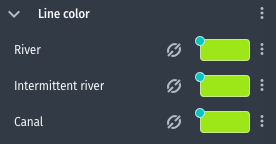
Linked data conditions
Unlinking
Clicking on the link icon opens a modal dialog which lists the linked items and allows to unlink the selected item.
In the example below the Intermittent River conditions in the Water > Lines layer is linked to the River and Canal conditions within the same layer and the 0m condition under the Fill color attribute of the Water > Polygons layer.
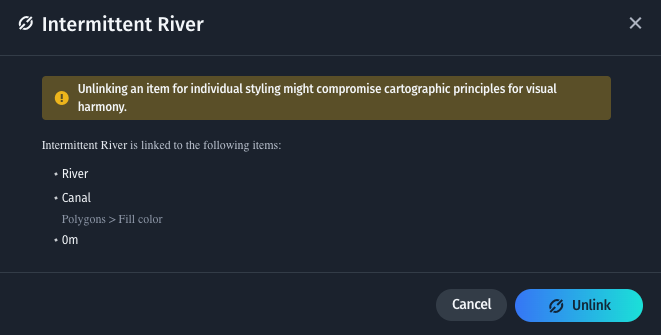
Linked item modal dialog
Unlinked items are not kept in sync with their linked items any more. Editing their value will not influence the style value of the items that the item was originally linked to. This is indicated by the broken link icon. The remaining item will still stay linked.
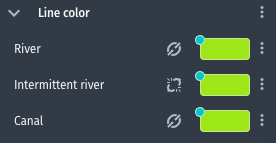
Unlinked items can be styled independently
The link can be reinstated via the modal dialog that opens when clicking on the broken link item of an unlinked item.
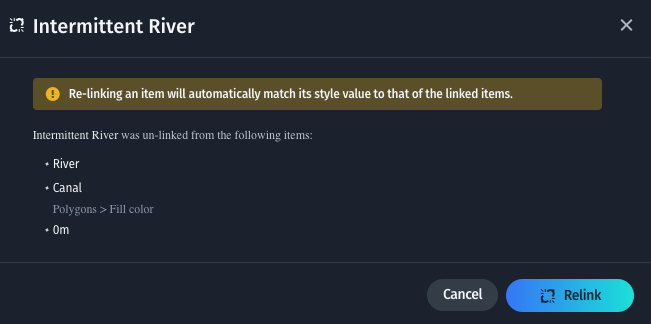
Linked item modal dialog
Updated last month