

How to view a partitions list
The Data Inspector allows you to inspect partitions and partition data in two ways:
- On the map: With the Map View panel, you can view only those partitions that can be decoded
and/or visualized.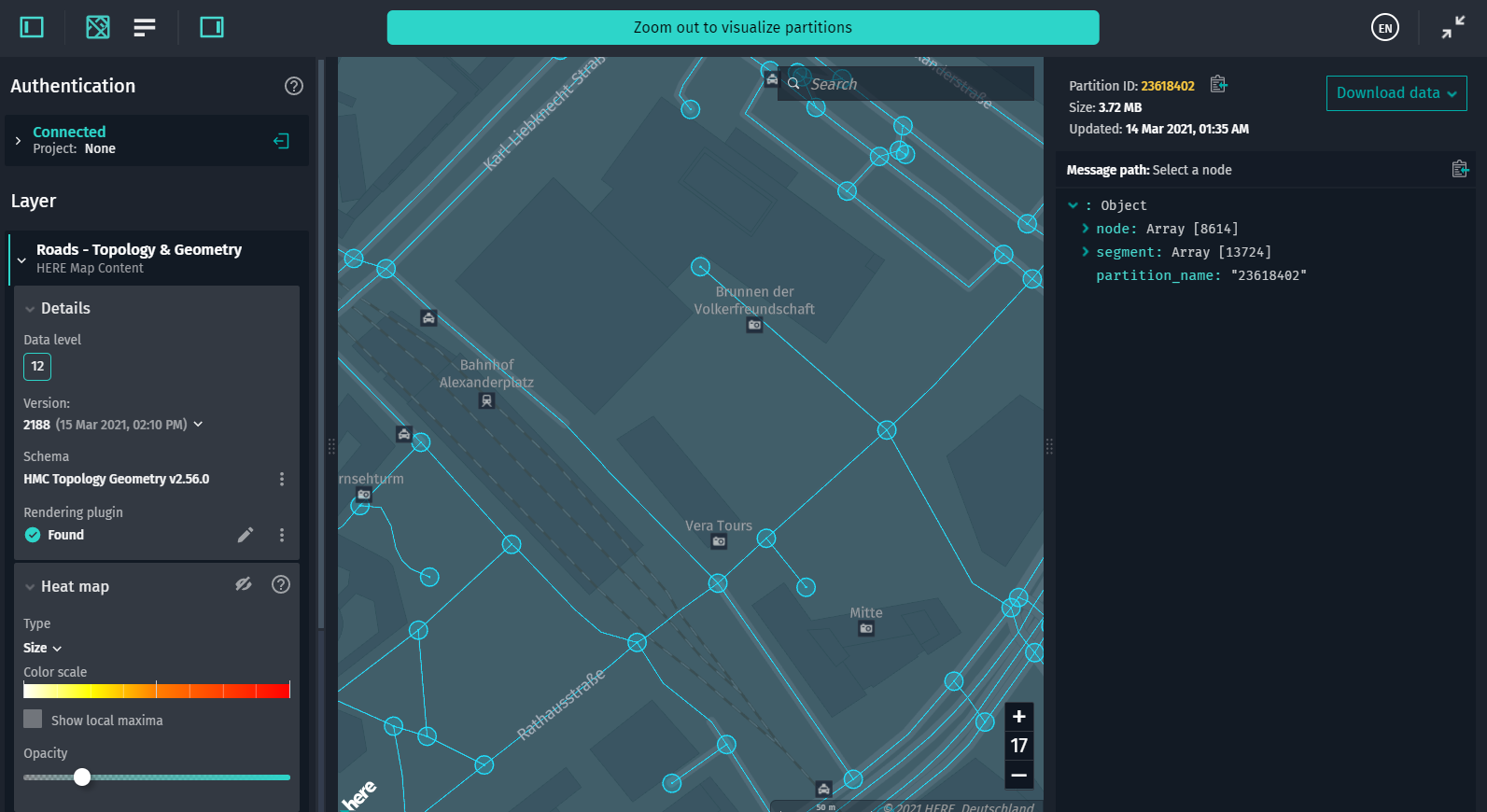
- In the list: With the Partitions List panel, you can view a paginated list of any layer partitions,
including those that can be neither decoded (no data schema bundled with the layer) nor visualized (no rendering plugin, generic partitions.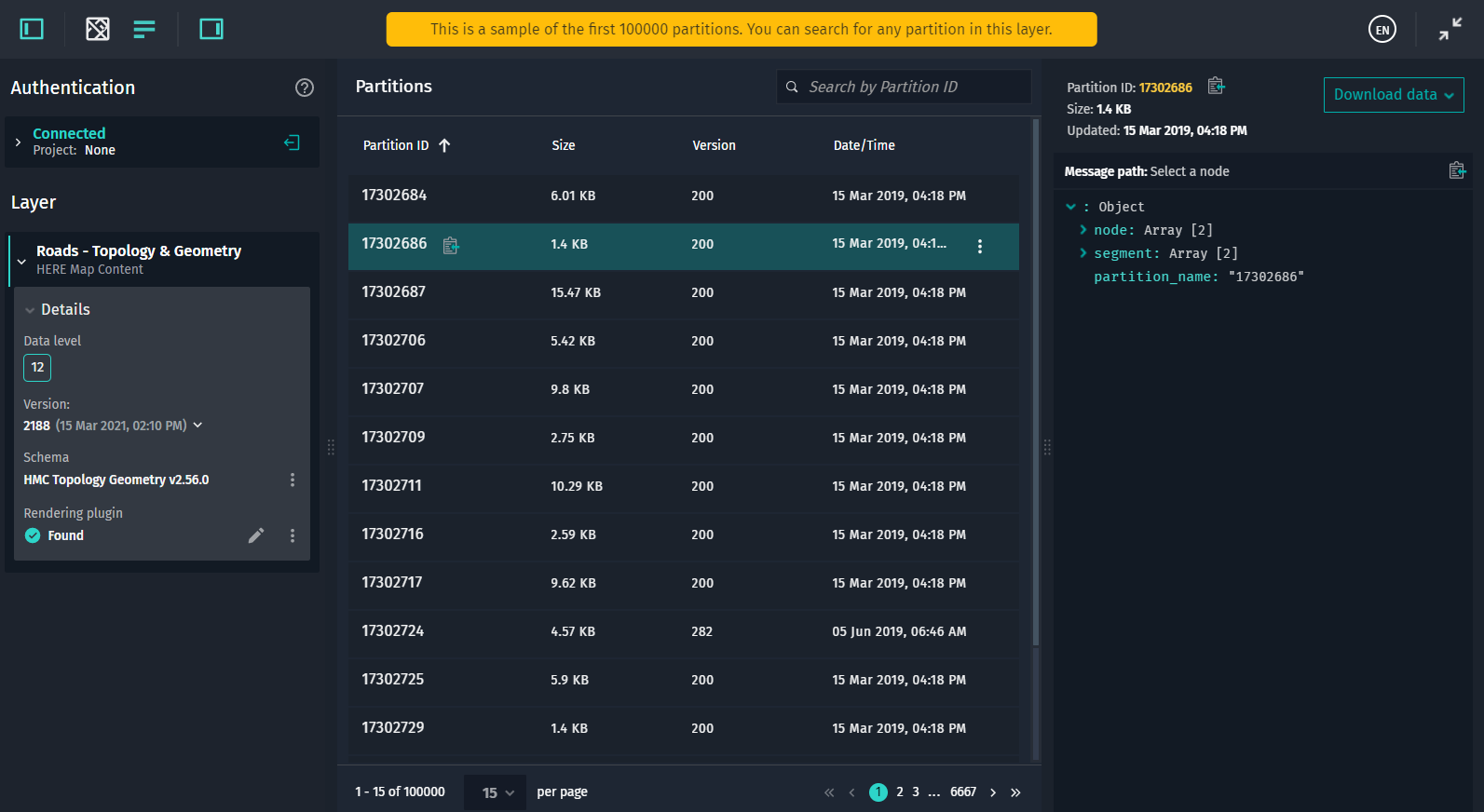 If a partition is decodable/visualizable, you can quickly display this partition on the map.
To switch between the Map View and the Partitions List, in the toolbar, click either  or
or  . Note that the button is disabled for those layers whose data cannot be decoded/visualized.
View partition information
Depending on the layer type, for every partition in the list, the following information is shown:
- Partition ID (click
 to copy the ID)
 - Uncompressed partition size (versioned layers only)
- Version of the catalog in which the partition was updated (versioned layers only)
- Partition update date and time (versioned layers only)
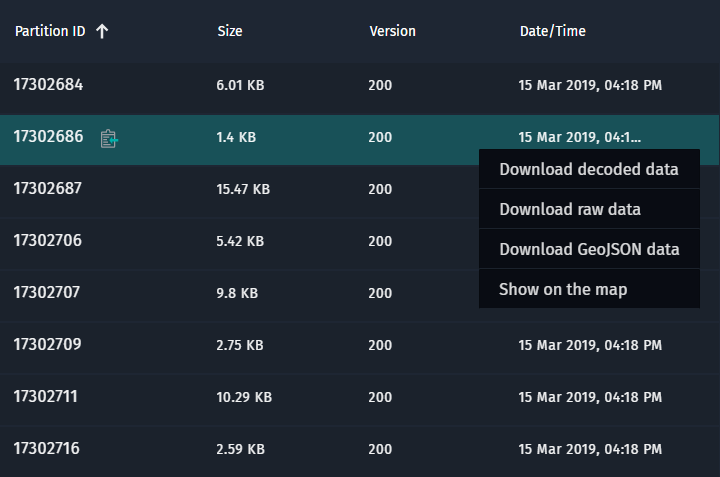 With the
  menu, you can do the following:
- Download raw partition data.
- Download decoded partition data (if the valid schema is available).
- Download GeoJSON data (translated with a valid rendering plugin).
- Show the selected partition on the map.
Note that if a partition contains expired data, you cannot download it.
Search for partitions
Due to performance considerations, the Partitions List panel shows a limited number of partitions - 100,000 for versioned layers and 10,000 for volatile layers. Nevertheless, you can still find any partition by its ID in the layer with no limitation. 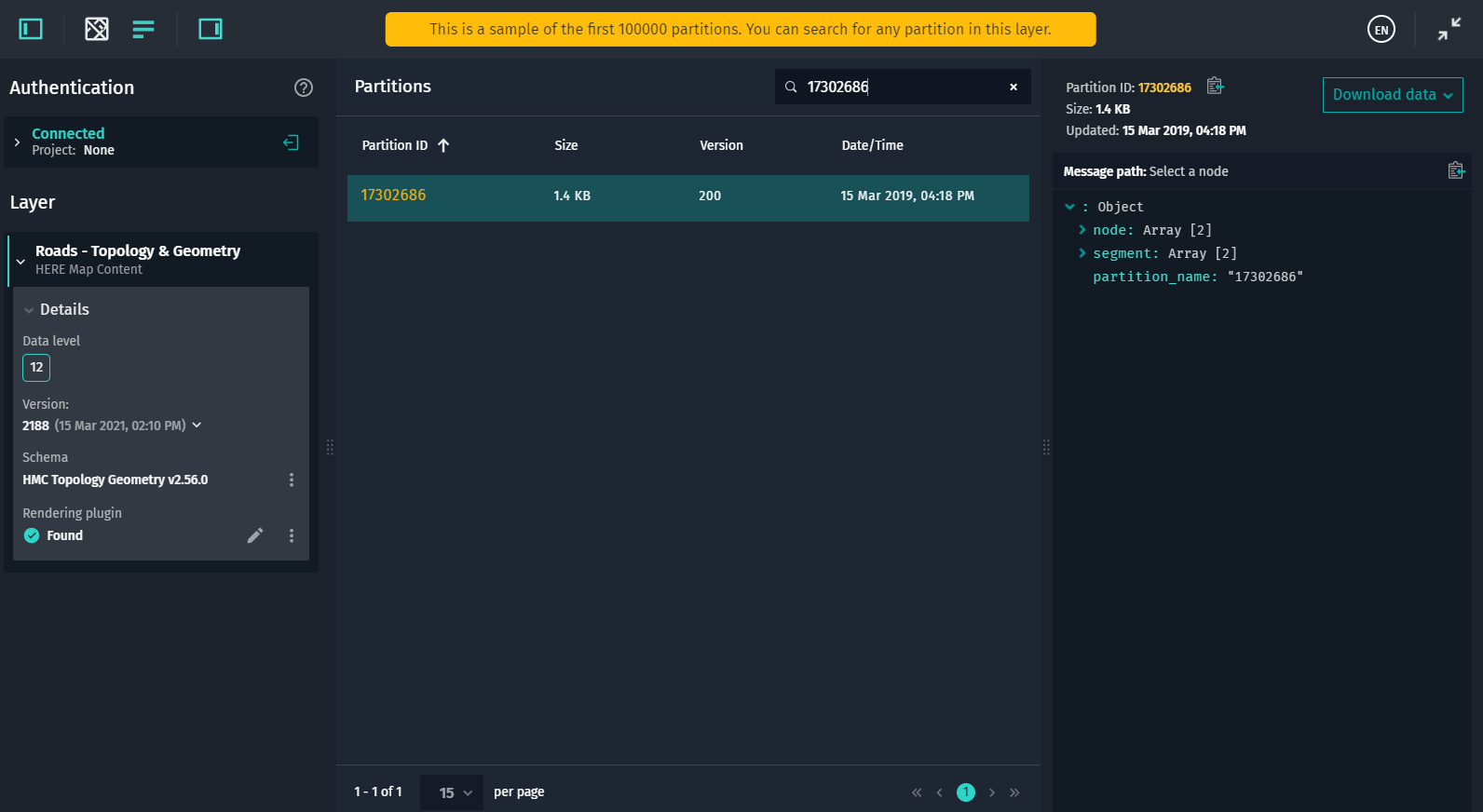 Changelog API reference
Updated 7 months ago