

How to embed Data Inspector into HTML
The Data Inspector Library provides a set of components packed into the Data Inspector bundle that allow you to embed the Data Inspector into a pure HTML+JavaScript single-page application without compilation and additional installations. Hosted on the HERE platform, the bundle is built with the Data Inspector Library components.
To view a working implementation of the HTML-embedded Data Inspector functionality, see the HTML+JS single page application example application in the Data Inspector Library examples.
Build a sample web app
The instructions below explain how you can easily integrate a Data Inspector bundle into your web page.
To integrate the Data Inspector bundle into your web page, you need the following:
- Stable Internet connection
- Valid platform credentials
Data Inspectorbundle- Simple HTML web page hosted and running on a local or remote web server
three.min.jsfile, a copy of the Three.JS library, that can be
downloaded from GitHub TheData Inspectorbundle is distributed as:js/data-inspector-bundle.js: TheData Inspectorbundlejs/data-inspector-decoder-bundle.js: The decoders bundlejs/vendors-bundle.js: The bundle with third-party dependenciesjs/monaco-editor/editor.worker.bundle.js: The bundle with the
Monaco Editor (required for the GeoJSON Plugin Editor)js/monaco-editor/ts.worker.bundle.js: The bundle with the Monaco Editor (required for the GeoJSON
Plugin Editor)resources: the folder containing the necessary images and fontsLICENSEHERE_NOTICE: The file with license notices of third-party dependenciesREADME.md
To build a sample web app:
-
Create an empty folder for your web app.
-
Download
theData Inspectorbundle archive from the portal. -
Unzip the contents of the bundle's root folder into the document root.
-
Download the Three.js
library archive. The Data Inspector Library uses Three.js version 0.127. -
Copy the
three.min.jsfile into yourjsfolder.As a result, your website file structure should look like below:
resources/ ... resources files ... js/ monaco-editor/ editor.worker.bundle.js ts.worker.bundle.js three.min.js vendors-bundle.js data-inspector-bundle.js data-inspector-decoder-bundle.js -
Create an
index.htmlfile in the root directory. At the end of the page's<body>
tag, include the following:<script src="./js/three.min.js"></script> <script src="./js/vendors-bundle.js"></script> <script src="./js/data-inspector-bundle.js"></script>
:
All Data Inspector Library components are exposed through the
DIobject.
-
Create a container element for
DataInspector(the top-level component of the
Data Inspector Library) and place it before the script tags:<div id="map-here"></div> -
Add fonts to
<head>:<link rel="preconnect" href="https://fonts.googleapis.com"> <link rel="preconnect" href="https://fonts.gstatic.com" crossorigin> <link rel="prefetch" href="https://fonts.googleapis.com/css2?family=Fira+Mono:wght@400;500;700&display=swap" as="style"> <link rel="prefetch" href="https://fonts.googleapis.com/css2?family=Fira+Sans:wght@300;400;500;700&display=swap" as="style"> <link href="https://fonts.googleapis.com/css2?family=Fira+Mono:wght@400;500;700&display=swap" rel="stylesheet"> <link href="https://fonts.googleapis.com/css2?family=Fira+Sans:wght@300;400;500;700&display=swap" rel="stylesheet"> -
Add styles to
<head>:<style> body { margin: 0; } #map-here { box-sizing: border-box; width: 100vw; height: 100vh; padding: 5vh 5vw; } #map-here.full-screen { padding: 0; width: 100%; height: 100%; } </style> -
Create an instance of
DataInspector:<script type="text/javascript"> var basicConfig = lookupServiceEnvironment: DI.LookupEnvironment.HERE, mapView: { decoder: { url: "./js/data-inspector-decoder-bundle.js" }, theme: "./resources/normal.reduced.night.json" }, monacoEditorWorkersBasePath: "./js/monaco-editor", widgets: { authForm: { accessKeyForm: true, localAuthForm: true } }, toolbar: { languageSelector: true } }; var customDataRenderingConfig = { enableCoverage: true, enableFiltering: true, enableInfoPanel: true, enableExtendedCoverage: true, interactiveDataSource: { hrn:hrn:here:data::olp-here:rib-2, layer: "topology-geometry" } }; new DI.DataInspector( basicConfig, document.getElementById("map-here"), customDataRenderingConfig ); </script> -
To see how it works, copy and paste the full sample HTML code below into the
index.htmlfile we created in the
previous steps:<head> <meta charset="utf-8"> <title>Data Inspector</title> <link rel="preconnect" href="https://fonts.googleapis.com"> <link rel="preconnect" href="https://fonts.gstatic.com" crossorigin> <link rel="prefetch" href="https://fonts.googleapis.com/css2?family=Fira+Mono:wght@400;500;700&display=swap" as="style"> <link rel="prefetch" href="https://fonts.googleapis.com/css2?family=Fira+Sans:wght@300;400;500;700&display=swap" as="style"> <link href="https://fonts.googleapis.com/css2?family=Fira+Mono:wght@400;500;700&display=swap" rel="stylesheet"> <link href="https://fonts.googleapis.com/css2?family=Fira+Sans:wght@300;400;500;700&display=swap" rel="stylesheet"> <style> body { margin: 0; } #map-here { box-sizing: border-box; width: 100vw; height: 100vh; padding: 5vh 5vw; } #map-here.full-screen { padding: 0; width: 100%; height: 100%; } </style> </head> <body> <div id="map-here"></div> <script src="./js/three.min.js"></script> <script src="./js/vendors-bundle.js"></script> <script src="./js/data-inspector-bundle.js"></script> <script type="text/javascript"> var basicConfig = lookupServiceEnvironment: DI.LookupEnvironment.HERE, mapView: { decoder: { url: "./js/data-inspector-decoder-bundle.js" }, theme: "./resources/normal.reduced.night.json" }, monacoEditorWorkersBasePath: "./js/monaco-editor", widgets: { authForm: { accessKeyForm: true, localAuthForm: true } }, toolbar: { languageSelector: true } }; var customDataRenderingConfig = { enableCoverage: true, enableFiltering: true, enableInfoPanel: true, enableExtendedCoverage: true, interactiveDataSource: { hrn:hrn:here:data::olp-here:rib-2, layer: "topology-geometry" } }; new DI.DataInspector( basicConfig, document.getElementById("map-here"), customDataRenderingConfig ); </script> </body> -
To run the app on a local web server, install a stable version of NodeJS.
-
Serve the contents of the folder using a local web server:
npx serve -
Use the address in the console output to run the web app locally. Usually, it is
http://localhost:5000. -
Use your platform credentials to connect to the platform:
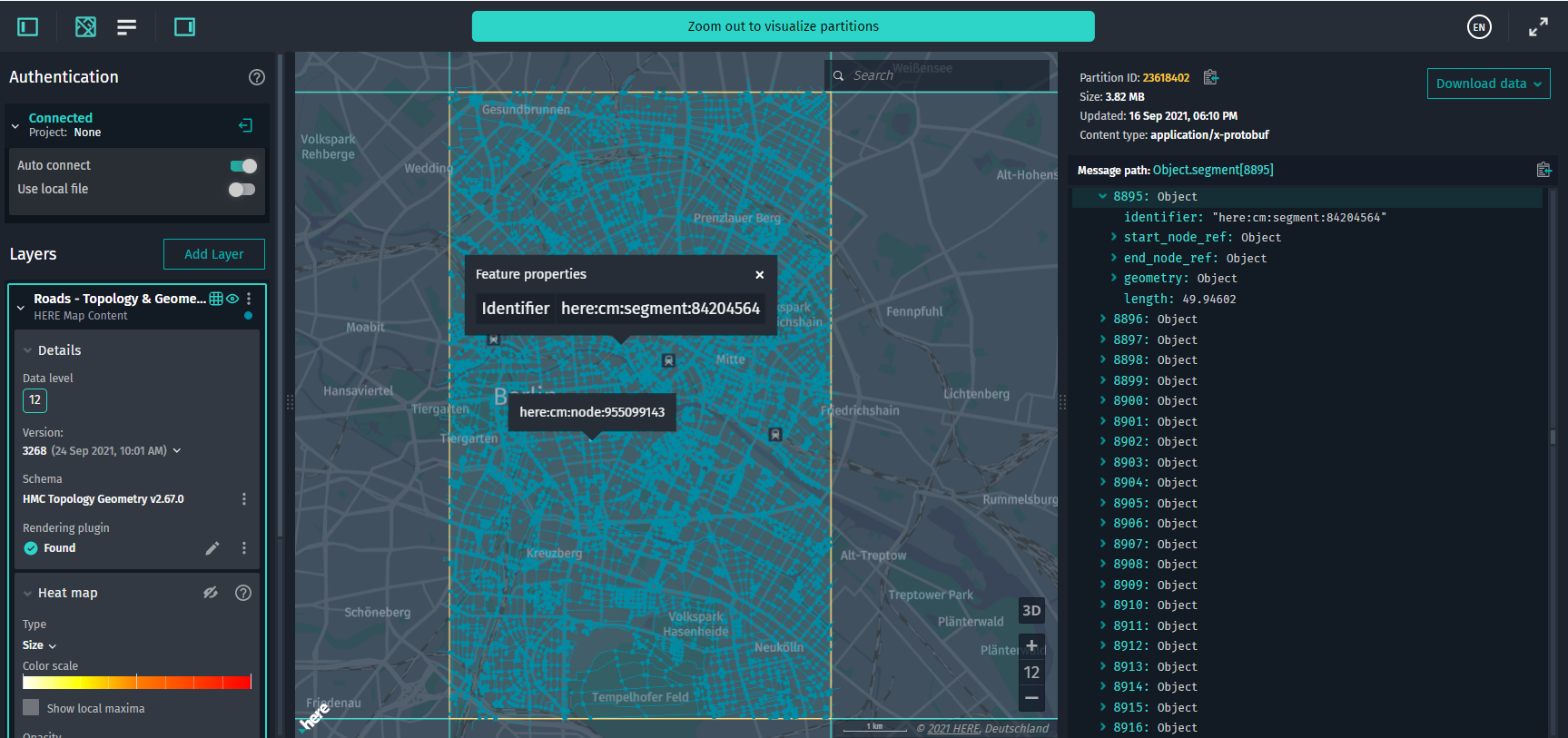
As a result, you should see the following:
For this sample code to run properly, you should do the following:
- Verify the names of all included
.jsfiles. - Specify the HERE Resource Name (hrn) of your platform catalog and the name of the layer (
layer) you want to visualize. - Connect to the platform using your
client access token or platform credentials (thehere.access.key.id+here.access.key.secretpair).
License
All license conditions and limitations are described in the LICENSE.md and HERE_NOTICE.md files distributed with the Data Inspector JavaScript files. Changelog API reference
Updated 7 months ago