

Troubleshooting Flink
The following section provides guidance on identifying and resolving common problems encountered when working with Apache Flink data processing pipelines.
Q: How can I access the Flink Dashboard page?
A: There are several ways to access the Flink Dashboard page.
For locally executed pipelines, the JobManager exposes the Flink Dashboard for user interaction.
While the JobManager is running, developers can access the Flink Dashboard at http://127.0.0.1:8081.
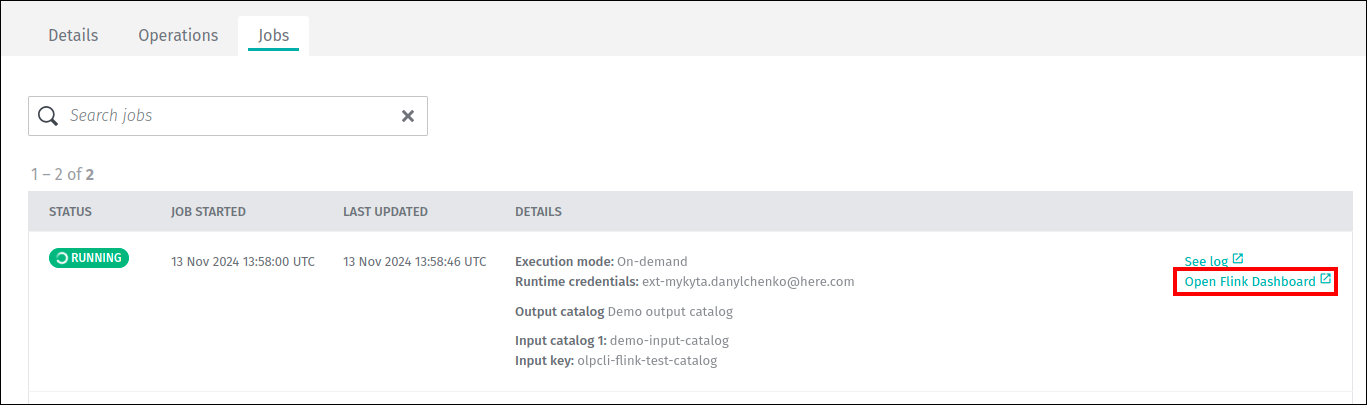
For stream pipelines running on the platform, you can access the Flink Dashboard page from the pipeline job details tab.
An Open Flink Dashboard link is present as long as the job is in the Running state:
For additional information on Flink Dashboard, see the Logs, Monitoring, and Alerts - Flink Dashboard for Stream Pipelines guide.
Q: Why is my pipeline throwing a [DatastreamSource] fetchMessages request failed with invalid offset error?
[DatastreamSource] fetchMessages request failed with invalid offset error?A: There are two known causes of this error:
- The pipeline has been paused for longer than the retention period of one of the input streams.
- The pipeline processes data more slowly than the input streams receive data.
The data processed by the pipeline is eventually dropped by the stream layer when it exceeds the retention period threshold.
Q: How do I handle fatal failures in data reading and data writing?
A: When a pipeline version writes to a streaming layer for an extended period of time (such as a week or more), rare TLS handshake failures of outgoing HTTPS connections can occur.
This is triggered by FlinkWriteEngine::publish returning a SinkFunction used for publishing data inside a streaming Flink pipeline.
When an exception is thrown during the invocation of the sink function, it should be automatically handled and logged.
Otherwise, a fatal exception is encountered during sending data to the Flink sink via the Data Client Library.
The fatal exception will cause the pipeline version to fail, and the corresponding pipeline job will change its state from RUNNING to FAILED.
Solution:
This defect is addressed by enhancing the SinkFunction in the pipeline code to catch fatal exceptions and log them.
The pipeline version will then continue to run and process messages.
The following sample code demonstrates this new SinkFunction:
import com.here.cvs.ss.hrs.vss.logger.TraceLogger;
import com.here.platform.data.client.model.PendingPartition;
import org.apache.flink.streaming.api.functions.sink.SinkFunction;

public class VSSFlinkSinkFunction implements SinkFunction<PendingPartition> {

    private static final long serialVersionUID = 6118402368186172504L;

    private static final TraceLogger TRACE_LOGGER = new TraceLogger(VSSFlinkSinkFunction.class);

    private final SinkFunction<PendingPartition> writeEngineSinkFunction;

    public VSSFlinkSinkFunction(SinkFunction<PendingPartition> writeEngineSinkFunction) {
        this.writeEngineSinkFunction = writeEngineSinkFunction;
    }

    @Override
    public void invoke(PendingPartition pendingPartition) {
        try {
            TRACE_LOGGER.setTraceId(pendingPartition.getPartition());
            writeEngineSinkFunction.invoke(pendingPartition);
            TRACE_LOGGER.info("SEND_MESSAGE_SUCCESSFUL");
        } catch (Exception exception) {
            TRACE_LOGGER.error("SEND_MESSAGE_FAILED | cause=" + exception, exception);
        }
    }
}
Q: Can I use Accumulators or Counters in Flink?
A: Yes. For more information, see Apache Flink documentation on accumulators and counters.
Q: A pipeline fails with a message JAR file does not exist, but the template is successfully created.
JAR file does not exist, but the template is successfully created.A: This error message can appear if a JAR file contains errors that can lead to unbounded memory usage.
The message does not point at the root cause of the issue because this is an internal Flink error and cannot be overridden.
Please test your JAR file on the local Flink instance.
Q: Tasks are not evenly spread across all TaskManagers of a stream pipeline. How can I fix it?
TaskManagers of a stream pipeline. How can I fix it?A: The default behavior for Flink is to use all the slots of a TaskManager before using another one.
So, for stream pipelines with a number of slots exceeding the parallelism of the Flink job, the slots of some TaskManagers would be utilized completely, leaving other TaskManagers with slots to spare.
Users can control this behavior by setting the Flink configuration cluster.evenly-spread-out-slots: true in the stream configuration.
This property is set to false by default for stream pipelines.
For more information, see the Apache Flink documentation on Fine-Grained Resource Management.
Q: How can I see the percentage CPU usage of TaskManagers or JobManager of a stream pipeline?
TaskManagers or JobManager of a stream pipeline?A:
The following Grafana query returns the percentage of CPU usage using the metrics reported by the underlying infrastructure for the TaskManager containers:
sum(rate(container_cpu_usage_seconds_total{pod=~"job-$deploymentId-.*", container="taskmanager"}[5m])) by (pod)
/ sum(container_spec_cpu_quota{pod=~"job-$deploymentId-.*", container="taskmanager"}
/ container_spec_cpu_period{pod=~"job-$deploymentId-.*", container="taskmanager"}) by (pod)
Note
- The
$deploymentIdis the UUID value of the deployed job, and it can be found as the value of theDeploymentIdproperty on the Splunk dashboard for a particular pipeline job.- The
$deploymentIdcan be replaced with the value ofDeploymentIdin the query, or variable$deploymentIdcan be set in the Grafana dashboard.- The unit in Grafana for the left Y-axis should be percent.
Similarly, for JobManager, the query would be as follows:
sum(rate(container_cpu_usage_seconds_total{pod=~"job-$deploymentId-.*", container="jobmanager"}[5m])) by (pod)
/ sum(container_spec_cpu_quota{pod=~"job-$deploymentId-.*", container="jobmanager"}
/ container_spec_cpu_period{pod=~"job-$deploymentId-.*", container="jobmanager"}) by (pod)
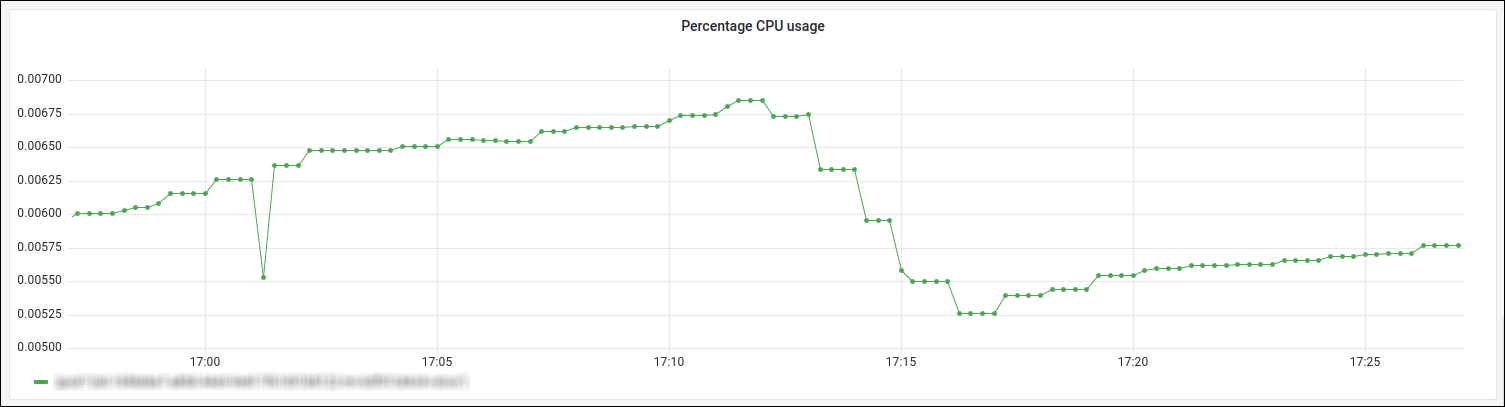
The screenshot below from the Grafana dashboard shows an example of TaskManager CPU usage:
For more information about pipeline monitoring with Grafana, see Pipeline monitoring section.
Q: What does it mean when I get a Savepoint took too long message?
Savepoint took too long message?A: On a Pause or Upgrade operations for a stream pipeline version, a savepoint is taken to allow the pipeline version to be restarted from the place it left off.
On rare occasions, the process of taking the savepoint may fail due to a timeout.
If this happens, a Savepoint took too long error message is displayed.
The savepoint timeout for stream pipelines is set to 10 minutes. This improves the reliability of stream pipelines by reducing the probability of this error.
If your stream pipeline still experiences this issue, it is recommended to retry the Pause or Upgrade operation.
In case of continued savepoint failures, it is recommended to cancel the pipeline and then activate it again.
Unfortunately, if a savepoint fails, and no other savepoints have been created during previous executions of the Pause
or Upgrade operations, there is no saved state for the pipeline version to use to resume, and it will start processing the data from scratch.
For more information on Flink savepoints, see Flink Savepointing.
Q: Why are some runtime configuration properties unavailable when my job is deployed
A: Properties provided as part of the pipeline version's runtime configuration are made available on the classpath in a file named application.properties.
For stream runtimes, if the Fat JAR contains application.properties then it will take preference in the classpath over the application.properties provided by the runtime.
This can occur when an application.properties file is present during local development and is inadvertently included in the Fat JAR.
The solution would be to exclude the application.properties from the Fat JAR:
<filter>
    <artifact>*:*</artifact>
    <excludes>
        <!-- This is to make sure that shaded jar doesn't have an application.properties -->
        <exclude>application.properties</exclude>
    </excludes>
</filter>
For more information on controlling the contents of a Fat JAR, see Apache Maven Shade Plugin documentation.
Q: What should I do if my pipeline did not return to the RUNNING state after a planned maintenance restart?
RUNNING state after a planned maintenance restart?A: When a planned maintenance restart is initiated, if the pipeline does not return to the RUNNING state within the expected time window (15 minutes), a notification email is sent to the pipeline owner.
Use the steps below to investigate and resolve the issue.
Finding the pipeline outage time
The notification email includes a Restart Initiated At field that shows when the restart was attempted.
To view the full operation history, open the pipeline in the platform portal, navigate to the Operations tab, and locate the RESTART operation that corresponds to the maintenance event.
The operation timestamp and status provide the exact outage window.
Checking and restoring the pipeline state
Check the current pipeline state using the platform portal or the OLP CLI.
- If the pipeline is in the
RUNNINGstate, it has recovered and no further action is needed. - If the pipeline is in a non-
RUNNINGstate (for example,PAUSED,READY, orSCHEDULED), manually activate the pipeline version to resume data processing.
If the pipeline uses externalized checkpoints, you can resume from the latest checkpoint to avoid reprocessing data from scratch:For more information, see Externalized checkpoint feature.olp pipeline version activate <pipeline-id> <pipeline-version-id> --with-latest-checkpoint - If the pipeline job shows a
FAILEDstatus, investigate the root cause using pipeline logs (see below) before re-activating.
Analyzing pipeline logs
Pipeline logs are stored in Splunk. To access them:
- Open the pipeline in the platform portal.
- Navigate to the
Jobstab and click theSee loglink for the affected job.
This opens the Splunk dashboard where you can filter logs by component (JobManager, TaskManager) and time range to identify the root cause of the restart failure.
For more information on navigating Splunk logs, see Finding pipeline logs.
You can also inspect the Flink Dashboard for real-time job metrics once the pipeline returns to the RUNNING state.
For instructions on accessing the Flink Dashboard, see How can I access the Flink Dashboard page?.