
How to run pipelines
Once you have deployed a pipeline and created a pipeline version as described in Deploy a pipeline via the web portal section,
the typical next step is to activate it to start processing the data from the data source.
However, in addition to activation, there are several other actions that can be performed on a pipeline version.
The full list of these operations includes:
- Activate pipeline version
- Pause pipeline version
- Resume pipeline version
- Cancel pipeline version
- Deactivate pipeline version
The above operations can be performed from either the platform portal or via the OLP CLI.
For more information on how to perform them via the OLP CLI, please see the Pipeline workflows article,
as this section covers the platform portal part.
For more information on deploying pipelines, creating pipeline versions, and managing these instances, see the following articles:
Activate pipeline version
Once you have created the pipeline version, it is displayed on a portal page similar to the following:
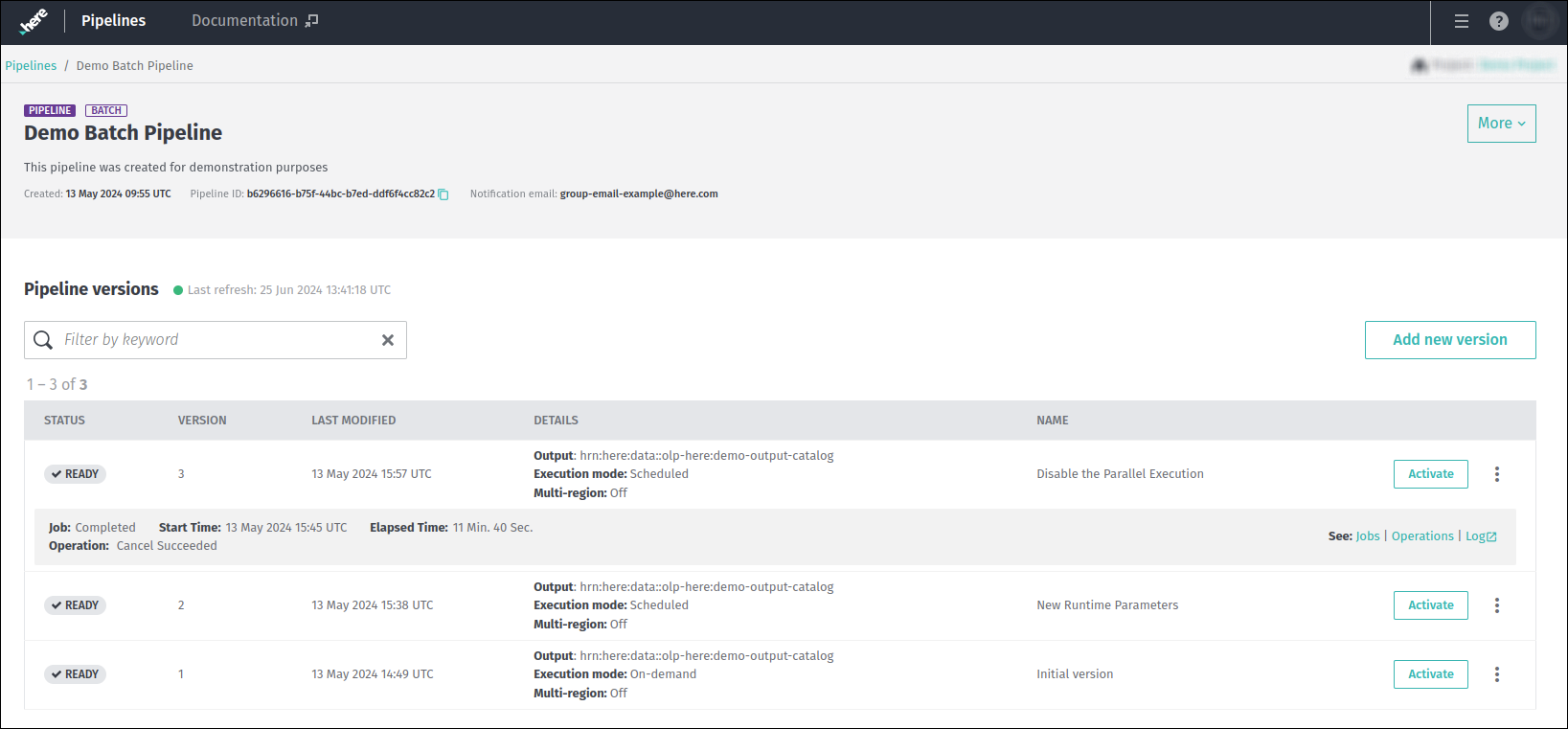
For more information about this page, the properties available for each version, etc., refer to the
Manage pipelines - Display a list of pipeline versions chapter.
To start processing the data from the input catalogs, click the Activate button for the version you wish to activate:
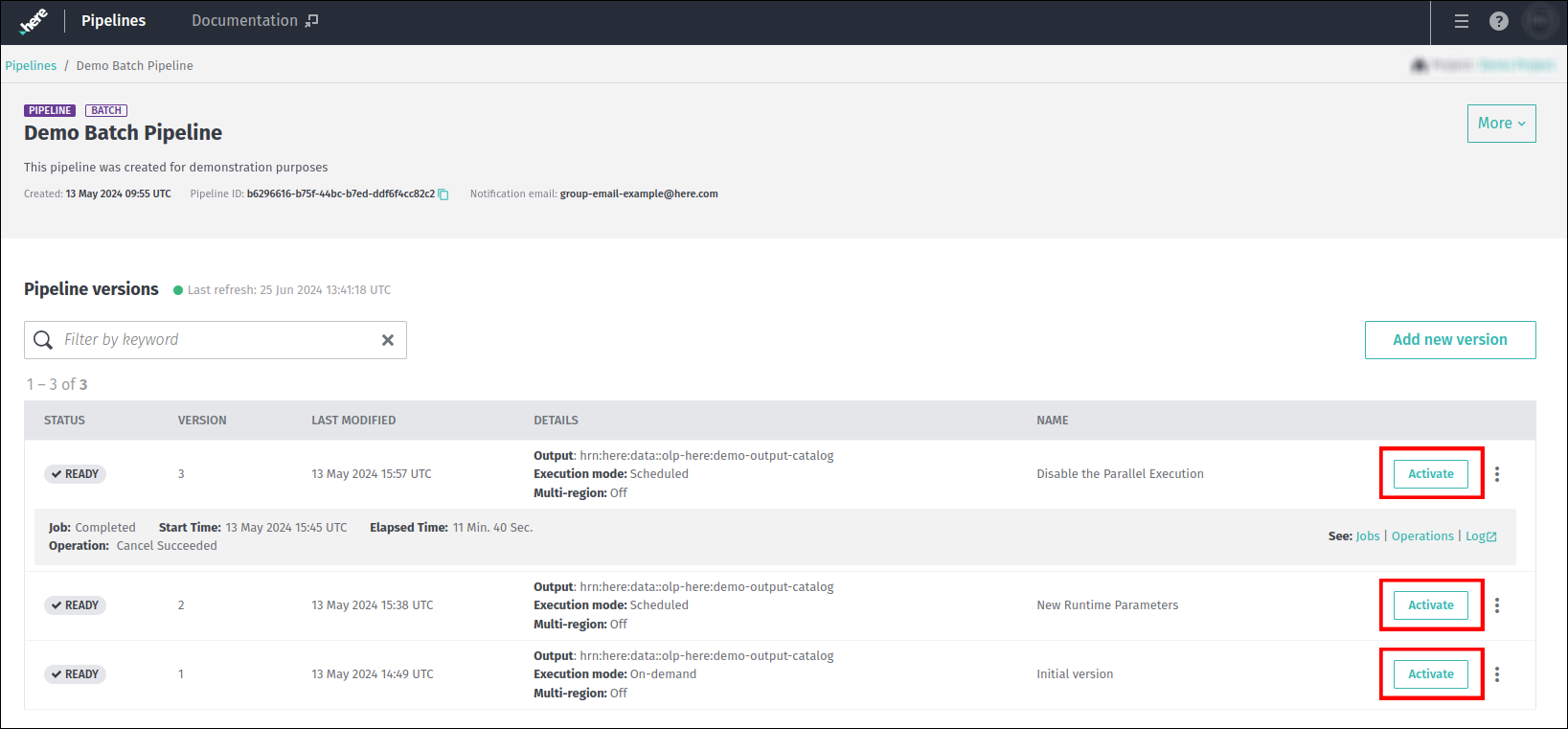
From an activation perspective, there are several differences between stream and batch pipelines.
Activate stream pipeline
Once you have clicked the Activate button for a stream pipeline version, the following dialog box opens:
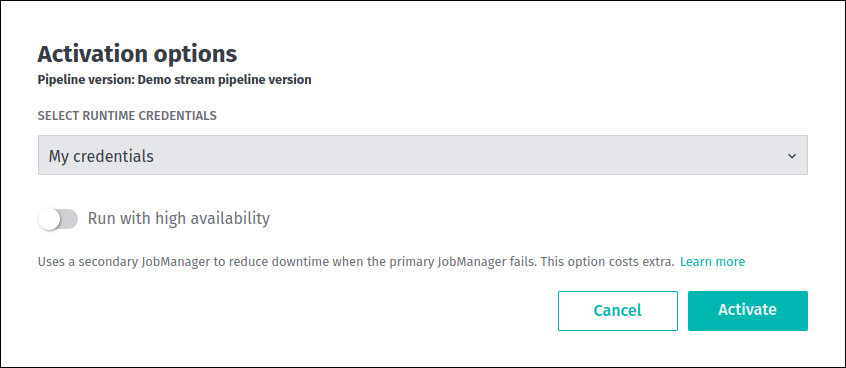
As you can see, it's possible to select the runtime credentials to run this pipeline version.
This could be your user or application credentials. For more information, see the Identity & Access Management Guide.
This dialog also contains a switch to run the JobManager of the stream pipeline version in High Availability mode.
When enabled, another JobManager is deployed as a standby for the pipeline. These multiple JobManagers are managed
via ZooKeeper which coordinates leader election and the state of pipeline. This second JobManager is deployed in a different
Availability Zone than the first one. If the primary JobManager fails, the standby JobManager quickly takes over and the pipeline continues to run.
The failed primary JobManager is also restarted, and it becomes the new standby JobManager to reestablish High Availability to protect against future failures.
The option to enable High Availability is available during the Activate, Resume, and Upgrade operations.
Please note that enabling this feature introduces additional cost for the additional resources.
These additional resources required to run a stream pipeline JobManager with high availability are:
- Resources for the second
JobManager(same size as the first one). - Resources for the
ZooKeeper:1.5CPU and1.5GB of RAM.
The cost of these additional resources is added to the original cost of the pipeline.
For more information on the High Availability feature, see Best practices for high availability - Enable high availability option for stream pipelines chapter.
Activate batch pipeline
Once you have clicked the Activate button for a batch pipeline version, the following dialog box opens:
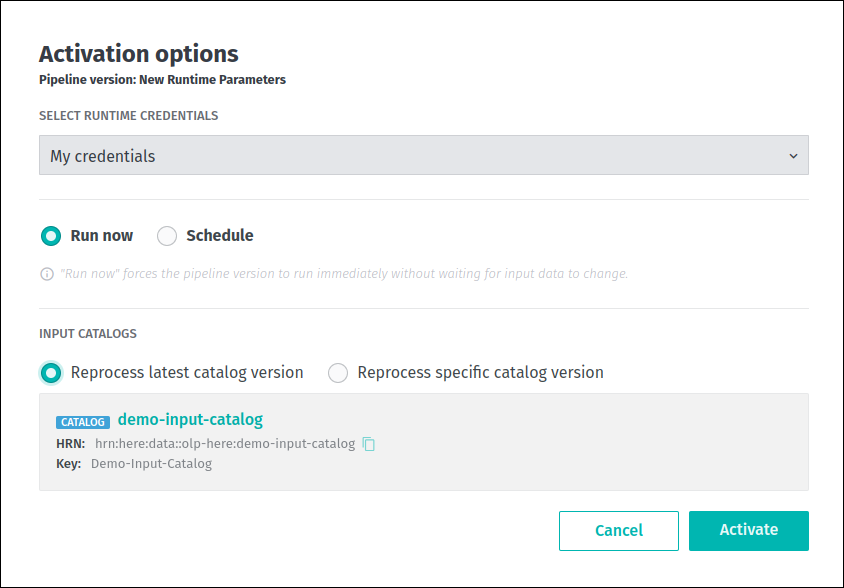
In addition to the drop-down list for selecting the runtime credentials, this menu contains two activation modes for
the batch pipeline version - Run now and Schedule.
Activate batch pipeline in Run now mode
Run now modeThe Run now activation mode forces the pipeline version to run immediately without waiting for input data to change.
This mode is selected by default and requires additional information about input catalogs.
The available options are Reprocess latest catalog version and Reprocess a specific catalog version.
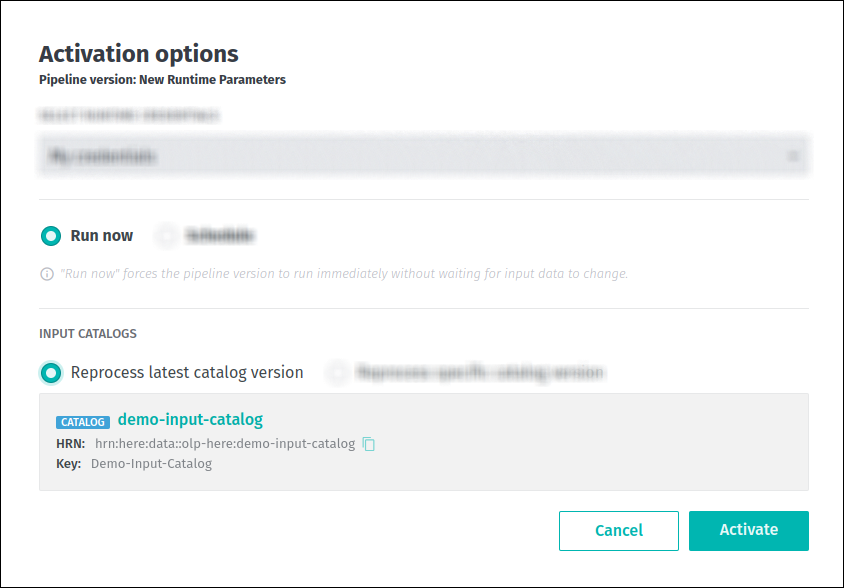
If you select the Reprocess latest catalog version option (which is the default), the system will identify and reprocess the latest input catalog version:
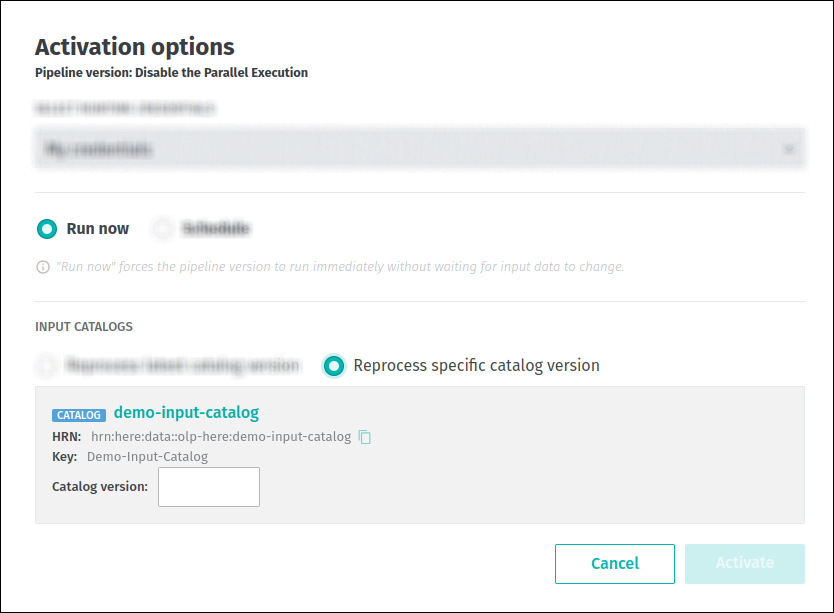
If you select the Reprocess specific catalog version option, you also need to specify a version of the input catalog to be processed:
Activate batch pipeline in Schedule mode
Schedule modeThe second activation mode is Schedule. If this mode is selected, the pipeline version will only run when the input data changes.
There are two trigger options available in Schedule mode - Data change and Time schedule:
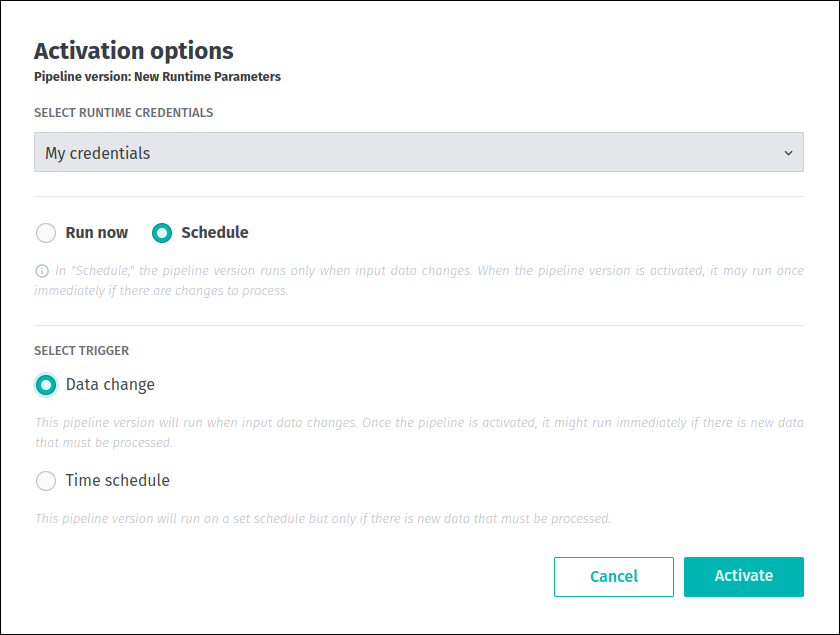
With the Data change trigger option, a pipeline version will run when input data changes.
If you select this option, the pipeline version will wait in the Scheduled state
until the input catalogs are updated with new data:
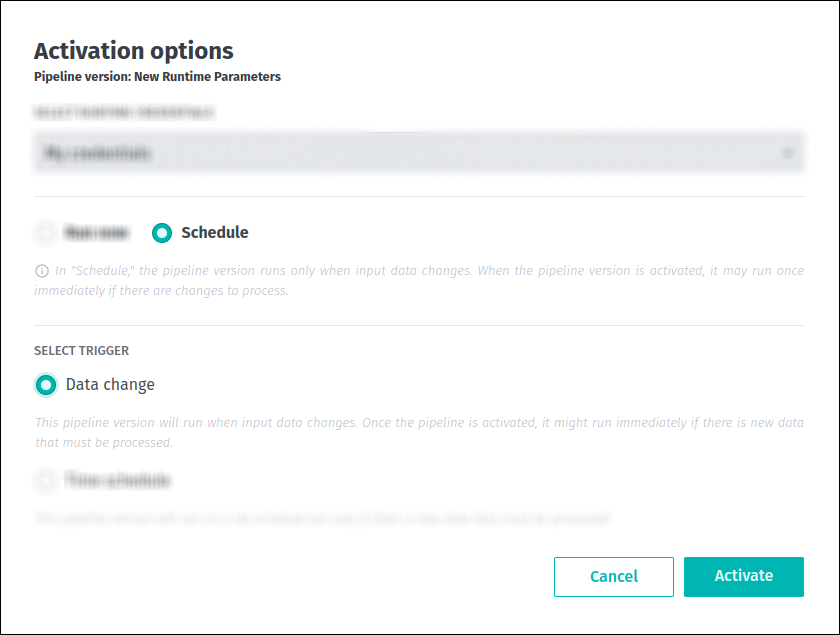
With the Time schedule trigger option, a pipeline version will run on a set schedule, but only when there is new data to process.
If you select this option, you also need to provide a CRON schedule using the Unix CRON expression format:
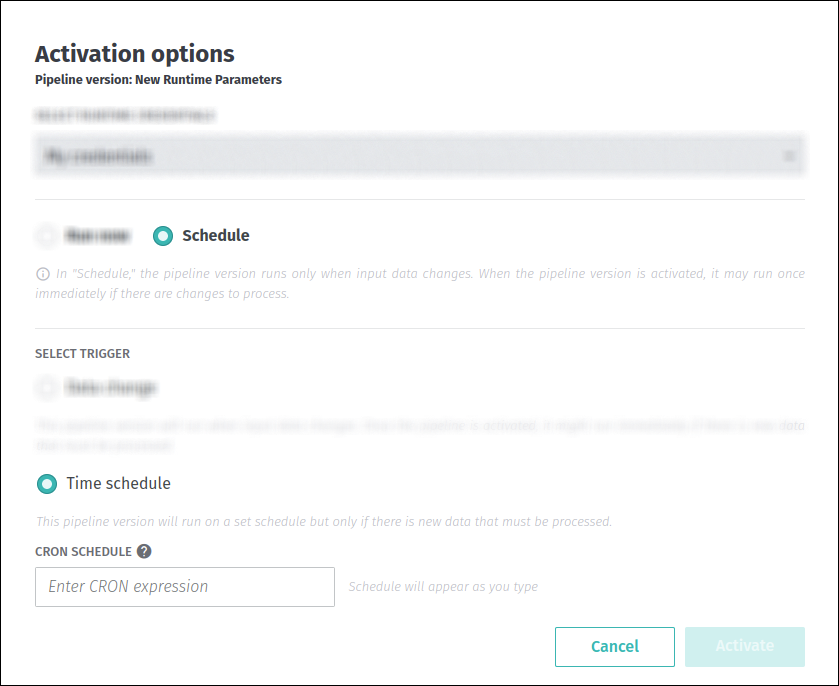
The interval between consecutive attempts to run the pipeline version cannot be less than an hour.
The CRON expression provided is evaluated in UTC timezone - as an example, a CRON expression of 30 * * * * will result in attempts to
run the pipeline version at 30 minutes past the hour, every hour of the UTC clock.
The attempt to run the pipeline version will be skipped if the pipeline version is still running at the time of the next attempt.
A job will only be run if there are pending changes to be processed in the input catalogs.
If you are looking for more advanced scheduling functionality for the batch pipeline versions, this is available with the OLP CLI.
InfoRun latency
There are always a few moments of latency before the pipeline actually starts processing (during which the pipeline is in theScheduledstate).
This is even true for theRun nowoption.
Scheduled operations can be even more delayed because they are triggered by the availability of data and system resources to start processing.
Pause pipeline version
Once a pipeline version has been activated, it will eventually run when all activation conditions are met:
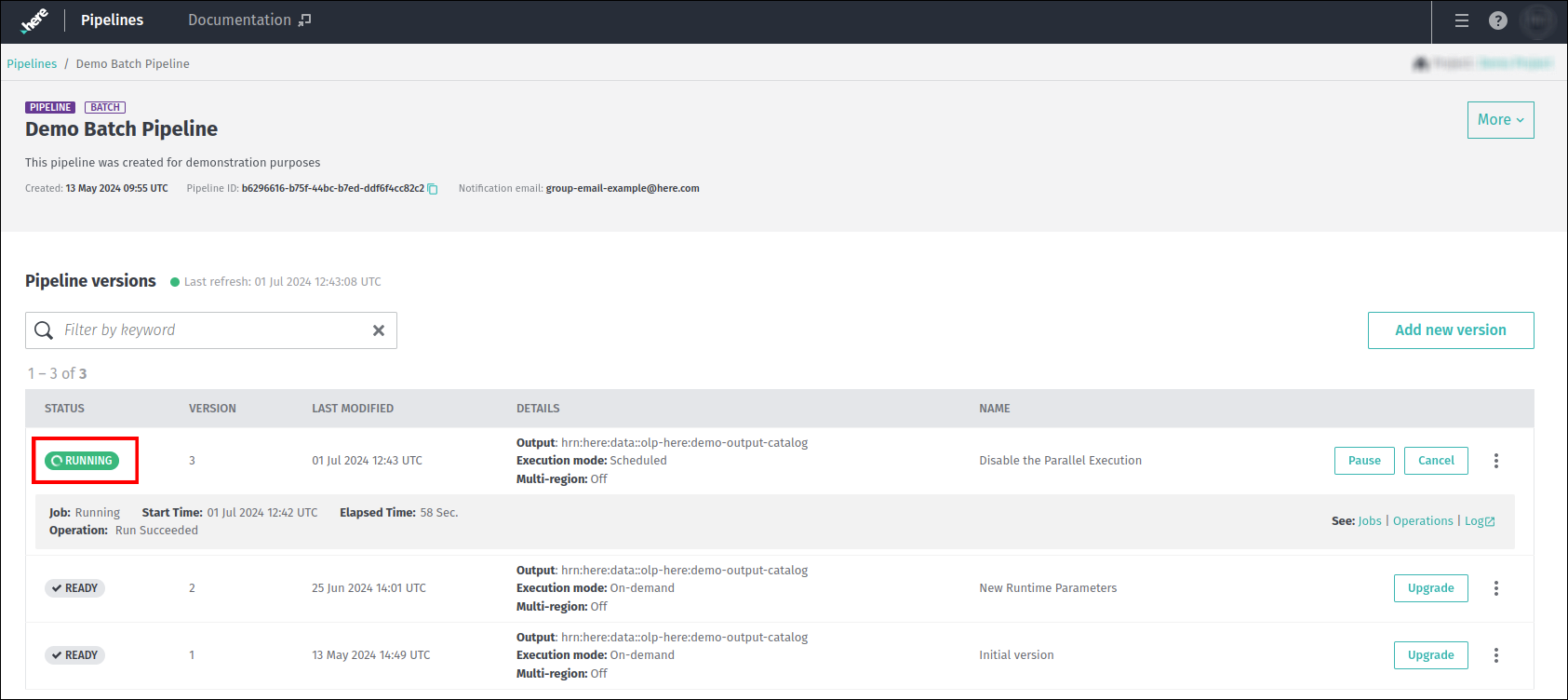
There are several operations that can be performed on a pipeline version that is in the Running state, one of which is Pause, which is used to temporarily stop
the data from being processed.
Click the Pause button for the running pipeline version you wish to pause:
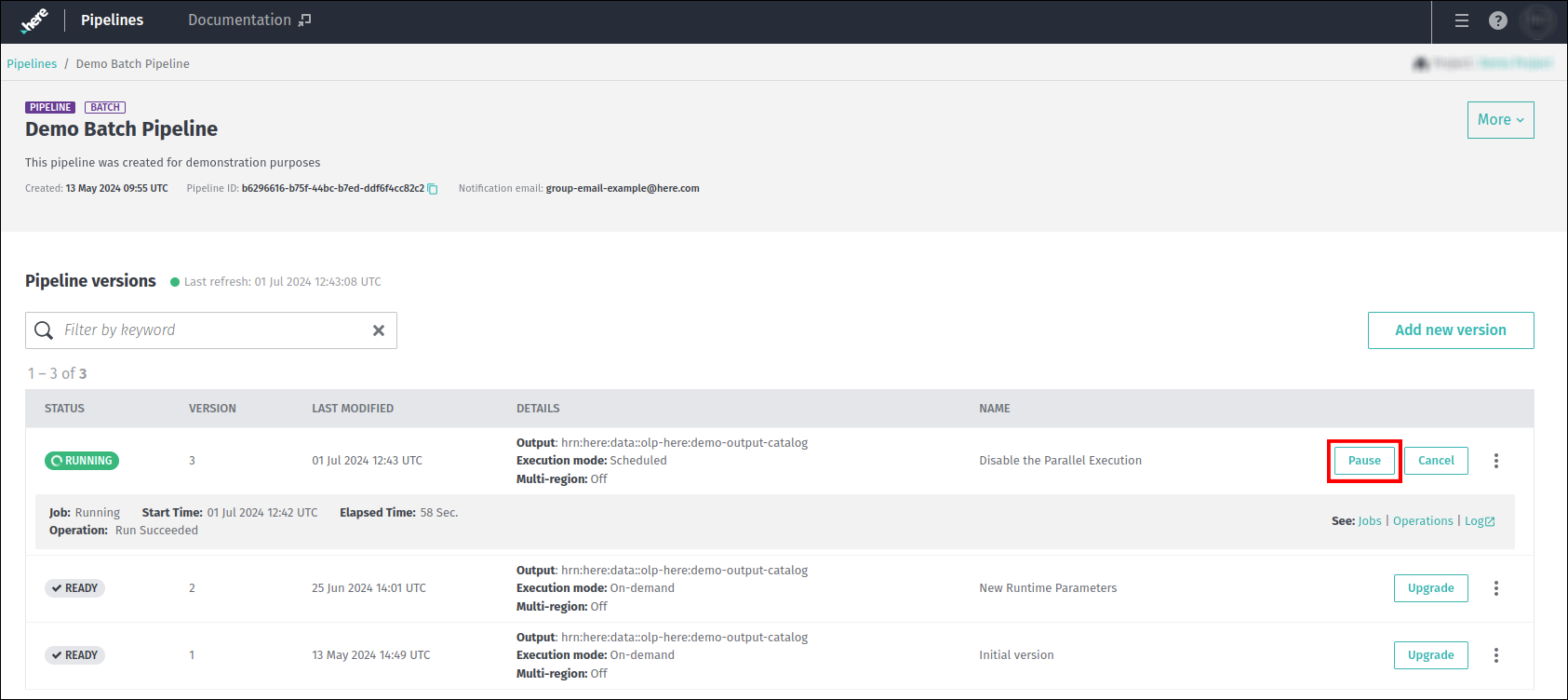
Pausing a running pipeline version requires special considerations, as the results of the Pause depend on the type of pipeline job being executed.
If we pause a batch pipeline job that has been activated using a Schedule mode, it will not stop processing immediately.
Instead, the current job is executed to completion, and the pipeline version state is then changed to Paused:
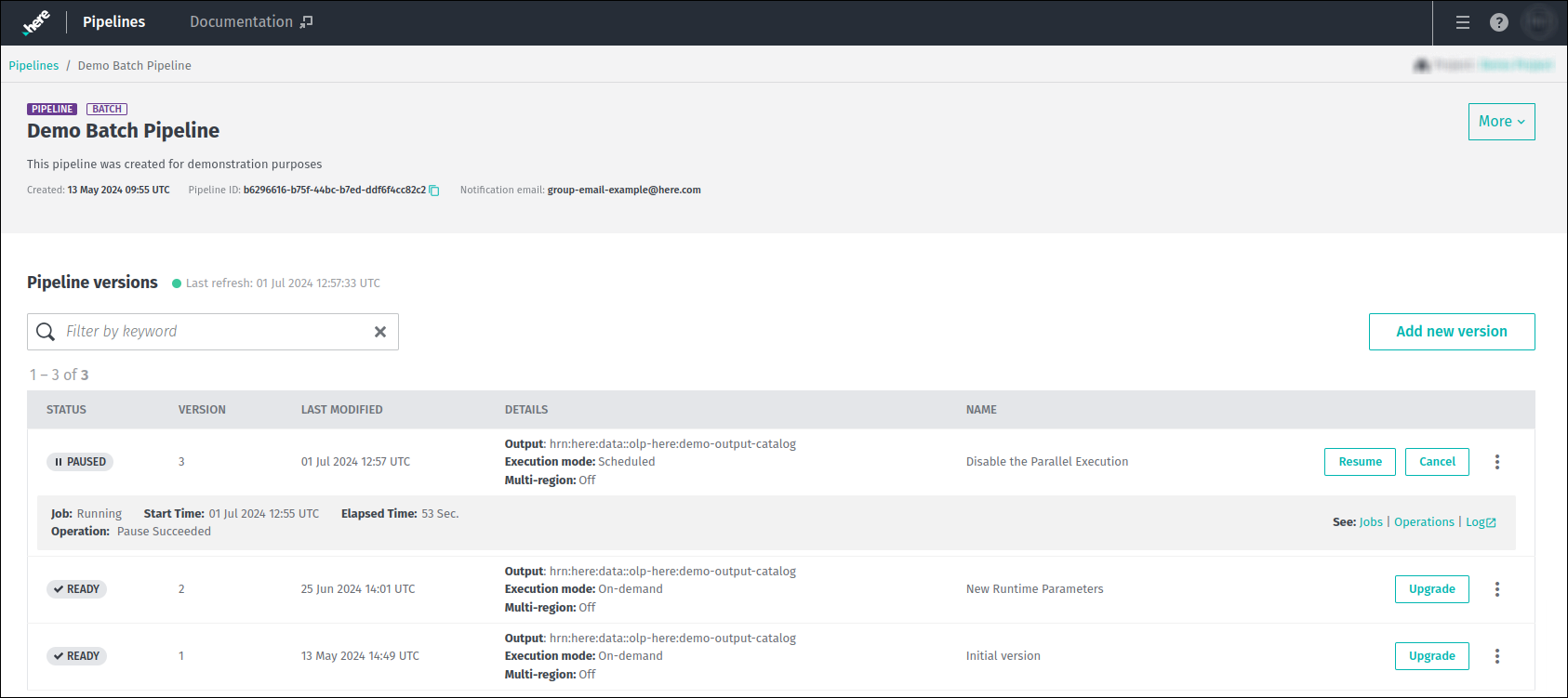
On the other hand, if a batch pipeline version has been activated in Run now mode, it cannot be paused, only cancelled:
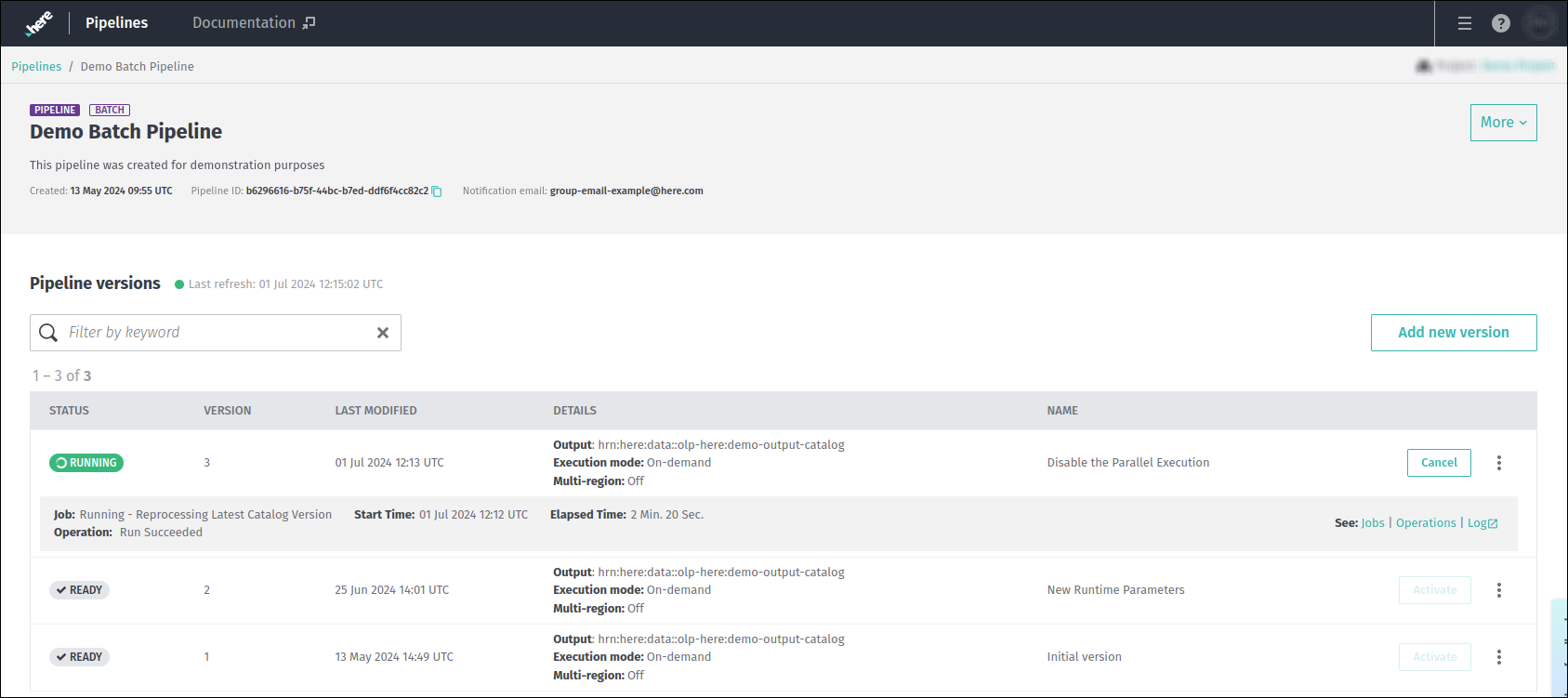
When you pause a running stream pipeline version, the current state of the job is saved and the job is gracefully stopped at that point.
When a Resume command is issued, a new job is submitted to restart the pipeline version from the previously saved state.
If the paused job is cancelled, the saved state of the paused job is discarded and the pipeline version moves to the Ready state.
Resume pipeline version
The Resume operation is used to resume the data processing after the pipeline version has been paused.
To do this, select the Resume option for the pipeline version that is in the Paused state:
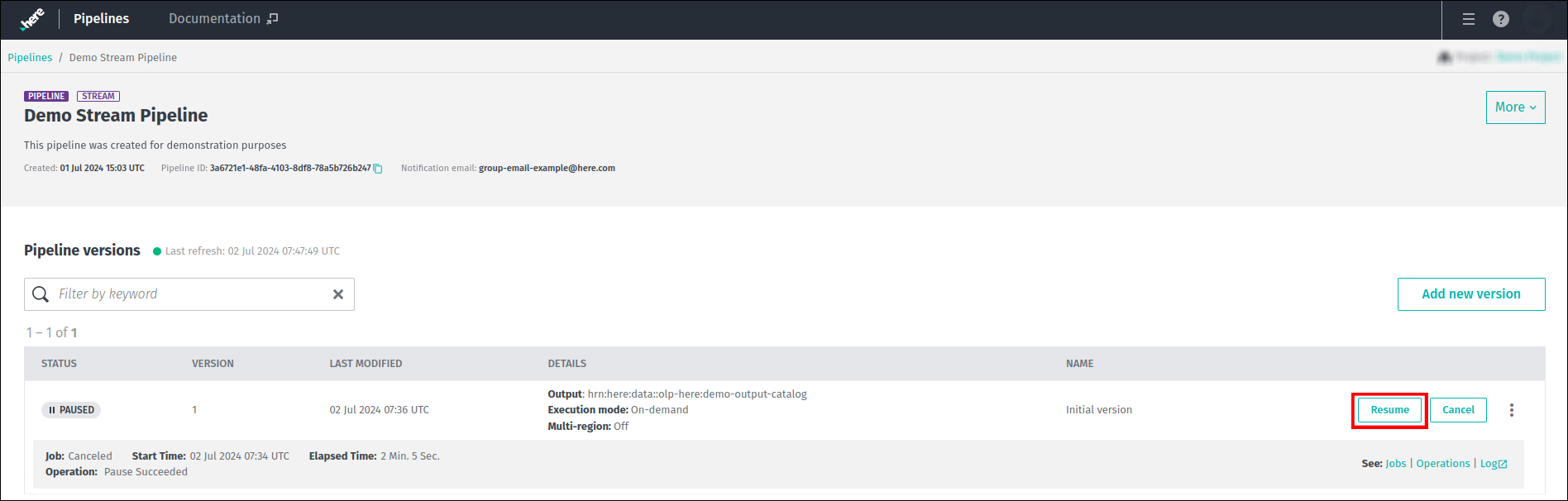
If you have resumed the stream pipeline version, the following dialogue box will appear:
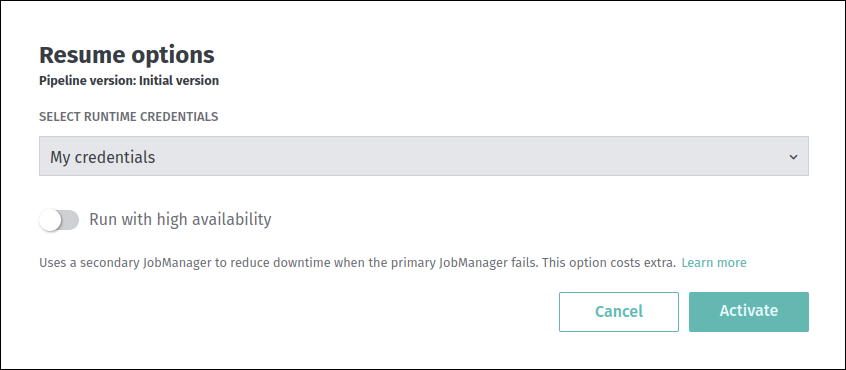
As you can see, you will need to select the runtime credentials to resume this pipeline version with.
This dialog also contains a switch to resume the pipeline version with the High Availability feature enabled.
If you have resumed the batch pipeline version, you will need to select the runtime credentials only:
When a paused pipeline version is resumed, the typical delay is 30-90 seconds, but this delay can last for several minutes if resources are limited.
While the pipeline version is being resumed, it will be moved to the Scheduled state:
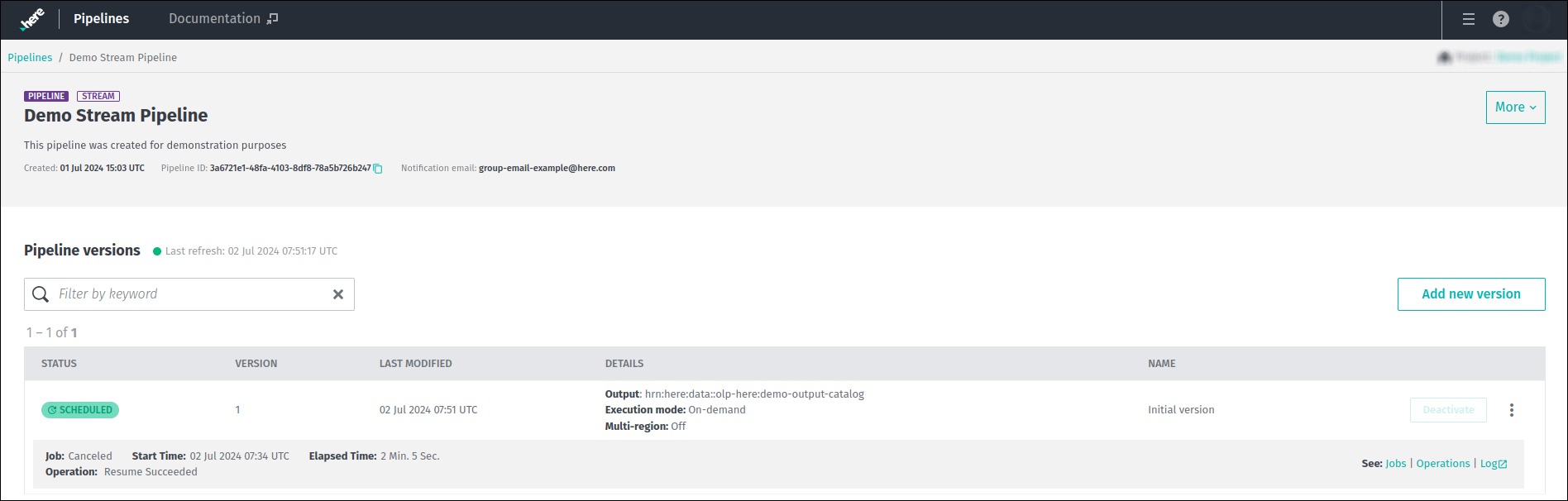
When a pipeline version is resumed, it will eventually run again:
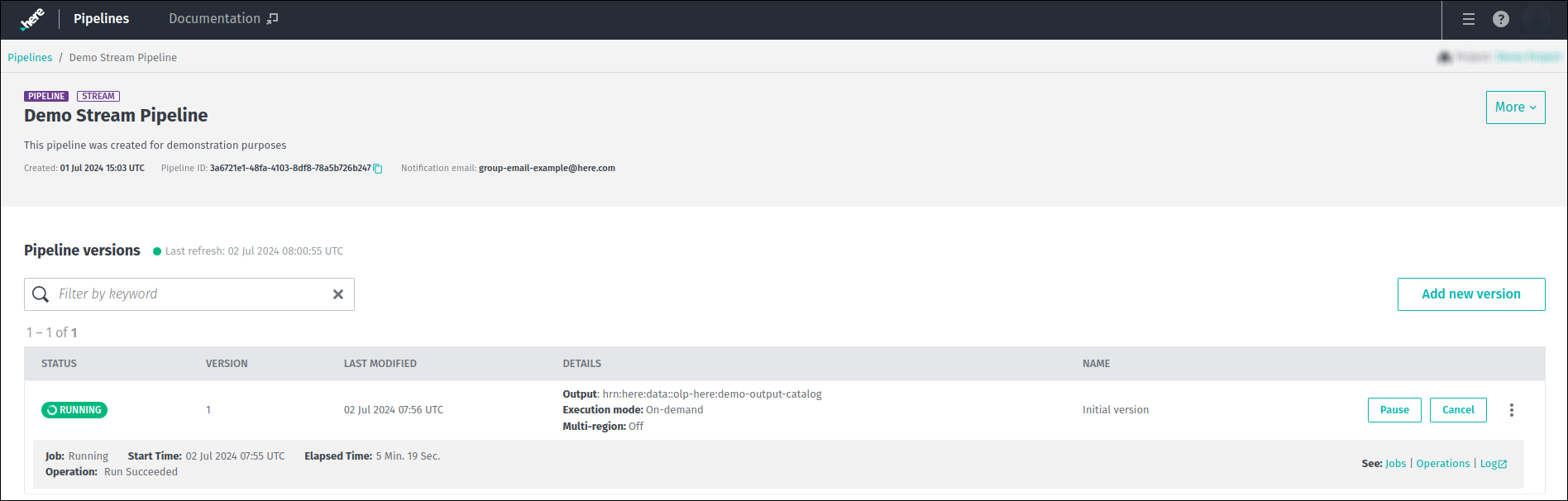
Since both batch and stream pipelines have mechanisms to mark the point at which the data processing was paused,
when a pipeline version is resumed, a new data processing job starts from that point.
In the case of stream pipelines, Flink Savepoints
are used to resume data processing.
For batch pipelines, data processing will only resume if there is new data to process and if the Time schedule trigger
requirements (if any) are met.
WarningA stream pipeline version can be resumed if it has been paused for less than 7 days.
Cancel pipeline version
Another operation available for pipeline versions is Cancel.
It is required to cancel the specified pipeline version and any future jobs scheduled for that version.
It's possible to cancel a pipeline version that is in the Running or Paused states:
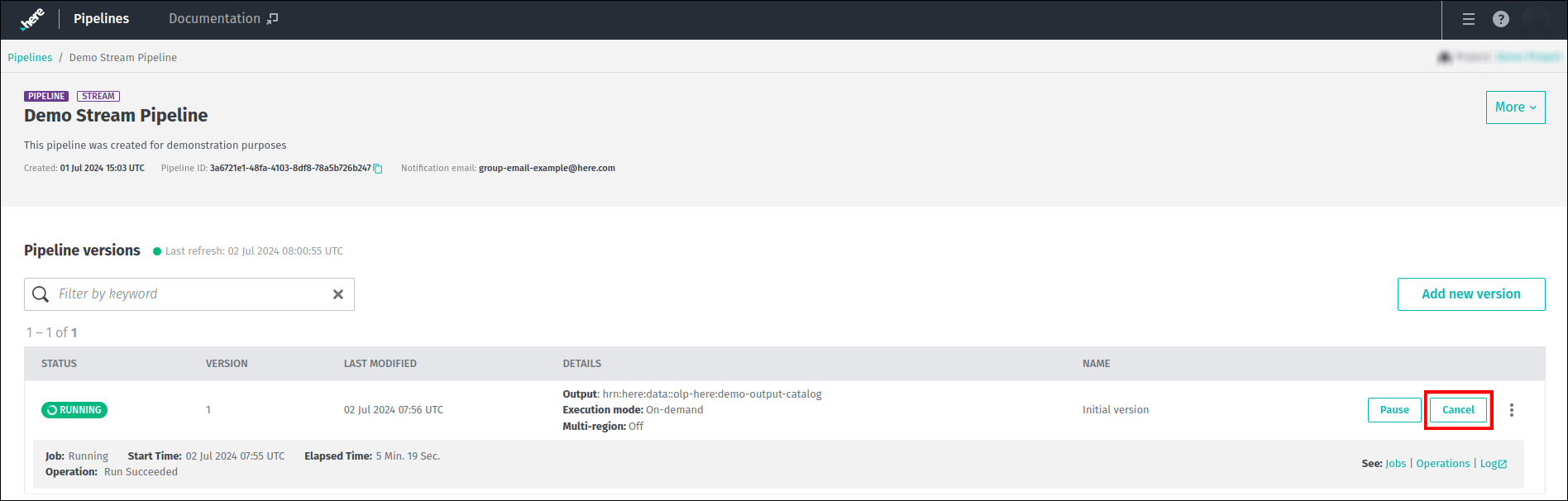
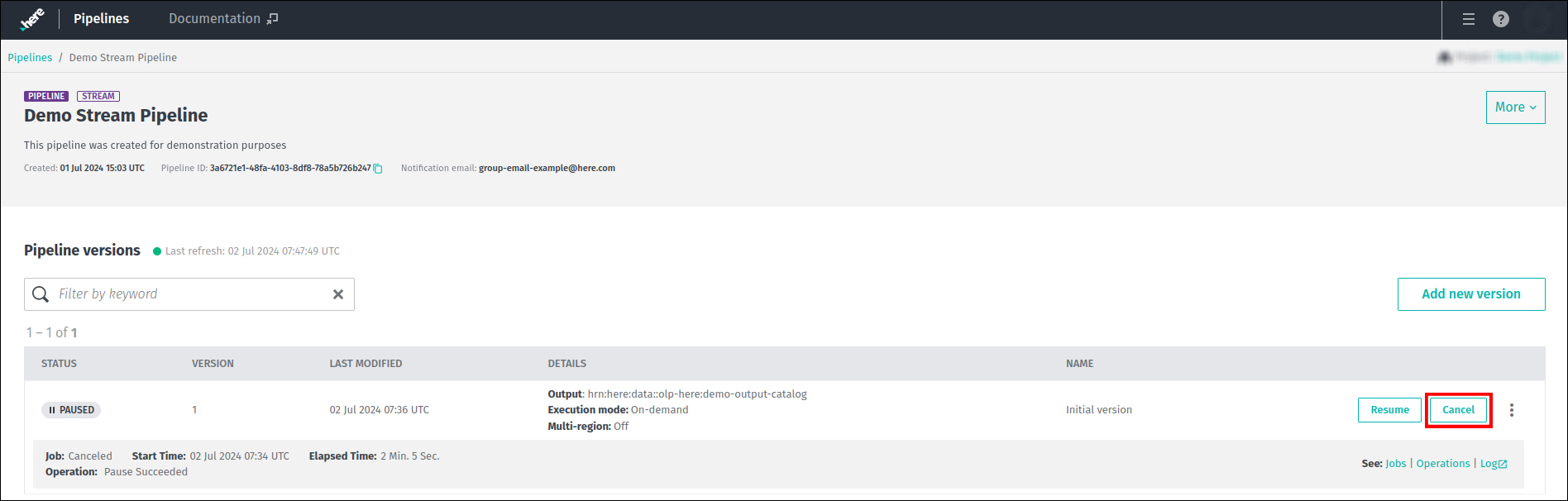
Once you have clicked on the Cancel button, you will be asked to confirm the operation:

After confirming this operation, the pipeline job would be immediately interrupted and cancelled.
Finally, the cancelled pipeline version is returned to the Ready state:
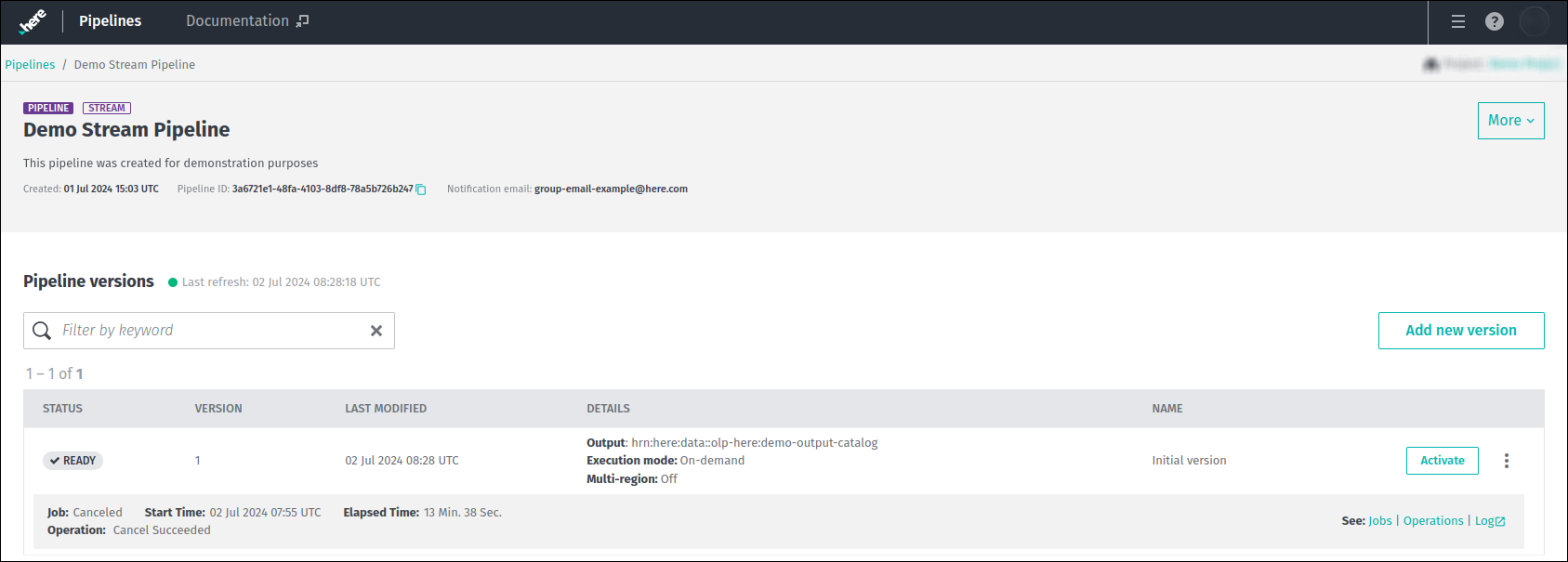
Deactivate pipeline version
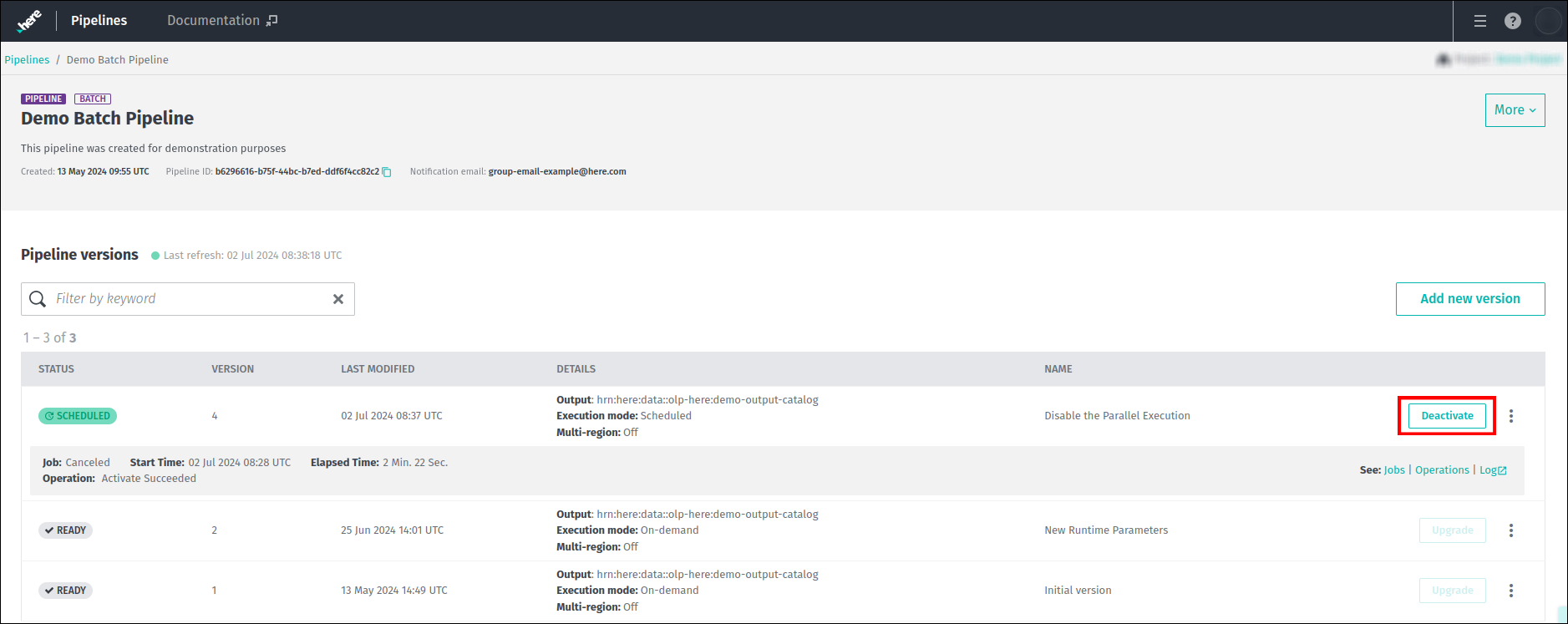
If a pipeline version is still in a Scheduled state after activation, deactivate it by clicking Deactivate as shown below:
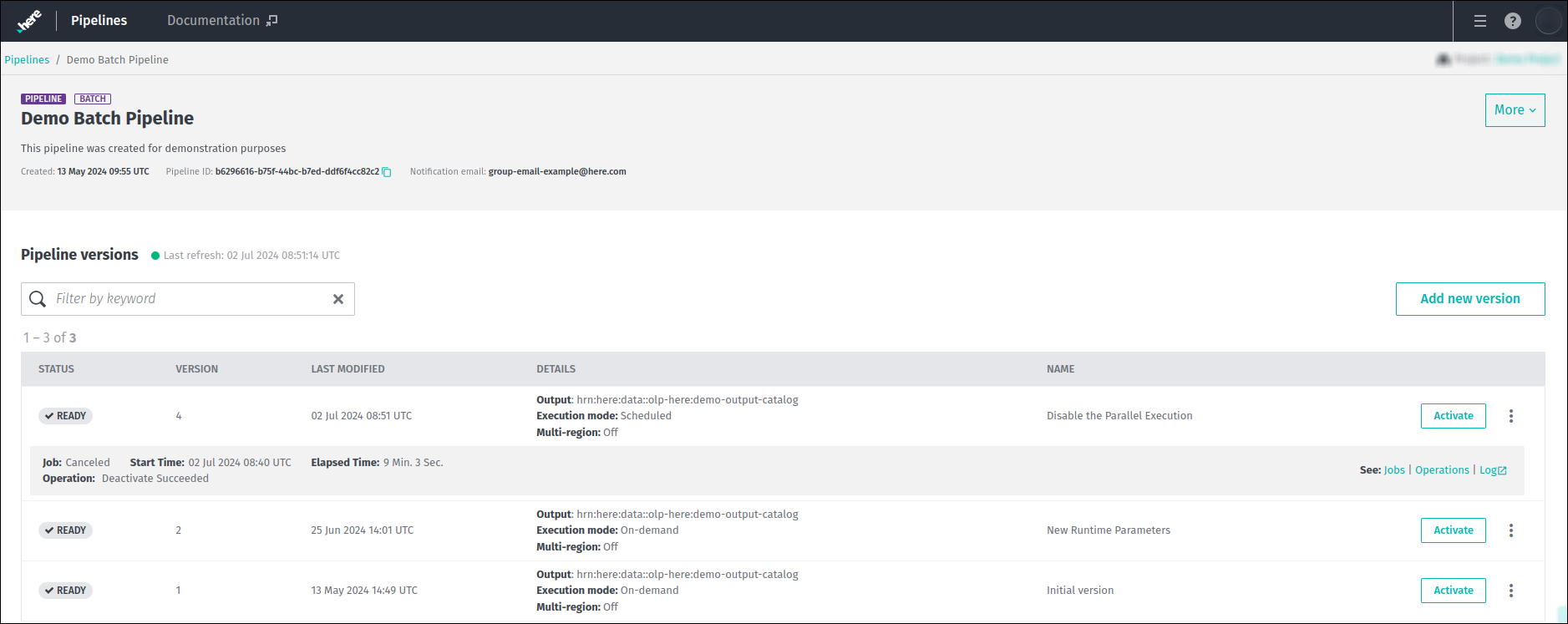
After deactivation, the pipeline version returns to a Ready state where it is available for activation again:
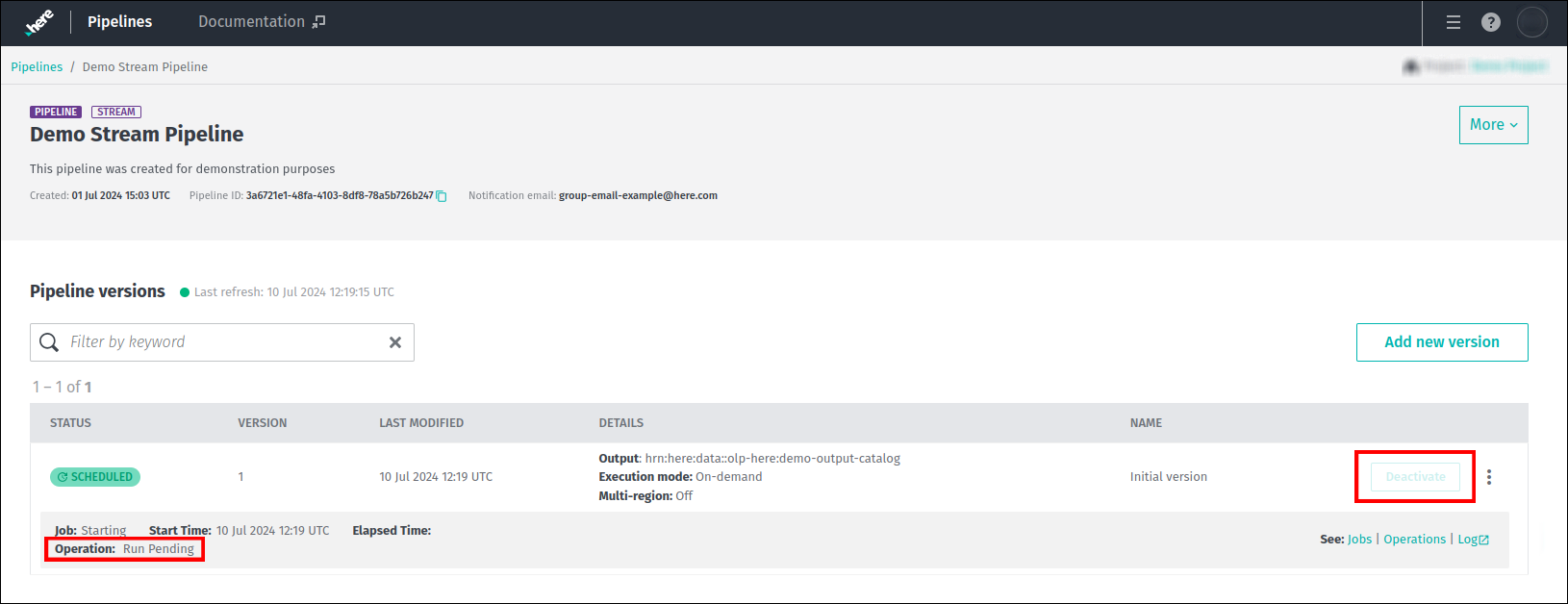
Please note that the Deactivate operation may not be available in certain circumstances.
The screenshot below was taken immediately after the pipeline version was activated.
As you can see, the version is in the Scheduled state, but the Deactivate button is not active because the Run operation
is currently being performed and is in the Pending state: