

Troubleshooting Spark
The following section provides guidance on identifying and resolving common problems encountered when working with Apache Spark data processing pipelines.
Q: How can I access the Spark UI page? #tspark1
Spark UI page? #tspark1A: There are several ways to access the Spark UI page.
For locally executed pipelines, the driver launches the UI web server as part of the driver process.
While the driver is running, developers can access the web server from http://127.0.0.1:4040/jobs.
For batch pipelines running on the platform, you can access the Spark UI page from the pipeline job details tab.
An Open Spark UI link will appear once the job has started processing data:
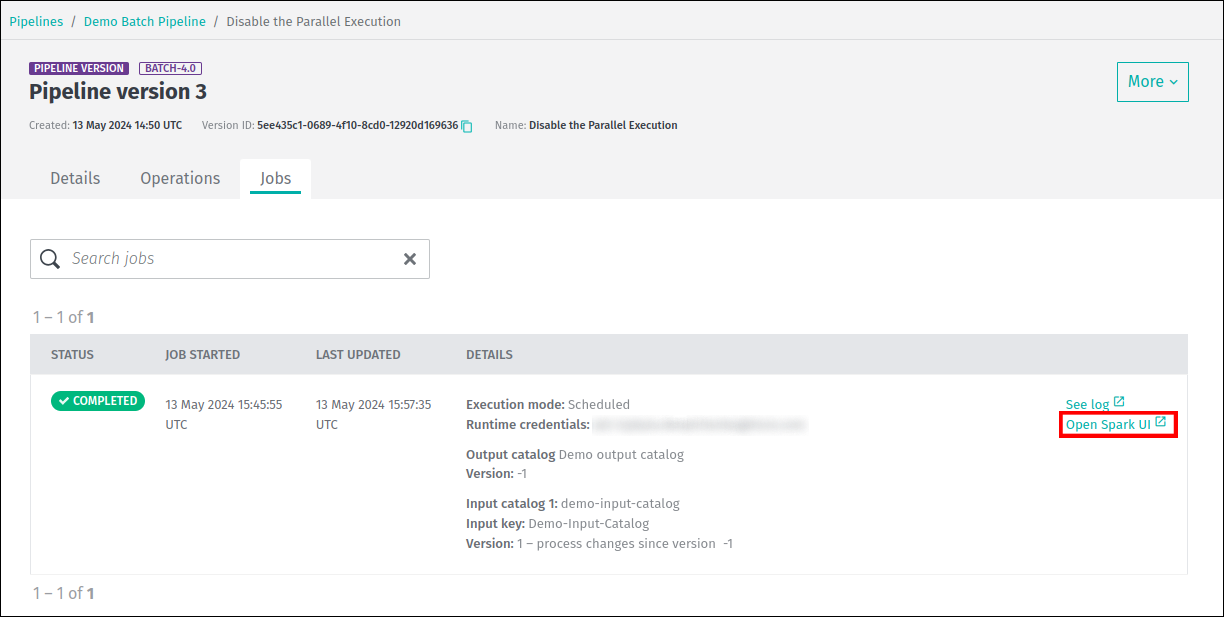
It is also possible to access the Spark UI after the pipeline job has completed its run.
Runtime data for a completed job is available from the Spark UI for 30 days after completion.
After this period, the job's runtime data is deleted and the Open Spark UI link will no longer be available in the web portal.
For additional information on Spark UI page, see the Logs, Monitoring, and Alerts - Spark UI for Batch Pipelines guide.
Q: Why is the Spark UI for a previously completed pipeline job not loading? #tspark3
Spark UI for a previously completed pipeline job not loading? #tspark3A: The data processing pipeline produces event log data over the course of its execution, which is used to produce the Spark UI.
The Spark UI may not load successfully if the amount of event log data exceeds the limit of approximately 1.5GB.
Because Spark generates a Begin and End event for every task that is executed, the size of the event log is directly proportional to the number of tasks.
The number of stages also makes a smaller contribution to the number of events.
Finally, the number of tasks per execution step is proportional to the number of partitions that need to be processed.
As a result, the more partitions and stages there are in a pipeline, the more tasks it has and the larger the size of the event logs.
It is expected that the larger the dataset, the greater the number of partitions, and this is usually good practice.
However, sometimes data can be over-partitioned, which can lead to increased processing time and driver memory issues.
At the same time, under-partitioning can lead to executor memory issues, so care must be taken when adjusting data partitioning.
Without knowing a pipeline's particular data or processing logic, one suggestion is to see if there is an improvement when the number of partitions is reduced.
Reducing the partitions by a factor may be just enough to get the event log size into the range mentioned above.
The correct factor depends on the use case.
Q: Why am I getting a Task Not Serializable exception? #tspark2
Task Not Serializable exception? #tspark2A: The Task not serializable exception is the most common in Spark development, especially when using complex class hierarchies.
Whenever a function is executed as a Spark lambda function, all of the variables it refers to (its closure) are serialized to the workers.
In most cases, the simplest solution is to declare the function in an object instead of a class or inline, and pass all the required state information as parameters to the function.
If a lambda function needs a non-serializable state, such as a cache, a common pattern is a lazy val in the object that
is initialized in every worker when accessed the first time. The val should also be marked @transient to ensure it will not be serialized via references.
For performance reasons, the Data Processing Library heavily uses the Kryo serialization framework.
This framework is used by Spark to serialize and deserialize objects present in RDDs.
This includes widely used concepts such as partition keys and metadata, but also custom types used by developers identified with T in compiler patterns.
In addition, in RDD-based patterns, developers are free to introduce any custom type and to declare and use RDDs of such types.
The processing library can't know all the custom types used in an application, but the Kryo framework needs this information.
Therefore, developers need to provide a custom KryoRegistrator:
	package com.mycompany.myproject

	class MyKryoRegistrator extends com.here.platform.data.processing.spark.KryoRegistrator {

	    override def userClasses: Seq[Class[_]] = Seq(
		classOf[MyClass1],
		classOf[MyClass2]
	    )
	}
The name of the class must be provided to the library configuration via application.conf:
	spark {
		kryo.registrationRequired = true
		kryo.registrator = "com.mycompany.myproject.MyKryoRegistrator"
	}
Q: What should I do if I have increased my non-heap memory by 5% and I still want more? #tspark4
A: The non-heap memory limit can be increased by realm. To increase this limit, contact the HERE support team.
Q: How can I see the percentage CPU usage of Executors or Driver of a batch pipeline? #tspark5
Executors or Driver of a batch pipeline? #tspark5A:
The following Grafana query returns the percentage of CPU usage using the metrics reported by the underlying infrastructure for the Executor containers:
sum(rate(container_cpu_usage_seconds_total{pod=~"job-$deploymentId-.*", container="worker"}[5m])) by (pod)
/ sum(container_spec_cpu_quota{pod=~"job-$deploymentId-.*", container="worker"}
/ container_spec_cpu_period{pod=~"job-$deploymentId-.*", container="worker"}) by (pod)
Note
- The
$deploymentIdis the UUID value of the deployed job, and it can be found as the value of theDeploymentIdproperty on the Splunk dashboard for a particular pipeline job.- The
$deploymentIdcan be replaced with the value ofDeploymentIdin the query, or variable$deploymentIdcan be set in the Grafana dashboard.- The unit in Grafana for the left Y-axis should be percent.
Similarly, for Driver, the query would be as follows:
sum(rate(container_cpu_usage_seconds_total{pod=~"job-$deploymentId-.*", container="driver"}[5m])) by (pod)
/ sum(container_spec_cpu_quota{pod=~"job-$deploymentId-.*", container="driver"}
/ container_spec_cpu_period{pod=~"job-$deploymentId-.*", container="driver"}) by (pod)
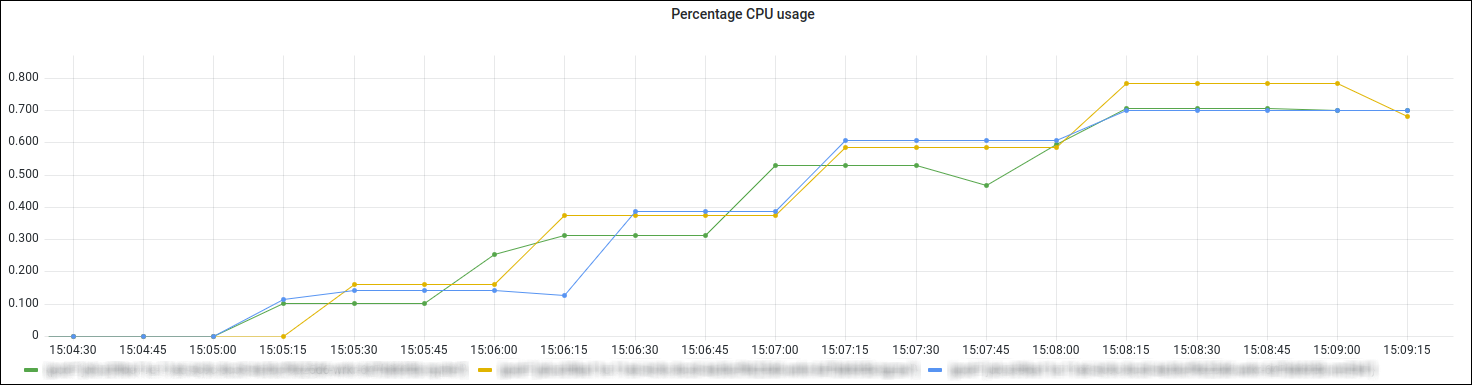
The screenshot below from the Grafana dashboard shows an example of Executors CPU usage:
For more information about pipeline monitoring with Grafana, see Pipeline monitoring section.