

How to manage pipelines
This section of the Developer Guide focuses on the pipeline management process using the web portal.
This includes listing available pipelines, displaying pipeline version details, upgrading pipeline versions, etc.
Let's take a closer look at these operations.
Display a list of pipelines
Using the web portal, you can list pipelines that you have access to, get their IDs, states, and other relevant pipeline properties.
To do this, navigate to the Pipelines page.
If you already have deployed any pipelines, they will be displayed as shown below:
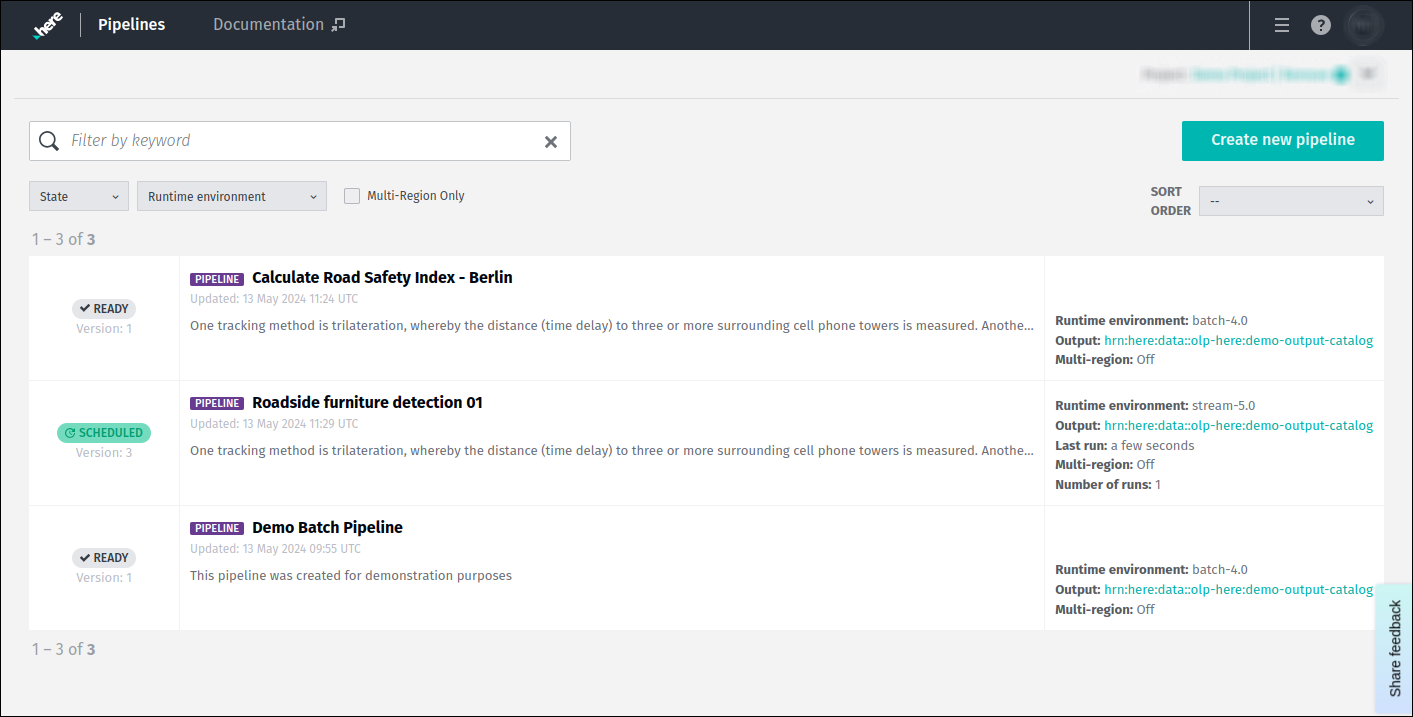
If you take a closer look at any of the pipelines in this list, you will find the following information available for it:
- Current pipeline state.
- Number of versions available for this pipeline.
- Pipeline name and description.
- Pipeline runtime environment.
- Output catalog used for this pipeline.
- Status of the
Multi-regionfeature. - Information about the last time the pipeline was run.
- Number of runs for this pipeline.

Manage list of displayed pipelines
The list of pipelines can get to be quite long.
To easily locate a specific pipeline, you have three options available:
- Sorting.
- Filtering.
- Searching.
Sorting
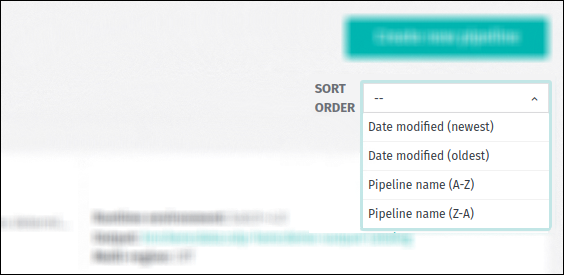
Sorting is done based on either the pipeline name or the date it was modified:
Filtering
Filtering is done by selecting filtering criteria to be applied to the pipelines list.
Choose one or more of the drop-downs and select the desired filtering parameters. There are three categories of filters available:
- By pipeline states.
- By runtime environments.
- By
Multi-regionfeature status.
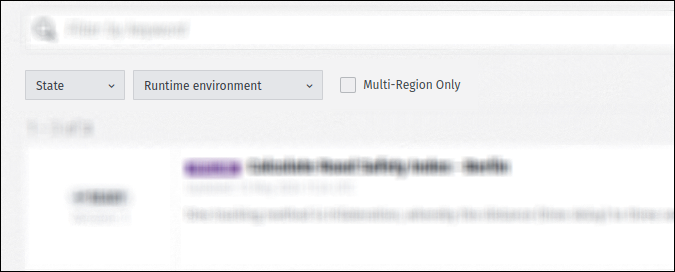
Filtering is done automatically as each filter is selected.
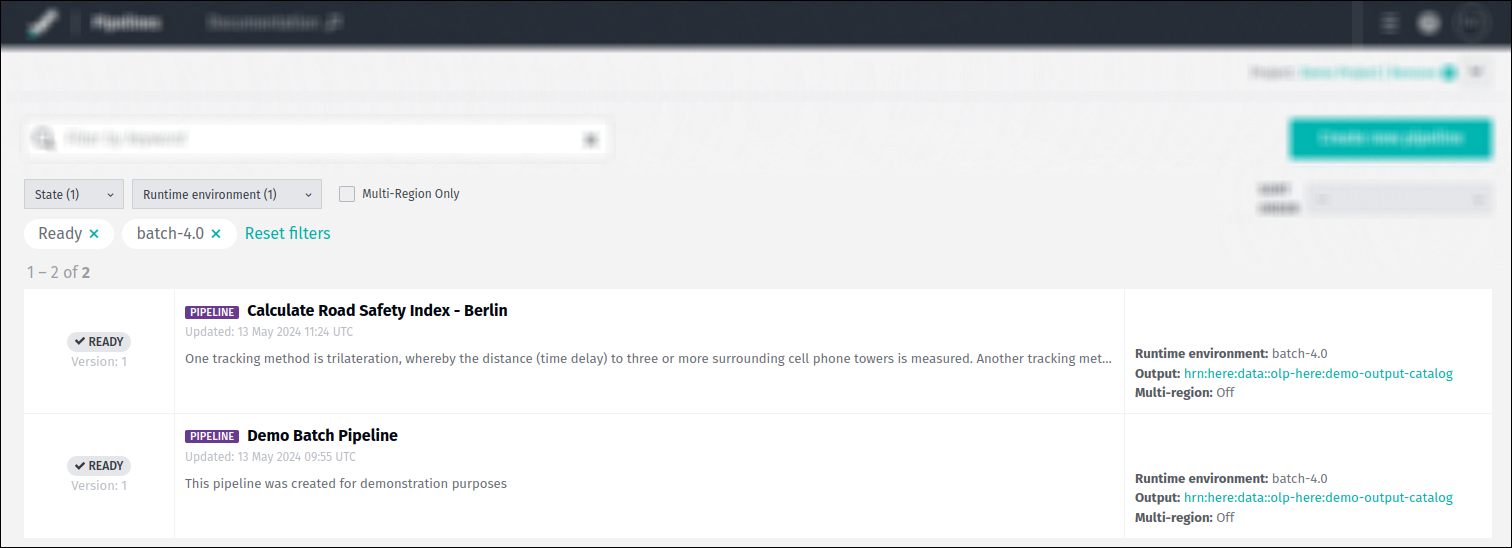
Filter parameters can be deleted individually or in groups. For the latter, use the Reset filters option:
Searching
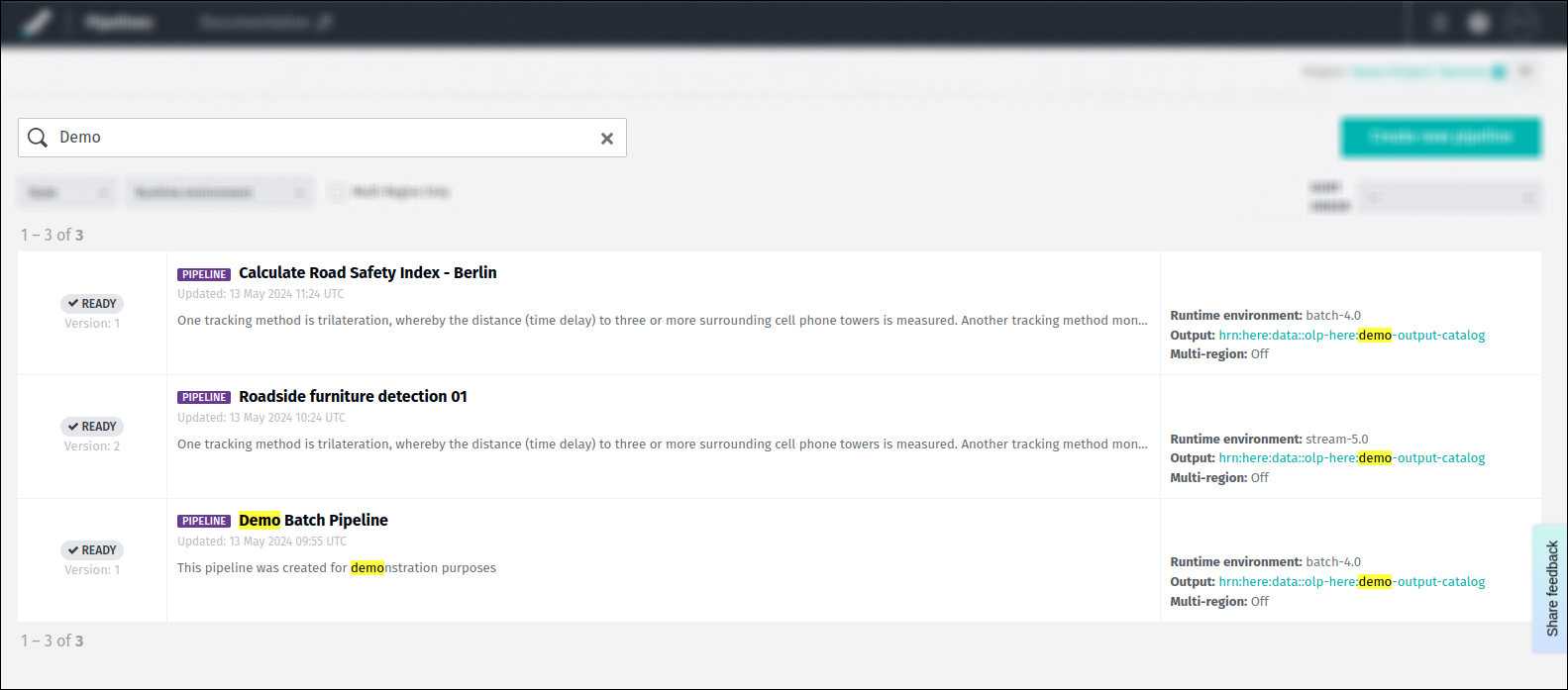
To search for a specific pipeline, enter specific requests in the search field.
The search is initiated automatically as you are typing.
Please note that the following pipeline properties are used during the search:
- Pipeline name and description.
- Output catalog.
- Runtime environment.
Update a pipeline
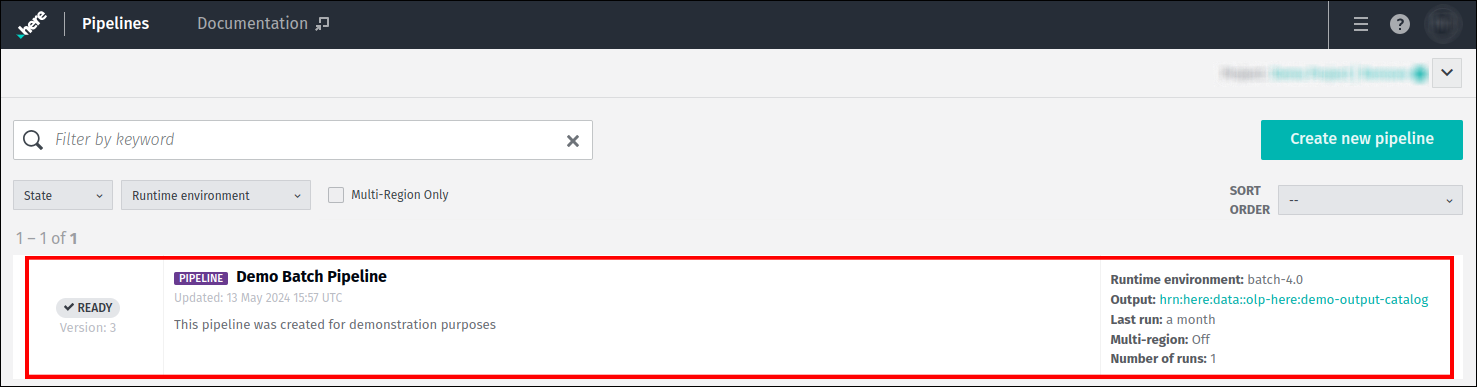
The web portal allows you to edit a pipeline and update its properties.
To do this, navigate to the Pipelines page and select the pipeline which you want to edit:
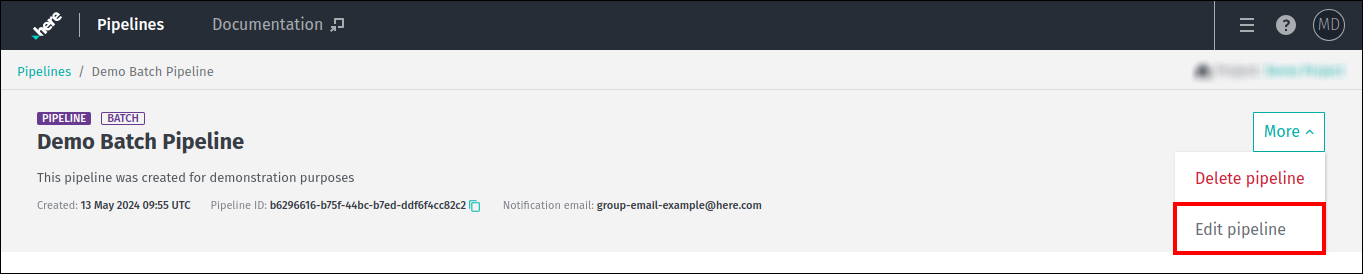
Use the Edit Pipeline option from the More menu at the top right of the page to start editing:
A new page will open where you can enter a new name, description and notification email for the pipeline:
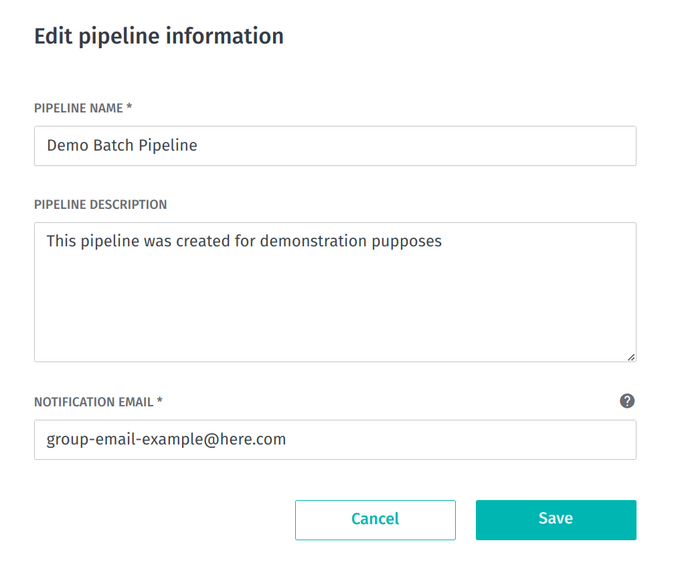
Please note that the limitations for the pipeline parameters mentioned above are the same as when creating a pipeline.
Once the changes have been saved, the properties of the pipeline will be updated:

Display a list of pipeline versions
Using the web portal, you can list the versions of pipelines that you have access to, get their IDs, states, and other relevant properties.
To do this, navigate to the Pipelines page and select the pipeline whose versions you are interested in:
If you have already created versions for this pipeline, they will be displayed as shown below:
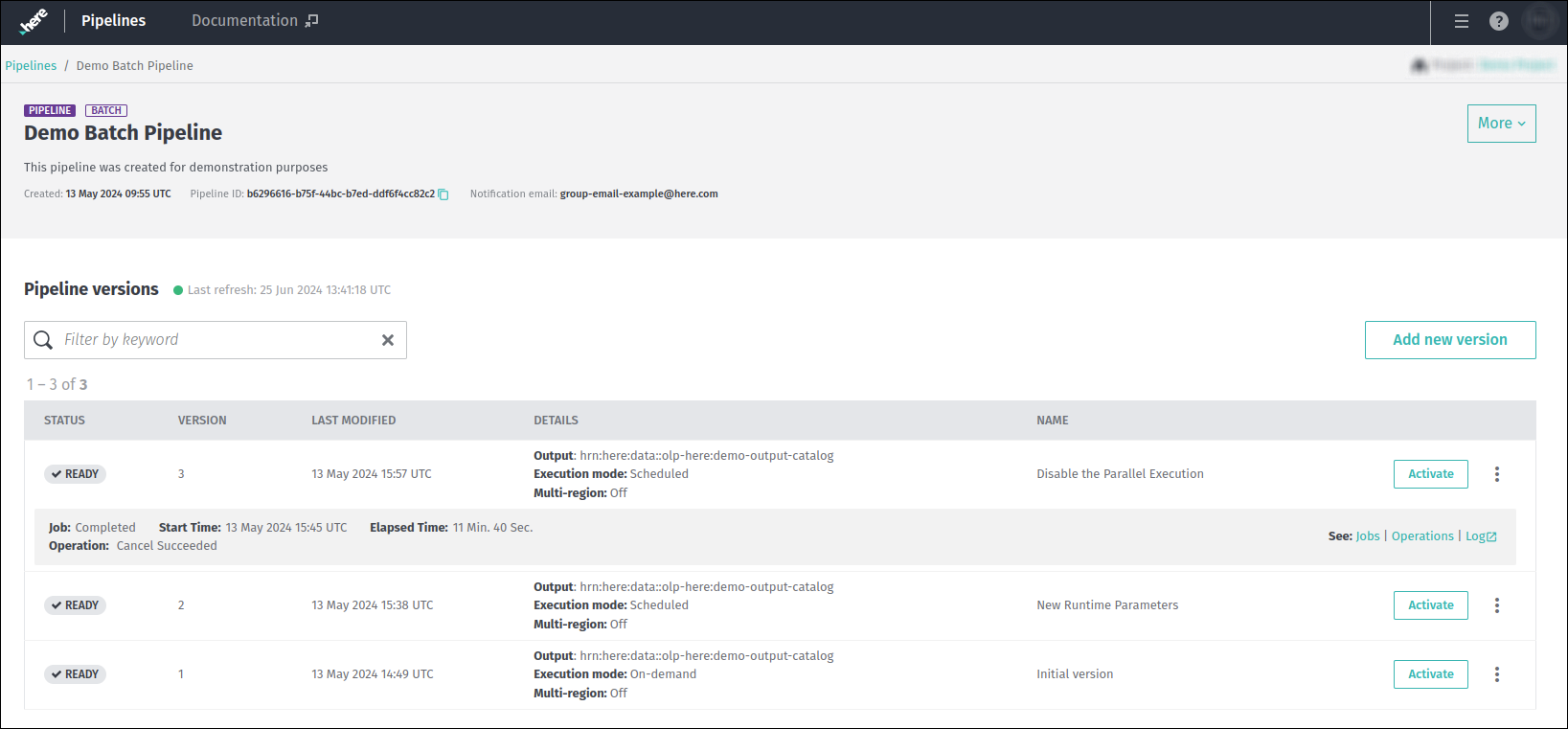
If you take a closer look at any of the versions in this list, you will find the following information available for it:
- Current pipeline version status.
- Pipeline version number.
- Information about the last time the pipeline version was modified.
- Output catalogs used by specific pipeline version.
- Execution mode and status of the
Multi-regionfeature. - Pipeline version name.
Several additional properties are provided for the last pipeline version executed:
- Job and operation statuses.
- Pipeline version start time and elapsed time.
The list of pipeline versions can get to be quite long.
To filter them, enter specific queries in the Filter by keyword field.
Filtering starts automatically as you type.
Please note that the following pipeline version properties are used during the filtering:
- Pipeline version status.
- Pipeline version number.
- Output catalog.
- Pipeline version name.
Upgrade a pipeline version
The purpose of upgrading a pipeline is to replace the existing pipeline version with a new one, which may be based
on a different pipeline JAR file and/or configuration.
NoteBefore you can upgrade an existing pipeline version, you must have a new pipeline version to replace the current one with.
For additional information on how to create a pipeline versions, see the Deploy a pipeline via the web portal section.
Pipelines can only be upgraded if the current version is in the Running or Paused state.
The version used to upgrade to should be in the Ready state. If you want to upgrade a pipeline that is in the Scheduled state,
you can simply deactivate it and then activate the version you want to upgrade to.
Upgrading a pipeline is possible for both stream and batch pipelines, however there are subtle differences:
- In the case of a stream pipeline, a savepoint will be taken from the running job and processing will be terminated immediately.
The savepoint will be passed to the upgraded pipeline version to start processing from.
For more information on checkpointing and savepoints, see the Stream processing best practices - Flink checkpointing chapter. - In the case of a batch pipeline, the running job will not be terminated. Instead, it is allowed to complete its processing,
after which the current pipeline version will return to theReadystate, while the upgraded pipeline version will be in theScheduledstate.
In other words, the upgrade does not take effect until the next time the pipeline is scheduled to run.
Let's continue with example of upgrade operation.
In the screenshot below, you can see three versions of the Demo Batch Pipeline:
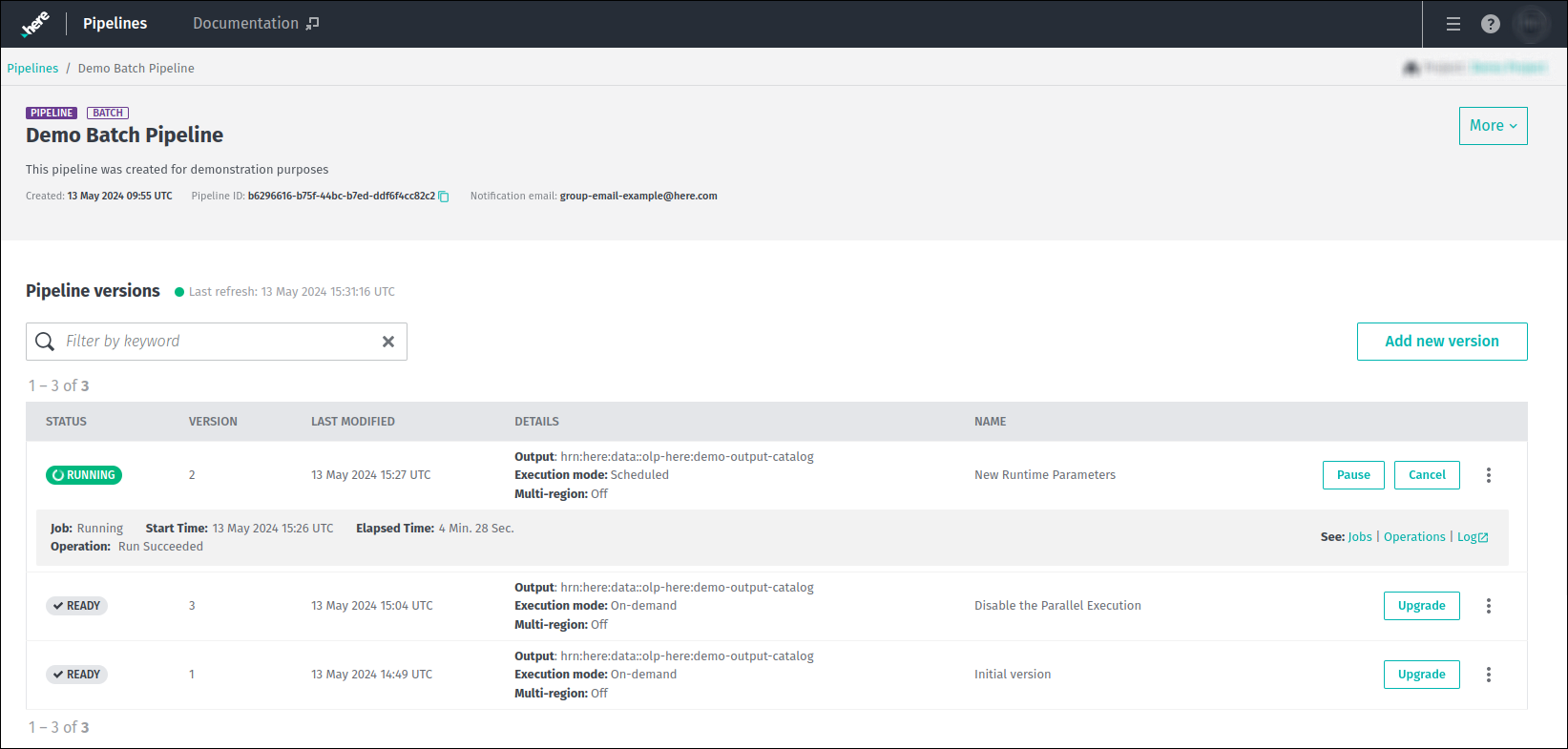
The goal here is to upgrade the Running pipeline version 2 to the Ready version 3.
For it, click Upgrade for this version:
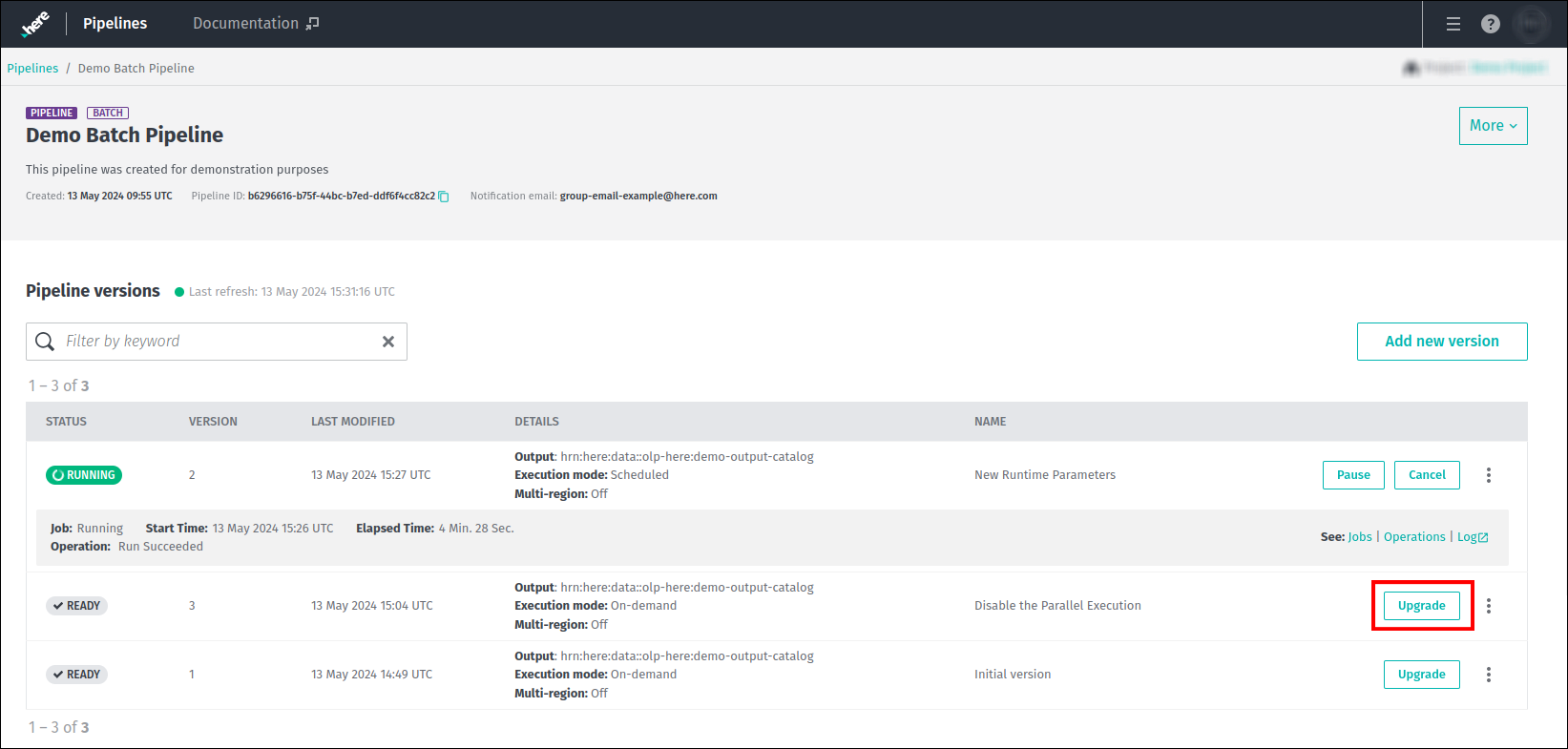
This initiates the upgrade process which, when concluded, allows the next scheduled job to run with pipeline version 3.
As mentioned previously, for the batch pipeline, the running job will not be terminated immediately and will complete its processing.
During the completion stage, the pipeline version 2 will be in the Paused state as shown in the example below:
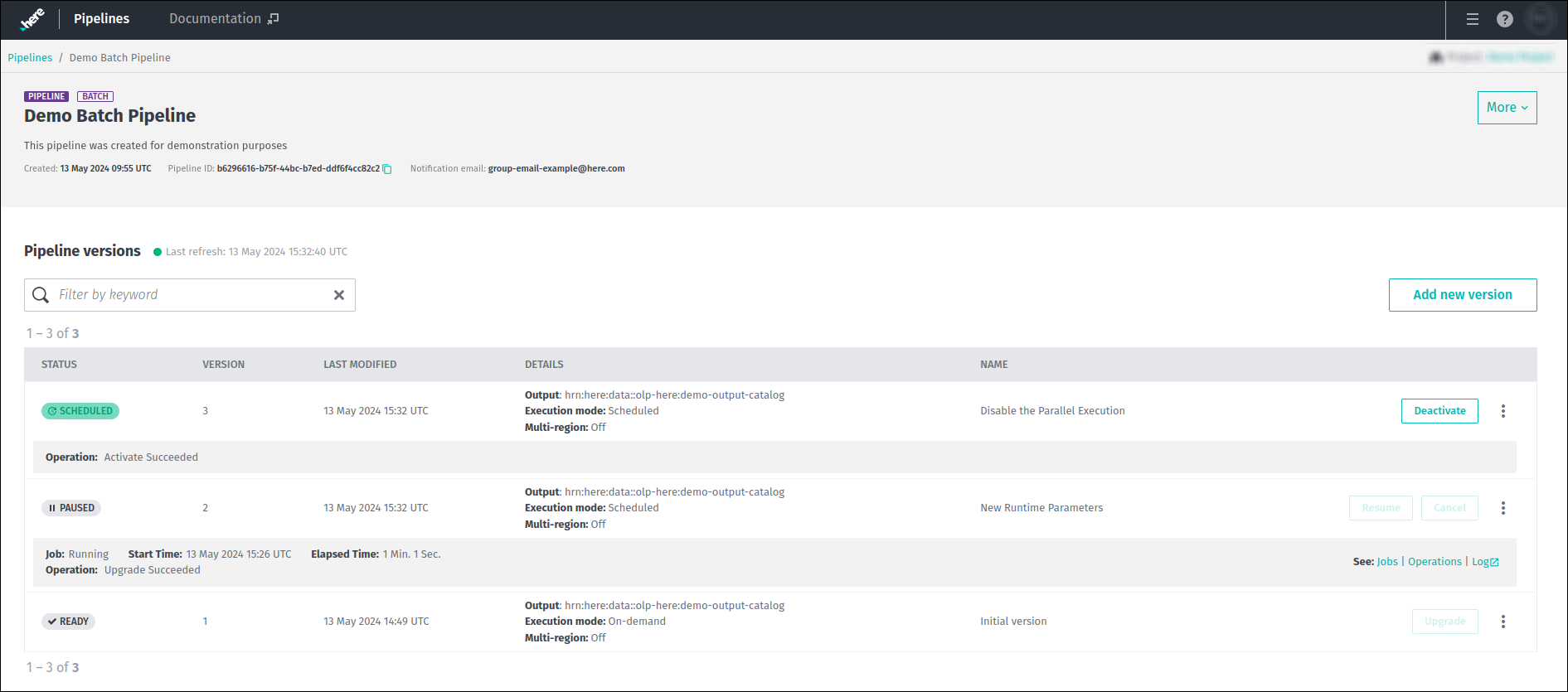
After the running job has finished, pipeline version 2 returns to the Ready state and once Schedule settings have been met,
the pipeline version 3 will start running:
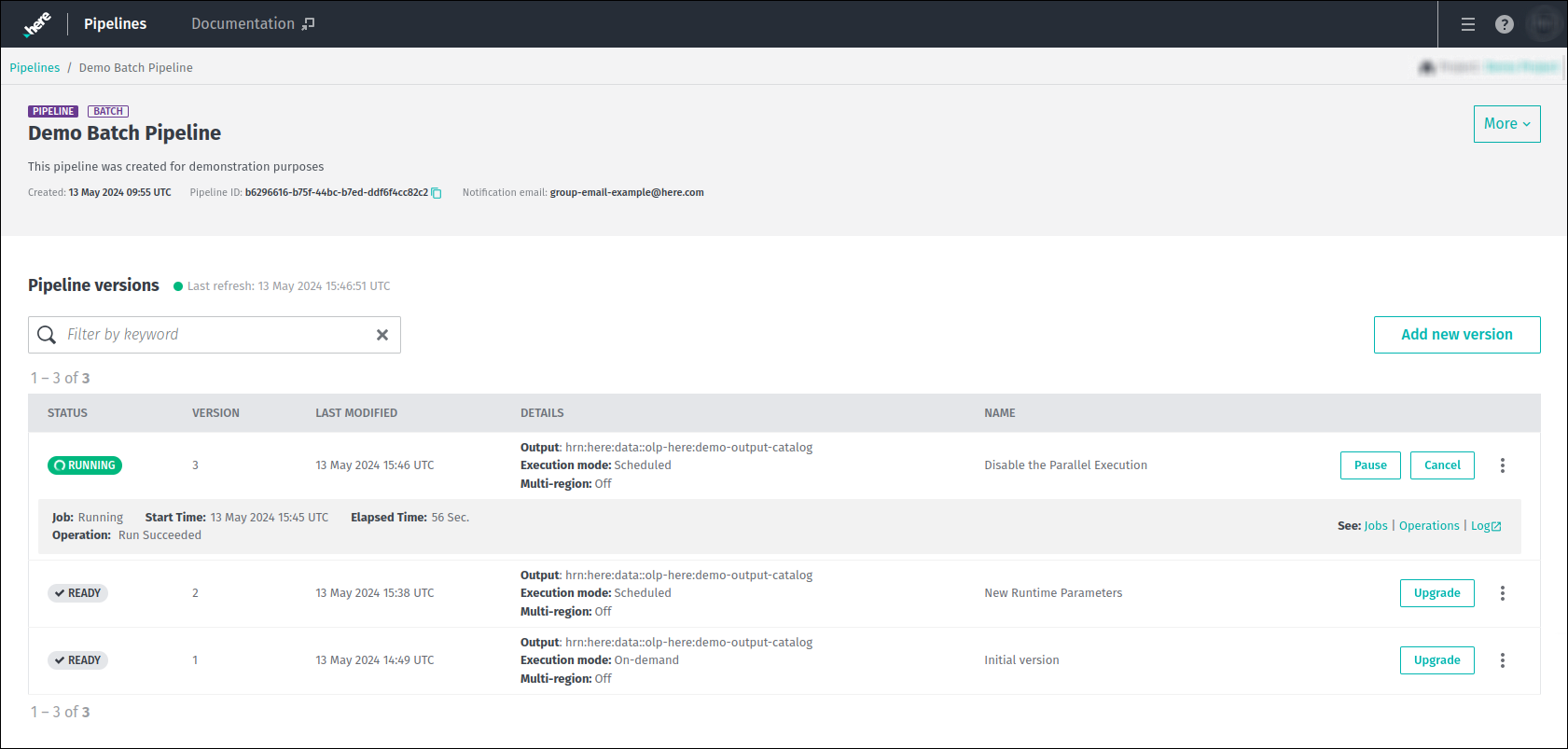
Note that although in the example above we have upgraded the pipeline versions sequentially (version 2 was upgraded with version 3),
there are no restrictions on non-sequential upgrades.
In other words, it doesn't matter whether the version you want to upgrade to was created before or after the original pipeline version.
NoteBatch pipelines can only be upgraded, if they were activated in the
Schedulemode (eitherData changeorTime schedule).
Upgrade operations are not available for ones activated in theRun Nowmode.
Copy a pipeline version
The pipeline version Admin menu provides access to various management functions, such as copying pipeline versions,
displaying versions details, deleting them, and so on.
To open it, select a specific pipeline version from the list and then, click on the ellipsis icon at the far right side of that pipeline as shown below:
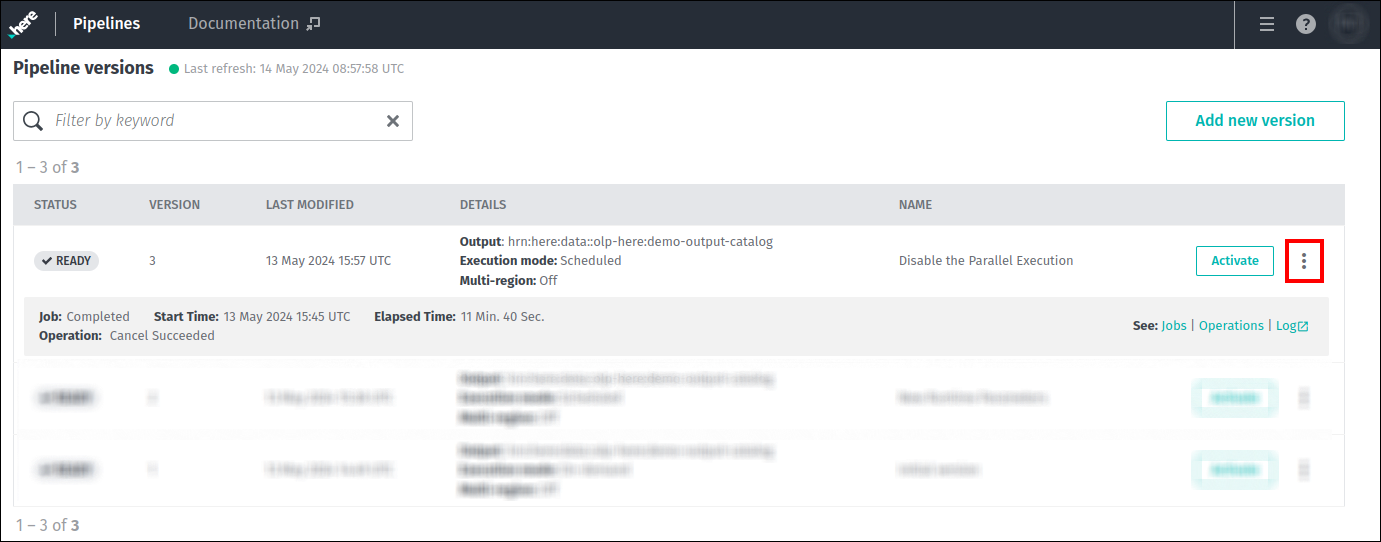
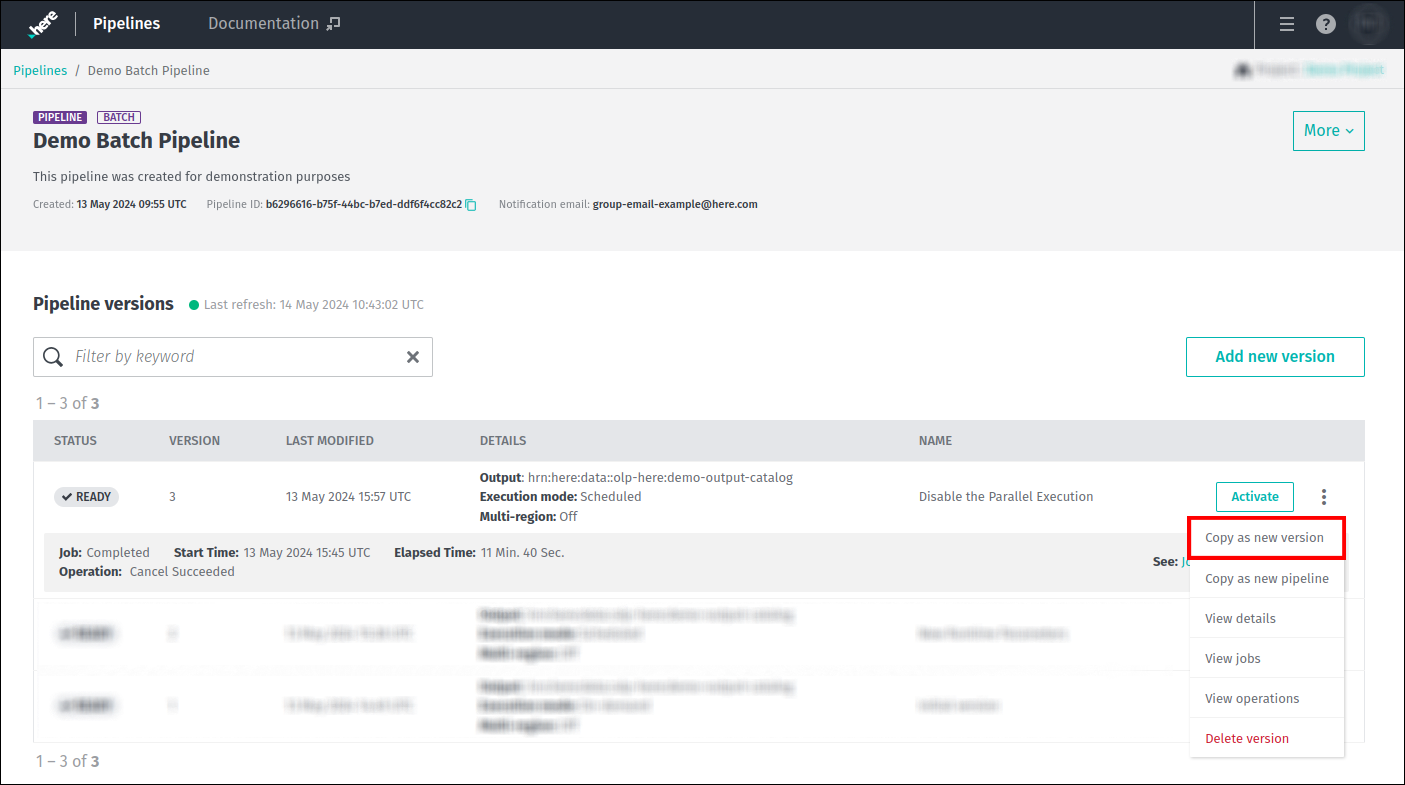
As was mentioned above, one of the options provided by the Admin menu is to copy a pipeline version.
To do this, open the Admin menu of the version you want to copy and select the Copy as new version:
After selecting this option, you will then see a pipeline version configuration page with all the parameters from the original pipeline version pre-populated.
You can edit any parameter on the page, but some parameter combinations may initiate the creation of a new template:
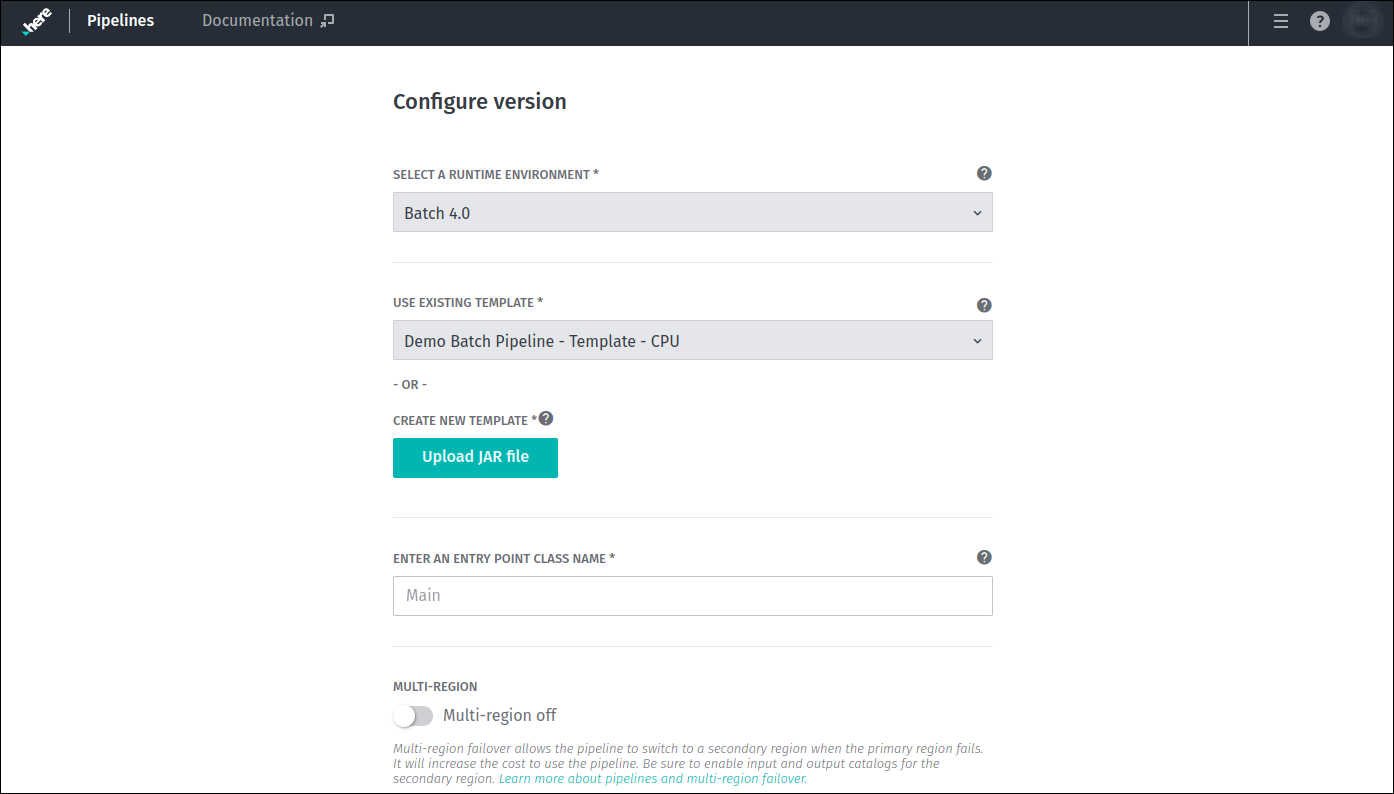
For more details on these parameters, please see the Deploy a pipeline via the web portal.
Copy a pipeline version as a new pipeline
You also can create a new pipeline based on a single existing pipeline version.
To do this, in the Admin menu of specific pipeline version select the Copy as new pipeline option:
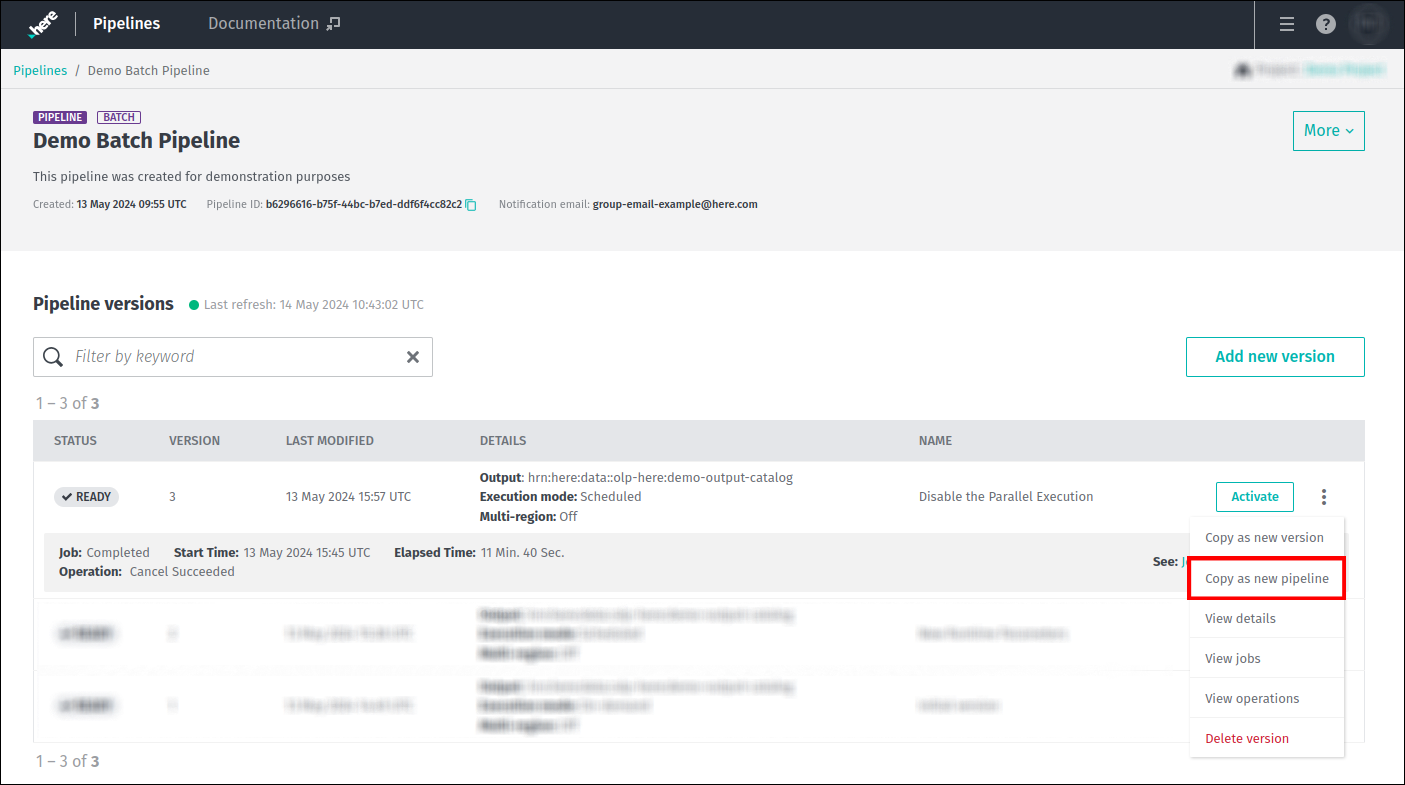
After selecting this option, you will then see a pipeline configuration page with all the parameters from the original pipeline pre-populated.
You can then change the name, description, contact email, project or group before saving the new pipeline:
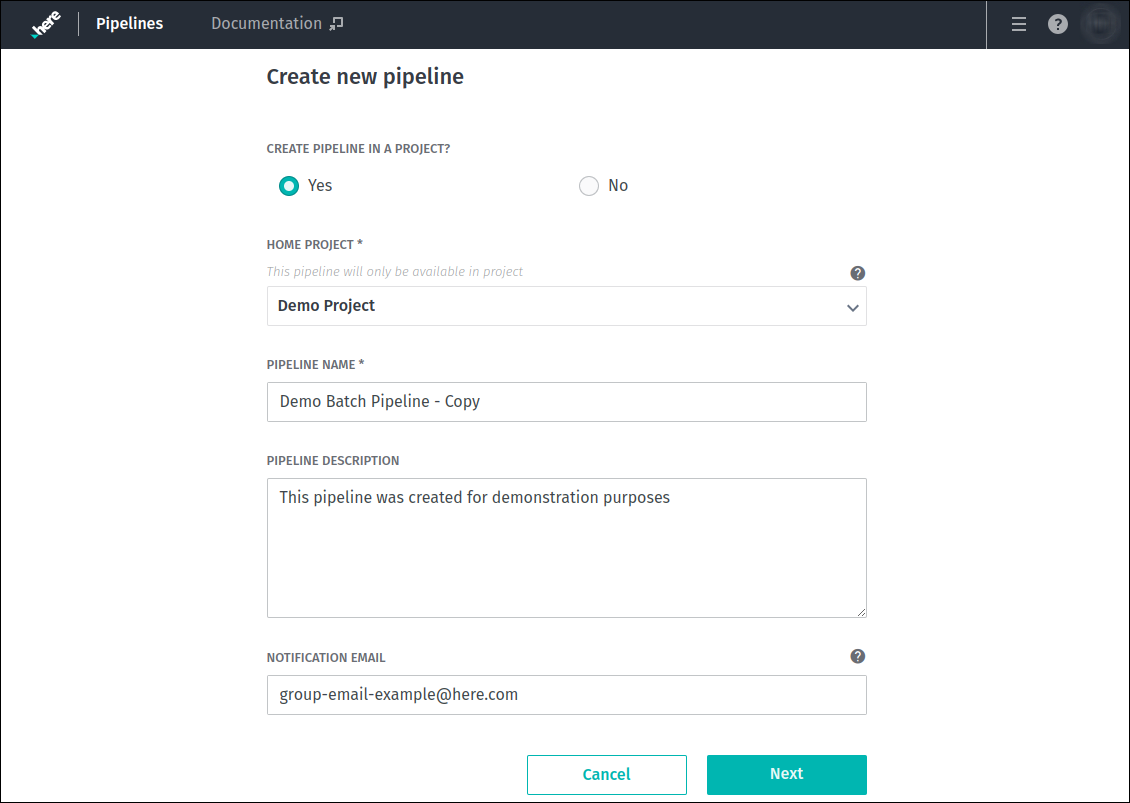
Click Next when your changes are made.
You will then see the pipeline version configuration page similar to that when copying a pipeline version.
As previously, the new pipeline version is based on the original one.
You can change any of the configuration items as needed for your new pipeline version.
View information about a pipeline version
To view all the information available about a specific pipeline version, open its Admin menu and select View details.
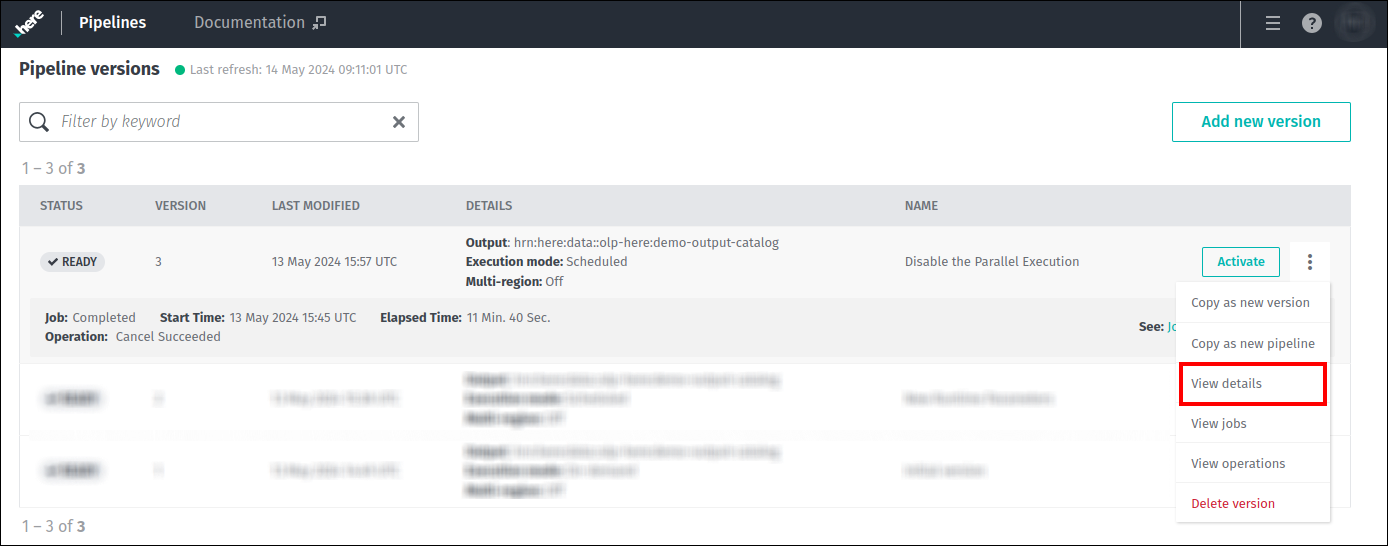
A new tab opens that shows information on pipeline version details, operations, and jobs:
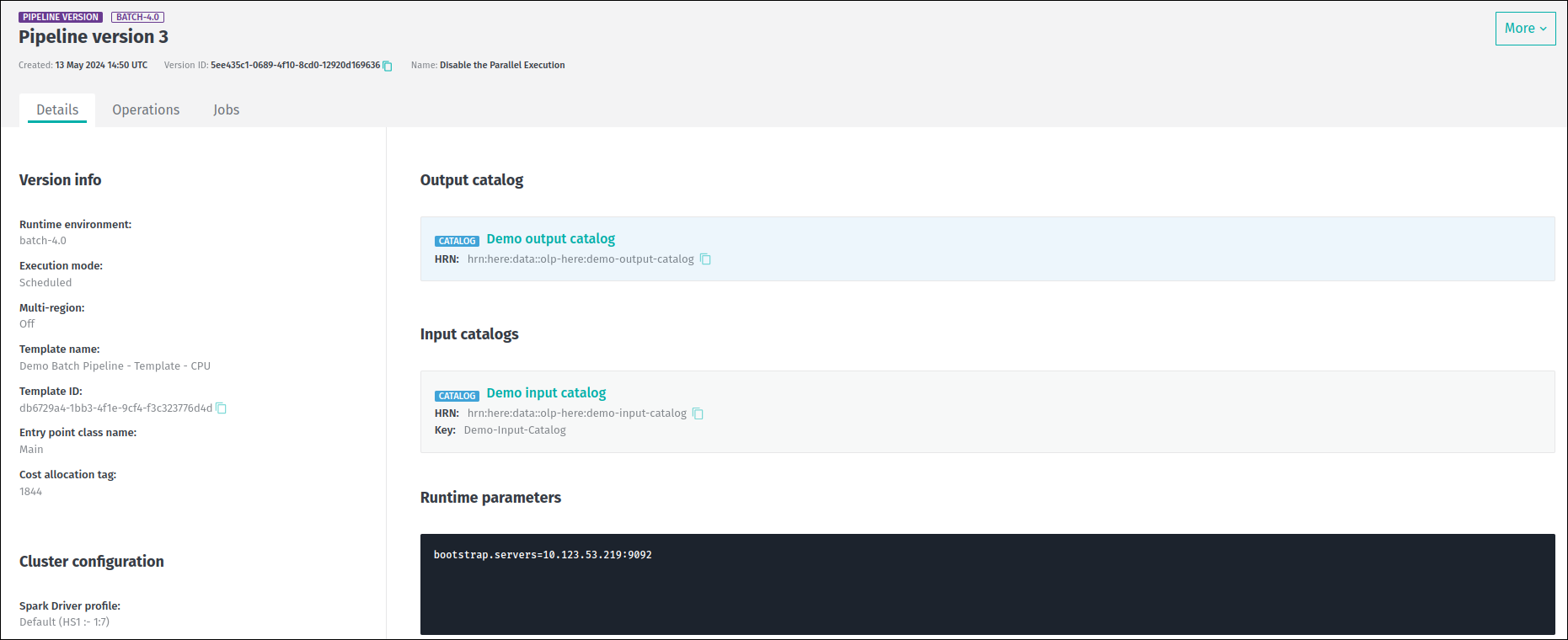
Let's take a closer look at the information available on the Details tab.
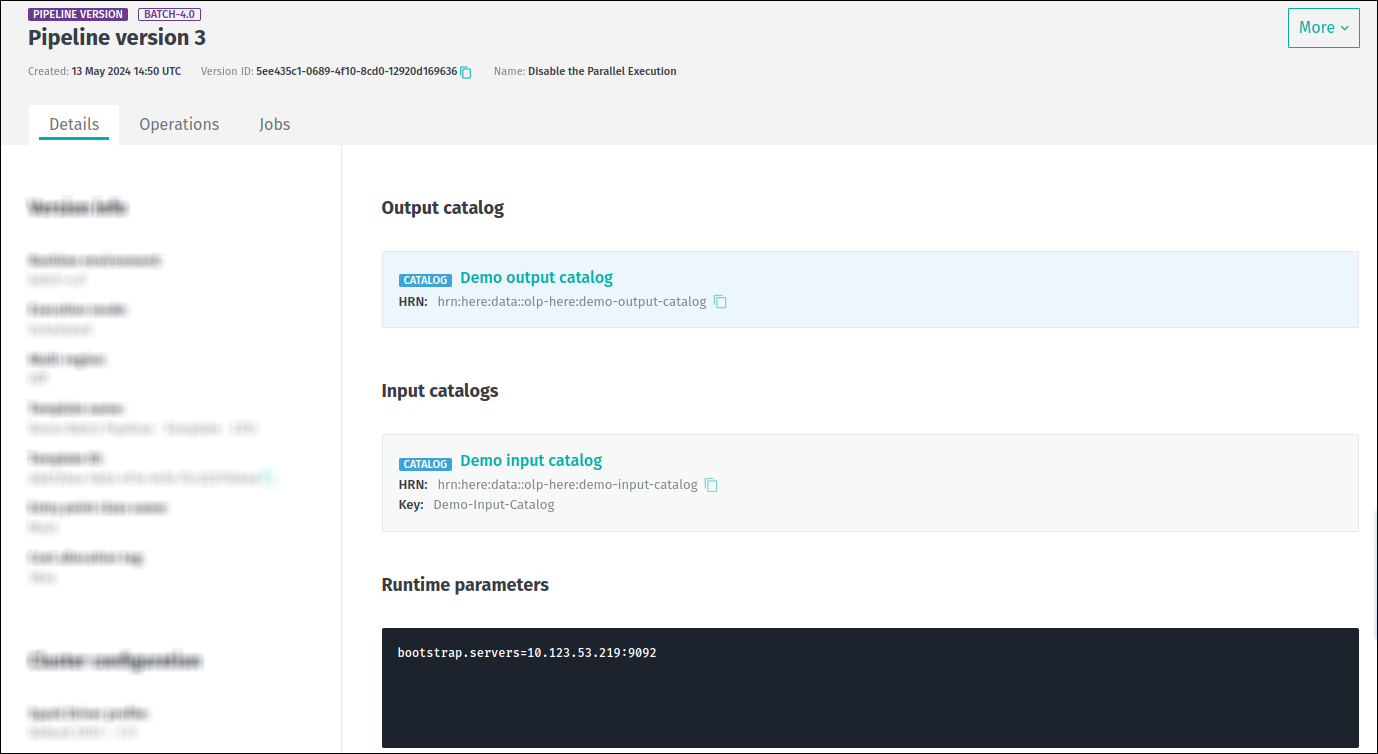
In the center, details about the pipeline version's runtime parameters, input, and output catalogs are shown:
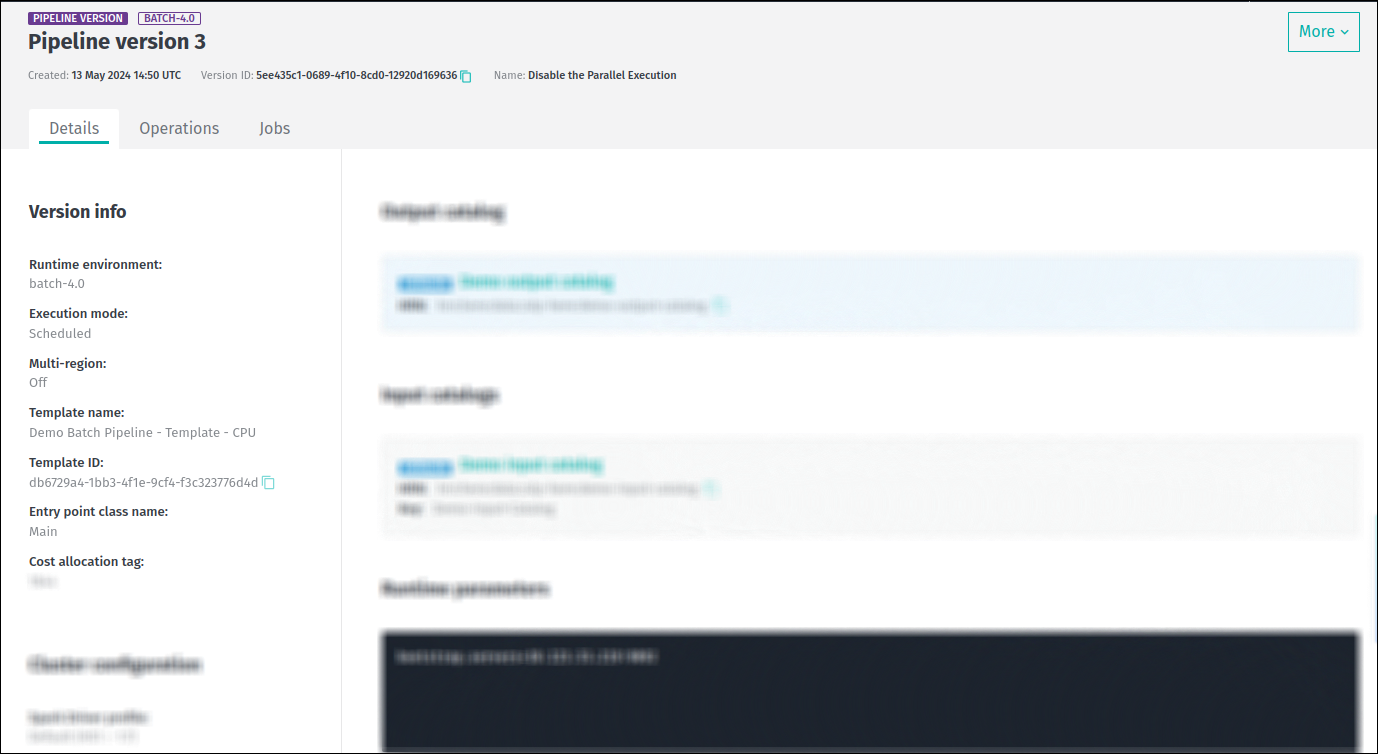
At the top left side of the tab we see general information about this pipeline version, such as runtime environment,
execution mode, state of the Multi-region feature, and so on:
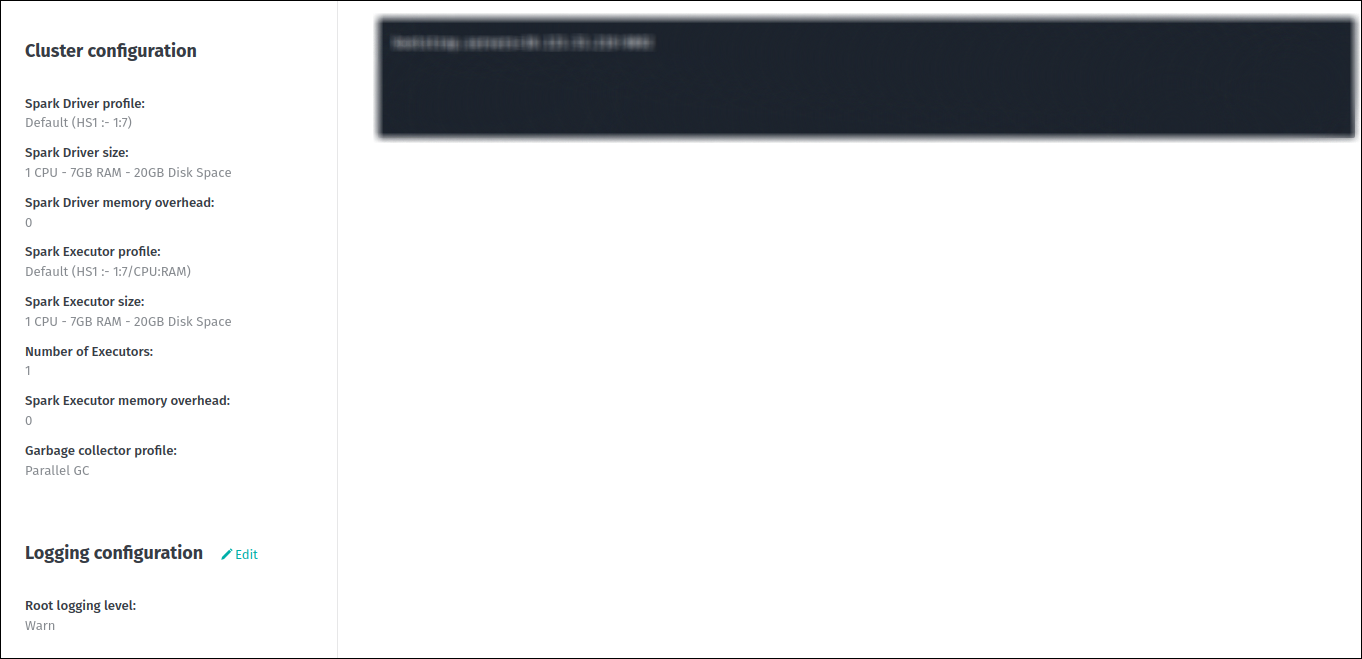
At the bottom left side of the tab we see the cluster and logging configuration details for this pipeline version:
For more information on all these parameters, see the Deploy a pipeline via the web portal and
Pipeline logging sections.
View jobs history
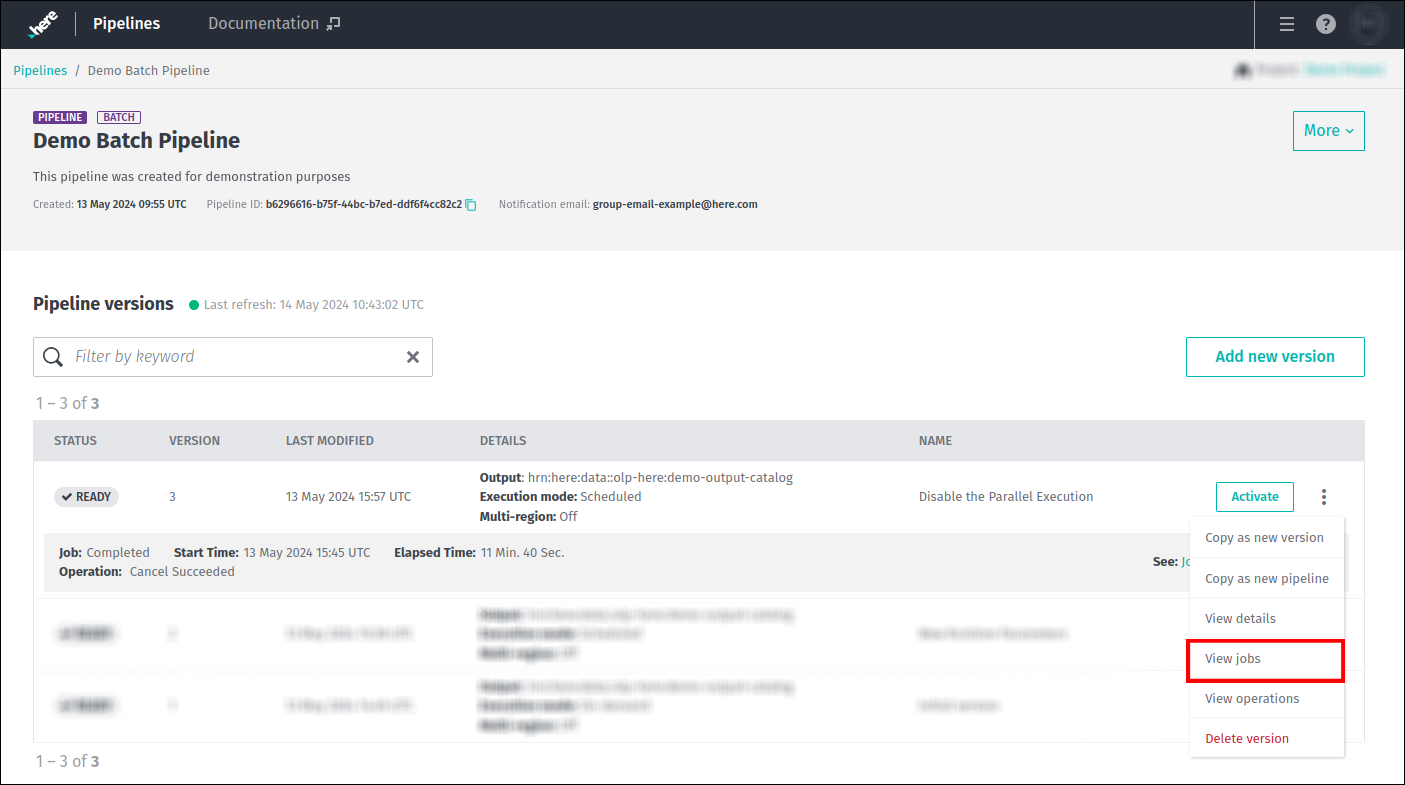
To display list of jobs executed by specific pipeline version, either click on the View jobs button on the
Admin menu, or choose the Jobs tab on the pipeline version details page.
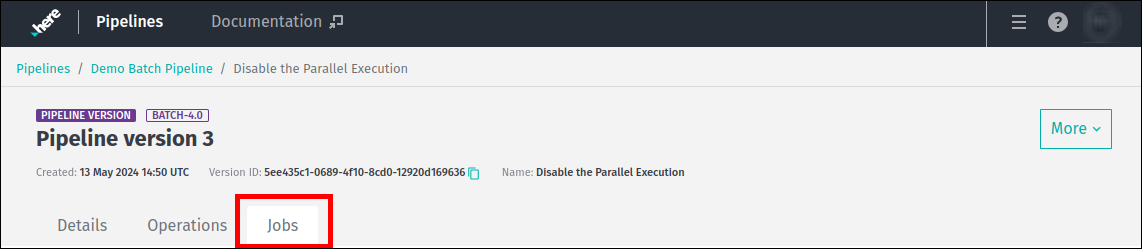
The Jobs tab contains a list of jobs executed by the chosen pipeline version.
Information about job status and details is present on this page as well as links to job logs, and Spark or Flink UI pages:
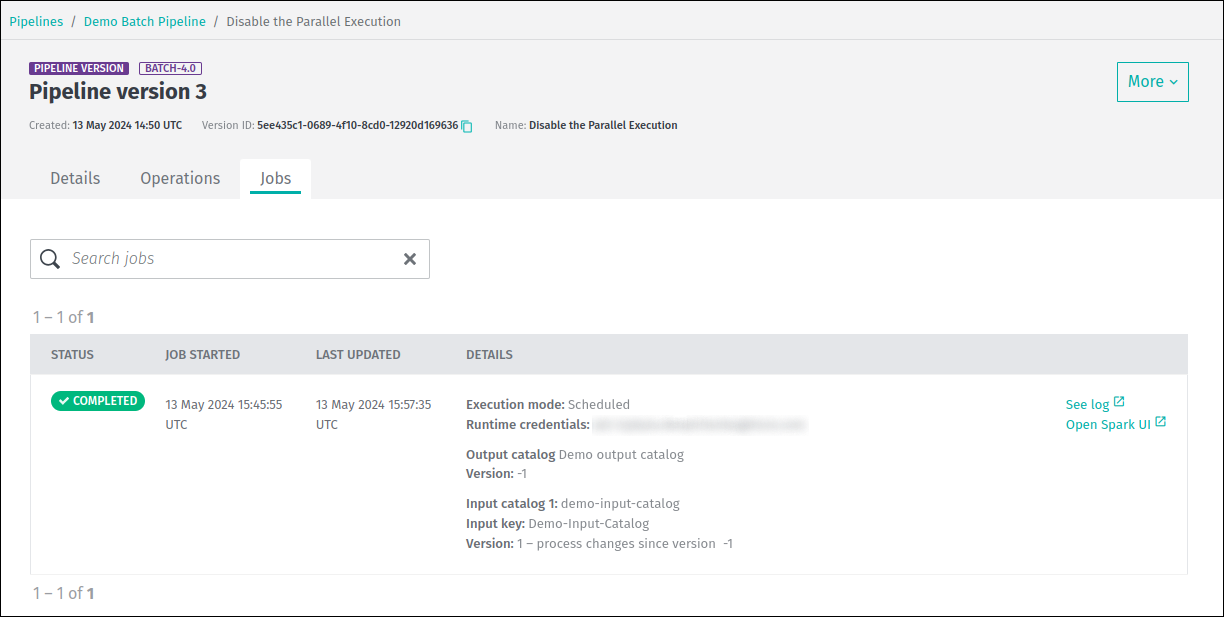
If you need to inspect a specific job or set of jobs, use the Search jobs field.
Search is initiated automatically as you are typing.
Please note that the following jobs properties are used during the search:
- Status
- Started
- Last updated
- Execution mode
View operations history
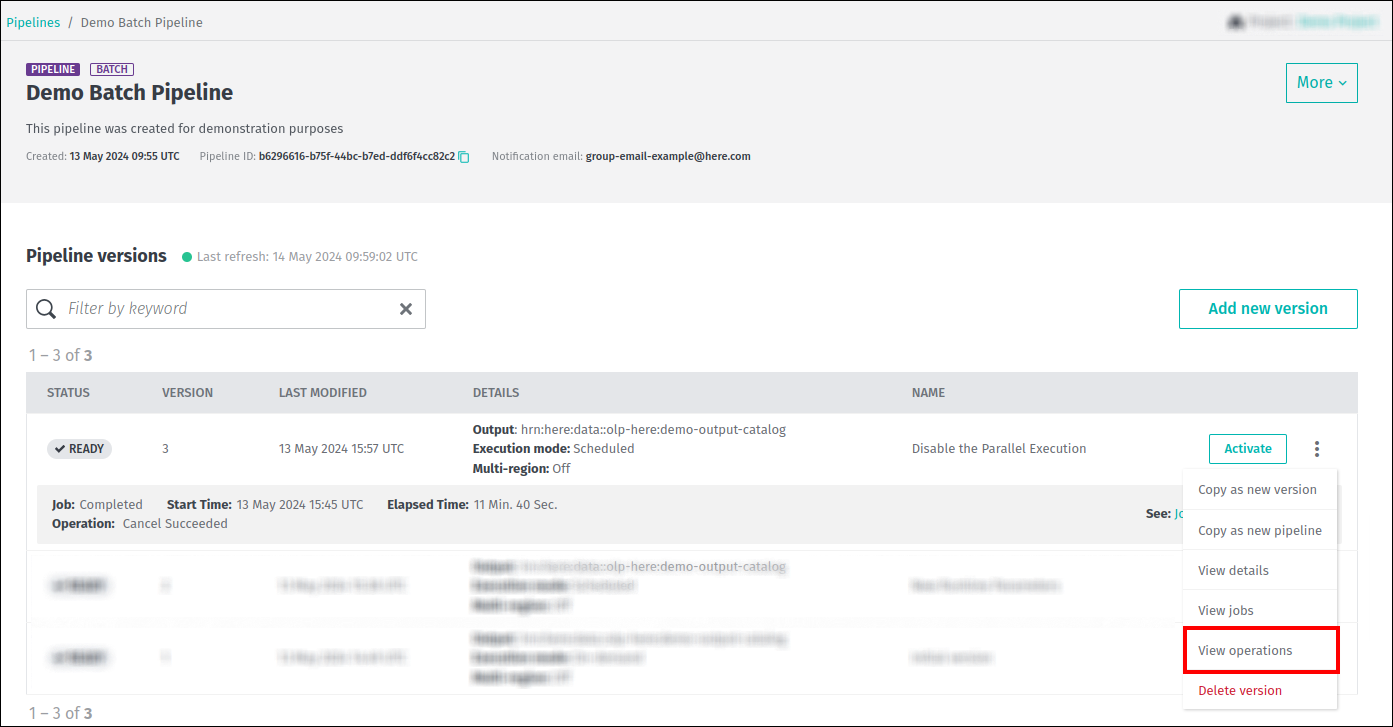
To display list of historical operations executed by specific pipeline version, either click on the View operation button on the
Admin menu, or choose the Operations tab ob the pipeline version details page.

The Operations tab contains a list of historical operations executed by the chosen pipeline version.
Details of operation time, status, its type, initiator, etc. are present on this page:
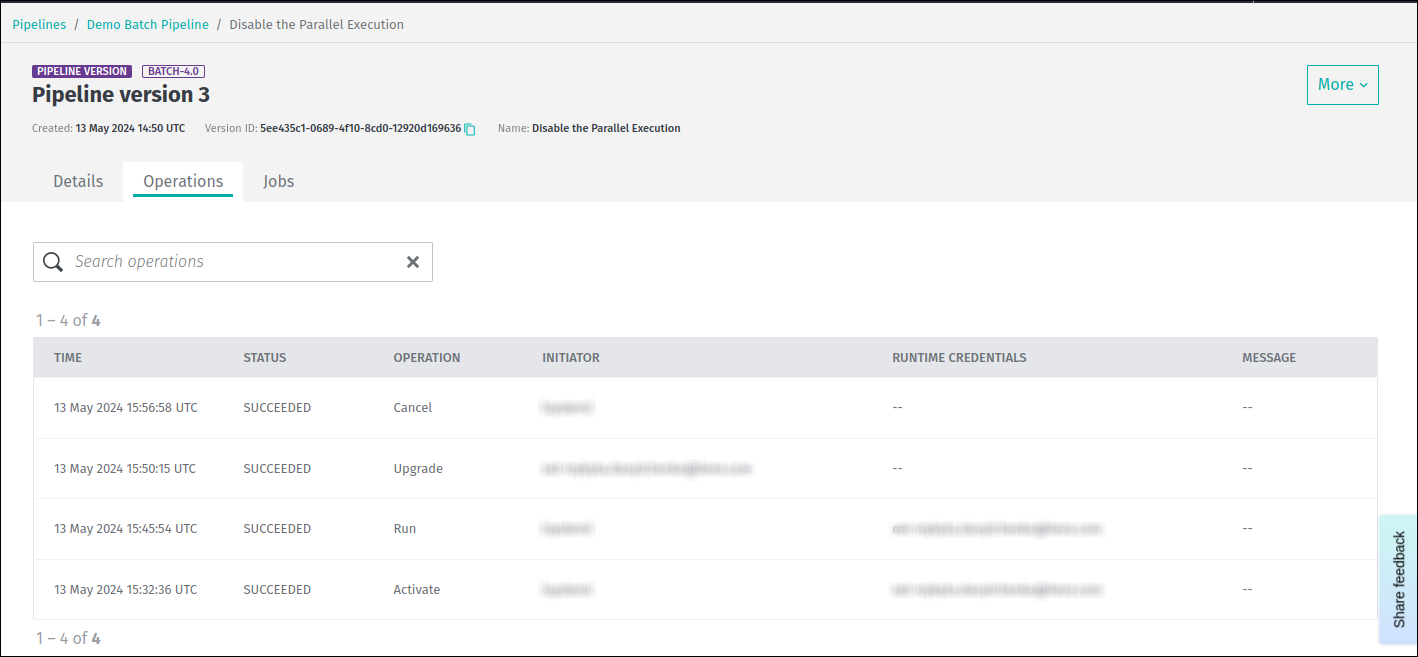
If you need to inspect specific operation or set of operations, use the Search operations field.
Search is initiated automatically as you are typing.
Please note that the following operation properties are used during the search:
- Operation time
- Operation status
- Operation type
- Operation initiator
Delete pipeline version
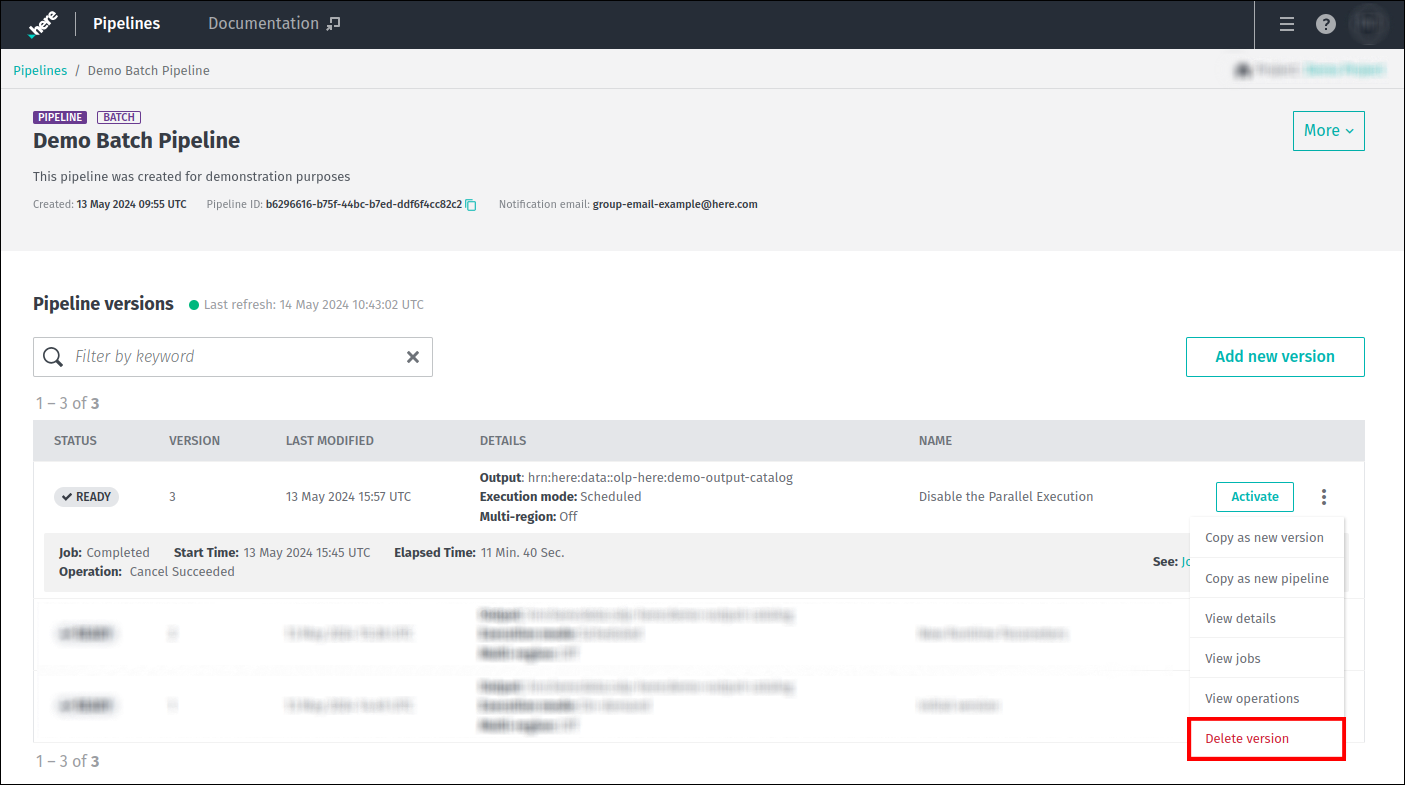
There are two ways you can initiate a pipeline version deletion.
The first is to use the Delete version option from the Admin menu of the pipeline version you want to delete:
The second option is to open a specific pipeline version page and use the Delete version button under the More menu
in the top right corner of the page:

WarningIrrevocable action
This action cannot be reversed. Pipeline version will be removed after clicking on theDeletebutton.
Please note, that a pipeline version can only be deleted if it is in the Ready state.
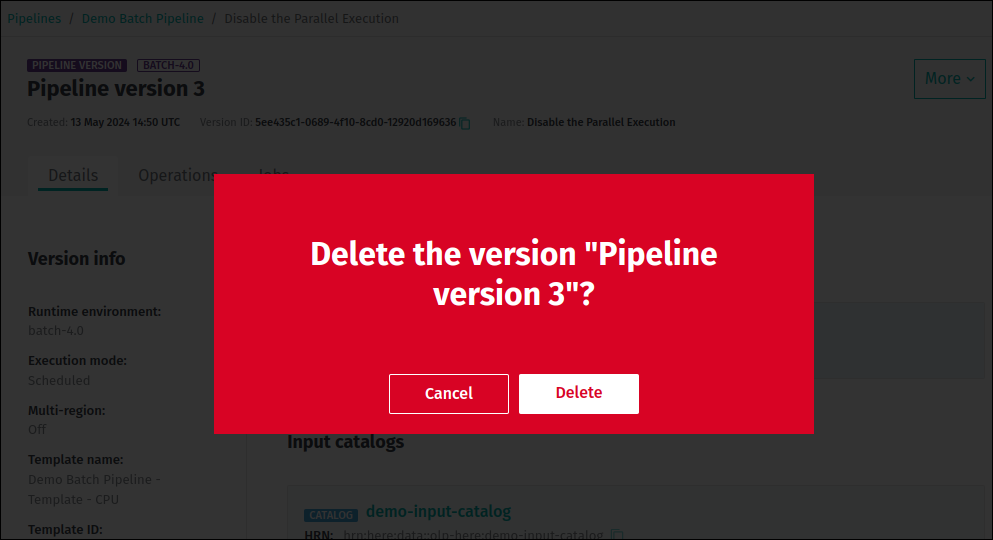
Either way, regardless of the option selected, you need to confirm the Delete operation:
Delete a pipeline
Sometimes it may be necessary to remove a pipeline completely from the pipeline service.
This is equivalent to deleting the pipeline instance and any pipeline version associated with it.
To delete a pipeline, open the pipeline page and select the Delete pipeline option under the More menu
in the top right corner of the page:
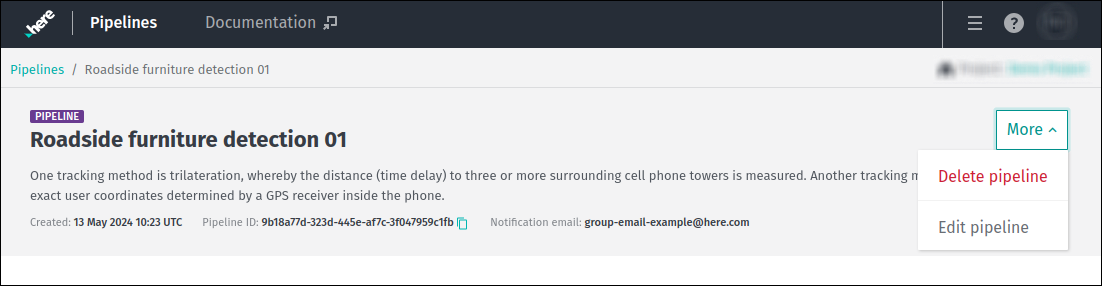
Please note, that this button is not active if the pipeline is not in the Ready state.
WarningIrrevocable action
This action cannot be reversed. The entire pipeline and every version associated with it will be removed after clicking on theDeletebutton.
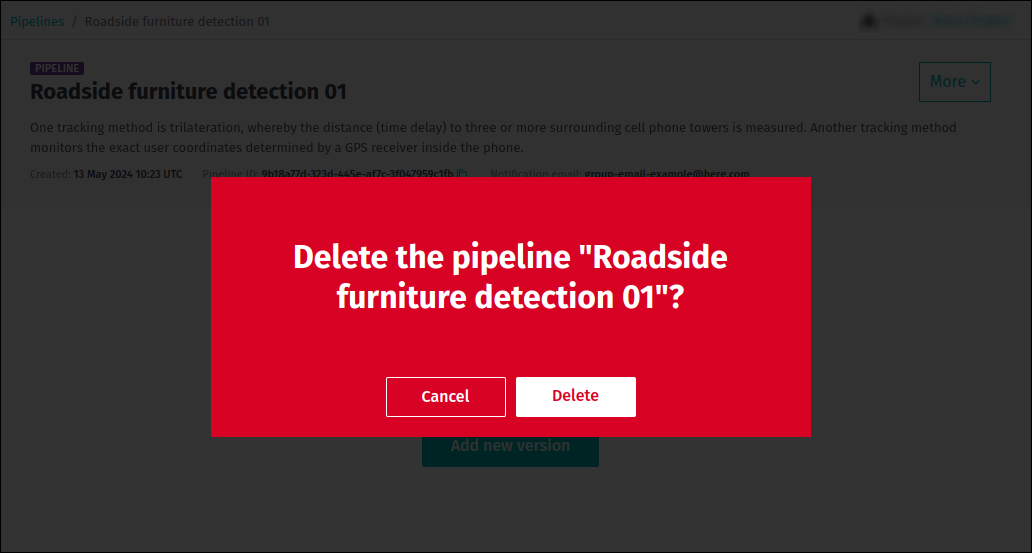
To confirm this operation, select the Delete option:
Please note that this procedure does not affect any pipeline templates or catalogs associated with the deleted pipeline.