

How to log a pipeline
Your data processing pipelines may need to log various custom events for troubleshooting and maintenance purposes.
The amount of information that is reported in the logs depends on the logging level you select for each pipeline version.
This section describes the basics of pipeline logging, explains how to change and retrieve the pipeline version logging level, etc.
NoteThe user is charged for the amount of logs written during the execution of the pipeline.
Pipeline logging basics
The HERE platform pipelines use logging to provide more details during their operation. Different levels of logging are available for different purposes.
The following logging levels are supported:
Debug- Includes fine-grained informational events that are most useful for pipeline troubleshooting.Info- Includes informational messages that highlight the progress of the pipeline at a coarse-grained level.Warn- Includes information about potentially harmful situations, for instance, runtime situations that are undesirable or unexpected, but not necessarily wrong.
This is the default logging level used by pipeline versions.Error- Includes runtime errors or unexpected conditions such as error events.
By default, log messages are sent to Splunk, which is a data collection, indexing, and visualization engine for operational intelligence.
For information on how to use Splunk, see the Splunk Enterprise User Documentation.
NoteThe maximum storage retention limit for Splunk is defined on a per-realm basis and is shared by all pipelines within the realm.
Note that this limit can be used up more quickly if you log a lot of data.
Retrieve the logging settings
You can check the logging settings for a particular pipeline version using either the platform portal or OLP CLI.
For the latter, refer to this guide as this section covers the platform portal part.
To retrieve the logging settings, you need to open the Details tab for the pipeline version you want to inspect.
You can do this either by clicking on a particular version in the list of pipeline versions, or by opening its Admin menu and selecting the View details option:
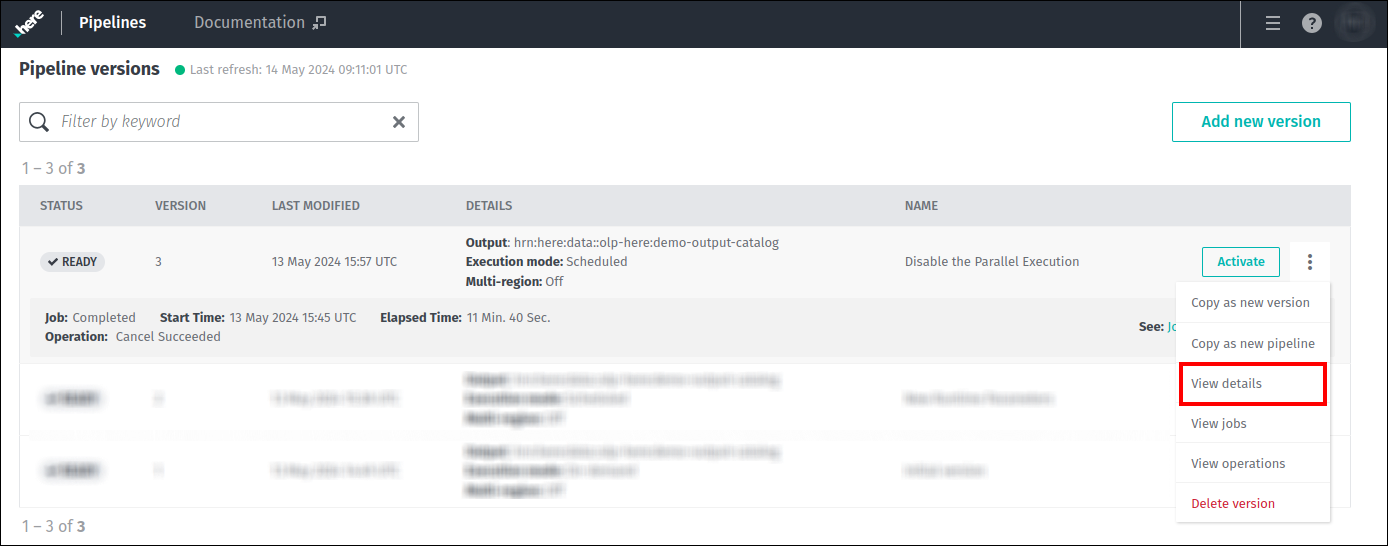
A new tab opens showing various pipeline version details, with logging configuration on the bottom left of the tab:
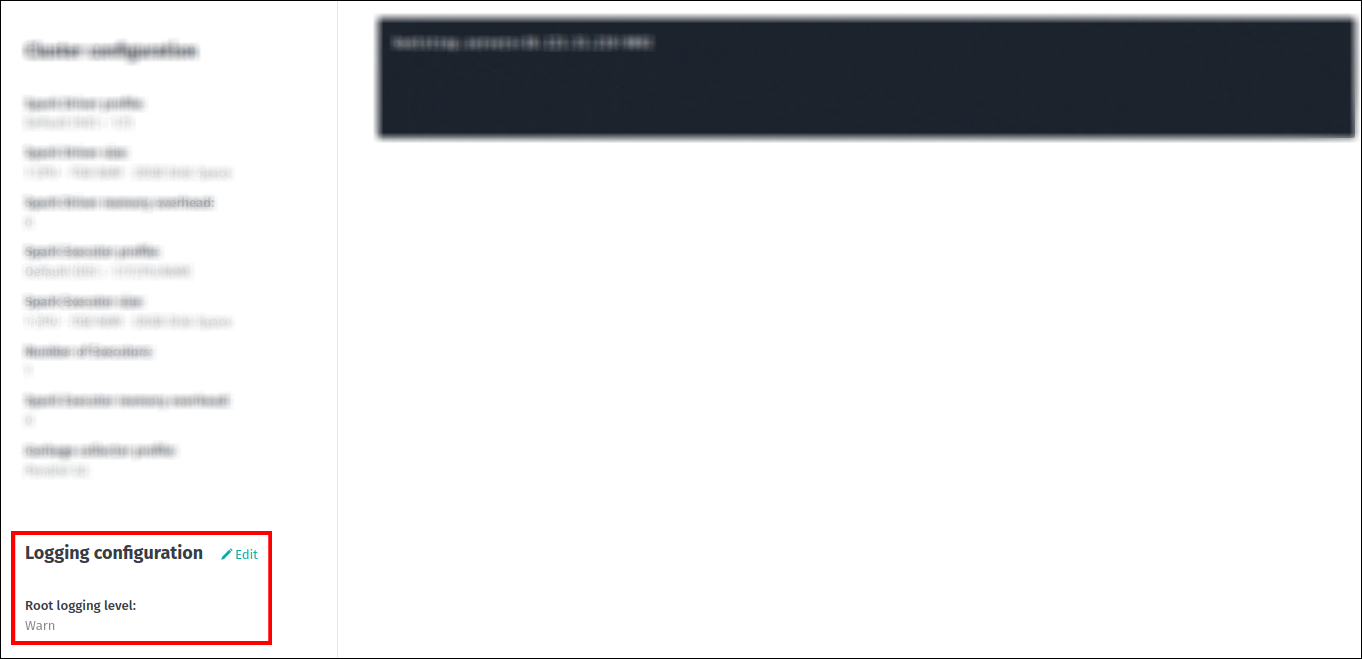
As you can see, the default configuration is used for this particular pipeline version - the Warn logging level is set at root level for the entire pipeline version.
However, multiple loggers can be configured for the same pipeline version.
This process is discussed in the next chapter.
Change the logging settings
You can change the logging settings for a particular pipeline version using either the platform portal or the OLP CLI.
For the latter, refer to this guide
as this section covers the platform portal part.
Changing the logging level for pipeline versions that are in different states results in different behaviour:
Running- If the logging settings are changed for a pipeline version that is in theRunningstate, the system will change the logging settings of the job that is currently running.ReadyorScheduled- If the logging settings are changed for a pipeline version in theReadyorScheduledstate, the system will run the future jobs using the new logging settings.Paused- For a pipeline version in thePausedstate, if the logging settings are changed and the pipeline version is resumed, the system will run the future jobs with the new logging settings.
The logging settings can be changed from the platform portal in the Details tab of the pipeline version.
As mentioned earlier, the logging configuration information is located at the bottom left of this tab.
To change it, click on the Edit button:
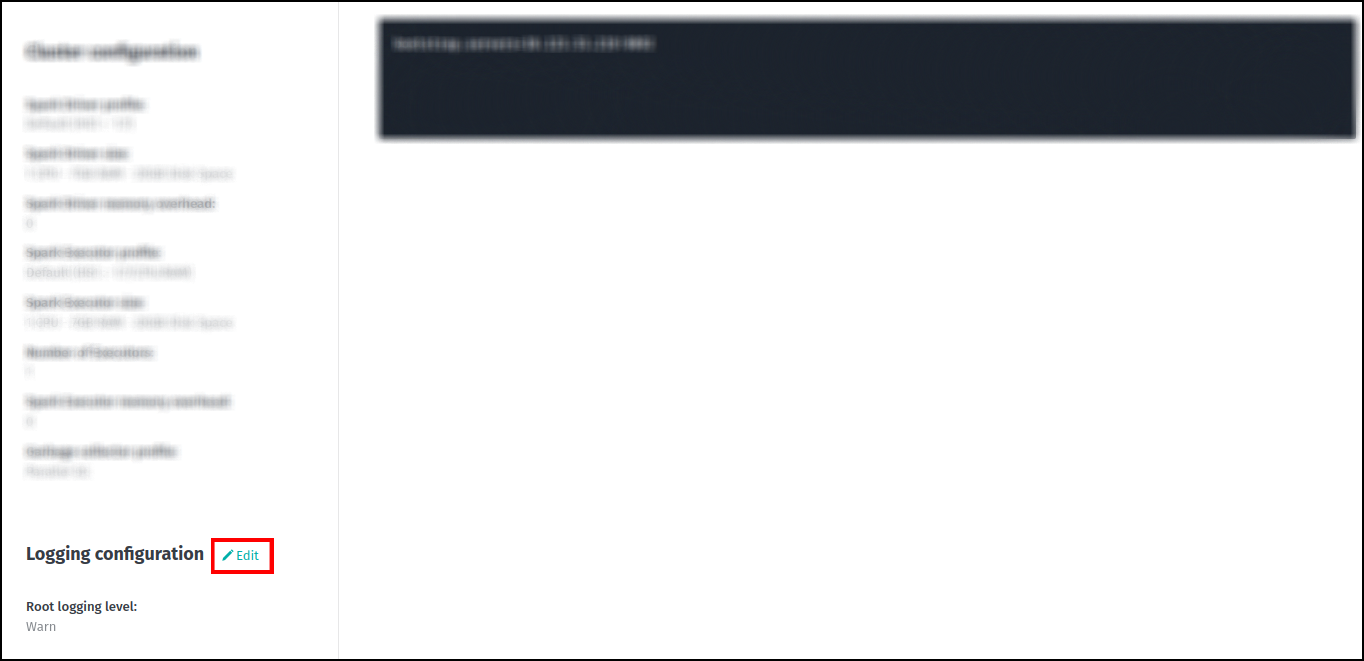
When it's done, the following dialog box opens:
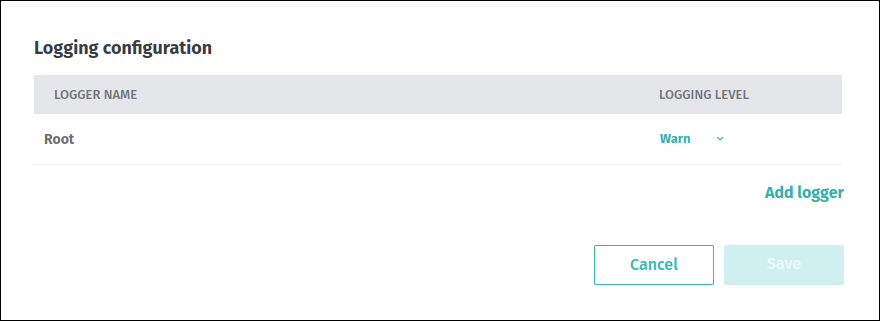
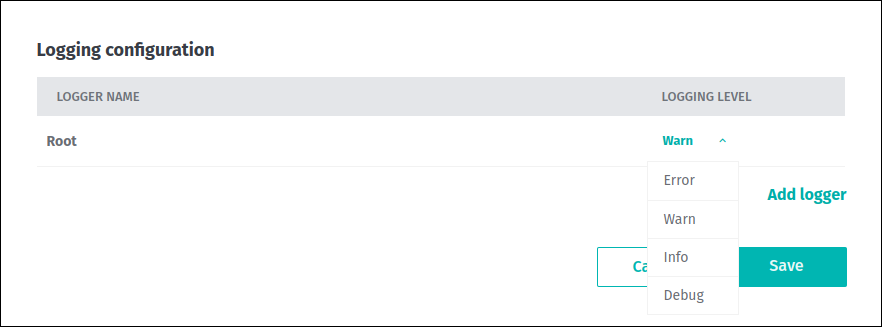
The default logger is set at the root level for the entire pipeline version. In our case, this is the only logger present,
and it has the Warn logging level. To change the logging level for the root logger, click on the Warn logging level
and select a new level from the drop-down list:
Loggers can also be set for specific pipeline application classes.
And, because multiple loggers are present, it is possible to set different loggers to different logging levels.
This allows monitoring different parts of the executing pipeline application at different logging levels, if set up correctly.
To set the logger for a particular pipeline application class, open the logging configuration dialog box and select the Add logger option:
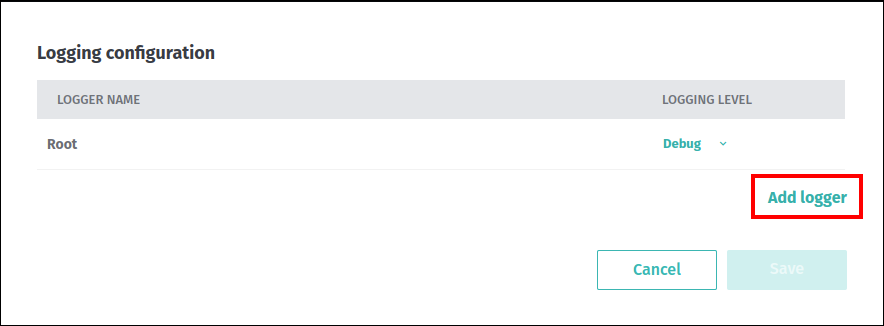
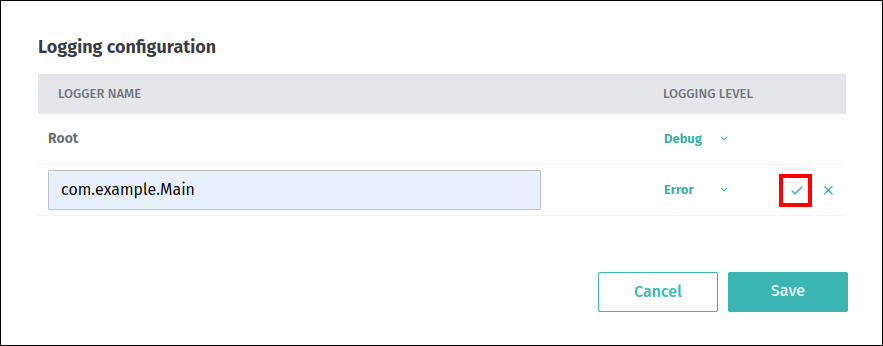
Next, you need to specify name and logging level for your new logger.
The logger name is usually the class name in the pipeline application code.
The logging level can be set as required and does not have to match the root logging level.
Once the logger has been added, click on the Done button as shown below and save this logging configuration:
NoteIf you decided to add a logger that already exists, you will not be able to save this configuration.
To delete an existing logger, open the logging configuration dialog box, click on the x button for the specific logger and save that configuration:
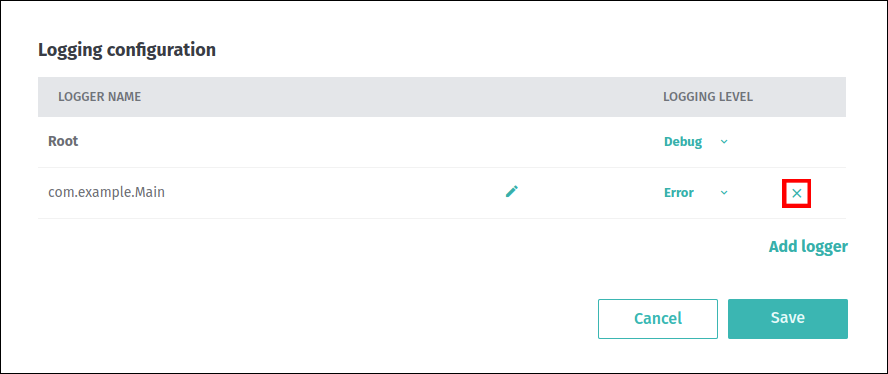
Once saved, the appropriate message will be displayed and the updated logging configuration will be shown in the pipeline version Details tab:
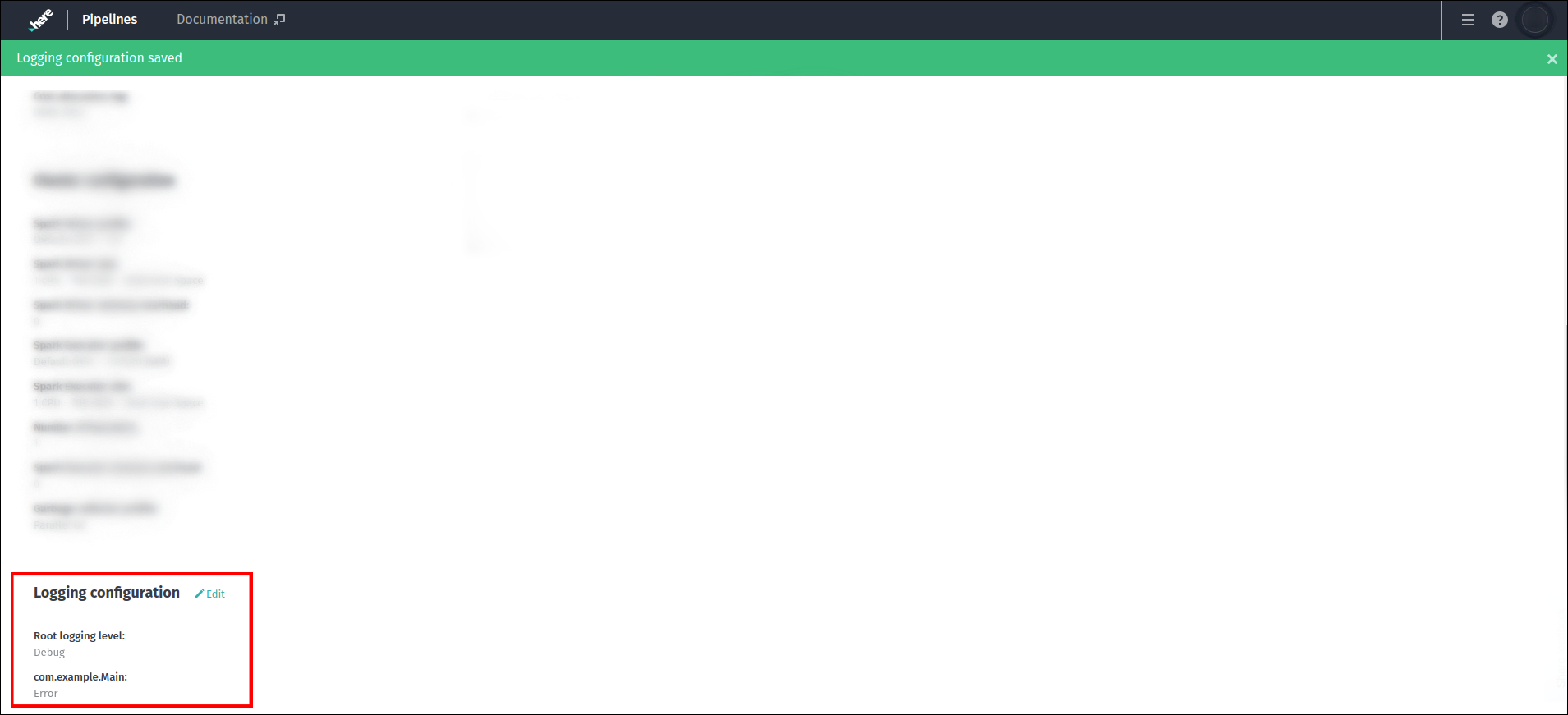
Due to operational latency, it takes a few minutes for the changes to take effect. This may delay the availability of the logs at the new level in Splunk.
Finding pipeline logs
As was mentioned above, all the messages logged by the pipeline application are stored in Splunk.
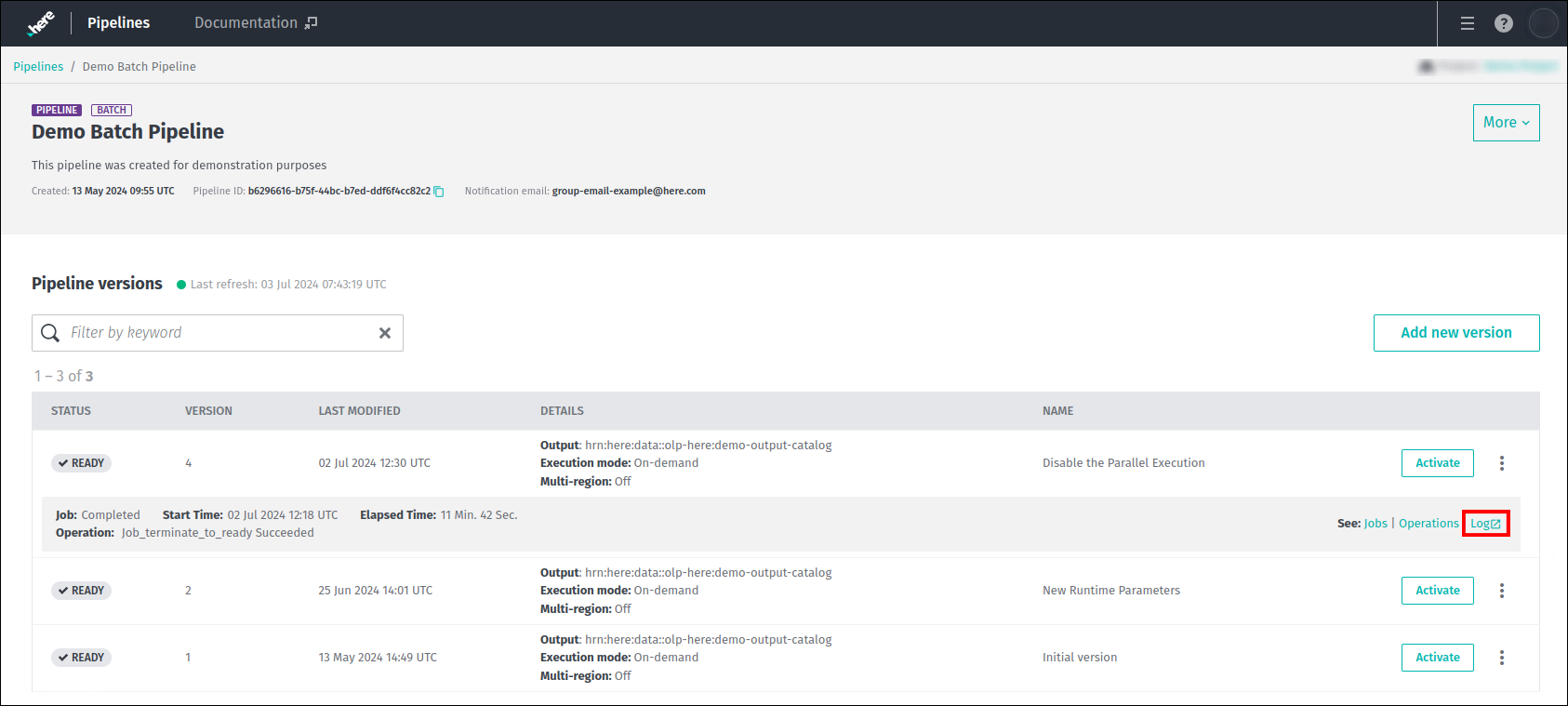
You can access the logs by clicking on the Log link for a particular pipeline version, as shown below:
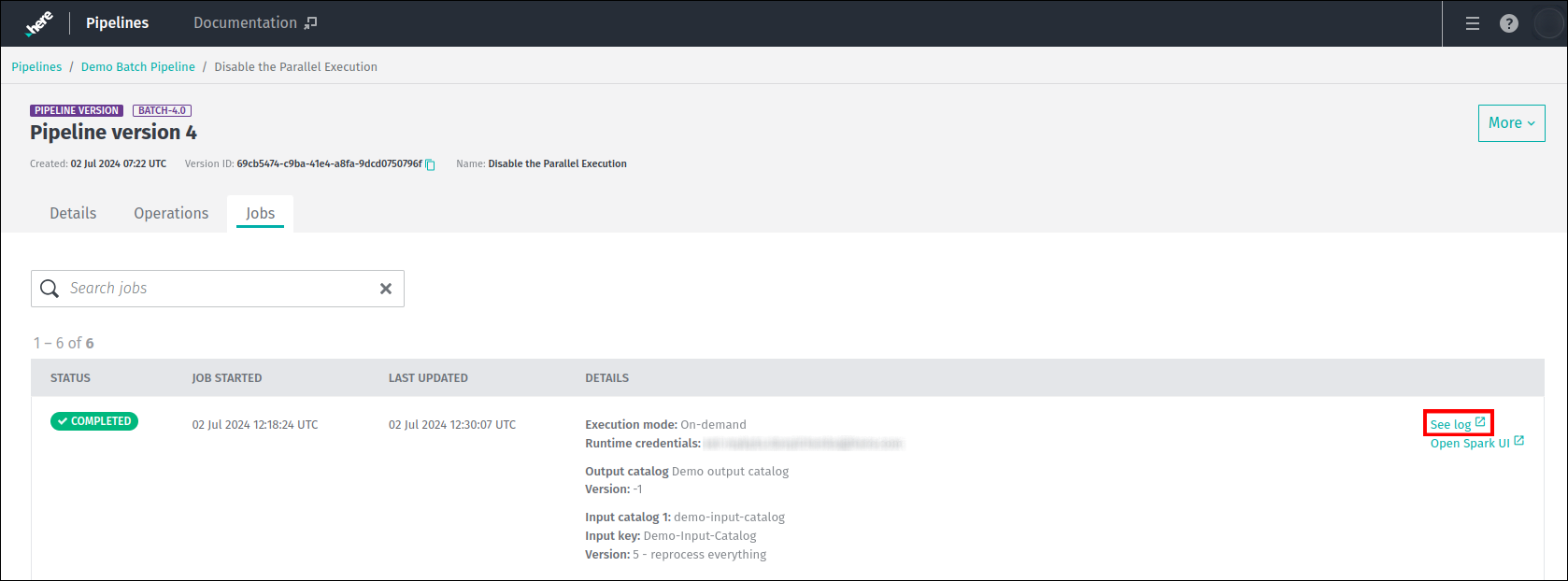
Alternatively, you can access the same page by opening the Jobs tab and clicking on the See log link:
Both of the above links will take you to the following Splunk dashboard:
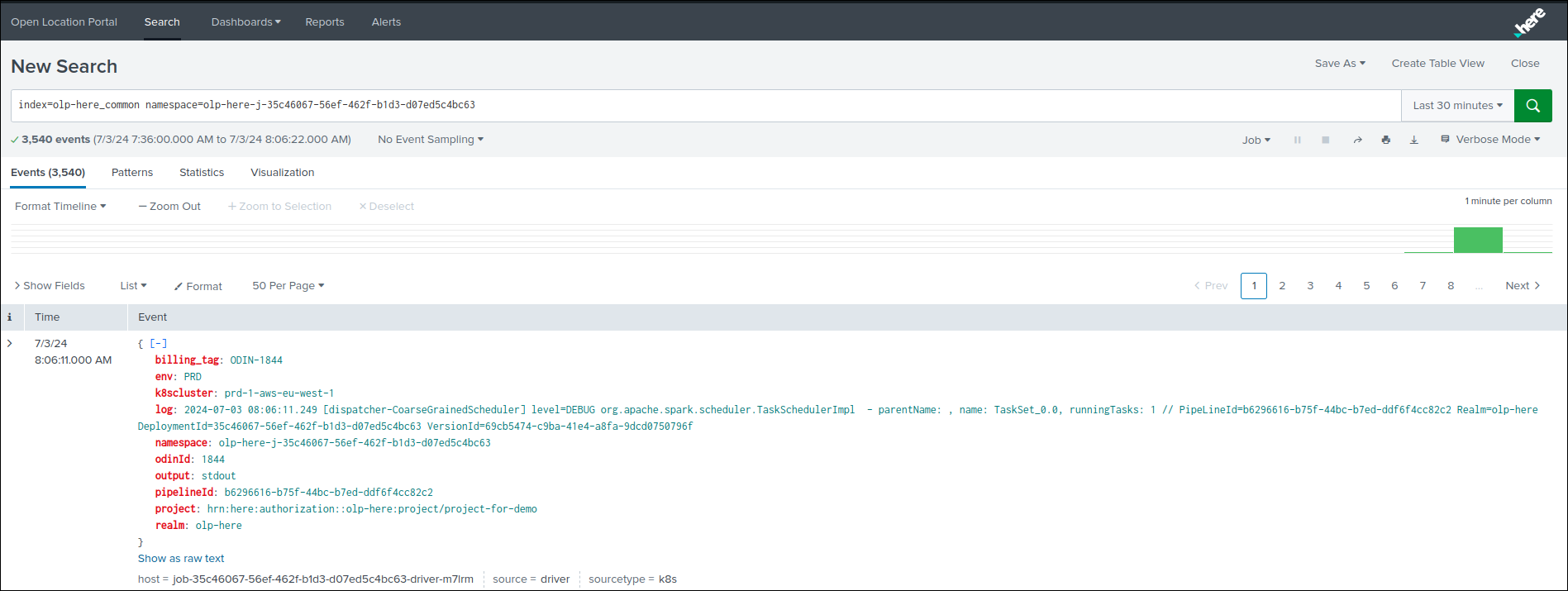
In this dashboard, you can change a time range to retrieve events more precisely, use the search processing language to
customise the search query itself, and filter logs by source to retrieve events logged by different components such as
Spark Drivers, Spark Executors, Flink JobManagers, Flink TaskManagers, etc.
For more information on how to use Splunk - see the following articles: