

How to inspect interactive map layers
Interactive map layers (IMLs) are optimized for GIS functions - visualization, analysis, and modification of data on a map. Unlike other layer types, the data in an IML is not tiled, is stored in GeoJSON, and can be retrieved dynamically at any zoom level. For more information on IMLs, see the Data User Guide.
With the Data Inspector, you can do the following:
-
Visualize IML data in the Map View. No tile grid is available for IMLs, and the layer
data is visualized right away. Note that if the GeoJSON contains style properties, those are used for visualization.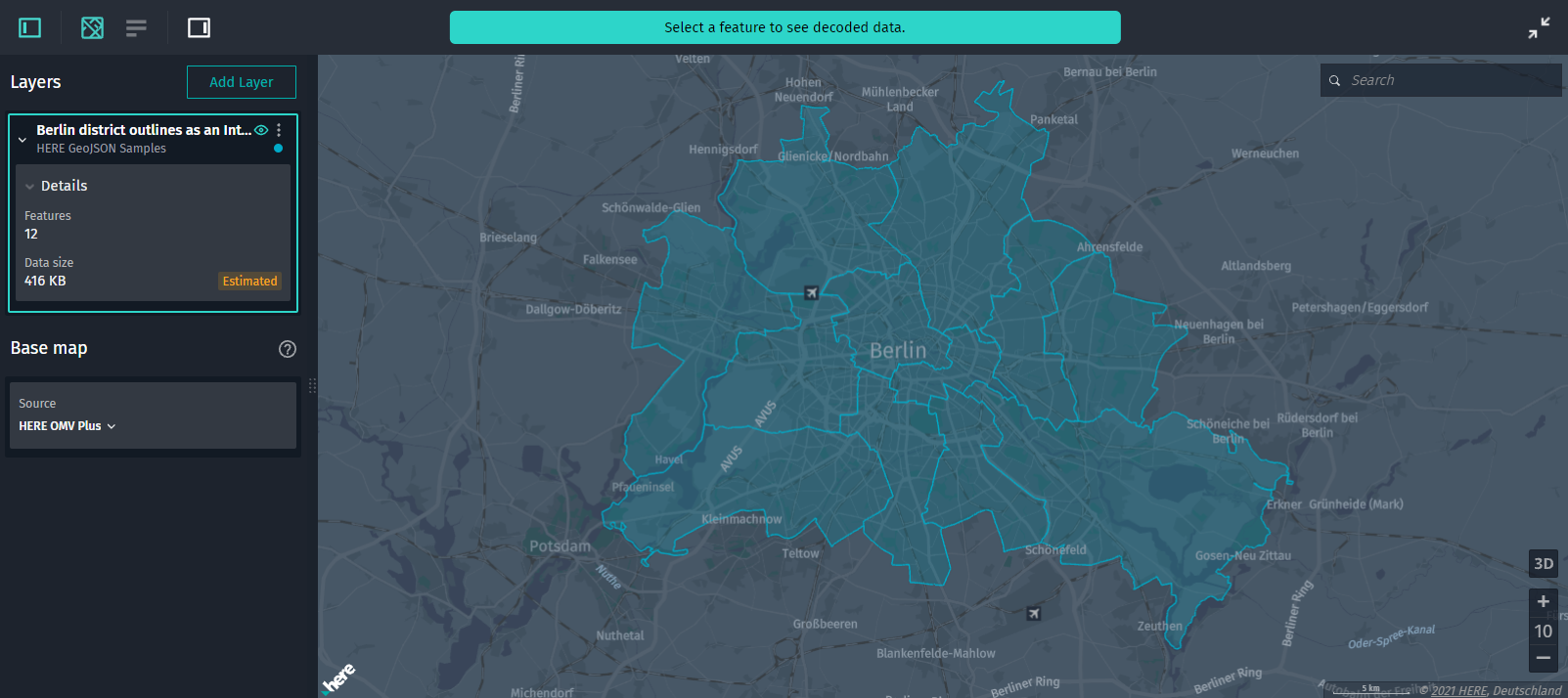
-
Inspect feature details. Click a feature to view
its details in the Infopanel and in the Decoded data panel.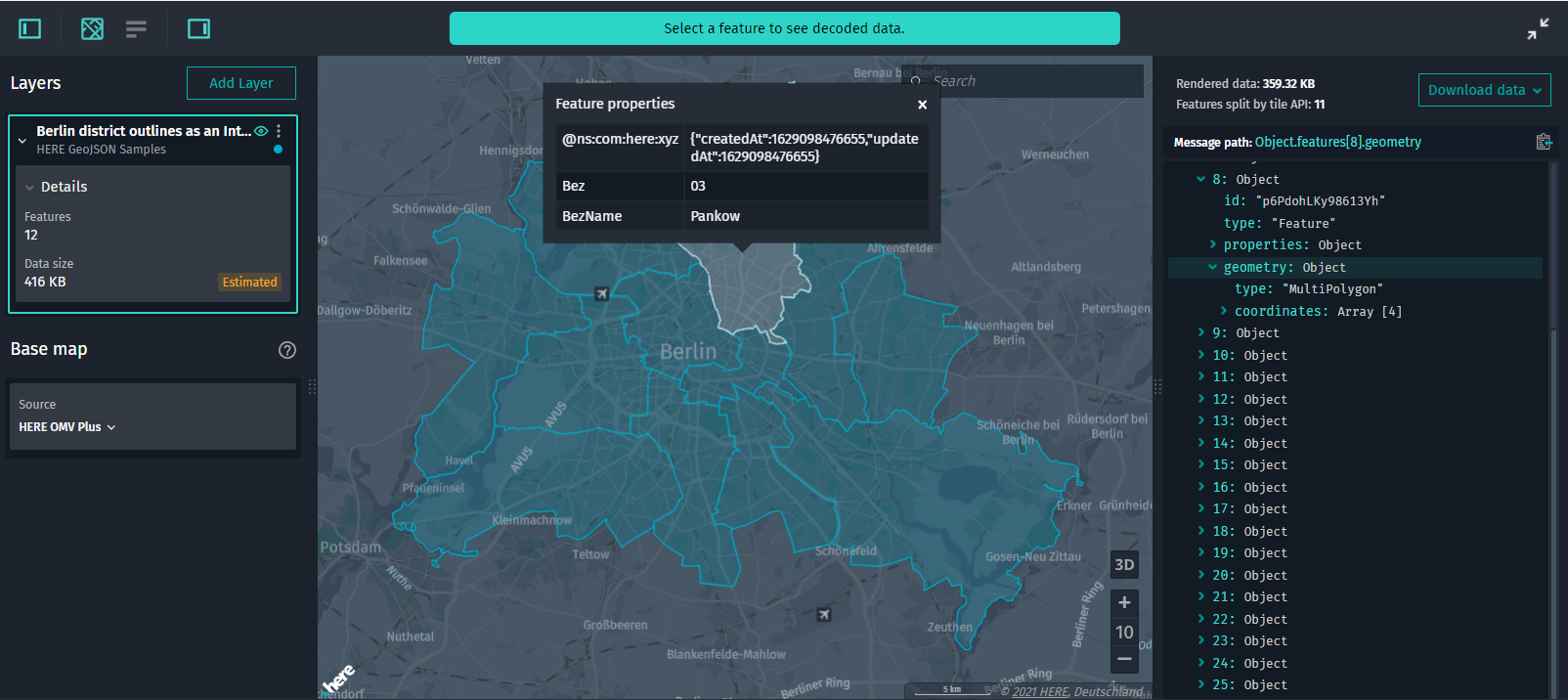
-
View layer details. In the Control Panel, in the layer details section, you can
view the data size of the entire layer and the number of features stored in the layer.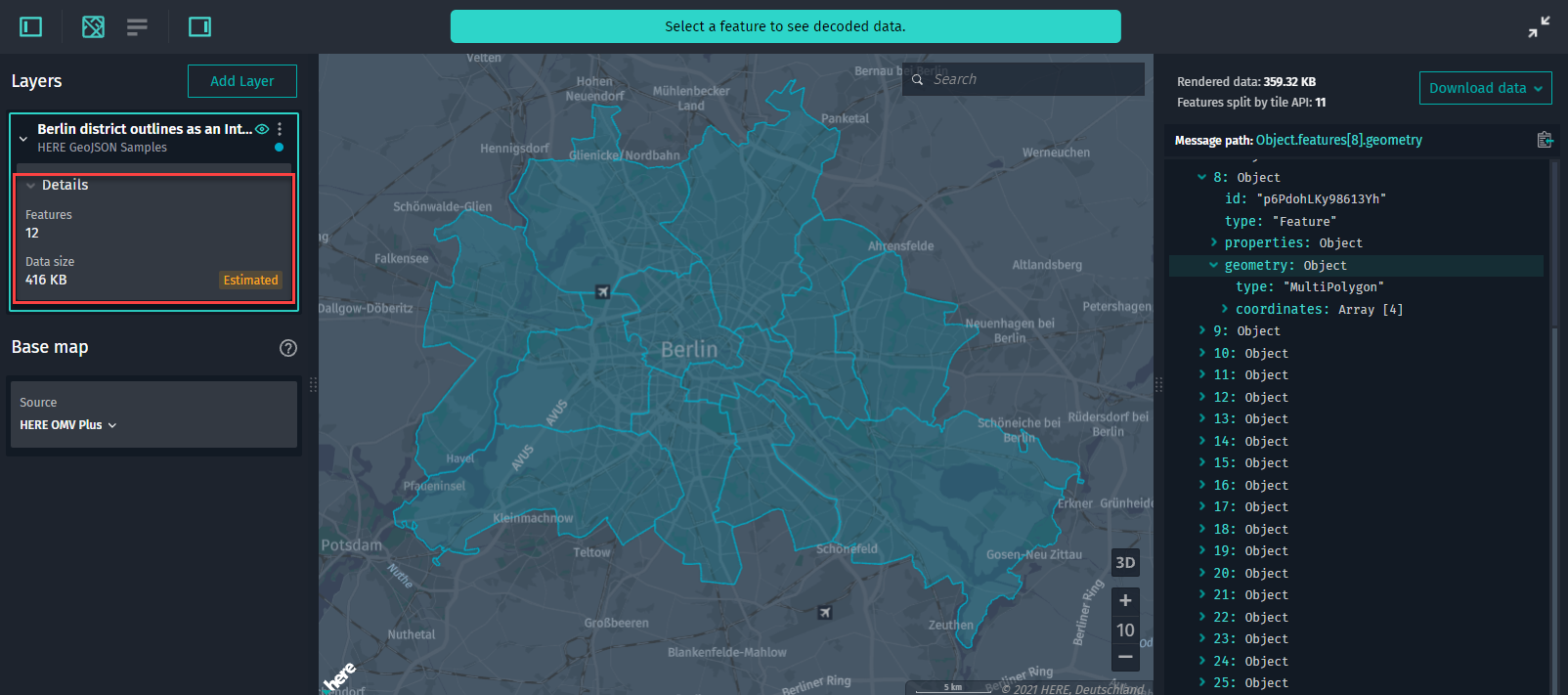
-
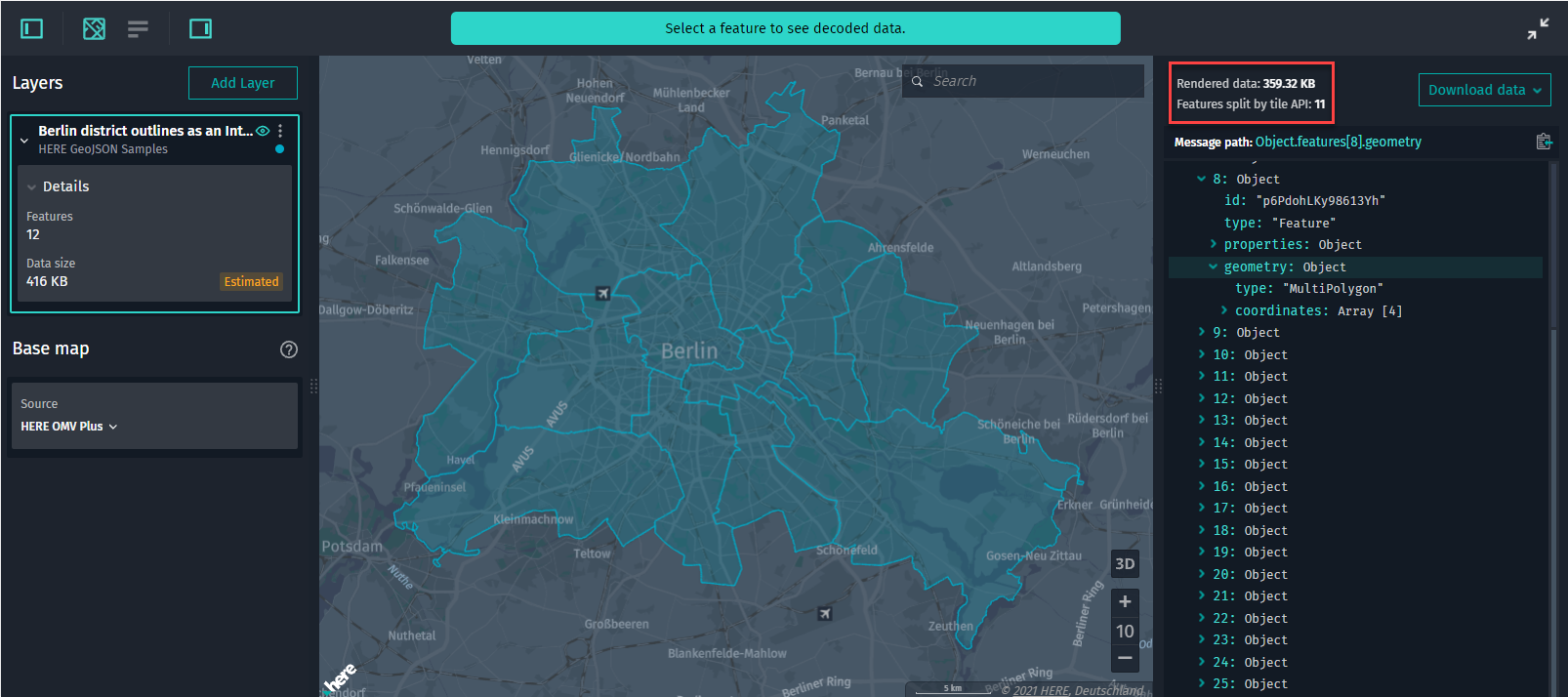
View details on the rendered data currently visible in the Map View. In the Decoded Data
panel, you can additionally do the following:- View the size of the data rendered in the Map View.
- View the number of unique features clipped by the API rendered on the map since some features can
be tiled (even though visually the geometry is merged):
-
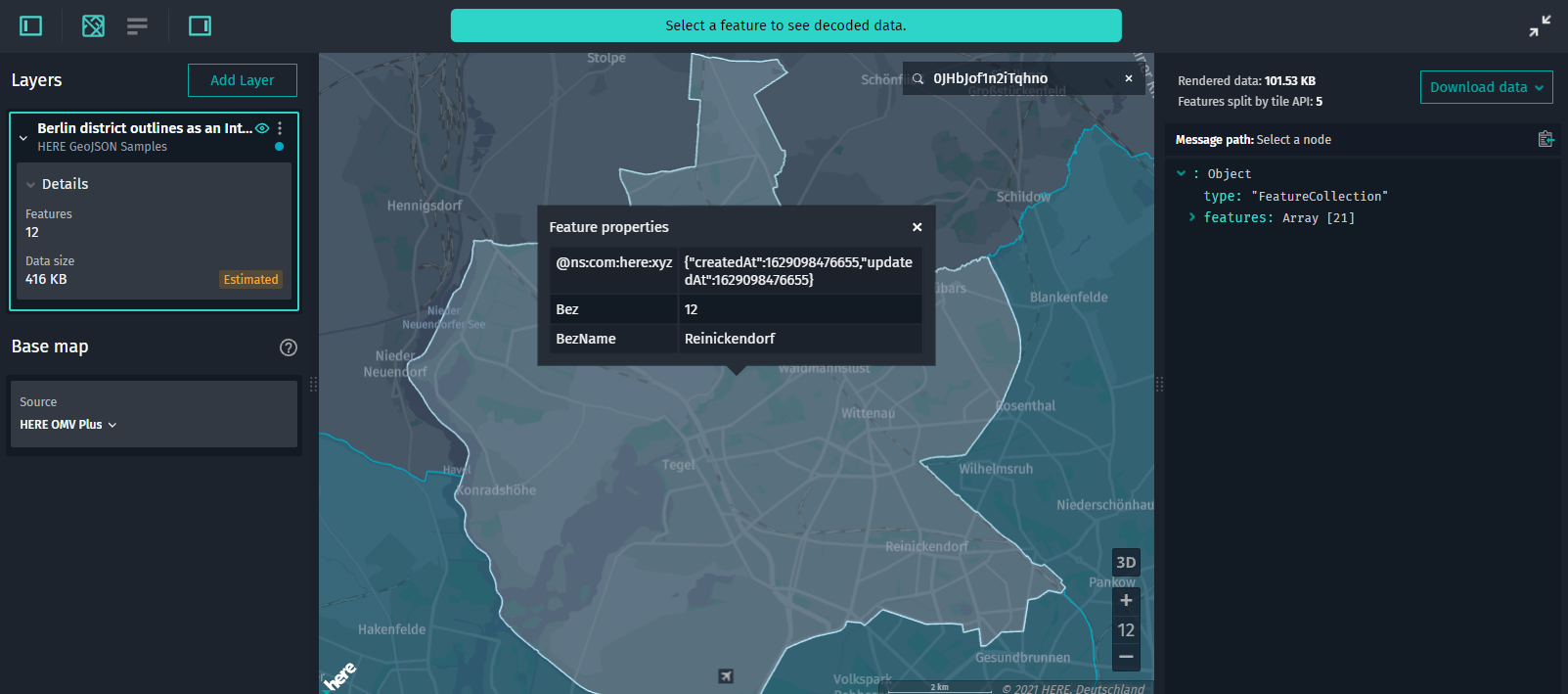
Look up features. Apart from regular search options (by coordinates, locations, place names),
you can search for a particular feature by its ID, for example,0JHbJof1n2iTqhno.
-
Download IML data. Either right-click anywhere in the Map View or click Download in the
Decoded Data panel to download the GeoJSON data.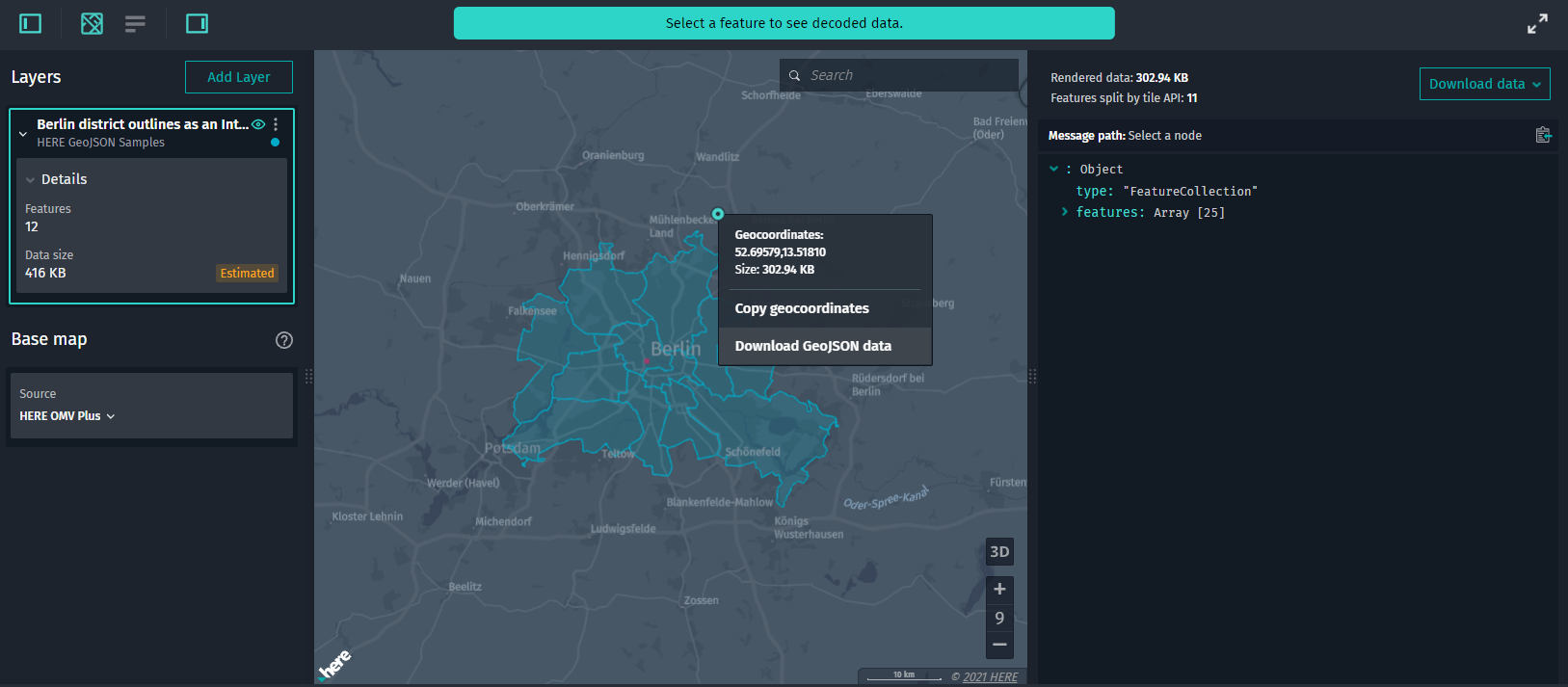
: The Partitions List panel is disabled for interactive map layers.
Updated 8 months ago