

HERE Map Content data
Currently, the Data Inspector Library provides two mechanisms for visualizing certain HERE Map Content (HMC) layers (Building Footprints, Cartography, Roads - Topology & Geometry):
- Dedicated GeoJSON rendering plugins that allow you to customize your
visualizations as needed. - Special
RibDataSourcedata source.
For implementation details, see the chapters below.
Visualization through dedicated plugin
The dedicated rendering plugins for the Building Footprints, Cartography, and Roads - Topology & Geometry layers are included in the data schemas of these layers.
To see how they work, use the Control the Visualization app that comes as part of Data Inspector Library examples. For this, in the top panel, specify the HRN of the HMC catalog and the ID of the corresponding layer, for example: 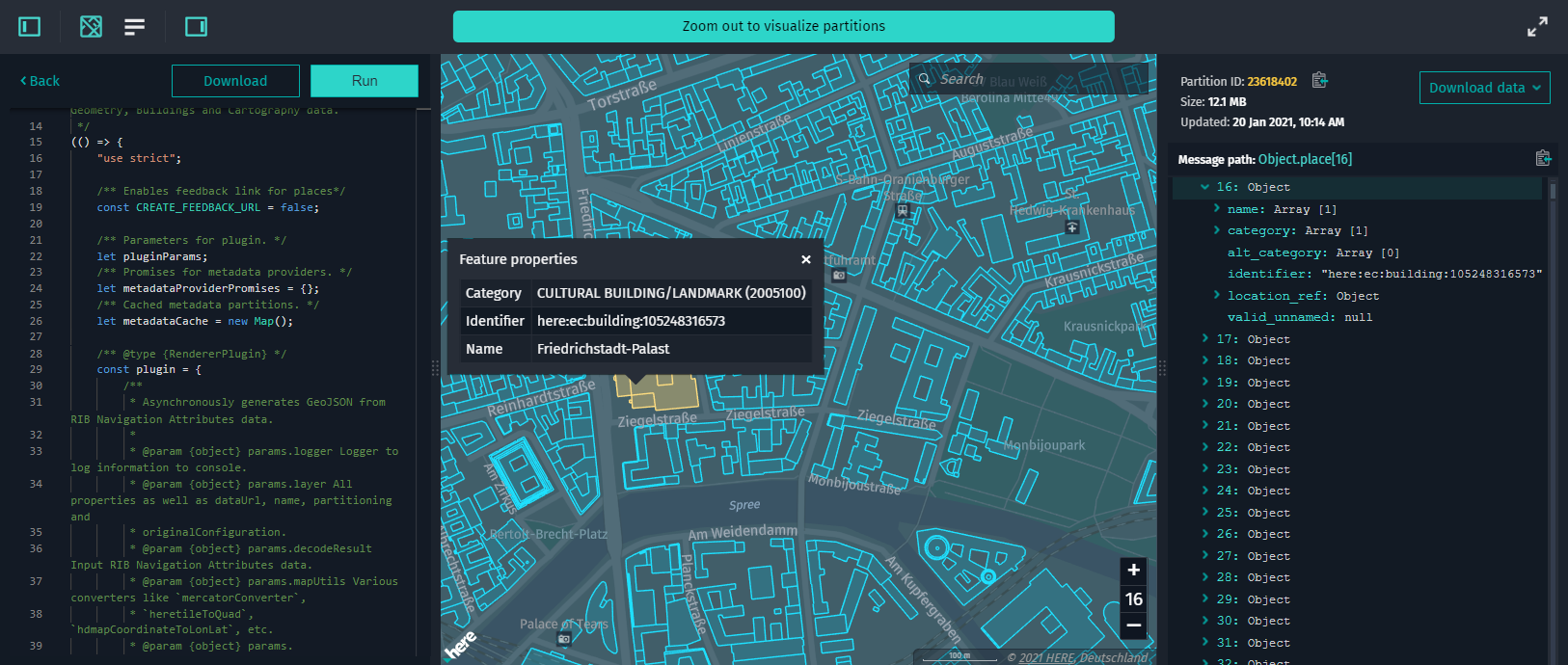
:
When using a local Data Inspector instance, keep in mind that if no rendering plugin is found in the connected data schemas of the above-mentioned HMC layers, the visualization automatically falls back to
RibDataSource.
For more information on how to work with rendering plugins, see Create rendering plugins.
Visualization through RibDataSource
RibDataSource:
HMC visualization through
RibDataSourcewill be kept for the next 6 months and then deprecated. Consequently, only the dedicated rendering plugin will be used for visualizing the Building Footprints, Cartography, and Roads - Topology & Geometry layers.
RibDataSource is used to visualize highly accurate geo-referenced data from catalogs that use the HERE Map Content schema. For more information, see HERE Map Content Data Specification.
The HERE Map Content data source allows visualizing data from several layers simultaneously.
To visualize the HERE Map Content Data from a catalog, follow these steps:
-
Start with creating an instance of
RibDataSourceand connect it toMapViewas follows:const ribDataSource = new RibDataSource({ dataProvider: new RibDataProvider({ hrn: "HRN string", layer: "Layer ID where data is stored", environment: "here", getToken: async () => "Your Token", }), }); mapView.addDataSource(ribDataSource); -
Then, to visualize HERE Map Content for a certain tile, call the
selectTilemethod as follows:ribDataSource.selectTile(tileMortonCode);
Optional parameters
intersectionAgent { InteractiveIntersectionAgent }: An instance ofInteractiveIntersectionAgent
that triggers events when an intersection with a geometry object happens or changes. Used to set custom handlers on mouse-over or display geometry tooltip.dataStore.secondaryLayers { string[] }: An array of additional layers supported by the Data Store
to be rendered together with the layer specified in thedataStore.layerproperty.
Example app
Before you can visualize the HERE Map Content Data, you need to know the HERE Resource Name (HRN) of the layer that contains the data. You can find the HRN of the necessary catalog in the Data section of the HERE platform.
To visualize the HERE Map Content Data from a catalog, follow these steps:
-
Install the web app generator and enter your application name when
prompted. -
Select the option
RIB datawhen promptedWhat kind of data will you visualize on top of the Base map?. -
When prompted
HRN of the Catalog you want to visualize?, enter the HRN of the catalog that
contains the HERE Map Content Data. -
When prompted
Name of the layer you want to visualize?, enter the name of the layer that
contains the HERE Map Content Data. -
When prompted
On which level the data is stored?, enter the minimum zoom level that is
required for the data to render. -
Once the code is generated, you can build and serve the web app by running the following command:
npm run start -
Next, open
http://localhost:8080in your favorite web browser to see
the generated app.
To see the base map, update the authentication form with the credentials that you obtained from the HERE platform. Changelog API reference
Updated 7 months ago