
How to use map styles
HERE Style Editor is pre-loaded with a set of default base map styles created by HERE. These serve as the basis for your custom styles.
The base map styles are offered in various map style families, each targetting a specific set of use cases. More details about the available map style families can be found in the sections below.
The Day and Night base map styles are using exclusively vector data. The Hybrid Day and Hybrid Night map styles combine satellite imagery background with selected vector data foreground elements such as roads and labels.
Please note that the day and night variants of the hybrid map styles are by design styled identically in their base map layers and differ only in their environment styling such as the sky and horizon colors.
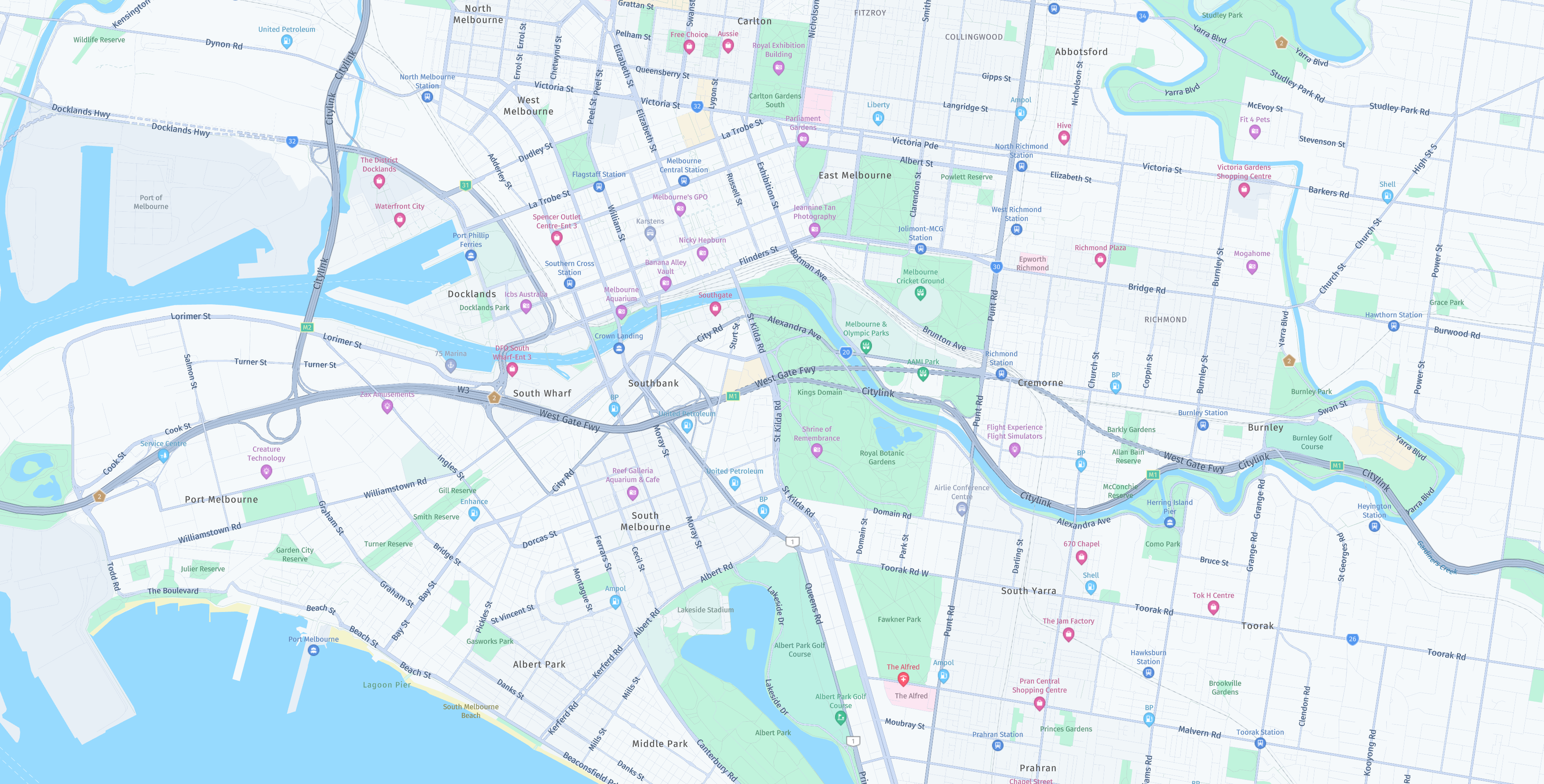
Day
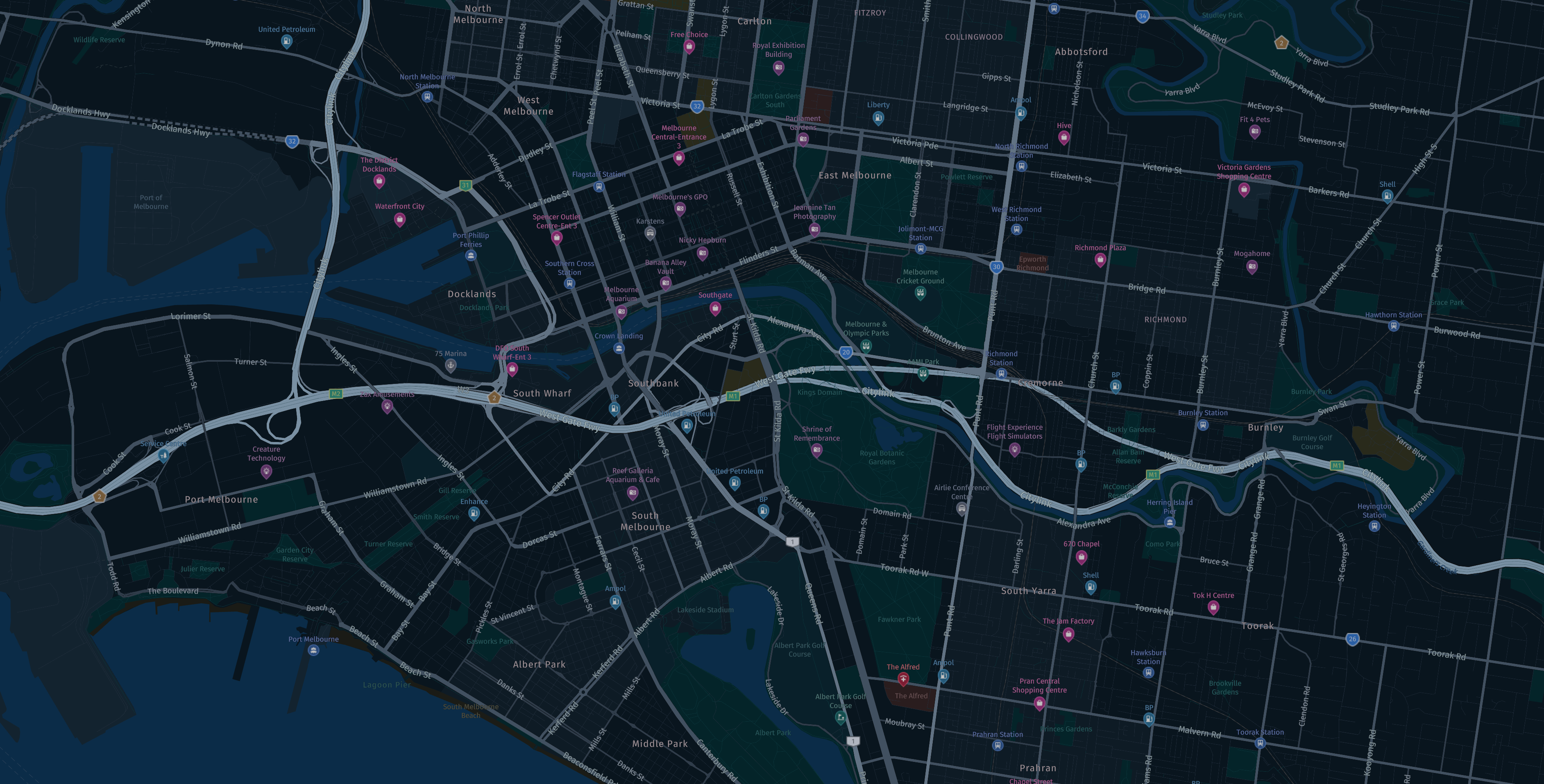
Night

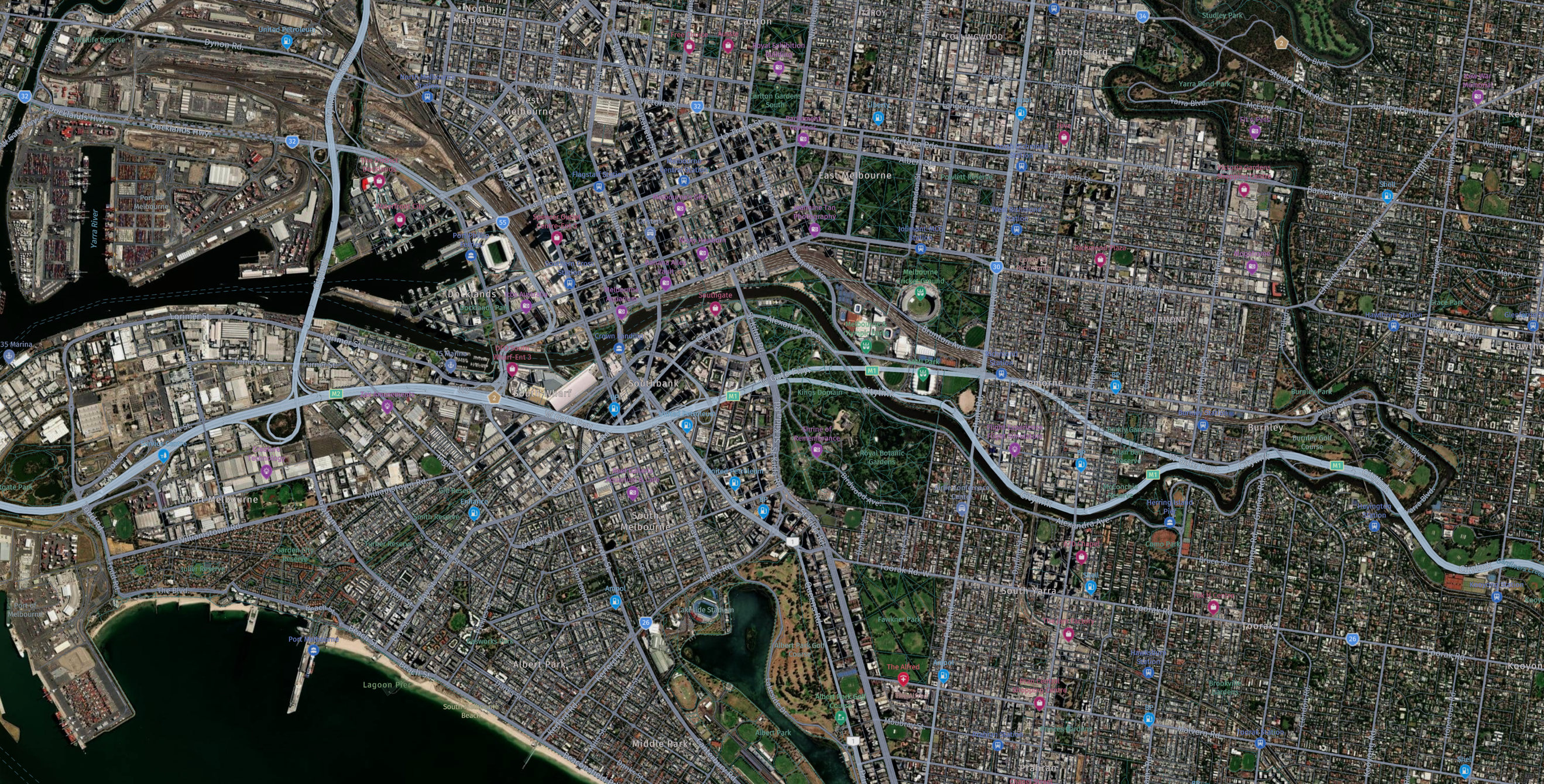
Hybrid Day/Night
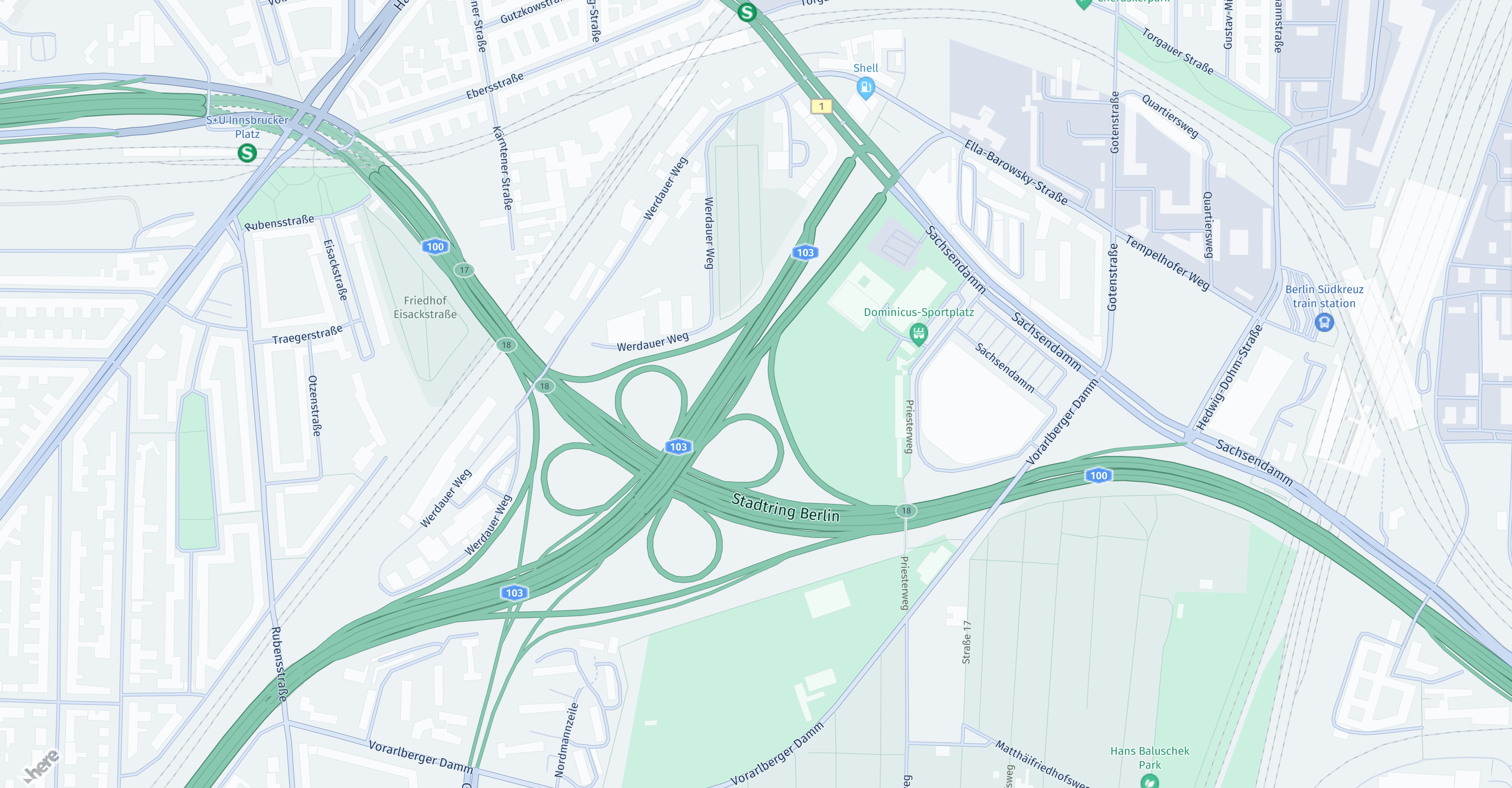
Logistics Day
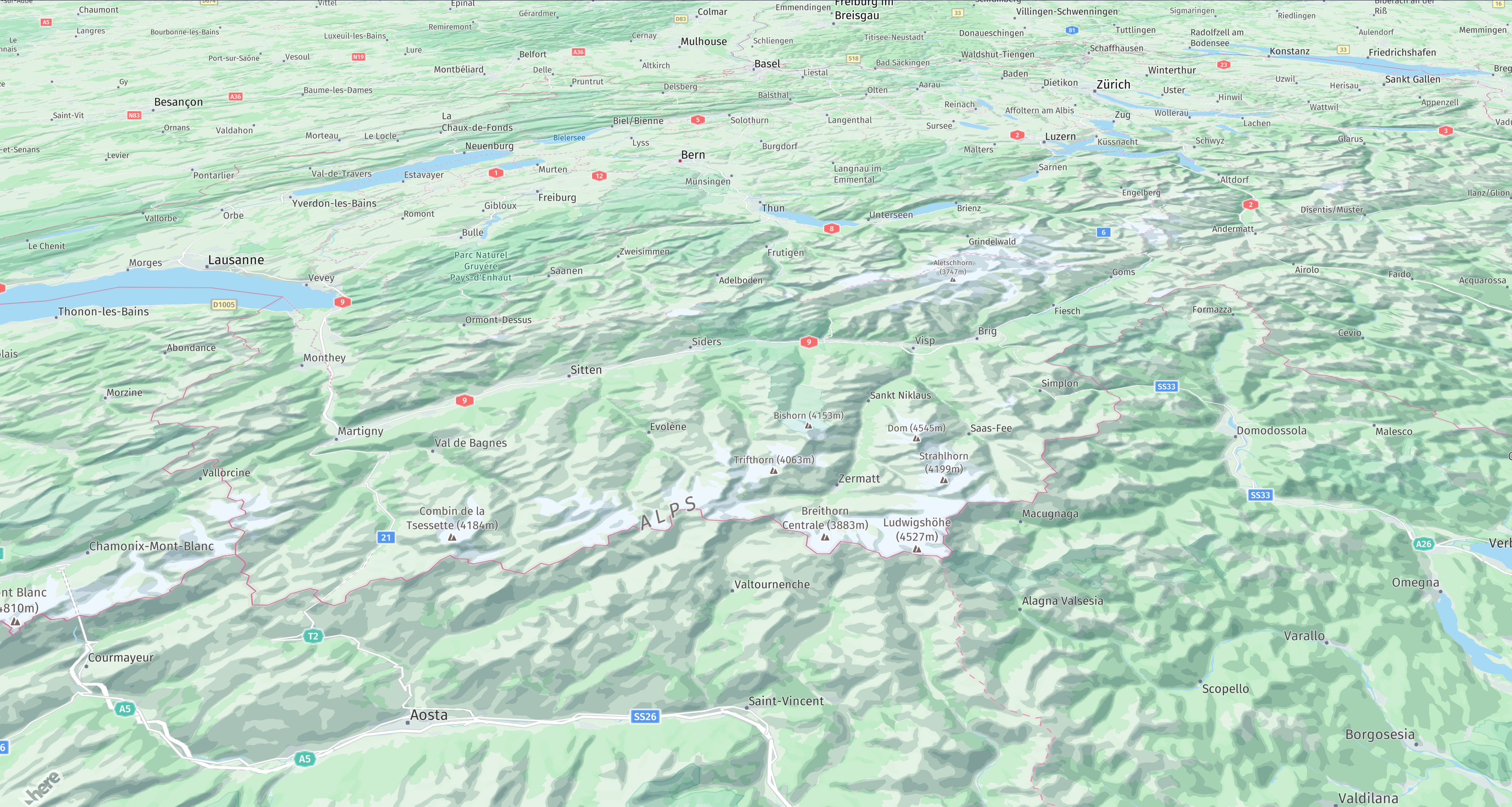
Topographic Day
Detailed styling for Japan
The base map styles offer an additional option for detailed styling in Japan, alongside the global map styling. Further details and limitations can be found from the related documentation.
Explore family of map styles
The Explore family of map styles have a focus on exploring all map elements.
Lite family of map styles
The Lite family of map styles are visually reduced. They are aimed for use cases such as visualizing data overlays on top of the base map. The main differentiators from the Explore map styles are:
- Lite map styles have a reduced overall color palette
- Lite map styles have a reduced amount of displayed map elements
Road Network family of map styles
The Road Network family of map styles contain only the road network lines drawn on top of a solid color background. They are aimed for use cases such as background canvas for intersection maneuvers or extremely reduced views of route progression.
Logistics family of map styles
The Logistics family of map styles are more focused on fleet and truck related features and attributes with a slightly reduced focus on the background base map. This style family aims to reduce clutter i.e. reduce unnecessary information from the base map to show the route/traffic in better light. The main differentiators from the Explore map styles are:
- Logistics map styles have toll roads set to truck by default.
- Logistics map styles have logistics specific POIs such as weigh station, cargo centers, etc enabled by default.
Note
The Logistics family of map styles contain premium roads and POI map content. When enabled in your client application additional charges may incur. Please refer to the respective SDK documentation for further information on how to enable them.
Topographic family of map styles
The Topographic family of map styles highlight natural and land cover features above navigational features. The styling experience can be further enhanced by enabling Layers such as such as hillshading and contour lines to enhance the look and feel of the topographic map. The main differences from the Explore or Lite map styles are:
- Terrain, natural background and land cover features are enhanced.
- The street features are more subtly styled to bring the surrounding natural features to the foreground.
Note
Not all base map styles are supported by the HERE SDK. For styles that are supported, look into the
MapSchemesAPI that can be found in the API Reference for the HERE SDK.
Start a custom map style
When first starting the application, the setup page allows you to give your style a name and select one of the default HERE base styles to begin customizing.
Loaded map styles
In the main application UI, the Styles dropdown menu above the MapView allows you to do the following:
- Rename your styles
- Duplicate a style
- Delete a style
- Load a different custom map style or start a new one
Note that changes you make in your active style remain stored in your local cache when switching to other styles.
Reset a style
Click Edit > Revert to Original to discard all style changes you have made to the active map style and reset it back to its original state.
Save a style
For information on saving your custom map styles, see Save and export.
Updated 11 days ago