

Add predefined map features
Add map features
In addition to map schemes, the HERE SDK supports specialized layers called MapFeatures. These features allow you to overlay additional data on the map.
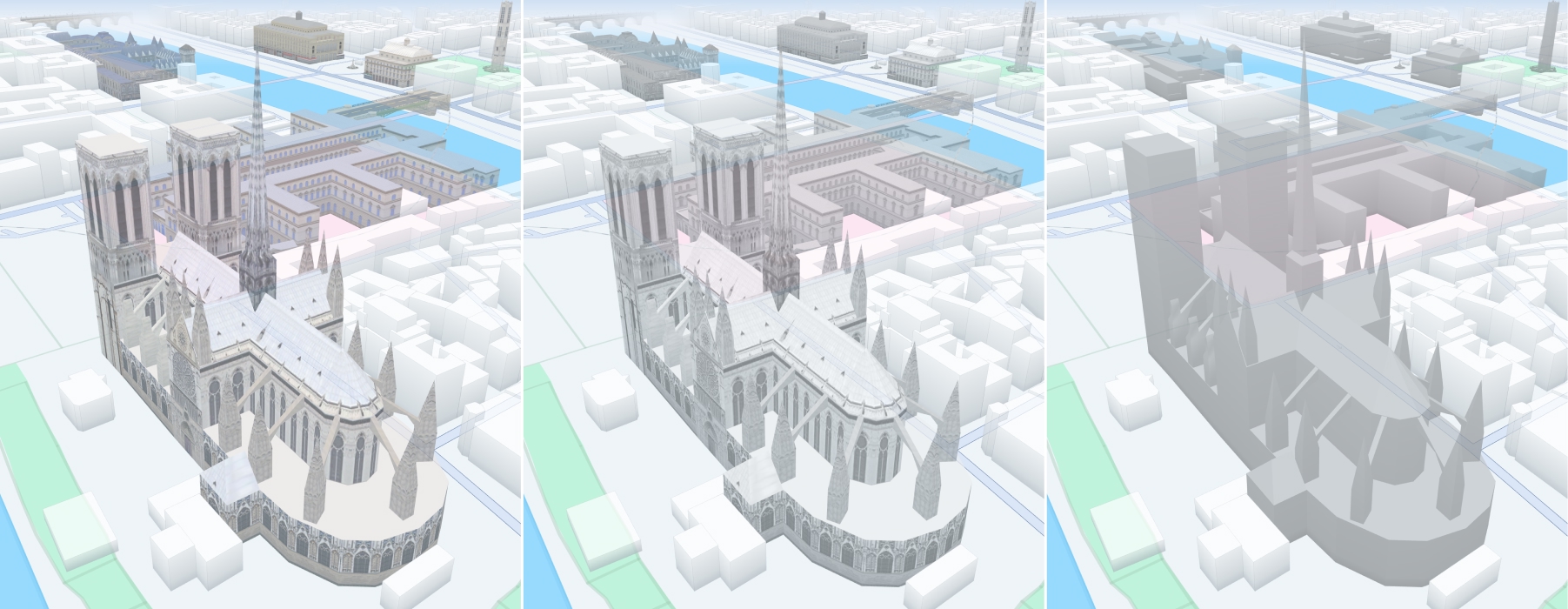
MapFeatures can be configured with different MapFeatureModes to control its visual appearance. For example, 3D landmarks can be displayed using textured or non-textured modes. Landmarks are enabled by default for most map schemes.
To see which MapFeatures and MapFeatureModes are enabled by default for each MapScheme, refer to default features and modes per map scheme in the HERE Style Editor documentation.
Note
Note that not all
MapFeaturesare available for all licenses. Take a look at the API Reference to know which layers are supported for your licence.Adding
MapFeaturesmay have a performance impact.To ensure application stability and reliable map rendering, certain graphics features and the rendering of semi-transparent map content are automatically adjusted or restricted on certain devices. For device-specific rendering adjustments and restrictions, see the MapFeatures API Reference.
| Feature | Description | In Explore | In Navigate |
|---|---|---|---|
| AMBIENT_OCCLUSION | Ambient occlusion effect for 3D geometries (extruded buildings and landmarks). | Yes | Yes |
| BUILDING_FOOTPRINTS | The 2D footprint of buildings. | Yes | Yes |
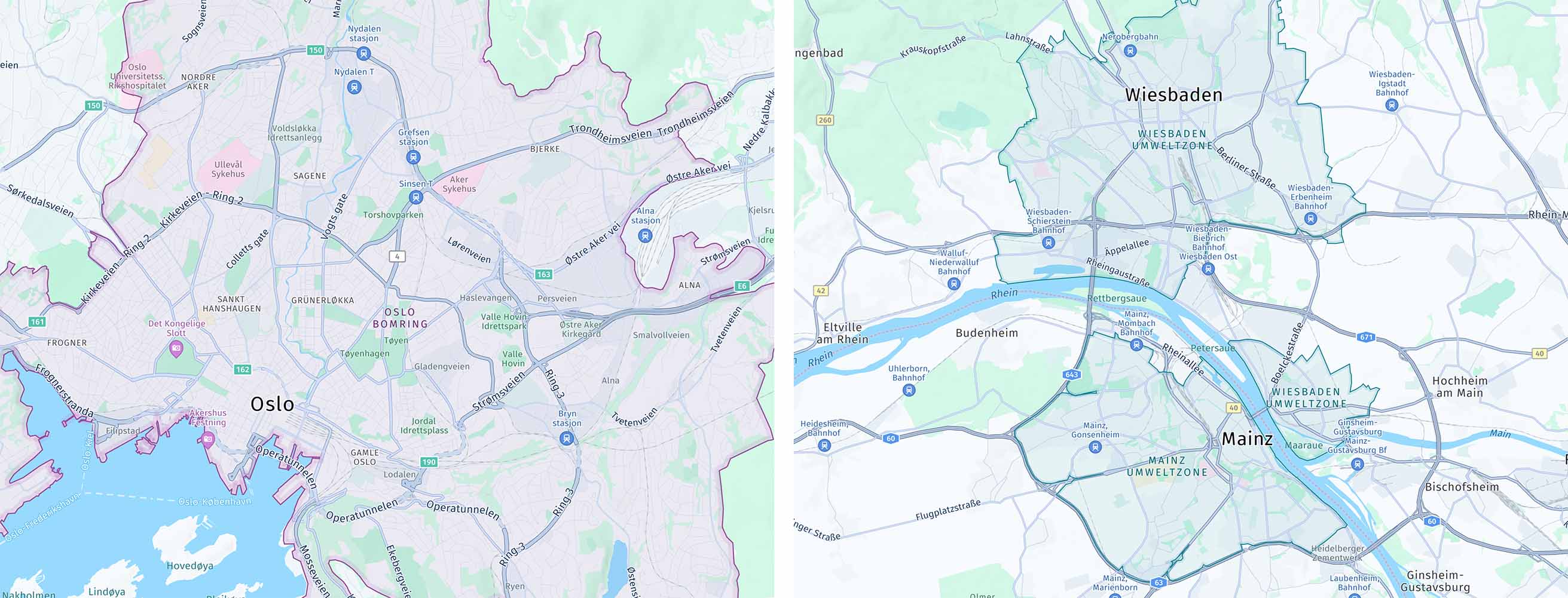
| CONGESTION_ZONES | City areas designated as congestion zones (or congestion charge zones), which impose fees on entering such areas. | Yes | Yes |
| CONTOURS | Show or hide contour lines on the map to represent elevation changes. | No | Yes |
| ENVIRONMENTAL_ZONES | City areas designated as environmental zones, which empose limitations on the type of vehicles that are allowed to enter such areas. | Yes | Yes |
| EXTRUDED_BUILDINGS | Simple 3D representation of buildings. | Yes | Yes |
| LANDMARKS | 3D landmarks. | No | Yes |
| LOW_SPEED_ZONES | City areas designated as low speed zones. | Yes | Yes |
| PUBLIC_TRANSIT | Toggles the display of public transit lines for systems like subway, tram, train, monorail, and ferry, based on the selected mode. | No | Yes |
| ROAD_EXIT_LABELS | Show or hide road exit labels, if available. | Yes | Yes |
| SAFETY_CAMERAS | Safety and speed cameras. | No | Yes |
| SHADOWS | Shadows for all building types (extruded buildings and landmarks). | Yes | Yes |
| TERRAIN | Show elevation topography. | No | Yes |
| TRAFFIC_FLOW | Traffic flow speed. | Yes | Yes |
| TRAFFIC_INCIDENTS | Traffic incidents. | Yes | Yes |
| VEHICLE_RESTRICTIONS | Vehicle restrictions. | No | Yes |
| TRAFFIC_LIGHTS | Traffic lights. | Yes | Yes |
Below you can see how the map feature layers can be enabled:
Map<String, String> mapFeatures = new HashMap<>();
mapFeatures.put(MapFeatures.BUILDING_FOOTPRINTS, MapFeatureModes.BUILDING_FOOTPRINTS_ALL);
mapFeatures.put(MapFeatures.CONTOURS, MapFeatureModes.CONTOURS_ALL);  // Only available with the Navigate license.
mapFeatures.put(MapFeatures.CONGESTION_ZONES, MapFeatureModes.CONGESTION_ZONES_ALL);
mapFeatures.put(MapFeatures.ENVIRONMENTAL_ZONES, MapFeatureModes.ENVIRONMENTAL_ZONES_ALL);
mapFeatures.put(MapFeatures.EXTRUDED_BUILDINGS, MapFeatureModes.EXTRUDED_BUILDINGS_ALL);
mapFeatures.put(MapFeatures.LANDMARKS, MapFeatureModes.LANDMARKS_TEXTURED); // Only available with the Navigate license.
mapFeatures.put(MapFeatures.ROAD_EXIT_LABELS, MapFeatureModes.ROAD_EXIT_LABELS_ALL); // Only available with the Navigate license.
mapFeatures.put(MapFeatures.SAFETY_CAMERAS, MapFeatureModes.DEFAULT);
mapFeatures.put(MapFeatures.SHADOWS, MapFeatureModes.SHADOWS_ALL);
mapFeatures.put(MapFeatures.TERRAIN, MapFeatureModes.DEFAULT); // Only available with the Navigate license.
mapFeatures.put(MapFeatures.TRAFFIC_FLOW, MapFeatureModes.DEFAULT);
mapFeatures.put(MapFeatures.TRAFFIC_INCIDENTS, MapFeatureModes.DEFAULT);
mapFeatures.put(MapFeatures.LOW_SPEED_ZONES, MapFeatureModes.LOW_SPEED_ZONES_ALL);
mapFeatures.put(MapFeatures.VEHICLE_RESTRICTIONS, MapFeatureModes.DEFAULT); // Only available with the Navigate license.
mapFeatures.put(MapFeatures.AMBIENT_OCCLUSION, MapFeatureModes.AMBIENT_OCCLUSION_ALL);
mapFeatures.put(MapFeatures.PUBLIC_TRANSIT, MapFeatureModes.PUBLIC_TRANSIT_ALL); // Only available with the Navigate license.
mapView.getMapScene().enableFeatures(mapFeatures);
val mapFeatures: MutableMap<String, String> = HashMap()
mapFeatures[MapFeatures.BUILDING_FOOTPRINTS] = MapFeatureModes.BUILDING_FOOTPRINTS_ALL
mapFeatures[MapFeatures.CONTOURS] = MapFeatureModes.CONTOURS_ALL
mapFeatures[MapFeatures.CONGESTION_ZONES] = MapFeatureModes.CONGESTION_ZONES_ALL
mapFeatures[MapFeatures.ENVIRONMENTAL_ZONES] = MapFeatureModes.ENVIRONMENTAL_ZONES_ALL
mapFeatures[MapFeatures.EXTRUDED_BUILDINGS] = MapFeatureModes.EXTRUDED_BUILDINGS_ALL
mapFeatures[MapFeatures.LANDMARKS] = MapFeatureModes.LANDMARKS_TEXTURED
mapFeatures[MapFeatures.ROAD_EXIT_LABELS] = MapFeatureModes.ROAD_EXIT_LABELS_ALL
mapFeatures[MapFeatures.SAFETY_CAMERAS] = MapFeatureModes.DEFAULT
mapFeatures[MapFeatures.SHADOWS] = MapFeatureModes.SHADOWS_ALL
mapFeatures[MapFeatures.TERRAIN] = MapFeatureModes.DEFAULT
mapFeatures[MapFeatures.TRAFFIC_FLOW] = MapFeatureModes.DEFAULT
mapFeatures[MapFeatures.TRAFFIC_INCIDENTS] = MapFeatureModes.DEFAULT
mapFeatures[MapFeatures.LOW_SPEED_ZONES] = MapFeatureModes.LOW_SPEED_ZONES_ALL
mapFeatures[MapFeatures.VEHICLE_RESTRICTIONS] = MapFeatureModes.DEFAULT
mapFeatures[MapFeatures.AMBIENT_OCCLUSION] = MapFeatureModes.AMBIENT_OCCLUSION_ALL
mapFeatures[MapFeatures.PUBLIC_TRANSIT] = MapFeatureModes.PUBLIC_TRANSIT_ALL
mapView!!.mapScene.enableFeatures(mapFeatures)Note
When a new map scene is loaded (for example, when switching between different map schemes), all previously configured map features are reset to their default state. You must re-enable your desired map features after each scene load operation.
Setting a new layer state is performed synchronously, but it requires a valid map scene that must have been loaded before. Also, setting a new feature state while a new map scene is being loaded, may result in an exception.
Similarly, you can also disable a list of layers like shown below:
List<String> mapFeatures = new ArrayList<>();
mapFeatures.add(MapFeatures.TRAFFIC_FLOW);
mapFeatures.add(MapFeatures.TRAFFIC_INCIDENTS);
mapFeatures.add(MapFeatures.EXTRUDED_BUILDINGS);
mapFeatures.add(MapFeatures.AMBIENT_OCCLUSION);
mapView.getMapScene().disableFeatures(mapFeatures);
val mapFeatures: MutableList<String> = ArrayList()
mapFeatures.add(MapFeatures.TRAFFIC_FLOW)
mapFeatures.add(MapFeatures.TRAFFIC_INCIDENTS)
mapFeatures.add(MapFeatures.EXTRUDED_BUILDINGS)
mapFeatures.add(MapFeatures.AMBIENT_OCCLUSION)
mapView!!.mapScene.disableFeatures(mapFeatures)Note
When
TRAFFIC_FLOWandTRAFFIC_INCIDENTSfeatures are enabled, then the HERE SDK will request new traffic information for each new vector tile - for example, by panning the viewport or zooming. This may lead to an increase of costs, depending on your plan. WithMapContentSettingsthe traffic flow and incident refresh period can be adjusted, but this can be overwritten by viewport changes. During turn-by-turn navigation, this can happen multiple times per second and may result in a high number of Traffic Vector Tile requests. As an alternative, consider using TrafficOnRoute to update only the traffic visualization along the route itself.
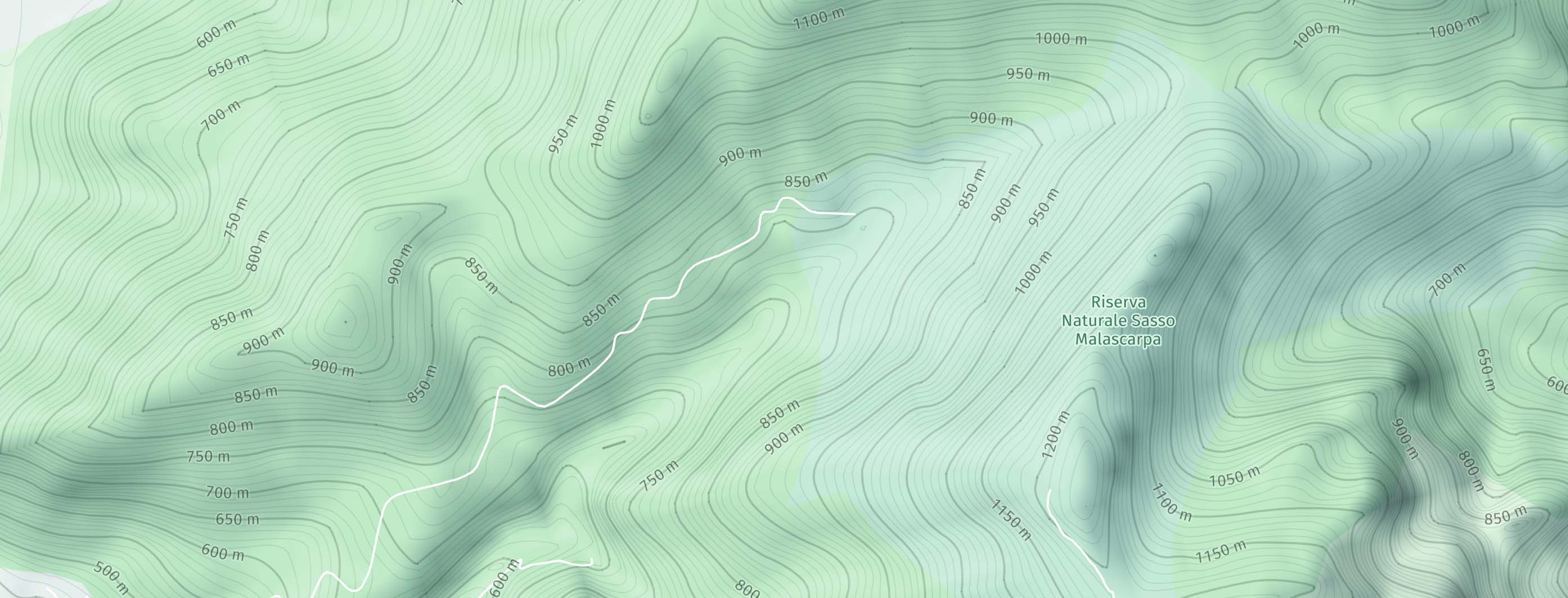
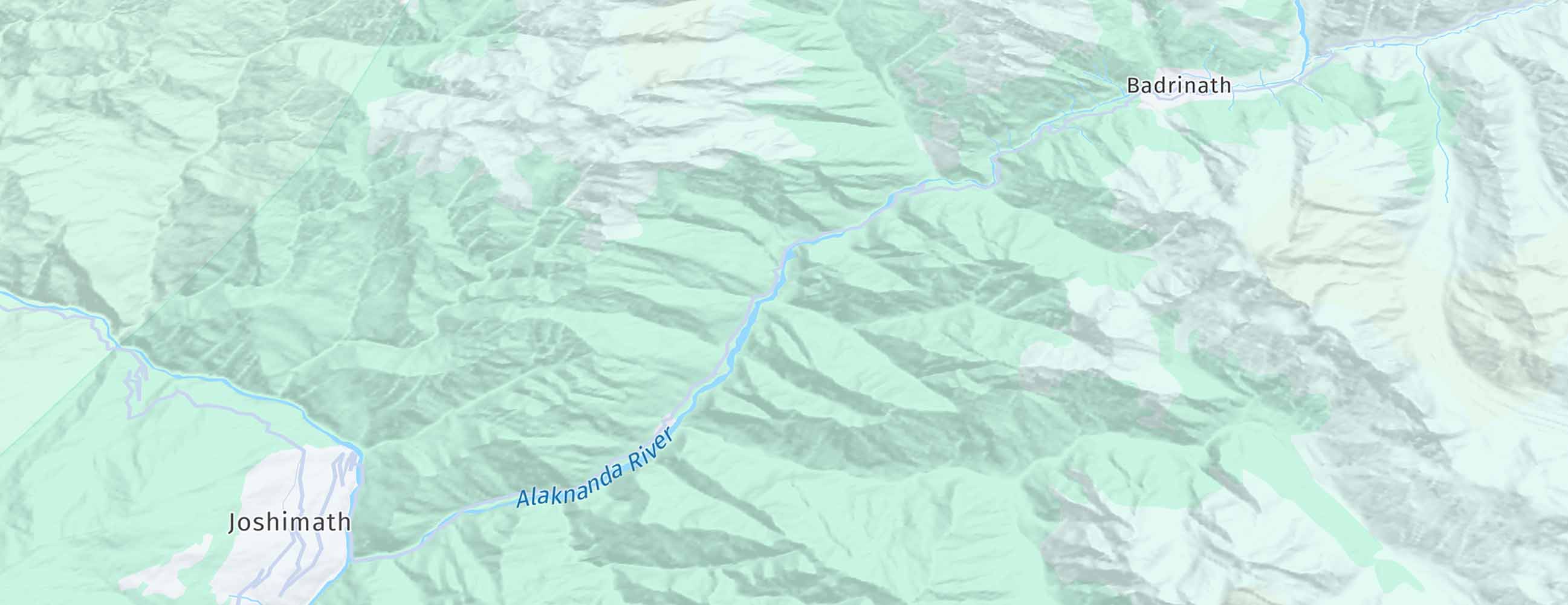
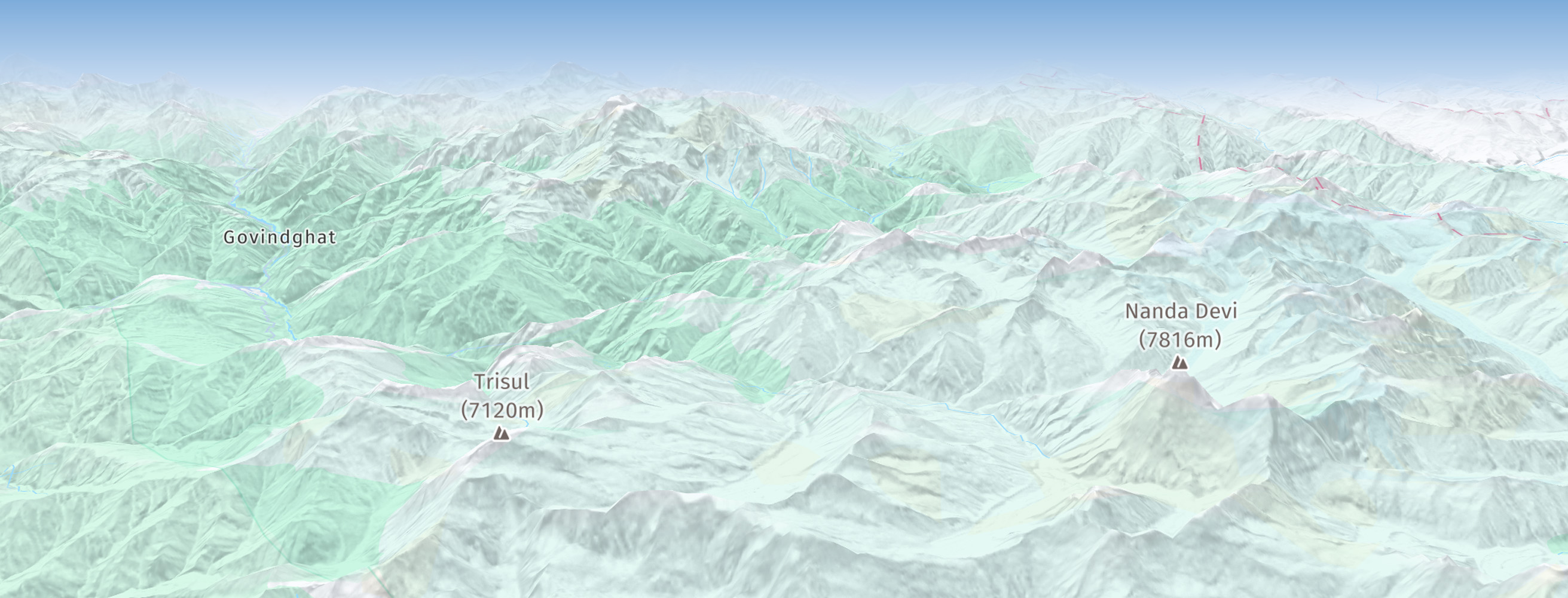
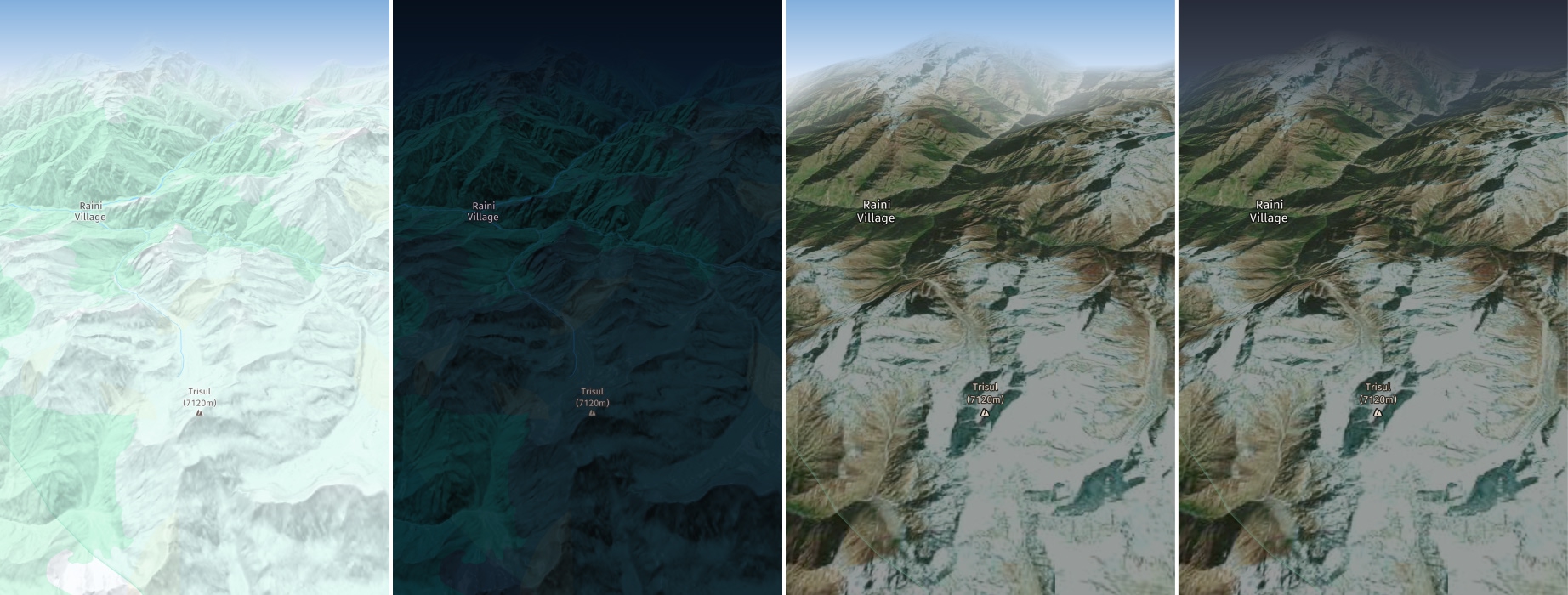
Each map feature supports one or more alternative rendering options. With the Navigate license for example, instead of using TERRAIN_HILLSHADE, which is the default mode for TERRAIN, you can use TERRAIN_3D to show advanced topographical shading for hills on a true 3D terrain map view.
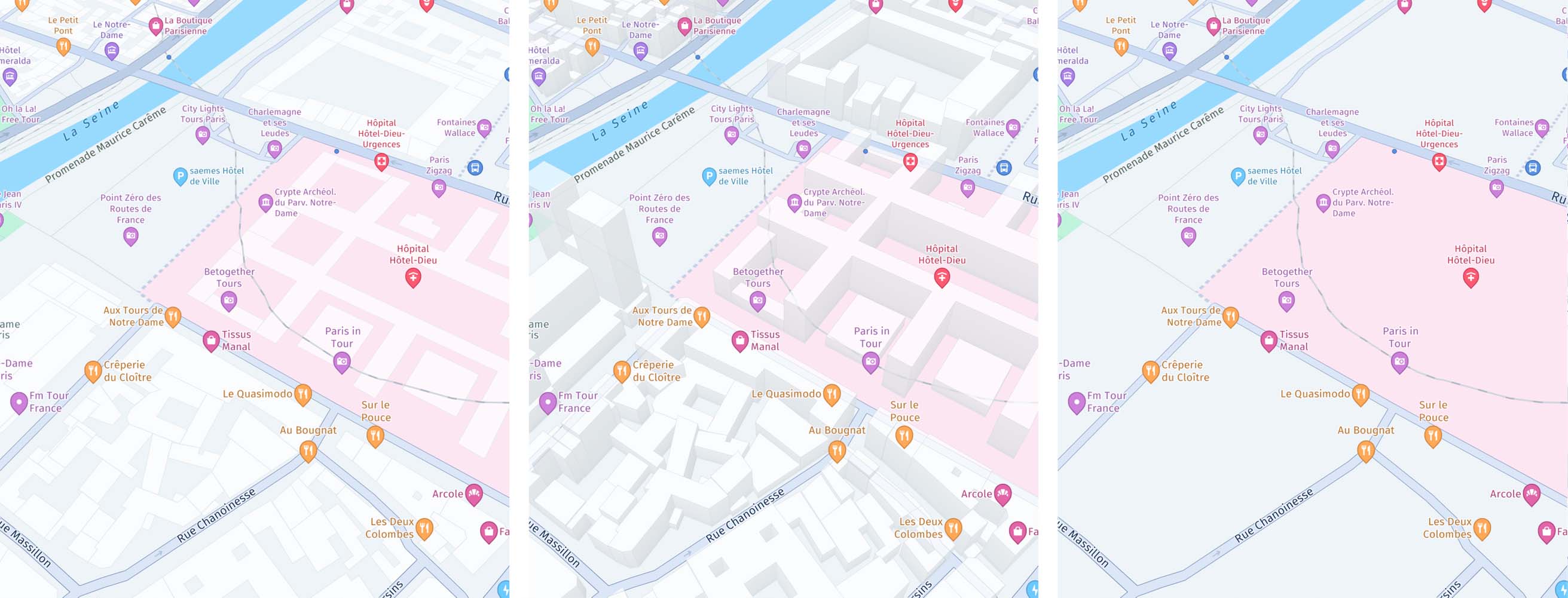
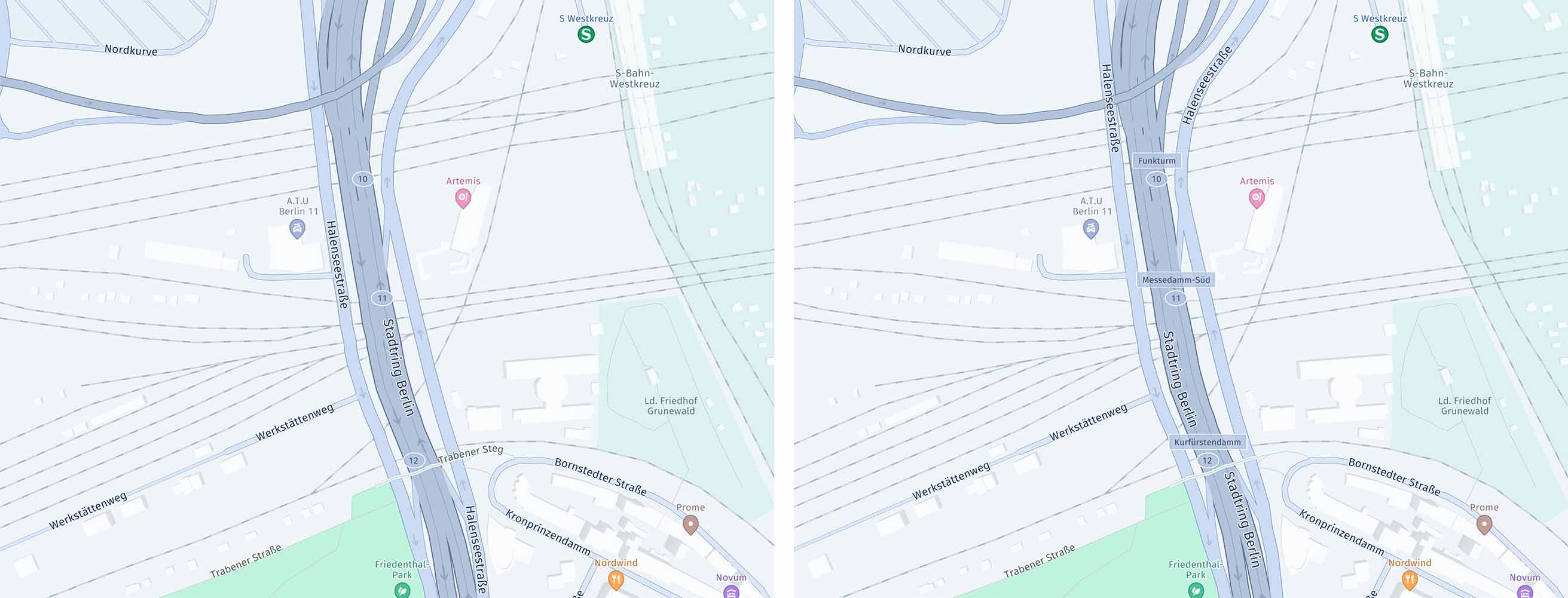
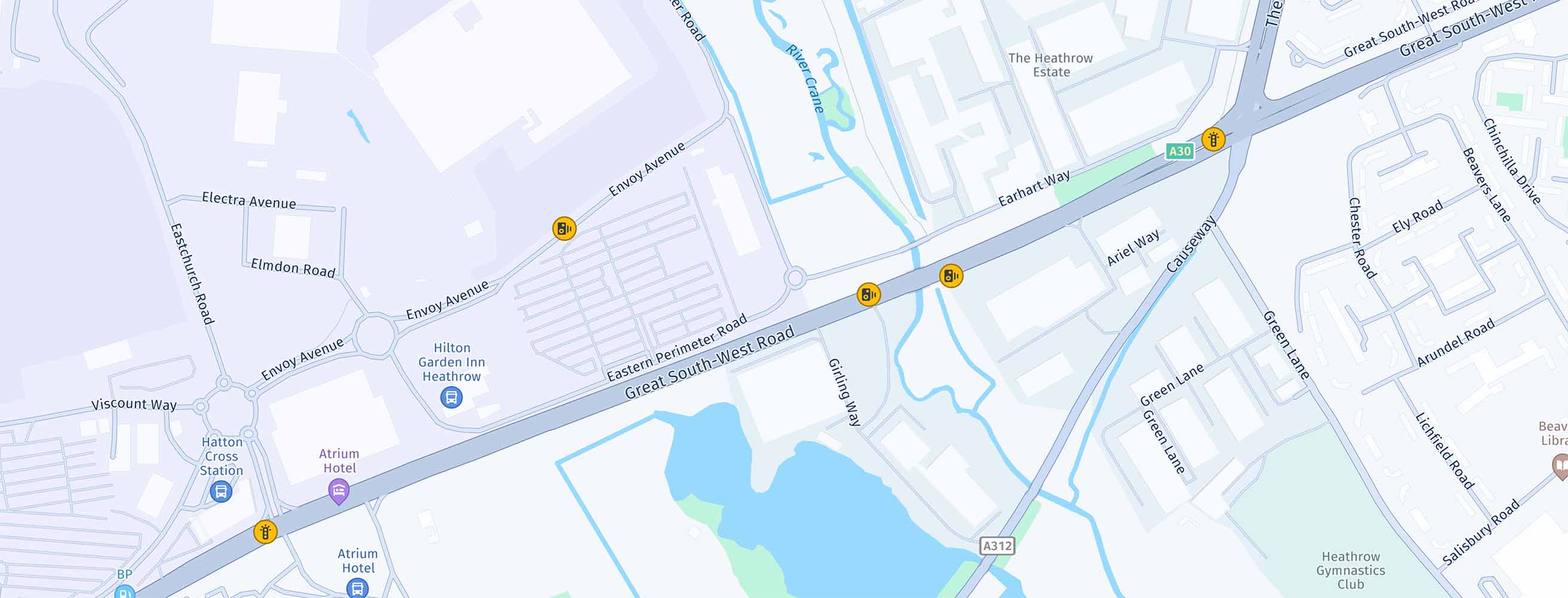
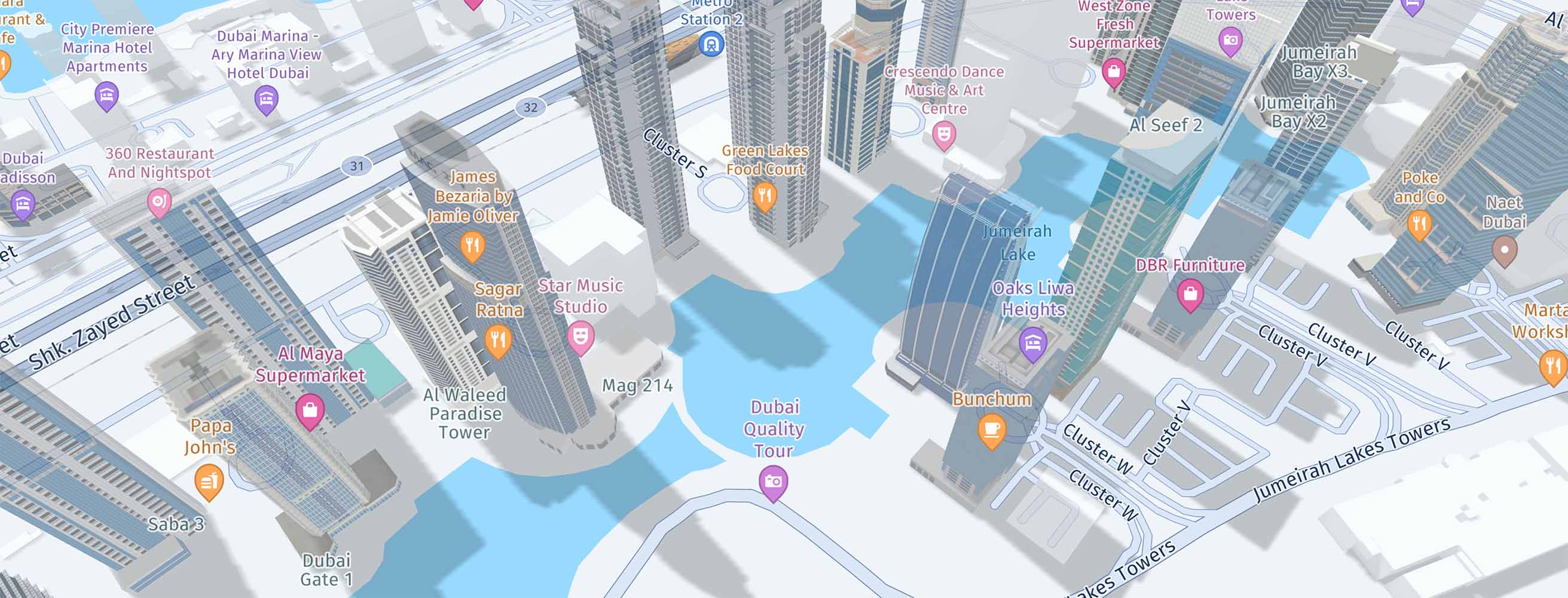
Below you can see screenshots for all map layers supported by the HERE SDK - note that not all feature layers are available for all licenses:
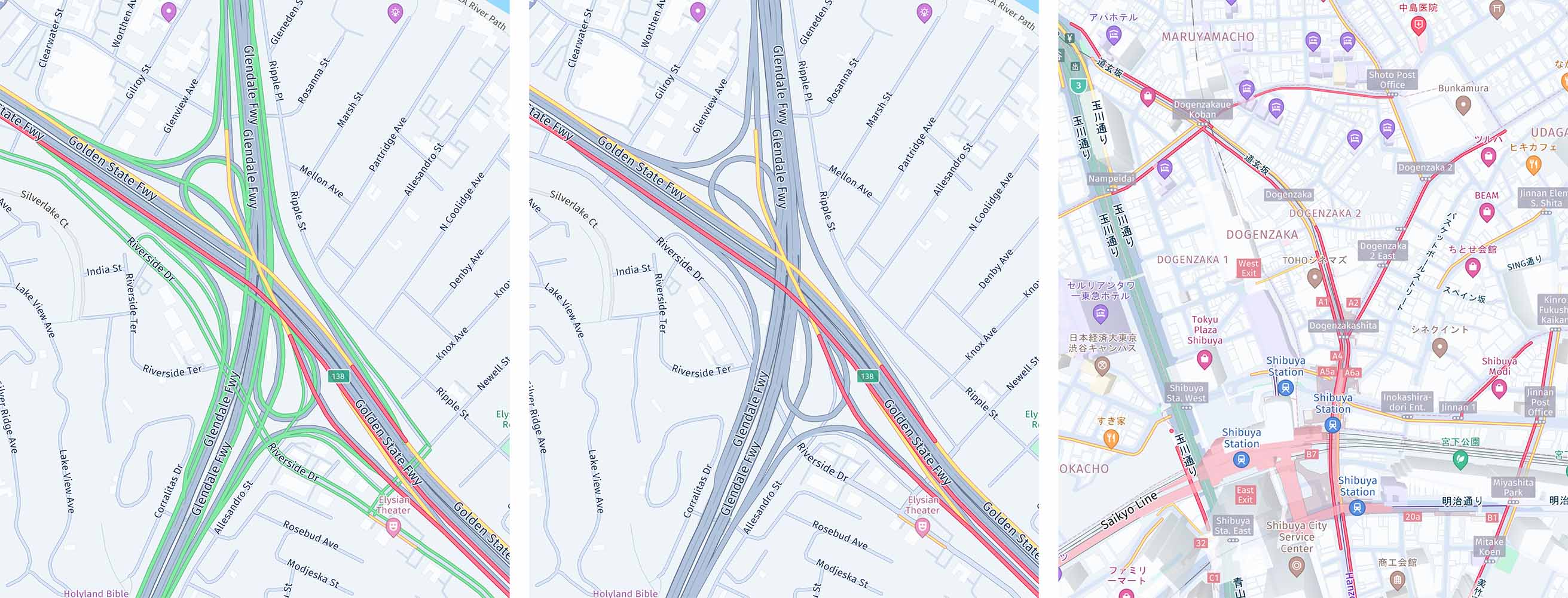
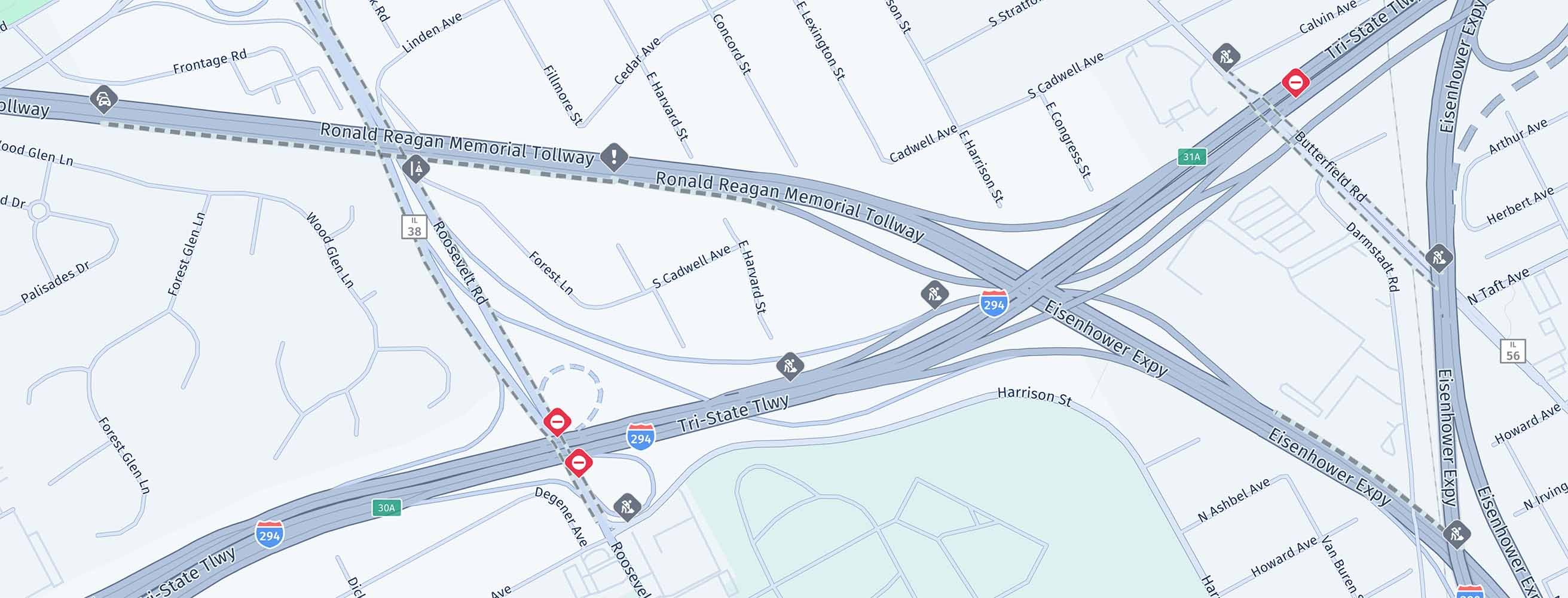
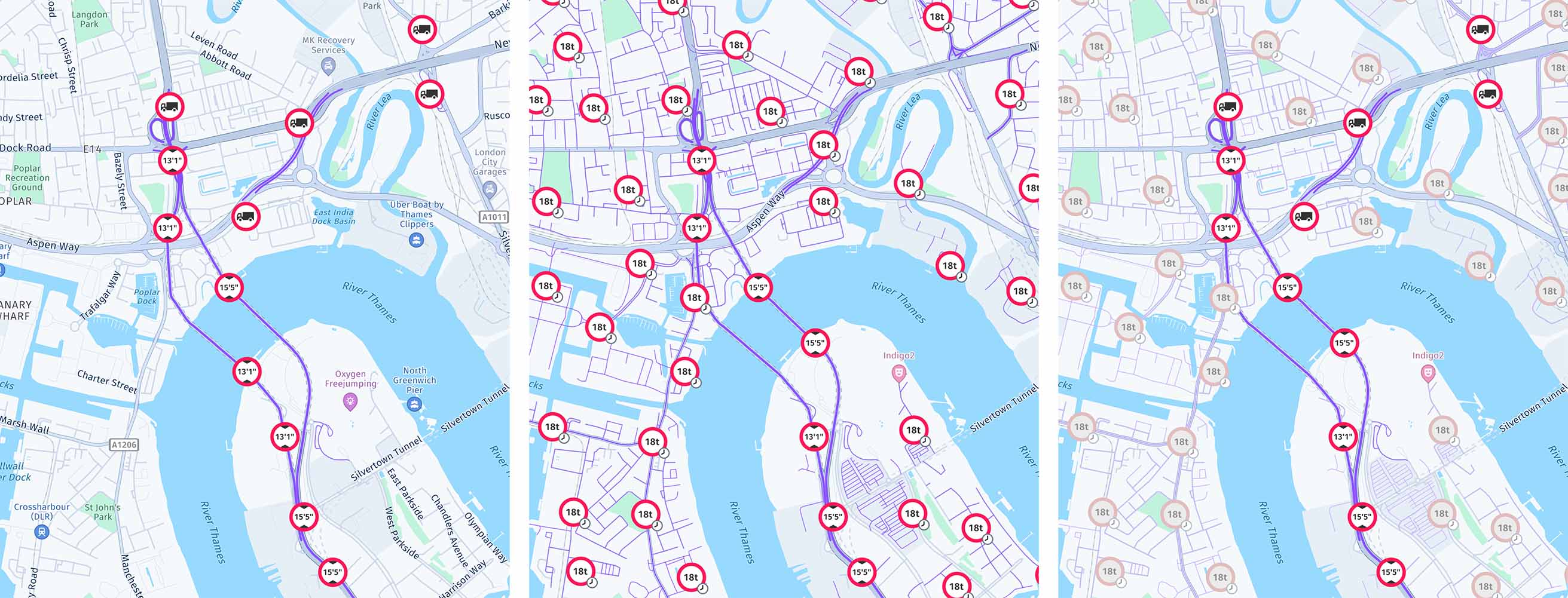
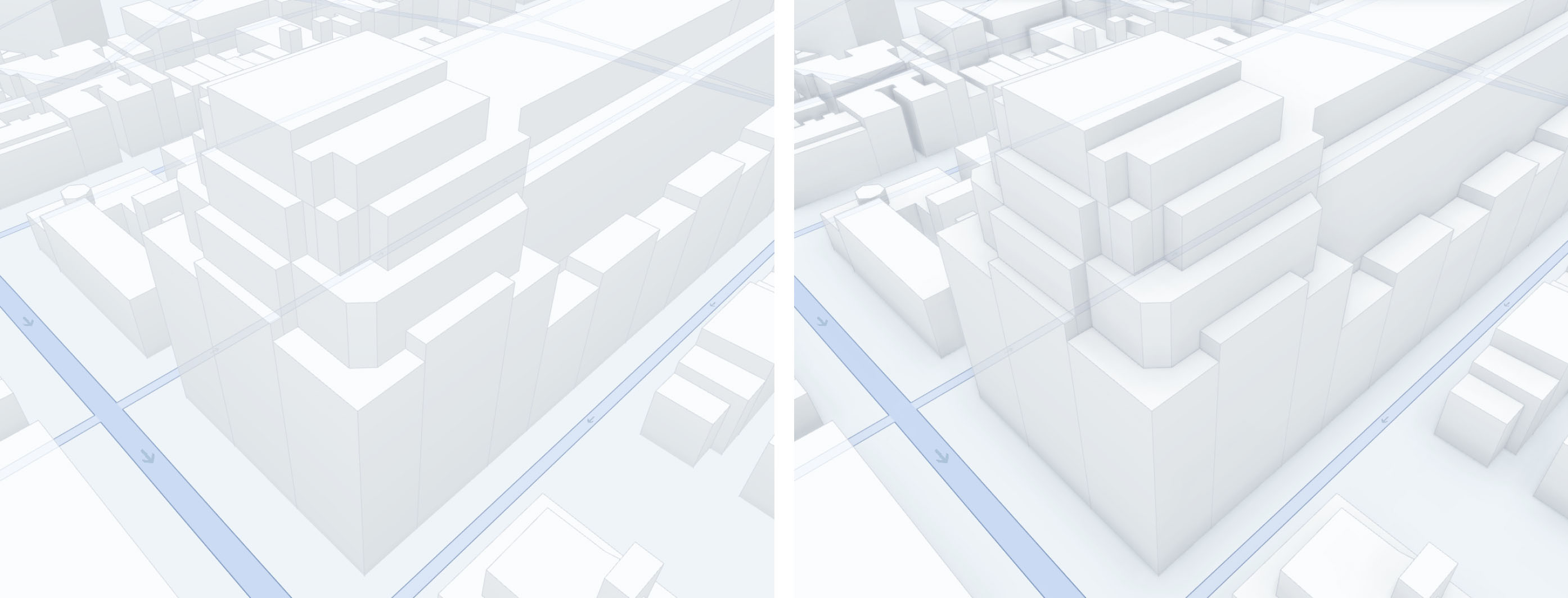
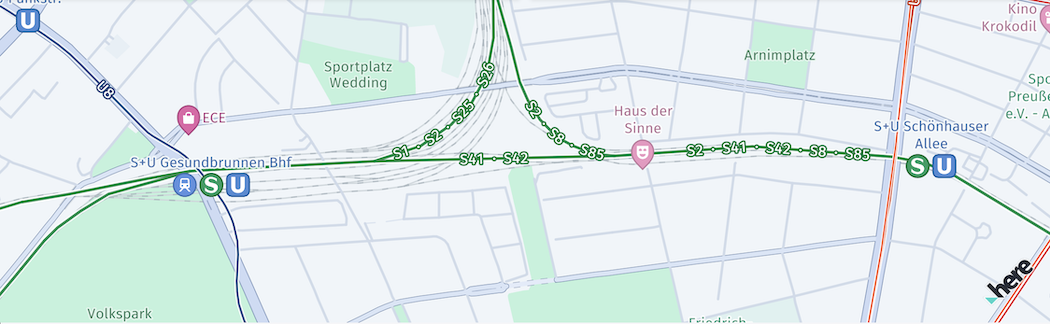
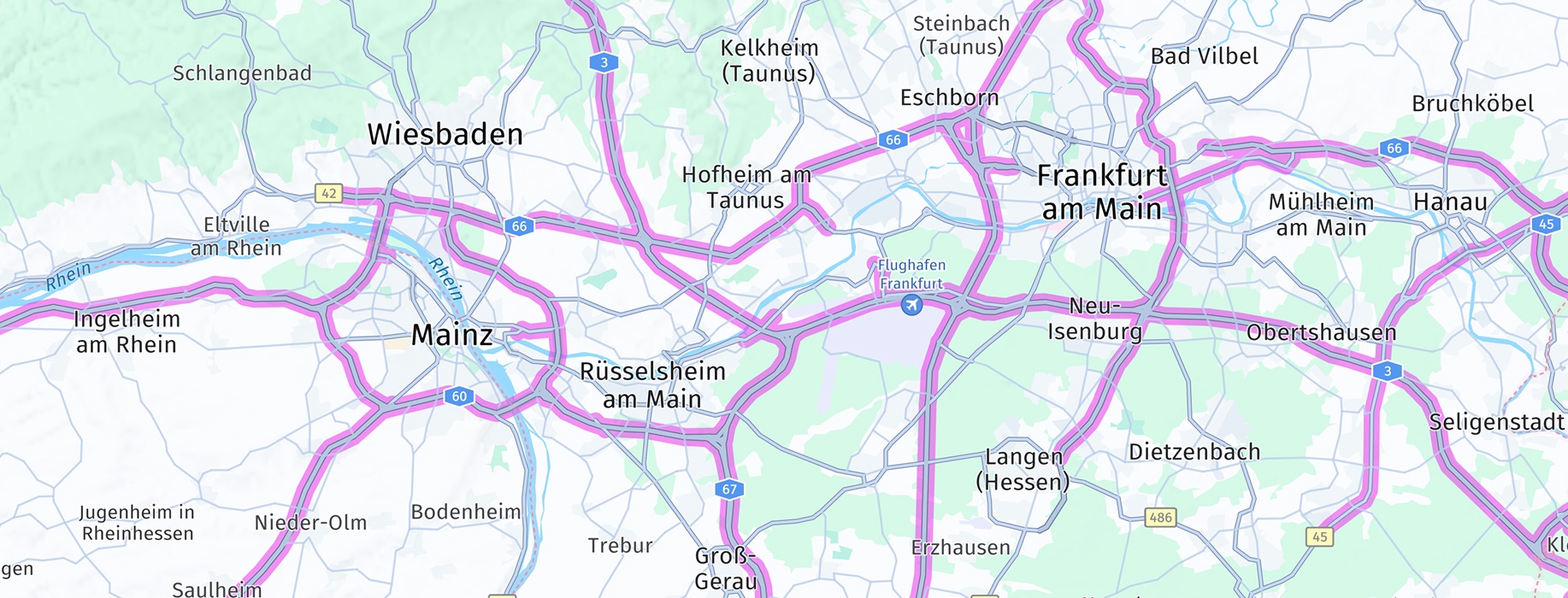
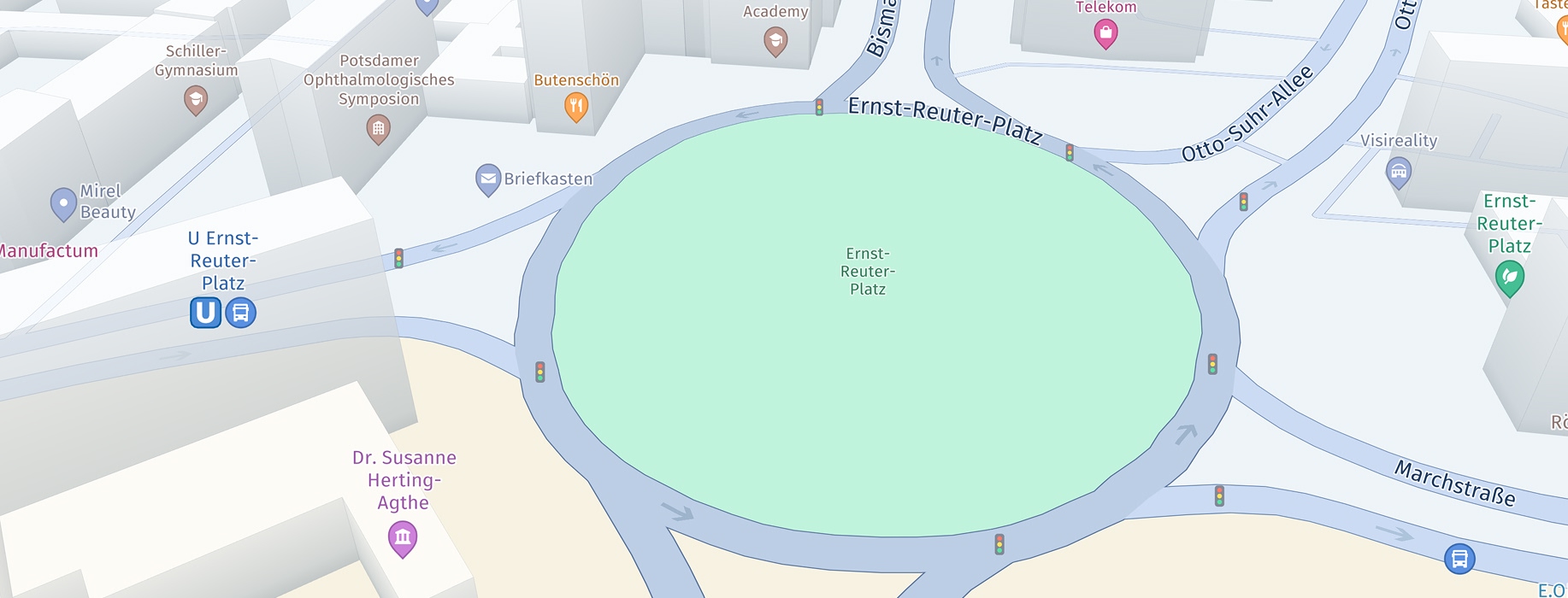
Some layers allow to filter the shown content via MapContentSettings:
MapFeatures.TRAFFIC_INCIDENTS: UsefilterTrafficIncidents(List<TrafficIncidentType> trafficIncidents)to filter the displayed traffic incidents.MapFeatures.VEHICLE_RESTRICTIONS: UseconfigureVehicleRestrictionFilter(TransportSpecification transportSpecification)to filter the displayed truck restrictions. For a complete truck-specific setup example, see Navigate trucks.
The map layers BUILDING_FOOTPRINTS & EXTRUDED_BUILDINGS are enabled by default on the MapView.
Beta Release: we now also support MapFeatureModes.TERRAIN_3D with day, night, hybrid day and hybrid night map schemes (only available with the Navigate license).
Extruded buildings coverage
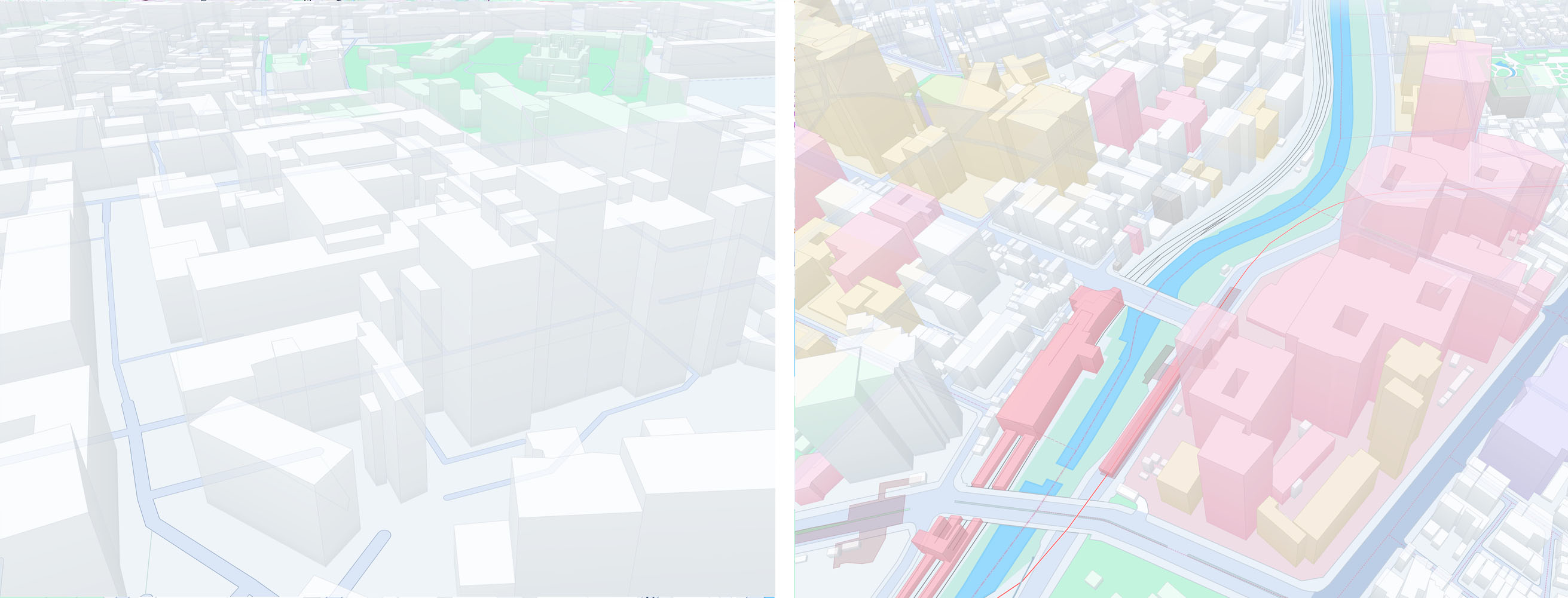
When the MapFeatures.EXTRUDED_BUILDINGS feature is enabled, buildings will be rendered in 3D with an outline. The appearance of the buildings may vary by country. For example, in Japan, the outlines are combined sometimes with colored building walls.
By default, extruded buildings are supported for most countries.
Note that the enriched Japan map requires a separate contract with HERE.
Try the MapFeatures example app
Most of the code snippets mentioned above are available in our "MapFeatures" example app, provided in both Java and Kotlin. You can find this example app on GitHub for your preferred platform.
Updated 2 days ago