

Add UI building blocks
This section presents various UI elements and related code snippets that are already available as part of the HERE SDK offering. From maneuver instructions and maneuver icon assets to visual route representation, discover how to integrate these elements into your application interface. More reusable UI building blocks are planned for the future.
Get maneuver instructions
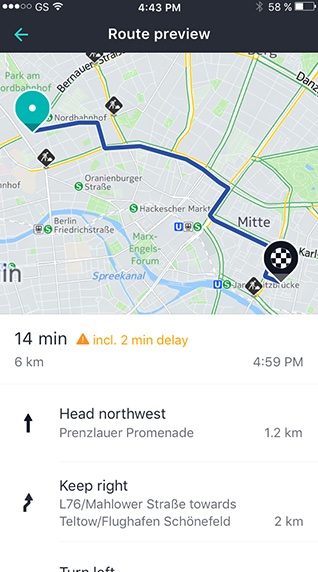
Each Section of a Route object contains maneuver instructions a user may need to follow to reach the destination. For each turn, a Maneuver object contains an action and the location where the maneuver must be taken. The action may indicate actions like "depart" or directions such as "turn left".
List<Section> sections = route.sections;
for (Section section in sections) {
  _logManeuverInstructions(section);
}
And here is the code to access the maneuver instructions per section:
void _logManeuverInstructions(Section section) {
  print("Log maneuver instructions per route section:");
  List<Maneuver> maneuverInstructions = section.maneuvers;
  for (Maneuver maneuverInstruction in maneuverInstructions) {
    ManeuverAction maneuverAction = maneuverInstruction.action;
    GeoCoordinates maneuverLocation = maneuverInstruction.coordinates;
    String maneuverInfo = maneuverInstruction.text +
        ", Action: " +
        maneuverAction.toString() +
        ", Location: " +
        maneuverLocation.toString();
    print(maneuverInfo);
  }
}
This may be useful to easily build maneuver instructions lists describing the whole route in written form. For example, the ManeuverAction enum can be used to build your own unique routing experience.
Note (only applicable for Navigate)
Note that the
Maneuverinstruction text (maneuverInstruction.text) is empty during navigation when it is taken fromNavigatororVisualNavigator. It only contains localized instructions when taken from aRouteinstance. TheManeuverActionenum is supposed to be used to show a visual indicator during navigation, and textual instructions fit more into a list to preview maneuvers before starting a trip.In opposition,
maneuverInstruction.roadTexts,maneuverInstruction.nextRoadTextsandmaneuverInstruction.exitSignTextsare meant to be shown as part of turn-by-turn maneuvers during navigation, so they are only non-empty when theManeuveris taken fromNavigatororVisualNavigator. If taken from aRouteinstance, these attributes are always empty.
Note (only applicable for Explore)
The attributes
maneuverInstruction.roadTexts,maneuverInstruction.nextRoadTextsandmaneuverInstruction.exitSignTextsare only available for users of licenses such as Navigate as they are meant to be shown as part of turn-by-turn maneuvers during navigation. If taken from aRouteinstance, these attributes are always empty.
In the API Reference you can find an overview of the available maneuver actions.
The below table shows all ManeuverAction items with a preview description and an asset example. Note that the HERE SDK itself does not ship with maneuver icons. The assets are available as SVGs or solid PNGs in different densities as part of the open-source HERE Icon Library.
The available maneuver actions are sorted in the order as they appear in the API Reference:
| Maneuver Action | Description Example | Icon Example |
|---|---|---|
| arrive | Arrival maneuver, such as "Arrive at". Example description for in-between waypoint(s): "Arrive at <road name | waypoint>". For the destination of a route: "Arrive at <road name | destination name | destination>". |

|
| continueOn | Continue maneuver, such as "Continue on <road name>". |

|
| depart | Departure maneuver, such as "Start at <road name>". |

|
| enterHighwayFromLeft | Merge onto a highway from the left side, which effectively means the driver has to move right to enter the highway. Such a maneuver occurs only in countries that drive on the left side of the road (left-hand traffic). |

|
| enterHighwayFromRight | Merge onto a highway from the right side, which effectively means the driver has to move left to enter the highway. Such a maneuver occurs only in countries that drive on the right side of the road (right-hand traffic). |

|
| leftExit | Left exit maneuver, such as "Take the left exit to <next road name>". |

|
| leftFork | Left fork maneuver, such as "Take the left fork onto <next road name>". |

|
| leftRamp | Left ramp maneuver, such as "Take the left ramp onto". |

|
| leftRoundaboutEnter | Roundabout maneuver (left-hand traffic), such as "Enter the roundabout". |

|
| leftRoundaboutExit1 | Roundabout maneuver (left-hand traffic), such as "Take the first exit of the roundabout". |

|
| leftRoundaboutExit10 | Roundabout maneuver (left-hand traffic), such as "Take the tenth exit of the roundabout". |

|
| leftRoundaboutExit11 | Roundabout maneuver (left-hand traffic), such as "Take the eleventh exit of the roundabout". |

|
| leftRoundaboutExit12 | Roundabout maneuver (left-hand traffic), such as "Take the twelfth exit of the roundabout". |

|
| leftRoundaboutExit2 | Roundabout maneuver (left-hand traffic), such as "Take the second exit of the roundabout". |

|
| leftRoundaboutExit3 | Roundabout maneuver (left-hand traffic), such as "Take the third exit of the roundabout". |

|
| leftRoundaboutExit4 | Roundabout maneuver (left-hand traffic), such as "Take the fourth exit of the roundabout". |

|
| leftRoundaboutExit5 | Roundabout maneuver (left-hand traffic), such as "Take the fifth exit of the roundabout". |

|
| leftRoundaboutExit6 | Roundabout maneuver (left-hand traffic), such as "Take the sixth exit of the roundabout". |

|
| leftRoundaboutExit7 | Roundabout maneuver (left-hand traffic), such as "Take the seventh exit of the roundabout". |

|
| leftRoundaboutExit8 | Roundabout maneuver (left-hand traffic), such as "Take the eighth exit of the roundabout". |

|
| leftRoundaboutExit9 | Roundabout maneuver (left-hand traffic), such as "Take the ninth exit of the roundabout". |

|
| leftRoundaboutPass | Roundabout maneuver (left-hand traffic), such as "Pass the roundabout". |

|
| leftTurn | Left turn maneuver, such as "Turn left on <next road name>". |

|
| leftUTurn | Left-hand U-turn maneuver, such as "Make a U-turn at <next road name>". |

|
| middleFork | Middle fork maneuver, such as "Take the middle fork onto <next road name>". |

|
| rightExit | Right exit maneuver, such as "Take the right exit to <next road name>". |

|
| rightFork | Right fork maneuver, such as "Take the right fork onto <next road name>". |

|
| rightRamp | Right ramp maneuver, such as "Take the right ramp onto". |

|
| rightRoundaboutEnter | Roundabout maneuver (right-hand traffic), such as "Enter the roundabout". |

|
| rightRoundaboutExit1 | Roundabout maneuver (right-hand traffic), such as "Take the first exit of the roundabout". |

|
| rightRoundaboutExit10 | Roundabout maneuver (right-hand traffic), such as "Take the tenth exit of the roundabout". |

|
| rightRoundaboutExit11 | Roundabout maneuver (right-hand traffic), such as "Take the eleventh exit of the roundabout". |

|
| rightRoundaboutExit12 | Roundabout maneuver (right-hand traffic), such as "Take the twelfth exit of the roundabout". |

|
| rightRoundaboutExit2 | Roundabout maneuver (right-hand traffic), such as "Take the second exit of the roundabout". |

|
| rightRoundaboutExit3 | Roundabout maneuver (right-hand traffic), such as "Take the third exit of the roundabout". |

|
| rightRoundaboutExit4 | Roundabout maneuver (right-hand traffic), such as "Take the fourth exit of the roundabout". |

|
| rightRoundaboutExit5 | Roundabout maneuver (right-hand traffic), such as "Take the fifth exit of the roundabout". |

|
| rightRoundaboutExit6 | Roundabout maneuver (right-hand traffic), such as "Take the sixth exit of the roundabout". |

|
| rightRoundaboutExit7 | Roundabout maneuver (right-hand traffic), such as "Take the seventh exit of the roundabout". |

|
| rightRoundaboutExit8 | Roundabout maneuver (right-hand traffic), such as "Take the eighth exit of the roundabout". |

|
| rightRoundaboutExit9 | Roundabout maneuver (right-hand traffic), such as "Take the ninth exit of the roundabout". |

|
| rightRoundaboutPass | Roundabout maneuver (right-hand traffic), such as "Pass the roundabout". |

|
| rightTurn | Right turn maneuver, such as "Turn right on <next road name>". |

|
| rightUTurn | Right u-turn maneuver, such as "Make a right U-turn at <next road name>". |

|
| sharpLeftTurn | Sharp left turn maneuver, such as "Make a hard left turn onto <next road name>". |

|
| sharpRightTurn | Sharp right turn maneuver, such as "Make a hard right turn onto <next road name>". |

|
| slightLeftTurn | Slight left turn maneuver, such as "Bear left onto <next road name>". |

|
| slightRightTurn | Slight right turn maneuver, such as "Bear right onto <next road name>". |

|
Note that for now, the HERE assets for leftRoundaboutPass and rightRoundaboutPass are only available as SVGs - and some maneuver assets are only available in the sub-folder "wego-fallback-roundabout".
Get road shield icons for maneuver preview
With iconProvider.createRoadShieldIcon(...) you can asynchronously create a Bitmap that depicts a road number such as "A7" or "US-101" - as it already appears on the map view.
The creation of road shield icons happens offline and does not require an internet connection. The data you need to create the icons is taken solely from the Route itself, but can be filled out also manually.

An example implementation of road shield display for maneuver previews is part of the "rerouting_app" example. To get it, visit the example app repository on GitHub. Note that it requires the HERE SDK (Navigate), but the code for the IconProvider can be also used, for example, to show road shield icons as part of a route preview.
Show the route on the map
Below is a code snippet that shows how to show a route on the map by using a MapPolyline that is drawn between each coordinate of the route including the starting point and the destination:
_showRouteOnMap(here.Route route) {
  // Show route as polyline.
  GeoPolyline routeGeoPolyline = route.geometry;
  double widthInPixels = 20;
  Color polylineColor = const Color.fromARGB(160, 0, 144, 138);
  MapPolyline routeMapPolyline;
    try {
      routeMapPolyline = MapPolyline.withRepresentation(
          routeGeoPolyline,
          MapPolylineSolidRepresentation(
              MapMeasureDependentRenderSize.withSingleSize(RenderSizeUnit.pixels, widthInPixels),
              polylineColor,
              LineCap.round));
      _hereMapController.mapScene.addMapPolyline(routeMapPolyline);
    } on MapPolylineRepresentationInstantiationException catch (e) {
      print("MapPolylineRepresentation Exception:" + e.error.name);
      return;
    } on MapMeasureDependentRenderSizeInstantiationException catch (e) {
      print("MapMeasureDependentRenderSize Exception:" + e.error.name);
      return;
    }
}
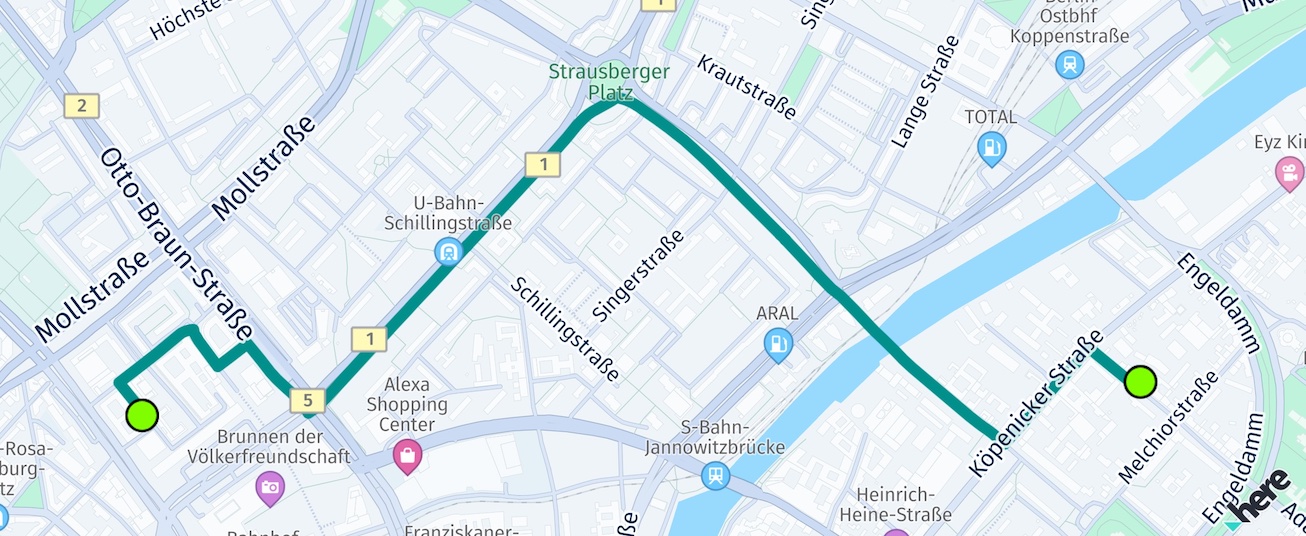
The first screenshot below shows a route without additional waypoints - and therefore only one route section. Starting point and destination are indicated by green-circled map marker objects. Note that the code for drawing the circled objects is not shown here, but can be seen from the example's source code, if you are interested.
The second screenshot shows the same route as above, but with two additional stopover-waypoints, indicated by red-circled map marker objects. The route therefore, contains three route sections.
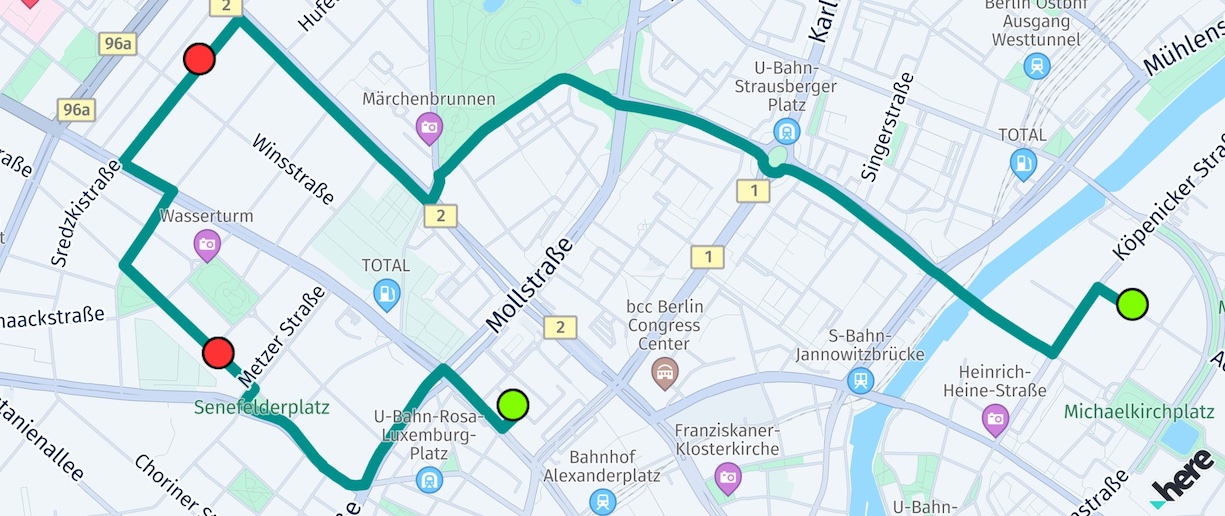
Additional stopover-waypoints split a route into separate sections and force the route to pass these points and to generate a maneuver instruction for each point.
Note that internally, rendering of the MapPolyline is optimized for very long routes. For example, on a higher zoom level, not every coordinate needs to be rendered, while for lower zoom levels, the entire route is not visible. The algorithm for this is not exposed, but the basic principle can be seen in the flexible-polyline open-source project from HERE.
Zoom to the route
For some use cases, it may be useful to zoom to the calculated route. The camera class provides a convenient method to adjust the viewport so that a route fits in:
GeoBox routeGeoBox = route!.boundingBox;
// Keep default orientation for bearing and tilt.
_hereMapController.camera.lookAtAreaWithGeoOrientation(routeGeoBox, GeoOrientationUpdate(null, null));
Here we use the enclosing bounding box of the route object. This can be used to instantly update the camera: zoom level and target point of the camera will be changed, so that the given bounding rectangle fits exactly into the viewport. Additionally, we can specify an orientation to specify more camera parameters - here we keep the default values. Note that calling lookAtAreaWithOrientation() will instantly change the view.
For most use cases, a better user experience is to zoom to the route with an animation. Below you can see an example that zooms to a GeoBox plus an additional padding of 50 pixels:
void _animateToRoute(here.Route route) {
  // The animation results in an untilted and unrotated map.
  double bearing = 0;
  double tilt = 0;
  // We want to show the route fitting in the map view with an additional padding of 50 pixels.
  Point2D origin = Point2D(50, 50);
  Size2D sizeInPixels = Size2D(_hereMapController.viewportSize.width - 100, _hereMapController.viewportSize.height - 100);
  Rectangle2D mapViewport = Rectangle2D(origin, sizeInPixels);

  // Animate to the route within a duration of 3 seconds.
  MapCameraUpdate update = MapCameraUpdateFactory.lookAtAreaWithGeoOrientationAndViewRectangle(route.boundingBox,
      GeoOrientationUpdate(bearing, tilt),
      mapViewport);
  MapCameraAnimation animation = MapCameraAnimationFactory.createAnimationFromUpdateWithEasing(
      update, const Duration(milliseconds: 3000), here.Easing(here.EasingFunction.inCubic));
  _hereMapController.camera.startAnimation(animation);
}

The `CameraKeyframeTracks` example app shows how this can look like.
Show traffic with routes
For information on how to visualize traffic conditions on routes, including rendering polylines adjacent to traffic flow and custom traffic overlays, see Visualize traffic on routes.
Completely disable traffic optimization
As stated above, the RoutingEngine uses predictive location services to anticipate upcoming traffic conditions. This means that the routes generated can change dynamically based on real-time traffic data, leading to different route shapes.
Usually, traffic optimization is desired, but if you are, for example, a bus driver, you cannot choose better routes as you have to follow a pre-defined bus route.
The HERE SDK provides a feature called TrafficOptimizationMode to manage this. If you prefer stable routes and are not concerned about traffic conditions, you can completely disable traffic optimization by choosing TrafficOptimizationMode.disabled. It can be achieved like this:
RoutingOptions routingOptions = RoutingOptions();
routingOptions.routeOptions.trafficOptimizationMode = TrafficOptimizationMode.disabled;
Note that disabling TrafficOptimizationMode will also disable any traffic information from the Route and the ETA will not include potential delays.
Updated 3 days ago