

Create styles with the HERE Style Editor
The most flexible solution to customize the map is to create your own MapScheme styles using a configuration file generated with the HERE Style Editor.
Note
The web-based unified HERE Style Editor is available on the HERE platform. It is compatible with the Maps API for JavaScript (JSAPI) and the HERE SDK since version 4.12.1.0. Custom map styles that have been made with the legacy desktop editor need to be migrated to the new HERE Style Editor format. Get in touch with your HERE representative to discuss potential style updates from legacy versions.
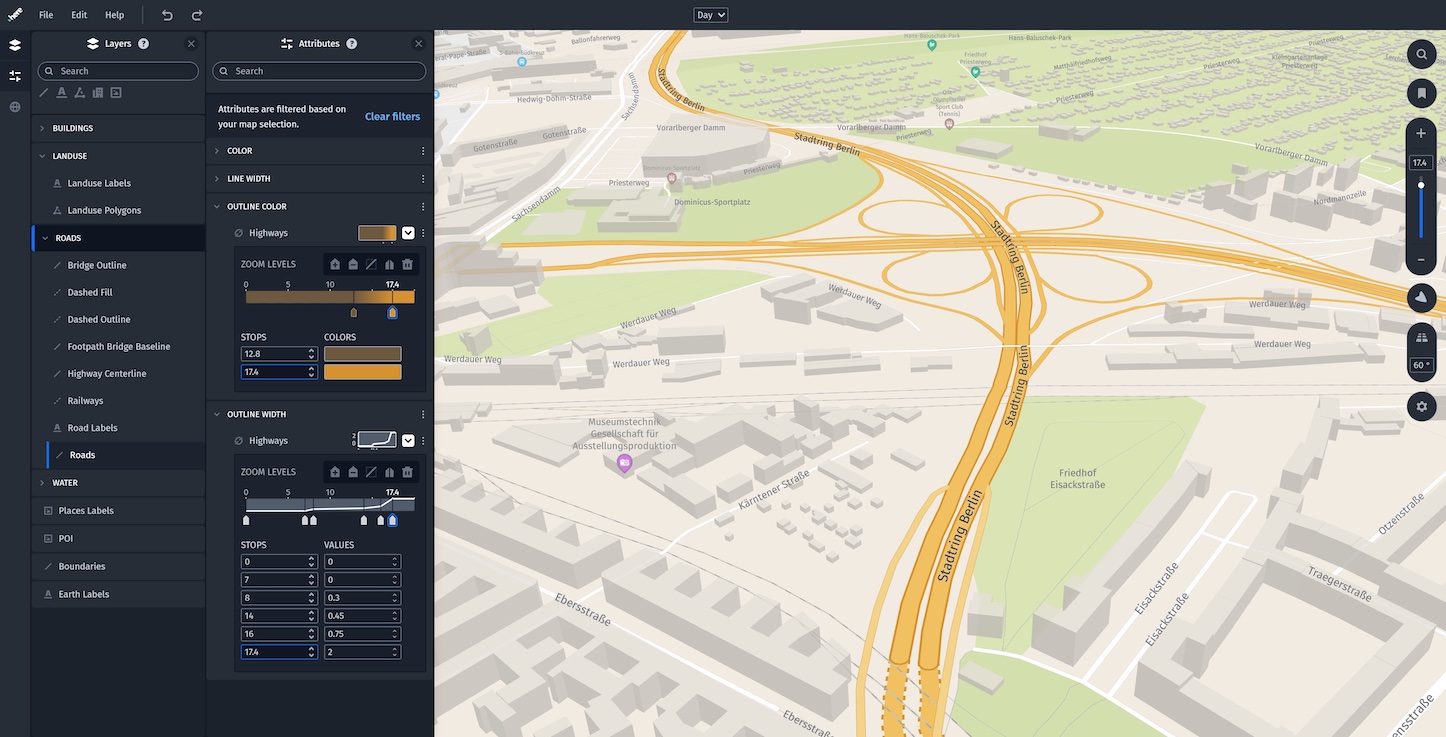
Take a look at the user guide of the HERE Style Editor for more information. The latest updates can be found in this blog post.
In order to use the HERE Style Editor, perform the following steps:
- Sign-up for an account on the HERE platform, if not done already.
- Confirm and finalize your account generation by providing addition details.
- Select HERE Style Editor from the Launcher menu on your landing page on the HERE platform or use this direct link after signing in.
- Start utilizing the HERE Style Editor by selecting one of the existing base styles you want to customize.
- Apply your customizations to the map style.
- Finalize your work by exporting the customized map style to your local computer via File -> Export Map Style and load it to your application as described below.
Starting with HERE Style Editor v1.13.0, only zipped archives (.tar.gz) are exported. These archives include POI categories and the JSON style files. When loading a custom style using MapScene.loadScene(...), the HERE SDK supports specifying a file pointing to a JSON file or to a zipped archive.
- When using HERE Style Editor 1.13.0 or newer:
- Extract the resulting tar.gz archive and repackage it into a ZIP archive. Generate a new folder via Xcode's Project navigator. Copy the ZIP file for your custom style into that directory, for example, with drag & drop. Or completely drag & drop a new folder including all contents into your project.
- When using an older HERE Style Editor version:
- Generate a new folder via Xcode's Project navigator. Copy the generated JSON file for your custom style into that directory, for example, with drag & drop. Or completely drag & drop a new folder including all contents into your project.
Load the style into a map scene as follows:
private func loadCustomMapStyle() {
    let styleResourceString = getResourceStringFromBundle(filename: "my-custom-dark-style-neon-rds",
    // When using HERE Style Editor >= v1.13.0:
                                                         type: "zip")
    // When using HERE Style Editor < v1.13.0:
    //                                                   type: "json")

    // Load the map scene using the path to the JSON / ZIP resource.
    mapView.mapScene.loadScene(fromFile: styleResourceString, completion: onLoadScene)
}

private func getResourceStringFromBundle(filename: String, type: String) -> String {
    let bundle = Bundle.main
    guard let resourceUrl = bundle.url(forResource: filename, withExtension: type) else {
        fatalError("Error: Resource not found!")
    }

    return resourceUrl.path
}

// Completion handler when loading a map scene.
private func onLoadScene(mapError: MapError?) {
    guard mapError == nil else {
        print("Error: Map scene not loaded, \(String(describing: mapError))")
        return
    }
}
In the above snippet, we verify that the *.json / *.zip file exists at the expected location.
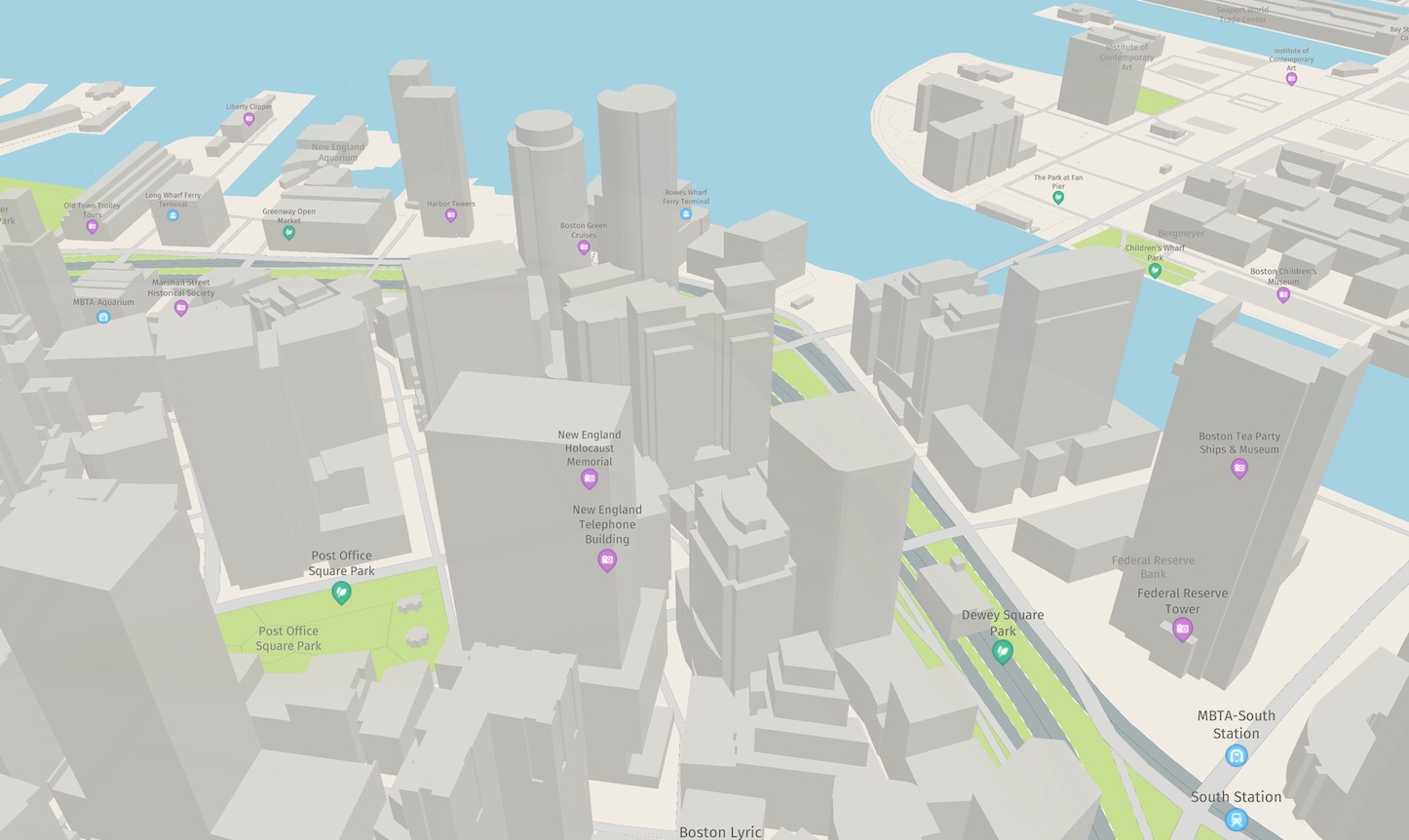
Using custom map styles can be very effective to differentiate your app from other map applications. In addition, it is possible to change map styles on-the-fly, for example, to shift the user's attention to certain map elements based on the current state of your app.
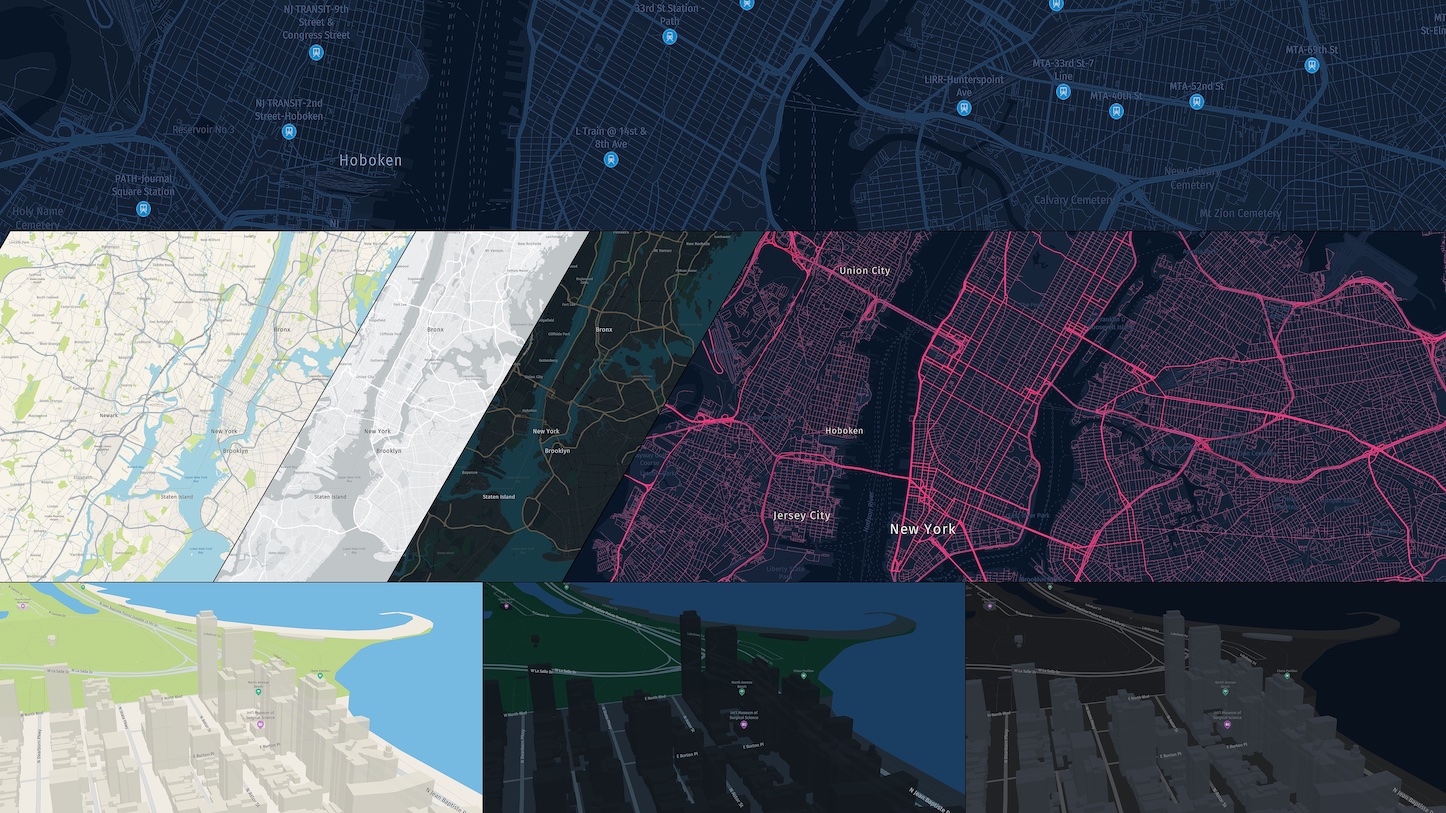
Note that when you are doing local changes on the JSON / ZIP style file / archive you should consider to call mapScene.reloadScene() to ensure the entire scene is reloaded again without using any cached data.
Learn more in this blog post on how to create custom map designs with the HERE Style Editor. More related blog posts can be found here.
Color vision deficiency view
You may enable the color vision deficiency view to try out how your custom map style would look like for people with color vision issues. The HERE Style Editor offers a switch for this.
The available color vision simulations are:
Protanopia
Deuteranopia
Tritanopia
You can see examples of this here.
Try the example app
The code snippets mentioned above are available in our "CustomMapStyles" example app. You can find the example app on GitHub for your preferred platform.
Updated 13 days ago