

Get started
This topic helps you get started with the HERE SDK. Follow the instructions to:
- Get credentials for using the HERE SDK.
- Download the HERE SDK package
- Run a basic HERE SDK-powered example app in an emulator on your machine.
Get credentials
You can use the HERE SDK (Explore) right away by signing up to the HERE Base Plan. With the Navigate license, you’ll need extra onboarding steps before your credentials are active. Not sure which license fits your needs? See the overview of licenses and choose the right pricing plan with your HERE Account Executive.
To use the HERE SDK, you must register at least one app and obtain OAuth 2.0 credentials (Access key ID and Access key secret).
-
Sign up to the HERE Base Plan and get access to the HERE platform portal.
-
Sign in to the HERE platform portal.
-
Select the Access Manager from the launcher.
-
On the Apps tab, click Register new app and provide the requested information.
-
Click Register. The platform creates a new app with a unique app ID.
-
On the Credentials tab, select OAuth 2.0 and then click Create credentials.
-
In the dialog box that opens, click Download to download your app's
credentials.propertiesfile.This file contains your user ID, app ID (which is named
here.client.id), OAuth 2.0 token endpoint URL, access key ID, and access key secret.
Note that once you click Close, you can no longer access your access key ID and access key secret. -
The credentials are always tied to the Application ID. Keep this handy if you need to contact the HERE support team.
Download the HERE SDK (Explore) package
The credentials you created in the previous step are valid for the Explore package, so you’re ready to go right away:
Download the HERE SDK (Explore) package and start building apps!
Download the HERE SDK (Navigate) package
The HERE SDK (Navigate) package is not included in the HERE Base Plan. Contact your HERE account executive or contact us to get access or extend your HERE SDK (Explore) license into a HERE SDK (Navigate) license. If you have further questions about pricing, contact us or check out HERE Base Plan Pricing.
Note
While you wait for access, you can already start with the HERE SDK (Explore), which provides a subset of the same APIs and features.
Once you got access, proceed with the steps below:
- Use the Application ID to accept the quote in the Sales portal. Before you accept the quote your credentials will not work with Navigate and you will not be able to download Navigate package. If you need help with this step, contact your HERE Account Executive.
- The previous step enables you to download the HERE SDK (Navigate) package.
Now you are ready to start building apps with the Navigate license!
Contents of the HERE SDK package
The HERE SDK package contains:
- The
heresdk.xcframeworkwhich contains the HERE SDK binaries to include in your app. - Several documentation assets including this guide, the API Reference and the example apps.
- The
HERE_NOTICEfile that must be included in any app created with the HERE SDK. See the open source notices to learn more.
The binary is a natively compiled SDK. Since the Explore binary is a subset of the Navigate binary, the Navigate binary works with all Explore example apps, but not always vice versa. APIs that are exclusive to Navigate are not included in the Explore binary. Likewise, the changelog and API Reference are tailored to each license, matching the corresponding binary.
Your credentials can be used with all example apps you can find in the HERE SDK package and on GitHub for your license. If you have a Navigate license, your credentials work with every app and feature. If you have an Explore license, your credentials also work with all apps, but some features that require the Navigate license will be unavailable.
Run the Hello Map example app
The example apps included in the HERE SDK release package and available on GitHub provide a comprehensive preview of the HERE SDK's capabilities. To get started, run the basic HelloMap example in the emulator. Follow these steps:
- Install Xcode. To download, visit this page.
- Unpack the HERE SDK release package you downloaded from the HERE platform portal.
- Unpack the archive with example apps. Its name ends with
examples-VERSION_NUMBER.zip. - Copy the
heresdk.xcframeworkfolder to your app's root folder. - Run Xcode by double-clicking on the project file
HelloMap/HelloMap.xcodeproj. - In Xcode, open the file
HelloMap/HelloMap/HelloMapApp.swift. - Inside this file, replace the placeholders in the following code with your credentials:
// Set your credentials for the HERE SDK.
let accessKeyID = "YOUR_ACCESS_KEY_ID"
let accessKeySecret = "YOUR_ACCESS_KEY_SECRET"
let authenticationMode = AuthenticationMode.withKeySecret(accessKeyId: accessKeyID,
                                                          accessKeySecret: accessKeySecret)
let options = SDKOptions(authenticationMode: authenticationMode)- Select the play button to build and run the "HelloMap" app.
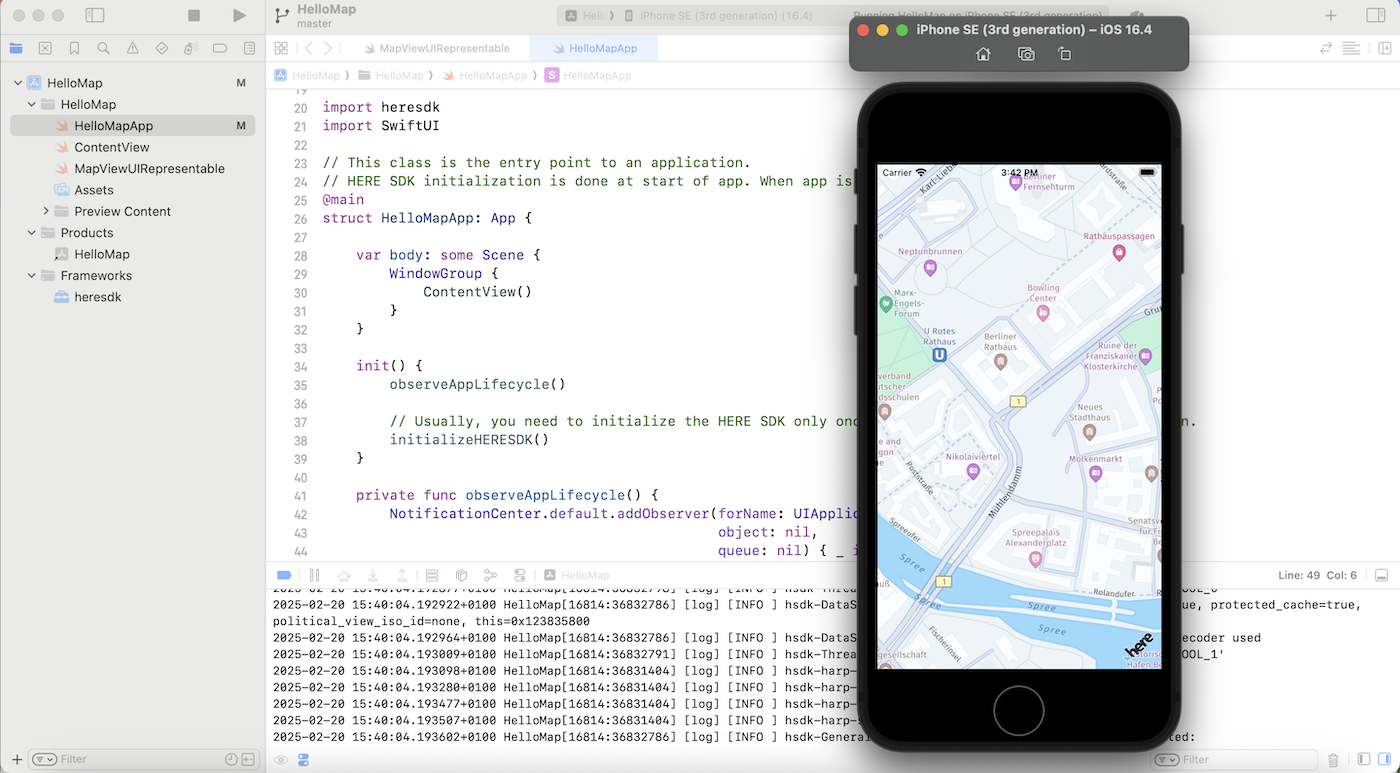
You can now see an app displaying a HERE map running in the Xcode simulator. Alternatively, you can run the app on your preferred iOS device.
It's time to experiment with the code! For example, try modifying the example by replacing MapScheme.normalDay in the loadScene(...) method found in the MapViewUIRepresentable class with MapScheme.satellite. You can also try other map schemes or explore some of the available map layers.
Note
The HERE SDK is not guaranteed to be thread safe and it is required to make calls to the SDK from the main thread. For more information, see Thread safety.
See Integrate the HERE SDK to learn how to initialize the SDKNativeEngine and to learn about the basic building blocks of an app created with the HERE SDK.
Building multiple apps
When you plan to use the same credentials for multiple apps, you need to set a scope to differentiate your apps.
Next steps
- Create an instance of
MapViewto show a map. See Add a map view. - Learn how to load a map scene. See Load a map scene.
- Learn how to clean up after the app shuts down. See Handle the lifetime.
- Learn how to build and run the app. See Build and run.
- Learn how to integrate HERE SDK in a new project. See New project with HERE SDK.
- Learn more about the features of HERE SDK. See the Feature list topic.
- Learn how to use HERE SDK to develop for CarPlay. See Integration with CarPlay.
Updated 13 days ago