

Set a scope to differentiate multiple apps
In this section we will explain the correlation between app credentials and a project scope.
A scope is not always necessary:
-
If you are developing only one app with the HERE SDK, you do not need to work with the Projects Manager that can be found on the HERE platform and you can skip the following section.
-
If you are developing multiple apps, then you need to reuse the same set of credentials. In order to be able to see statistics for each app individually, you need to set a scope. Make sure to read the following section.
A project scope is used to determine specific services for a certain development project. Setting a scope will disable access to all other HERE services except specifically defined. Typically, when you develop an app with the HERE SDK, using one set of credentials for one app is sufficient. In that case setting a project scope is also not required. If this is the case, this section is not relevant for you.
If you intend to use one set of credentials for developing several different apps with the HERE SDK, please read on.
The HERE platform supports Projects, which allow developers to manage their app with additional possibilities to further restrict and customize app access and its entitlements. This is done with the Projects Manager you can find when you log into the HERE platform. See the IAM Guide for more details on how to set up a project.
Furthermore, setting an app with a project via Projects Manager will enable you to see the app in the downloaded usage report. This enables you to distinguish the usage statistics behind your app based on the project's HRN value in addition to the appId. A HERE Resource Name (HRN) is a unique identifier of catalog, schema, and pipeline resources as well as of platform projects and apps. The HRN is generated automatically by the HERE platform when a resource, project, and app is created and cannot be modified. You can use the HRN to specify the project scope for requests to the HERE platform (this is recommended to enable better usage tracking).
Other use cases may be, for example, to define a debug scope for testing a staging app and a production scope for the final app.
Note that in your HERE account you can also find an Apps section, which does not refer to mobile applications. This Apps section can be ignored here, as in the following we only need the Projects Manager to configure a project that belongs to the mobile app you plan to develop.
Note
By default, when creating a project via Projects Manager an associated app needs to be configured with services and - depending on your product - a map catalog to enable the relevant APIs you plan to use from the HERE SDK.
If this is not done, an app will use the default project settings and some requests made with the HERE SDK will lead to an error message that no access is given. An error like
403: Not authorized to access the resourcesmay be visible in the logs and the HERE SDK will return an error enum value - depending on the individual engine that is executed.
How to set up the required HERE services
- Login to your platform.here.com account.
- Open the Launcher menu and select Manage and then the Projects Manager. Then create a project and copy the project HRN string for later use. In the Projects Manager, you can define several projects / apps. Each project / app is identified through a unique HRN, for example: "hrn:here:authorization::olp-here-sdk-navigate:project/abcd123". The actual value is unique for your project / app.
- In the project settings, specify the required backend services needed by the HERE SDK (Resources -> Services -> Link a service).
List of required services
- HERE Isoline Routing
- HERE Network Positioning
- HERE Raster Tile
- HERE Routing
- HERE Routing - Transit
- HERE Search - Autosuggest
- HERE Search - Browse
- HERE Search - Forward Geocoder
- HERE Search - One Box Search
- HERE Search - Places ID Lookup
- HERE Search - Reverse Geocoder
- HERE Search - Traffic API
- HERE Vector Tile
- HERE Vector Tile - Traffic
Required catalogs (only applicable for Navigate)
For the HERE SDK (Navigate) you also need to specify a catalog. By default, this is the OCM catalog. If you are using the HERE SDK (Navigate), then your platform account should have access this catalog.
Select and link the catalog "Optimized Client Map" like shown in the screenshot below (Resources -> Catalogs -> Add catalog -> Link a catalog).

The OCM catalog is also identified through a unique HRN string ("hrn:here:data::olp-here:ocm"), but the catalog should already appear as soon you type "Optimized Client Map". If not, please talk to your HERE representative.
Repeat the steps for the OCM Patch catalog (ocm-patch) and optionally for Japan (ocm-japan). Note that this manual step is only needed when setting a scope, as, by default, this is controlled automatically.
Set the scope in your app
The next step is to set the project scope programmatically in your app. For this step, use the project HRN string you have copied above. For example: "hrn:here:authorization::olp-here-sdk-navigate:project/abcd123". The actual value is unique for your project / app.
Set the unique HRN value for your project as scope before initializing the HERE SDK:
sdkOptions.scope = "YOUR_PROJECT_HRN";The screenshot below shows an example project with a Project ID and the resulting HRN value.
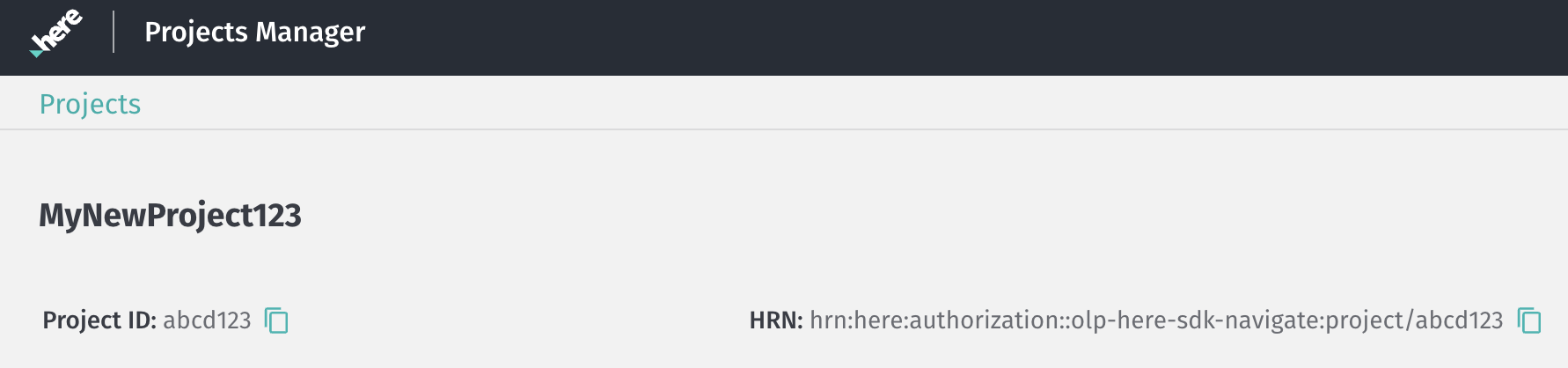
Note that a Project ID must be unique and cannot be changed for the lifetime of the organization's account. They affect also the HRN value as you can see in the screenshot. If the scope / HRN is set by an application, it will be used for authentication and the internal token creation of an application.
If an unknown scope is set, any authentication attempt would fail, and the application logs would indicate this.
More information can be found in the IAM guide. It contains also information on managing your projects.
Updated 3 days ago